
To start using the Customer Service Agent, open AI › Customer Service Agent in the Console and turn on Suggest replies on the Overview tab. That one switch turns on drafted replies in every inbox of your business, and sets the agent up with a friendly, short reply style. You can also adjust the agent's settings first and save them before switching it on. It is free during the beta.
Before You Start
Read Introduction to Customer Service Agent first to understand its role.
- Who can set it up: the account owner, or a team member who can open the Customer Service Agent page. Being able to answer customer conversations does not give someone access to this page. See Inviting Your Team and Managing Access.
- Where drafts appear:
- In the EasyBiz Console inbox, suggested replies need a CRM seat. CRM is the part of EasyBiz that holds customer information and conversations. To check what is on your account, see Understanding Your Subscription and Billing.
- At the counter, drafts appear on the POS WhatsApp Chat page, which comes with Point of Sale Professional. See Set Up WhatsApp Inbox on Your POS.
- Cost: free during the beta, and beta use is never billed later. Drafted replies stay free after the beta.
- WhatsApp: connect a WhatsApp number before relying on the agent in your inbox. Saving the agent does not connect a number for you. Follow Connect & Configure WhatsApp.
- Business unit and sales channel: have them set up. A business unit describes the service your shop runs, while a sales channel is where you take orders. See Creating and Editing a Business Unit and, for a shop counter, Setting Up a New POS Shop.
- Customers: you do not need to select a customer to set up the agent. For replies about a customer's orders, the conversation needs to be linked to the right customer. See Managing Conversations Inbox and Understanding the Contact Profile.
Open Customer Service Agent
- In the top navigation bar, click the AI menu.
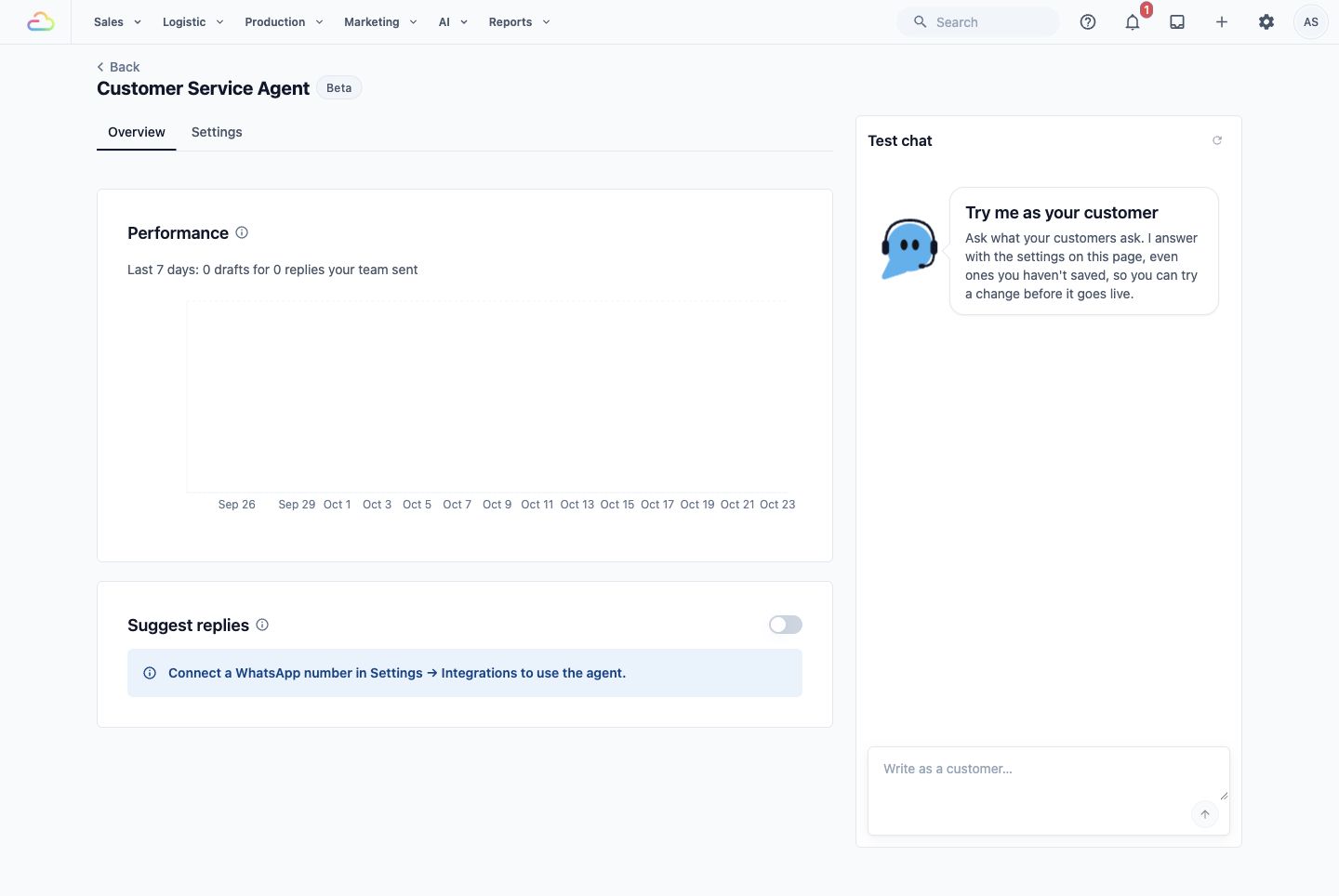
The AI menu in the top navigation bar.
- Click Customer Service Agent .
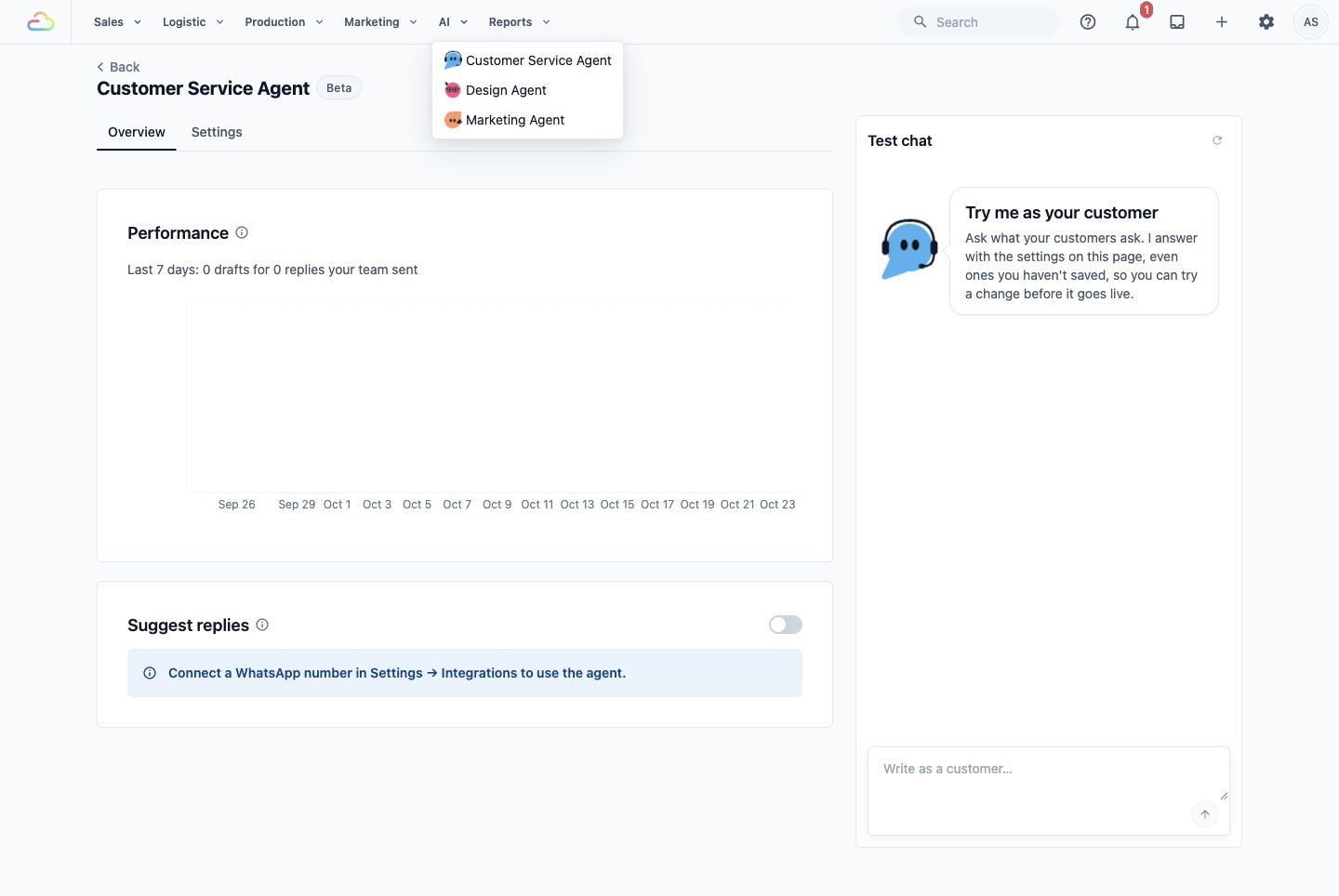
Choose Customer Service Agent from the AI menu.
- The page opens on the Overview tab. Click Settings beside it to see the agent's settings.
For a new setup, the Settings tab shows: "Try it in the test chat, then save. Nothing reaches customers until you add a WhatsApp number and turn it on. Setting it up is free." The page includes Knowledge, Skills, Reply style and Handover to your team, with the Test chat beside them.
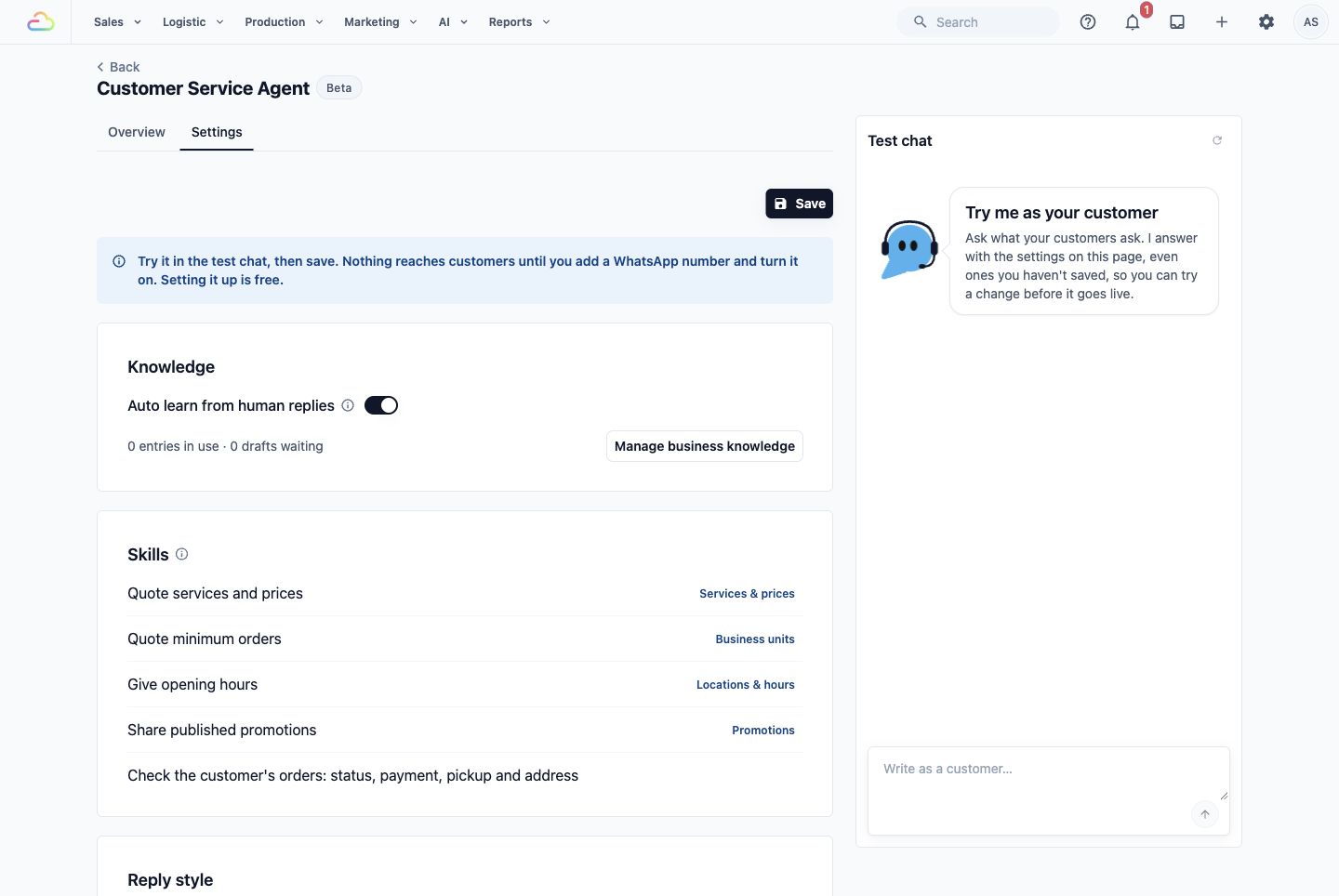
Initial Settings tab showing the new-setup notice, Save button and test chat.
If no WhatsApp number is connected, the Overview tab shows: "Connect a WhatsApp number in Settings → Integrations to use the agent." You can prepare the settings before connecting a number.
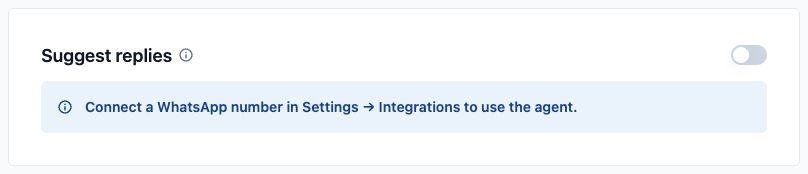
Suggest replies is off, with a notice to connect a WhatsApp number.
Save a Minimum Setup (Optional)
You can skip this section: turning on Suggest replies sets the agent up with the default style below. Save the settings first if you want to choose them yourself before staff see any drafts.
CleanFast Laundry wants staff to keep checking every customer reply. For its first setup, it keeps the default reply choices and leaves suggested replies off while preparing its business information.
If your agent already suggests replies, the changes you save are used for the next drafts. There is no separate practice copy.
- In Reply style, keep the starting choices: Friendly for Tone, Short for Length and Match customer for Language. These give a warm style, favour brief answers and follow the language of the customer's latest message.
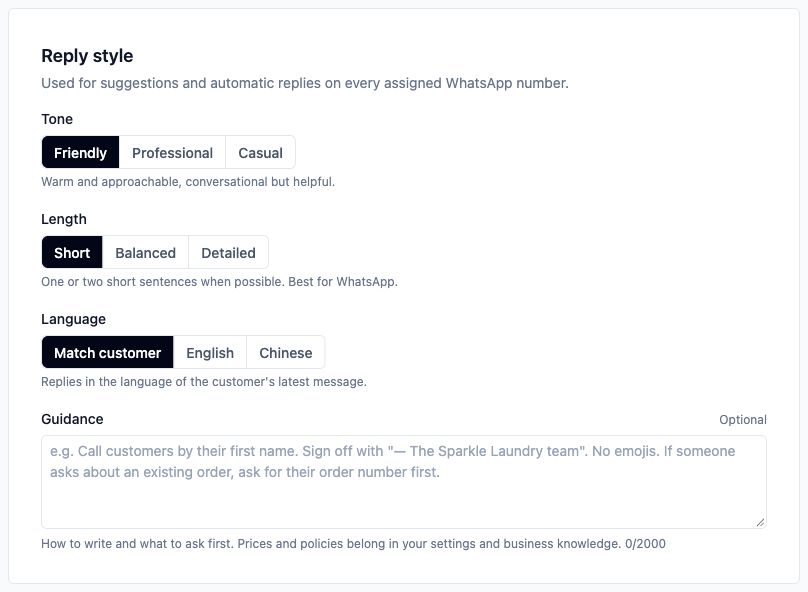
Reply style defaults: Friendly, Short and Match customer, with Guidance empty.
Leave Guidance empty for now. This optional field is for writing instructions, not shop prices or policies.
Review Knowledge. Auto learn from human replies is on unless your business switched it off before. It drafts Business Knowledge from the replies your staff send, and it is separate from whether the agent suggests replies. Switch it off if you do not want learning, then include the change in your save.
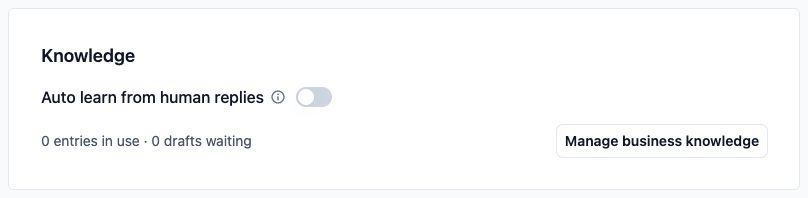
Knowledge with Auto learn from human replies switched off, knowledge counts and Manage business knowledge.
- Leave Also hand over empty for now. The built-in handover situations are always listed, whatever you add.
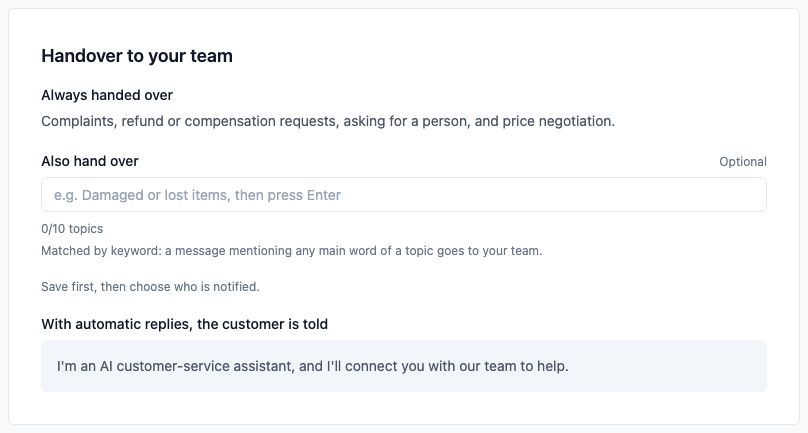
Handover before the first save: built-in situations and empty additional topics.
- Click Save .
The agent is always called Customer Service Agent. You do not enter a name or choose a picture.
On a first save, the message reads: "Saved. Add a WhatsApp number to start suggesting replies." This confirms the setup was saved. It does not mean a number was connected or that suggestions were turned on.
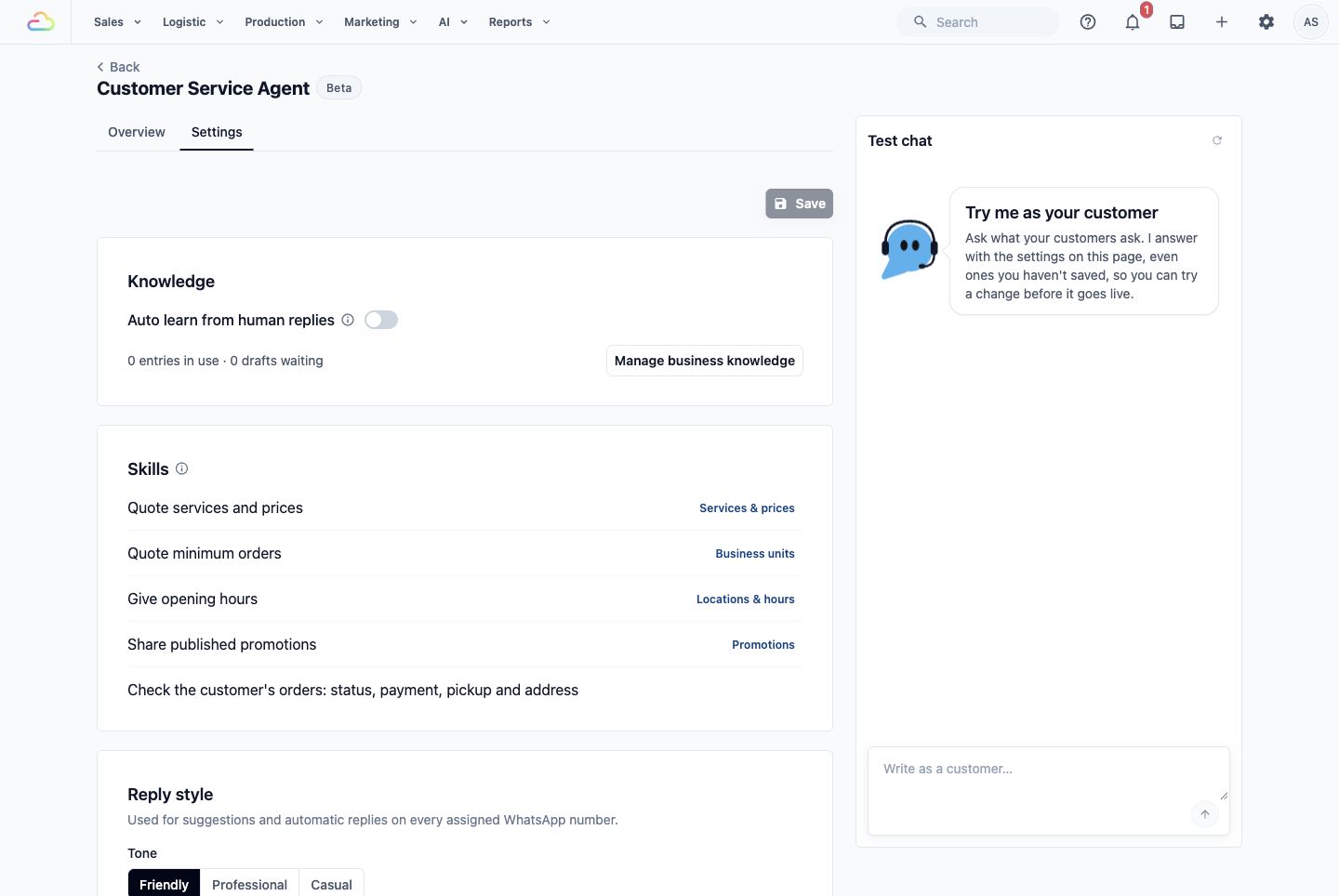
Settings after the first save, with learning switched off and no unsaved changes.
After saving, Staff notified on handoff appears under Handover to your team. It is only used when the agent replies to customers by itself, which is not part of the beta. You can leave it empty.
Turn On Suggested Replies
Turning on Suggest replies makes drafts appear in every inbox of your business, such as the Console inbox and the POS WhatsApp Chat page. Your staff check and send each draft; this switch never sends anything to customers. The change saves as soon as you use the switch, with no Save button or confirmation window.
For CleanFast Laundry, leave it off until the shop information is ready. When you are ready to use suggestions:
- Click Overview .
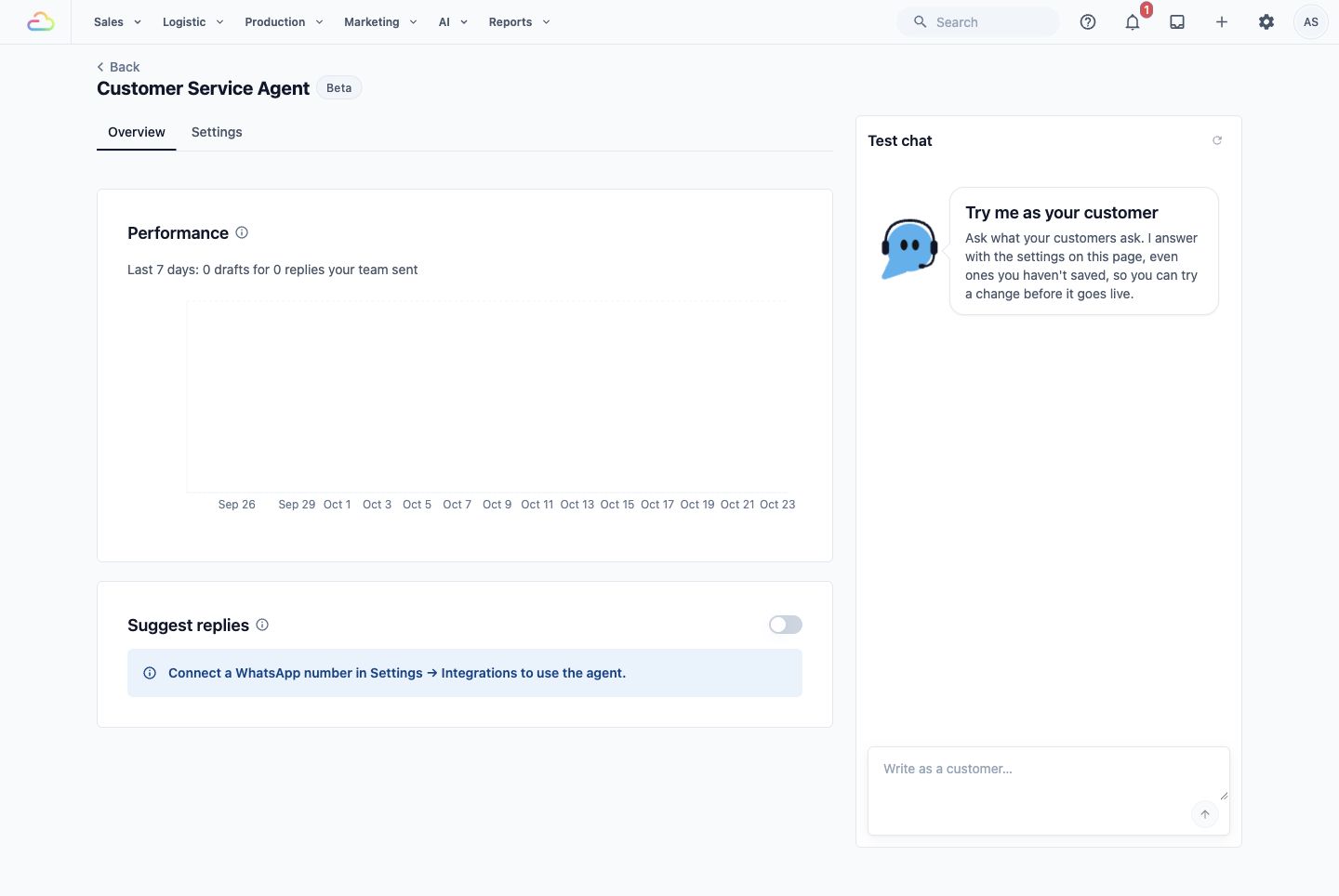
Select Overview to manage suggested replies.
- Turn on Suggest replies.
The message reads: "Suggested replies are on in every inbox". The switch stays on.
If you had not saved any settings yet, this also sets the agent up with the default style: Friendly, Short and Match customer.

Suggest replies is switched on. Connect a WhatsApp number before using the agent in your inbox.
Your staff remain responsible for checking each draft before sending it. To switch drafts off again for everyone, turn the same switch off.
What Can Wait Until Later?
You can start without writing Guidance, adding extra handover topics or adding Business Knowledge. The agent already reads your prices, services, minimum orders, opening hours and promotions. Keeping suggestions off leaves your staff to write their replies themselves.
Skills lists the business information the agent looks up for every reply: services and prices, minimum orders, opening hours, published promotions and the customer's orders. These come from your existing settings, so you do not enter them again here.
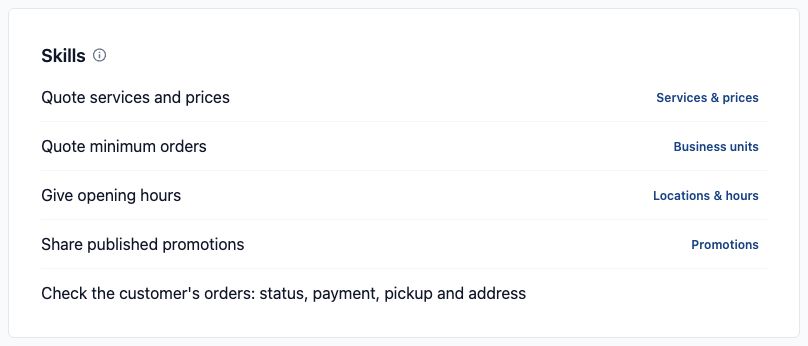
Skills and the business settings that supply services, prices, minimum orders, hours and promotions.
FAQs
What does it cost to turn on?
Nothing. The agent is free during the beta, beta use is never billed later, and drafted replies stay free after the beta. It adds no seat or subscription.
Will customers get messages from the agent?
No. In the beta the agent only drafts replies. Every message is sent by a person on your team.
Are suggestions only available in new conversations?
No. A draft can also appear when a staff member opens an existing conversation that is waiting for your reply. Turning the switch on does not answer old messages or contact customers.
Do I need to create a customer record before setting up the agent?
No. Setup does not ask for a customer. Answers about a customer's orders depend on the conversation being linked to that customer, so staff should check the customer and order details before sending a draft.
Does switching off suggestions also stop learning from staff replies?
No. Auto learn from human replies is a separate setting in Knowledge. Switch it off there if you also want to stop learning.
Should I copy my prices and opening hours into Guidance?
No. Guidance is for how the agent writes. Keep prices and opening hours in their own settings, and write other shop information in Business Knowledge.
What's Next
You have set up the agent and learned how to turn suggested replies on and off. Continue with Prepare Your Business Knowledge so the agent has accurate shop information before your staff rely on its drafts.