
Some customer messages should always be handled by a person. The Customer Service Agent always flags complaints, refund or compensation requests, customers asking for a person, and price negotiation. You can add your own topics under Also hand over, in AI › Customer Service Agent › Settings › Handover to your team. For a built-in case, staff still get a draft with a "Needs a person" warning. For one of your own topics, staff get a short notice instead of a draft.
Before You Start
Complete Customise Your Agent’s Replies first.
Use the owner account, or a team member who can open the Customer Service Agent page. Staff handling enquiries also need access to the inbox.
You do not need to select a customer to set up handover topics. When following up on a real enquiry, check that you have the correct customer and order before discussing order details or a refund.
Find the Handover Settings
In the top navigation bar, open the AI menu.

Click Customer Service Agent .
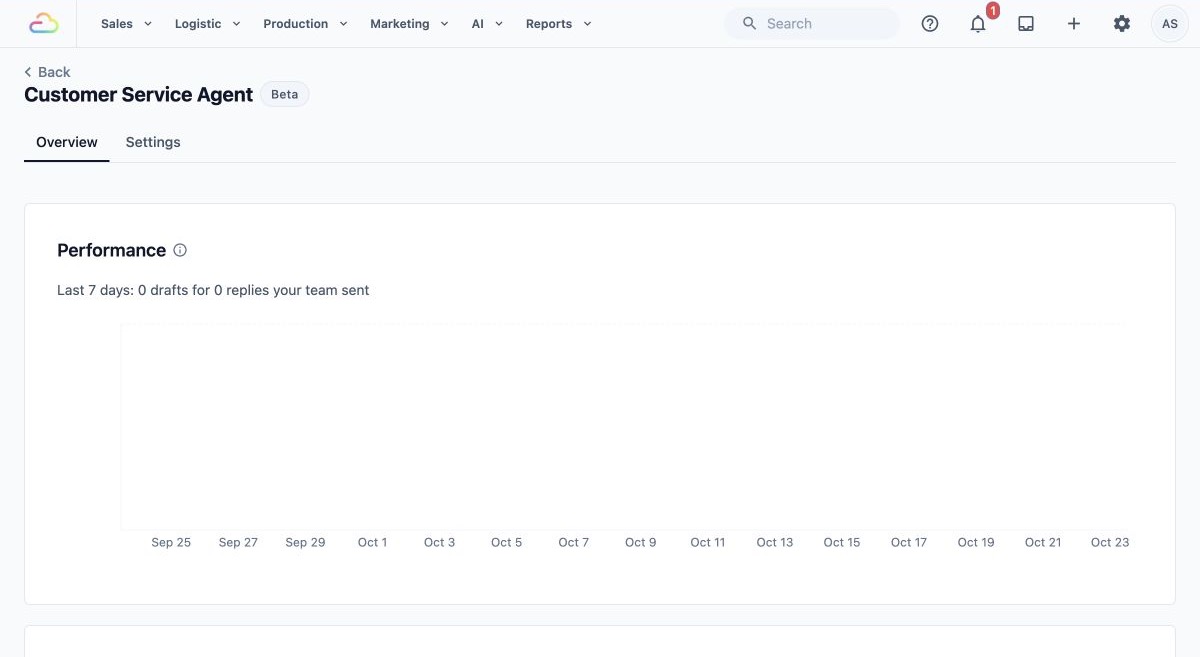
Click Settings and scroll to the Handover to your team section.
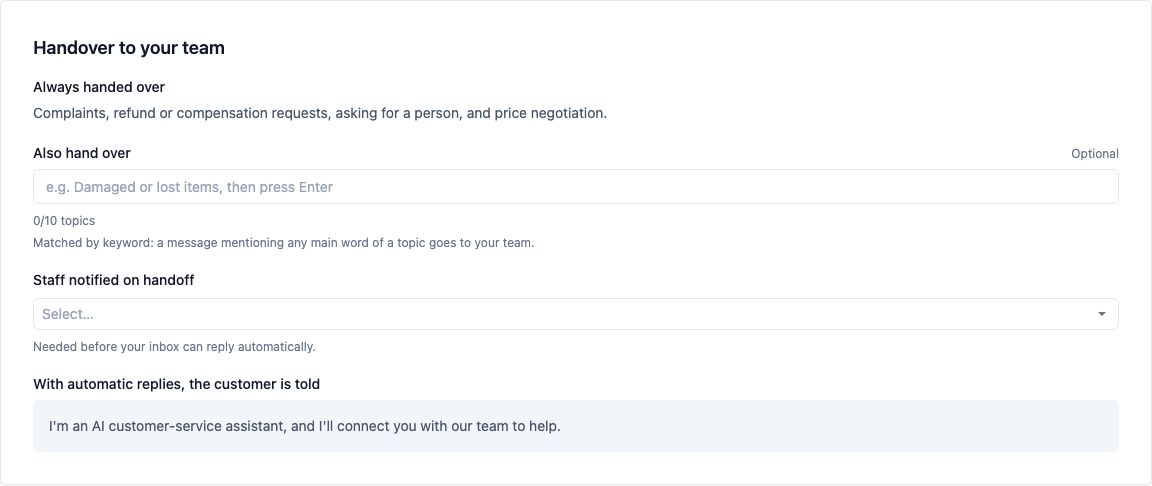
Understand the Built-in Rules
Always handed over
This field lists the situations that always need staff attention:
- Complaints.
- Refund or compensation requests.
- Requests to speak to a person.
- Price negotiation.
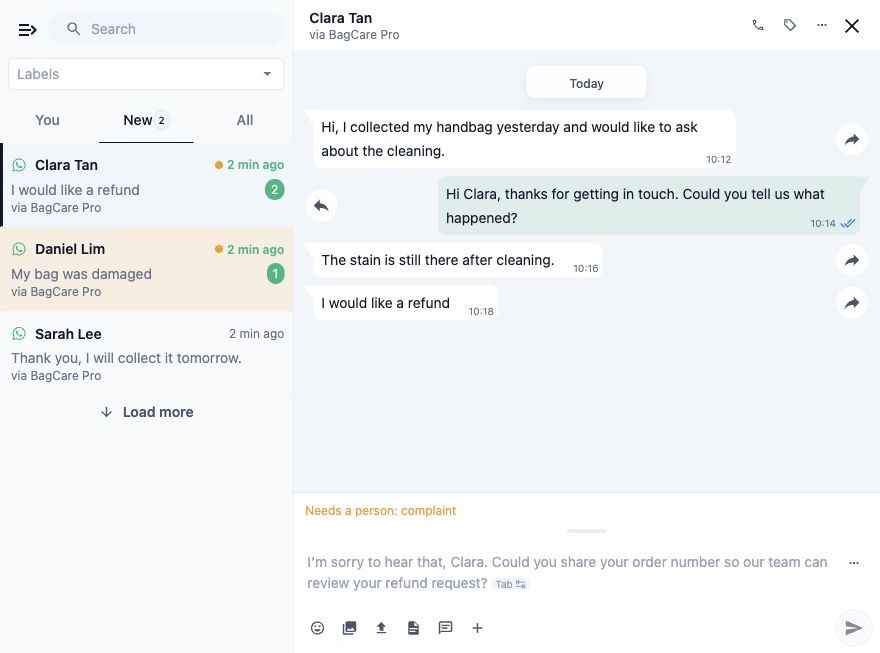
Because your staff already check and send every draft, a built-in situation still gets a draft. A warning starting with "Needs a person" appears above the message box, so the staff member knows to handle it with care.
The customer's wording matters. "I'm unhappy because my bag was damaged" contains a clear complaint. "My bag was damaged" on its own may not be treated as a complaint. Add a damaged-item topic if you want those messages to go to staff even without complaint wording.
Add Extra Topics for Your Shop
Also hand over
Enter topics that your staff should handle personally, pressing Enter after each one. You can add up to 10 topics, with up to 80 characters each.
This field starts empty. If you leave it empty, the built-in rules still apply.
When a customer's message matches one of your topics, the agent does not write a draft. Staff see a short notice instead, so they answer it themselves.
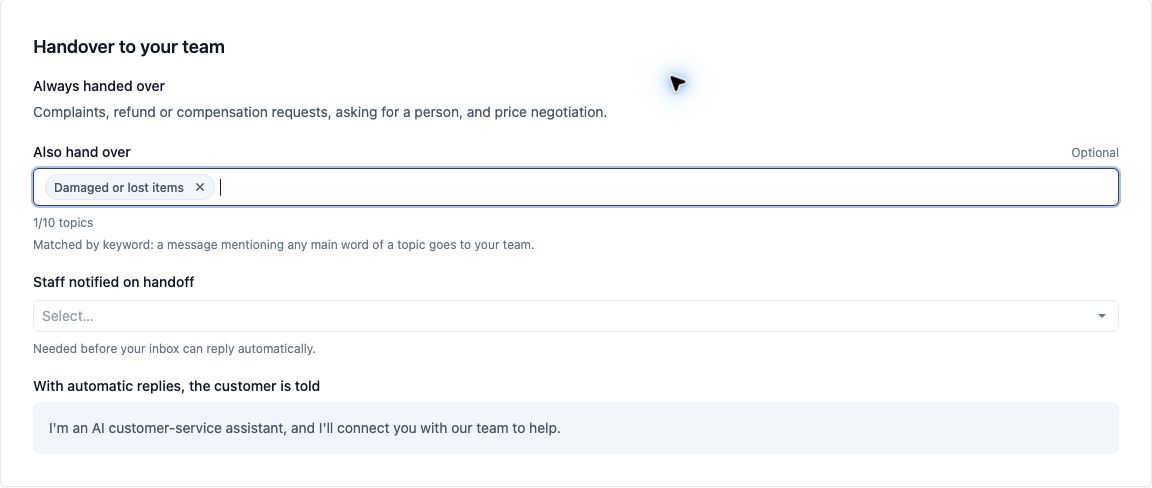
For example, BagCare Pro wants staff to assess damaged or lost items before giving an answer. It adds Damaged or lost items as an extra topic.
In Also hand over, type Damaged or lost items and press Enter.
Click Save .
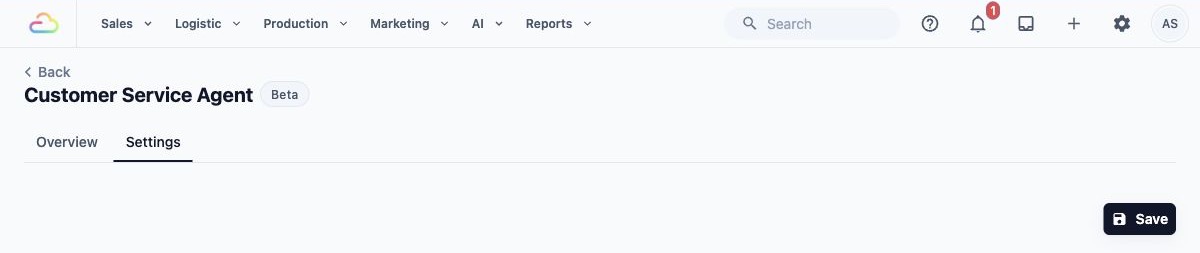
Check that the save confirmation appears. The topic now shows as a tag under Also hand over, with the count 1/10 topics.
Saved topics apply from the next reply the agent prepares. Saving does not change messages already sent to customers.
The Other Two Fields
The section also shows Staff notified on handoff and With automatic replies, the customer is told. Both are only used when the agent replies to customers by itself, which is not part of the beta. You can leave Staff notified on handoff empty.
Recognise a Conversation That Needs Attention
In the inbox, staff can see two kinds of notice:
- A draft with a warning. For a complaint, refund or compensation request, request for a person or price negotiation, the draft appears in the message box with a warning starting "Needs a person" above it. Staff read the conversation and change the draft before sending, or write their own reply.
- A notice instead of a draft. For one of your extra topics, a yellow bar says the AI needs your help, followed by "Needs a person:" and your topic. It disappears after five seconds, and no draft appears.
Neither notice sends anything to the customer or assigns the conversation to anyone. They are not a permanent label on the conversation.
When a conversation needs attention:
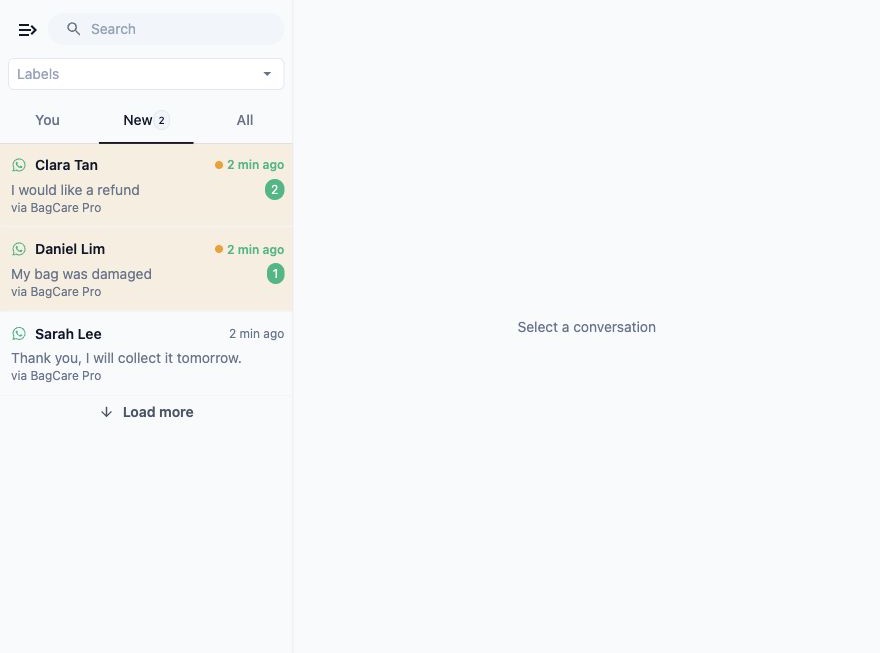
Open the customer's conversation in your inbox.
Read the customer's message, the reason after "Needs a person" and any earlier replies before deciding how to respond.
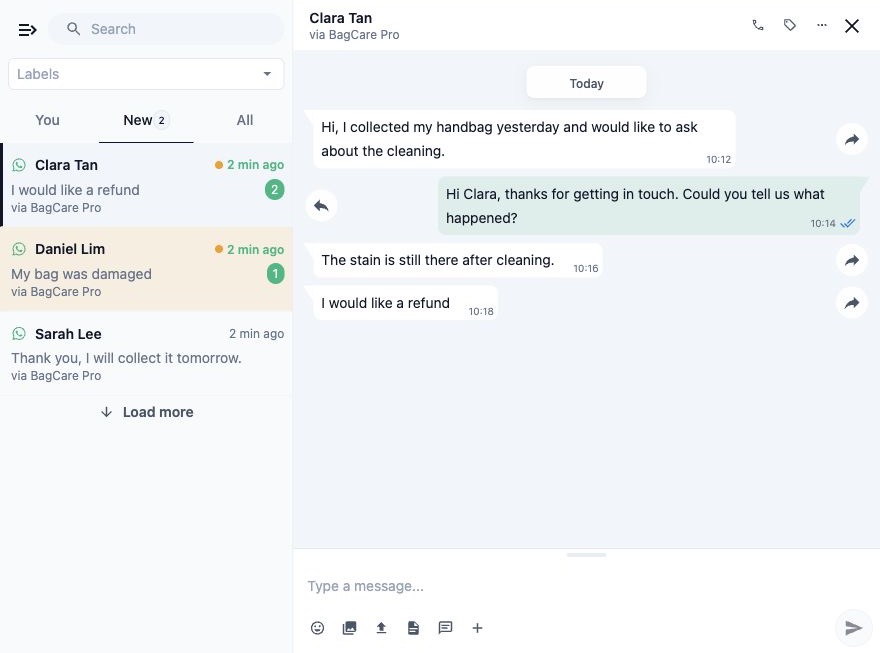
Follow Use Suggested Replies in Your Inbox to check the draft or write your response.
Your team still needs to agree who answers each enquiry.
Know Which Examples Need a Person
These examples show how the rules work. Check the results in your own Test chat before relying on them.
- "I'm unhappy because my bag was damaged." Complaint wording is a built-in rule. Staff get a draft with a "Needs a person" warning.
- "I would like a refund." Refund wording is a built-in rule. You do not need an extra refund topic.
- "My bag was damaged." With Damaged or lost items saved as an extra topic, the keyword match hands it to staff with a notice and no draft. Without that topic, damage wording alone may not be flagged.
- "Can you tell me when it will be ready?" If the agent does not know which customer or order this is, it may ask for an order number. Missing information is not the same as a handover.
A handover only flags a conversation for staff. It does not approve a refund, return money, change the amount paid or change an order.
FAQs
Do I need extra topics to protect sensitive conversations?
No. The built-in rules already cover complaints, refunds or compensation, requests for a person, and price negotiation. Extra topics are optional and add situations specific to your shop.
Can my Guidance switch off a built-in rule?
No. Guidance changes the wording and style of drafts. It cannot stop the agent flagging a complaint or a request for a person, and it cannot allow the agent to negotiate prices.
Will a "Needs a person" warning notify other staff?
No. The warning is shown to the staff member looking at that conversation. Your team still needs to agree who answers it.
Will new topics apply to conversations that already exist?
Yes, from the next customer message the agent prepares a reply for. They do not change replies already sent.
Does a refund handover update payments or bookings?
No. The handover only flags the conversation. It does not process a refund, change a booking or change an order. Staff must make any agreed change separately.
What does Resume do?
Resume , beside "AI suggestions are paused for you", turns your own suggested replies back on after you paused them. It does not change handover rules or anyone else's suggestions.
What’s Next
You have reviewed the built-in rules and chosen any extra topics. Next, Test Your Agent Before Using It so you can check both ordinary enquiries and situations that need staff attention.