
The Customer Service Agent learns from the replies your staff send. Each night it reads them and drafts new Business Knowledge, which appears in Settings › AI Agents › Business Knowledge with the label Learned from inbox. A learned draft goes live by itself once staff say the same thing again in other chats, or straight away when you click Approve. You can edit or delete any entry, and switch learning off with Auto learn from human replies on the agent's Settings tab.
Before You Start
Follow Use Suggested Replies in Your Inbox first so your staff are using the agent with real customer conversations.
- Sign in as the business owner or an administrator to edit knowledge, approve or delete entries, or change automatic learning.
- Make sure you are working in the correct business account.
- You do not need to select a customer to manage knowledge. Entries should describe information that applies to customers generally, rather than one person's order.
- Learned entries depend on eligible staff replies in real inbox conversations. Sending one reply does not guarantee that an entry will appear immediately.
Learning runs every night once your team has started using suggested replies. The first run looks back over the last 30 days of conversations, then each run continues from where the last one stopped.
If there are no learned entries yet, the agent can still use your existing business knowledge and relevant settings.
Find Learned Knowledge
Click the Settings gear icon at the top right of the Console.
Under the AI Agents section, click Business Knowledge .
Scroll to the Knowledge section. Look for entries labelled Learned from inbox .
There is one shared list for manually added and learned entries. Pending entries appear first. There is no separate learned-only list or status filter.
Search knowledge
Enter a word from an entry's title or text to find it.
The labels tell you different things:
- Draft : A learned entry is waiting for more supporting staff replies or your approval. It is not used as approved knowledge yet.
- Needs review : A proposed entry is waiting for approval. A learned draft you edit can also show this label.
- Learned from inbox : The entry was created or updated through inbox learning. This label alone does not mean it is approved.
- Whole business or a business unit name: Shows where the entry applies. A business unit is a distinct part of your business, such as laundry or bag repair.
Approved entries do not have a separate Approved label. An ordinary approved entry no longer shows the pending label or the Approve button.
If you see “No knowledge yet”, there may be no entries, or your search may have no matches. Clear the search before deciding the list is empty.
Understand What the Agent Learns
The agent learns information your staff can reuse with other customers, such as how to prepare curtains before bringing them to your shop.
It can learn from:
- Replies your staff write themselves.
- Meaningful changes your staff make to suggested replies.
Sending an AI suggestion unchanged does not count as fresh staff knowledge on its own.
Each learned entry contains a title, explanatory text and the area of your business it applies to. Learned entries come from conversations. For information you add yourself, see Prepare Your Business Knowledge.
Review and Edit an Entry
Find the entry and read its title, text and labels. Click Edit to see the full text.
Review the Edit knowledge panel.
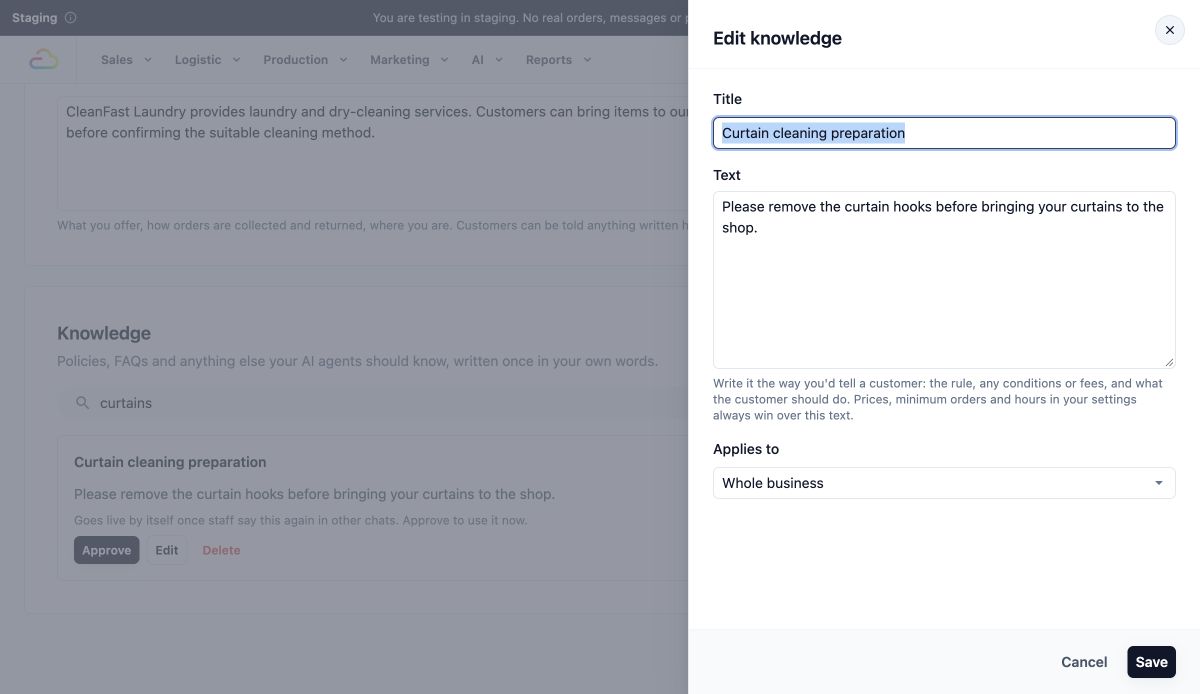
The Edit knowledge panel shows the full title and text.
Title
Enter a clear name for the topic so you and your staff can recognise it later.
Text
Write the information as you would explain it to a customer, including any conditions and what the customer should do next.
Applies to
This field appears when your business has more than one business unit.
| Option | What it does |
|---|---|
| Whole business | Makes the entry relevant across your business. |
| A named business unit | Limits the entry to that business unit, such as Laundry or Bag Repair. |
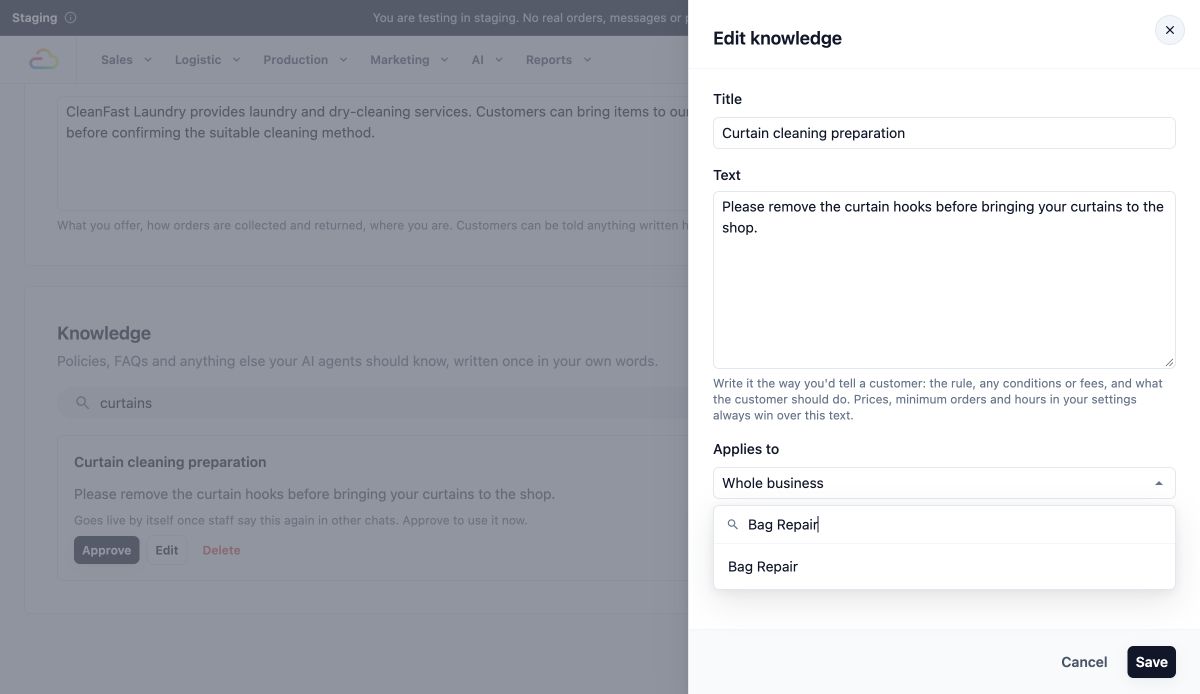
Applies to is currently Whole business. Search the list to find a specific business unit, such as Bag Repair.
- Make the required correction. Keep both Title and Text filled in, then click Save . To leave without saving, click Cancel .
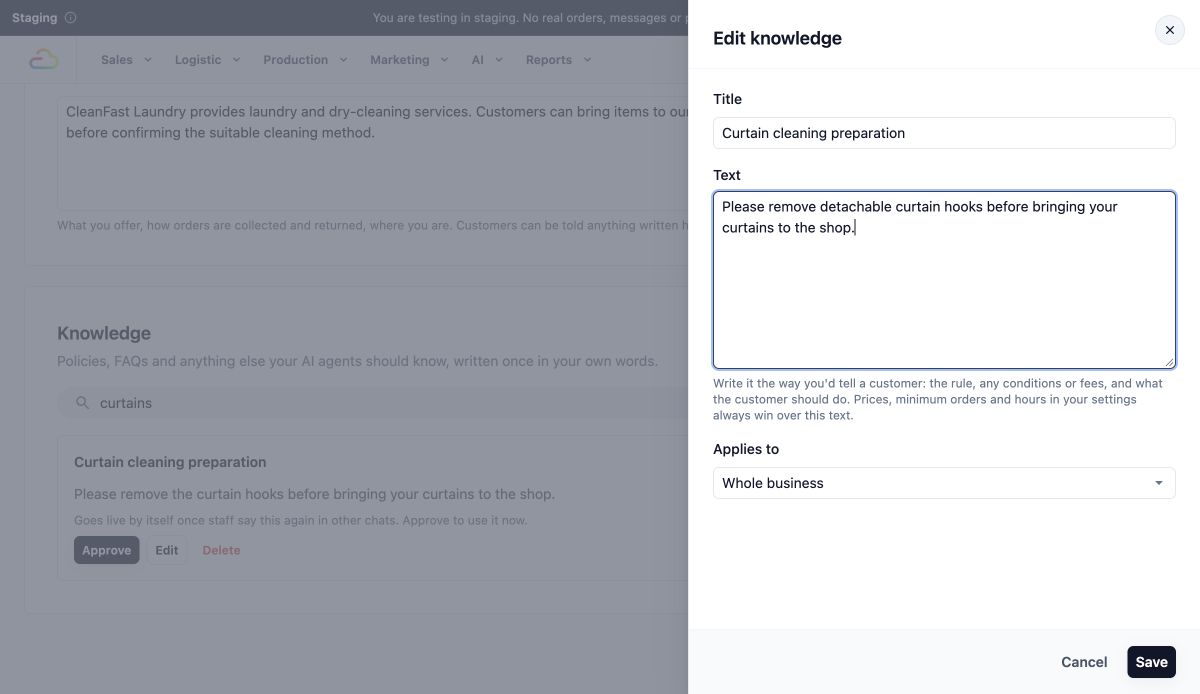
Correct the text to specify detachable curtain hooks, then use Save or Cancel.
- Check the entry in the list after saving. If it still has an Approve button, approve it separately when it is ready to use.
Saving an edit does not approve a pending entry. If the entry was already approved, future replies can use the updated text.
Approve an Entry
Read the full entry and check that it describes your current shop policy. If it is a correction to an existing entry, check the replacement wording carefully.
Click Approve on the entry you want the agent to use.
Check the updated list. For a new entry, the pending label and Approve button disappear.
Approval makes the entry available for future replies. It does not send a message to any customer.
When you approve a learned correction to an existing entry, its text replaces the matching entry's text and the correction is removed from the pending list.
Understand Automatic Approval
Automatic approval is part of inbox learning. There is no separate switch for it.
When enough staff replies support the same information, the agent can automatically:
- Approve a learned draft.
- Add new knowledge that is ready to use.
- Apply a learned correction to an existing entry.
Read the explanation below a learned draft to see whether it adds new knowledge or replaces existing text.
The agent never replaces an entry you wrote, edited or sent as a broadcast yourself. A learned change to such an entry shows Needs review and waits until you approve it, or you get a quick question about it.
Use this only if your staff's replies reliably reflect your current shop policies. Turning automatic learning off keeps existing approved entries available until you edit or delete them.
Turn Inbox Learning On or Off
Click the Settings gear icon at the top right of the Console.
Under the AI Agents section, click Customer Service Agent . The agent's page opens on its Settings tab.
Find the Knowledge section at the top. It shows how many learned entries are in use and how many drafts are waiting, and a Manage business knowledge button.
Set Auto learn from human replies on or off. It is on by default unless someone has turned it off.
Click Save to apply your choice. After saving, the Save button greys out until you change something again.
Turning learning off stops subsequent scheduled learning runs from processing staff replies. It does not delete existing entries or stop approved knowledge from being used in replies. You can still review, edit, approve and delete entries manually.
Turning learning back on can process conversations since the last completed learning run, including conversations from while it was off. It is not limited to messages sent after you turn it back on.
Delete Knowledge the Agent Should Stop Using
Find the entry and click Delete .
Read the “Delete this entry?” confirmation. Click Delete to confirm, or Cancel to keep it.
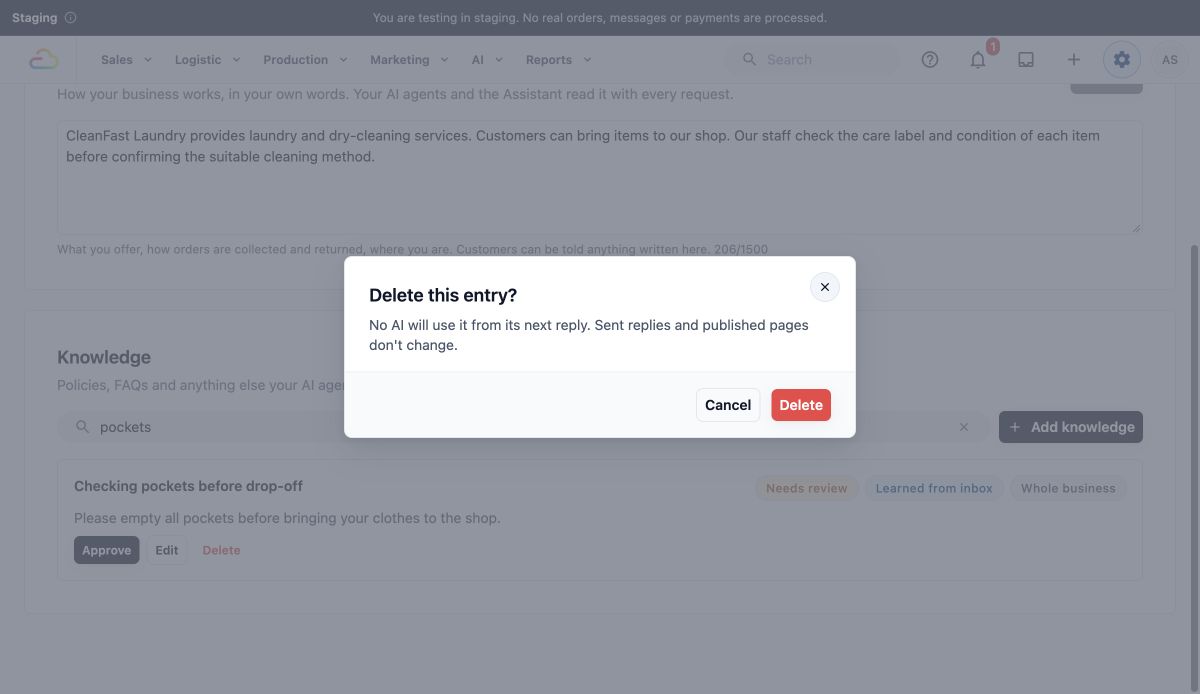
Read Delete this entry? and choose Delete to confirm or Cancel to keep the entry.
- Check that the entry has disappeared from the list.
Future replies stop using that entry as knowledge. Deleting it does not change messages already sent or pages already published. If the same information also appears in another entry or a business setting, correct that source too.
Example: Correct a Learned Laundry Answer
CleanFast Laundry staff repeatedly tell customers to remove curtain hooks before bringing curtains to the shop. A learned draft appears with the title “Curtain cleaning preparation”. The owner notices that the instruction should apply only to detachable hooks.
- Open the entry with Edit and read the full answer.
- Change Text to “Please remove detachable curtain hooks before bringing your curtains to the shop.”
- Click Save .
- Review the saved wording and click Approve .
The agent can use the corrected instruction in future relevant suggestions. Staff still review and send suggested replies from the inbox. Customers who already received the earlier wording do not receive a correction automatically.
FAQs
Can customer names, addresses or order details become learned knowledge?
Learning is instructed to exclude details about individual customers and orders. Do not treat this as a guarantee that every learned entry is free of personal information. Check entries and remove any personal details you find before approving them; delete an unsuitable entry that is already in use.
Will an entry affect another shop?
Knowledge stays within your business account. An entry marked Whole business can apply across the outlets and business units in that account, so separate outlets in the same account are not necessarily separate knowledge spaces. A different business account does not share these entries.
Do I need automatic learning to use suggested replies?
No. Automatic learning is optional. With it off, suggestions can still use your existing approved knowledge and relevant business settings.
Can learned knowledge change prices, bookings or payments?
A knowledge entry supplies information for replies; saving one does not change your price lists, booking rules, recurring schedules, notification settings, orders or payments. Current prices, minimum orders and opening hours come from their own settings. Update those settings when the underlying rule changes.
Does Business Knowledge affect anything beyond the Customer Service Agent?
Yes. Business Knowledge is shared with other AI tools, including the EasyBiz Assistant and the Design Agent. A correction can therefore affect future answers or generated content elsewhere in your account, but it does not rewrite material already published.
What's Next
You have learned how to review conversation-based knowledge and control ongoing inbox learning. Continue to Troubleshoot Missing or Incorrect Replies when a suggestion is missing, gives the wrong information or uses the wrong style.