
When Suggest replies is on, a draft reply appears as grey text in the message box of a WhatsApp conversation waiting for your reply. Press Tab (or choose Insert from the suggestion menu) to put it in the message box, edit it, then send it as usual. Press Esc or start typing to ignore it. Nothing is sent until a staff member sends it.
Before You Start
Complete Test Your Agent Before Using It before relying on suggestions in customer conversations.
You need:
- In the EasyBiz Console inbox: a CRM seat. CRM is the part of EasyBiz that helps your team manage customer conversations and relationships.
- At the counter: the POS WhatsApp Chat page, which comes with Point of Sale Professional. POS means the point-of-sale system your staff use at the counter. See Set Up WhatsApp Inbox on Your POS.
- A connected WhatsApp number.
- The Suggest replies switch turned on for your business.
- A customer conversation that your staff can reply to.
Suggested replies work for WhatsApp conversations only. Other channels in the inbox do not get drafts.
Check the customer's name and contact details before answering. General questions can be answered without a linked customer record, but answers about a customer's orders depend on the conversation being linked to the correct customer.
If suggestions are switched off, staff can still write their own replies.
Open the Console Inbox
In the Console's top navigation bar, click the Inbox icon.

The Inbox icon is between the notification bell and the plus icon.
In the conversation list, click the customer's conversation.
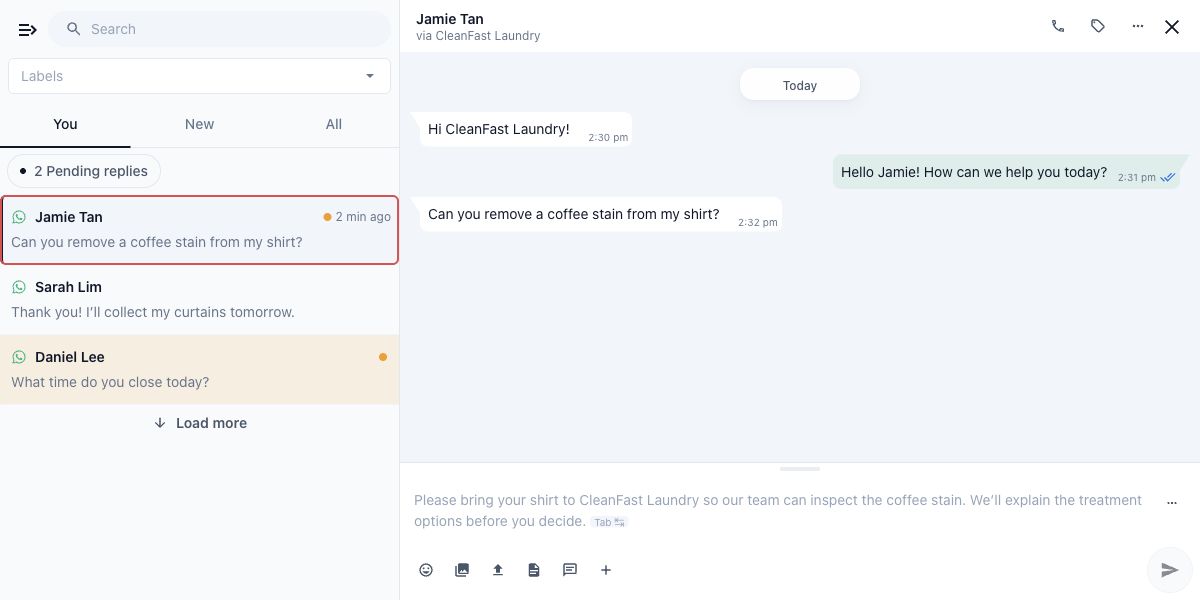
Read the latest customer messages, then look at the message box at the bottom of the conversation.
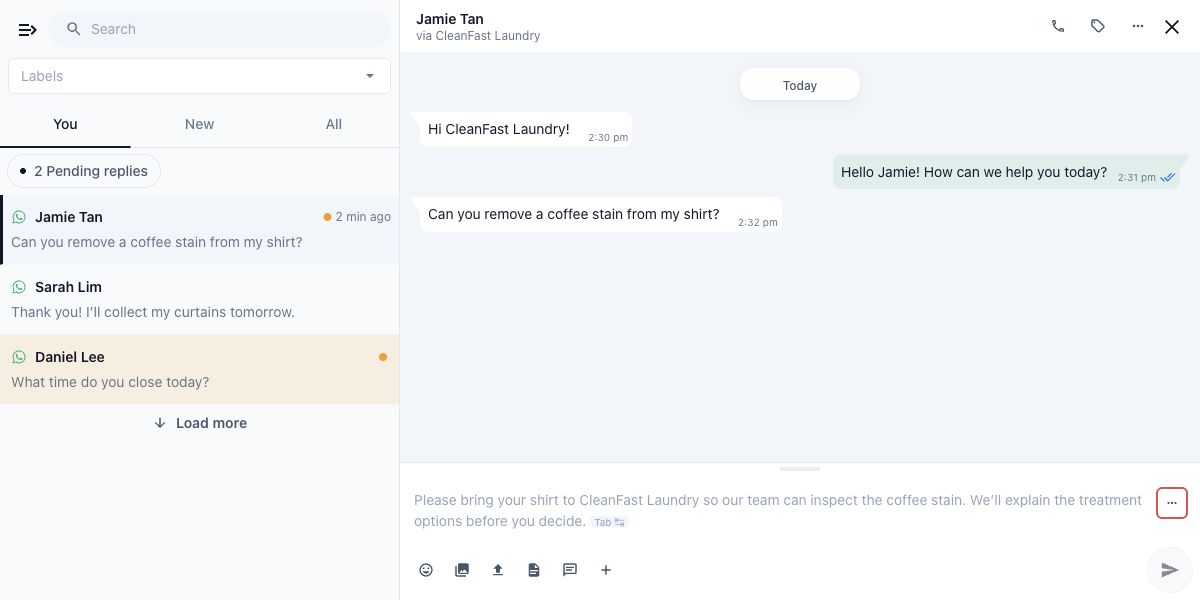
The inbox opens in a panel beside your work. Suggestions appear inside the message box; they are not messages already sent to the customer.
Open the Counter Chat
At the counter, drafts appear on the POS WhatsApp Chat page. On some older POS setups the page is called Inbox, and your business may have renamed it.
In the POS navigation, select WhatsApp Chat , or your business's name for that page.
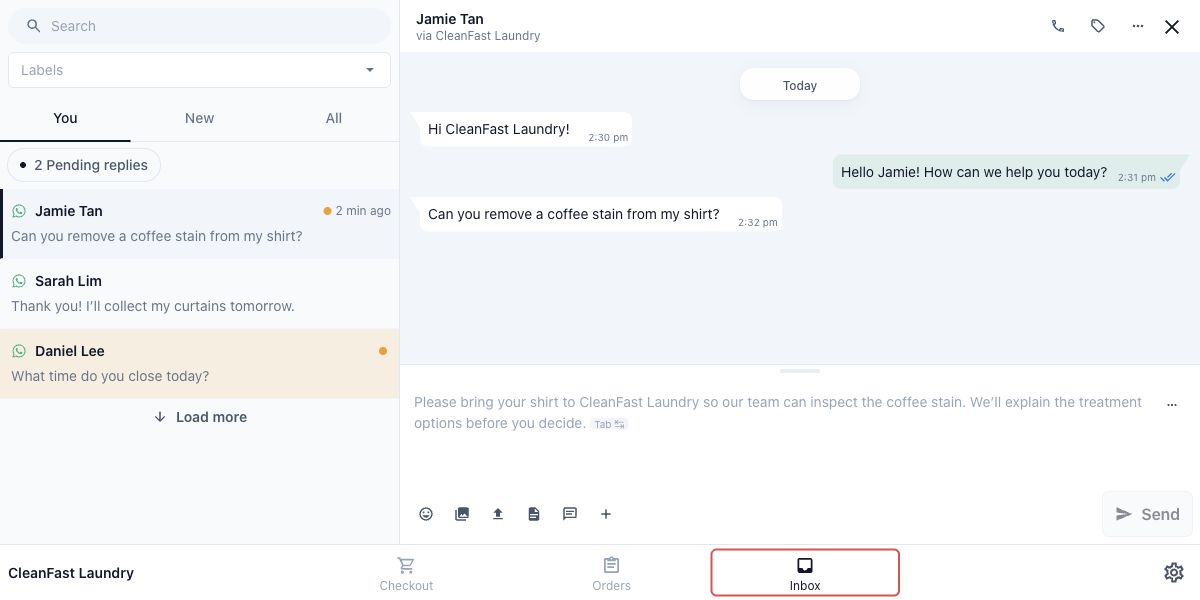
Select the customer's conversation from the list.
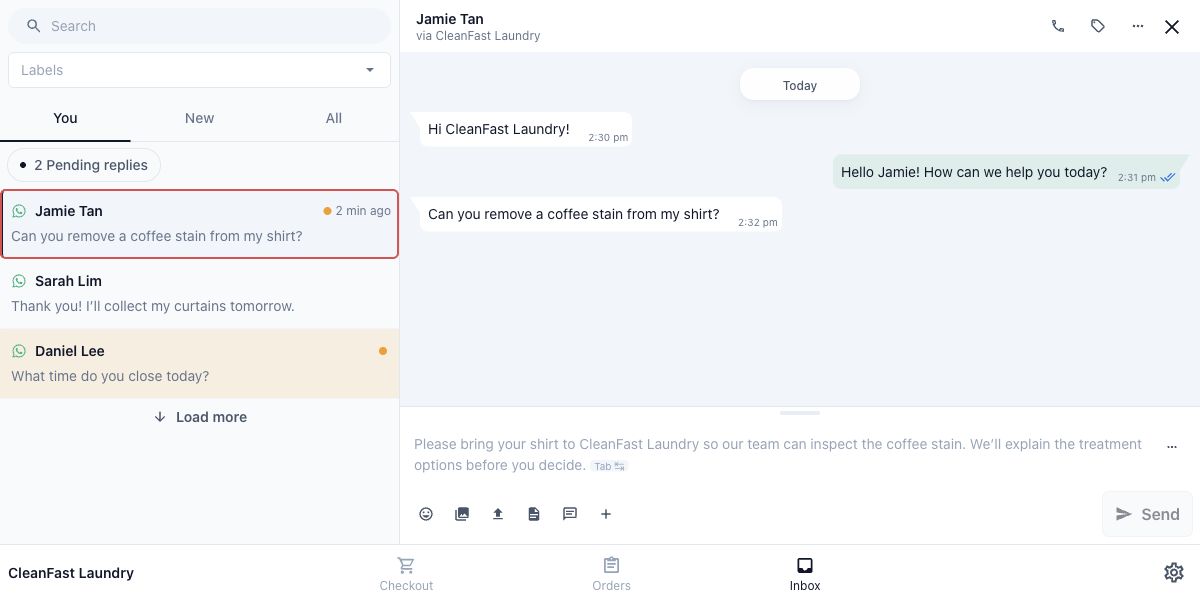
Read the conversation and check the grey suggestion in the message box.
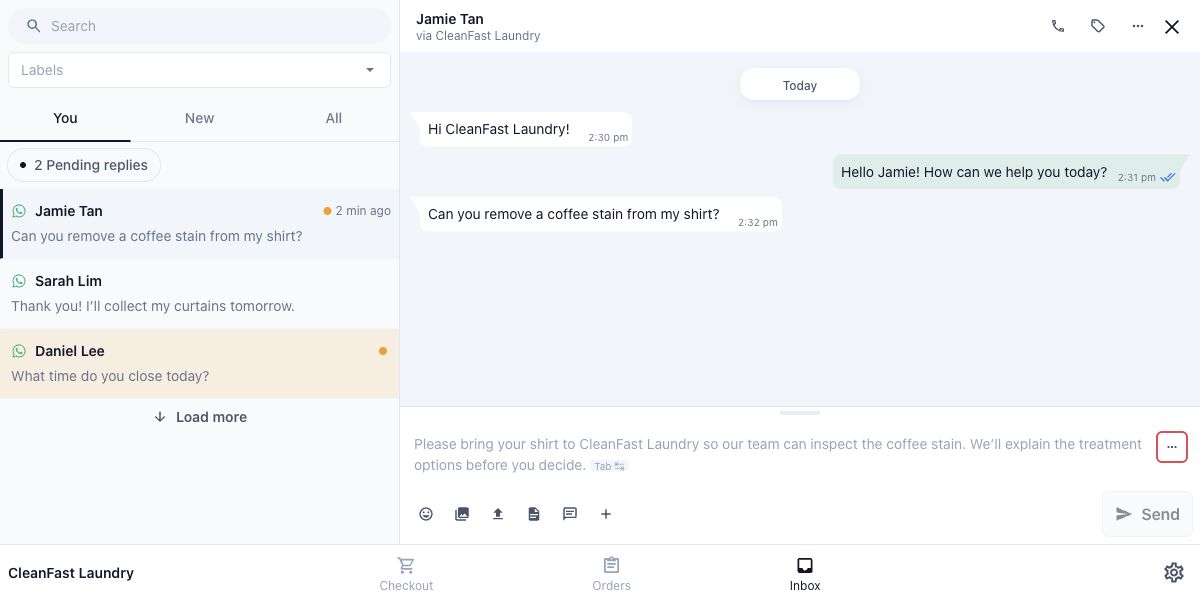
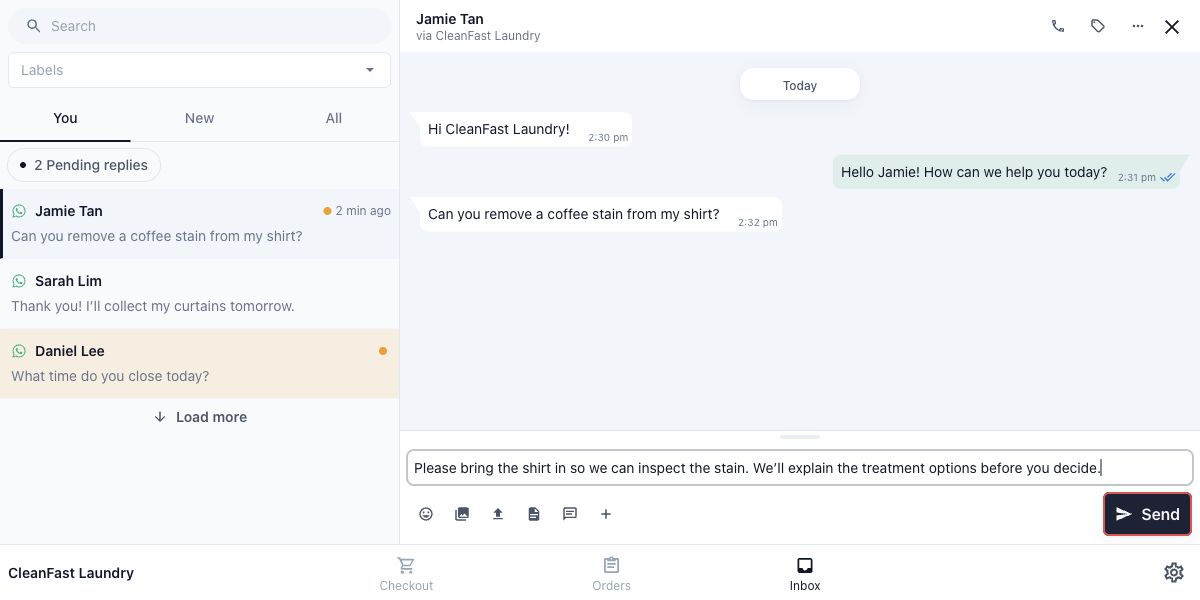
The suggestion works the same way in both places. The counter shows a Send button, while the Console inbox uses a send icon labelled Send message .
Know When a Suggestion Appears
A suggestion can appear when you open a conversation waiting for your business to reply. It can also appear after a new customer message arrives while you are not typing.
When a customer sends several messages in a row, the agent waits about five seconds for them to finish before drafting one reply. You may see "Drafting a reply…" while it works.
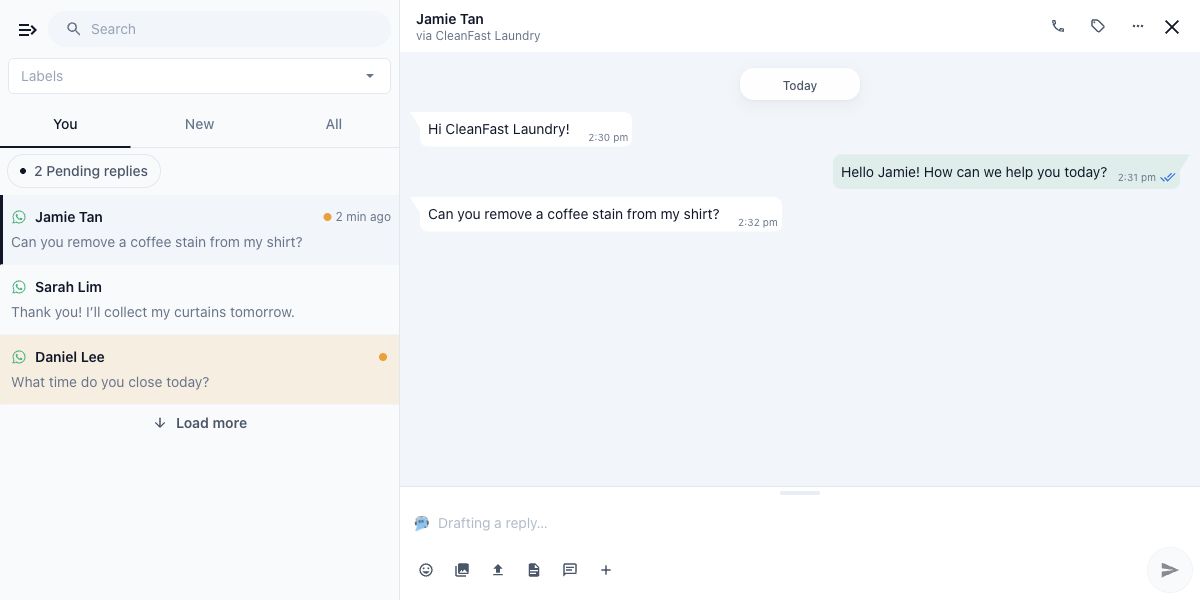
The finished suggestion appears as grey text in the message box. It has not been inserted or sent yet.
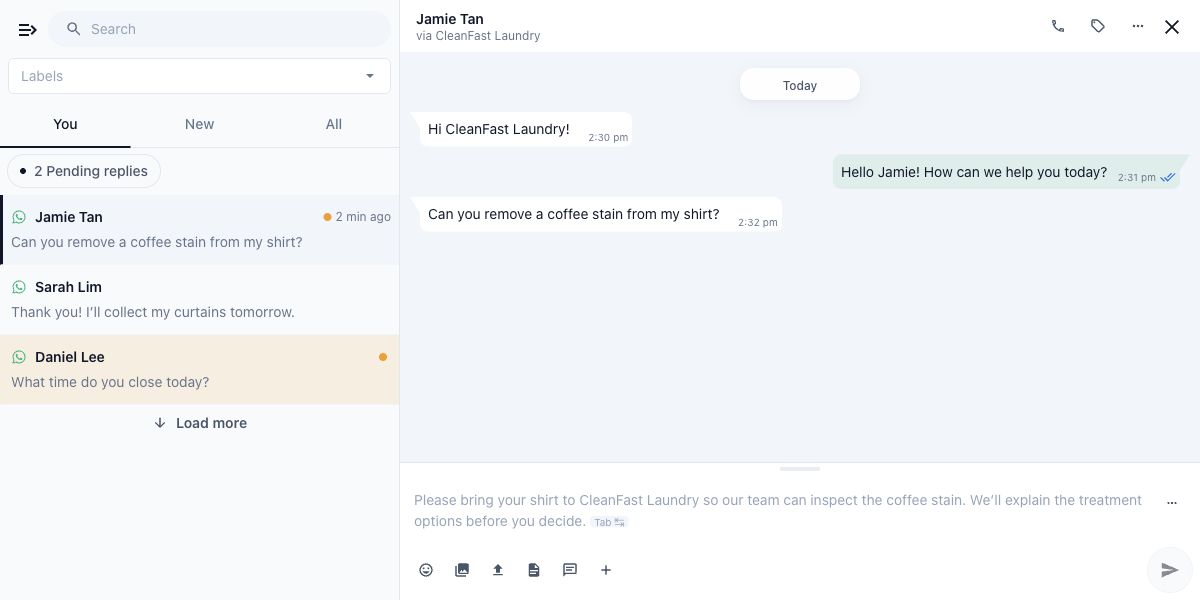
Staff who open the same conversation see the same draft, with their own name filled in where the draft signs off.
Check the Warnings Above the Draft
Sometimes a short warning appears above the message box. Read it before using the draft:
- "Fill in the part in square brackets before sending." The draft left a gap for you, such as "[booking link]" or "[collection date]". Replace the bracketed part with the real detail, or remove it.
- "Check prices and dates before sending: they are not in your business records." The draft mentions a price, date or day that the agent could not find in your settings, Business Knowledge, Quick Replies or the conversation. Confirm it or correct it.
- A warning starting "Needs a person". The customer made a complaint, asked for a refund or compensation, asked for a person, or is negotiating the price. Handle the conversation with care and change the draft as needed. See "When an Enquiry Needs a Person" below.
Review, Insert, Edit and Send
There are no separate Review or Edit buttons. You read the grey text, insert it, then edit it in the normal message box.
Read the suggested reply against the customer's latest messages. Check any prices, dates, order details and promises before using it.
Click the three-dot Suggestion options icon in the message box.
If the menu shows "Based on:", read the listed sources. Then click Insert to copy the suggestion into your message box.
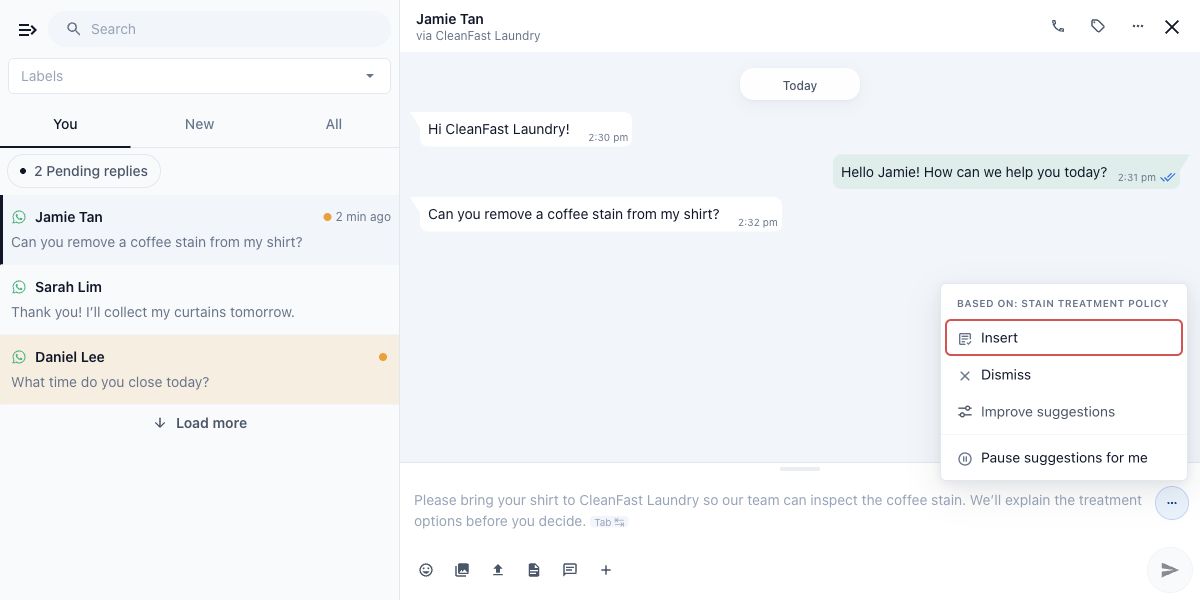
Edit the inserted text directly in the message box. Remove anything you cannot confirm and add any detail the customer needs.
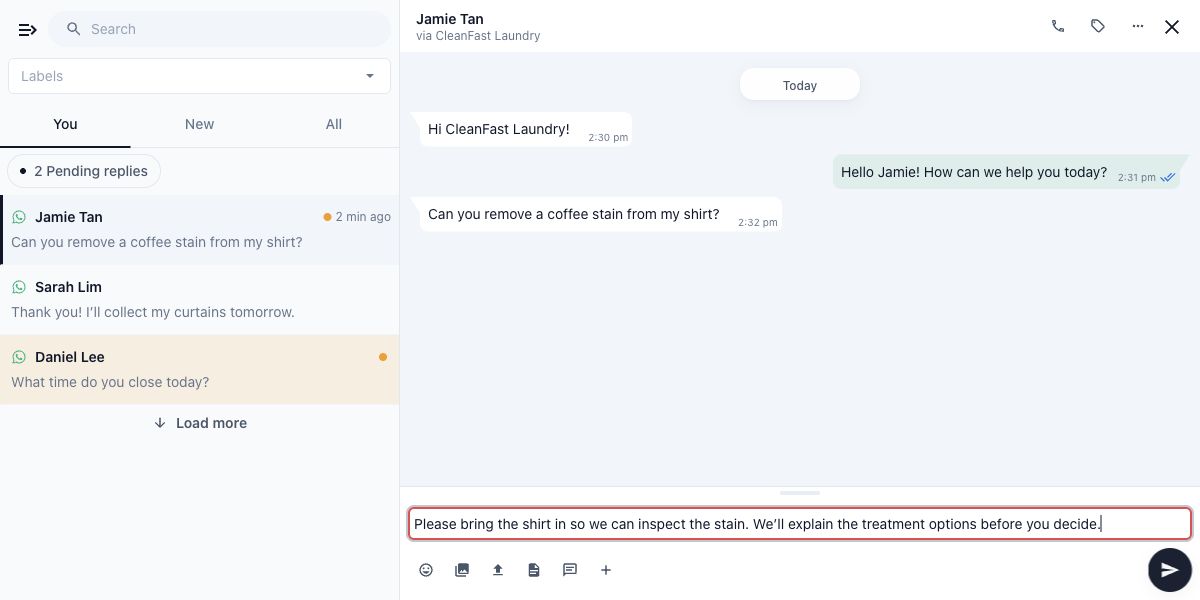
In the Console inbox, click the Send message icon when the reply is ready.
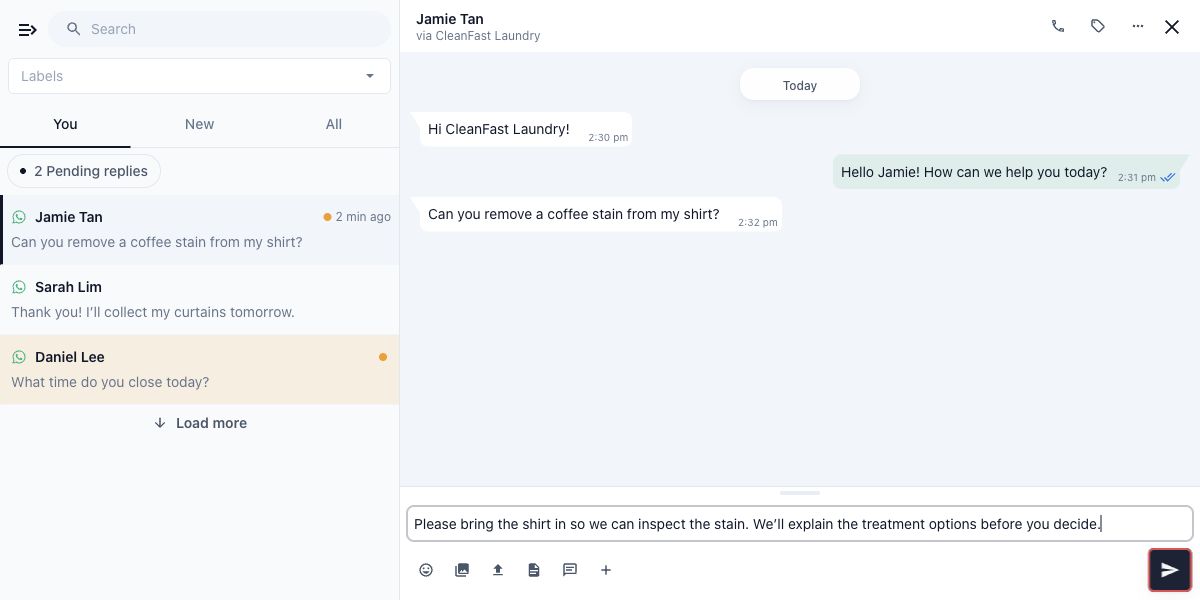
If you are at the counter instead, click Send .
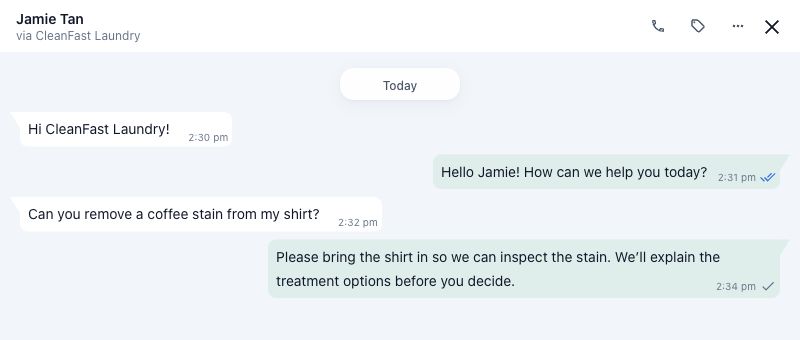
Check that your reply appears in the conversation, and check its delivery ticks before assuming the customer has received it.
On a keyboard, Tab inserts a visible suggestion when the message box is empty. Enter sends the text in the message box; Shift+Enter adds a new line.
Dismiss a Suggestion or Pause Suggestions
Dismiss a suggestion when you do not want to use it for this reply.
Click Suggestion options on the grey suggestion.
Click Dismiss .
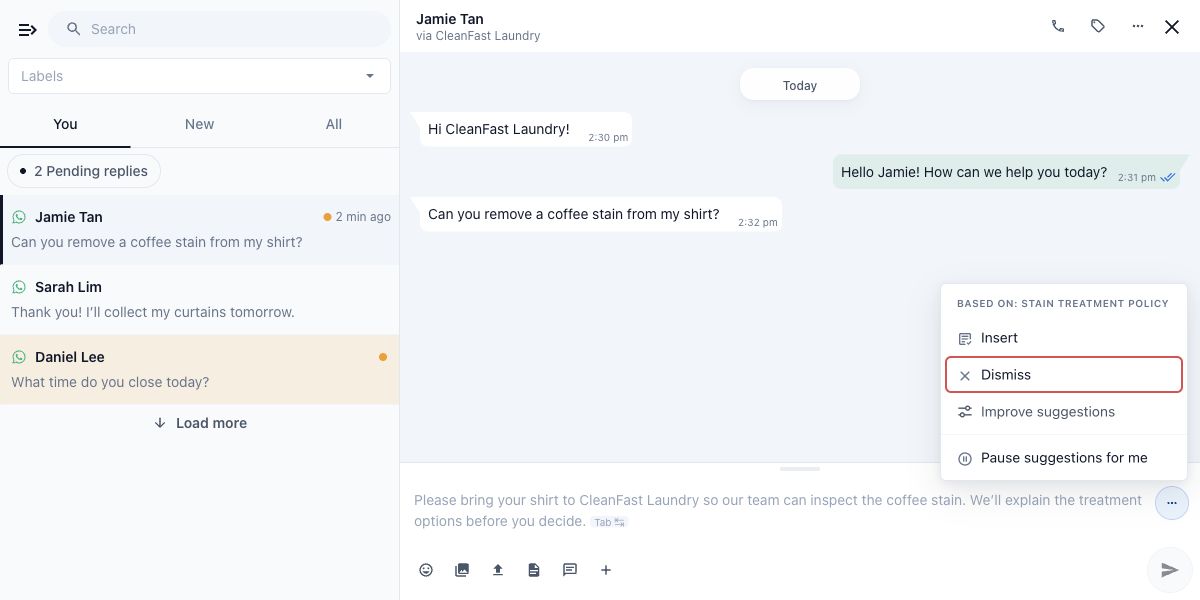
Write your own reply in the now-empty message box.
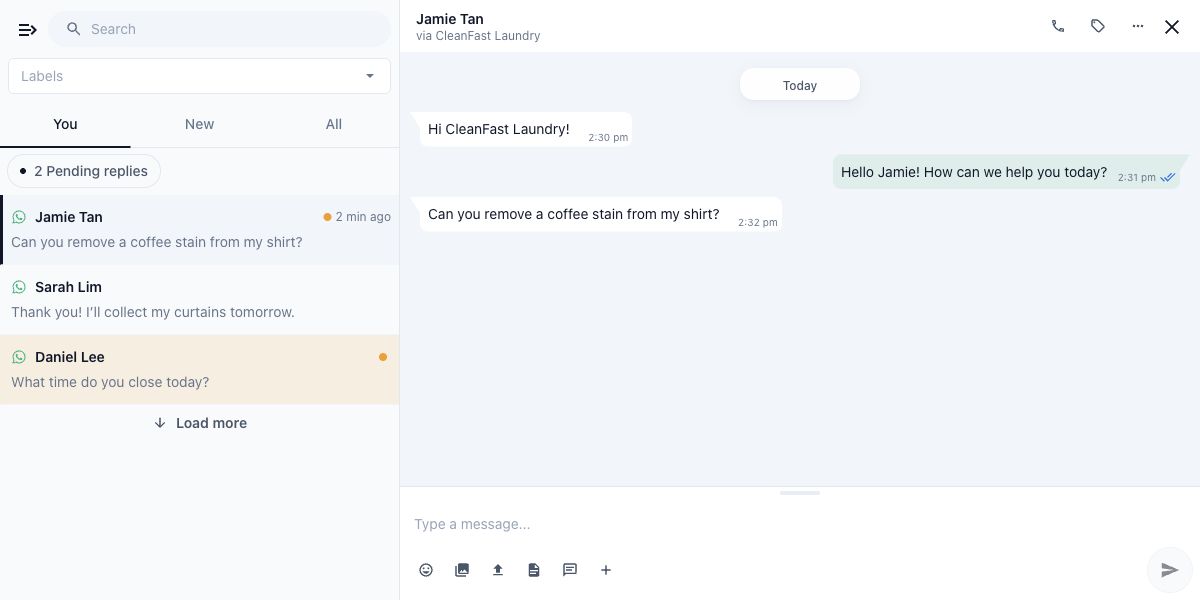
Esc also dismisses a visible suggestion. Starting to type your own answer hides it too.
There is no button to bring back a dismissed suggestion. If you leave and reopen a conversation that still needs a reply, the suggestion can appear again.
To stop seeing suggestions yourself:
Open Suggestion options on a visible suggestion and click Pause suggestions for me .
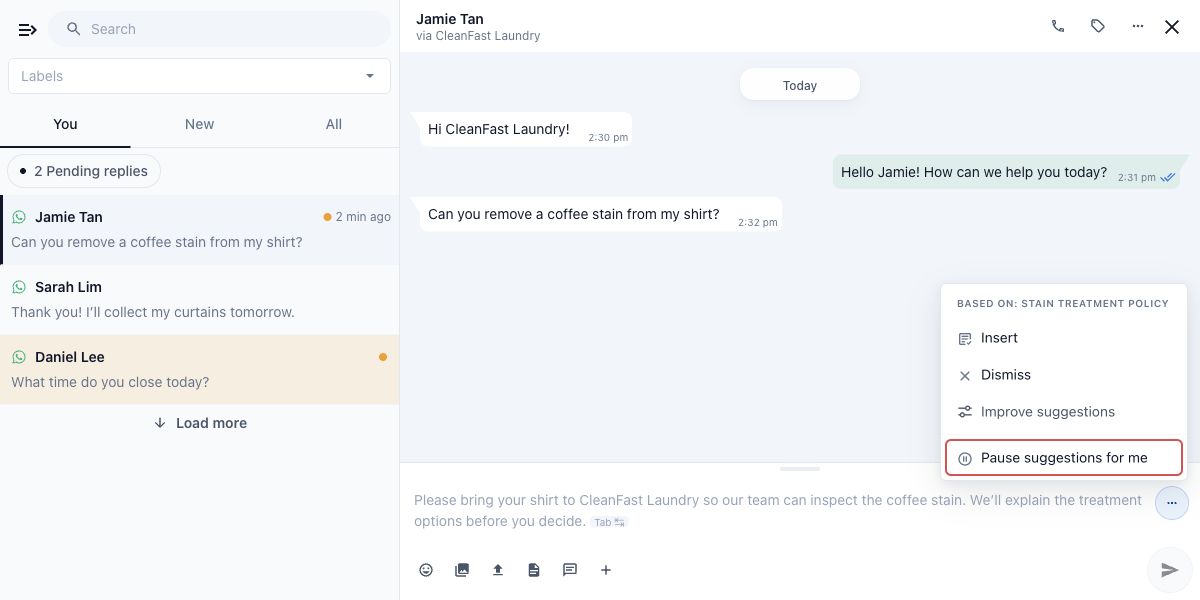
Check for "AI suggestions are paused for you" above the message box.
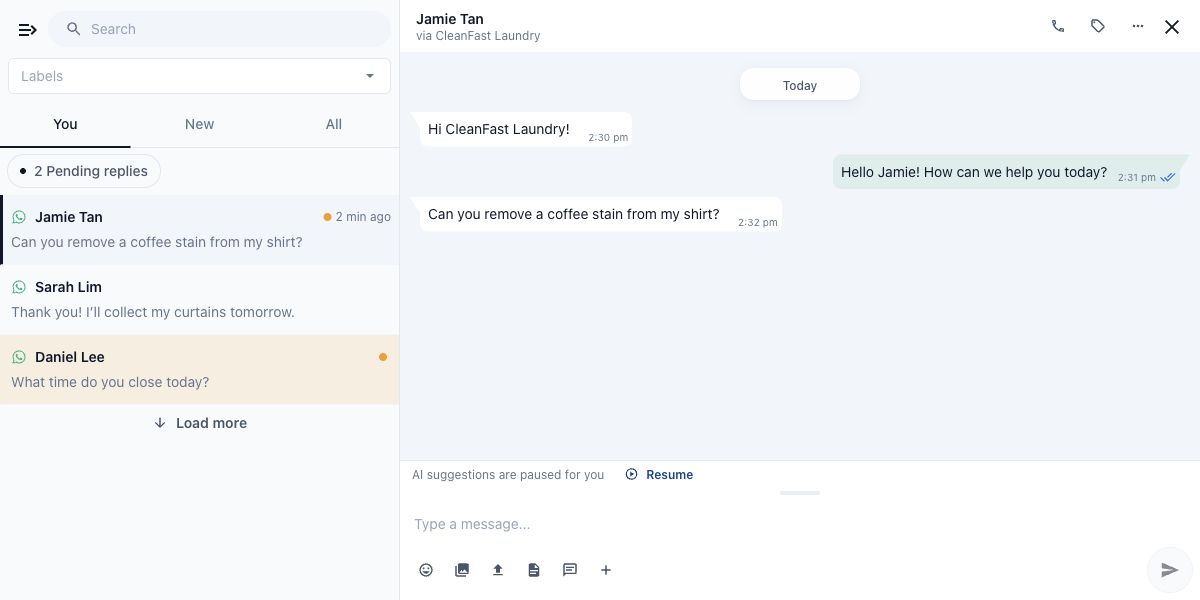
Click Resume when you want suggestions again.
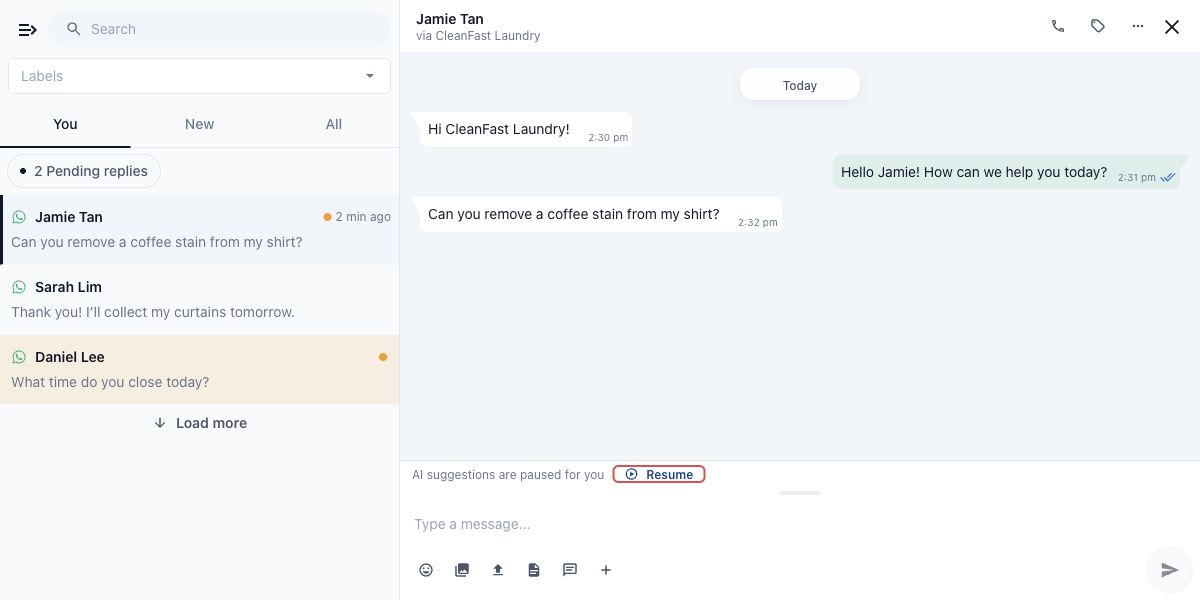
The pause is only for you, on every device you sign in to. It does not switch suggestions off for other staff.
Improve Suggestions
In the Console inbox, the suggestion menu also has Improve suggestions . It opens the Customer Service Agent's Settings tab, where you can add knowledge, change the reply style or add handover topics. Use it when you notice the same mistake more than once.
When an Enquiry Needs a Person
There are two cases:
- A complaint, refund or compensation request, request for a person, or price negotiation. You still get a draft, with a warning starting "Needs a person" above the message box. Read the conversation carefully, change the draft as needed or write your own reply.
- One of your own handover topics (set under Also hand over). The agent writes no draft. A yellow bar says the AI needs your help, followed by "Needs a person:" and the topic, for example "Needs a person: Damaged or lost items". The bar disappears after five seconds.
Neither case is a permanent label on the conversation or proof that someone has taken responsibility. Agree within your team who answers it.
See Choose When Staff Should Handle a Conversation for how those rules are set.
Example: Answer a CleanFast Laundry Enquiry
CleanFast Laundry's Business Knowledge says that staff inspect stained garments before confirming what treatment is possible. Jamie asks, "Can you remove a coffee stain from my shirt?"
Open Jamie's conversation and read the suggested reply. A good draft explains that staff need to inspect the shirt before confirming treatment; the actual wording may differ.
Use Suggestion options , then Insert , to place the draft in the message box.
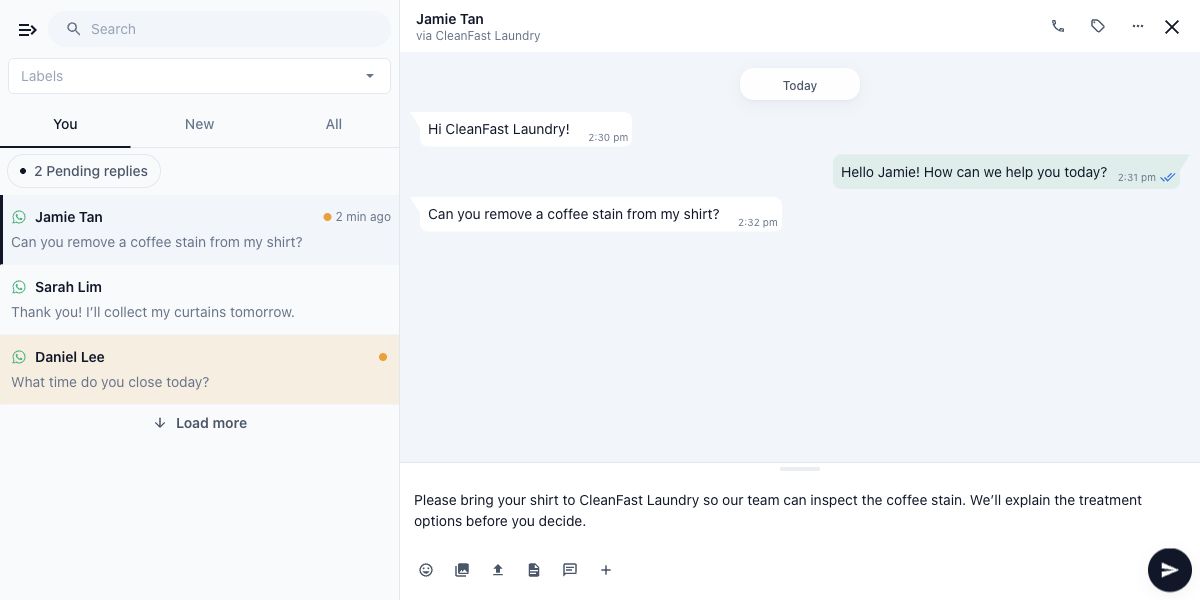
Check the wording and edit it to a reply your staff can stand behind, such as: "Please bring the shirt in so we can inspect the stain. We'll explain the treatment options before you decide."
Click Send at the counter, or the Send message icon in the Console.
Jamie receives the message your staff chose to send. Inserting the suggestion alone does not contact Jamie or create an order.
When No Suggestion Appears
An empty message box does not always mean something is wrong. You can always write your own reply. Common reasons include:
- Suggest replies is switched off for the business.
- You have paused suggestions for yourself.
- You are already typing an answer.
- The conversation does not need a reply from your business right now.
- The customer only tapped a button, such as YES, to carry on with something your staff started. There is nothing new to answer, so you carry on as planned.
- The message matches one of your own handover topics, or the agent had no useful draft to offer.
- The WhatsApp reply window has expired.
The WhatsApp reply window is the time when you can send a normal reply after the customer's latest message. When it has expired, the inbox shows: "This conversation is outside the 24-hour window. Use a template message to re-engage."
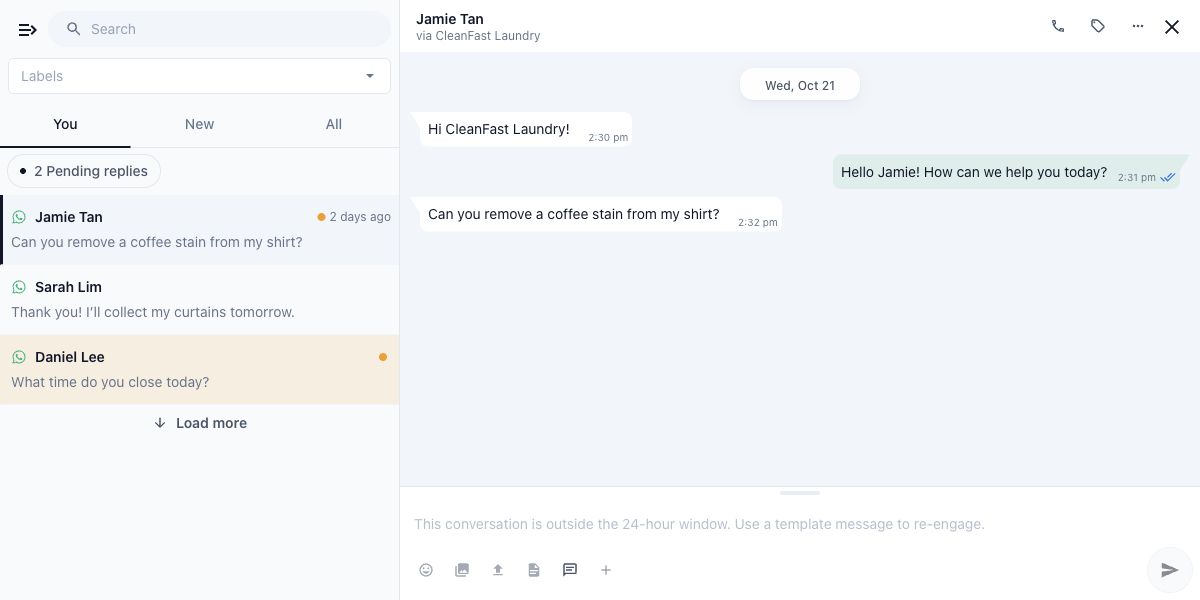
See Troubleshoot Missing or Incorrect Replies for more checks and fixes.
FAQs
Who is responsible for a suggested reply that gets sent?
The staff member who sends it. A suggestion is a starting point, so confirm prices, dates, customer details and promises before sending it.
Can customers see the grey suggestion or my unsent edits?
No. The grey suggestion and the message box are only on your screen. Customers receive only the text you send.
Do staff edits change the agent's knowledge immediately?
No. When learning is on, the agent reads the replies your staff sent once a night and can draft new Business Knowledge from them. A suggestion sent without any change does not count as something new to learn. See Manage Knowledge Learned from Conversations.
Do suggestions work on every messaging channel?
No. They work for WhatsApp conversations only.
Can inserting or sending a suggestion change an order or take a payment?
No. A suggestion is only message text. Sending it does not update an order, collect payment or give a refund. Staff still need to do those things in EasyBiz.
Does it cost anything when my staff use the drafts?
No. Suggested replies are free during the beta and stay free after it.
What's Next
You now know how to check, edit, dismiss and send suggested replies in your inbox. Next, read Manage Knowledge Learned from Conversations to control what the agent learns from the replies your staff send.