
A customer sends "Is my shirt ready?" on WhatsApp while your Tampines staff are serving the counter. They tap WhatsApp Chat, check the order, reply, and go back to the sale on the same screen.
Before You Start
- Professional POS (a paid upgrade): WhatsApp Chat and WhatsApp Broadcasts are Pro pages. To add either one, your account subscribes to Professional POS, which costs more each month than Standard. Your POS plan covers every shop in your account, so all your shops move to Professional together. CleanFast Laundry has 2 shops, so it pays 2 × S$149 = S$298 a month instead of 2 × S$99 = S$198, which is S$100 more.
- A connected WhatsApp Business account: see Connect & Configure WhatsApp. Without it, staff still see past chats on the POS, but they can't start new ones.
- Your POS app: you add these pages in the POS app editor. See Creating Your POS App and Using the Editor.
- Access: you need a Console login that can manage the Point of Sale. Changing your POS plan also needs a login with billing access, usually the account owner.
If you set this up before: the deal pipeline switch for chats is no longer on the POS page. It is now one switch, Manage chats by deal stage, in Settings, and it applies to every inbox in your business.
Overview
WhatsApp Chat is your shop's WhatsApp inbox, built into the POS. Staff read customer messages, reply, pick up new chats and start conversations without reaching for a separate phone. WhatsApp Broadcasts is a second page that shows the WhatsApp messages your shop sends to many customers at once, and how many were delivered and read. Both pages share their conversations and campaigns with the Console, so a reply sent from either one shows on both. Any shop whose customers ask questions or book by WhatsApp should add WhatsApp Chat, and shops that send promotions by WhatsApp can add Broadcasts as well.
Where it works
- Console: you add the pages and choose which chat tabs staff see in the POS app editor. The same conversations show in the Console inbox, and broadcasts can also be created in Marketing › Campaigns.
- POS: staff see a WhatsApp Chat tab and a WhatsApp Broadcasts tab on every device signed in with this app.
- Customers: they message your WhatsApp number as usual, and every reply comes from your business's WhatsApp number, whoever sends it.
WhatsApp Chat and WhatsApp Broadcasts are the only Pro pages. Checkout, Orders, Send Out / Receive and Inventory work on Standard POS too. Like every page type, each one can be added once per app.
Why set it up
Without WhatsApp Chat, someone has to watch a phone or the Console to see customer messages. During a busy lunch hour, a "Can you collect today?" message waits until someone remembers to check. With the page on the POS, the tab shows how many messages are waiting, a sound plays when a new one arrives, and whoever is free picks it up.
If you skip it, messages still arrive in the Console inbox and nothing is lost. But counter staff can't see or answer them from the POS. If you skip WhatsApp Broadcasts, your broadcasts still go out from the Console, and staff at the counter can't see how they went.
Where to find it
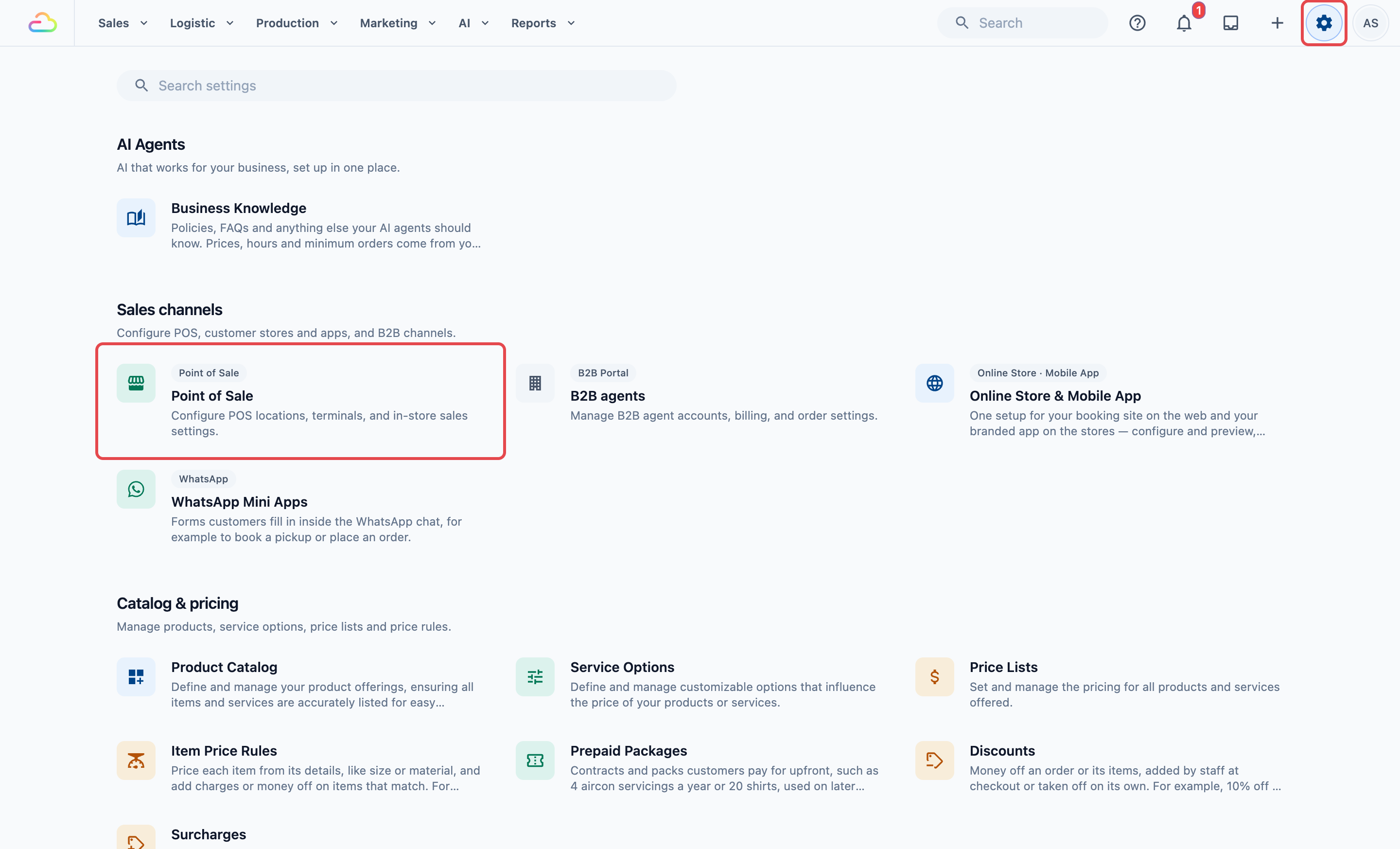
- Click the ⚙️ Settings icon in the top-right corner.
- Under the Sales Channels section, click Point of Sale.
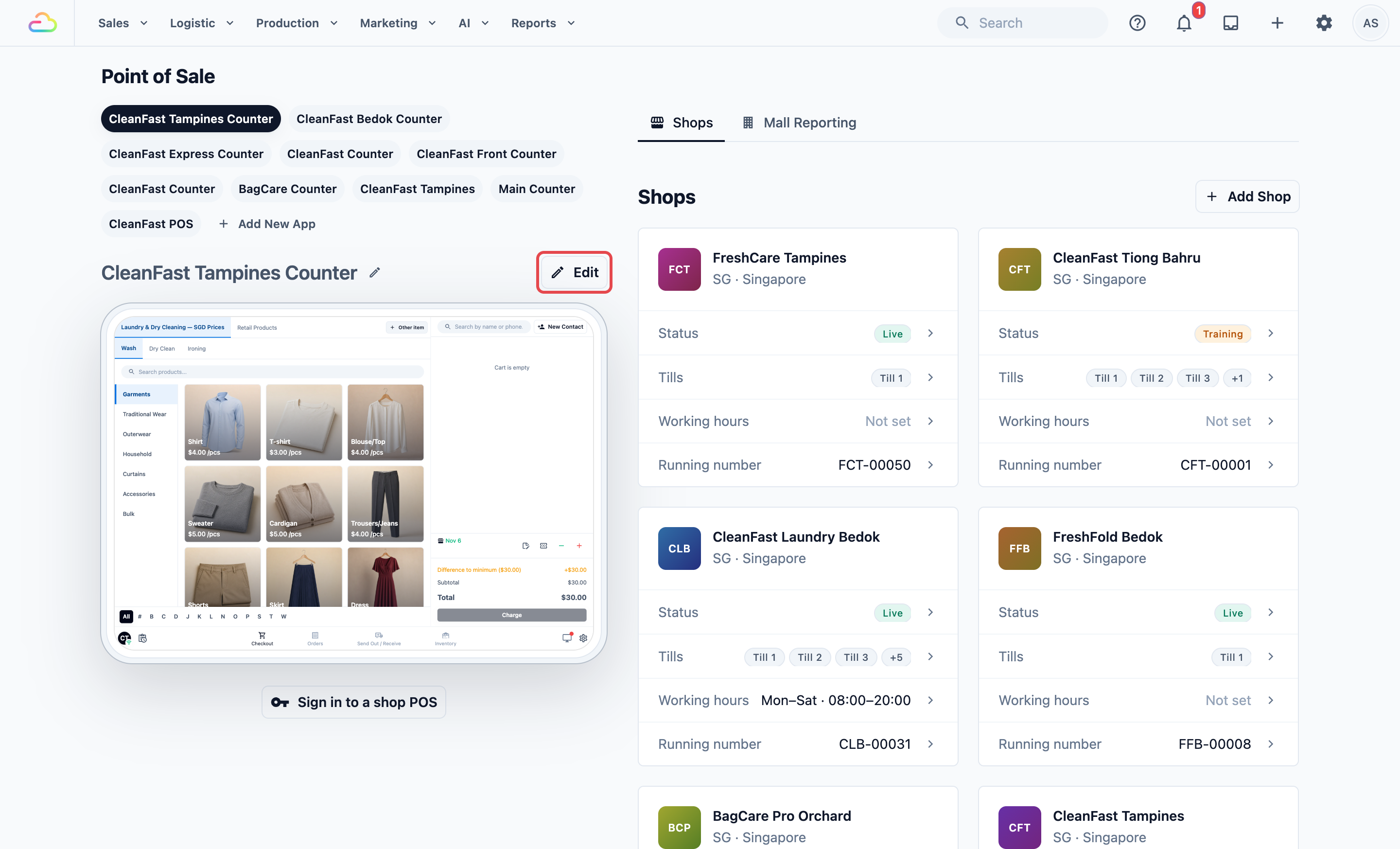
- Under POS Apps, click your app, then click Edit.
- Next to Pages, click Add new page.
- Find WhatsApp Chat, marked Pro, and click Add. You see "Page created", and the page opens in the editor.
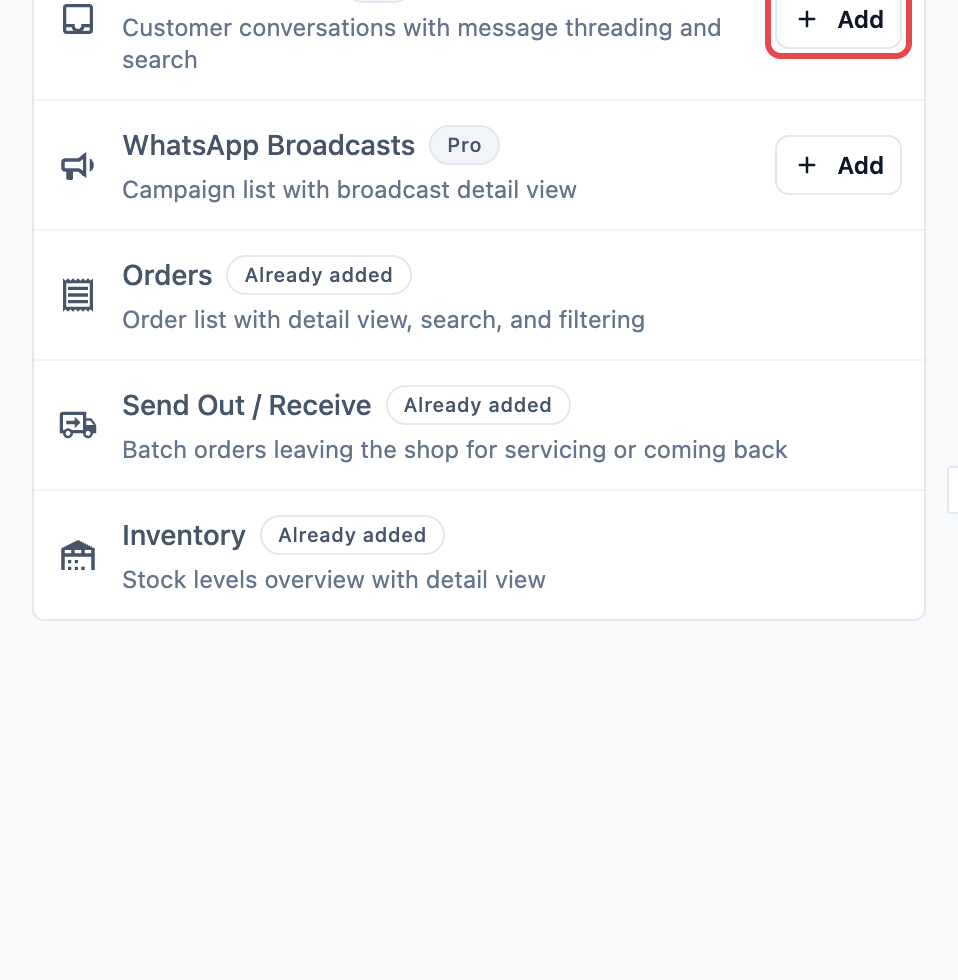
- To add broadcasts too, click Add new page again, find WhatsApp Broadcasts, marked Pro, and click Add.
- Click Publish at the top right, then Publish again in Review your changes.
If a page is already in this app, the list shows Already added instead of Add.
If your account is on Standard POS
Clicking Add next to a Pro page opens a window titled WhatsApp Chat needs Professional POS (or WhatsApp Broadcasts needs Professional POS). It reminds you that your POS plan applies to the whole account, not one counter, and shows what upgrading costs each month. For CleanFast Laundry, it says 2 locations move from SGD 99 to SGD 149 per location, which is SGD 100 more per month in total.
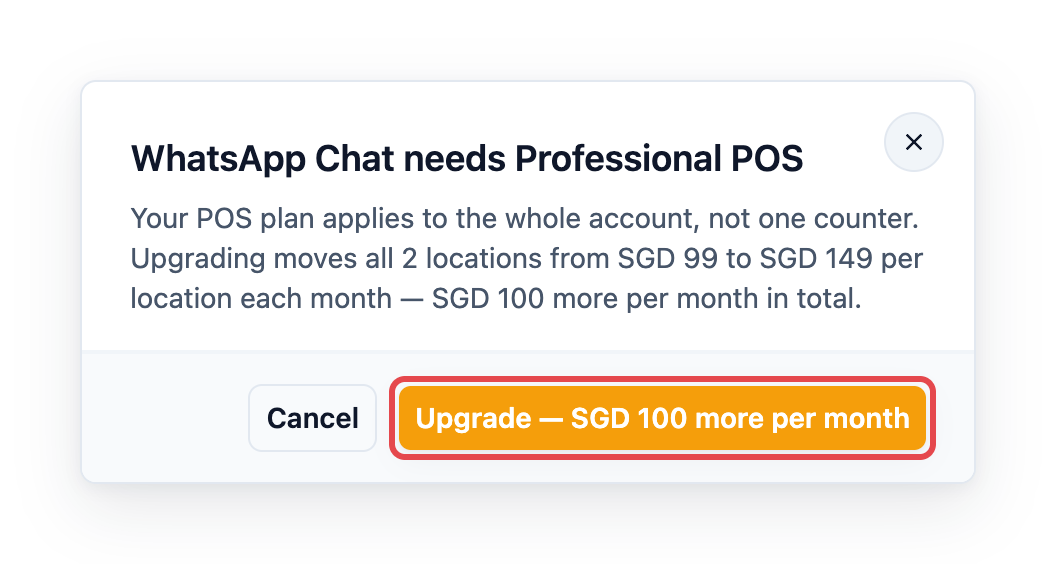
- Click Upgrade. The button also shows how much more you pay each month.
- Wait for "Your POS locations are now on Professional".
- Click Add next to the page again.
Click Cancel to close the window without changing your plan. The window shows the exact price for your account, so check it there before you confirm.
Setting up WhatsApp Chat
Under Pages, click WhatsApp Chat. The page has two rows, one for each side of the screen staff see:
- Inbox: the list of chats on the left. It has two switches, both on for a new page.
- Conversation: the messages on the right, where staff read and reply. It has no settings.
- Click Inbox.
- Turn Show Unassigned and Show All Conversations on or off.
- Click Publish, then Publish again in Review your changes.
You see "Published. Your counters have the changes." The preview on the right shows the chat tabs as staff will see them.
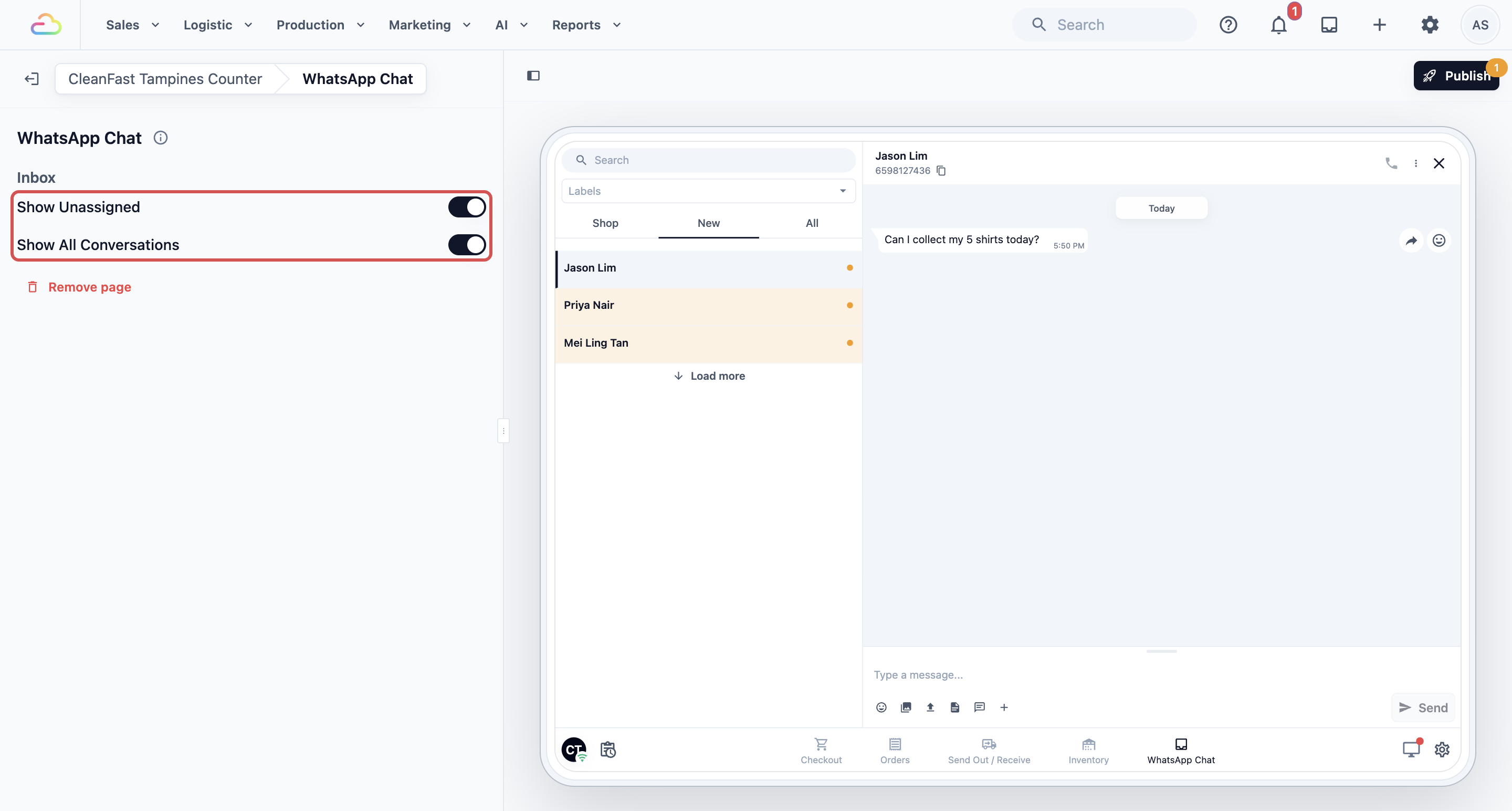
- Show Unassigned
If you turn this on, staff see a New tab listing chats no one has picked up yet. These chats count toward the number on the WhatsApp Chat tab, and a sound plays when a new one arrives. If you turn it off, the New tab is hidden, new chats don't count toward that number, and no sound plays for them. Turn it off only if someone else, such as the owner in the Console, hands out the chats.
- Show All Conversations
If you turn this on, staff see an All tab with every chat in your business, with a switch between Open and Closed. If you turn it off, staff see only the chats their shop is handling, plus the New tab if Show Unassigned is on.
Both switches can be on together, which is the usual setup. If you turn both off, staff see only the Shop tab.
Managing chats by deal stage
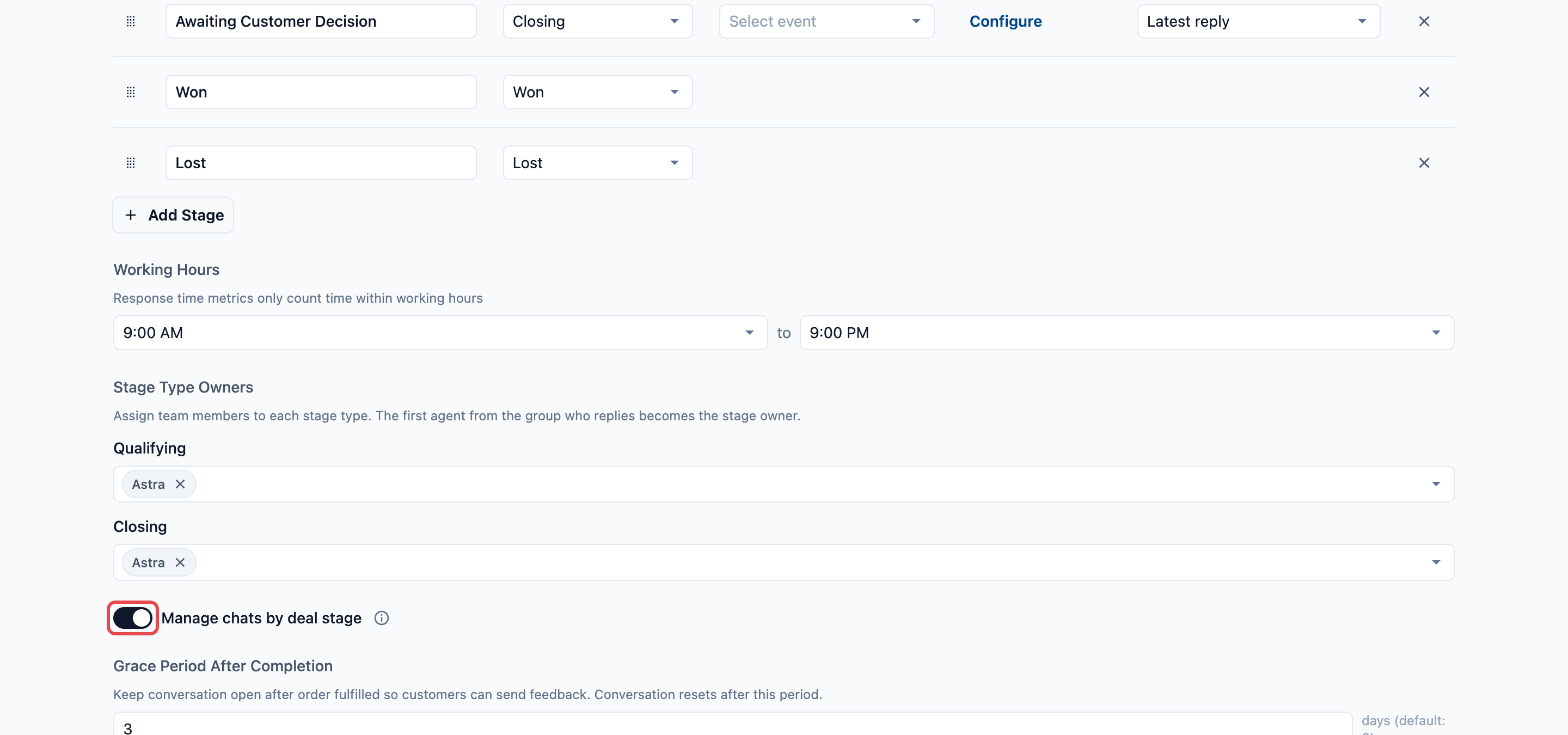
If you use the deal pipeline, your sales stages for each customer enquiry, chats can close by themselves instead of staff closing them by hand. This is one switch for your whole business, not a setting on the POS page.
- Click the ⚙️ Settings icon in the top-right corner.
- Under the CRM section, click Deal Pipeline.
- Turn on Manage chats by deal stage, then click Save.
If you turn this on, every inbox, in the Console and on the POS, shows the deal bar on each chat and hides Close Conversation. A chat closes by itself once its order's grace period ends, or when its deal moves to Lost.
Setting up WhatsApp Broadcasts
The WhatsApp Broadcasts page has no settings. Once you add it and publish, staff see the broadcasts sent for the shop their device is signed in to. A broadcast is called a campaign: one WhatsApp template message sent to a list of customers.
A broadcast shows on a shop's POS when that shop is its Source. When you create a campaign in Marketing › Campaigns in the Console, choose the shop under Source to show it on that shop's POS. See WhatsApp Broadcasts for how to choose the audience, the template and the send time.
Example setup
CleanFast Laundry has Laundry and Bag Repair at its Tampines and Jurong shops. Customers often message to ask whether their clothes are ready, and the owner sends a monthly WhatsApp promotion for each shop.
| Setting | CleanFast Laundry's choice |
|---|---|
| Plan | Professional POS: 2 shops × S$149 = S$298 a month |
| Pages | WhatsApp Chat and WhatsApp Broadcasts, added to the CleanFast Tampines Counter app |
| Show Unassigned | On, so any free staff member picks up a new chat |
| Show All Conversations | On, so staff can look up a customer's older chats |
| Manage chats by deal stage | Off, so staff close each chat when they're done |
At 11am, a customer messages "Can I collect my 5 shirts today?" The WhatsApp Chat tab shows 1, and a sound plays. Mei Ling taps the tab, opens the chat in New, taps Attend, checks the order and replies "Yes, they're ready. See you later!" When the customer collects, she closes the chat.
Other businesses set it up differently:
- Bag Repair: BagCare Pro has one repair specialist who hands out every WhatsApp quote request. The counter app has both switches off, so the cashier sees only the chats given to the shop.
- Home Cleaning: a home cleaning business with a booking desk adds WhatsApp Chat, so the desk confirms cleaning slots in the chat, and WhatsApp Broadcasts, to follow its monthly aircon servicing reminder.
What staff see
WhatsApp Chat and WhatsApp Broadcasts work the same way as the inbox and campaigns in the Console, so staff who know one already know the other. This section covers only what you need to know at the counter.
WhatsApp Chat
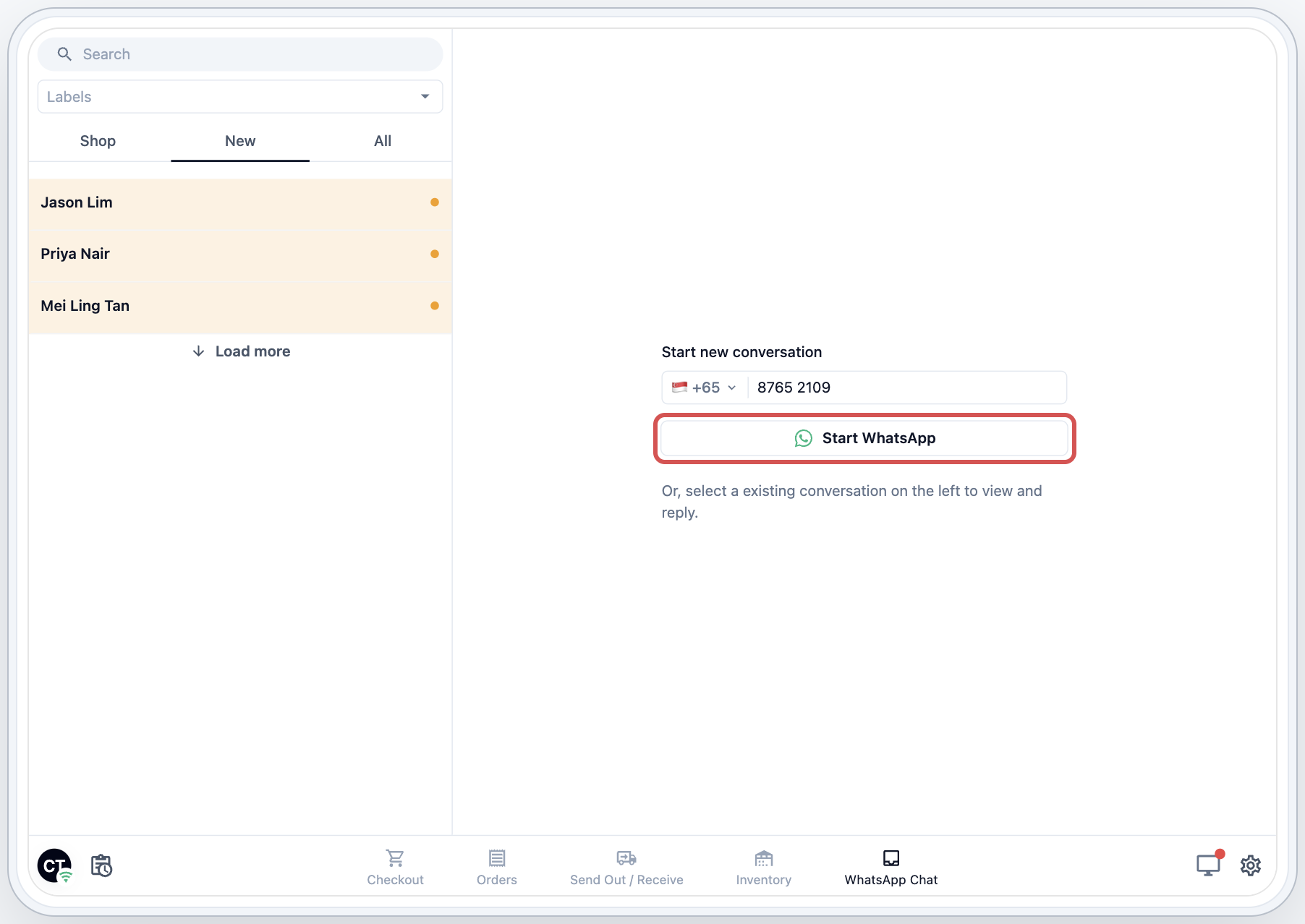
After you publish, staff tap the WhatsApp Chat tab on the POS. The list of chats is on the left, and the open chat is on the right. The number on the tab shows chats waiting and updates by itself, even while staff are on another page.
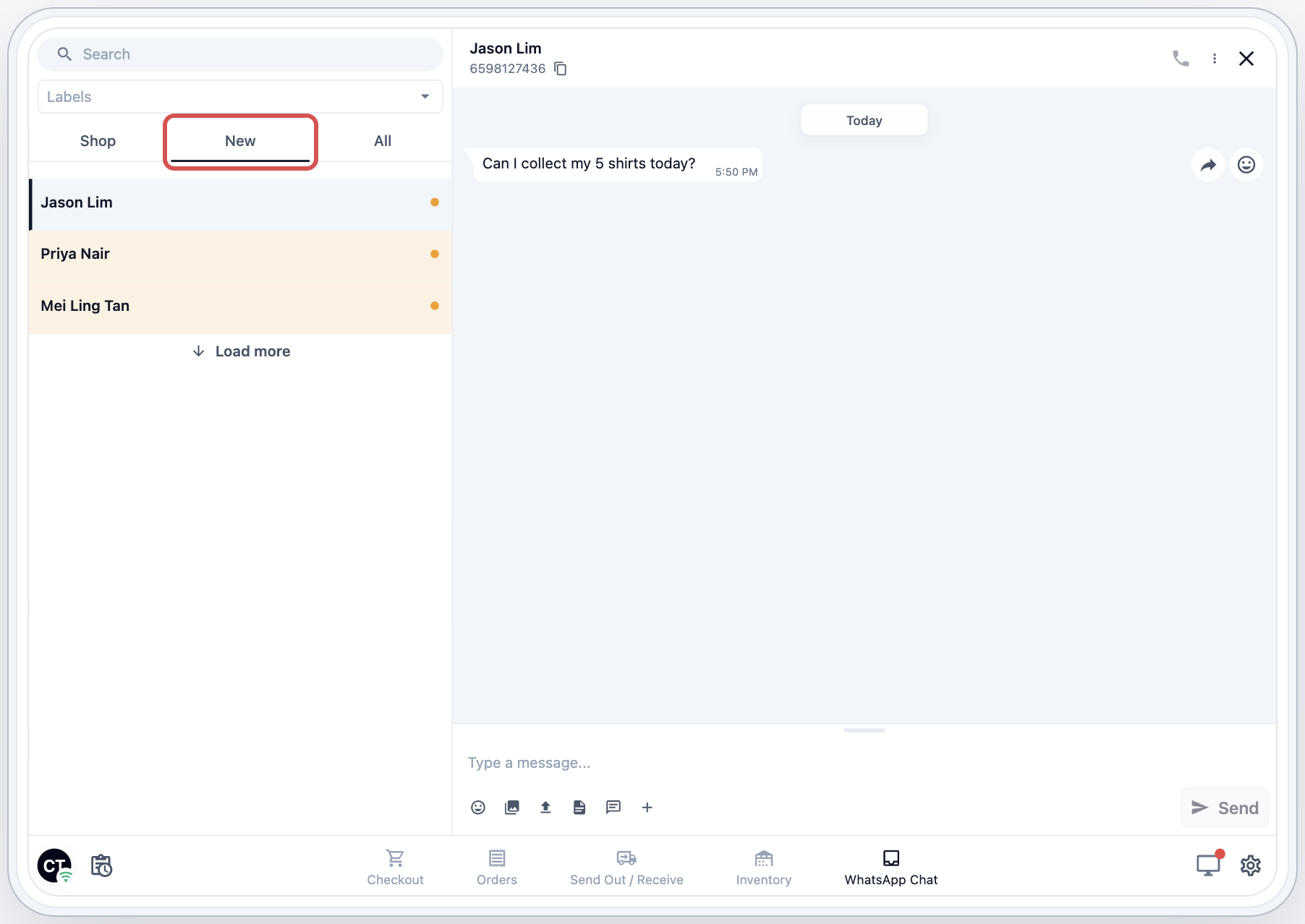
The tabs depend on your two switches:
| Tab | What it shows |
|---|---|
| Shop | Chats this shop is handling. |
| New | Chats no one has picked up yet, with a count. Shown when Show Unassigned is on. |
| All | Every chat in your business, with Open and Closed. Shown when Show All Conversations is on. |
Picking up a new chat
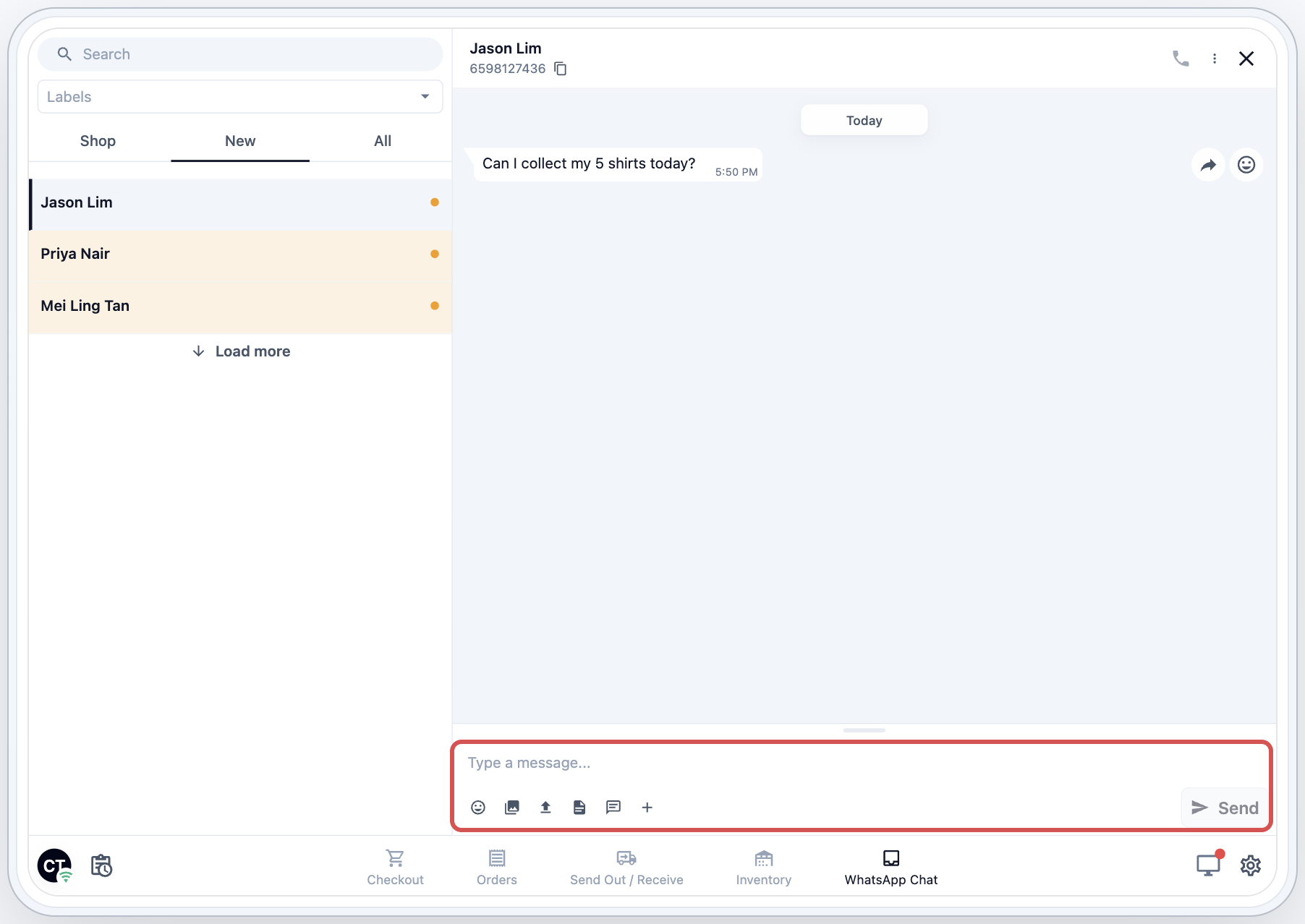
A chat in the New tab has an Attend button where the message box would be. Staff tap Attend to pick it up, and then they can type and send a reply.
Starting a new chat
When no chat is open, the right side shows Start new conversation. Staff enter the customer's phone number, choose the WhatsApp account and number if your business has more than one, and tap Start WhatsApp.
Closing and reopening a chat
To close a chat, staff tap the ⋮ menu in its top bar, then Close Conversation. To reopen one, they open it from All › Closed and tap Reopen. If Manage chats by deal stage is on, Close Conversation is hidden, and chats close by themselves.
Suggested replies from your Customer Service Agent also show at the counter, and staff always send them themselves. See Use Suggested Replies in Your Inbox.
WhatsApp Broadcasts
Staff tap the WhatsApp Broadcasts tab to see the broadcasts sent for their shop and how each one did. The list is on the left, and the one they tap opens on the right. It shows the same figures as Marketing › Campaigns in the Console, such as how many messages were sent, delivered and read, and the Cost.
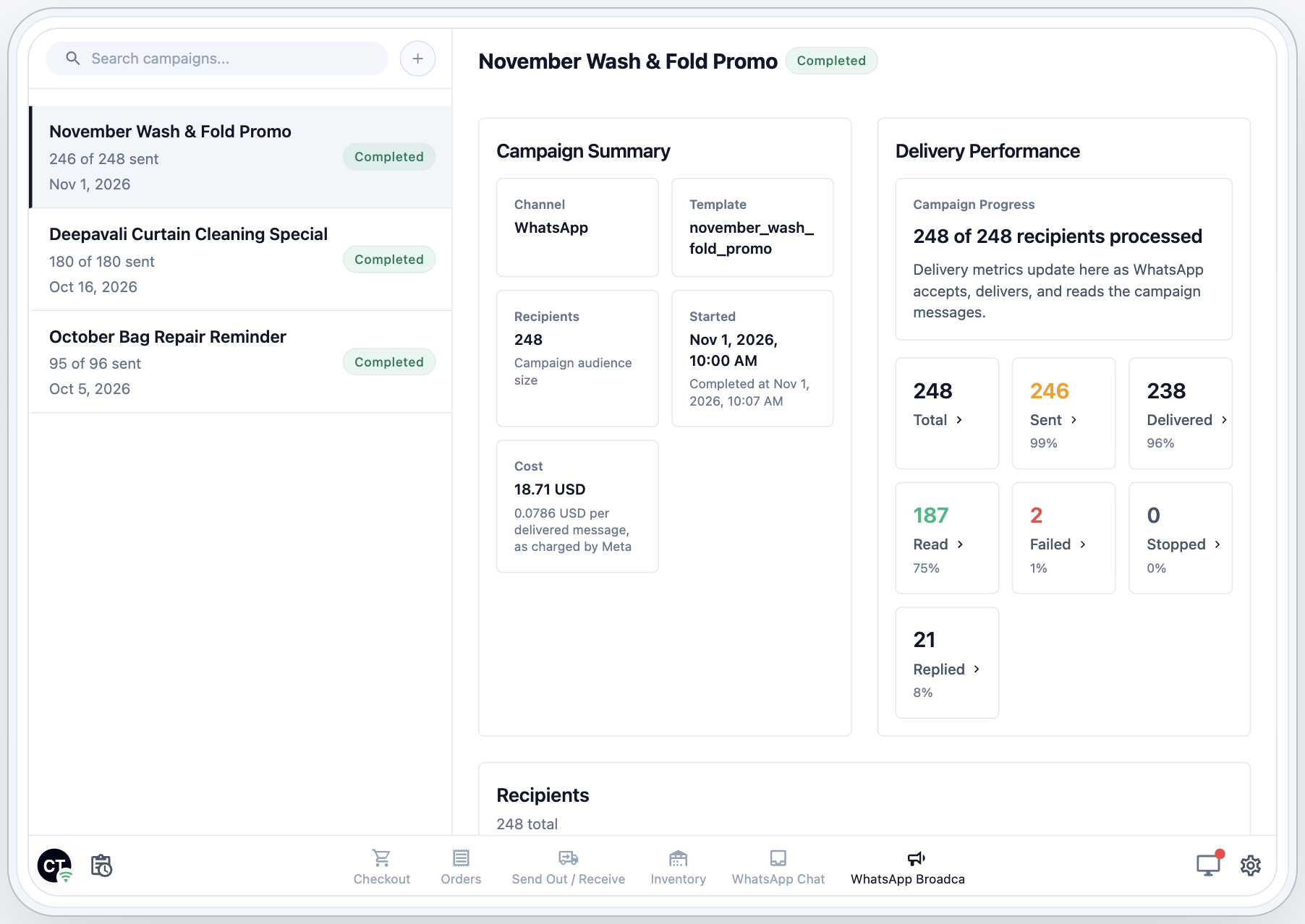
Staff can also tap + next to the search box to create a broadcast for their shop. It is saved as a draft with this shop as its Source, and then works exactly like a campaign made in the Console. See WhatsApp Broadcasts for choosing the audience, the template and the send time.
FAQs
What if no one picks up a chat?
It stays in the New tab until someone taps Attend. While Show Unassigned is on, the number on the tab counts it, so it isn't missed.
Do the POS and the Console show the same chats?
Yes. They read the same conversations, so a reply sent from the Console shows on the POS, and the other way round.
I can't add WhatsApp Chat, or Add opens an upgrade window.
WhatsApp Chat needs Professional POS. On Standard, Add opens the upgrade window instead. If the page shows Already added, this app has it already: look for it under Pages.
Where is the deal pipeline switch for the POS inbox?
It is no longer a POS setting. Turn on Manage chats by deal stage in Settings › Deal Pipeline. It applies to every inbox in your business.
Can I pay for Professional at one shop only?
No. Your POS plan applies to your whole account, so every shop moves to Professional together, at S$149 per shop each month. A shop you add later joins the plan you're on.
What happens if I go back to Standard POS?
The WhatsApp Chat and WhatsApp Broadcasts pages are hidden at the counter. Your chats and broadcasts are kept, and you can still answer customers in the Console.
Can staff create a broadcast on the POS?
Yes. On the WhatsApp Broadcasts page, staff tap +, name it and create it as a draft for their shop. If you want only the owner to send broadcasts, don't add this page to the counter's app, and create broadcasts in the Console instead.
What's Next
You have built the last page of your POS app: staff now answer customer WhatsApp messages and follow your broadcasts from the counter. Next, switch on the features that work across every page, starting with how customers pay, in Setting Up Payment Methods at the POS.