
The Test chat on the Customer Service Agent page lets you write a message as if you were a customer and see the reply the agent would draft. Find it beside the Overview and Settings tabs in AI › Customer Service Agent. It uses your real business information and the settings on the page, even ones you have not saved yet. Nothing is sent to customers, and test chats are never charged.
Before You Start
- Review Choose When Staff Should Handle a Conversation so you know which questions your team should handle.
- Check your access. You need the owner account, or a team member who can open the Customer Service Agent page. Inbox access alone is not enough.
- Have a sales channel, such as your outlet or online store, and a business unit, such as your laundry business. If your business unit is not ready, follow Creating and Editing a Business Unit.
- Prepare the information you want to test, such as prices, opening hours and policies. See Prepare Your Business Knowledge.
- Use made-up customer questions. The test still reads your actual business information; it does not replace prices or policies with sample values.
- You can test before saving your agent settings or turning on suggested replies. You do not need to select a customer.
Open the Test Chat
In the top navigation bar, click the AI menu.

Click Customer Service Agent .
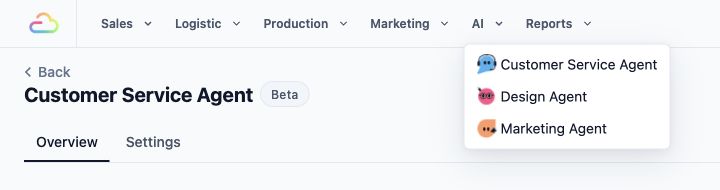
Find the Test chat panel. It appears beside the Overview and Settings tabs on a wide screen, or below them on a narrower screen.
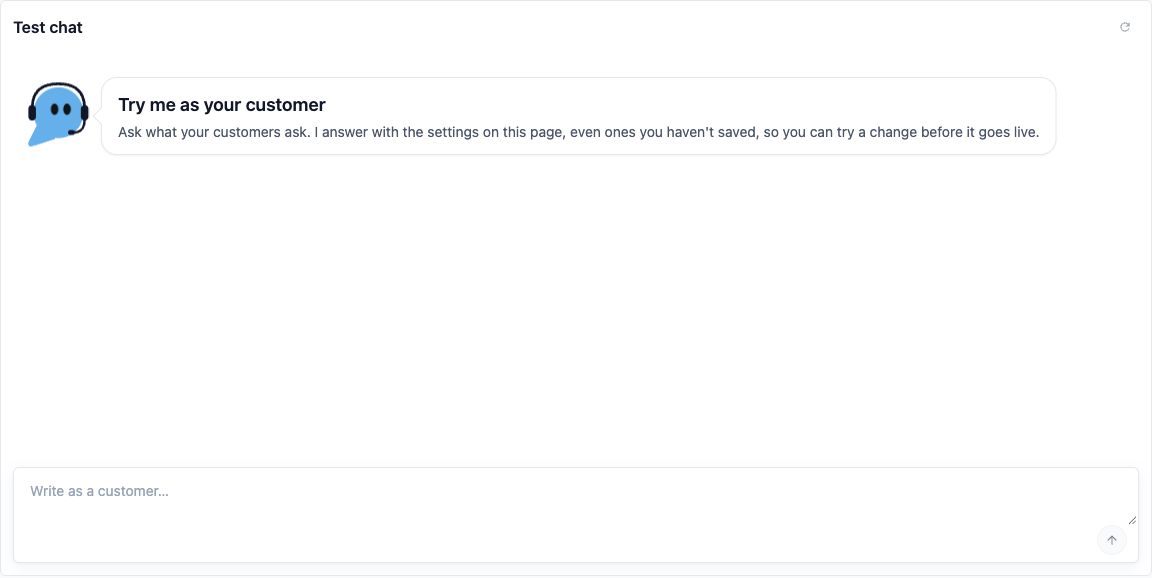
The greeting "Try me as your customer" is the starting state. You do not need to open a customer conversation.
The test chat answers the way suggested replies do in your inbox. There is no customer or language selector inside it; the agent follows the Language setting on the page. See Customise Your Agent’s Replies.
Try a Customer Question
In the message box showing "Write as a customer…", enter a customer question, such as "How much does CleanFast Laundry charge to clean a shirt?"
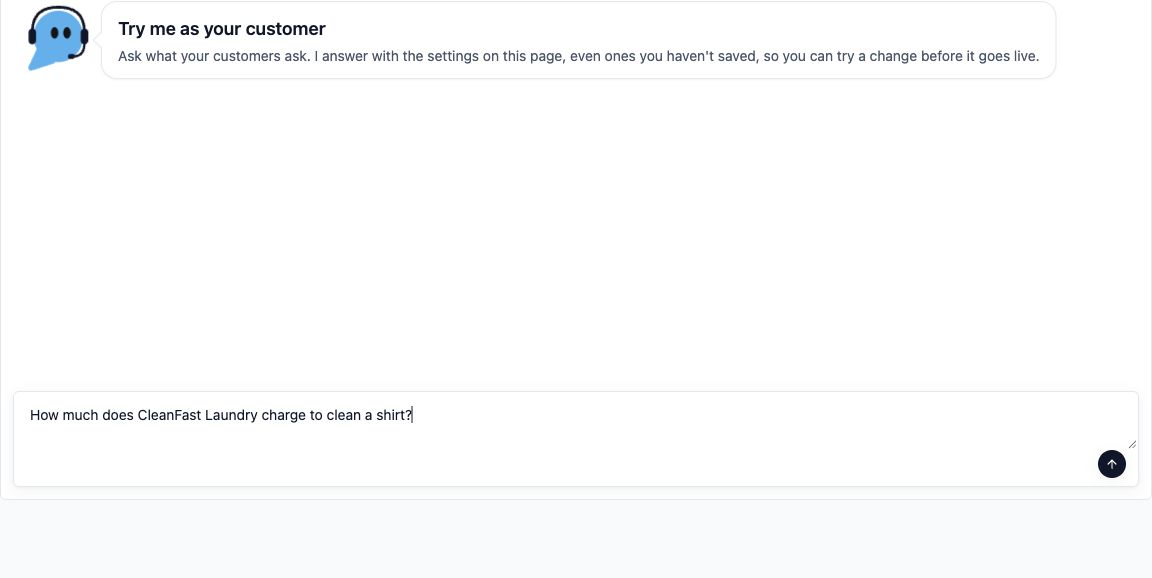
Click the send icon or press Enter.
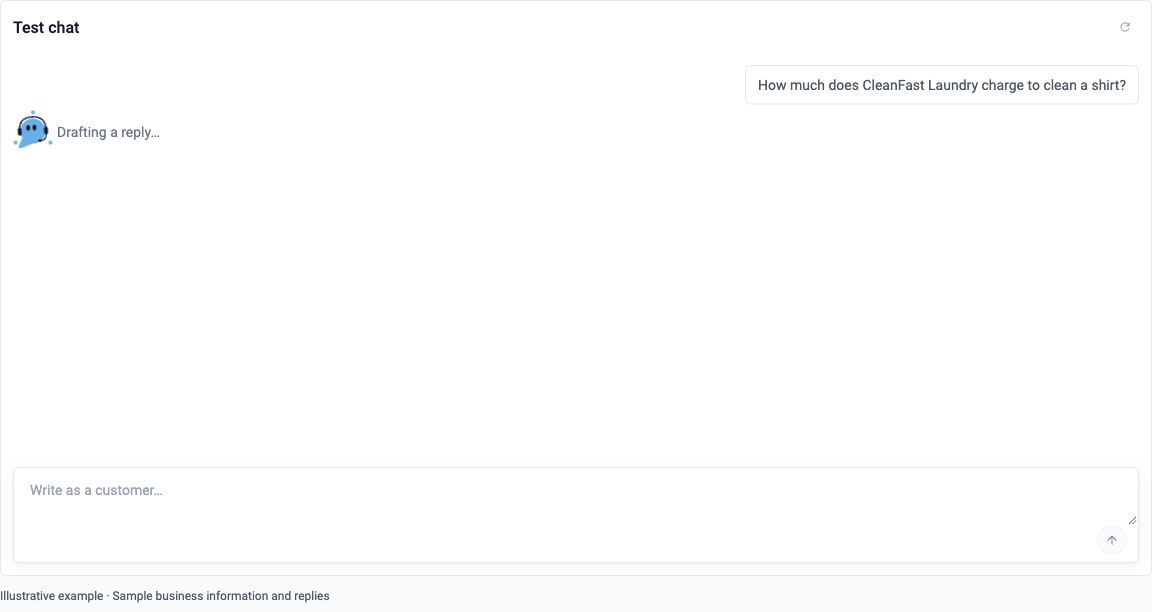
Read the answer and the result label, note and sources beneath it.
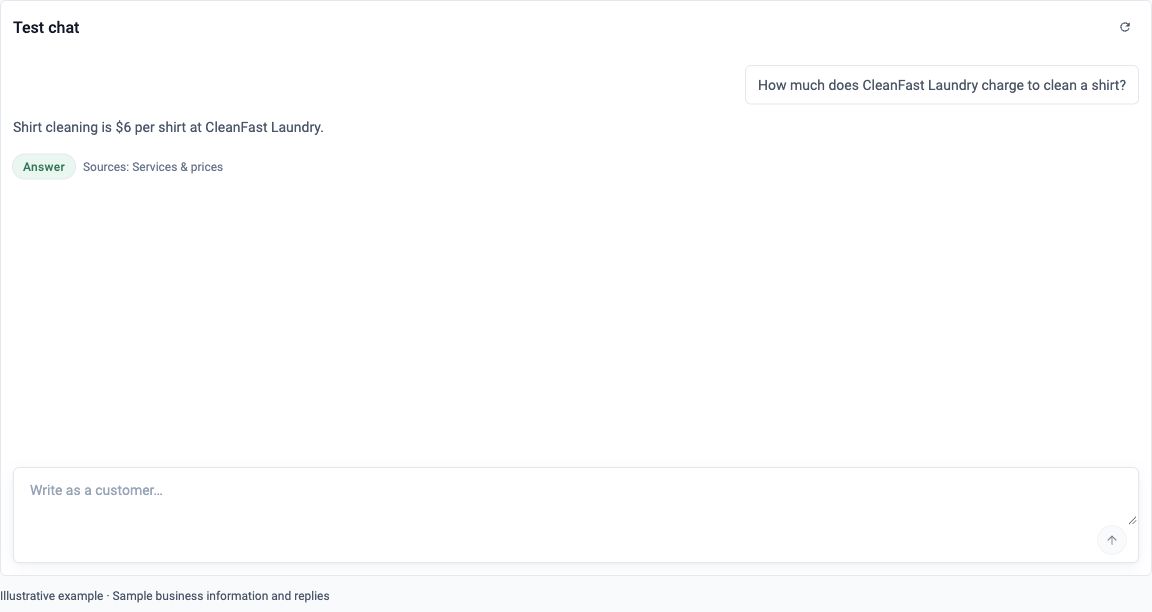
Ask a follow-up question to check that the reply still makes sense within the conversation.
The chat accepts text only, without attachments. While the agent is answering, you can type your next question but cannot send it yet.
Try questions that reflect what your customers ask:
- Service prices: "How much does CleanFast Laundry charge to clean a shirt?"
- Opening hours: "What time do you close on Saturday?"
- Turnaround time: "How many days does duvet cleaning take?" Use a service and turnaround policy recorded in your business information.
- Order questions: "Is my order ready for collection?" Use this to see how the agent handles a customer it cannot identify, not to check a real order.
- Built-in handover: "I want to discuss compensation for a damaged shirt."
- Your own handover topic: a message that mentions one of your Also hand over topics, such as "My bag was damaged".
Check each factual answer against your saved business information. A well-written answer still needs to be correct.
Understand the Result
Each reply shows one of these labels:
- Answer: the agent drafted a reply for you to check. For a complaint, refund or compensation request, request for a person or price negotiation, the draft also shows a note starting "Needs a person", just like the warning staff see in the inbox.
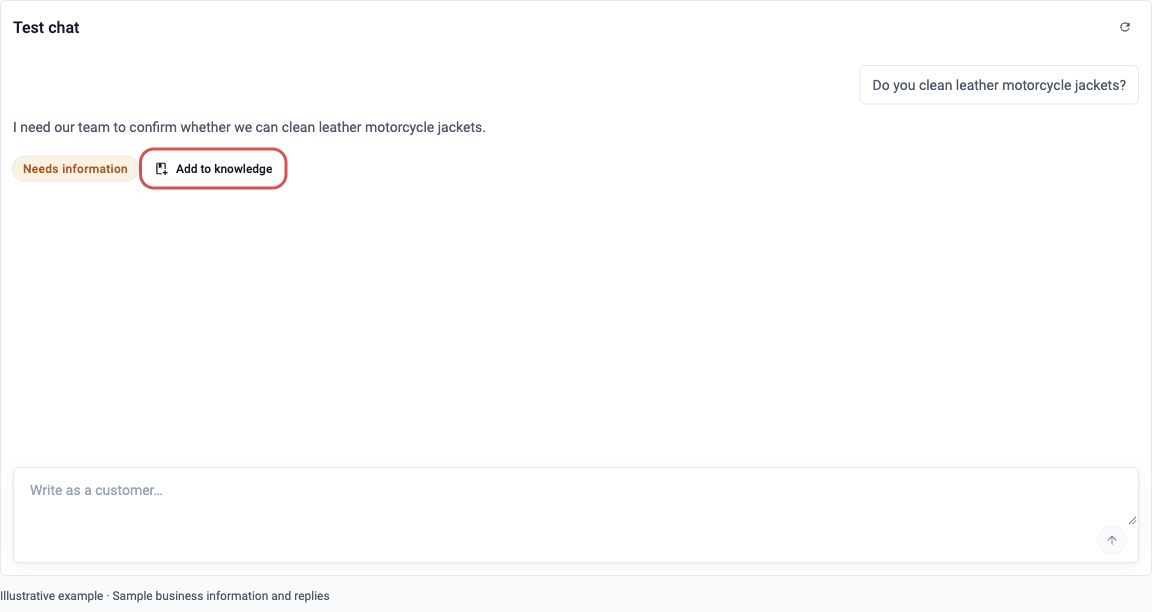
- Needs information: the agent could not draft a useful reply, usually because the information is missing.
- Handed to a person: the message matches one of your Also hand over topics, so the agent writes no draft and leaves it to your team. The reply shows "Needs a person:" and the topic. The test does not assign a real conversation to anyone.
- Failed: something went wrong. Try again.
When sources are used, the chat shows their names after "Sources:", for example "Services & prices". Use them to see where the answer came from.
A Needs information result can include Add to knowledge , which opens a form with your test question filled in. Write the missing answer there; see Prepare Your Business Knowledge.
Improve an Answer and Test Again
Use the article that matches the problem:
- If a price, opening time or policy is wrong or missing, follow Prepare Your Business Knowledge to correct the information at its source.
- If the answer's tone, length or language is unsuitable, follow Customise Your Agent’s Replies.
- If the agent answers a topic that your staff should handle, review Choose When Staff Should Handle a Conversation.
The test chat uses the reply style, guidance and handover topics on the page before you save them. When you have unsaved changes, it shows "Testing unsaved changes. Customers get them after you save."

Testing does not save those settings. When you are happy, click Save on the Settings tab.
Test again after changing business knowledge, prices, opening hours, reply style or handover topics. Start a fresh conversation when you want to judge the new answer without the earlier messages.
Start a Fresh Test
After the agent finishes answering, click the reset icon labelled Start a new chat at the top of the Test chat.
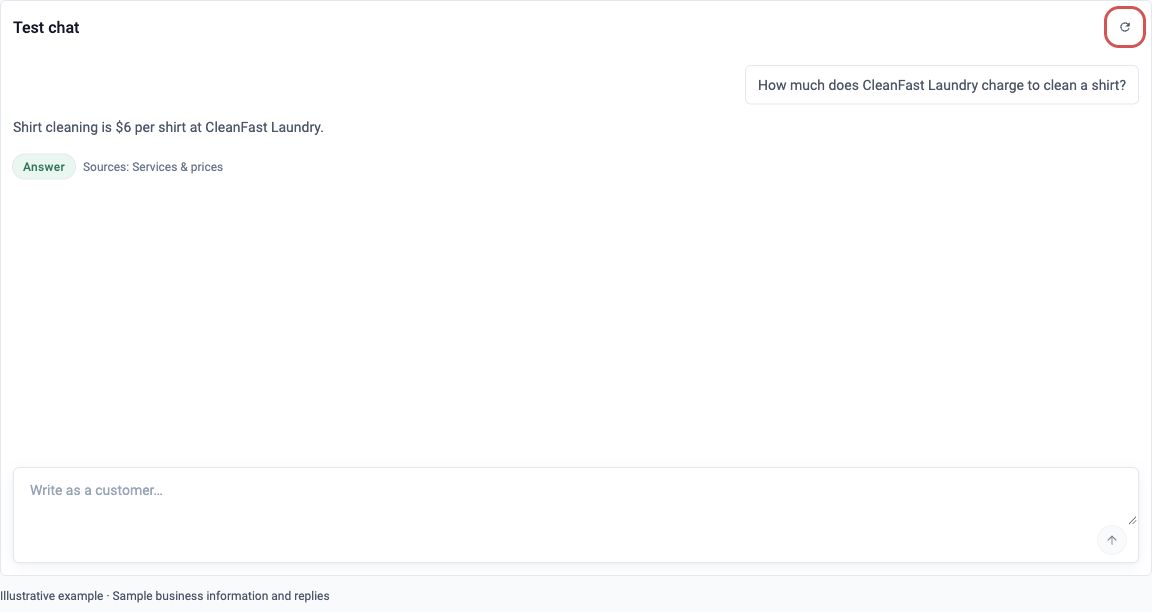
Check that the previous messages have cleared, then enter your next question.
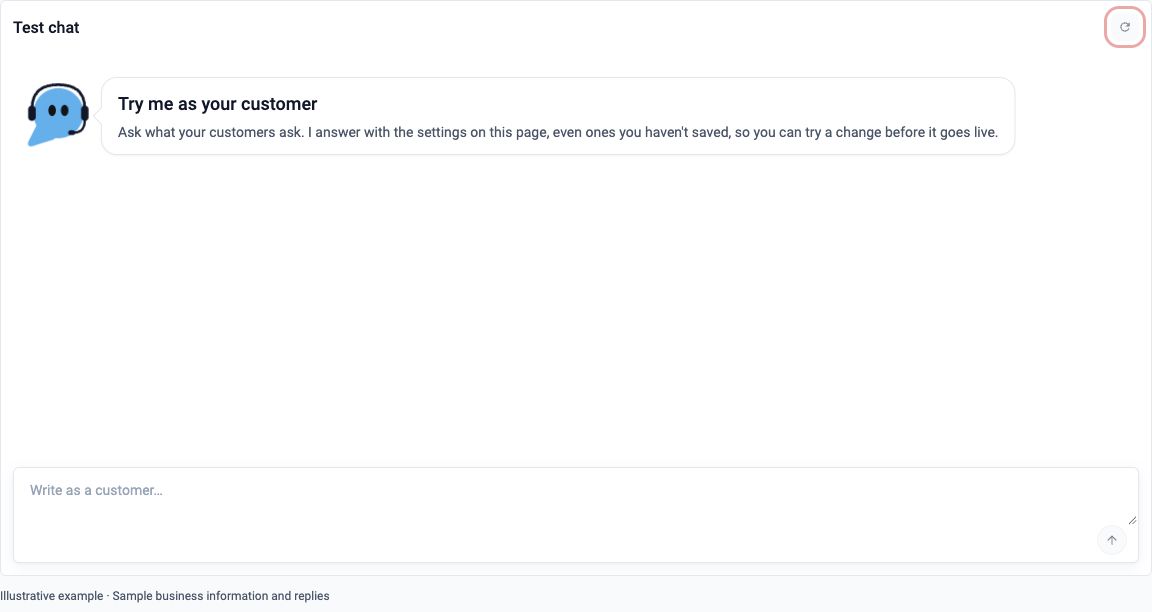
The reset icon is unavailable when the chat is empty or while an answer is being prepared. Resetting clears the test conversation without changing your agent settings or business knowledge.
FAQs
Will a test message reach a customer or notify a staff member?
No. The test never sends customer messages or notifies anyone, even when its result says Handed to a person.
Can I use a real order number to check an order?
The test chat is not linked to any customer, so an order number does not give it access to that customer's order. A suggestion in a real inbox conversation can use the customer's details that the test does not have.
Is testing required before staff can receive suggestions?
No. But if you skip it, staff may find missing information or unsuitable wording for the first time while answering a real customer.
Why might a live suggestion differ from my test answer?
Your test can use unsaved settings, while live suggestions use saved settings. A live conversation can also include customer details, orders and earlier messages that the test does not have.
Are test chats saved or charged?
No. Test chats are not saved in the inbox and are never charged. Their messages disappear when you reset the chat or leave the page, so do not use them as a record of your testing.
Does asking a question teach the agent the answer?
No. A test conversation does not become business knowledge by itself. Add or correct the information through Prepare Your Business Knowledge, or use Add to knowledge , then test again.
What’s Next
You have checked how your agent answers common questions and found anything that needs improving. Continue to Use Suggested Replies in Your Inbox to learn how your staff check and send drafts in customer conversations.