
Business Knowledge is where you write your shop's policies and common answers for your AI agents, in your own words. Open it from Settings › AI Agents › Business Knowledge. Add a short About your business description, then one Knowledge entry per policy or common question. Prices, services, minimum orders, opening hours and brand are already read from your settings, so you do not copy them here.
Before You Start
Complete Get Started with Customer Service Agent first.
You need an owner account or staff permissions that allow you to open Business Knowledge and manage AI settings. Access to customer conversations alone does not necessarily allow you to change knowledge.
General shop policies do not require a customer to be identified. Customer-specific answers, such as an order’s payment or pickup status, require the conversation to be linked to the correct customer record.
Prepare information that you would be comfortable sharing with customers. Do not enter passwords, private staff instructions or individual customers’ details.
Know Which Information Belongs Here
Business Knowledge has two parts:
- About your business: a short description of what you offer and how your shop works.
- Knowledge: separate entries for policies and common questions.
These are shared business information. The Customer Service Agent uses relevant entries, the Design Agent can use them, and the EasyBiz Assistant can use whole-business knowledge.
Other information already has a source in EasyBiz:
- Services, prices and minimum orders come from the relevant business settings.
- Opening hours come from your location settings.
- Brand information comes from your brand settings.
- The Customer Service Agent also reads saved inbox Quick Replies, which are reusable replies your staff maintain.
- Customer-specific order, payment and pickup information comes from the customer’s records.
Add the policies that these sources do not explain. For example, describe how your shop handles delicate garments rather than copying your entire price list.
Open Business Knowledge
Click the Settings gear icon at the top right.
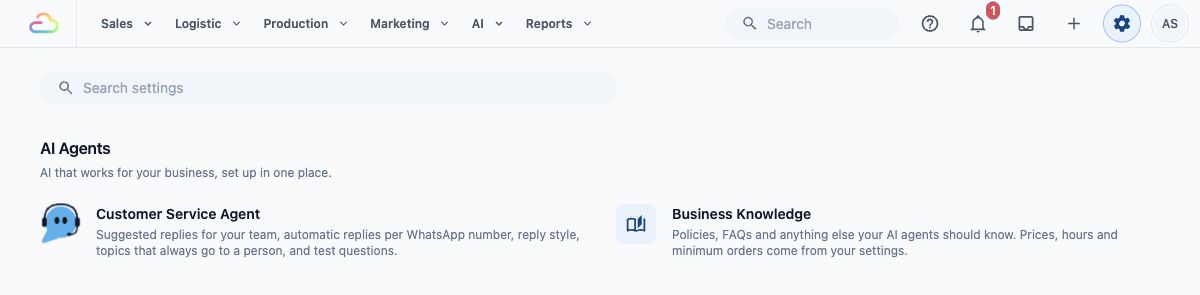
Under the AI Agents section, click Business Knowledge .

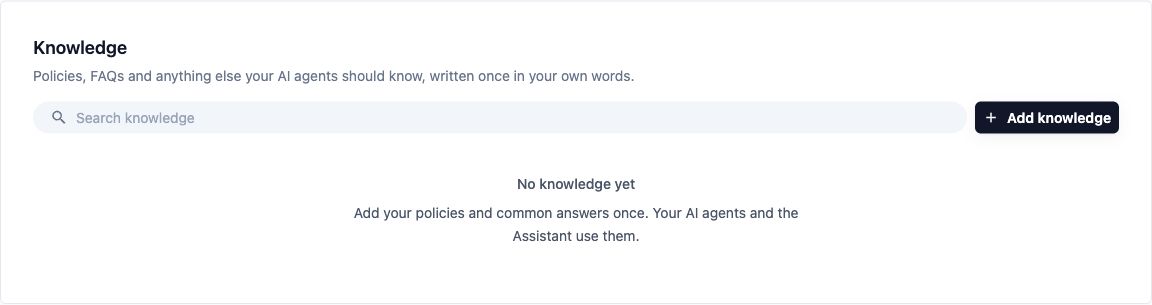
- Review the “Already read from your settings” notice, then find the About your business and Knowledge sections.
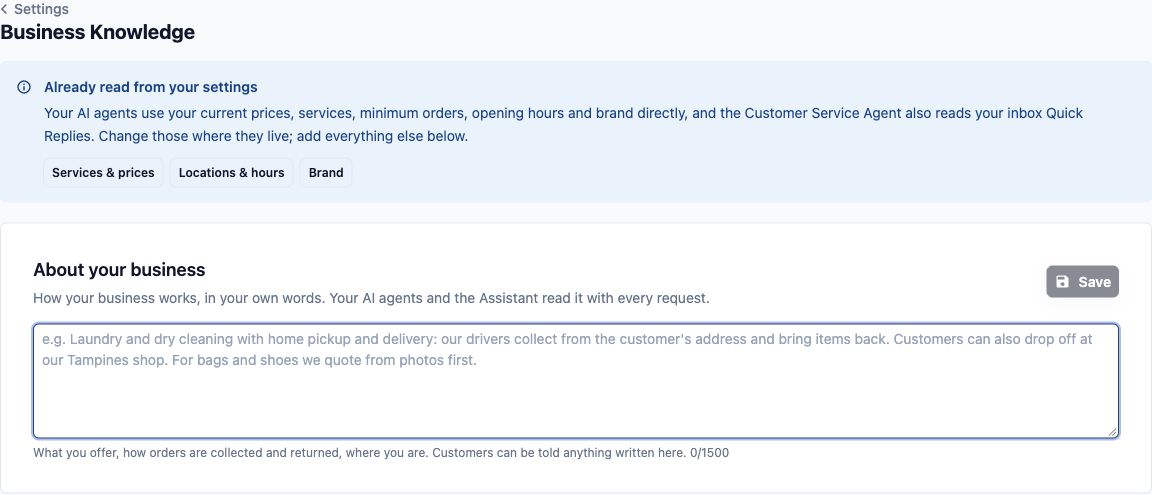
The notice includes Services & prices , Locations & hours and Brand shortcuts. They lead to the settings that own those details.
“No knowledge yet” means there are no entries to display. It does not mean the agent has no access to your existing business settings.
Describe Your Business
About your business
Enter a customer-safe description of what you offer, how items are collected and returned, and anything customers should understand about your operating model. The field allows up to 1,500 characters and shows a character count.
- Enter your description in About your business. For CleanFast Laundry, a laundry shop, use:
CleanFast Laundry provides laundry and dry-cleaning services. Customers can bring items to our shop. Our staff check the care label and condition of each item before confirming the suitable cleaning method.
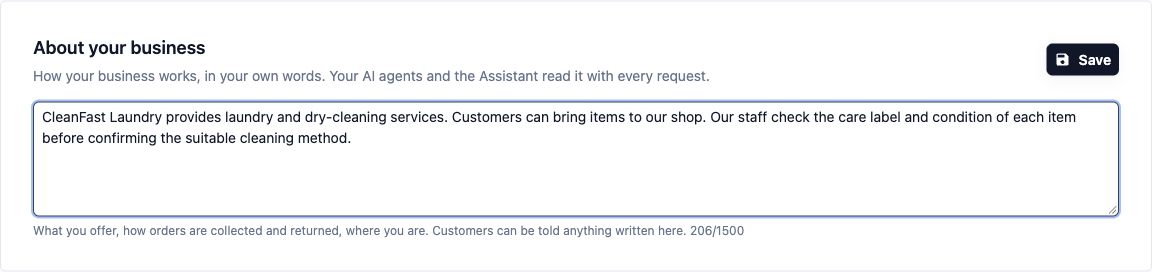
- Click the Save button beside About your business.
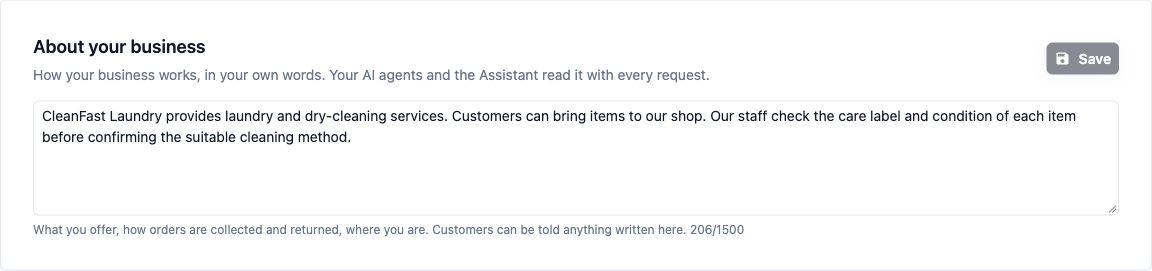
This section has its own save button. Saving a knowledge entry does not save an unfinished change to this description.
The button is unavailable when nothing has changed or a save is in progress. Leaving the description empty removes this additional explanation; it does not remove your services, prices or other settings.
Add a Policy or Common Answer
- In the Knowledge section, click Add knowledge .
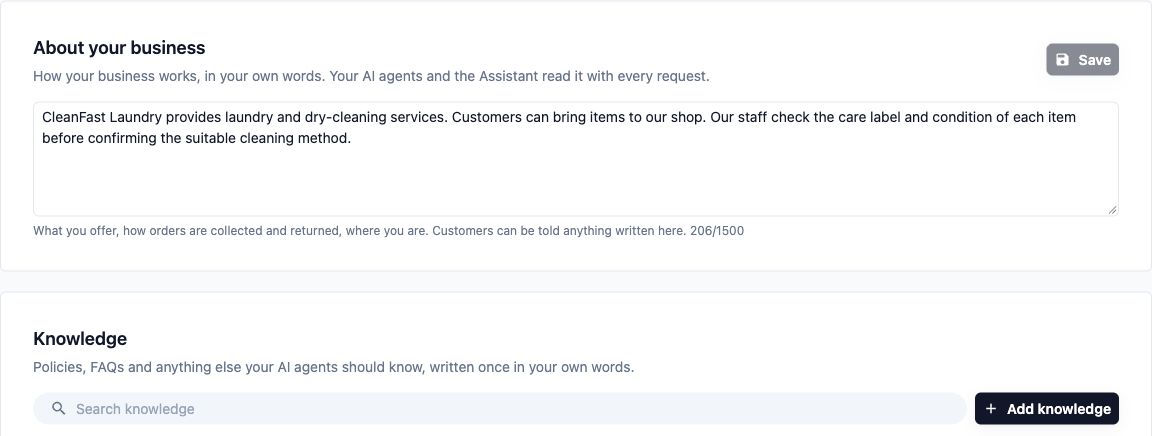
- Complete the fields in the Add knowledge panel.
Title
Enter a clear topic or customer question, such as "Rescheduling or cancelling a booking". This field is required and allows up to 4,000 characters.
Text
Write the answer as you would explain it to a customer: the rule, any conditions or fees, and what the customer should do next. This field is required and allows up to 8,000 characters. Prices, minimum orders and hours in your settings always win over this text.
For CleanFast Laundry's service policy, enter:
Applies to
| Option | What it does |
|---|---|
| Whole business | Makes the entry available as a general policy across your business. This is the default for a new entry. |
| A named business unit | Limits the entry to that part of your business, such as Laundry or Bag Repair. The choices use your own business-unit names. |
A business unit is a distinct part of your operation, such as laundry or bag repair. This field appears only when your business has more than one business unit. It is a single choice, not a multi-select.
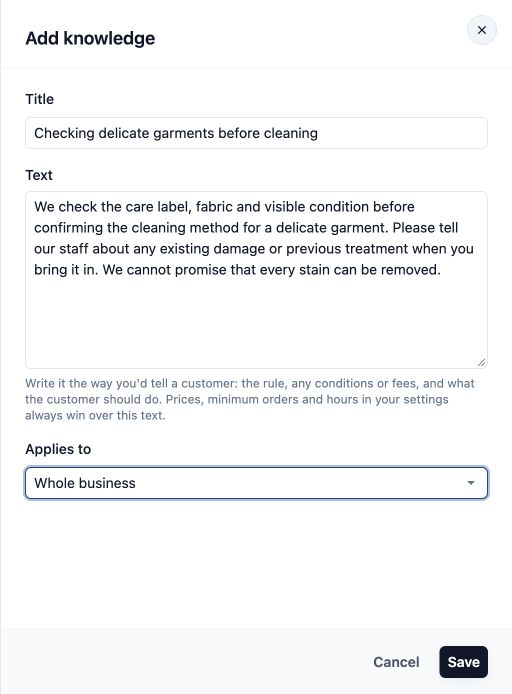
- Choose the appropriate scope, then click Save .

Both Title and Text must contain something before you can save. The fields are temporarily unavailable while saving. Cancel closes the panel without saving the changes.
A manually added entry does not need a separate approval or publish step. The list shows its scope; it does not display a separate processing progress bar for this flow.
- Repeat the same steps to add this common question for CleanFast Laundry:
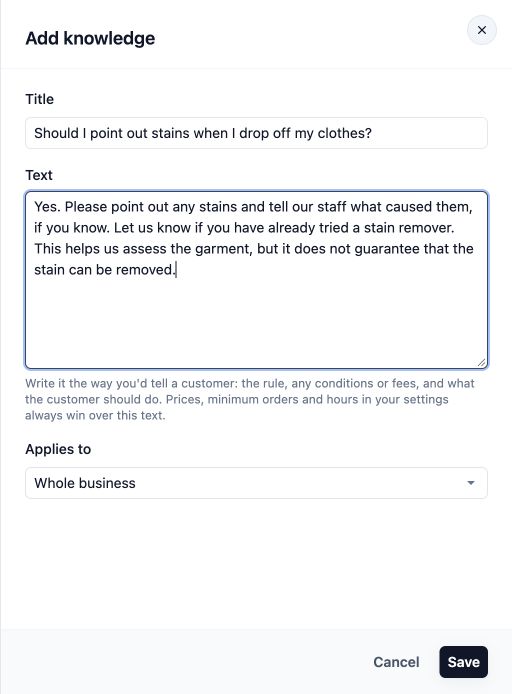
- Click Save .
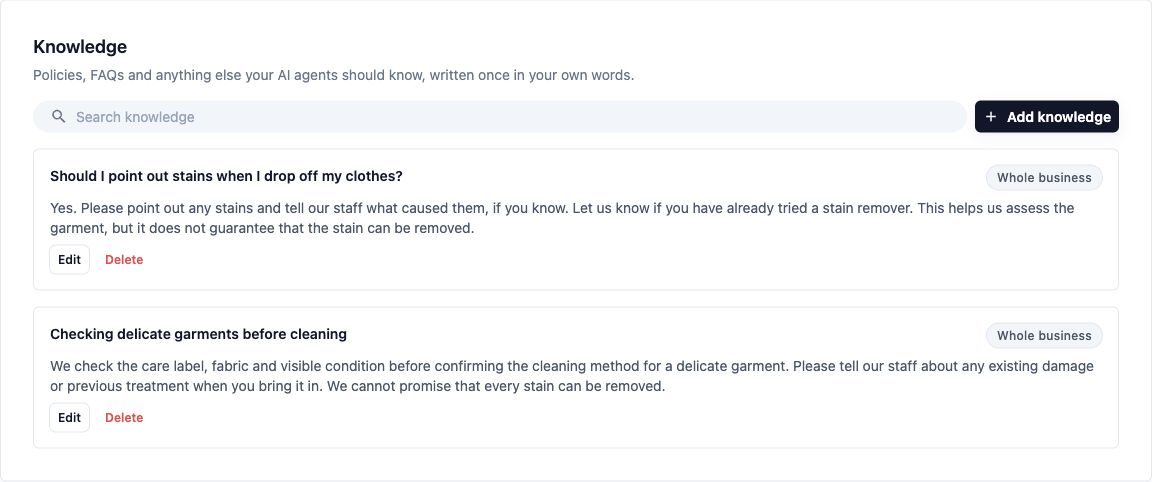
These examples describe one shop's policies, not rules set by EasyBiz. Replace them with your own approved wording.
Find and Update an Answer
- Enter a word from the title or answer in the field showing “Search knowledge”.
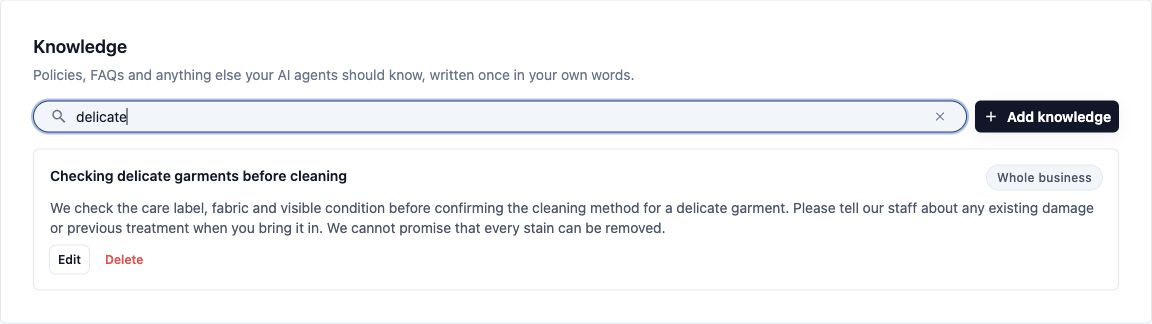
- Click Edit on the matching entry.
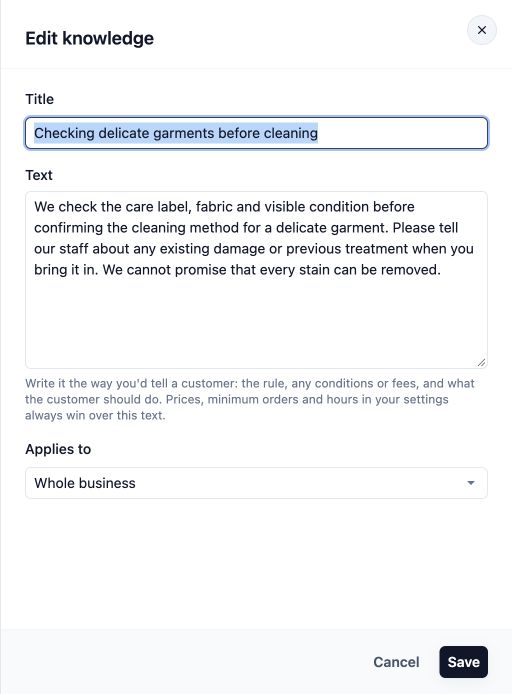
- Update Title, Text or, where shown, Applies to.
- Click Save .
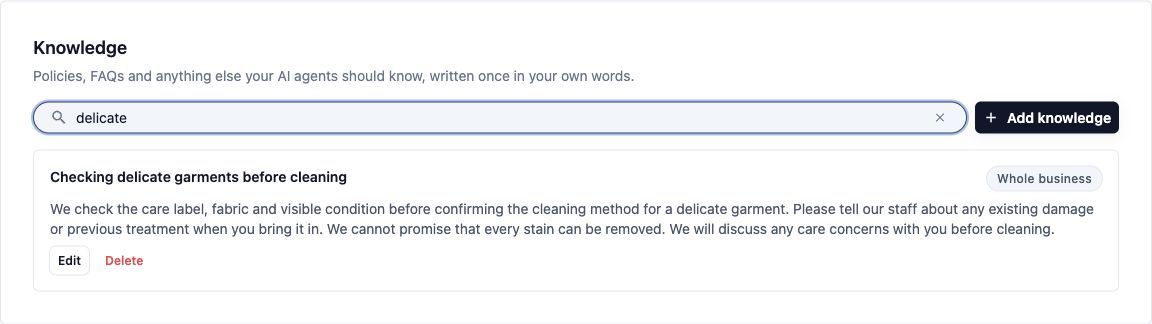
Search checks both titles and answer text. If a search shows “No knowledge yet”, clear the search before assuming that your entries are missing.
Edit the existing policy when it changes. Adding a second entry with conflicting wording leaves both versions available.
Entries marked Draft, Needs review or Learned from inbox are covered in Manage Knowledge Learned from Conversations.
Correct Facts at Their Source
Change an incorrect detail where it is maintained:
- Update services and prices in their service or pricing settings.
- Update opening hours in the relevant location settings.
- Update minimum-order requirements in the settings that control those requirements.
- Correct an outdated Quick Reply in the original saved reply.
- Correct customer-specific details in the relevant customer or order record.
- Edit Business Knowledge when the incorrect information is a policy or explanation entered here.
Current settings and records take precedence over conflicting knowledge text. However, you should still remove outdated wording so your staff and other agents do not encounter contradictory instructions.
Writing a policy here does not configure the feature it describes. For example, saying that a fee applies does not create a charge, and describing a booking restriction does not set up a Blocking Rule or change a recurring schedule.
Understand What Happens After Saving
After a successful save, your description and manually added knowledge are available for subsequent replies. There is no separate publish step on this page.
The agent uses this information in its suggested replies. Your staff check each draft before sending it.
For the CleanFast Laundry stain question, the agent can explain that customers should point out stains and mention previous treatment. The exact wording may vary.
Keep Customer-Specific Answers Separate
General knowledge explains what your shop normally does. Keep individual customer and order details in their own records.
To answer customer-specific questions, the agent needs:
- The correct customer linked to the conversation.
- Relevant records within the business areas the agent serves.
An order number alone does not grant access to another customer's order.
FAQs
Do I need to enter every policy and answer manually?
No. Existing business settings and saved inbox Quick Replies already provide information. Use Business Knowledge for explanations and policies those sources do not cover. Keep each fact in its original source where possible.
Can I use a knowledge entry to override a price or opening hour?
No. Current prices, opening hours and other structured business facts take precedence. Correct the original setting, then remove conflicting wording from your knowledge entries or Quick Replies.
Does changing knowledge update existing orders or messages?
It changes information available for later replies. It does not rewrite sent messages, recalculate an existing order or change its booking. Those changes must be made through the relevant order or booking controls.
Can different parts of my business have different policies?
Yes. Where Applies to is shown, choose the business unit the policy belongs to. Avoid saving a laundry-only rule as Whole business if it would be wrong for your bag-repair operation.
Is Business Knowledge private to the Customer Service Agent?
No. Relevant knowledge is shared with other AI tools, including the Design Agent. The EasyBiz Assistant can use whole-business entries, so write information that is suitable for these uses and safe to share with customers.
Can the agent answer order questions for someone it has not identified?
It can explain general shop policies, but customer-specific information needs the correct customer connection and an accessible matching record. Do not add private order details to Business Knowledge to work around a missing customer connection.
What’s Next
You have prepared your shop’s policies and separated them from facts maintained elsewhere in EasyBiz. Next, Customise Your Agent’s Replies to adjust how those answers are phrased for your customers.