
Why use the Shared Inbox?
No more missed messages — All incoming chats appear in one place, visible to your whole team
Clear ownership — Staff can assign chats to themselves so everyone knows who is handling what
Stay organised — Filter by Pending, Unassigned, or All to see exactly what needs attention
Handle unassigned chats
When a customer messages you for the first time, the chat appears in the Unassigned tab.
Click the Unassigned tab in your Inbox.
Select a chat to preview the message.
Click Attend (or Assign to me) to move it to your active list and start replying.
Start a new conversation
You can reach out to customers in two ways:
Existing Customer: Search for their name or phone number in the sidebar.
New Customer: Click Start conversation, enter the country code and phone number, then click Start WhatsApp
Understand the 24-hour rule
WhatsApp only allows free-form messages within 24 hours of a customer's last reply. Here's what that means in practice:
Window open — The customer replied to you recently. You can type and send freely.
Window closed — The customer hasn't replied in over 24 hours. The text box will be locked and you'll need to send an approved template to re-open the conversation.
Send a Template
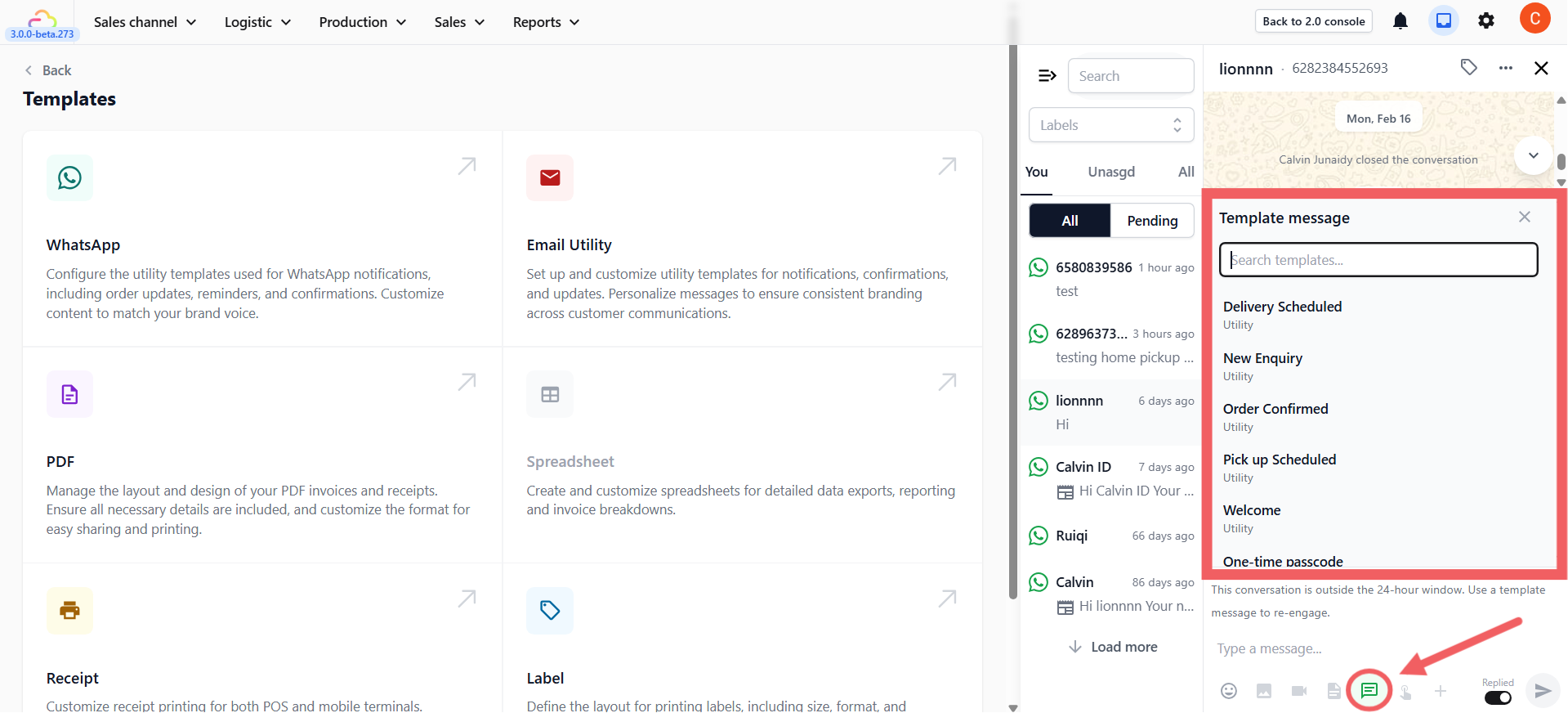
Use templates to start a conversation, send an order update, or re-open the 24-hour window.
Click the Template icon (the message bubble) in the toolbar.
Choose an approved template (e.g., Welcome).
If required, select the context (e.g., the specific Customer) to auto-fill the variables.
Click Send.
Send free-form messages & Quick Replies
Standard Free-form & Attachments
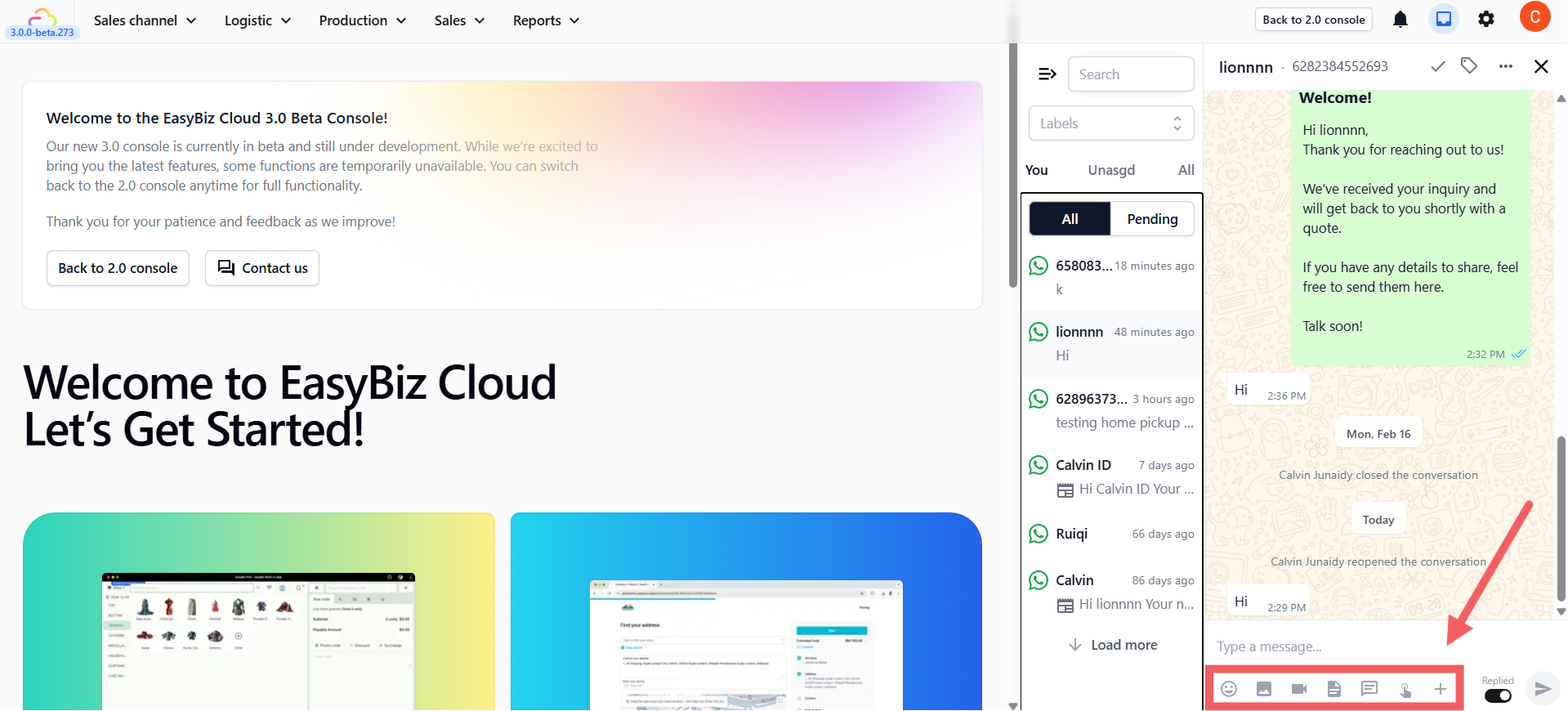
Type your message in the input box and hit Enter. Use the toolbar icons below the text box to quickly share attachments or use system features:
Emoji, Image, Video, Document: Standard media sharing.
Template (Message bubble): Send pre-approved WhatsApp templates.
Mini Apps (Pointing finger): Send interactive Mini Apps forms to the customer. See What is a Mini App to learn more.
Plus (+): Click this to send order-related documents. Selecting this will prompt you to choose an order first, allowing you to send: Order PayNow QR, Order Invoice, Order Receipt, and Order Photos.
Quick Replies
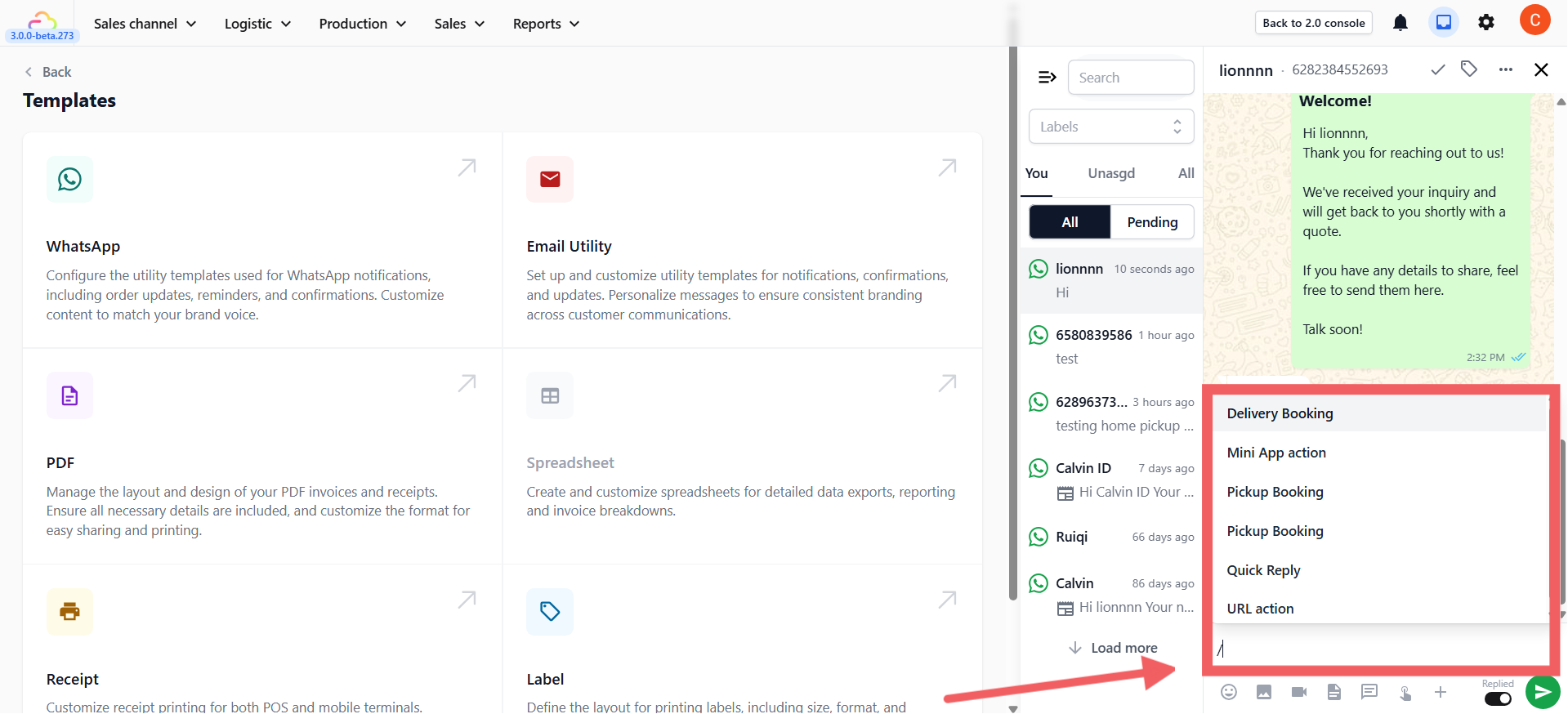
If the 24-hour window is open, you can quickly send pre-made standard replies (FAQs) to save time.
Simply type
/in the text box.A popup of your created Quick Reply templates will appear for you to choose from.
The 'Replied' Toggle & Pending Chats
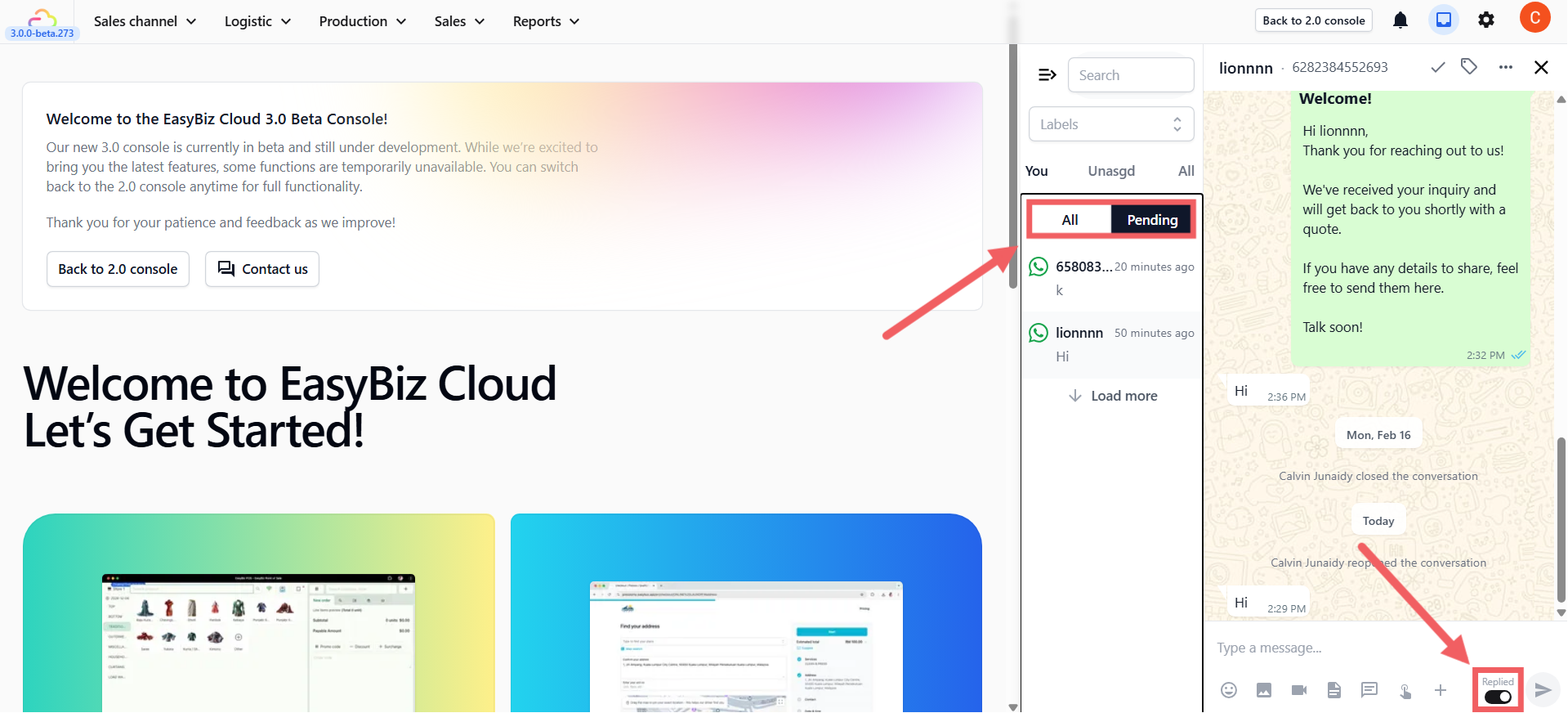
Next to the Send button, you'll see a Replied toggle. This helps your team track which conversations still need follow-up.
Replied (on) — The conversation is marked as done for now
Pending (off) — The conversation stays in your Pending list as a reminder that the customer still needs a final response
Use the Pending tab at the top of your sidebar to filter and find customers who are still waiting.
Closing & Reopening Chats
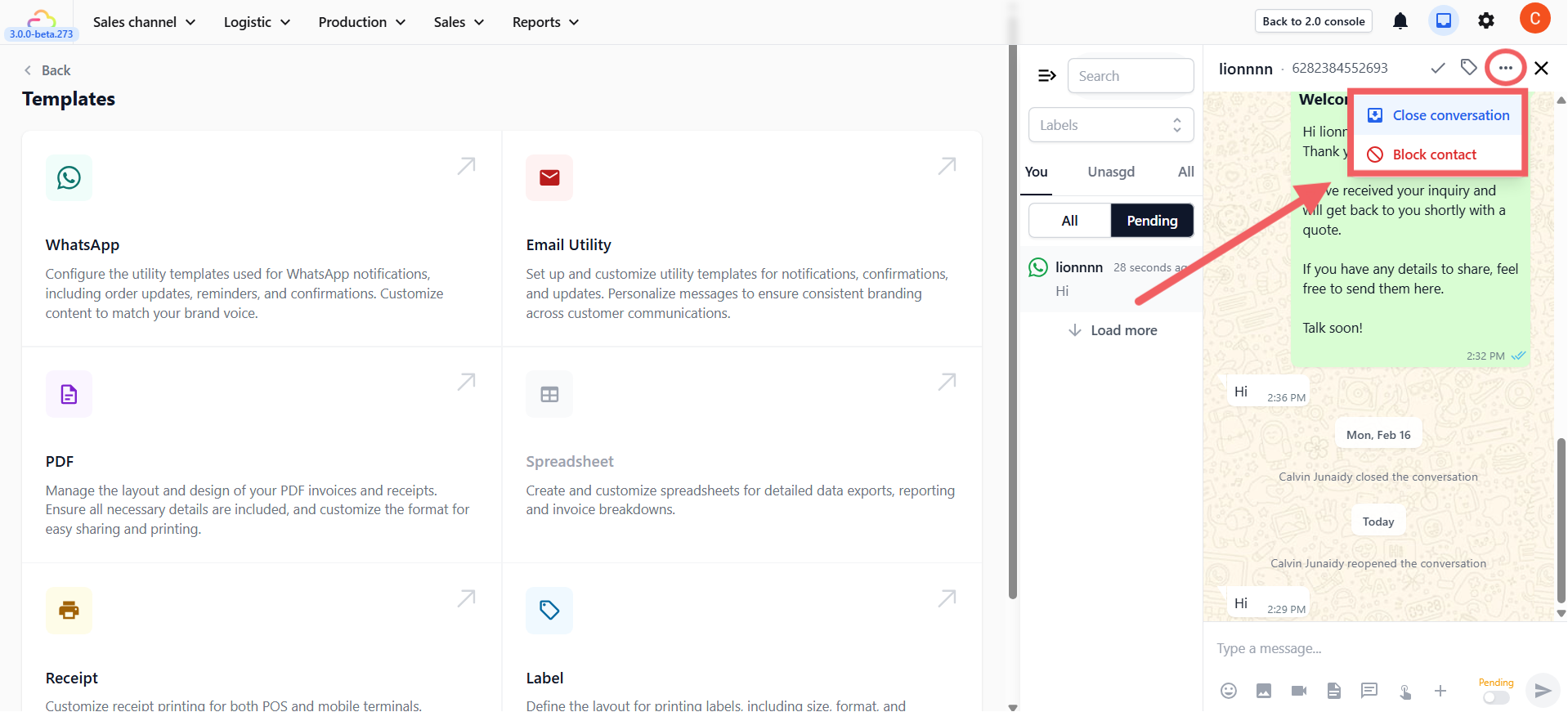
When a customer's issue is resolved, close the chat to keep your inbox tidy.
Click the three dots (•••) at the top of the chat
Select Close conversation
You can also choose to Block contact from this menu if necessary.
To reopen a closed chat:
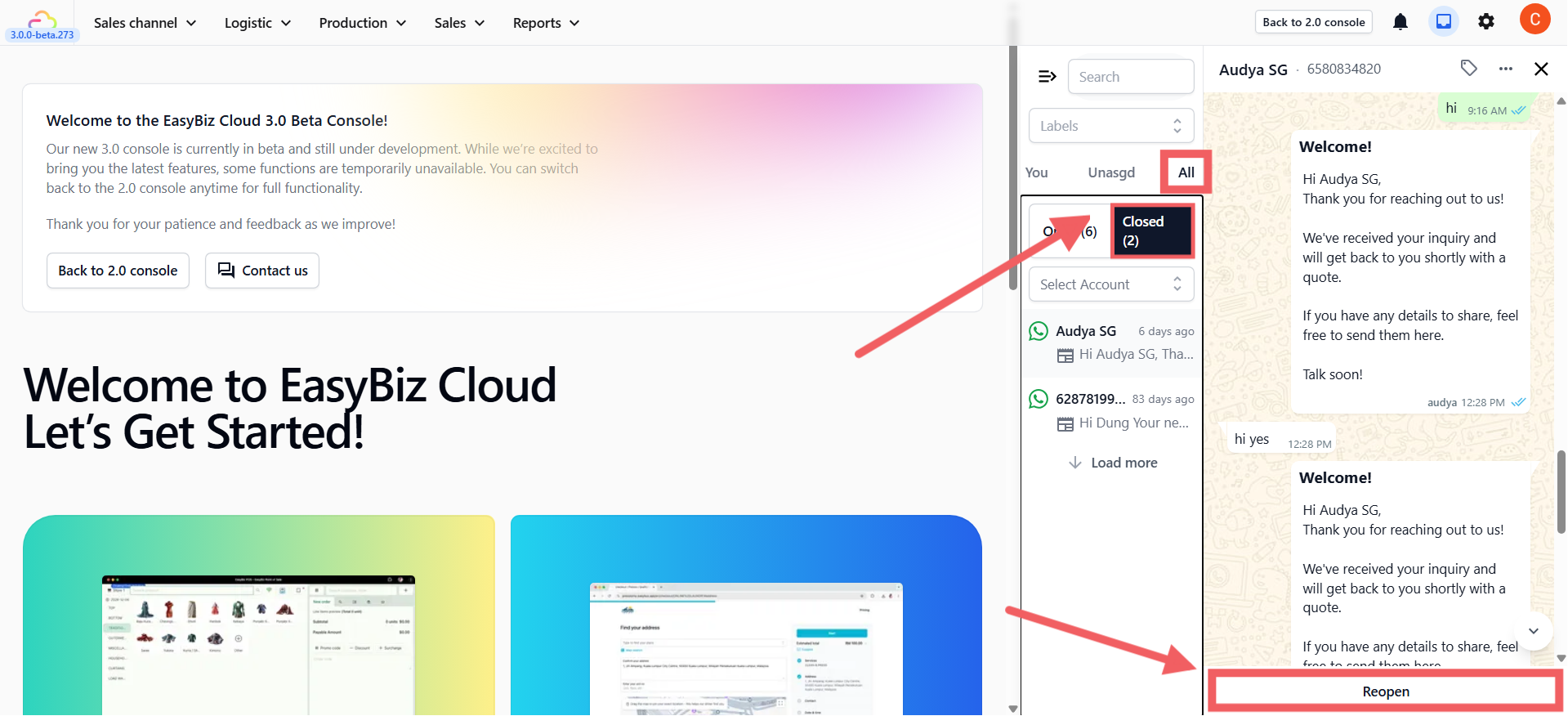
Click the All tab in the sidebar
Select the closed conversation
Click Reopen at the bottom.