
Before You Start
- Professional plan. Calling comes with the Professional plan. On another plan, the Calling settings and the phone icon show "Calling customers on WhatsApp comes with the Professional plan." with a See plans button.
- A connected WhatsApp number. See Connect & Configure WhatsApp.
- The right access. Switching calling on needs access to Integrations in Settings, usually the owner or an admin. Staff who make calls need access to the Inbox.
- A computer with a microphone, such as a headset, and the EasyBiz Console open in a browser. Calls are made from the Console only.
- Who pays. Meta charges the payment method on your WhatsApp Business Account for each minute of a call you make. EasyBiz adds no fee.
- If you set this up before: Calling has moved from Settings › WhatsApp › General Settings to Settings › Integrations › WhatsApp Business › Manage. Your saved choices stay as they were, so there is nothing to set up again.
Overview
Calling turns a WhatsApp chat into a voice call without leaving the Console. WhatsApp only lets a business call a customer who has agreed to it, so the first step is always a short "Can we call you?" message with an Allow calls button. Once the customer taps it, any staff member in the Inbox can call them. Customers can't ring your WhatsApp number themselves, so calls only go out from your team. Each call leaves an entry in the chat, so nobody has to ask a colleague what was said.
Where it works
- Console: the switches in Settings, the phone icon in each WhatsApp chat in the Inbox, and the call bar while you talk.
- Your customer's WhatsApp: the request message with the Allow calls button, then an ordinary WhatsApp call on their phone.
Why Set It Up
A bag owner with a torn strap, or a customer unsure about a stain, often needs two minutes of talking, not twenty messages. A call settles the price and the plan in one go, and the entry in the chat means the next staff member sees what was agreed.
If you leave calling off, the phone icon still shows in WhatsApp chats, but it says "Calling is off for this WhatsApp number." and your staff can't call. Everything else in the Inbox works as before.
Where to Find It
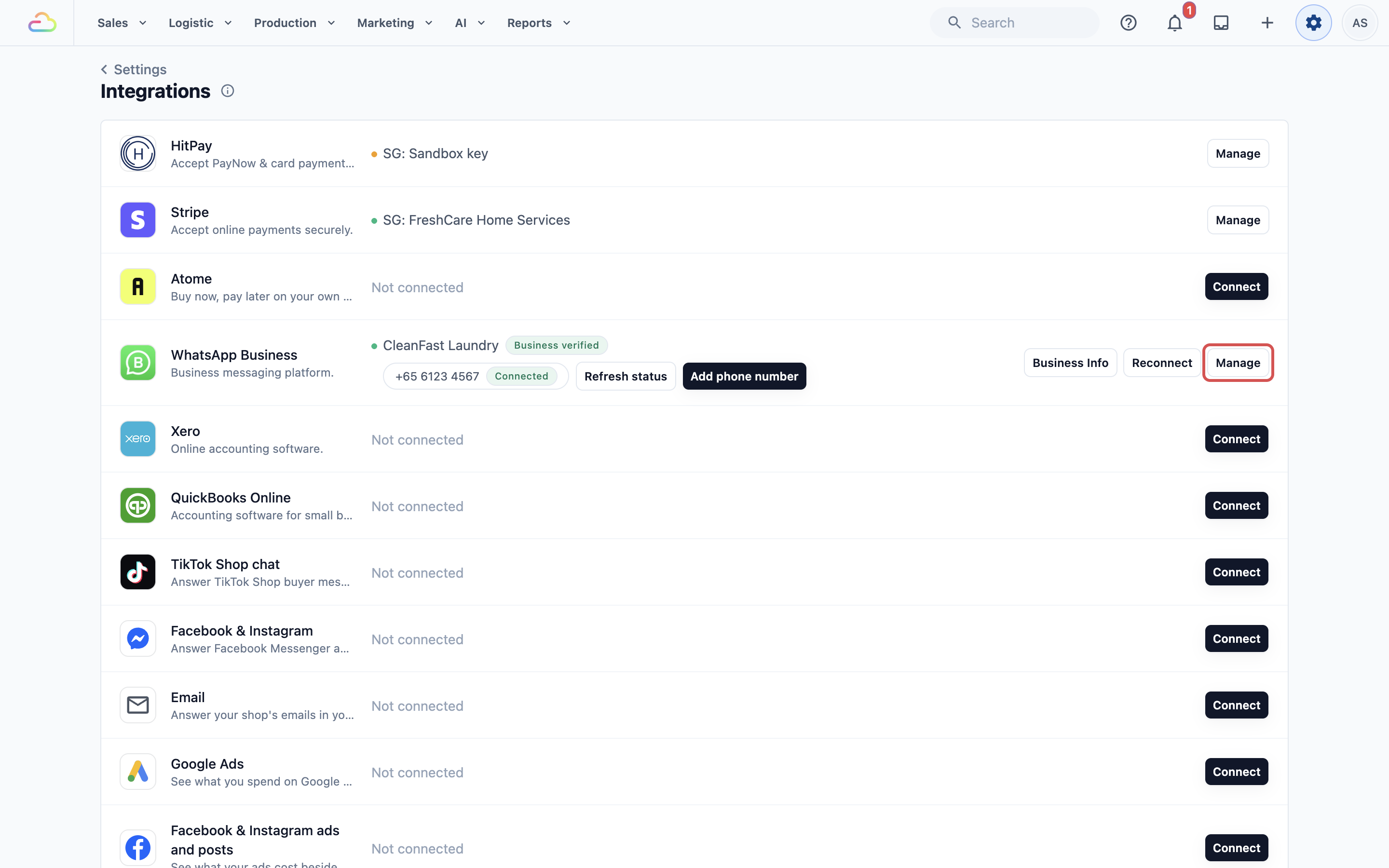
Click the ⚙️ Settings icon in the top-right corner.
Under the Administration section, click Integrations.
On the WhatsApp Business card, click Manage. The WhatsApp Settings page opens.
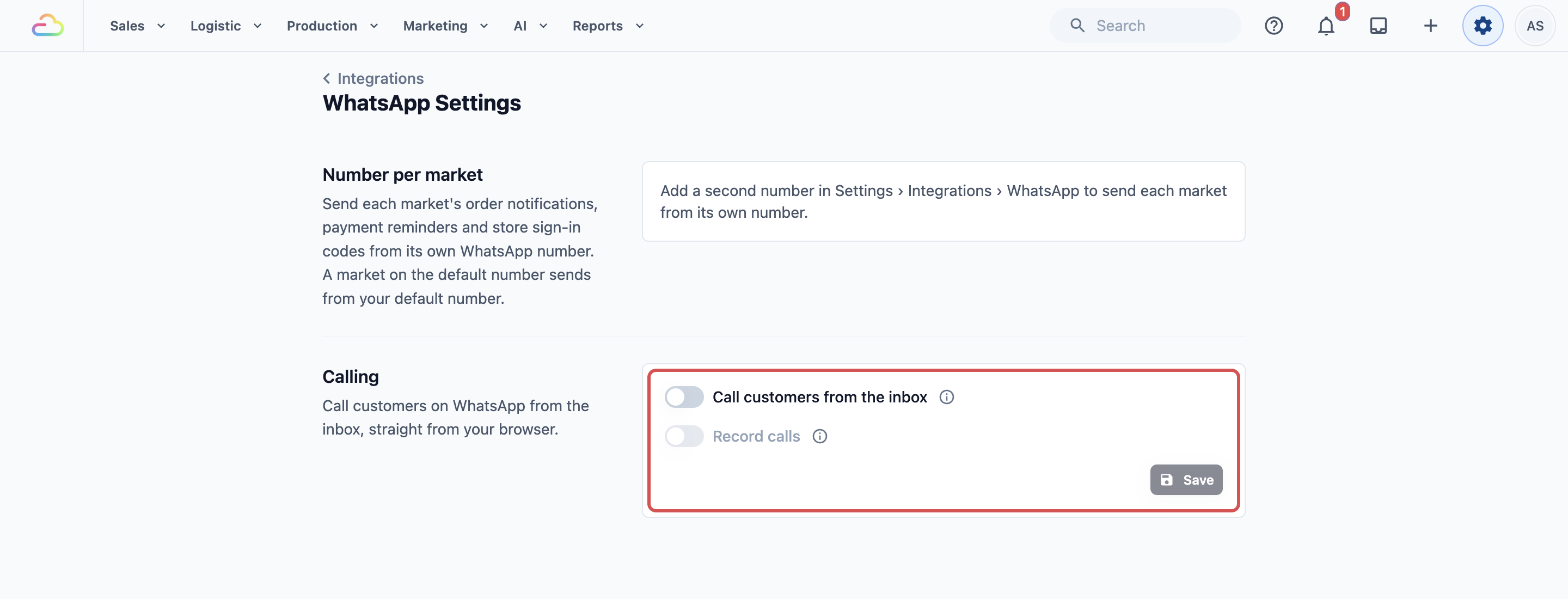
Scroll down to the Calling section, below Number per market.
Turn On Calling
Switch on Call customers from the inbox.
If you want calls recorded, also switch on Record calls.
Click Save.
Call customers from the inbox
If you turn this on, every WhatsApp chat in the Inbox gets a working phone icon, and EasyBiz switches calling on with Meta for each of your WhatsApp numbers. Turn it off and click Save to stop all calls.
Record calls
If you turn this on, every call is recorded. WhatsApp tells both people before the recording starts, and the bar shows Recording during the call. The recording appears in the customer's chat and is kept for 180 days. This switch only works while Call customers from the inbox is on.
What you see after saving
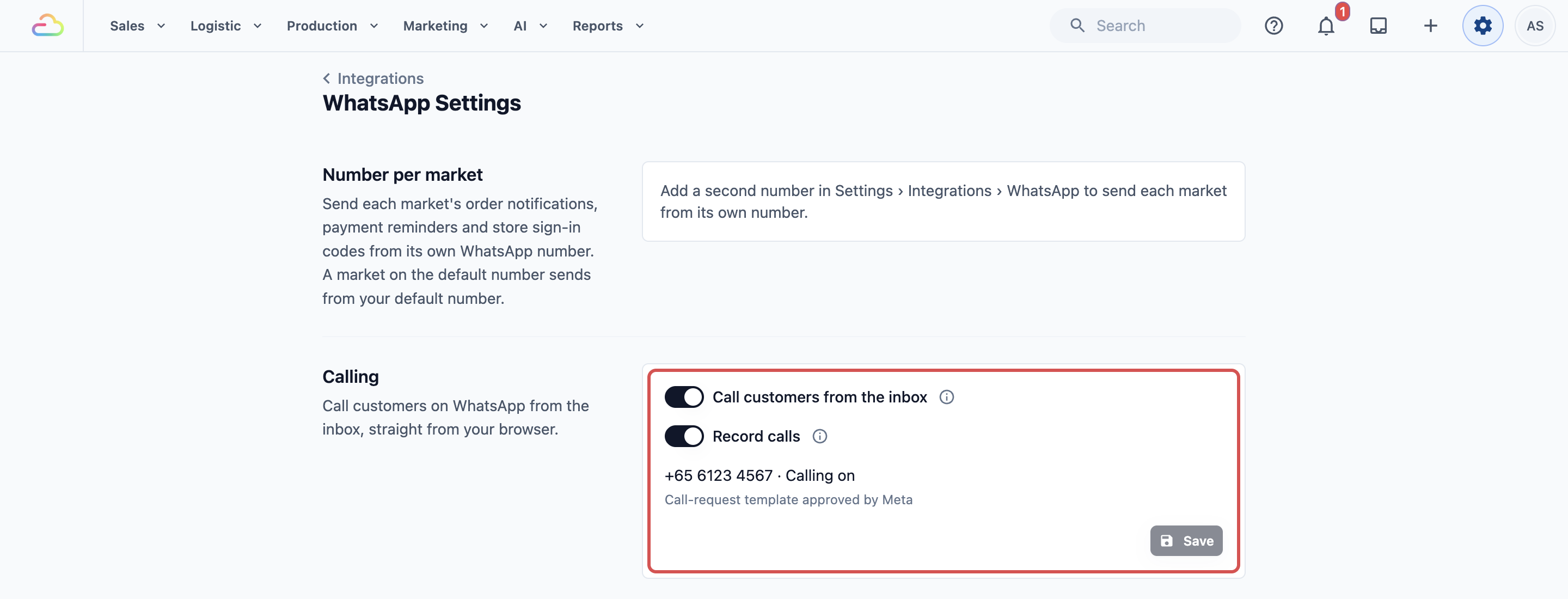
Under the switches, each of your WhatsApp numbers shows Calling on or Calling off. If Meta could not switch calling on for a number, a warning says "Meta did not switch on calling for:" and names the number.
Call-request template
The line under your numbers shows your call-request template. This is a ready-made message EasyBiz creates for you. WhatsApp needs it to ask a customer for permission to call when their last message to you is more than 24 hours old, and Meta has to approve it first.
| Status | What it means |
|---|---|
| Call-request template waiting for Meta's approval | Meta is still checking it. Until then, you can only ask customers who messaged you in the last 24 hours. |
| Call-request template approved by Meta | You can also ask customers whose last message is older than 24 hours. |
| Meta did not accept the call-request template | You can only ask customers who messaged you in the last 24 hours. |
Call a Customer
Click the Inbox icon in the top bar and open the customer's WhatsApp chat.
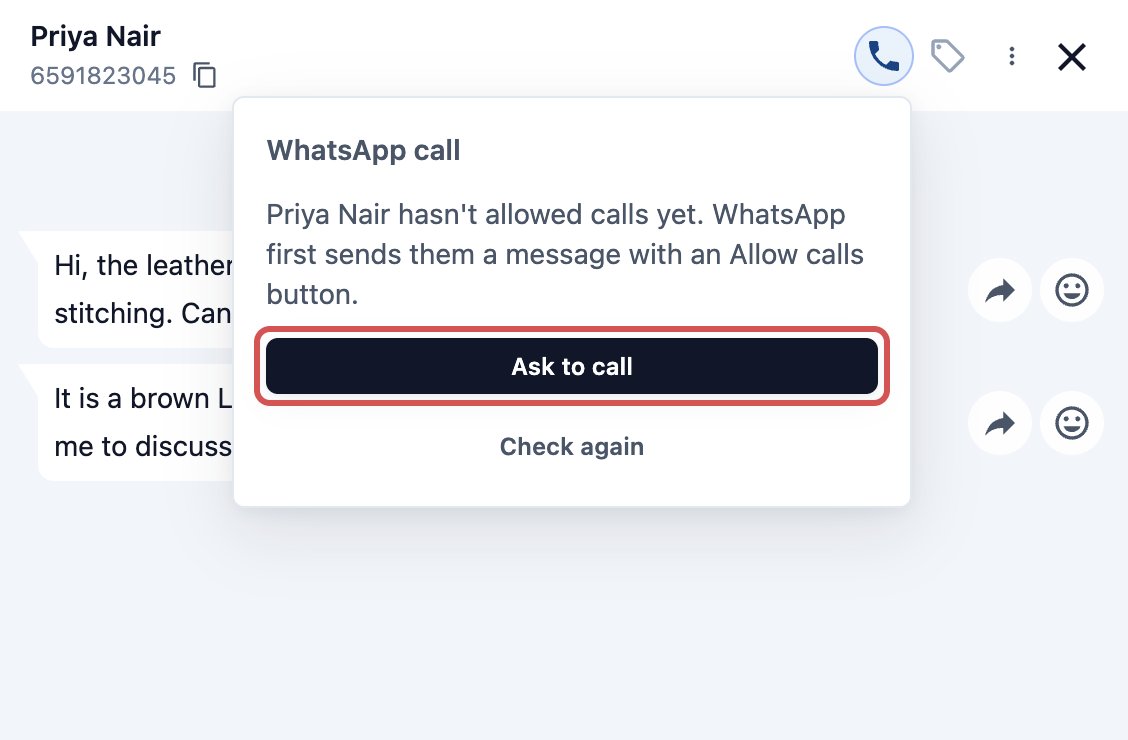
Click the phone icon (Call) at the top of the chat. The WhatsApp call panel opens.
If the customer hasn't allowed calls yet, the panel says so. Click Ask to call. WhatsApp sends the customer a message with an Allow calls button, and you see "Request sent. You can call as soon as they tap Allow calls."
When the customer taps Allow calls, the panel shows how long they allow calls, for example "Priya Nair allows calls until 4 Nov 2026, 5:00 PM.", or "allows calls anytime". If the panel hasn't changed yet, click Check again.
Click Call now. If the browser asks to use your microphone, allow it.
A call bar appears at the bottom of the Console. It shows Ringing…, then the call time once the customer picks up. Use Mute and Hang up on the bar.
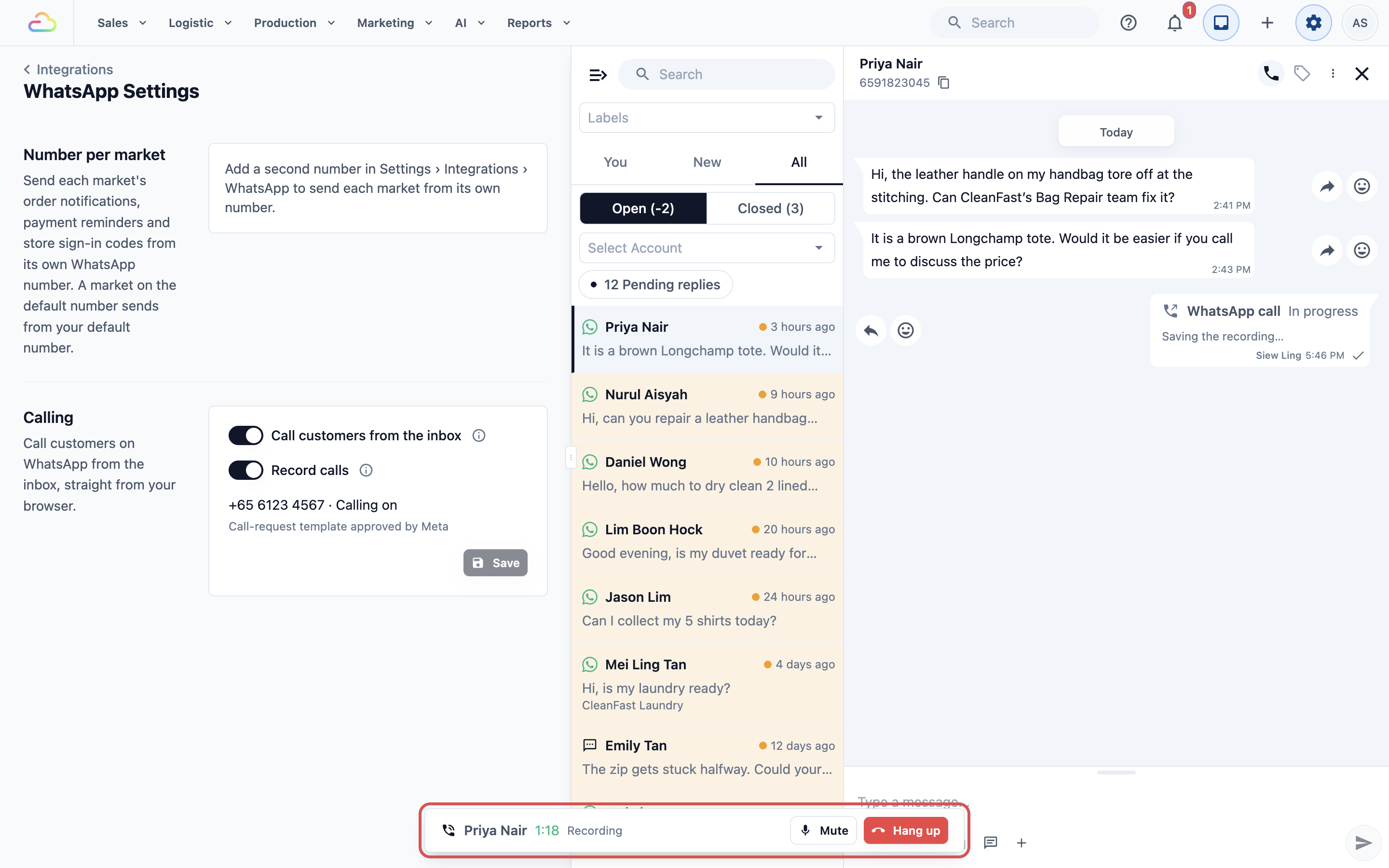
The call carries on while you open other chats or Console pages, as long as you keep the browser tab open. If you try to close the tab mid-call, the browser asks you to confirm.
Example Setup
CleanFast Laundry's owner switches on Call customers from the inbox and Record calls, then clicks Save. Their WhatsApp number now shows Calling on.
After the Call
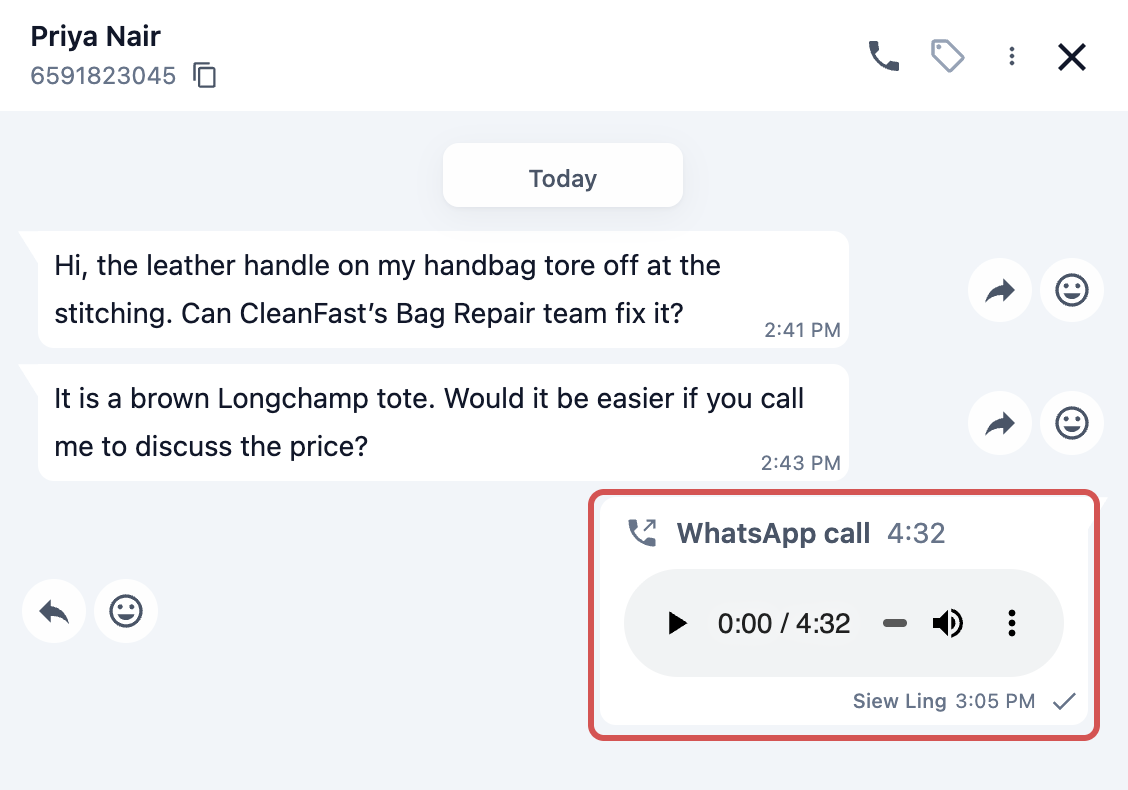
The chat shows a WhatsApp call entry with how long the call lasted, or No answer or Declined if the customer didn't pick up.
With recording on, the recording plays from the call entry. Right after the call it shows "Saving the recording…" for a short time. If it shows "The recording could not be saved.", click Try again.
Limits to Know
- The customer must allow calls first. Customers can't ring your WhatsApp number themselves.
- Asking is limited. You can ask a customer to allow calls once a day and twice a week. When you reach the limit, the panel says "You asked recently. WhatsApp allows one request a day and two a week."
- Asking after 24 hours costs a message. If the customer's last message is more than 24 hours old, the request goes as a template message, which Meta charges for, and it needs the approved call-request template. The panel warns you before you ask.
- WhatsApp limits calls per customer. When the panel says "WhatsApp's call limit for this customer is used up for today.", try again tomorrow.
- One call at a time. Only one staff member can be on a call with a customer at a time, and each staff member can be on one call at a time.
- Hidden numbers can't be called. A customer who hides their phone number on WhatsApp can't be called.
FAQs
The panel says "Calling is off for this WhatsApp number." What do I do?
Calling isn't switched on for the number this chat uses. Click Turn on calling to open the WhatsApp Settings page, switch on Call customers from the inbox and click Save. Then check that the number shows Calling on.
I can't find Calling under Settings › WhatsApp › General Settings any more.
It moved to Settings › Integrations › WhatsApp Business › Manage, together with Number per market. Your saved choices did not change. If you can't see Integrations in Settings, ask the owner or an admin to switch calling on.
The call bar says "Allow microphone access in the browser to call."
Your browser blocked the microphone. Allow microphone access for the EasyBiz Console in your browser's site settings, then click Call now again.
The request could not be sent because the customer's last message is over 24 hours old.
Send the customer a message first, for example an approved template. Once they reply, you can ask to call again. Also check in the Calling section that your call-request template is approved.
The call bar says "The customer no longer allows calls. Ask to call again."
The time the customer allowed calls has ended. Click Ask to call again.
How long are recordings kept?
180 days. After that, the recording is no longer available in the chat. The call entry itself stays.
What's Next
You've reached the end of the Inbox guides: your team can now handle every WhatsApp chat in one place, from the first reply to a call. To answer common messages automatically, even outside opening hours, set up Auto Reply Rules for Your WhatsApp.