
Before You Start
- A connected inbox. Your WhatsApp number or Live chat must already be in the Inbox. See Connect and Configure WhatsApp.
- You know your way around the Inbox. This article follows on from Start a New Chat and the 24-Hour Rule.
- Who needs the deal-stage part. Only shops that track enquiries as deals need the "Let deal stages close chats for you" section. Everyone else can stop after "Why a closed chat comes back".
Overview
Closing a chat tells your team that a customer's question is done. The chat leaves your open list and moves to the Closed list, with all its messages kept. If the customer writes again, the chat reopens by itself and lands back with your team as a new chat. Shops that track enquiries as deals can instead let EasyBiz close and reopen chats automatically as each deal moves along. Either way, your team always sees the chats that still need a reply and nothing else.
Where it works
- Console Inbox: close, block and reopen chats from the ⋮ menu and the Closed list.
- POS and the staff app: the same inbox, with the same close and reopen options.
- Customers: they don't see that a chat was closed. They can message you any time, as usual.
Why close chats
- A tidy inbox. Your open list shows only customers who still need something, so no one wastes time scrolling past finished chats.
- Clear ownership. Closing takes the chat off your list. When the customer writes again, the chat shows up as new, so whoever is free can pick it up.
- Nothing is lost. Messages, photos and order documents stay in the chat. You can open a closed chat to read it at any time.
If you never close chats, they stay on the You tab of whoever replied, and old chats pile up on top of the ones that still need an answer.
Close a chat
- Click the Inbox icon in the top bar.
- Open the chat you have finished with.
- Click the ⋮ menu at the top right of the chat.
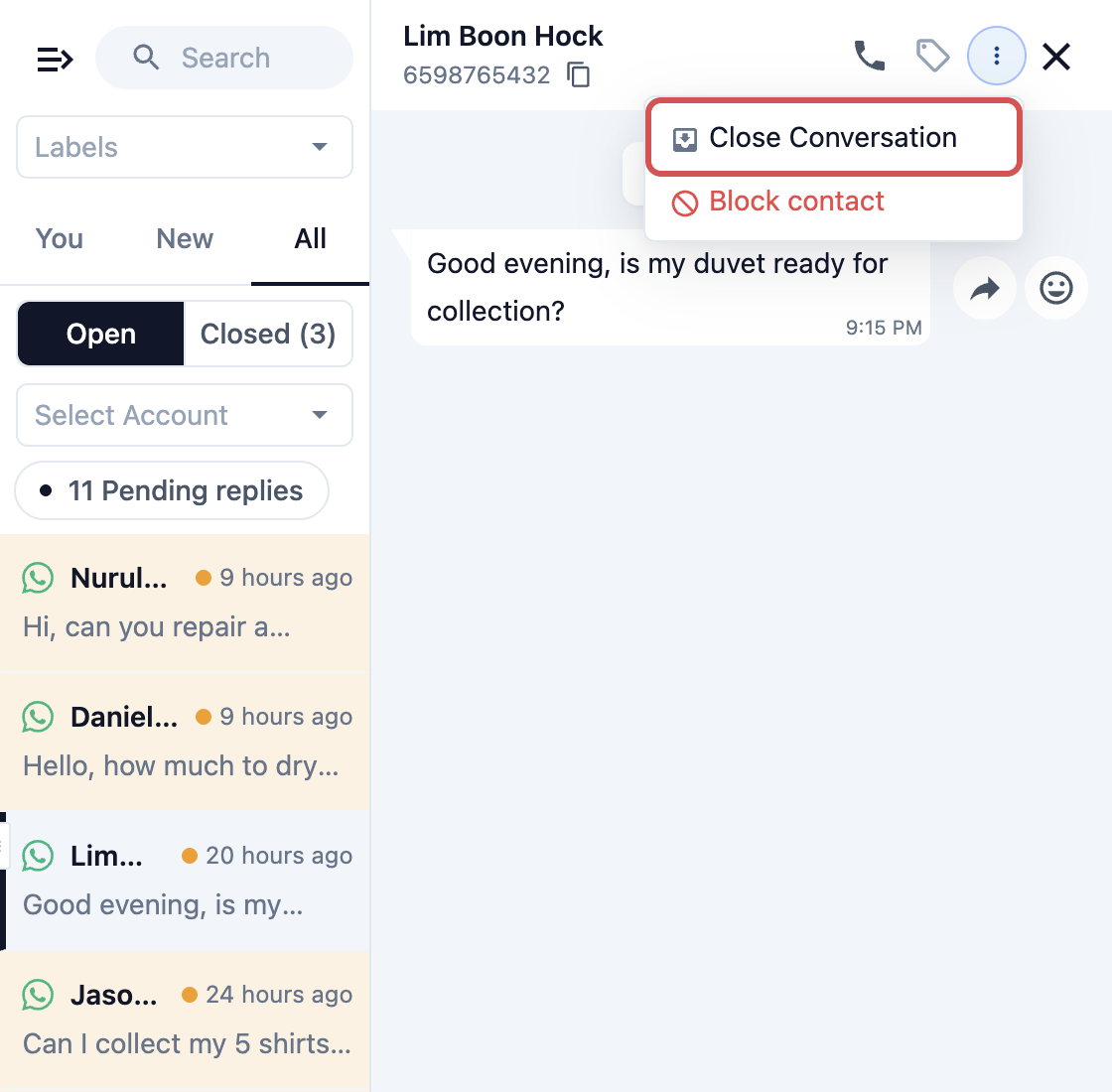
- Click Close Conversation.
The chat moves to the Closed list and you see "Conversation closed". Everyone who was handling the chat comes off it.
Block a contact
The same ⋮ menu has Block contact, for spam or a customer you no longer want to hear from. It only shows on WhatsApp chats.
- Click the ⋮ menu at the top right of the chat.
- Click Block contact.
- Confirm in the dialog.
Once blocked, the contact can't send messages to your business, and you can't send messages to them. The chat shows that you blocked the contact. To undo it, open the same menu and click Unblock contact.
Reopen a closed chat
- In the Inbox, click the All tab.
- Switch from Open to Closed.
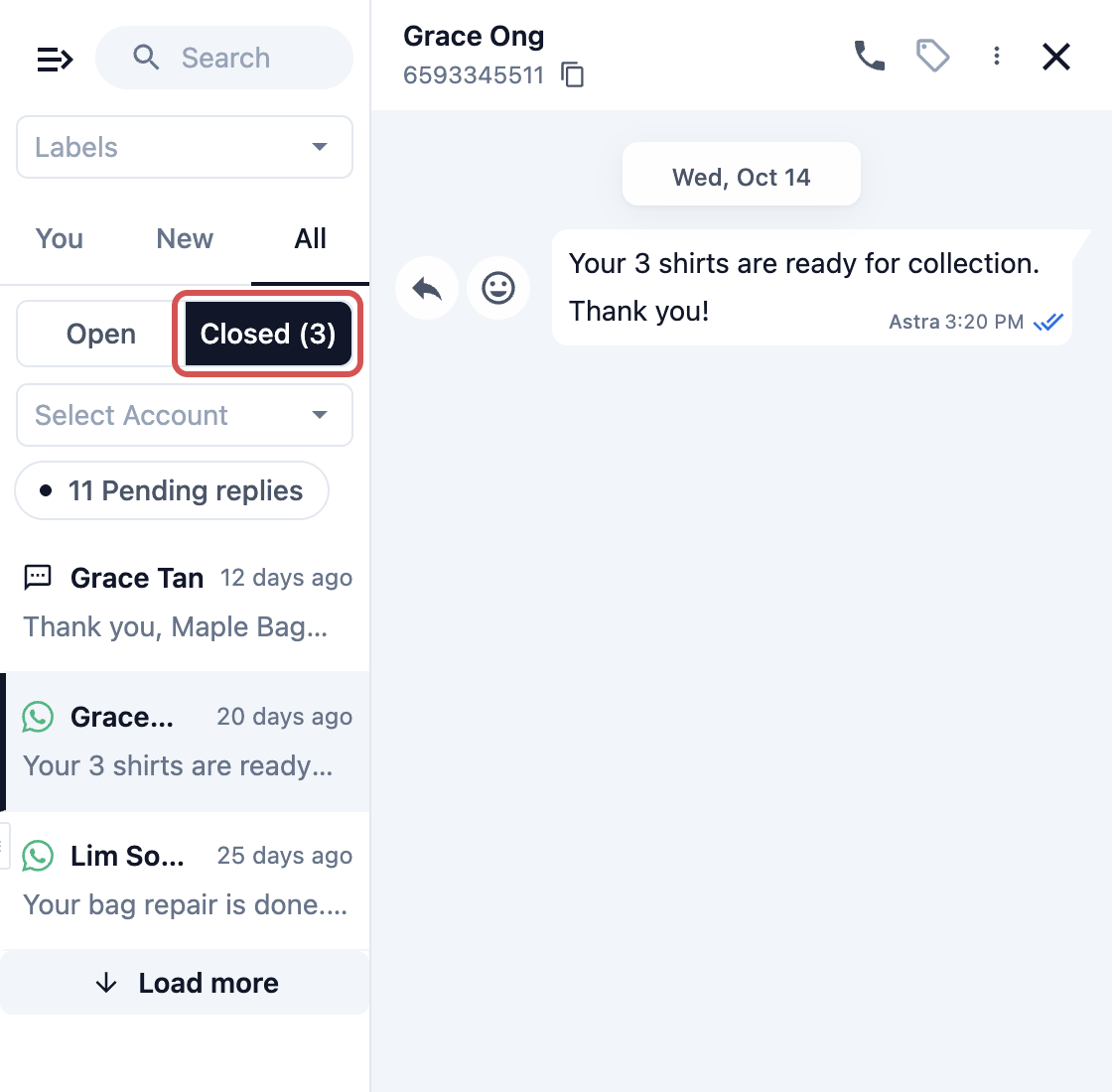
- Select the chat you want.
- Click Reopen at the bottom of the chat.
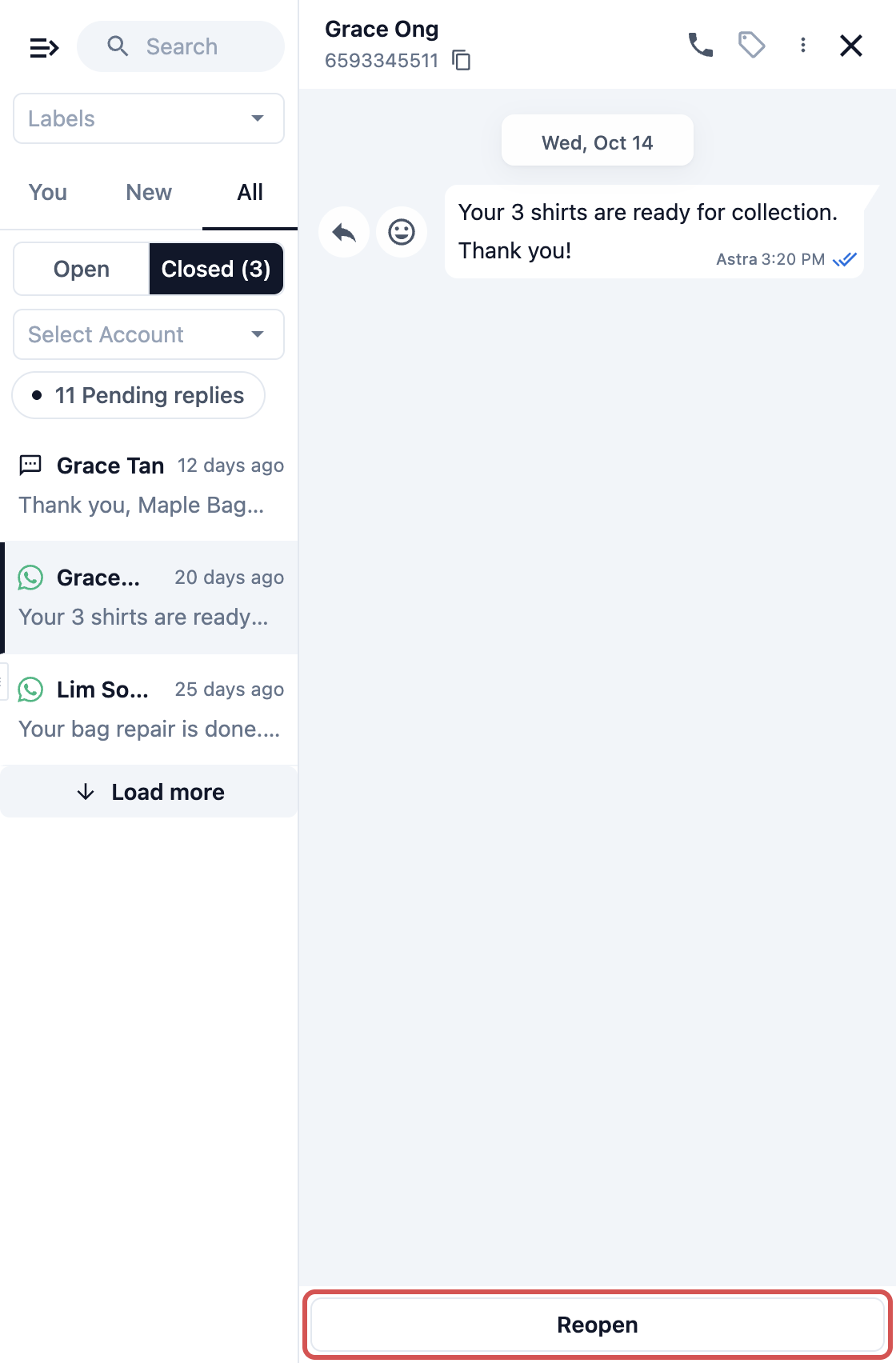
The chat opens again and is assigned to you, so it appears on your You tab.
Why a closed chat comes back
A closed chat reopens by itself when the customer sends a new message. It lands in the New tab with no one assigned, so anyone on your team can pick it up. The whole history is still there, so your staff can scroll up and see the earlier conversation.
Messages your business sends don't reopen a closed chat:
- automatic order messages, such as "Your order is ready for collection";
- broadcasts and other marketing messages;
- replies you send from the WhatsApp Business app on your phone.
These still appear in the closed chat, so the record stays complete. If the customer replies to one, the chat reopens as usual.
Let deal stages close chats for you
Use this only if your shop tracks enquiries as deals. A deal is a card for each enquiry that moves through your pipeline stages, from first question to a completed order.
- Click the ⚙️ Settings icon in the top-right corner.
- Under the CRM settings section (called CRM for some users), click Deal Pipeline.
- Scroll below the stages and switch on Manage chats by deal stage.
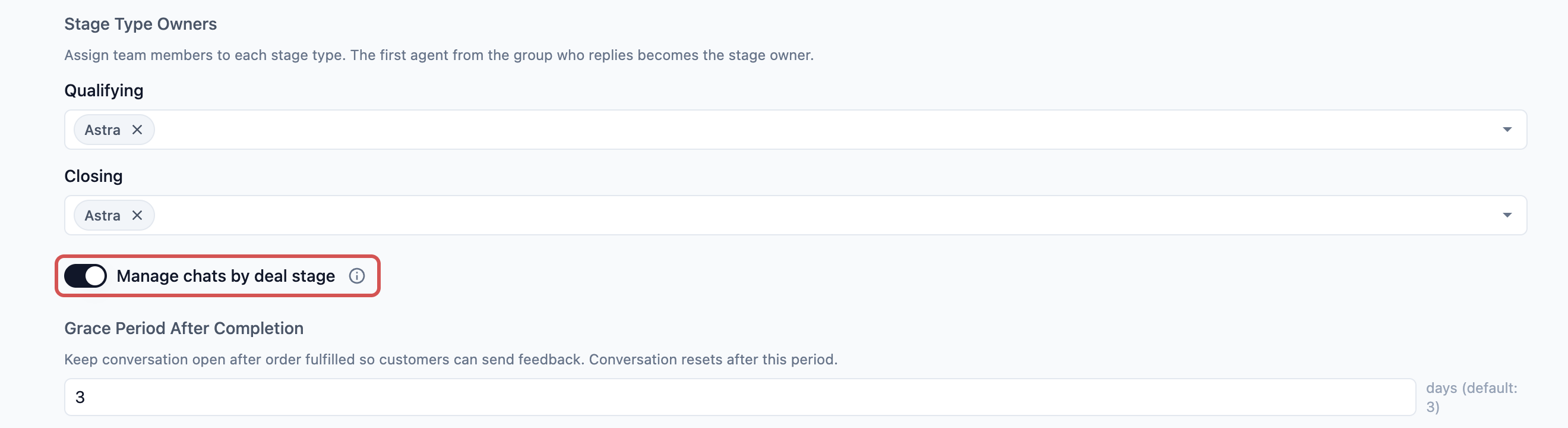
- Check Grace Period After Completion (see below).
- Click Save.
If you turn this on, it applies to every inbox in your business: the Console, POS and the staff app, for every WhatsApp number. Then:
- Close Conversation no longer shows in the ⋮ menu. Staff don't close chats by hand.
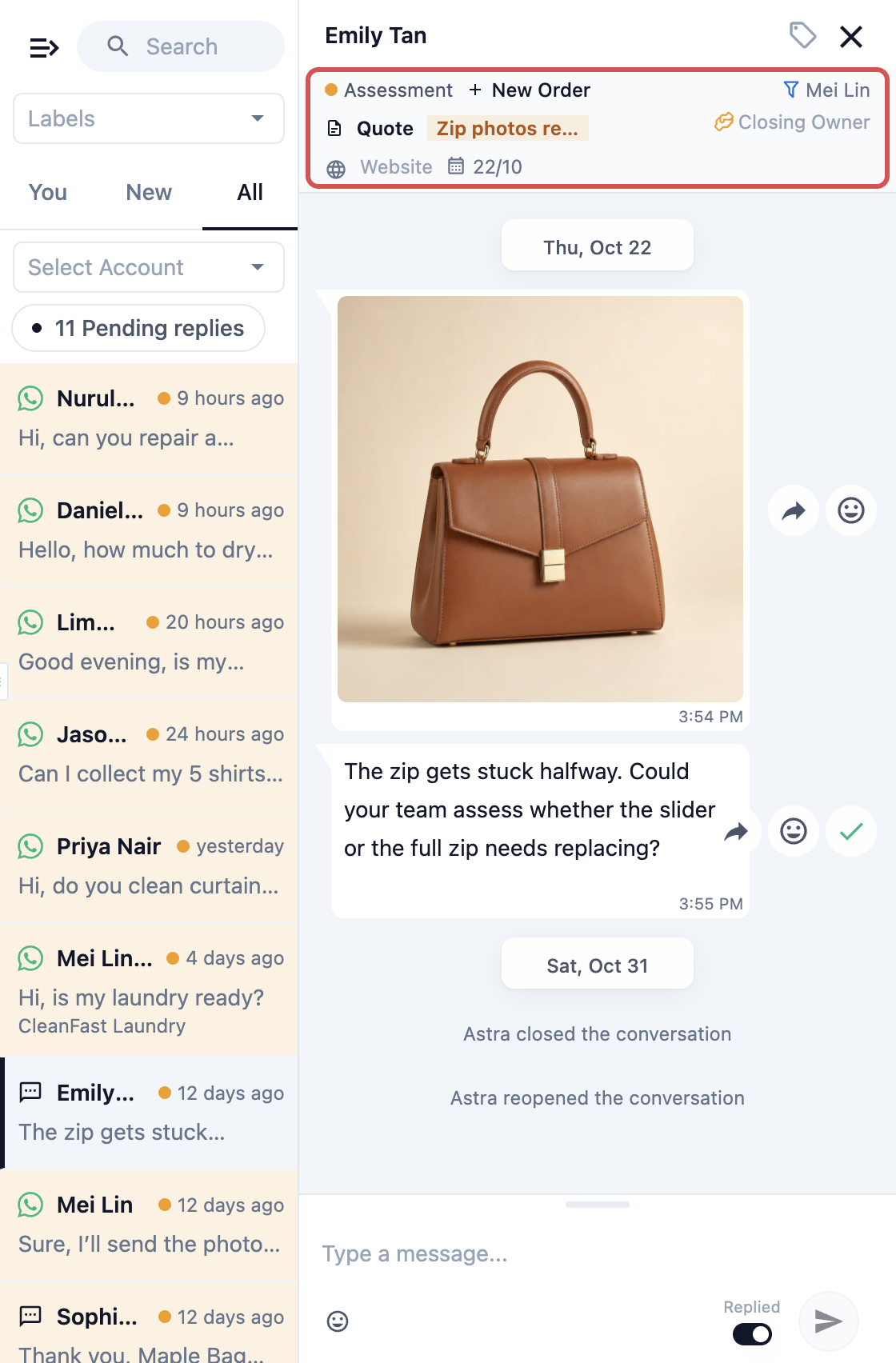
- Each chat shows a deal bar at the top with the stage of its deal.
- A chat closes by itself when its order's grace period ends, or when its deal moves to a Lost stage.
- A new message from the customer reopens a closed chat, as before.
- On a chat that has a deal, a small switch sits beside the send button. It shows Replied when on and Pending when off. Switch it to Pending before you send, and the chat stays in Pending replies, so your team remembers to follow up.
Grace Period After Completion
The number of days a chat stays open after its order is completed, so customers can still send feedback or questions. The default is 3 days. When the days are up, the chat closes by itself. Enter 0 to close the chat as soon as the order is completed.
Turning the switch off brings Close Conversation back, and your team closes chats by hand again.
To mark a deal as won or lost yourself, see Close a Deal as Won or Lost.
Example setup
CleanFast Laundry closes chats by hand. Mei Lin asks on WhatsApp if her duvet can be ready by Saturday. Staff at the Tampines shop confirm, book the order and click Close Conversation. On Friday the "ready for collection" message goes out by itself, and the chat stays closed. On Saturday Mei Lin replies "Can I come at 7pm?", so the chat reopens in New and the Jurong staff on duty pick it up.
BagCare Pro uses deal stages. BagCare Pro turns on Manage chats by deal stage and keeps the grace period at 3 days. A customer sends photos of a scuffed handbag, and the chat gets a deal. The repair is completed on Monday, so the chat stays open until Thursday for any feedback, then closes by itself. Another enquiry never turns into an order, and its deal is moved to Lost, so its chat closes at once.
FAQs
Does closing a chat delete the messages?
No. Every message, photo and order document stays in the chat. Open it from All › Closed to read it.
Why can't I see Close Conversation?
Either the chat is already closed, or your shop has switched on Manage chats by deal stage in Settings › Deal Pipeline. With that switch on, chats close by themselves as their deals move along.
What does blocking do?
A blocked contact can't send messages to your business, and you can't send messages to them. It works on WhatsApp chats only. You can unblock the contact from the same ⋮ menu at any time.
Will closing a chat stop my order messages from going out?
No. Automatic order messages still go out to closed chats. They just don't reopen the chat. Only a reply from the customer does.
Who gets a chat when the customer writes again?
No one at first. It lands in the New tab so anyone free can pick it up. If you reopen a chat yourself with Reopen, it is assigned to you.
Do I need deals to use this article?
No. Closing and reopening by hand works for every shop. Deal stages are only for shops that already track enquiries as deals.
What's Next
You can now keep your Inbox tidy by closing finished chats and picking them up again when customers come back. Some questions are quicker to sort out with a call, so next, see how to Call Customers on WhatsApp from the Inbox.