
Opening a Profile
Open Sales → Contacts and click any row. The profile header shows the customer's name and number, and a New Order button so you can start an order for them on the spot.
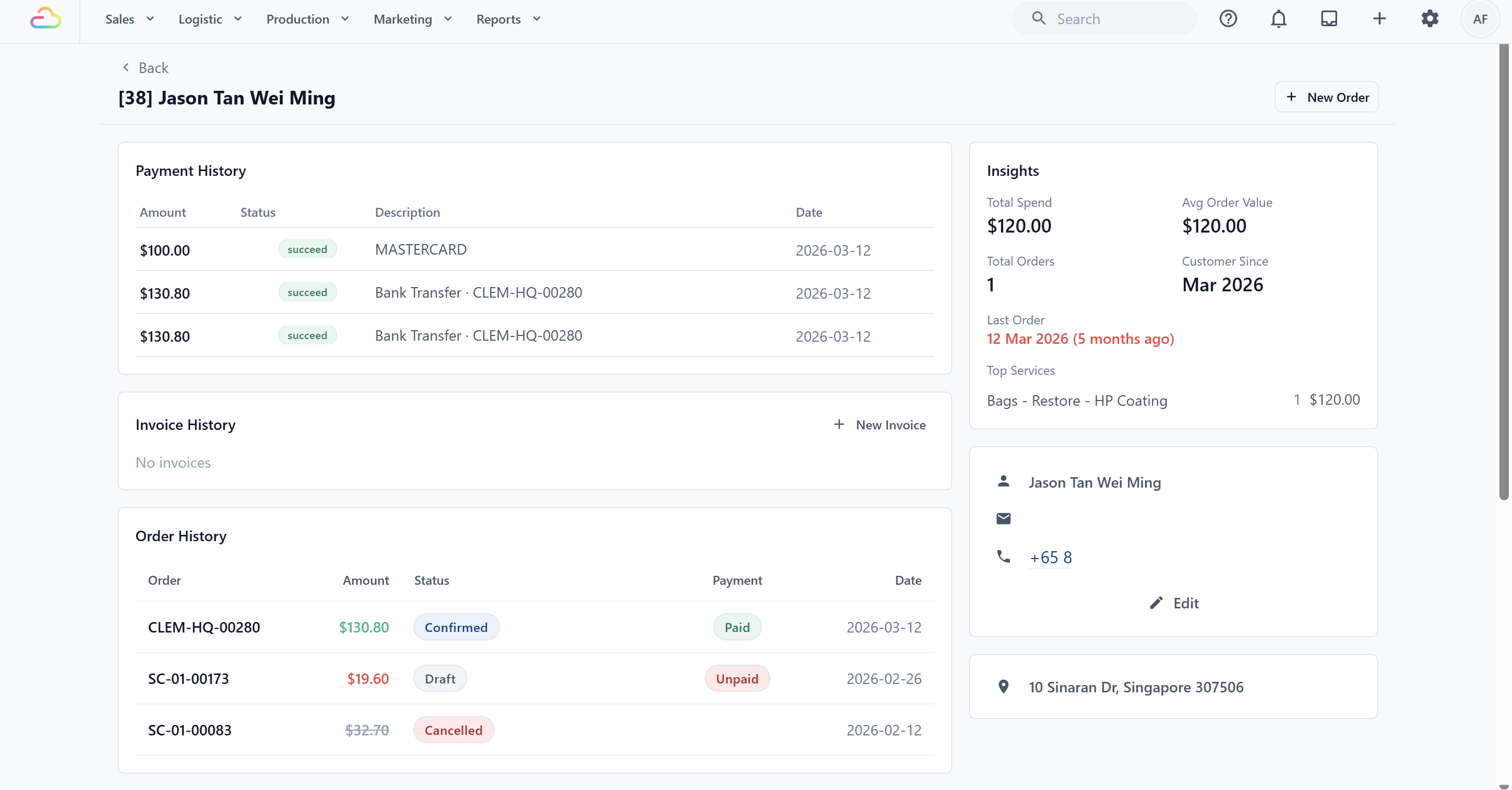
The profile is built from cards. The layout below is the default — like other EasyBiz pages, the cards and their arrangement can be customized in your page settings.
Insights
A quick read on how valuable and how active this customer is:
Total Spend, Avg Order Value, and Total Orders — lifetime numbers.
Customer Since and Last Order — the last-order date is highlighted when the customer is overdue for their usual visit.
Return Cadence — how often they typically come back.
Top Services — what they buy most.
Contact Info
Name, phone, email, and the private note. Two things worth knowing:
The phone number is a WhatsApp link — clicking it opens a WhatsApp chat with the customer.
- Edit opens the same form used when creating the contact, including the messaging preference checkboxes. See Adding and Editing Contacts.
Order, Payment, and Invoice History
The main column shows the customer's transaction record:
Order History — their most recent orders with amount, status, payment state, and date. Click through to any order.
Payment History — payments they have made.
Invoice History — their invoices, and you can raise a new invoice from here.
Loyalty
The customer's balances across your loyalty programs, when you run them:
Store Credit — their balance; click through for the full top-up and spend history.
Points — their current points balance.
Membership — their active plan, if any.
See Introduction to Loyalty and Rewards for Store Credit and Loyalty Points setup. Existing or migrated memberships continue to appear here, but new membership setup and enrollment are not currently available.
Address
The customer's default address, with address search, unit number, postal code, and a map pin — this is what prefills pickup and delivery bookings, and what your drivers navigate to.
Sequences
Automated follow-ups this customer is enrolled in — deal follow-ups and service recalls — with when the next message is due and when the last one went out. Click through to the sequence to see or change the messaging.
Do Not Contact
At the bottom of the profile is the Do Not Contact switch. Turn it on when a customer asks to stop receiving marketing from you:
Toggle Do Not Contact on.
Optionally add a note explaining why — useful when a teammate wonders later.
Confirm. The customer is excluded from marketing messages, and the profile shows a suppression badge so every teammate sees it at a glance.
The Suppression History below it records when the switch was turned on or off and by whom.
Danger Zone
Also at the bottom: Delete Contact. In EasyBiz, deleting is merge-aware — if the customer has order history, you are guided to merge them into another contact rather than orphaning their records. See Merging and Deleting Duplicate Contacts before you use it.
FAQs
Can I message the customer from their profile?
Click their phone number in Contact Info — it opens WhatsApp with that customer.
Why is a section missing on my profile page?
EasyBiz shows the cards included in your contact detail page setup. Loyalty and Sequences appear only when those features are enabled and added to the page. Some Console tabs also appear only when your role has permission to use them. Check the page settings, or ask the person who manages your Console setup.
Where do I see what a customer still owes?
Their Order History shows each order's payment state. For a business-wide view of who owes you money, see Managing Your Receivables.
A customer asked us to delete their data — what do I do?
Use Delete Contact in the Danger Zone. If the contact has no history it can be deleted permanently; with history, records are merged so your sales figures stay intact. See Merging and Deleting Duplicate Contacts.
What's Next
Learn the safe way to clean up duplicate records in Merging and Deleting Duplicate Contacts.