
Where to Find Loyalty Points Settings
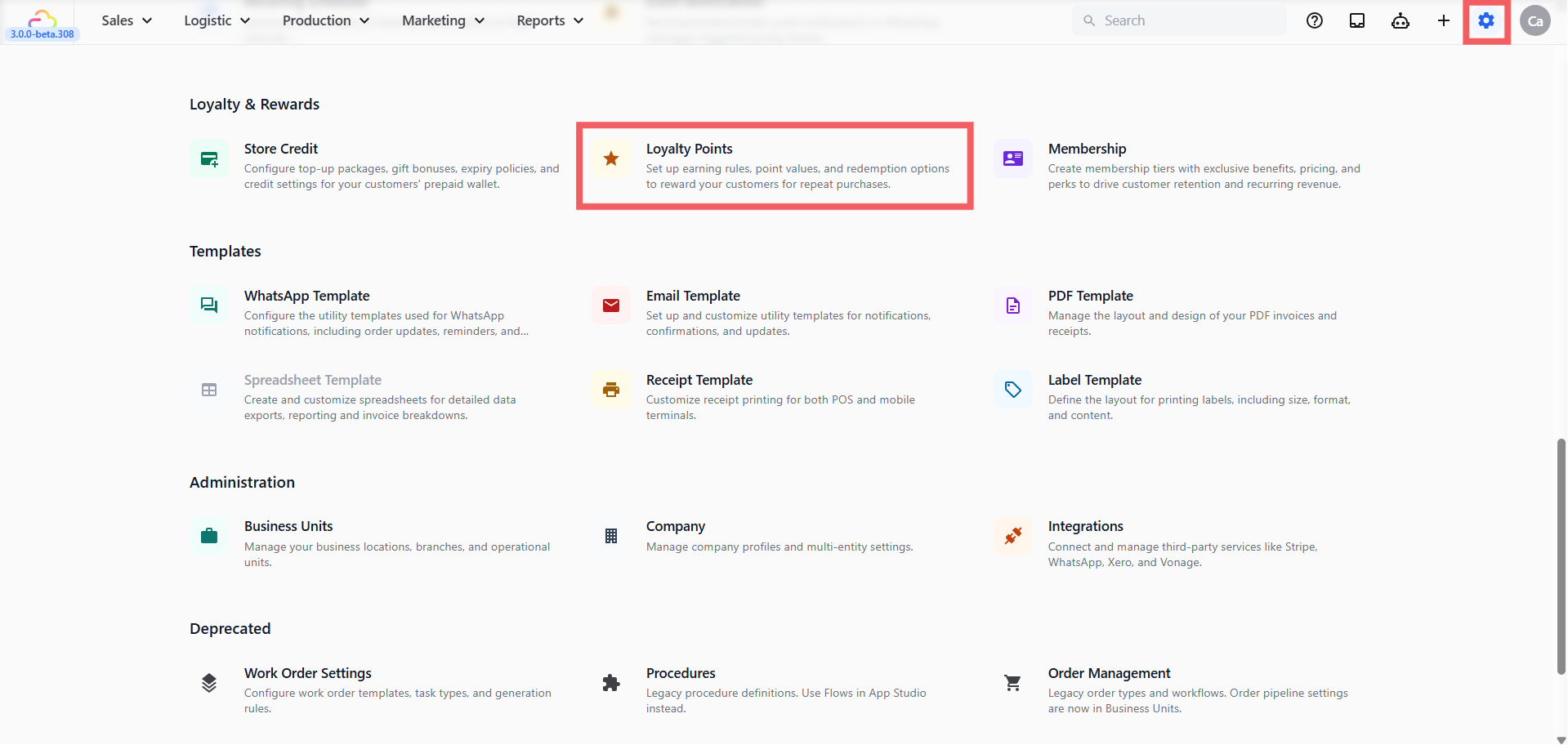
Click the ⚙️ Settings icon in the top-right corner.
Under the Loyalty & Rewards section, click Loyalty Points.
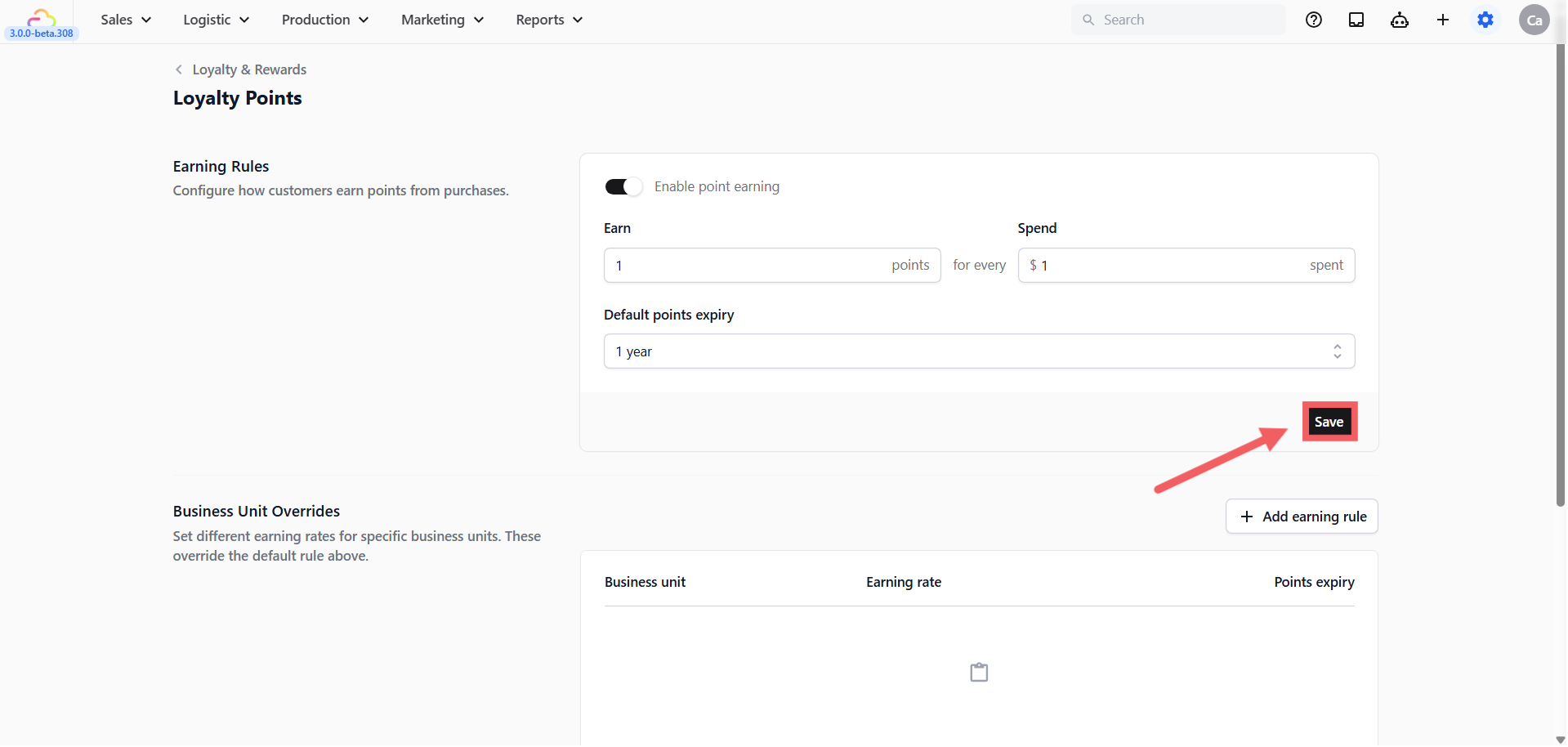
Earning Rules
The default earning rule applies to every order across every business unit unless a business unit override is set.
Enable point earning
| Pick this | Result |
|---|---|
| Off | Customers do not earn points on orders |
| On | Every paid order earns points using the rule below |
Earn X points for every $X spent
| Pick this | Result |
|---|---|
| Earn 1, Spend $1 | One point per dollar of order value |
| Earn 1, Spend $10 | One point per ten dollars spent |
| Earn 5, Spend $1 | Five points per dollar spent |
Default points expiry
| Pick this | Result |
|---|---|
| No expiry | Points never expire |
| 90 days | Points expire 90 days after earning |
| 6 months | Points expire 6 months after earning |
| 1 year | Points expire 1 year after earning |
| 2 years | Points expire 2 years after earning |
| 3 years | Points expire 3 years after earning |
| 5 years | Points expire 5 years after earning |
Click Save when you are done.
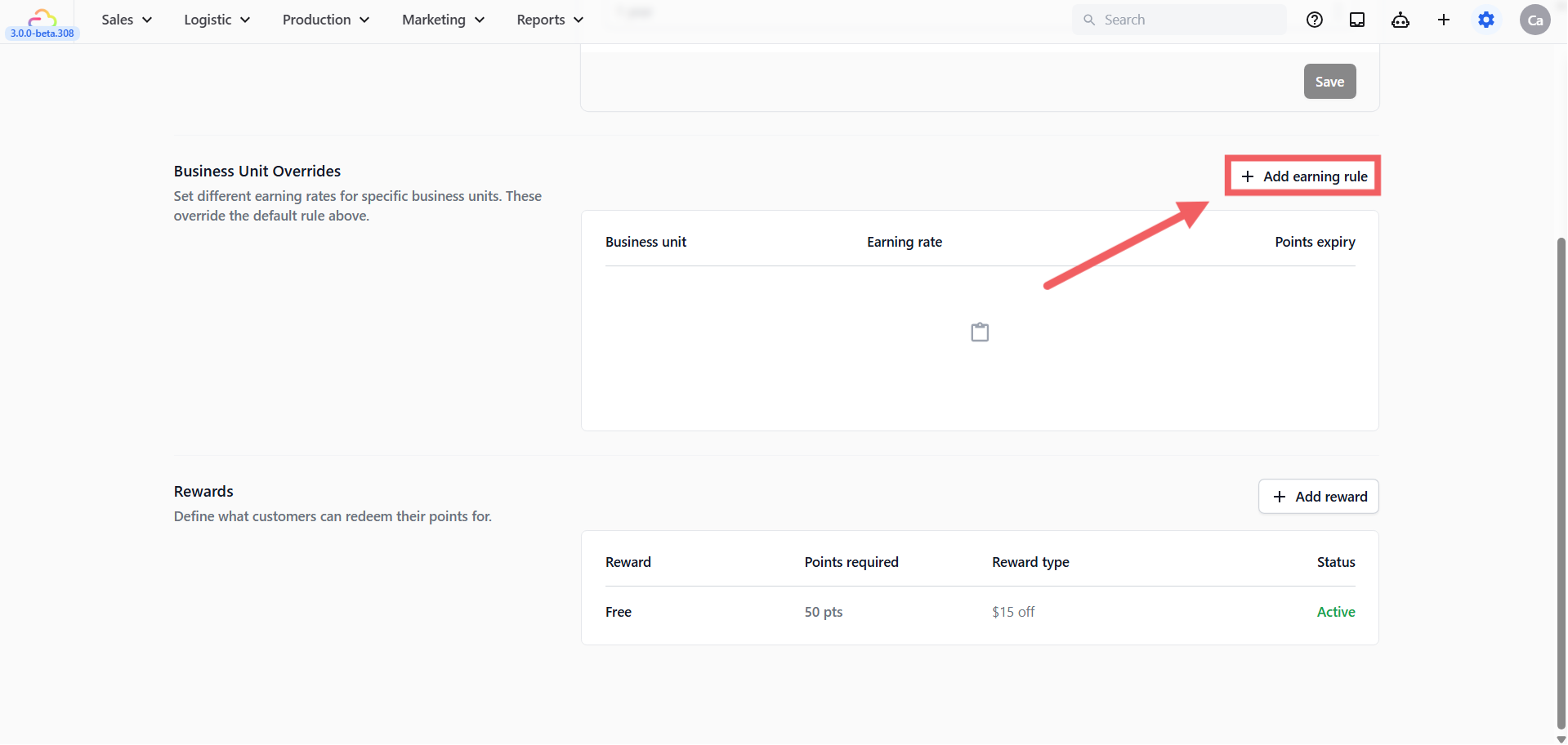
Business Unit Overrides
Use this section if one part of your business should earn points at a different rate from the default. The table shows: Business unit, Earning rate, Points expiry.
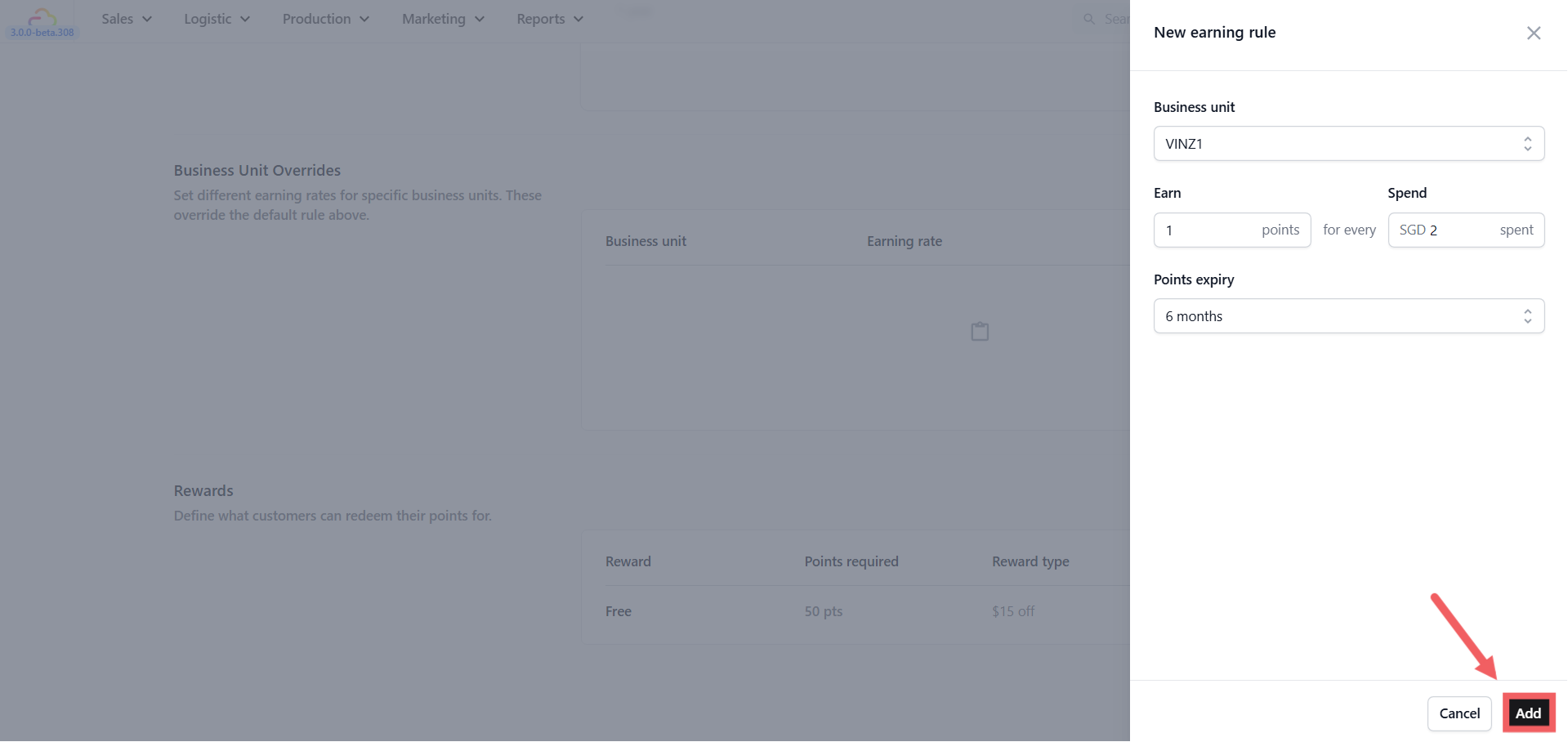
Click + Add earning rule to open the New earning rule dialog.
Business unit
| Pick this | Result |
|---|---|
| Any business unit from the list | This override applies to orders under that unit only |
A business unit can only have one override at a time.
Earn X points for every $X spent
Same fields as the default earning rule. Sets the rate for this business unit only.
Points expiry
| Pick this | Result |
|---|---|
| Use default | Falls back to the default points expiry from the main earning rule |
| No expiry | Points earned under this unit never expire |
| 90 days | Points expire 90 days after earning |
| 6 months | Points expire 6 months after earning |
| 1 year | Points expire 1 year after earning |
| 2 years | Points expire 2 years after earning |
Click Add when you are done.
Rewards
The Rewards section is your redemption catalog. Customers redeem these rewards at the counter when they have enough points. The table shows: Reward, Points required, Reward type, Status.
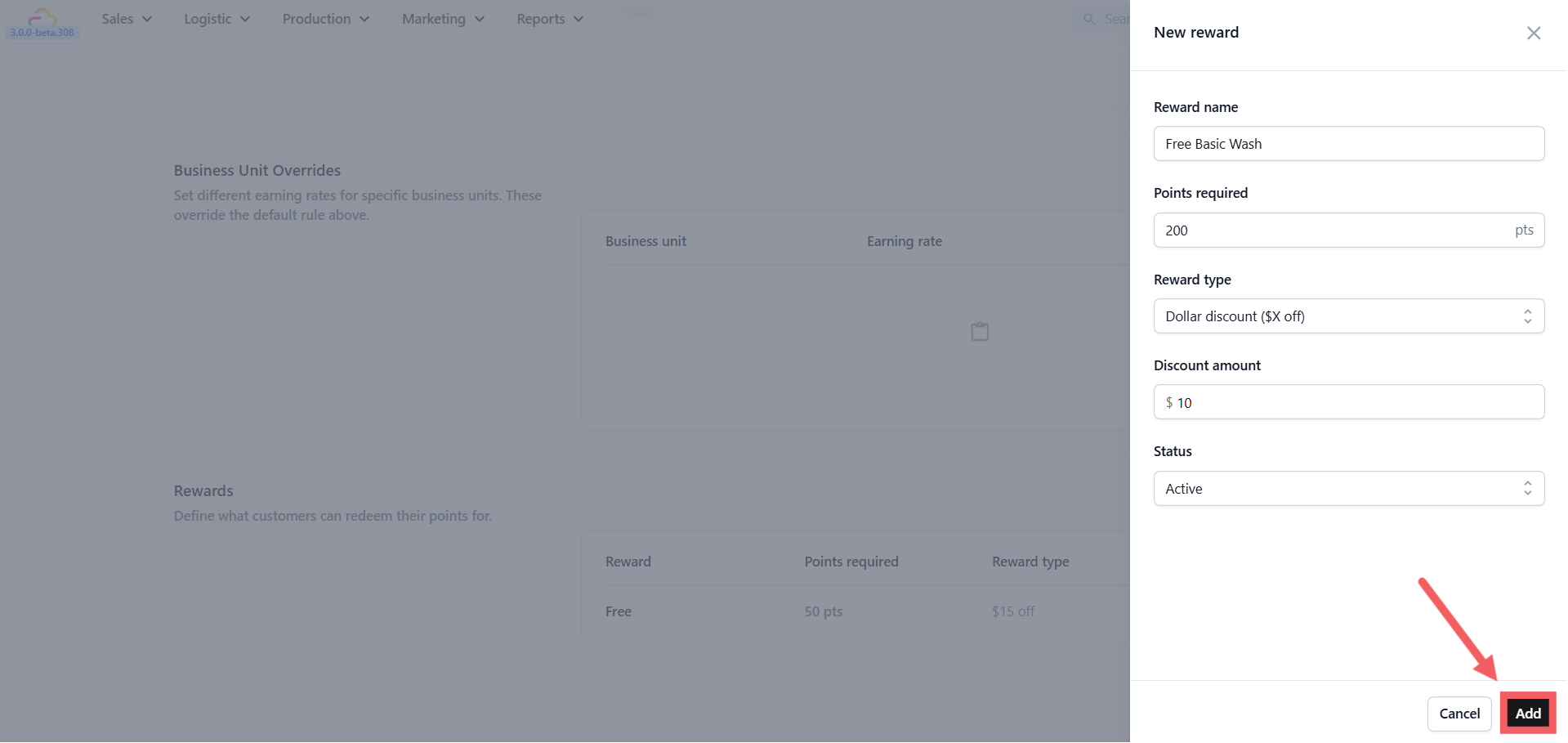
Click + Add reward to open the New reward dialog.
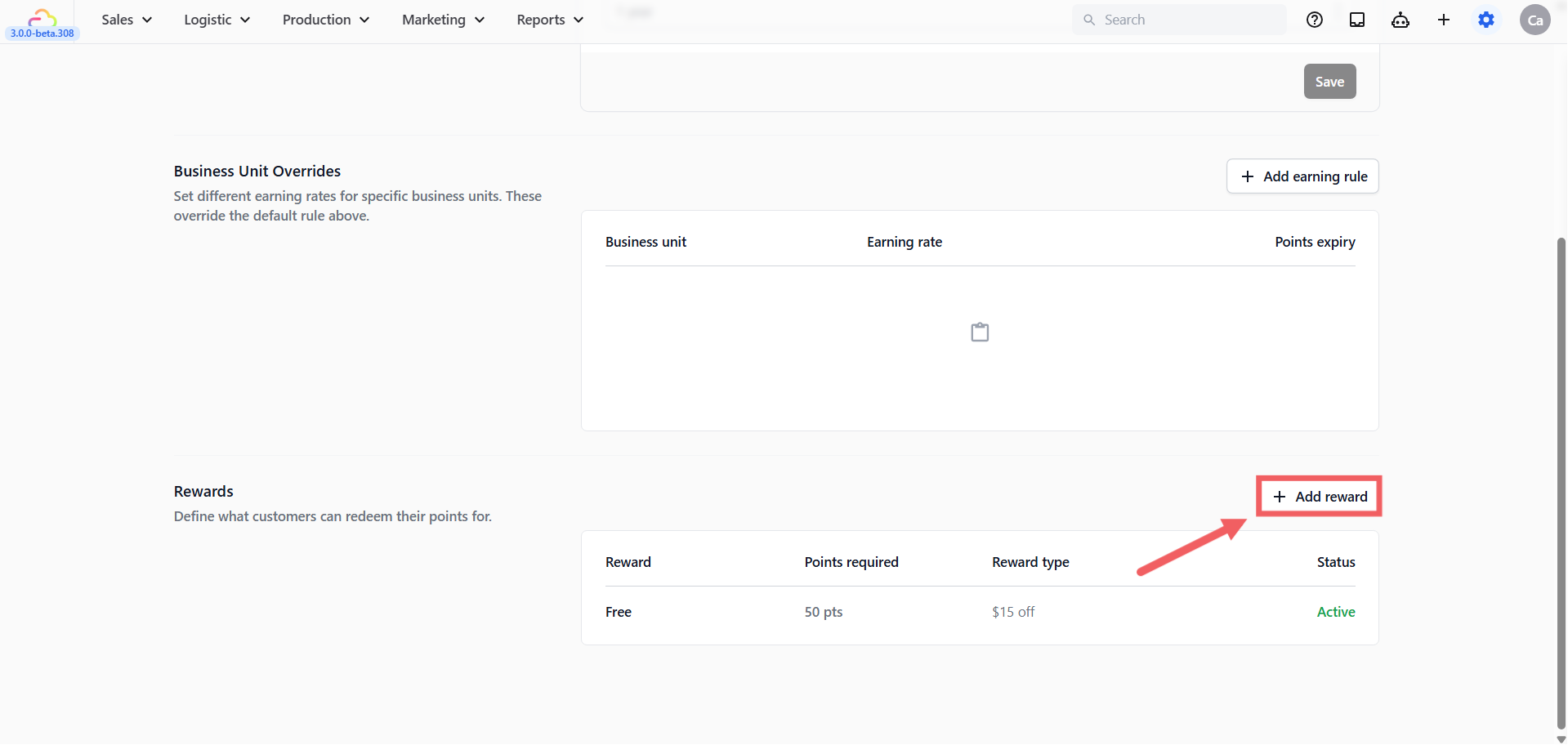
Reward name
| Pick this | Result |
|---|---|
| Any name | Shown to your team and to customers at redemption |
Points required
| Pick this | Result |
|---|---|
| Any number | The points cost a customer needs to redeem this reward |
Reward type
| Pick this | Result |
|---|---|
| Dollar discount ($X off) | A flat dollar amount is deducted from the order total. A Discount amount field appears. |
| Percentage discount (X% off) | A percentage discount applies to the order total. A Discount percentage field appears. |
| Free item | The reward is a specific item with no money value attached. No discount field appears. |
Status
| Pick this | Result |
|---|---|
| Active | Reward is available for redemption at the counter |
| Inactive | Reward is hidden from customers but kept in your catalog |
Click Add when you are done.
How the Points Balance Is Tracked
Loyalty Points works exactly like Store Credit under the hood, using the same lot-based system. This is easier to understand than it sounds.
Think of a customer's points balance like a stack of stamp cards rather than one single counter. Each time a customer earns points from an order, the system creates a separate lot with its own expiry. The total balance shown on their profile is the sum of all lots that have not yet expired. When a customer redeems a reward, the system always spends the lot expiring soonest first so no points go to waste.
Loyalty Points at the POS
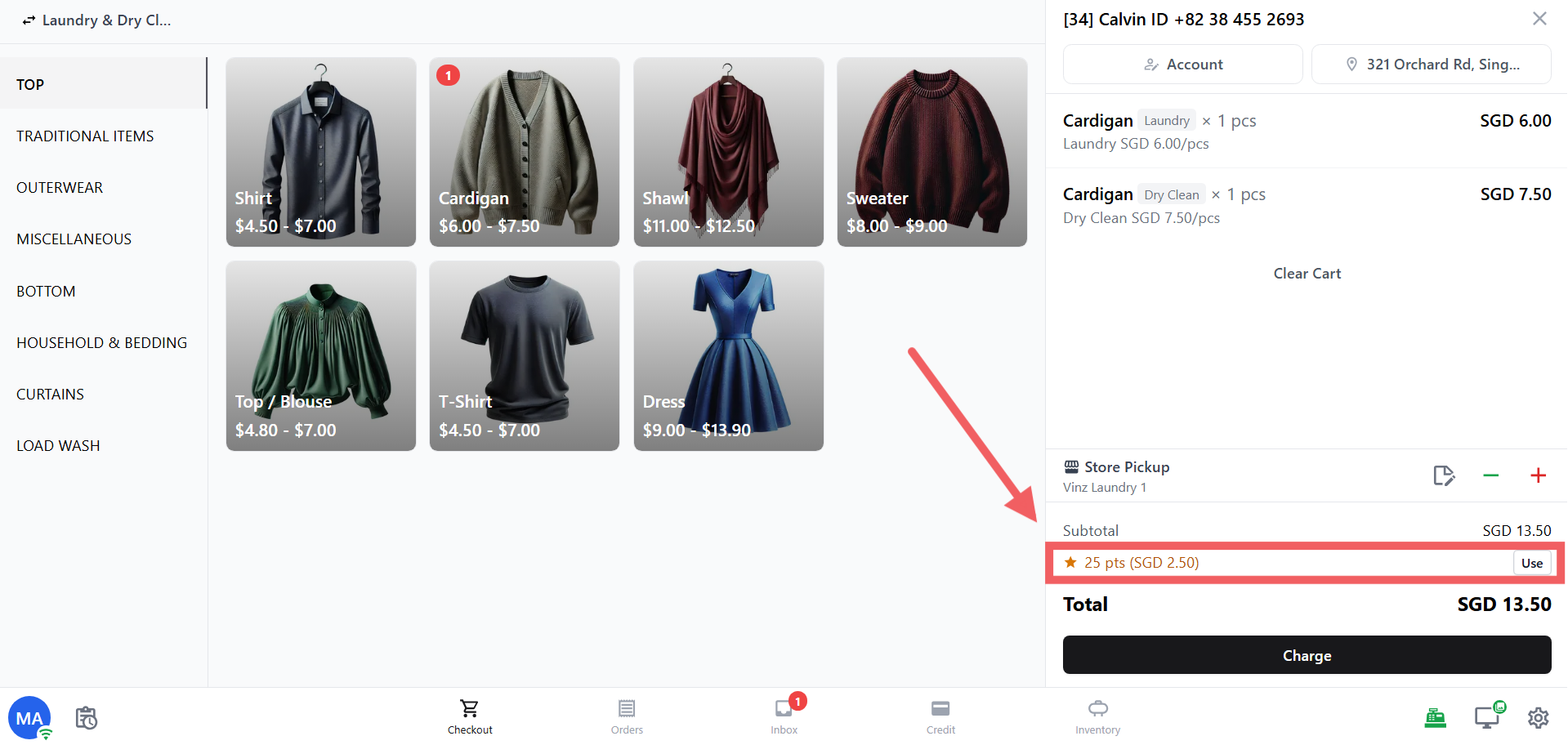
If a customer has points in their balance, a points row appears automatically in the cart during checkout. For example a customer with 25 points worth SGD 2.50 will see a 25 pts (SGD 2.50) line with a Use button next to it.
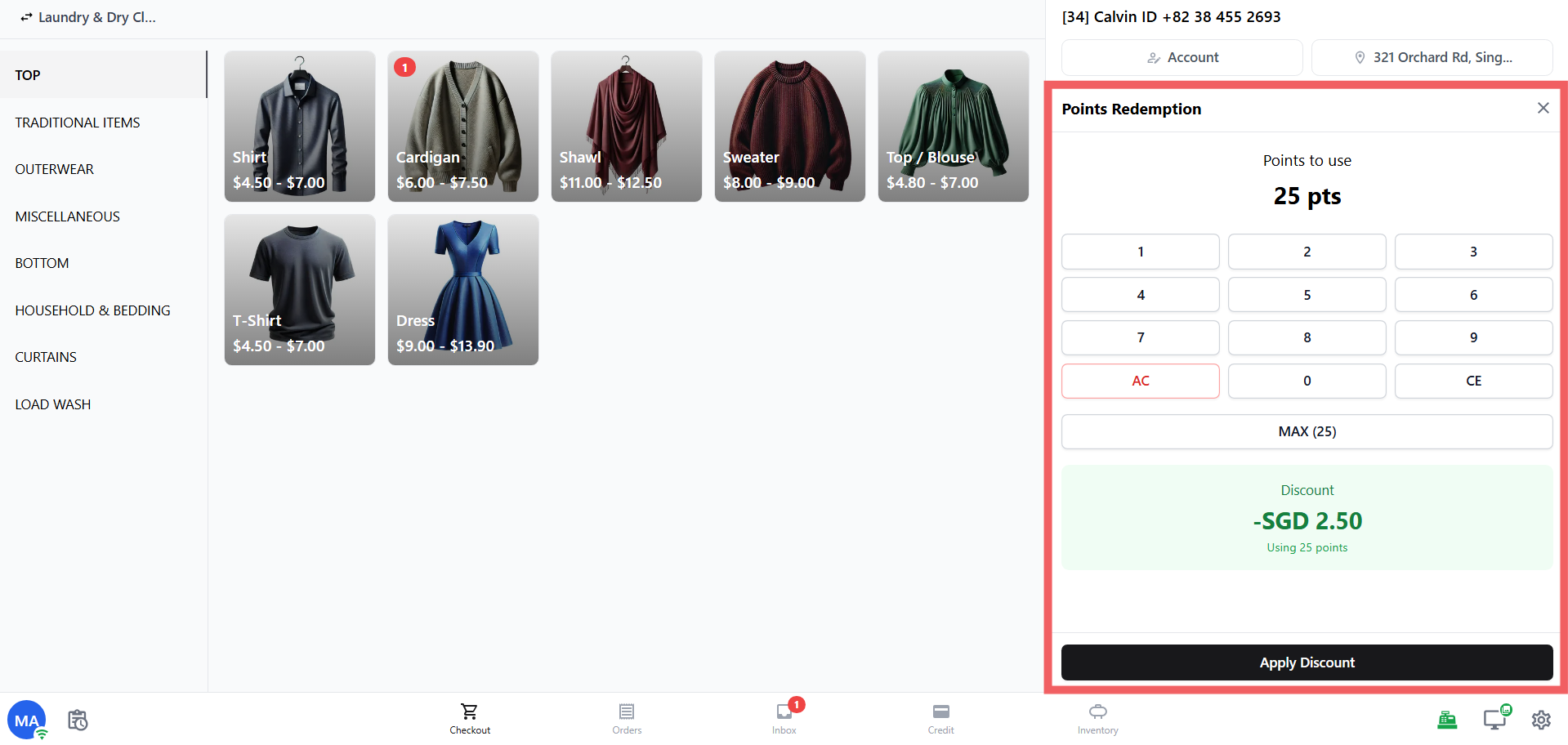
To redeem a specific number of points instead, staff tap the points row itself. A Points Redemption panel opens where they can enter a custom amount, tap MAX to use all points, and see the discount update in real time before tapping Apply Discount to confirm.
FAQs
Do I need to add a business unit override?
No. The default earning rule covers every order. Use overrides only when one business unit should earn faster, slower, or with a different expiry.
Can I change the reward type after saving?
Yes. Open the reward, change the type, and save. Re-check the points required and discount values when the type changes.
Which points are spent first when a customer redeems a reward?
Points from the lot that expires soonest. No-expiry points are spent last so dated points never go to waste while fresher points are still valid.
What is the difference between Inactive and deleting a reward?
Inactive keeps the reward in the catalog so you can re-enable it later. Deleting removes it permanently. Use Inactive for seasonal rewards you plan to bring back.
Do points earned under a business unit override stay tied to that unit?
No. Once earned, points sit in the customer wallet and can be redeemed against any reward regardless of which business unit produced them.
What if a customer's points expire before they redeem anything?
Expired lots are removed from the balance automatically. The customer cannot use them. Setting a generous expiry and reminding customers of their balance regularly helps prevent this.