
Before You Start
- Set up store credit first: how long credit lasts and the top-up packages you sell. See Offer Store Credit and Bonus Top-Ups.
- Every top-up saves a receipt you can print. To use your own design, choose a top-up receipt template. See Setting Up Your Top-Up Receipt Template.
- You need access to Contacts in the Console. Anyone who can open a customer's contact can top up and adjust their credit, as there is no separate switch for adjusting. Give Contacts access only to staff you trust with balances, see Inviting Your Team and Managing Access.
- If you used Console 2.0: your customers' balances and credit history are already in Console 3.0. Top-up settings moved to Settings › Marketing › Store Credit.
Where it works
- Console: staff see each customer's balance, credit lots and history on their contact, top up and adjust credit.
- POS: staff see the same balance at checkout and top up there. See Sell Store Credit and Memberships at Checkout.
- Online Store and Mobile App: signed-in customers see their balance and activity on the Wallet page, including any credit you add or remove.
One balance is shared everywhere. Credit you add in the Console can be spent straight away at any POS that takes store credit, and online.
Why check credit here
When a customer asks "what's my balance?" or says a number looks wrong, the answer is on one screen. Every top-up, spend, refund, adjustment and expiry is listed with its date and the balance after it, so you can show the customer exactly how they got there. Without it, staff end up guessing, adding credit "to be safe" and losing track of what the shop owes.
Where to find a customer's store credit
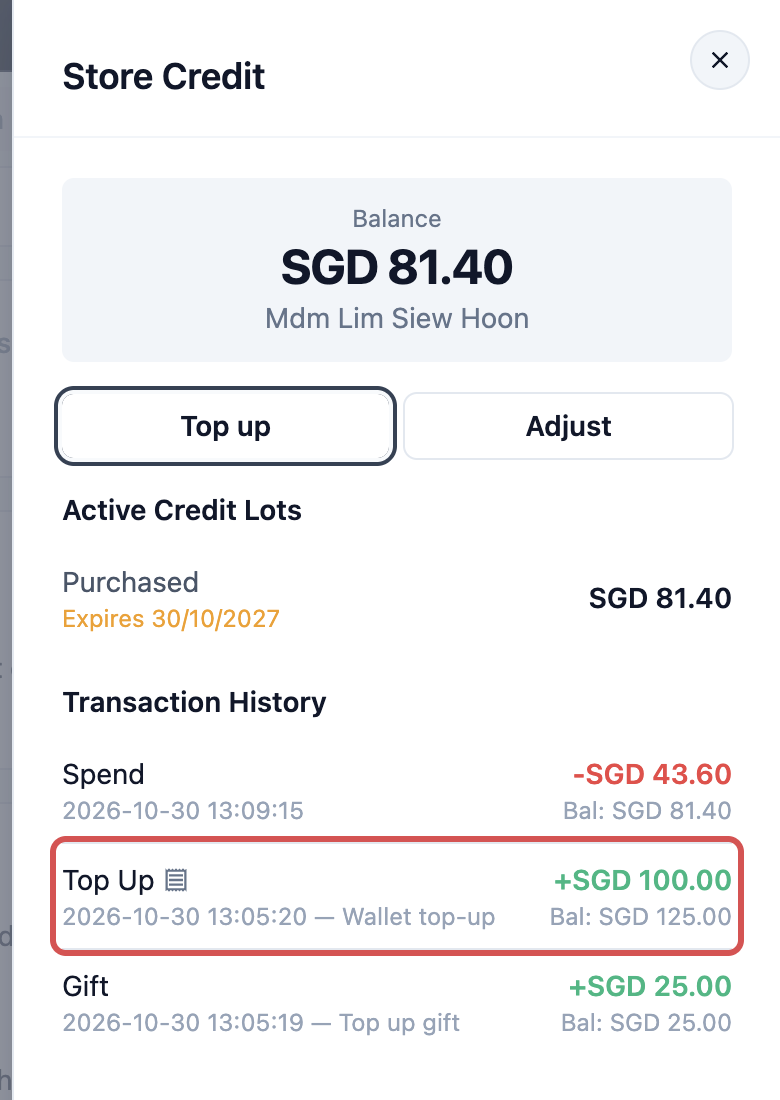
- In the top navigation bar, click the Sales dropdown, then click Contacts.
- Search for the customer and click their row.
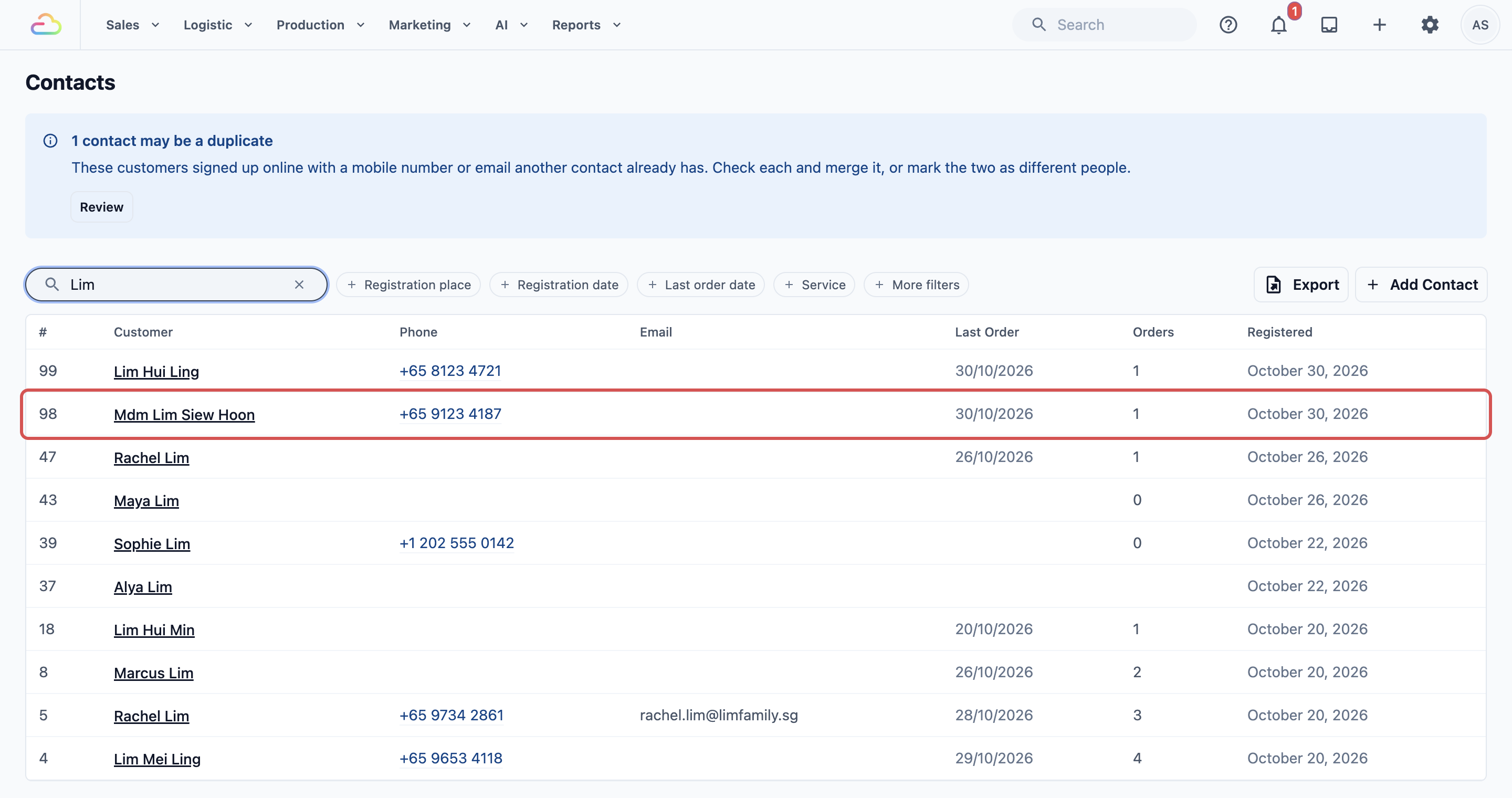
- In the Loyalty section, click Store Credit. The row shows the customer's balance, for example SGD 81.40.
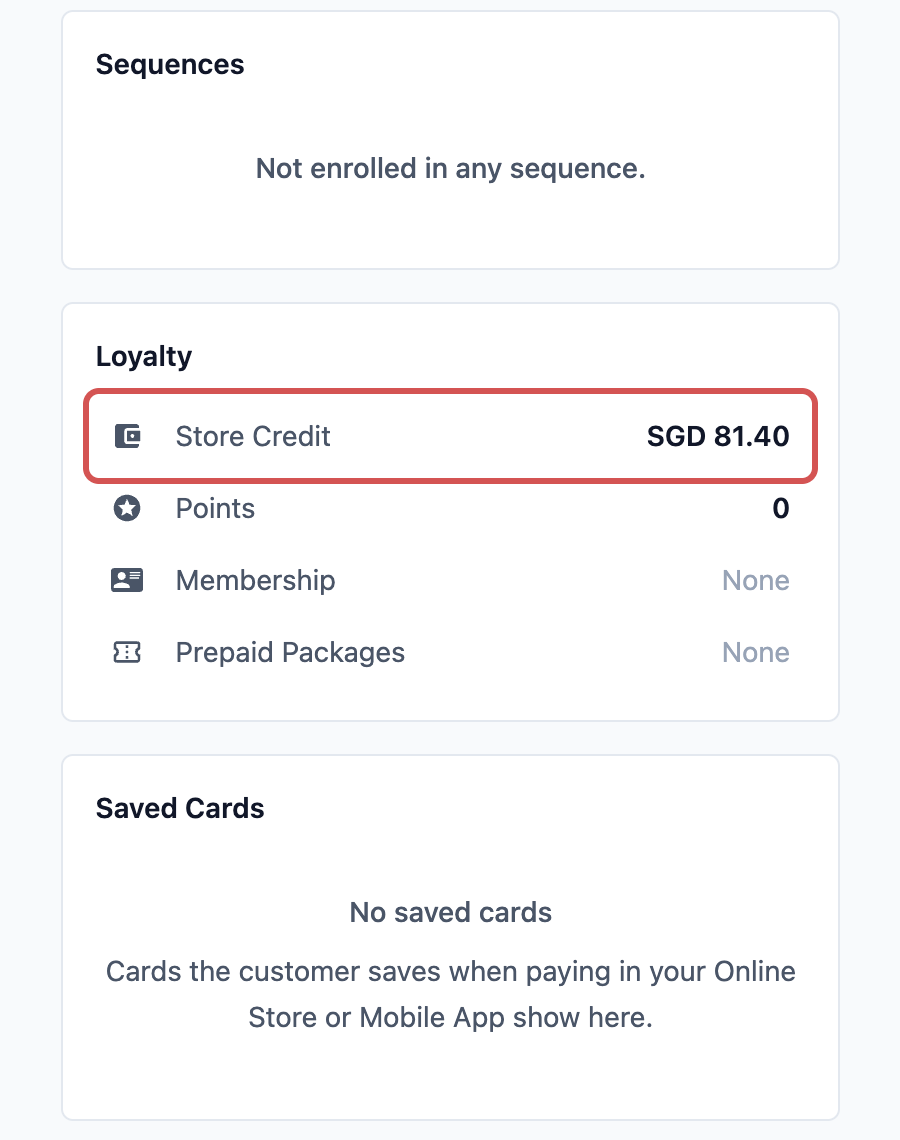
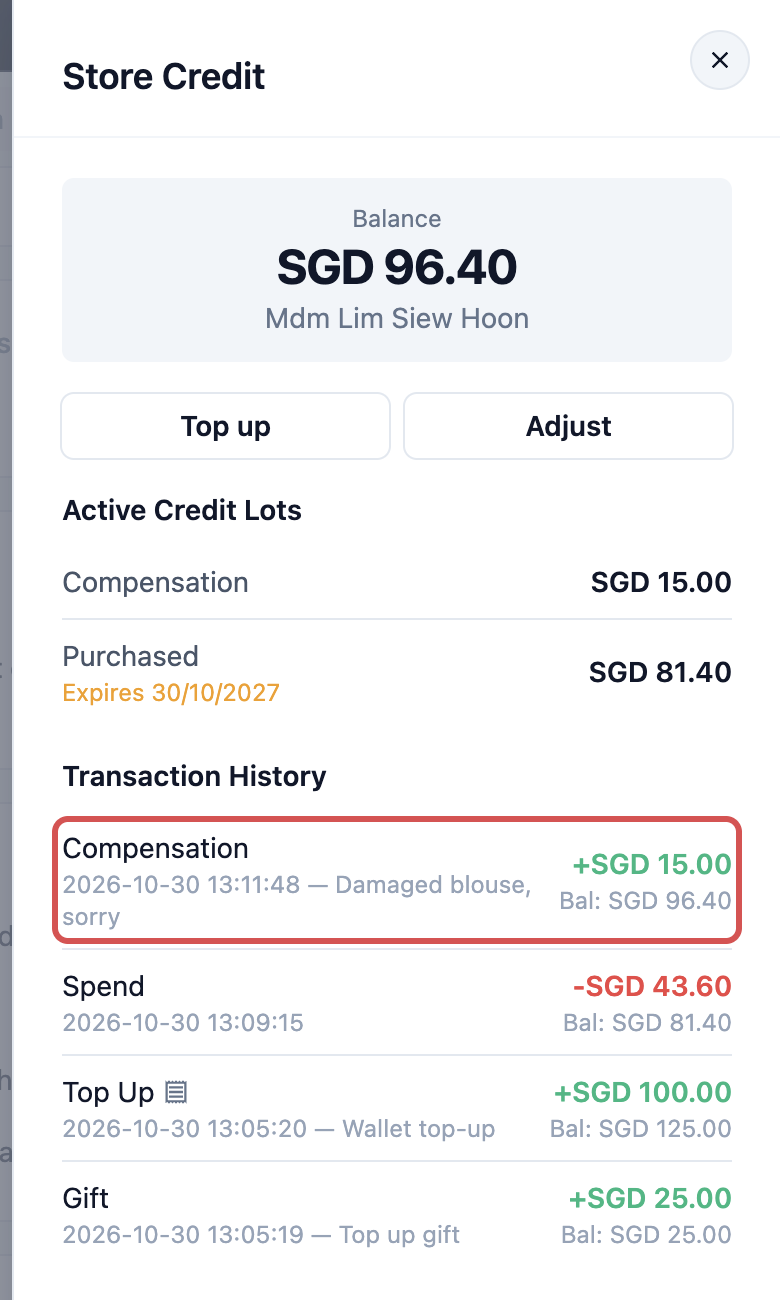
The Store Credit panel opens. It shows the customer's Balance at the top, the Top up and Adjust buttons, their active credit lots and their transaction history.
If the customer has never had store credit, the panel shows "No credit wallet" with only Top up . Adjust appears once they have credit.
Reading the balance
Balance
The total credit the customer can spend today, paid and bonus credit together.
Active Credit Lots
A credit lot is one batch of credit with its own expiry date, like a gift card. A SGD 100 top-up with a SGD 25 gift makes 2 lots. Each lot shows how much is left and, if it expires, the date it expires. A lot that is used up or has expired leaves this list.
| Lot | What it is |
|---|---|
| Purchased | Credit the customer paid for with a top-up. |
| Gift | Bonus credit from a top-up package. |
| Refund | Credit returned when an order paid with credit was refunded. |
| Compensation, Promotional, Correction | Credit your staff added with Adjust . It never expires. |
When the customer pays with credit, the lot that expires soonest is used first, and lots with no expiry are used last. So bonus credit with a short expiry is spent before it runs out.
Transaction History
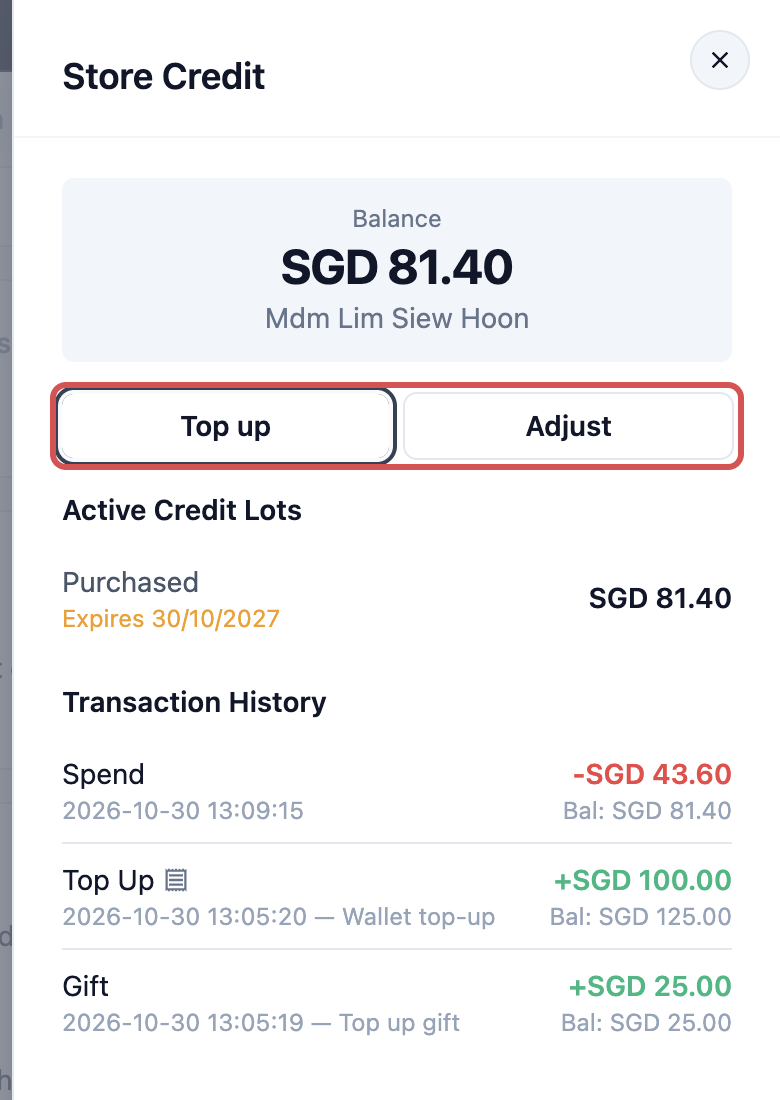
The newest 50 changes, newest first. Each row shows what happened, the date and time, a short note (a top-up says Wallet top-up, a gift says Top up gift, and an adjustment shows the reason staff typed), the amount in green when credit came in or red when it went out, and Bal: the balance right after it.
| Row | What it means |
|---|---|
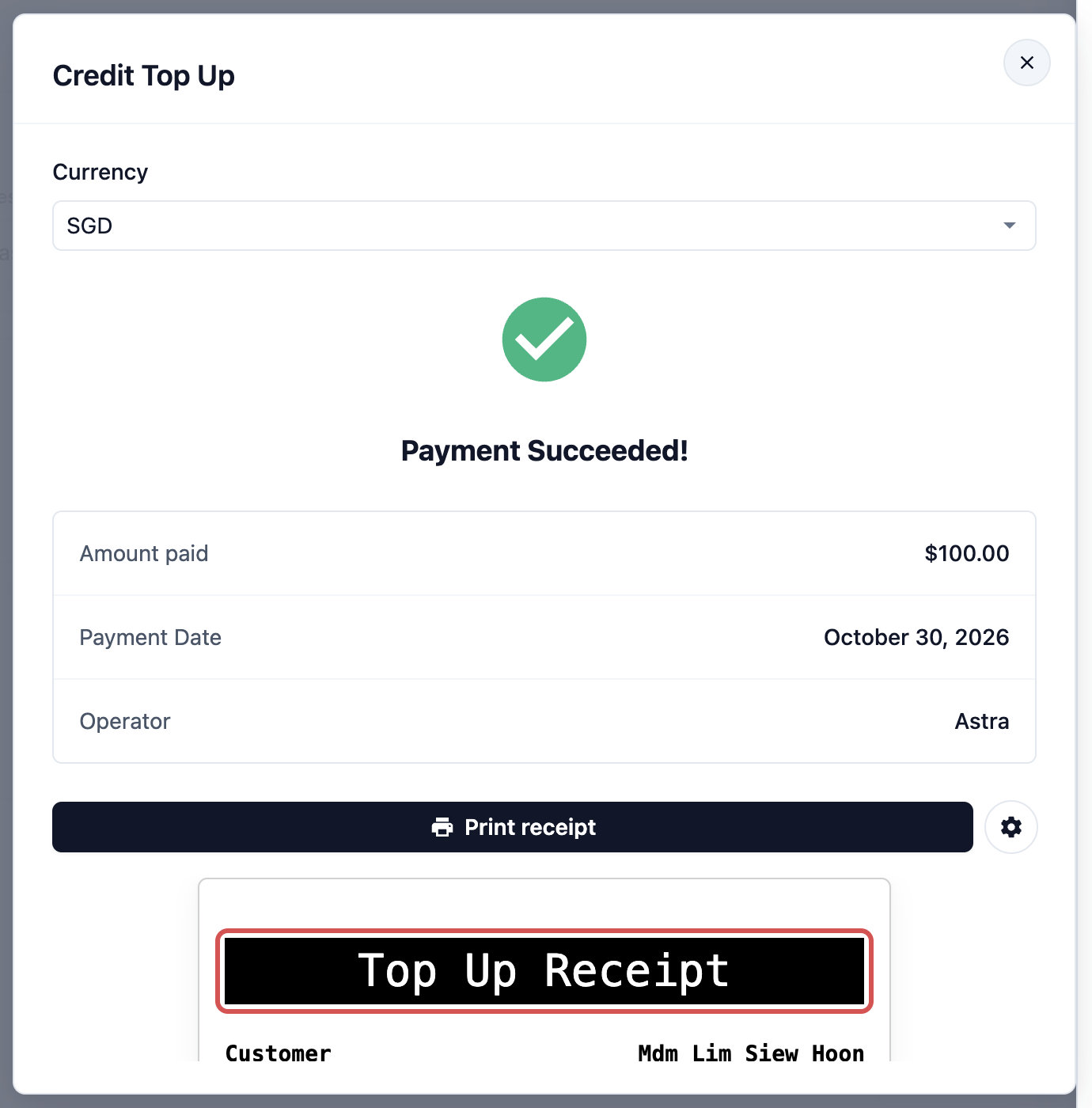
| Top Up | The customer paid for credit. Click the row to open its Top up receipt, then Print receipt to print it again. It shows the receipt as saved at the top-up, so a later template change doesn't change it. |
| Gift | Bonus credit from a top-up package. |
| Spend | Credit used to pay an order. |
| Refund | Credit returned from a refunded order. |
| Compensation, Promotional, Correction | Credit staff added with Adjust . |
| Void | Credit staff removed with Adjust . |
| Expired | Credit that reached its expiry date and left the balance. |
Topping up in the Console
Use this when a customer pays for credit over the phone or by bank transfer, away from the POS. At the counter, staff top up from the POS checkout instead, see Sell Store Credit and Memberships at Checkout.
- In the Store Credit panel, click Top up . The Credit Top Up window opens with the customer already chosen and their balance shown. If you sell in more than one currency, choose the Currency first, see More than one currency below.
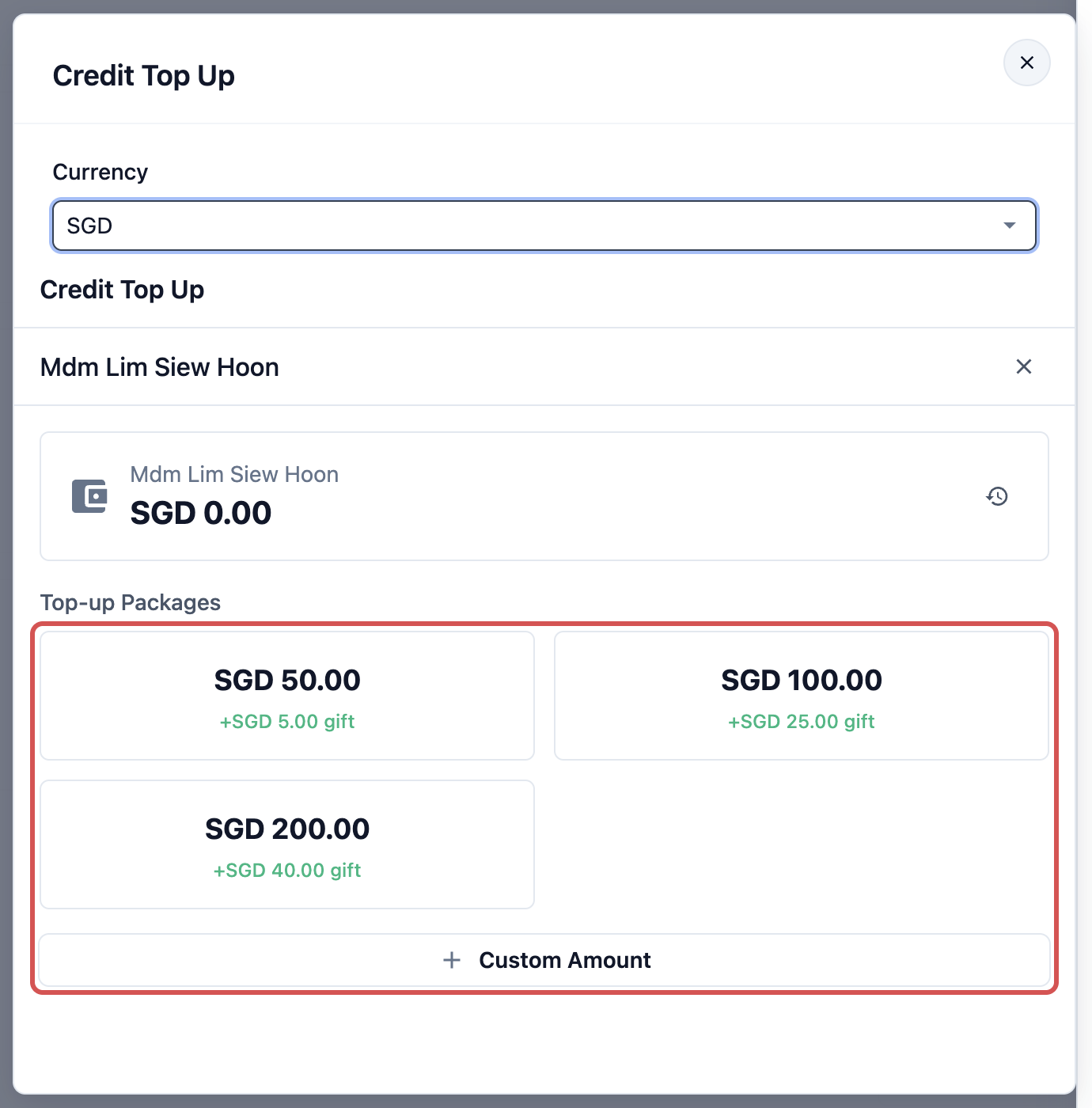
- Click a package under Top-up Packages. Or click Custom Amount , type the amount and click Top Up SGD 50.00 .
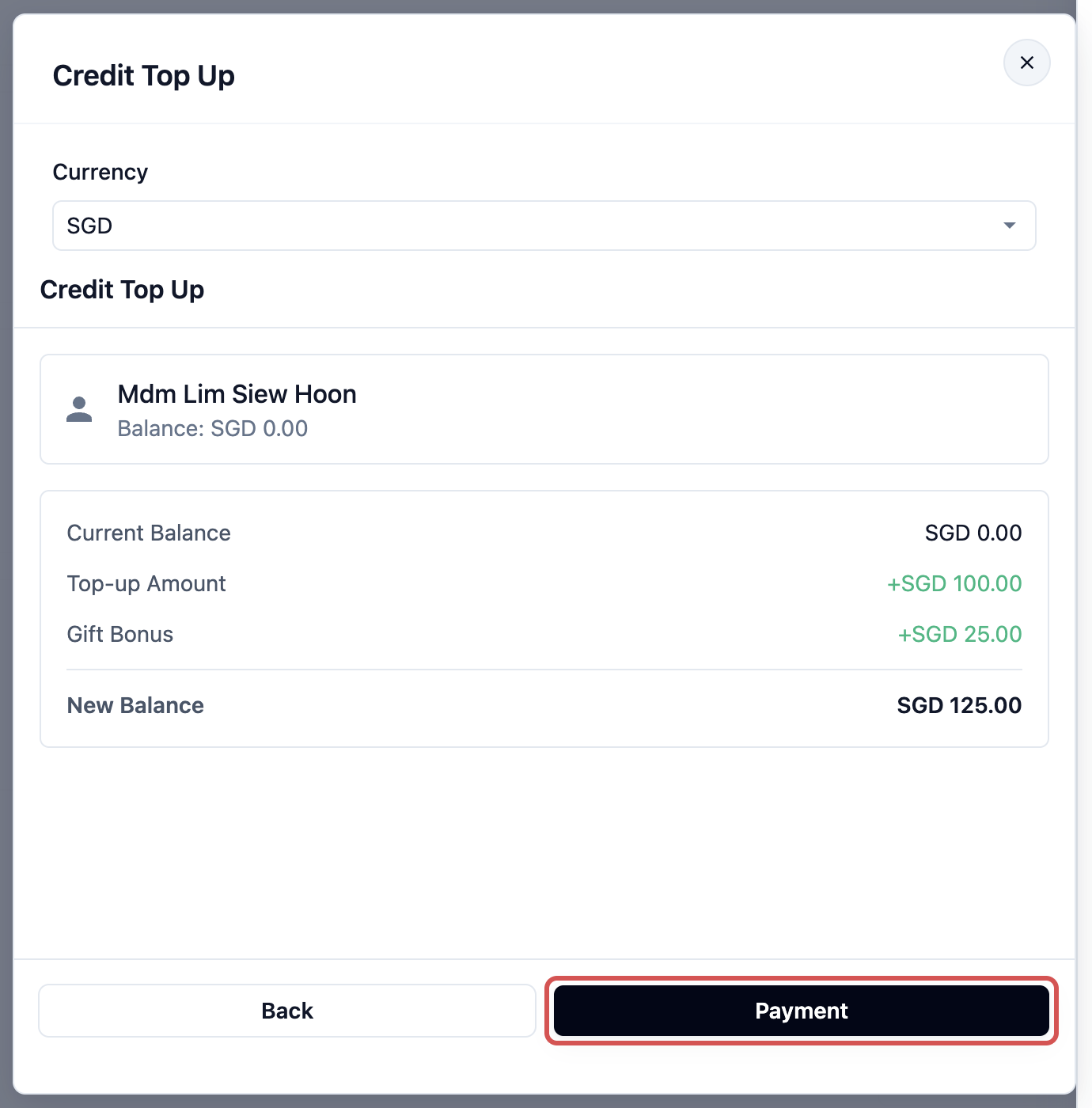
- Check Current Balance, Top-up Amount, Gift Bonus and New Balance, then click Payment .
- Choose how the customer paid, for example Cash or PayNow .
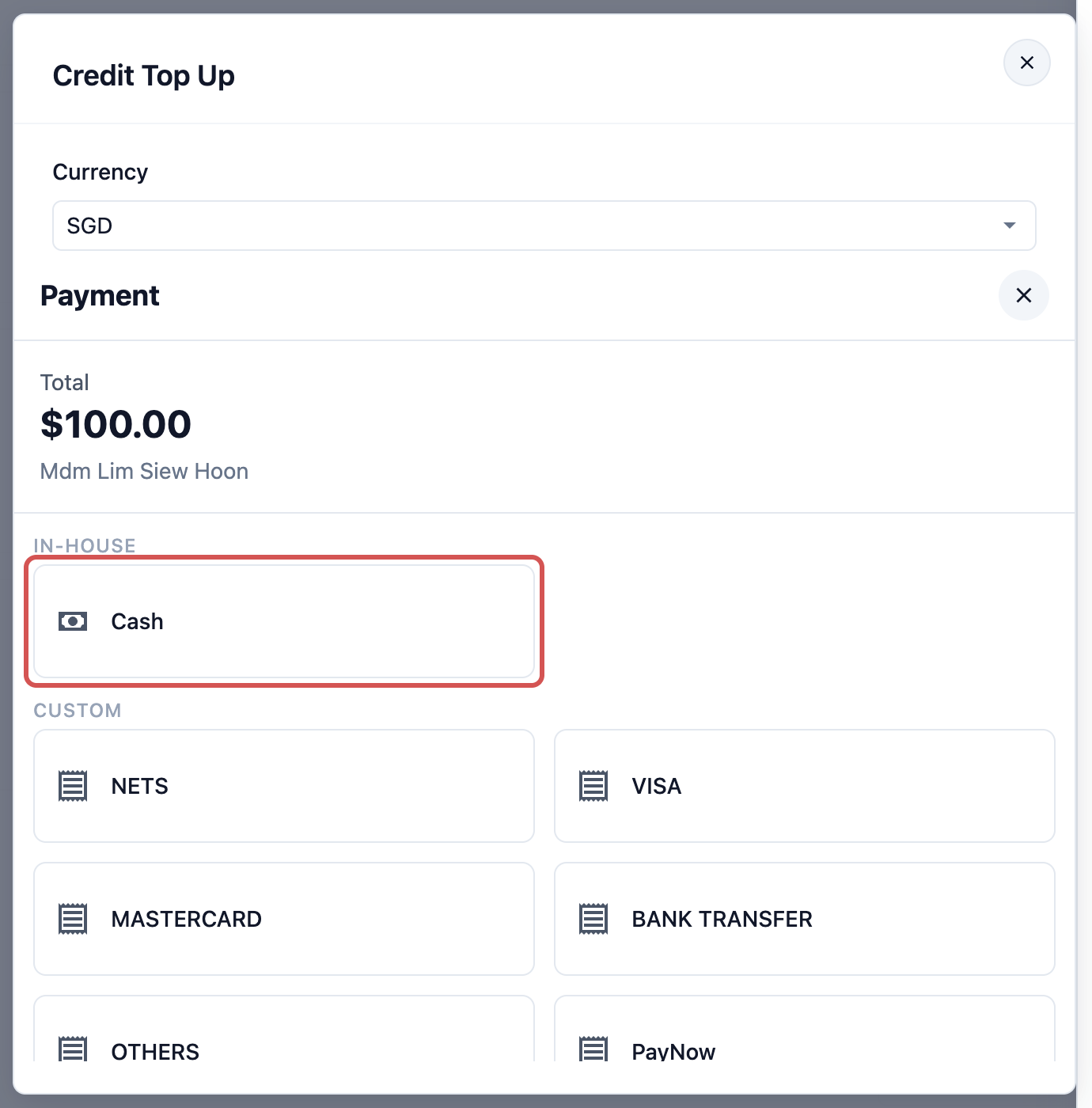
- For cash, click Exact if the customer handed over the exact amount, or type the amount received. Then click the Confirm button, which shows the amount.
- When the payment succeeds, Payment Succeeded! shows with the top-up receipt below it. The credit is now in the customer's balance.
- The Console lists the packages that have Sell at the POS on.
- A custom amount gets no bonus credit. Only packages give bonus credit.
- A package's first purchase bonus is added only the first time this customer buys that package.
- Store credit and points can't pay for a top-up.
Adjusting credit
Use this to add or remove credit without taking a payment: an apology, a promotion or fixing a mistake.
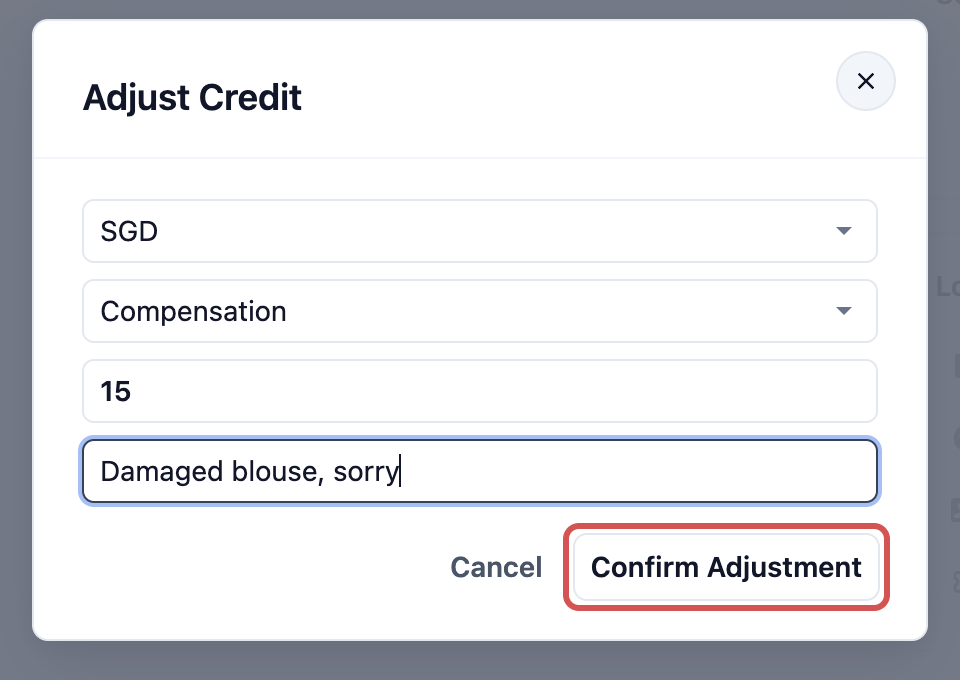
- In the Store Credit panel, click Adjust . The Adjust Credit window opens.
- Choose the type of adjustment.
- Enter the amount.
- Type a reason.
- Click Confirm Adjustment .
Type
| Type | When to use it |
|---|---|
| Compensation | To make up for a problem, for example a damaged blouse or a late delivery. The default. |
| Promotional | To give free credit in a campaign, for example $5 for a customer's birthday. |
| Correction | To fix a mistake, for example a top-up keyed as $500 instead of $50. |
Amount (positive to add, negative to deduct)
Type a positive amount to add credit, for example 15. Type a negative amount to remove credit, for example -15.
- Credit you add becomes its own lot, named after the type you chose. It never expires.
- Credit you remove comes out of the lots the customer would spend next, starting with the one that expires soonest. It shows as Void in the history.
- You can't remove more than the customer's balance.
Reason
What happened, in a few words, for example "Damaged blouse, sorry". It shows beside the date in the history, so the next person who checks understands the change. It is optional, but leave it empty and the history only shows "Manual compensation".
More than one currency
Use this only if you sell in more than one country, for example Singapore and Malaysia. Credit is kept separately for each currency.
- The Store Credit row on the contact shows the balance in each currency side by side.
- The Store Credit panel has a tab for each currency the customer holds. Top up , Adjust , the lots and the history on a tab are for that currency only.
- Top up first asks for the Currency: "Choose the currency to top up". The packages and balance then follow that currency.
- The Adjust Credit window has a currency choice at the top.
If you sell in one currency, none of these choices appear.
Example: checking and fixing Mdm Lim's balance
CleanFast Laundry sells a SGD 100 package with a SGD 25 gift amount. Paid credit lasts 1 year and gift credit lasts 90 days.
Mdm Lim calls the Bedok shop. She expected a balance of SGD 96.40, but her contact shows SGD 81.40. Staff open her contact, click Store Credit and read the history from the bottom up:
- 30 Oct 2026, 13:05, Gift +SGD 25.00. Bal: SGD 25.00.
- 30 Oct 2026, 13:05, Top Up +SGD 100.00. Bal: SGD 125.00.
- 30 Oct 2026, 13:09, Spend -SGD 43.60 on her order at the Bedok POS. Bal: SGD 81.40.
The history adds up: SGD 25.00 + SGD 100.00 - SGD 43.60 = SGD 81.40. Her SGD 25 gift credit expires sooner, so it was used first, and SGD 18.60 came out of her paid credit.
Mdm Lim explains a blouse came back damaged and staff promised her SGD 15 credit, but nobody added it. The owner agrees. Staff click Adjust , choose Compensation, enter 15 and type "Damaged blouse, sorry":
- 30 Oct 2026, 13:11, Compensation +SGD 15.00, Damaged blouse, sorry. Bal: SGD 96.40.
Active Credit Lots now show:
- Compensation SGD 15.00, no expiry
- Purchased SGD 81.40, expires 30/10/2027
Total: SGD 81.40 + SGD 15.00 = SGD 96.40. On her Wallet page online, Mdm Lim sees Credit added with the amount and her new balance.
How it works with other features
- Paying orders with credit: each payment shows as Spend. How staff take it at the counter is in Collecting Payment at Checkout.
- Refunds: refunding an order paid with credit puts the amount back as Refund, as a new lot. See Processing Refunds and Returns.
- Credits report: added Compensation shows in the Compensation line, credit removed shows in Voids, and every adjustment counts in Net Change. See Reading the Credits Report.
- The Wallet page online: customers see each change in Activity. Your adjustments show as Credit added or Credit removed, with the amount and date.
- Merging contacts: merging 2 contacts for the same customer moves their store credit into the contact you keep. See Merging and Deleting Duplicate Contacts.
FAQs
A customer wants the credit she paid for back. Can I deduct it?
Deducting only lowers her balance. It doesn't return any money. Return the money the way you agree with her, outside EasyBiz, then remove the same amount with Adjust , choosing Correction and a negative amount, so her balance matches.
Does an adjustment count as a sale?
No. No payment is taken, so it doesn't appear in your sales or payment totals. It shows in the Credits report only, and when the customer later spends that credit on an order, the order counts as usual.
A customer's credit dropped and she didn't spend anything. Why?
Some of her credit has probably reached its expiry date. Look for an Expired row in the history. Bonus credit often has a shorter expiry than paid credit, which you set in Settings › Marketing › Store Credit.
Can customers see the reason I typed?
No. On the Wallet page they see Credit added or Credit removed, with the amount and date. Your reason stays in the Console.
I gave compensation credit. Will it expire with the rest?
No. Credit added with Adjust never expires, whatever your expiry settings. It is also used after credit that expires, so a customer's bonus credit is spent first.
A new customer has no credit yet. Can I give her a welcome credit?
The panel shows "No credit wallet" with only Top up until she has credit. Adjust appears once she has topped up for the first time.
What's Next
You can now answer any balance question, top up from the Console and fix a customer's credit with a clear reason. Next, reward customers on every visit, not only when they pay upfront: continue to Reward Customers with Loyalty Points.