
How Duplicates Happen
A regular signs up on your online store with a different phone number or email than the one your staff registered at the counter.
A typo in the phone number at registration, later "fixed" by creating a new record.
The same customer registered at two outlets that use private (per-channel) accounts.
Duplicates are more than untidy — the customer's spend and visit history splits across two records, loyalty balances fragment, and your staff can pick the wrong record at checkout.
Finding Duplicates
There is no automatic duplicate scanner — you will usually notice a duplicate when serving the customer or reviewing the list. To check a suspicion, search the Contacts page by the customer's name, then by each phone number you have for them. Two rows for the same person means it is time to merge.
Merging a Duplicate
The merge is part of the delete process. Open the duplicate contact you want to remove, then choose the contact you want to keep.
Open the duplicate contact from Sales → Contacts.
Scroll to the Danger Zone and click Delete contact.
EasyBiz checks the contact's history:
No history or balance — click Delete permanently to remove the contact.
Has history or balances — search by name or phone number for the contact you want to keep.
Select the contact you want to keep. A green tick appears beside it.
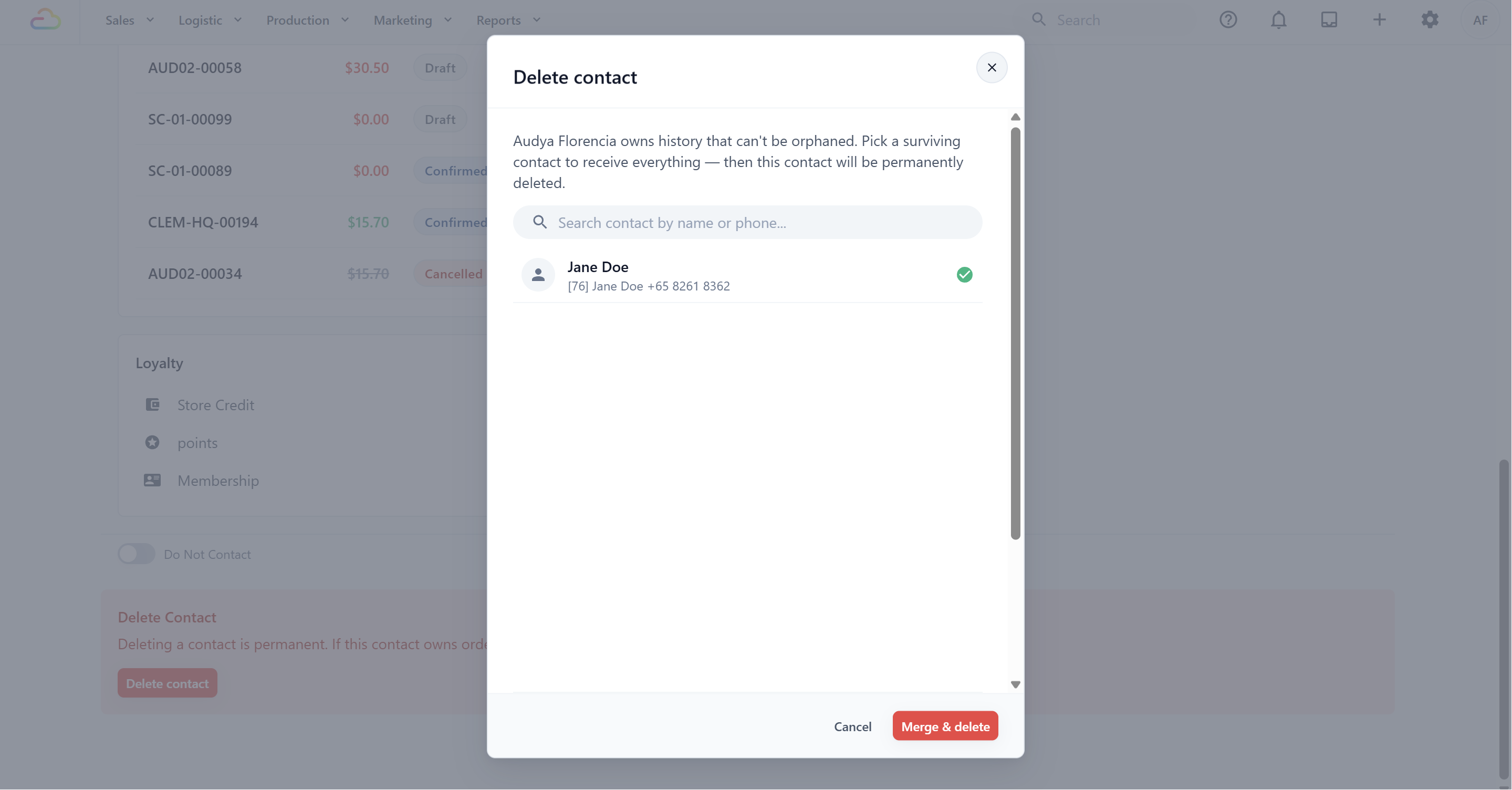
Check the selected contact carefully. The duplicate's orders, payment records, addresses, store credit, and points will be moved to this contact.
Click Merge & delete. EasyBiz completes the transfer and permanently deletes the duplicate contact.
Check It Worked
Search for the customer — only one record remains.
Open the surviving profile: its order count and total spend now include the duplicate's history.
If the duplicate had store credit or points, confirm the balances moved across in the Loyalty card.
When a Merge Is Blocked
Two cases stop the automatic merge, on purpose:
Very large contacts — a contact whose history exceeds the merge limit cannot be merged self-service. Contact EasyBiz support to handle it.
Store credit in different currencies — if the two records hold credit in different currencies, the balances cannot be combined automatically. Contact support to resolve the balances first.
FAQs
Which record should survive?
Keep the record with the correct phone number and the richer history — usually the older one. The other record's orders and balances move over either way, so what matters most is that the surviving contact's details are the ones you want going forward.
Does merging change my sales reports?
No. Orders keep their dates, amounts, and sales channels — they are simply re-attached to the surviving customer. Totals in your reports are unchanged.
Can I merge two contacts that both stay?
No — a merge always removes the duplicate. If you only need to fix details, edit the contact instead. See Adding and Editing Contacts.
The customer only asked to be deleted, not merged — why am I seeing the merge screen?
A contact with order history cannot simply vanish — your sales records must stay intact. The merge preserves those records under the surviving contact. Contacts with no history can be deleted outright.
What's Next
Avoid future duplicates at the source: keep phone numbers clean when registering customers (Adding and Editing Contacts), and if you run multiple outlets, consider global accounts so one customer is recognized at every channel.