
Before You Start
- Your customers are already in your contact list. See Find, Filter and Export Contacts and Add a New Customer.
- You know what a customer's page shows. See See Everything About a Customer.
- You need permission to edit contacts. Owners have it. Staff without it don't see the merge or delete options.
- If you used this before: the section at the bottom of a customer's page is now called Merge or Delete Contact, with its own Merge into another contact button. You no longer need to press Delete to merge.
Overview
A duplicate is the same customer saved as two contacts. It usually happens when a customer signs up on your Online Store with a mobile number or email your shop already has, or when staff add someone twice at the counter. Merging moves everything from one contact onto the other, then deletes the extra one. Deleting removes a contact you no longer need, and it only works straight away when that contact has no orders or balances. Both are permanent, so you always see what will move before you confirm.
Where it works
- Console: the Contacts list shows the possible duplicates banner, and each customer's page has the merge and delete options.
- POS: staff see the merged contact, with all its orders and balances, the next time they search for the customer.
- Online Store and Mobile App: the customer sees both order histories together on the contact you kept.
Why Do It
- Nothing gets split. Store credit, points and orders on two contacts look like half the story. After a merge, staff see the full balance at the counter.
- Fewer awkward mistakes. Staff no longer pick the wrong contact and tell a customer their credit is gone.
- Cleaner messages. Two contacts with the same number make it unclear which one a WhatsApp message belongs to. One contact clears that up.
If you leave duplicates alone, nothing breaks, but the customer's history stays split across two contacts and their credit or points can't be used together.
Review Possible Duplicates
When a customer signs up online with a mobile number or email another contact already has, the Online Store offers to send a code to it. If they don't enter the code, a new contact is created and the two are flagged as a possible duplicate. Your shop decides whether they are the same person, because only you can check with the customer.
- In the top navigation bar, click the Sales dropdown, then click Contacts.
- If any contacts are flagged, a banner above the list reads, for example, 2 contacts may be duplicates. Click Review .
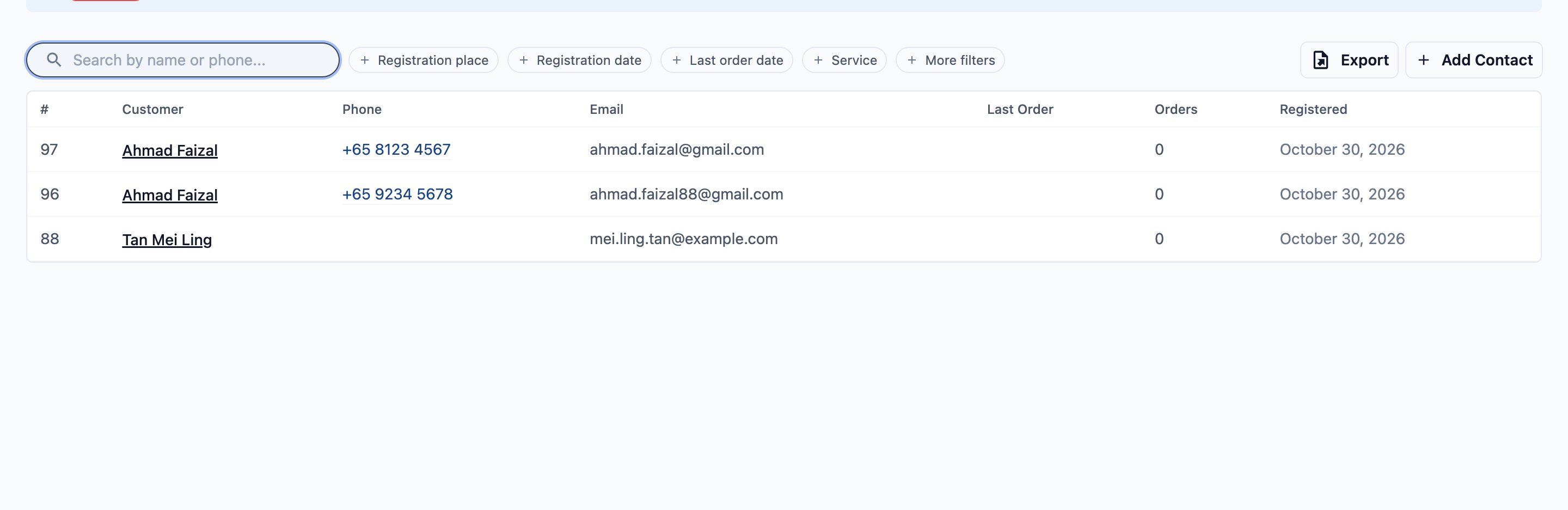
- The Possible duplicates list opens, showing each flagged contact's name, phone and email. Click Open beside the one you want to check.
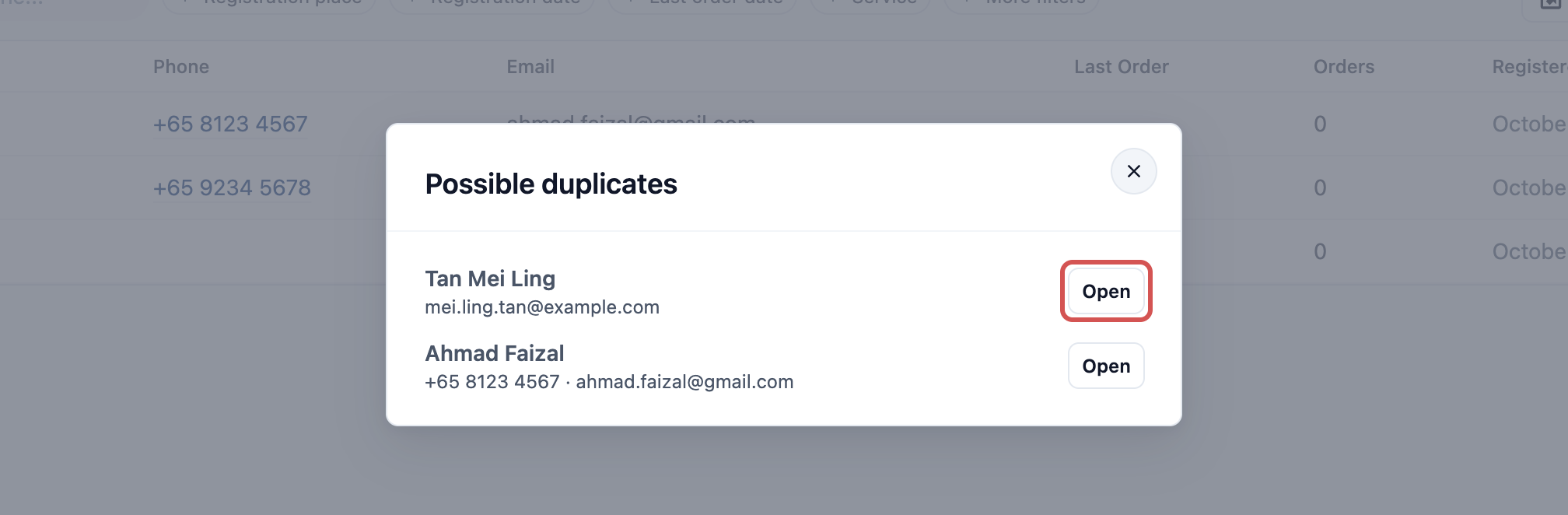
- The customer's page opens. Further down it, a Possible duplicate box lists the other contact with its phone, email and number of orders. Choose one:
Possible duplicate options
| Button | What it does |
|---|---|
| Open | Opens the other contact so you can compare the two first |
| Different person | Keeps both contacts and stops flagging them. The same pair won't be flagged again |
| Merge into this contact | Moves the other contact into the one you are looking at, then deletes the other one |

- After Merge into this contact , the Merge contacts box shows exactly what will move, for example: "This moves 1 orders, 0 payments, 1 addresses, $0.00 store credit and 0 points from Tan Mei Ling into Tan Mei Ling, along with their online account and saved cards, then permanently deletes Tan Mei Ling. It cannot be undone."
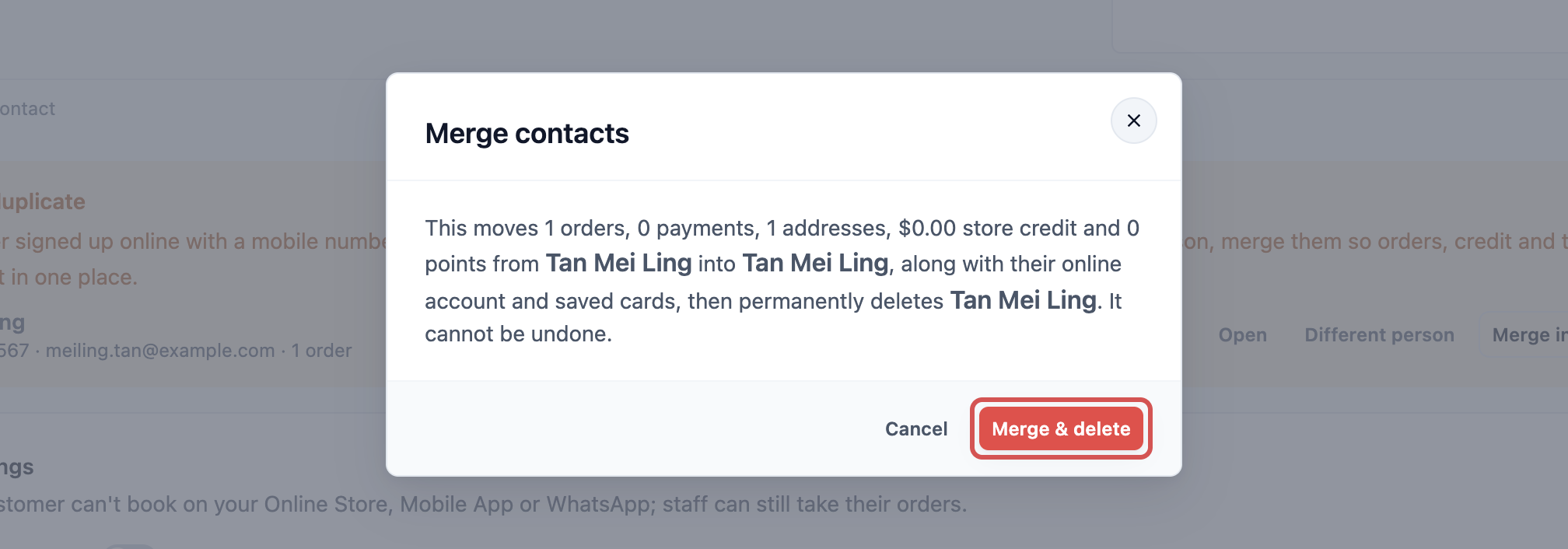
- Check the numbers, then click Merge & delete . You see Contacts merged, and the box disappears.
What a Merge Moves
Everything that belongs to the contact being removed moves to the contact you keep:
- Orders and payments
- Saved addresses
- Store credit and points, added to what the kept contact already has
- Prepaid packages, memberships, bookings and recurring pickups
- Deals and automatic follow-up messages
- Their online account and saved cards, so they keep signing in and paying online
- Every phone number, added as extra numbers on the kept contact
The kept contact keeps its own name, main phone and details. Anything it has left empty, such as email, birthday or private note, is filled from the other contact. Then the other contact is deleted permanently.
Merge or Delete From a Customer's Page
You don't need the banner to merge. Any two contacts can be merged from the bottom of a customer's page, for example when staff added someone twice at the counter.
- In the top navigation bar, click the Sales dropdown, then click Contacts.
- Click the contact you want to remove.
- Scroll to the bottom of the page to the Merge or Delete Contact section.

Merge into another contact
- Click Merge into another contact .
- The Merge contact box opens and searches for contacts with the same name. Type a name or phone number in Search contact by name or phone... if the one you want isn't listed.
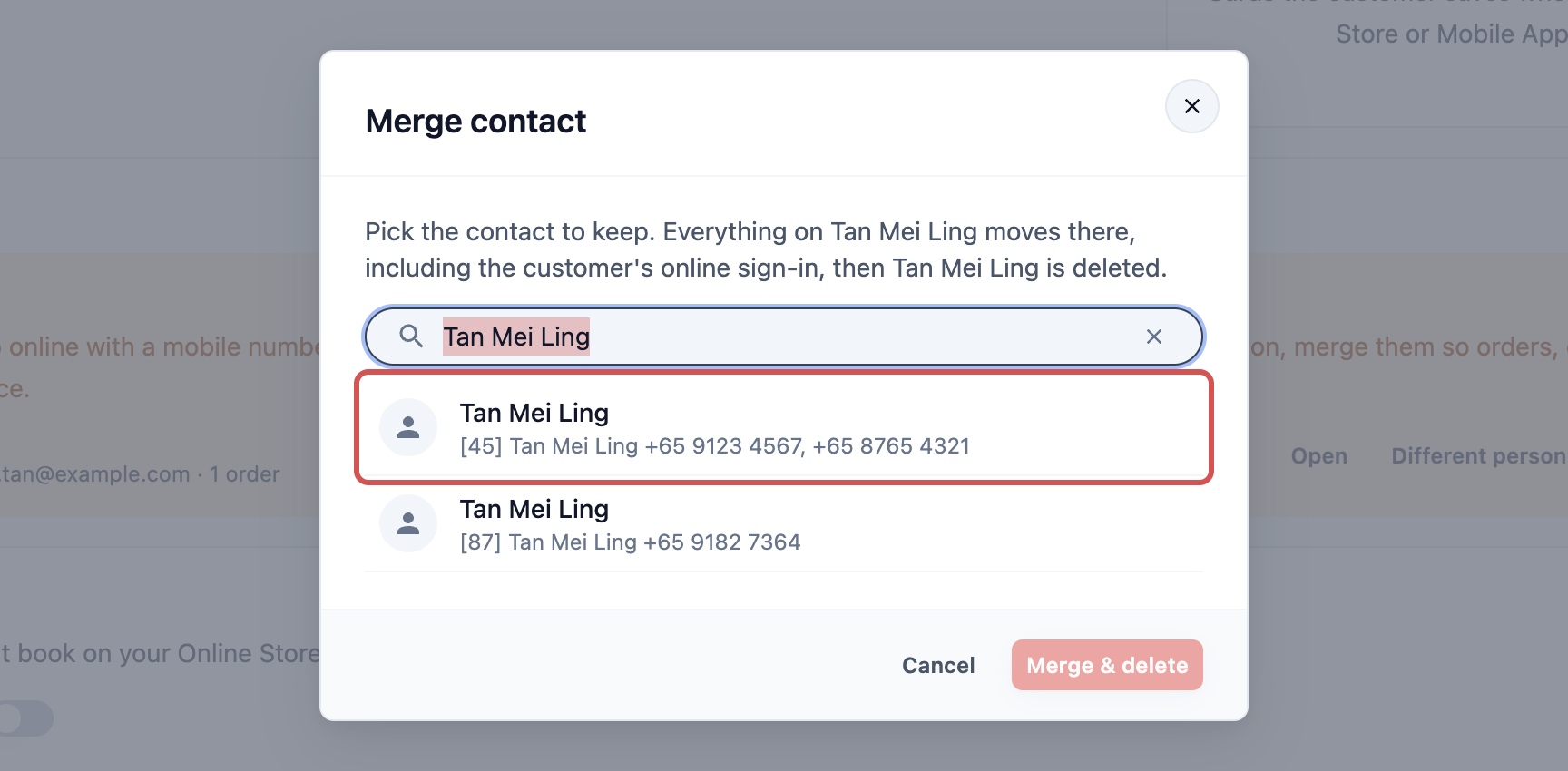
- Click the contact you want to keep. A tick appears beside it, and the preview shows what will move, for example: "This will move 0 orders, 0 payments, 0 addresses, $0.00 store credit and 0 points into Tan Mei Ling (+65 9123 4567), then permanently delete Tan Mei Ling."
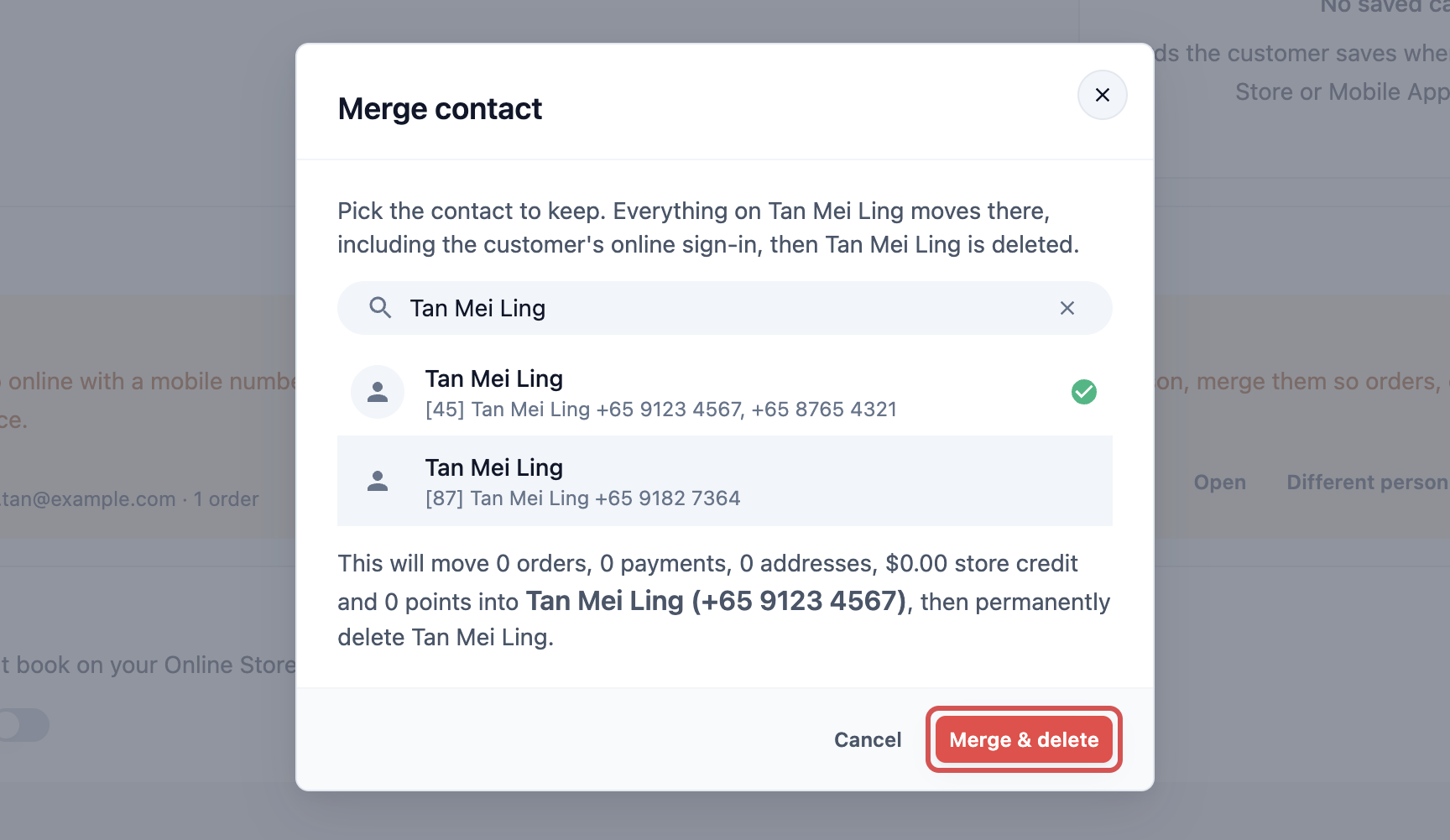
- Click Merge & delete . You see Contact merged and deleted, and the Console opens the contact you kept.
Each contact in the preview shows its phone number, so you can tell two contacts with the same name apart.
Delete a contact
- Click Delete contact .
- What you see next depends on the contact:
What happens when you delete
| The contact has | What you see |
|---|---|
| No orders, payments, store credit or points | "Permanently delete Tan Mei Ling? This cannot be undone." Click Delete permanently |
| Orders, payments, store credit, points or other history | The same contact picker as a merge. Pick the contact to keep, check the preview, then click Merge & delete |
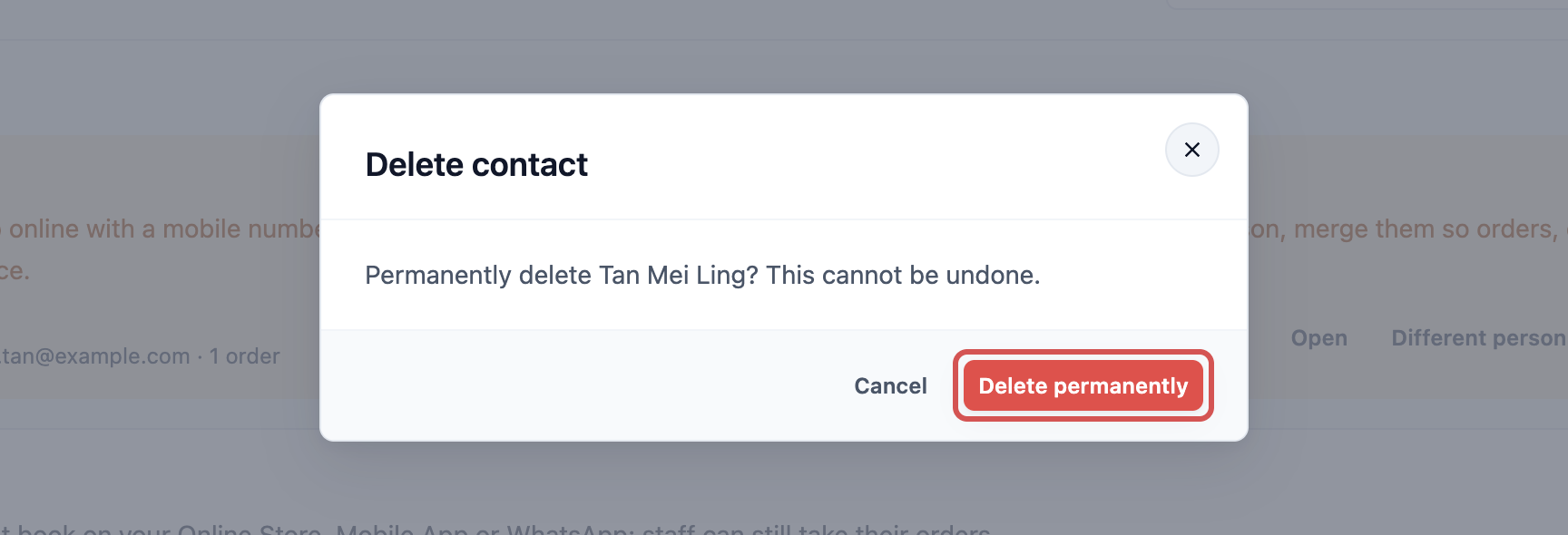
A contact's saved addresses are deleted with it when it has no other history.
Very large contacts
A contact with more than 1,000 records, such as orders and payments added together, can't be merged automatically. You see "Tan Mei Ling owns more than 1000 records and can't be merged automatically. Please contact support." Contact our support team and we'll merge it for you.
Tidy the Phone Numbers After a Merge
The kept contact keeps every number from both contacts. The first one is the main phone: it shows first on the contact, and new orders use it. The others show below it on the customer's page, and as Other phone when you edit the contact.
- On the kept contact's page, click Edit under the customer's details.
- The Update Account box shows the main phone first and each extra number as Other phone.
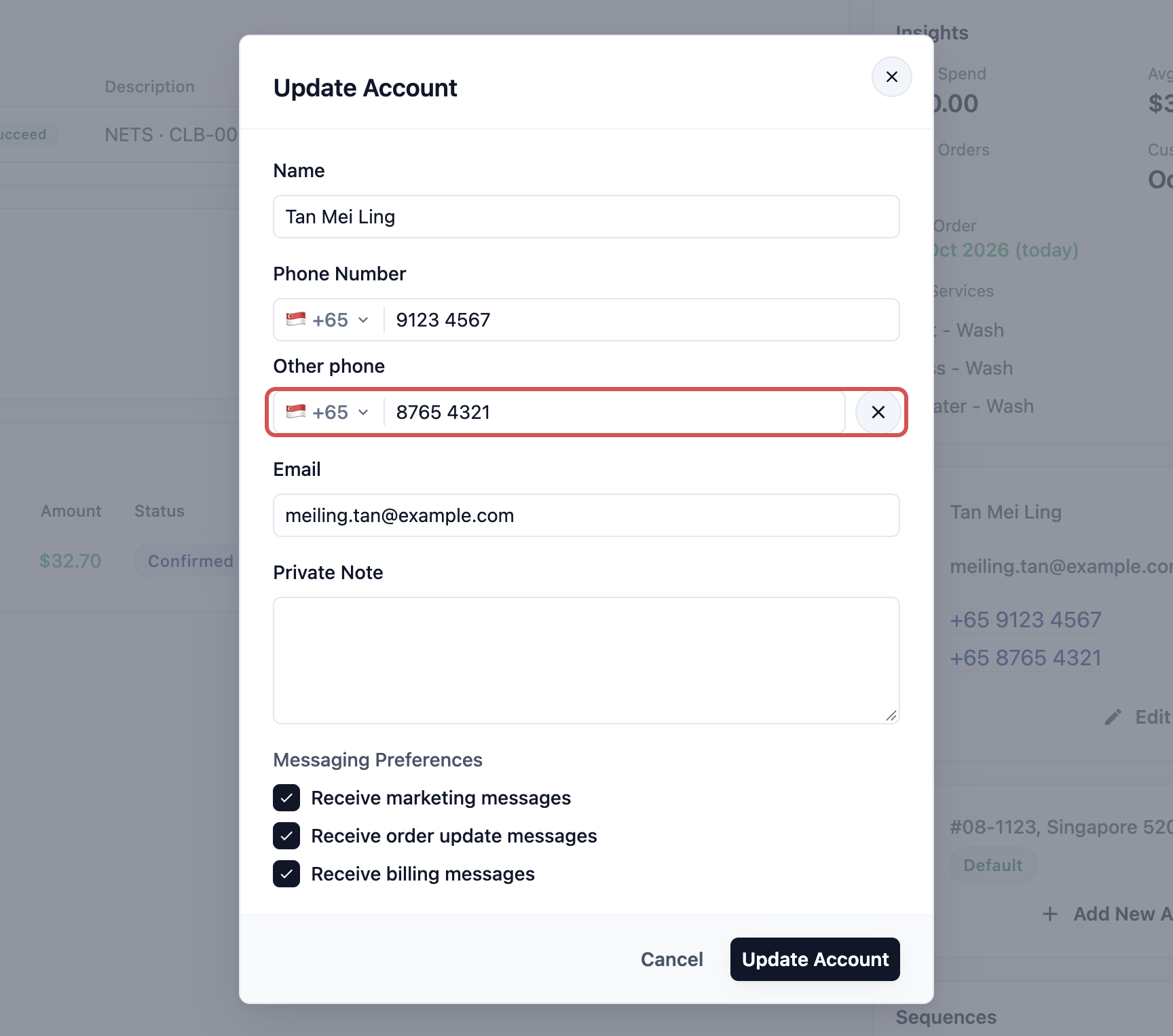
- To make the other number the main one, type it into the main phone field, and type the old main number into the Other phone field.
- To remove a number the customer no longer uses, click the ✕ beside its Other phone field.
- Click Update Account .
Example: Tan Mei Ling at CleanFast Laundry
Tan Mei Ling has been a walk-in customer at CleanFast Laundry's Tampines shop for a year. Her POS contact has 12 orders, S$20.00 store credit and 150 points, with her mobile number +65 9123 4567.
She signs up on CleanFast's Online Store with the same number, but skips the code. A new Online Store contact is created for her, with 1 order and 30 points, and the Contacts banner shows 1 contact may be a duplicate.
The manager opens it from Review . She wants to keep the POS contact, since it has the full history, so she clicks Open on the POS contact and then Merge into this contact there.
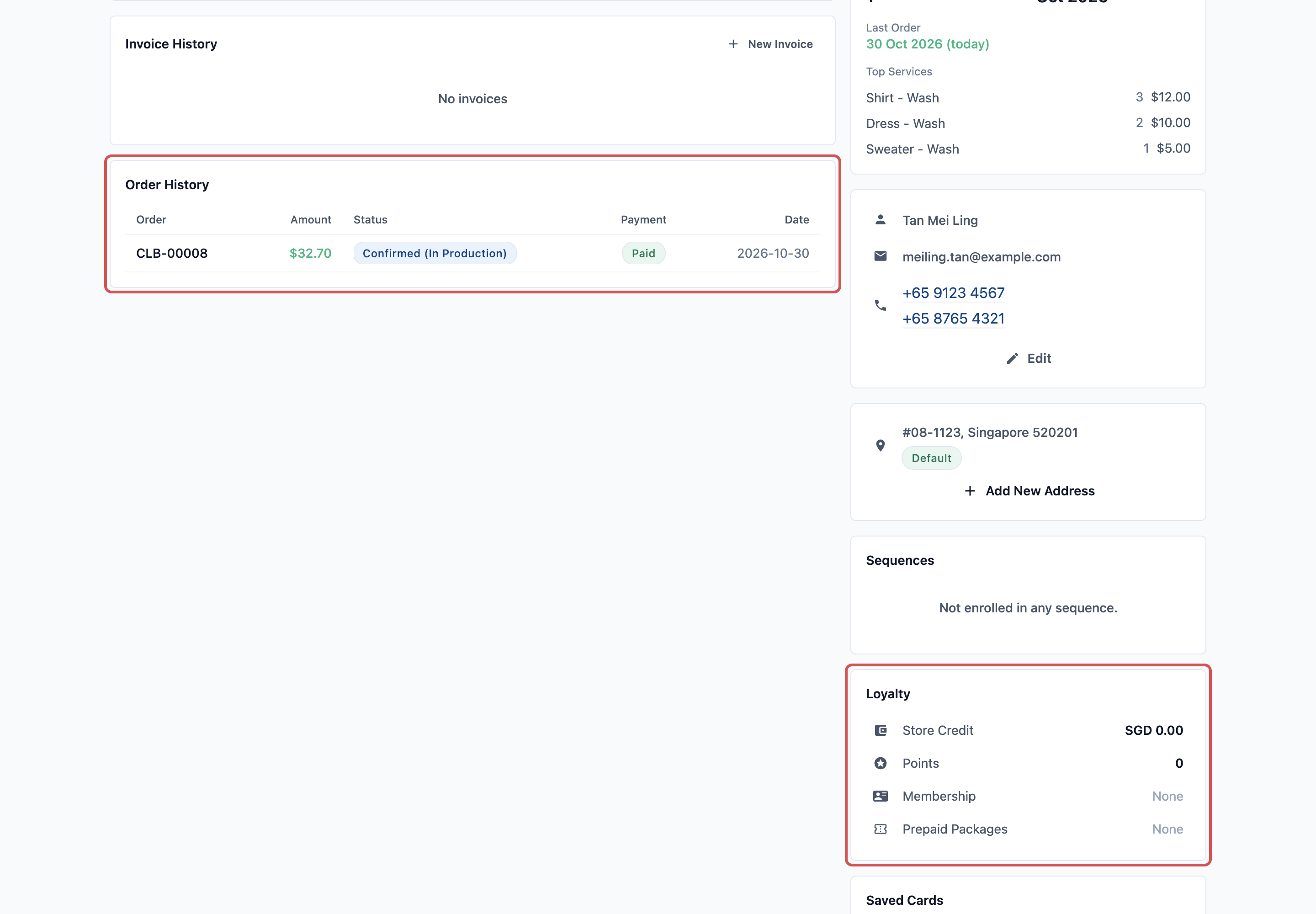
After the merge, Mei Ling's one contact has:
- Orders: 12 + 1 = 13 orders
- Store credit: S$20.00 + S$0.00 = S$20.00
- Points: 150 + 30 = 180 points
What Staff and Customers See
- Staff in the Console and POS: one Tan Mei Ling when they search, with all 13 orders, the full store credit and points. The deleted contact no longer appears.
- The customer online: if she was signed in to the deleted contact, she signs in again with her number or email and sees both order histories together. Her saved cards still work.
- Banner: the pair disappears from Possible duplicates. When nothing is left to review, the banner goes away.
FAQs
Which contact keeps its name and details?
The contact you merge into keeps its name, main phone and details. Fields it has left empty, such as email or birthday, are filled from the other contact. One exception: if the customer confirmed their email online on the removed contact, that confirmed email is kept so they can sign in.
Can I undo a merge?
No. The removed contact is deleted permanently, and its records now belong to the kept contact. Always check the preview first.
Does the customer have to sign in again online?
Only if they were signed in to the contact that was removed. They sign in again with the same number or email and see everything on one account. Their saved cards move with them.
What happens to their WhatsApp chats?
Their deals and automatic follow-up messages move to the kept contact. Because the kept contact now has both numbers, new WhatsApp messages from either number are linked to it.
What if the two contacts are a husband and wife sharing one number?
Click Different person . Both contacts stay, each with its own orders, and the pair isn't flagged again.
Staff tried to add a customer and got "This email or phone number is already on another contact". What now?
That customer is probably already in your list. Click Open contact to see the existing contact and use it. If staff already created a second one, merge the two from the bottom of the extra contact's page.
Does merging change my sales reports?
No sales are lost. Orders and payments move to the kept contact, so your totals stay the same and the customer's spending is counted in one place.
What's Next
You've finished the Contact Management series. You can now find and export customers, add new ones, see everything about them, use contact shortcuts, set up your contact pages and keep the list free of duplicates. A clean contact list means staff always find the right customer, with the right balance, the first time.