
Before You Start
- Your WhatsApp number is connected to EasyBiz. The chat shortcuts open your EasyBiz Inbox (the screen where your team reads and replies to WhatsApp messages), so they need a connected number. See Connect and Configure WhatsApp.
- You can open the Inbox. On contact and order pages, staff whose role does not include the Inbox get WhatsApp in a new browser tab instead.
- You know your way around the contact page. This article builds on See Everything About a Customer.
Overview
EasyBiz links your contacts, WhatsApp chats and orders, so staff can move between them in one click. These shortcuts are small, but they save time on every customer you serve. Most shops never notice them unless someone points them out. This article shows each shortcut, where it lives and when it works. It is for staff who handle chats and orders every day.
Where it works
- EasyBiz Console in your web browser: every shortcut in this article.
- Your customers see nothing different. These shortcuts only change how fast your staff reach the right screen.
Why use these shortcuts
A customer messages to ask whether their order is ready. Without shortcuts, staff copy the number, search the Inbox, then search the orders list. With them, it takes two clicks, and staff always land on the right customer, not someone with a similar name. Nothing needs to be set up. If your team never uses them, nothing breaks; they only spend more time searching.
Phone number to chat
Any customer phone number shown as a link opens that customer's WhatsApp chat in the Inbox. If you have never chatted with them, a new chat opens, ready for your first message.
From the contact list
- In the top navigation bar, click the Sales dropdown, then click Contacts.
- Click the customer's phone number.
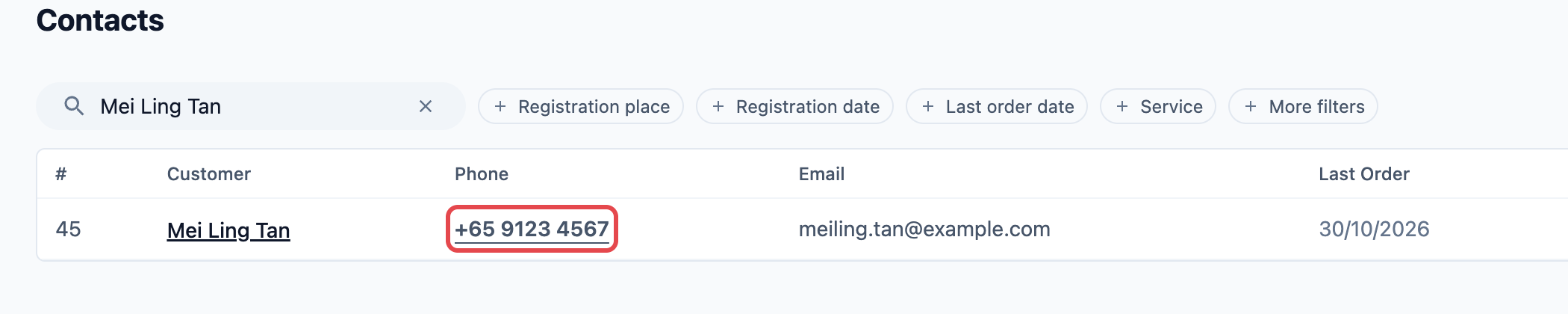
The Inbox opens on the right with Mei Ling's chat. Clicking anywhere else on the row opens her contact page instead.
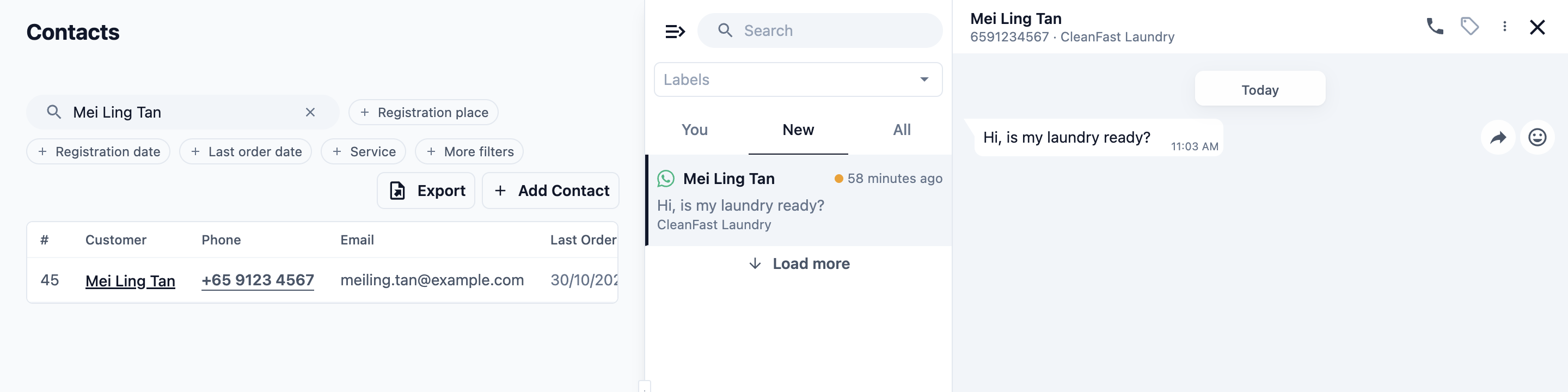
The contact list shows each customer's main phone number, so that is the one it opens. A customer with more than one number has the others saved as Other phone.
From the contact page
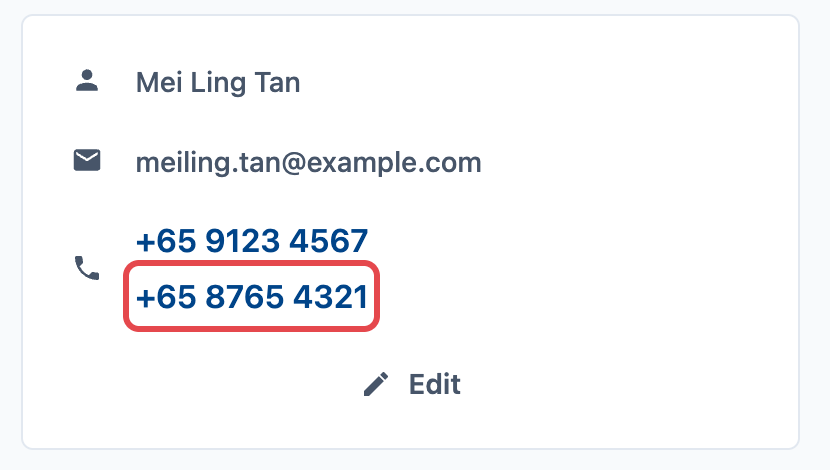
On a customer's contact page, every number in the contact details is a link, including each Other phone. Click the number you want, and the chat for that number opens.
From an order
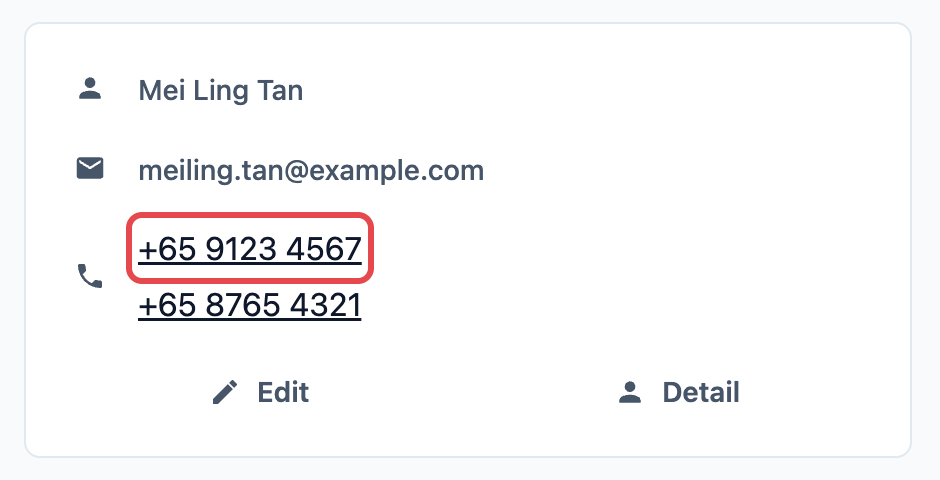
On an order's page, the customer card shows the customer's name, phone and email. Click the phone number to open their chat. In the orders list, the phone number in each row looks like plain text, but it is a link too: point at it and click.
Chat to contact page
In the Inbox, click the customer's name at the top of the chat. Their full contact page opens in the Console, with their orders, payments and balances.
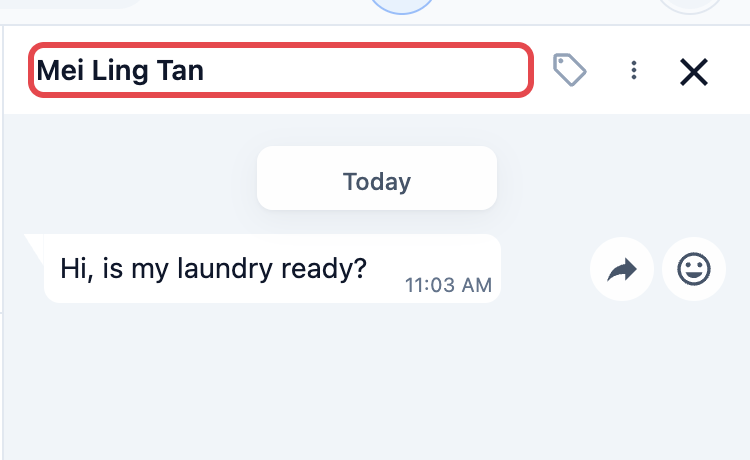
This works only when the chat is linked to a contact. A linked chat shows the name you saved for the customer. An unlinked chat shows the customer's WhatsApp profile name, and clicking it does nothing.
How a chat gets linked
You never link a chat by hand. EasyBiz links it in these cases:
- The customer sends a message from a number saved on exactly one contact. The chat is linked from that message onwards.
- You save the customer as a contact with the same WhatsApp number. Add them in Sales › Contacts, as shown in Add a New Customer. Existing chats from that number are linked as soon as you save.
- You click Register in the chat. Use this only if your shop manages chats by deal stage (see the next section). The contact form opens with the customer's WhatsApp name and number filled in. Check them and save.
If two contacts share the same number, EasyBiz cannot tell which customer is writing, so the chat stays unlinked. Remove the number from the wrong contact, or merge the two contacts, as shown in Merge or Delete a Contact.
Chat to orders
Use this only if Manage chats by deal stage is switched on in Settings › Deal Pipeline. A deal is a customer enquiry your team tracks until it becomes an order. With this switch on, each chat shows a deal bar under the customer's name, with these shortcuts:
- Register appears when the chat is not linked to a contact yet. It opens the contact form, filled in from the chat.
- New Order appears once the chat is linked. It opens a new order with the customer already selected. If you take orders through more than one channel, pick the channel first.
- The order number appears once the enquiry has an order, with the order's status beside it. Click it to open the order.
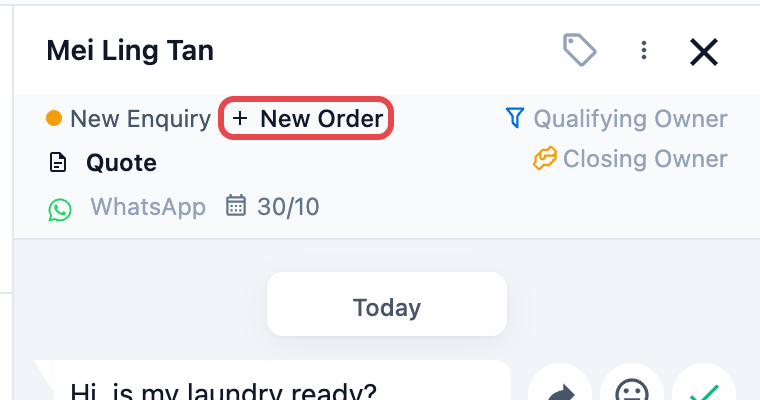
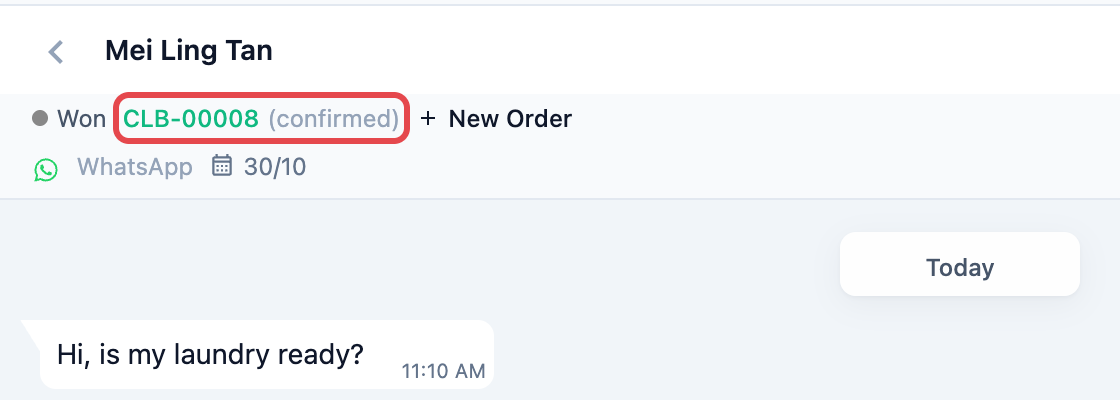
To learn more about deals, see Get Started with Deals.
Order to contact page
To go to the customer from the order and open their customer profile:
- Open the order.
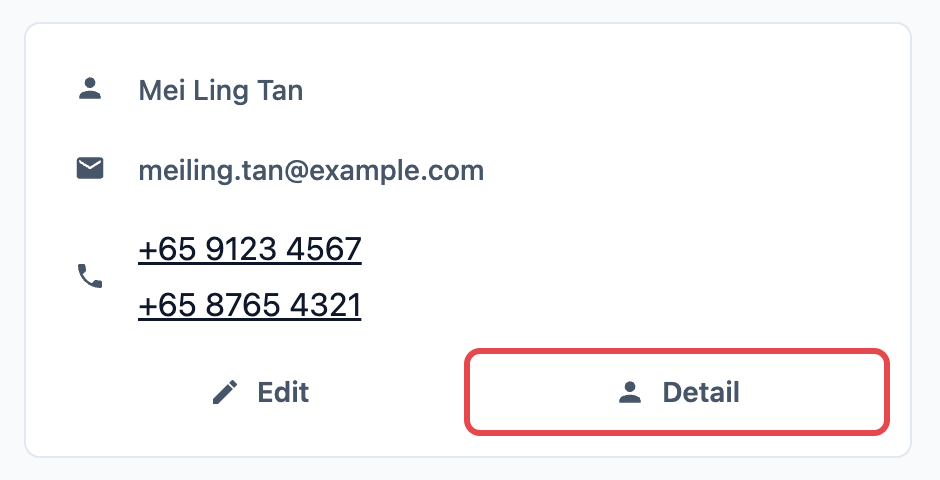
- In the customer card, click Detail, next to Edit.
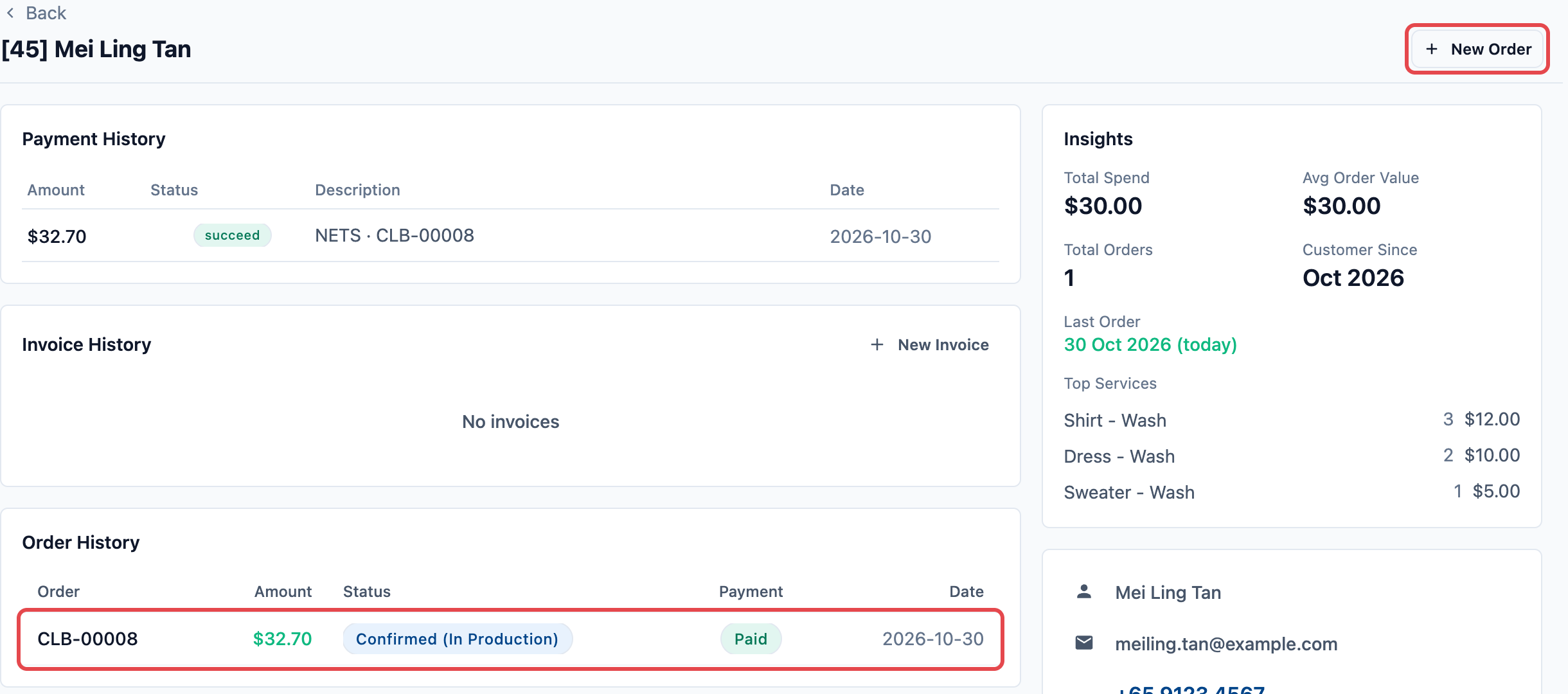
The customer's contact page opens, with their orders, payments and balances, so you don't need to search for them again. The customer's name on the order isn't a link, so clicking it does nothing. Edit changes the customer's details without leaving the order.
Contact page to orders
From a customer's contact page, two shortcuts take you back to orders:
- New Order at the top of the page starts an order for this customer, with their details filled in.
- Order History lists their recent orders. Click any order to open it.
Top search
The Search box in the top navigation bar finds contacts and orders from any page in the Console.
- Click Search in the top navigation bar, or press Ctrl + K (⌘ + K on a Mac).
- Type what you know about the customer:
- their name: a whole word, or at least the first 4 letters of any word in it;
- their full phone number, with or without the country code, or its last 4 digits;
- their email address or customer number.
- Click the customer under Contacts to open their contact page.
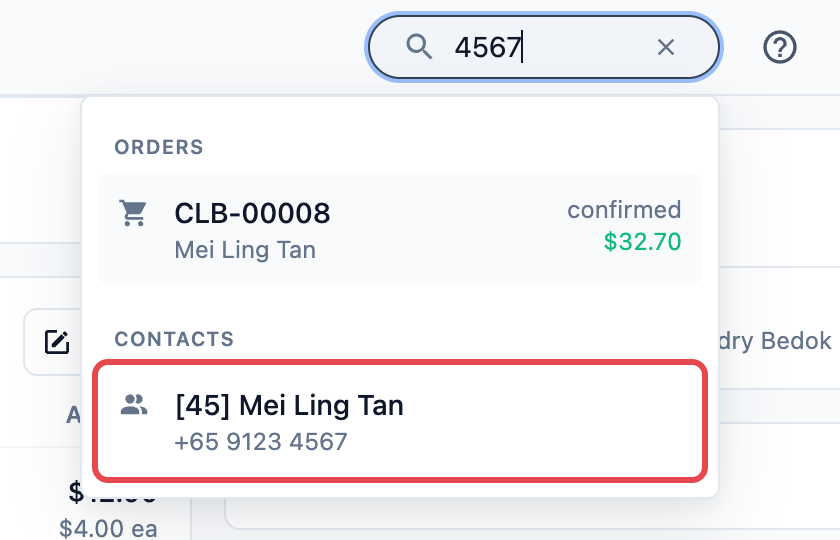
Order numbers show under Orders. To see only one kind of result, start with customer: or order:, for example customer:mei ling or order:00128.
Example: a customer asks if her order is ready
At CleanFast Laundry's Tampines shop, Mei Ling Tan messages on WhatsApp: "Hi, is my laundry ready?"
- Siti, the counter staff, sees the chat in the Inbox. She clicks Mei Ling's name at the top of the chat, and her contact page opens.
- In Order History, Siti clicks order CLB-00008. The order shows the laundry is ready for collection.
- In the order's customer card, Siti clicks Mei Ling's phone number. The chat opens again, and she replies: "Yes, it's ready. See you at Tampines!"
- Later, Mei Ling calls the shop. Siti types the last 4 digits of her number, 4567, in Search and opens her contact page in one click.
FAQs
Why does clicking the phone number open WhatsApp in a new tab instead of the Inbox?
Either your shop has no WhatsApp number connected to EasyBiz, or your role does not include the Inbox. Connect your number in Connect and Configure WhatsApp, or ask the person who manages your staff roles for Inbox access.
Why does clicking the customer's name in the chat do nothing?
The chat is not linked to a contact yet. Save the customer as a contact with the same WhatsApp number, or click Register in the chat if your shop manages chats by deal stage. Check also that no other contact has the same number.
Can I click the customer's name on an order to open their profile?
No, the name isn't a link. In the order's customer card, click Detail, next to Edit, to open their contact page.
I saved the customer, but the chat still shows their WhatsApp name. Why?
The number on the contact must match the WhatsApp number exactly, including the country code. Open the contact, click Edit and check the number.
After I merge two contacts, which number opens the chat?
In the contact list, the main number of the contact you kept. The merged contact's numbers move to Other phone, and on the contact page each of them opens its own chat. See Merge or Delete a Contact.
Will the customer see that I opened their chat?
No. Opening a chat sends nothing. The customer gets a message only when you send one.
Can I find a customer by their second number?
Yes. Search covers every number saved on the contact, including Other phone.
What's Next
You now know every shortcut between chats, contacts and orders. Next, choose what your team sees first: in Customize the Contact List and Profile, you set the columns on the contact list and the cards on each contact page.