
Before You Start
- You need a Console login whose access includes the Sales pages. If you can't see Contacts in the menu, ask your account owner to check your access. See Granting the Right Access.
- There is nothing to set up first. Contacts fills itself as your shop takes orders and customers sign up online.
- If you used EasyBiz before: search, filters and export all live on the Contacts page itself, so there is nothing to reconfigure.
Overview
Contacts is your customer list in the Console. Every customer your shop has served is here, whether staff took their order at the counter, they signed up online, or staff added them by hand. You can find one person by name, phone or email, or narrow the list to a group, such as customers who have not ordered for two months. You can also download the list as an Excel file for your own records. From the list, one click opens a customer's full profile.
Where it works
- Console: the Contacts page, where you search, filter, export and open customers.
- POS: when staff take an order for a new customer, that customer is added to Contacts.
- Online Store and Mobile App: customers who sign up or order online are added to Contacts automatically.
Why use it
A tidy customer list saves you time every day. Instead of scrolling, staff type part of a name or the last 4 digits of a phone number and the customer is there. Filters turn the list into simple customer analysis: who your top spenders are, who has gone quiet, who only ever orders online. Without search, staff are more likely to miss an existing customer and create the same person twice, which splits their order history across two records.
Where to find it
- In the top navigation bar, click the Sales dropdown, then click Contacts.
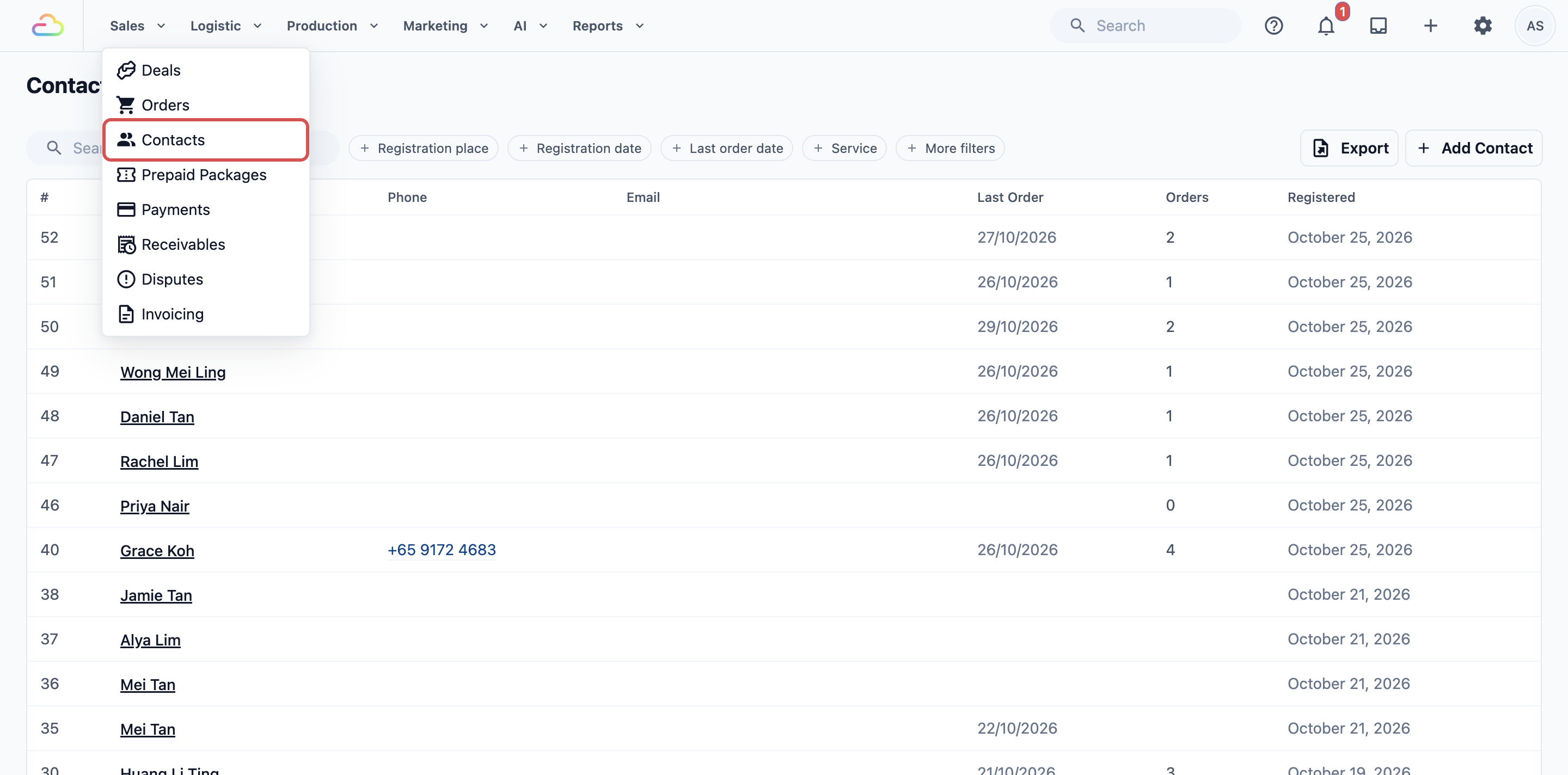
The Contacts page opens with your newest customers at the top.
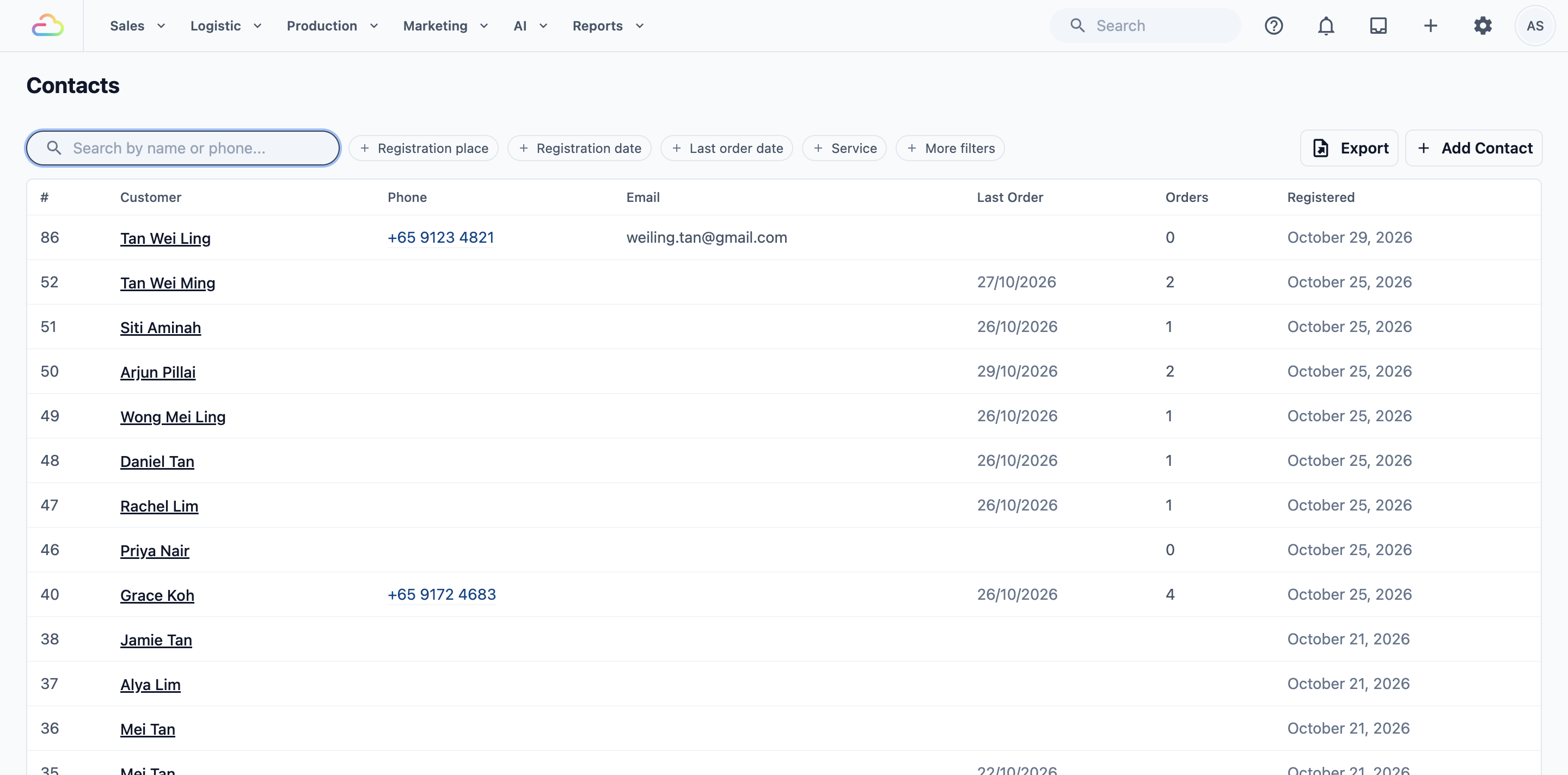
The default columns
- #: the customer's number in your account.
- Name, Phone and Email.
- Last Order: the date of their most recent order.
- Orders: how many orders they have placed.
- Registered: when they became your customer.
The list shows 20 customers at a time. Scroll to the bottom and click Load more to see the next 20.
How customers get onto the list
You don't need to add most customers yourself. A customer appears in Contacts when:
- Staff take an order for a new customer at the POS or in the Console.
- A customer signs up, or places an order, on your Online Store or Mobile App.
- Staff add a customer by hand with Add Contact . See Add a New Customer.
Each customer is saved with a registration place, the shop or online channel where they first joined, and a registration date, the day they joined.
Searching for a customer
- Click the Search by name or phone... box at the top of the page.
- Type what you know about the customer. The list updates as you type.
- Click the customer's row to open their profile.
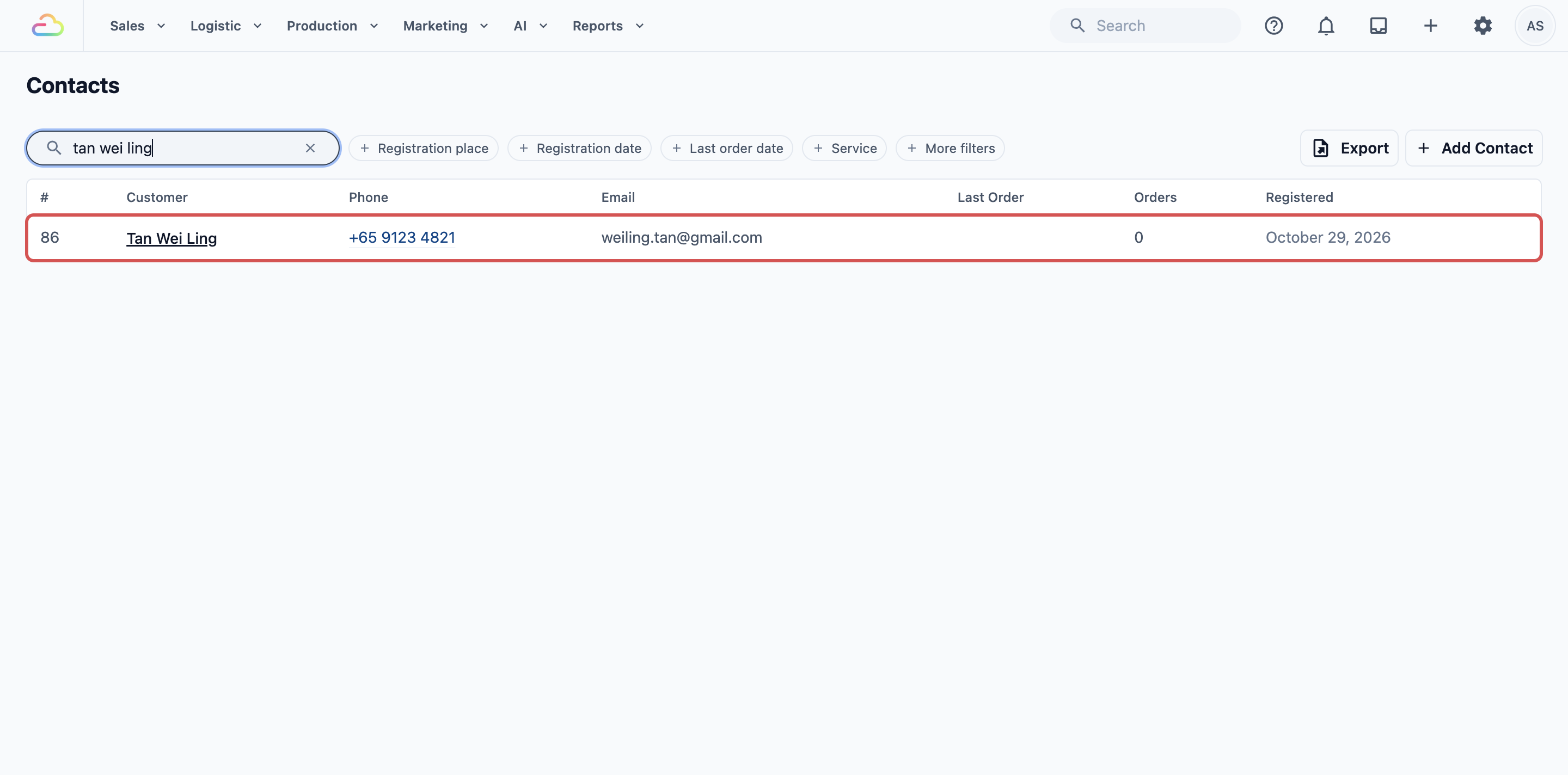
The search box finds:
- Names: a whole word of the name ("tan"), the first 4 or more letters of any word ("rach" finds Rachel), two words next to each other ("tan wei"), or the full name. For Chinese names, the first 2 or more characters work.
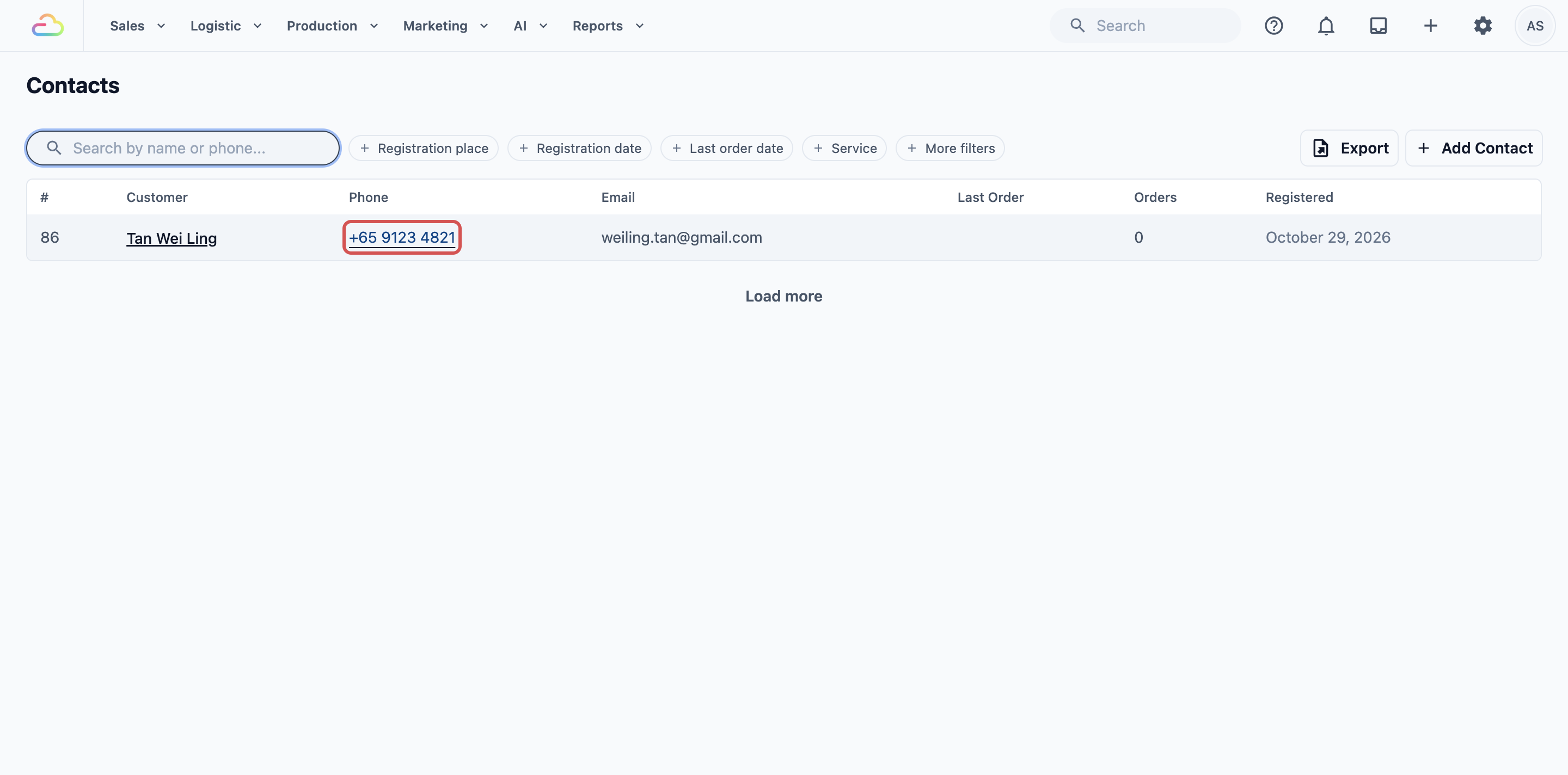
- Phone numbers: the full number, with or without the country code (91234567 or 6591234567), or the last 4 digits (4567). Spaces are ignored.
- Email addresses: the full email address, such as weiling.tan@gmail.com.
- Customer number: the number in the # column.
If nothing matches, the list shows No contacts found. Check the spelling, or try the phone number instead.
Filtering your list
Filters narrow the list to a group of customers. Four filters sit next to the search box, and three more are under More filters .
- Click a filter chip, for example Last order date .
- Choose your values in the panel that opens.
- Click outside the panel. The chip now shows your choice, and the list updates.
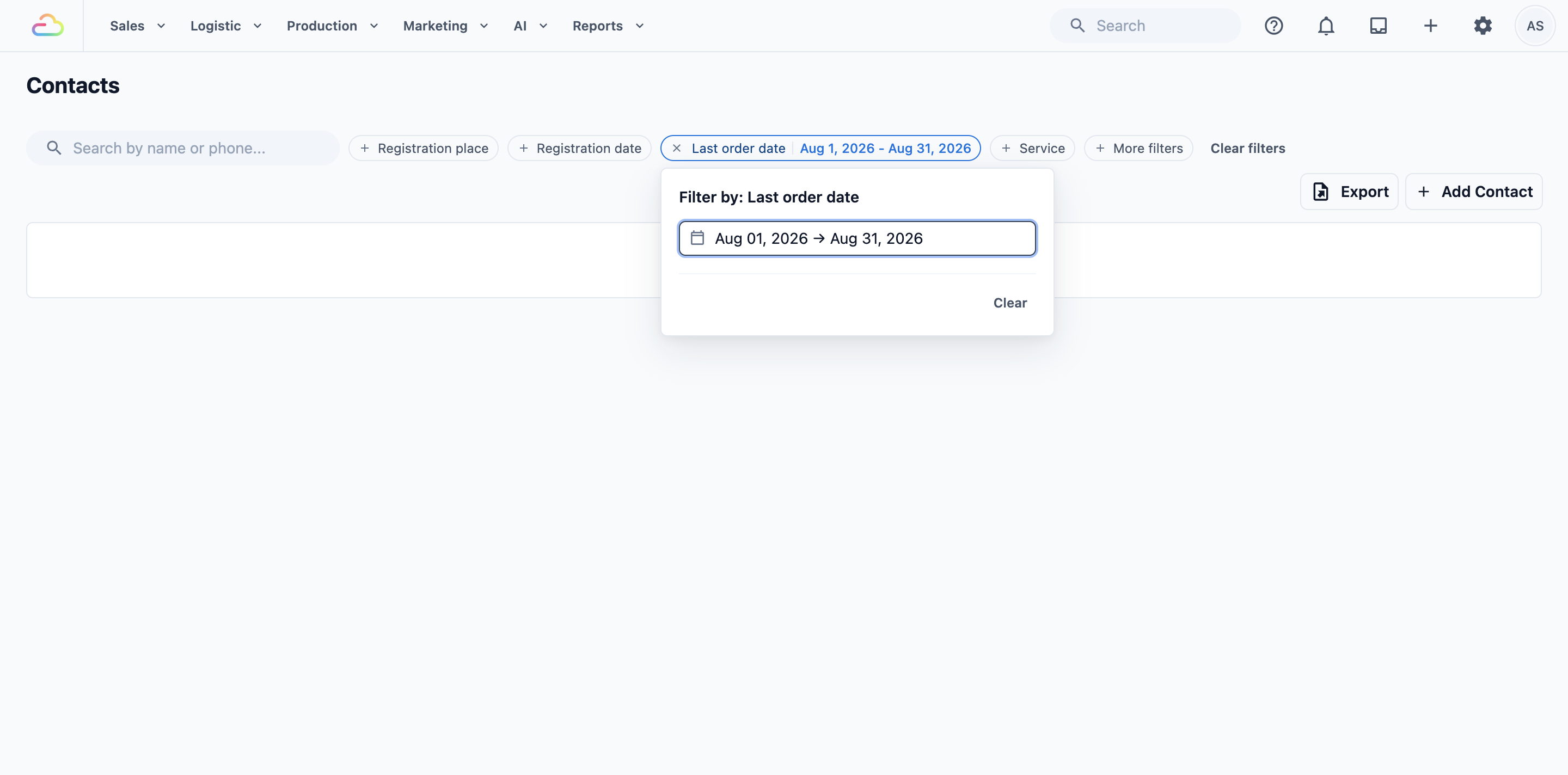
To remove one filter, click the × on its chip. To remove them all, click Clear filters .
The filters next to the search box
Registration place
Pick one of your POS shops, online channels or B2B agents. You see customers who joined there, plus customers who have ordered there since. For example, picking your Jurong shop also shows Tampines customers who have ordered at Jurong.
Registration date
Pick a date range. You see customers who joined in that range, newest first.
Last order date
Pick a date range. You see customers whose most recent order falls in that range. Anyone who ordered again after the range is left out, which makes this the filter for finding customers who have gone quiet.
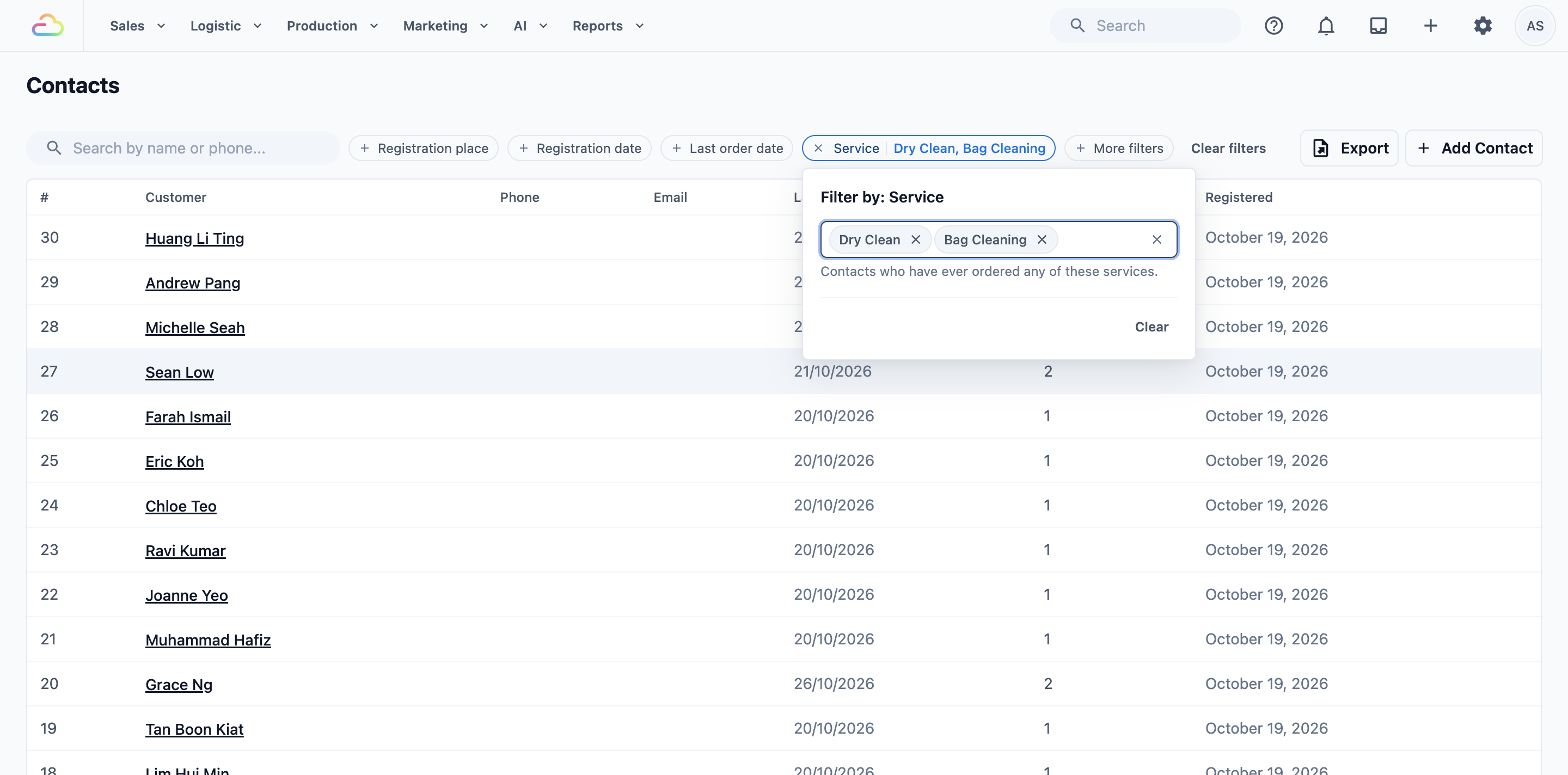
Service
Pick one or more services from your catalog. You see contacts who have ever ordered any of these services, at any time.
Under More filters
- Click More filters .
- Click the filter you want.
- Enter your values, then click Apply . Click Back to filters to choose a different one.
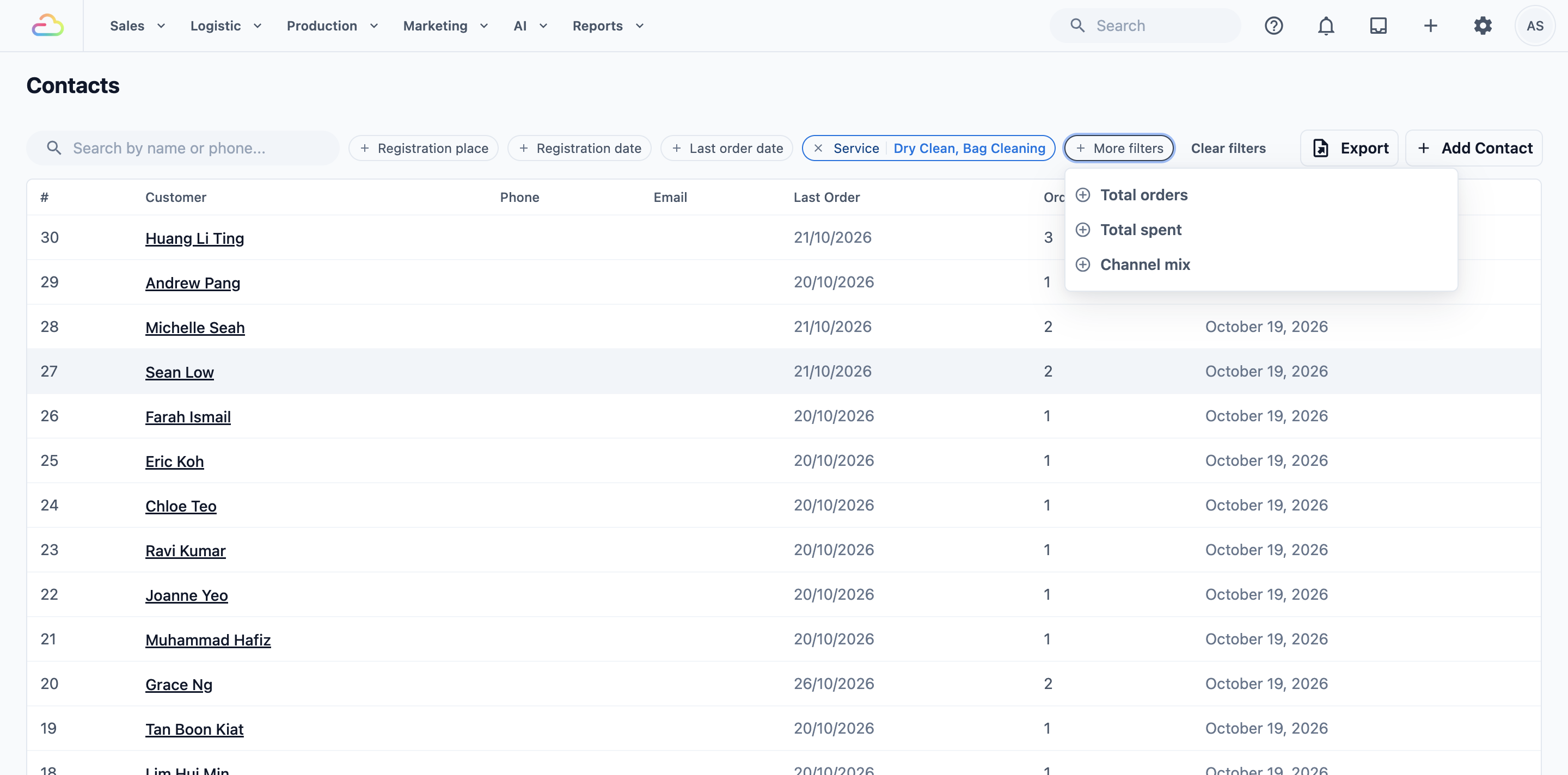
Total orders
Enter a Minimum orders, a Maximum orders, or both. For example, a minimum of 10 finds your most loyal regulars. Customers with the most orders show first.
Total spent
Enter a Minimum spend, a Maximum spend, or both, in dollars. This counts what the customer has been billed over their lifetime, before tax. Your highest spenders show first.
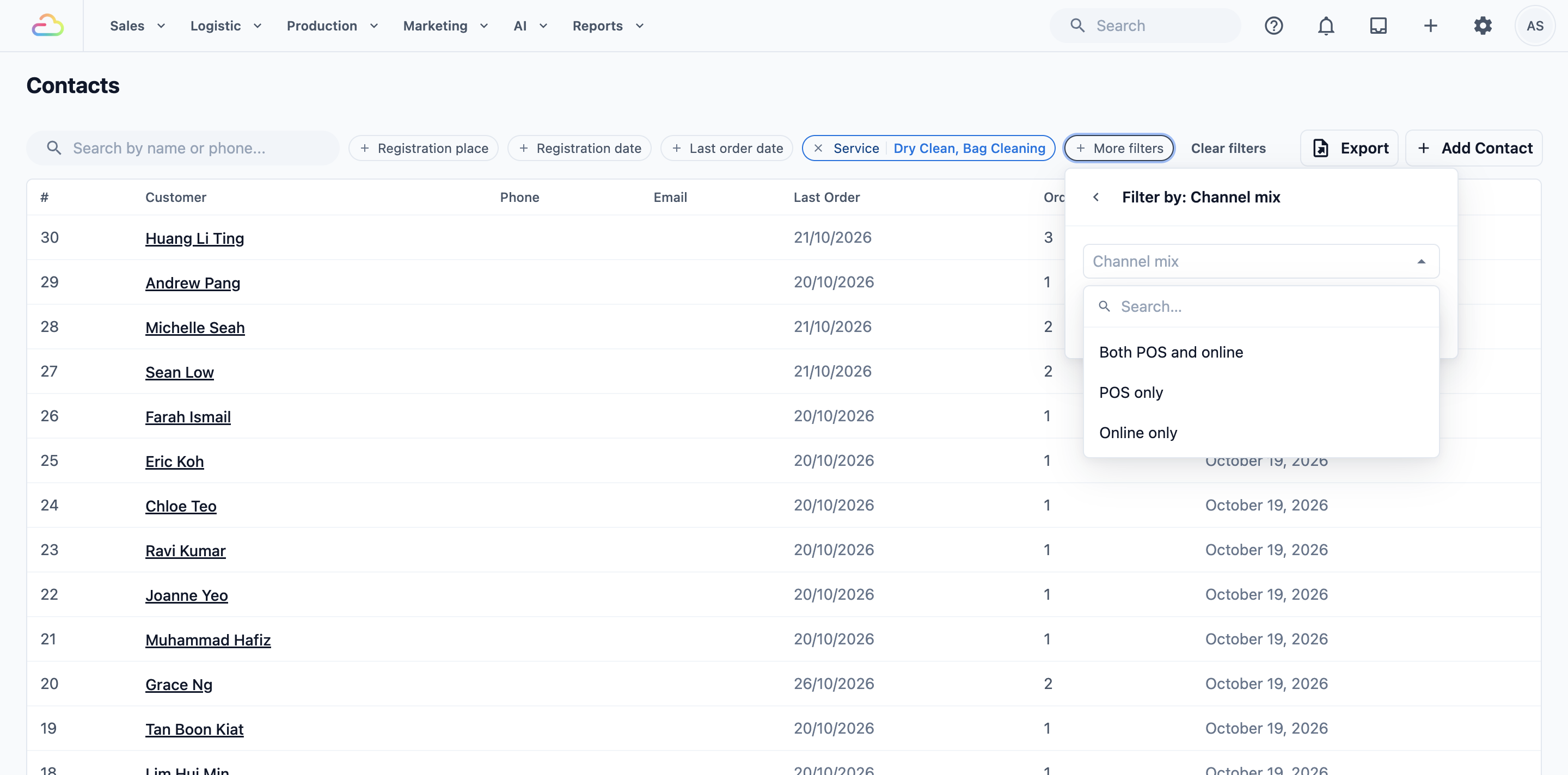
Channel mix
Shows where a customer has ordered: at your POS shops, online, or both.
| Option | Who you see |
|---|---|
| Both POS and online | Customers who have ordered at your POS shops and online. |
| POS only | Customers who have only ever ordered at your POS shops. |
| Online only | Customers who have only ever ordered on your Online Store or Mobile App. |
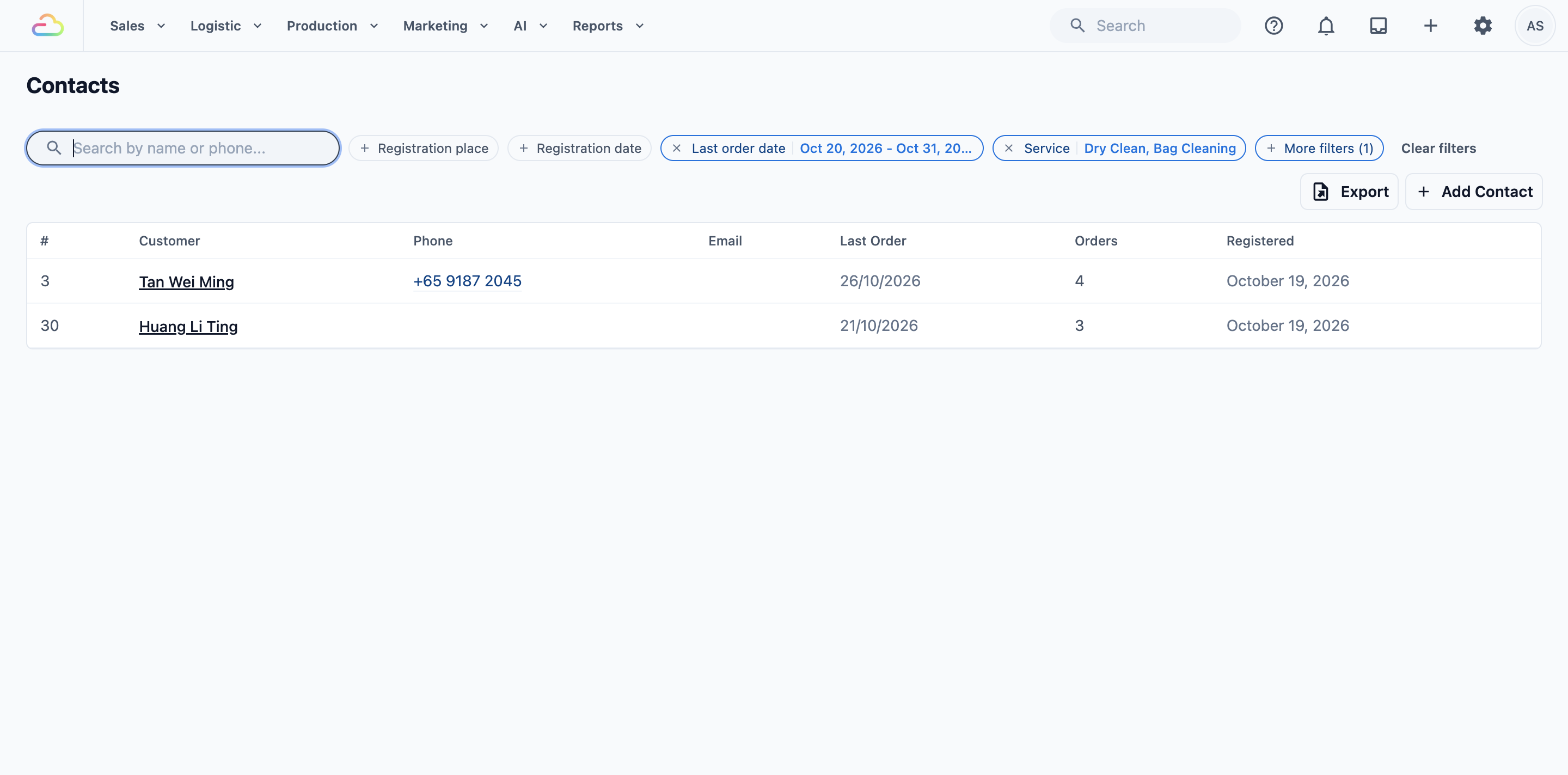
Once a More filters option is set, the button shows how many are active, for example More filters (1).
Combining filters
Every filter you set applies at the same time, together with anything in the search box. A customer must match all of them to stay on the list.
Exporting your list
Export downloads the customers you are looking at as an Excel file.
- Search or filter the list first, if you only want some customers.
- Click Export at the top right of the list.
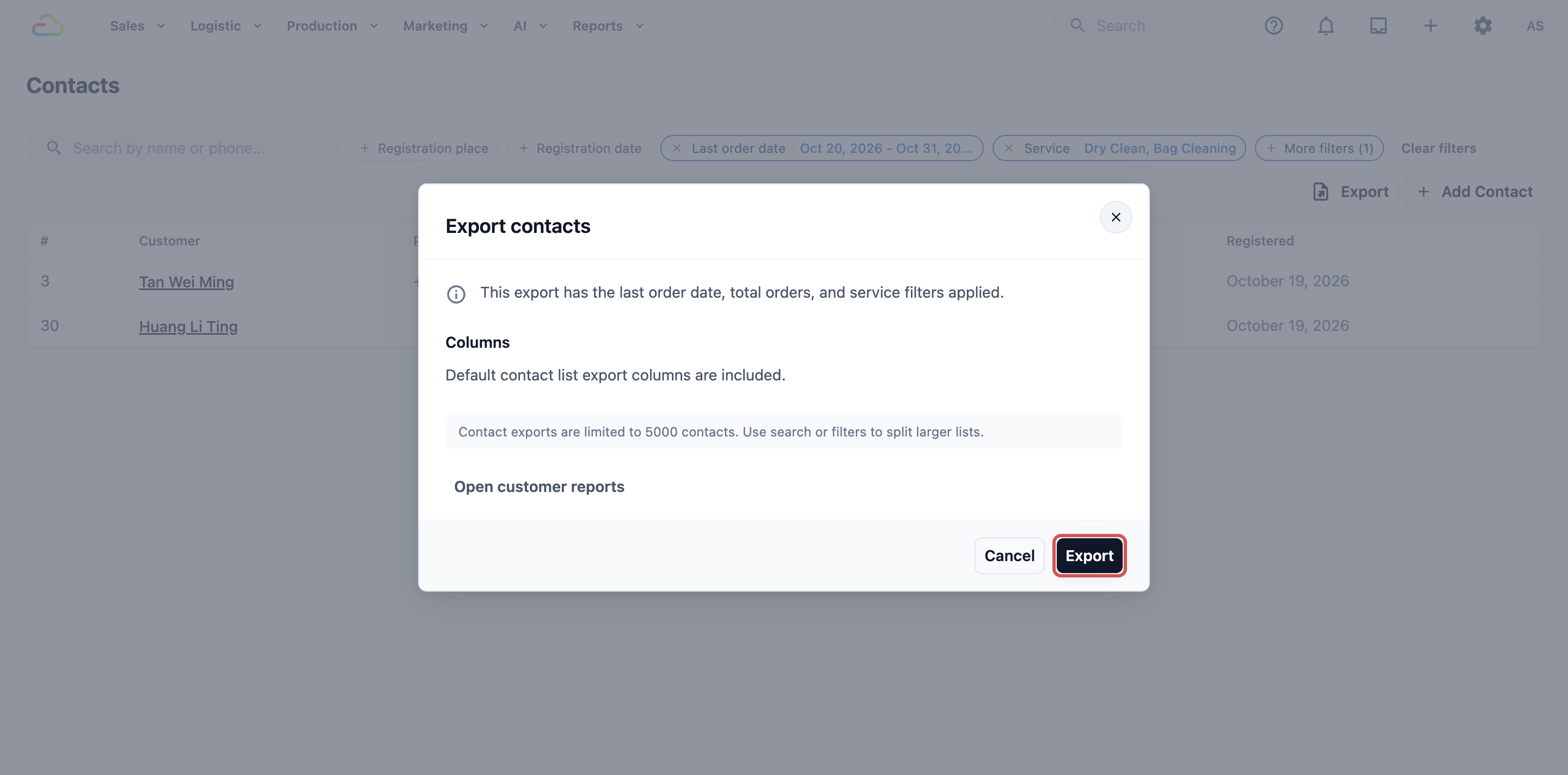
- The Export contacts window shows which filters the file will use. Check them, then click Export .
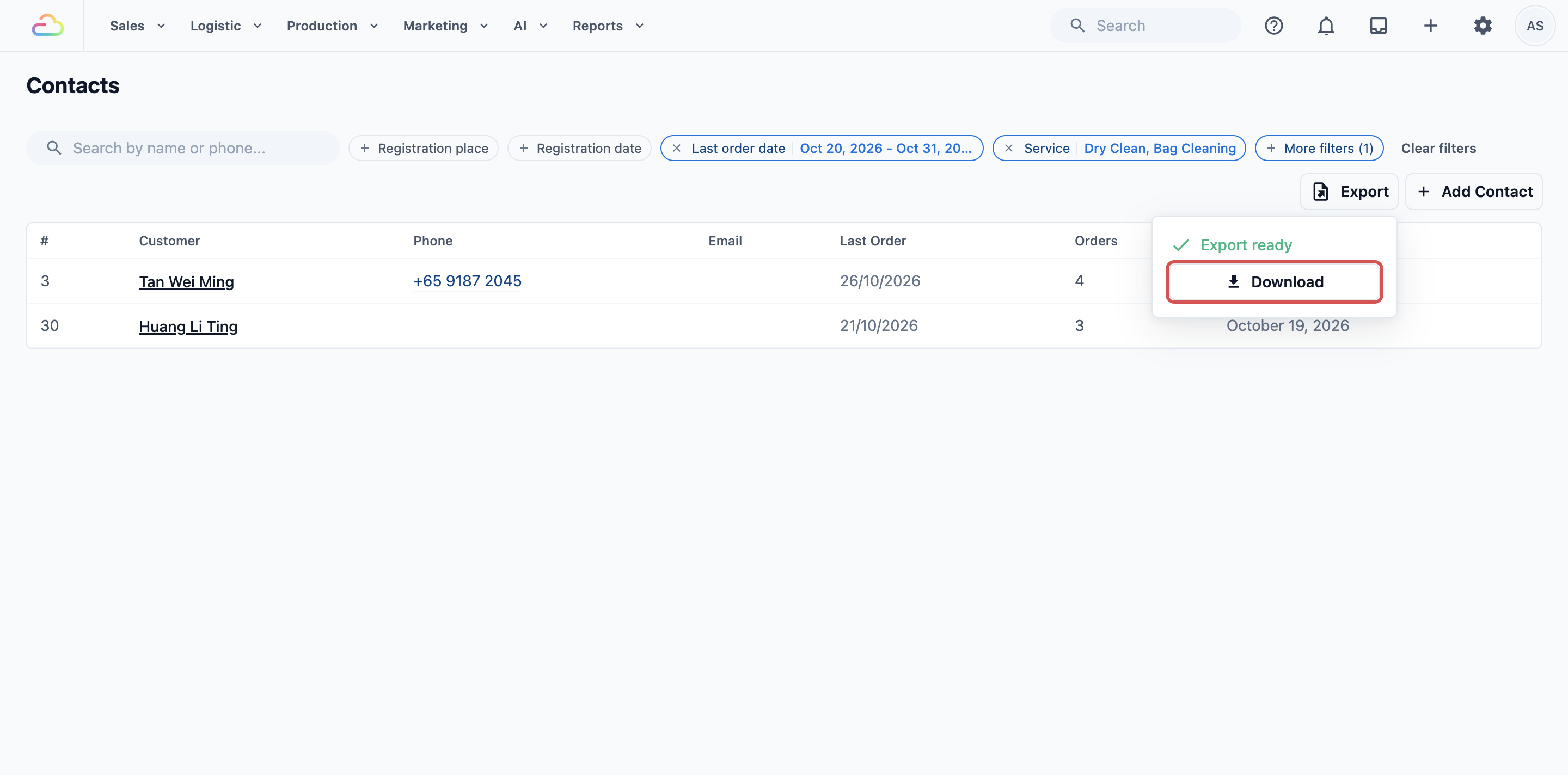
- The button shows Exporting... while the file is made. When it is ready, click Download in the Export ready box.
What is in the file
Each row is one customer, with these columns: #, Name, Phone, Email, Registered, Registration Place, Last Order, Orders, Total Spend, Channel Mix and Top Services (Lifetime), which lists the 3 services they order most.
Who can export
Anyone who can open the Contacts page can export it. Each file is private to the person who made it.
To download a past export again, click your profile picture in the top-right corner, then click Downloads .
The possible duplicates banner
When a customer signs up online with a mobile number or email that another contact already has, a banner such as 1 contact may be a duplicate appears above the list. Click Review to see them, then Open each one to merge it or keep it separate. See Merge or Delete a Contact.

Opening a customer
Click anywhere on a customer's row to open their profile, with their orders, payments and loyalty. See See Everything About a Customer.
- WhatsApp shortcut: when your WhatsApp is connected, the phone number in the list opens that customer's WhatsApp chat. See Contact Shortcuts.
- Choose your columns: you can change which columns the list shows. See Customize the Contact List and Profile.
FAQs
Why is there a customer on my list that nobody at the shop added?
Customers who sign up or order on your Online Store or Mobile App are added automatically. Their Registration place shows the online channel they used.
Do my staff accounts show up in Contacts?
No. Staff logins are managed in Users & Access, and B2B agents have their own Agents page. A staff member only appears in Contacts if they were added as a customer, for example when they ordered for themselves.
Does the export include each customer's order history?
No. The file has one row per customer with their totals: number of orders, total spend, last order date and top 3 services. To see individual orders, open the customer's profile.
Why can't I find a customer when I type part of their name?
Search needs a whole word or at least the first 4 letters of a word. For Tan Wei Ling, "ling" or "wei" works, but "lin" does not. For phone numbers, type the full number or the last 4 digits.
Can I import my customers from a spreadsheet?
Not by yourself at the moment. If you are moving from another system, contact the EasyBiz team about bringing your customer list across.
Is Total spent before or after tax?
Before tax. It adds up what the customer has been billed over their lifetime, so use it to compare customers rather than to match your tax reports.
What's Next
You can now find any customer, narrow your list to the group you need and download it for your records. Next, learn how to add a customer yourself, so walk-ins and phone bookings get a proper record: Add a New Customer.