
When you finish, your staff can top up a customer's store credit or sell them a membership from the Checkout cart, and the customer's balance or plan updates straight away.
Before You Start
- Your POS app needs a Checkout page. The Store Credit and Membership buttons sit in the Checkout page's cart, so a POS app without one never shows them. See Setting Up the Checkout Page.
- To sell top-ups, add your top-up packages and turn on Sell at the POS for each one. See Offer Store Credit and Bonus Top-Ups.
- To sell memberships, create plans with a fee and turn on Sell at the POS. See Create Membership Plans for Your Regulars.
- To let customers pay with their balance, turn on Store Credit in your POS app's Payment feature too. See Setting Up Payment Methods at the POS.
- You need access to ⚙️ Settings in the Console.
- Only shops that sell store credit or memberships at the counter need this article.
- If you set this up before: Store Credit and Membership are now under Selling in the POS app editor, not under Features. Your settings are kept.
Choose your setup
| Level | Fits shops like | What you set up | Read these sections |
|---|---|---|---|
| Easy | A shop that sells prepaid top-ups at the counter, like CleanFast's Tampines shop | Store Credit Enabled, with Allow Custom Amount Entry on or off | Where to find it, Turning on Store Credit, Selling a top-up at checkout |
| Intermediate | A shop that also runs a membership for its regulars, such as a yearly VIP plan with 10% off | Everything in Easy, plus Membership Enabled | Everything in Easy, Turning on Membership, Selling a membership at checkout |
With Easy alone, staff sell your top-up packages and customers spend the balance on later orders. You can add Membership later without changing Store Credit. If you sell memberships but not store credit, turn on Membership only and leave Store Credit off.
Overview
Store credit is money a customer pays you in advance and keeps as a balance to pay for later orders. A membership is a plan the customer pays for, such as a yearly VIP plan, that takes a discount off their orders while it is active. The Store Credit and Membership features put both on your POS, so staff can top up a balance or sell a plan from the same cart they use for orders. Each POS app turns them on separately, and both are off in a new POS app. The packages and plans come from your Store Credit and Membership settings, so every shop sells the same ones.
Where it works
- Console: you turn both features on in the POS app editor. Each customer's contact shows their balance and membership.
- POS: on the Checkout page, staff see a Store Credit button and a Membership button beside the customer they selected.
- Online Store and Mobile App: customers see their new balance on the Wallet page and their plan on the Membership page, if your store offers them.
Why set it up
- Cash upfront. Customers pay before the work starts, which helps your cash flow.
- Faster checkout. Regulars pay from their balance, with no cash to count or card to wait for.
- A reason to come back. A balance or an active membership brings customers back to your shop instead of the one next door.
- One screen for staff. They select the customer, sell the top-up or plan, take payment and carry on with the order in the same cart.
If you leave both features off, staff can't sell top-ups or memberships on this POS. Customers can still pay with a balance they already have, and staff can still top up a customer from their contact in the Console, see Managing a Customer's Store Credit.
Where to find it
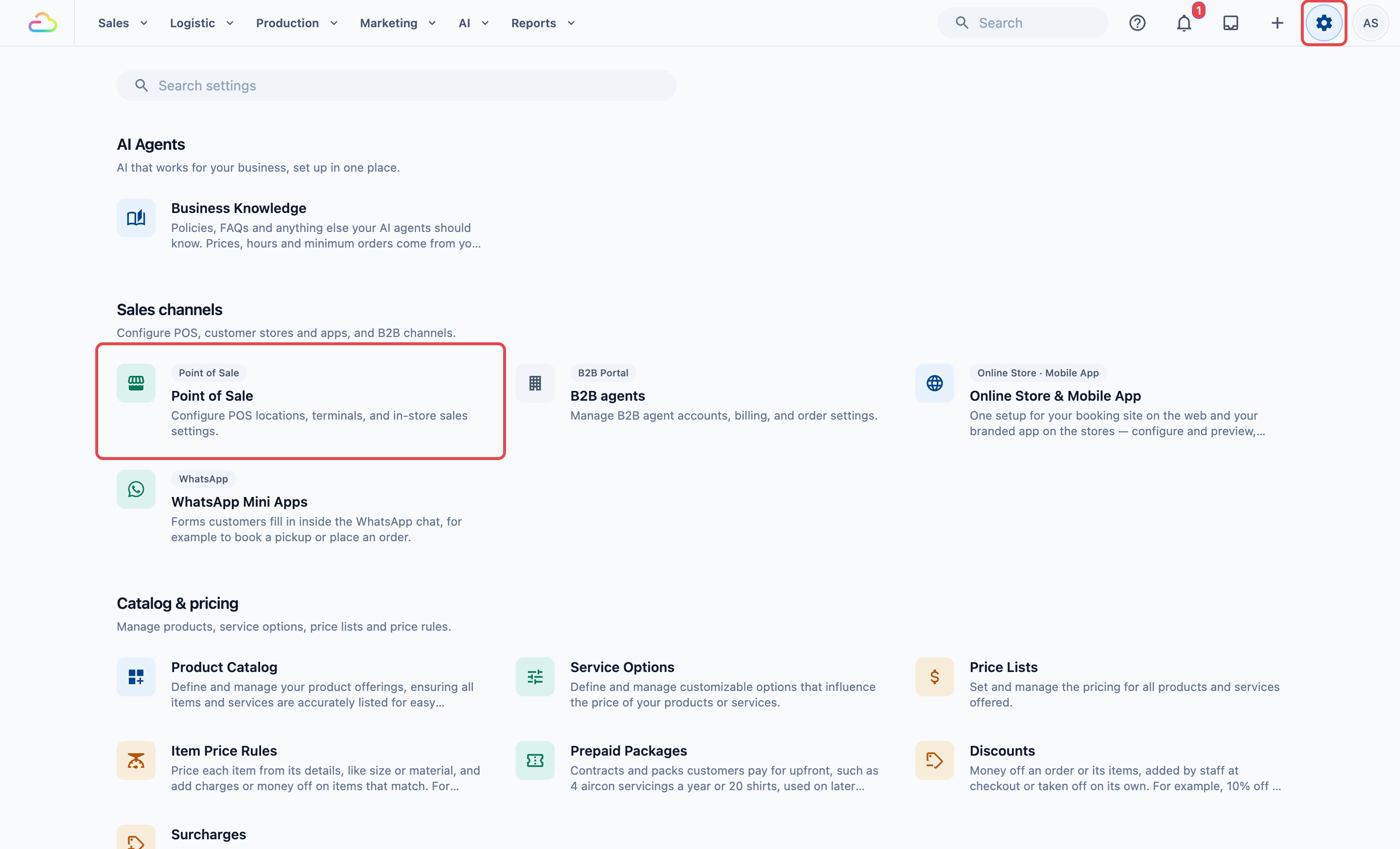
- Click the ⚙️ Settings icon in the top-right corner.
- Under the Sales channels section, click Point of Sale.
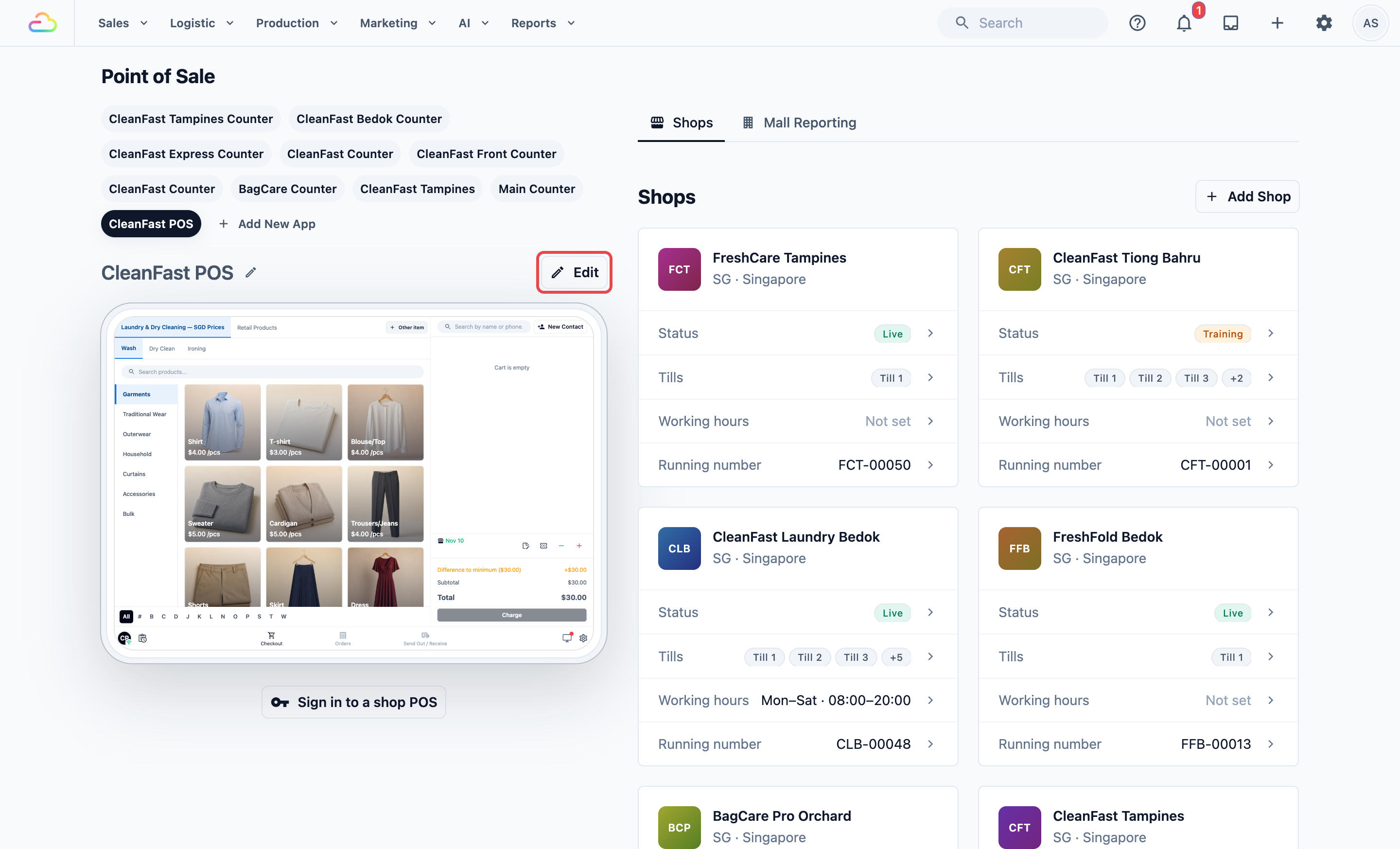
- Under POS Apps, click your app, for example CleanFast POS, then click Edit.
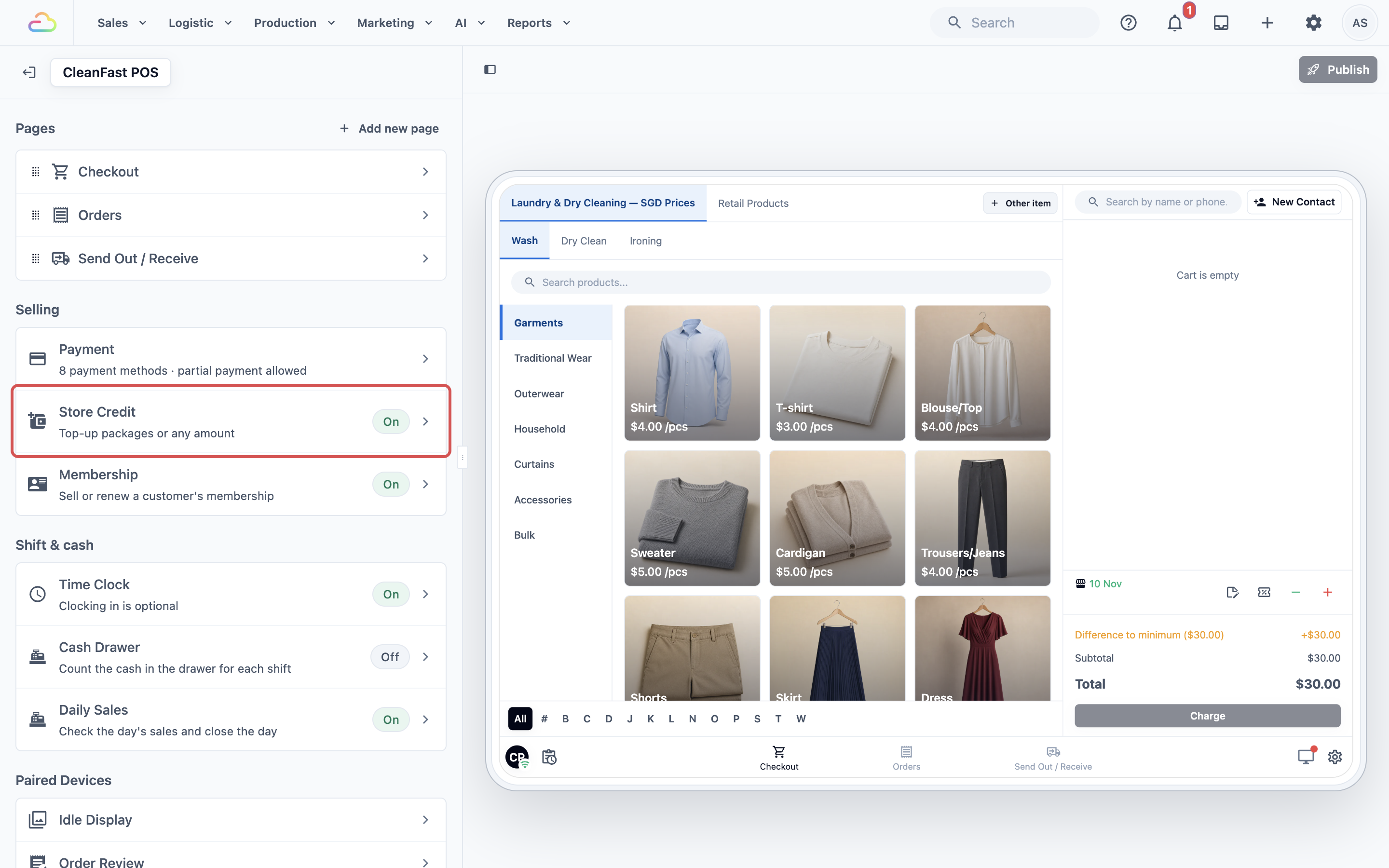
- Under Selling, find Store Credit and Membership. Store Credit's line reads “Sell store credit top-ups to customers” and Membership's reads “Sell or renew a customer's membership”, each with an On or Off tag.
Setting it up
Turning on Store Credit
- Under Selling, click Store Credit.
- Turn on Enabled.
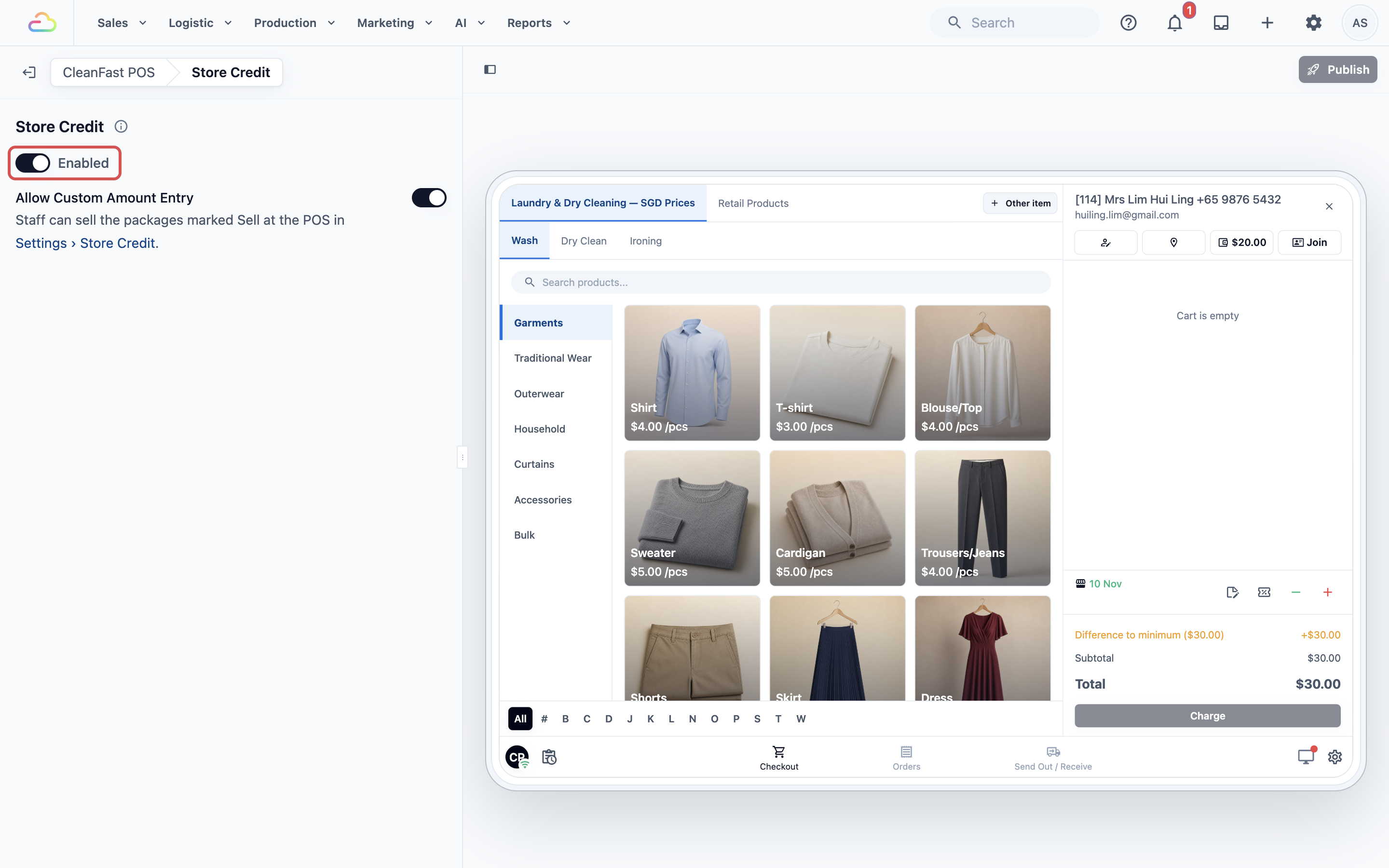
- Leave Allow Custom Amount Entry on, or turn it off, as described below.
- Click Publish at the top right.
- In Review your changes, check that Feature settings is listed, then click Publish.
- Enabled
If you turn this on, a Store Credit button appears beside the customer in the Checkout cart, showing their balance. If you turn it off, the button goes away and staff can't sell top-ups on this POS app. Paying with a balance is a separate switch in the Payment feature, so it keeps working either way.
- Allow Custom Amount Entry
| Choice | What staff see |
|---|---|
| On (the default) | Your packages, plus a Custom Amount button so staff can type any amount, for example S$35.00. Custom amounts never get bonus credit. |
| Off | Only your packages. Use this if you want every top-up to follow your price list. |
You don't choose packages here. The POS sells every package marked Sell at the POS in ⚙️ Settings › Store Credit, in the currency that shop sells in. After publishing, the Store Credit line in the editor reads “Top-up packages or any amount” or “Top-up packages only”.
Turning on Membership
For Intermediate setups:
- Under Selling, click Membership.
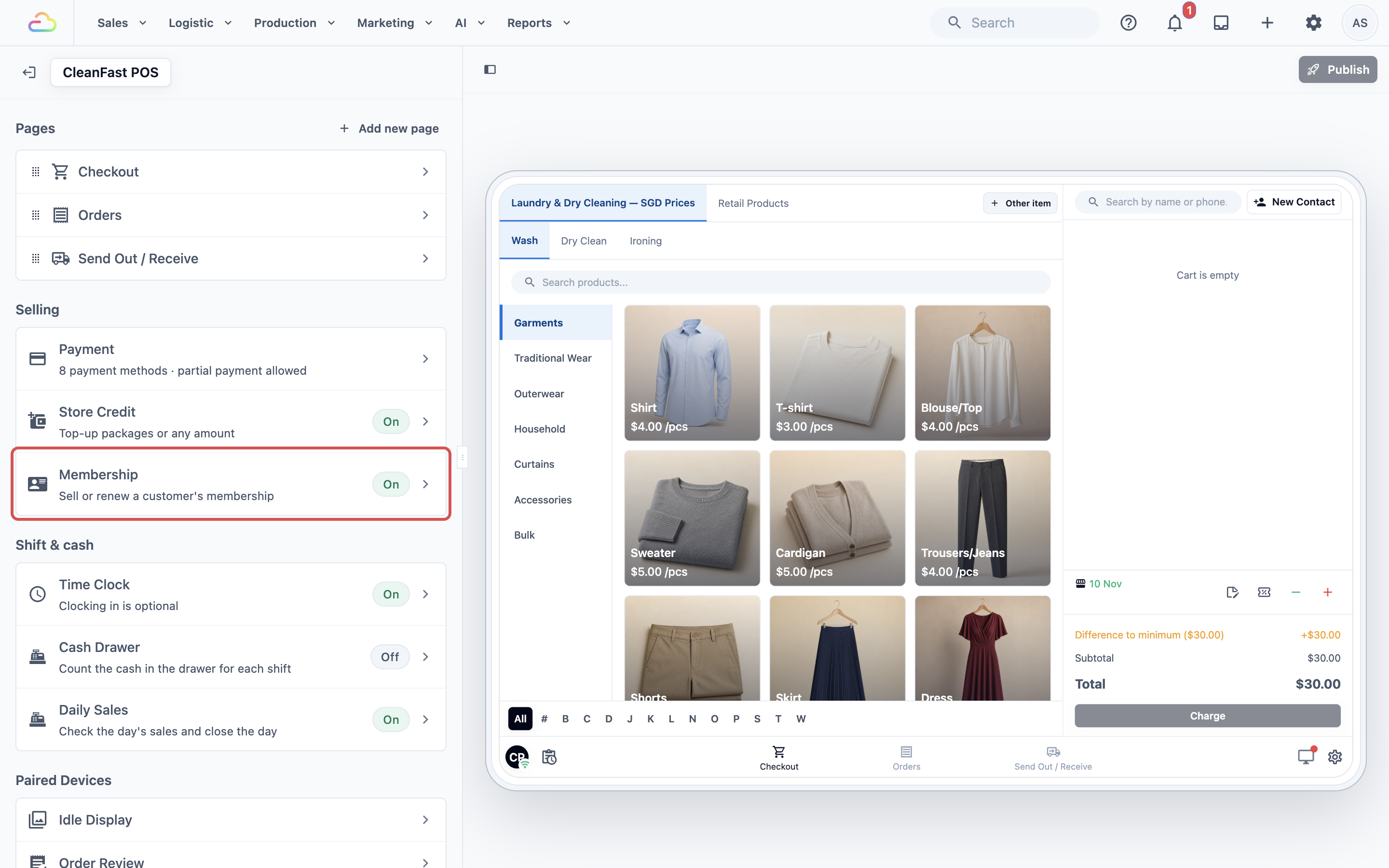
- Turn on Enabled. Membership has no other settings here.
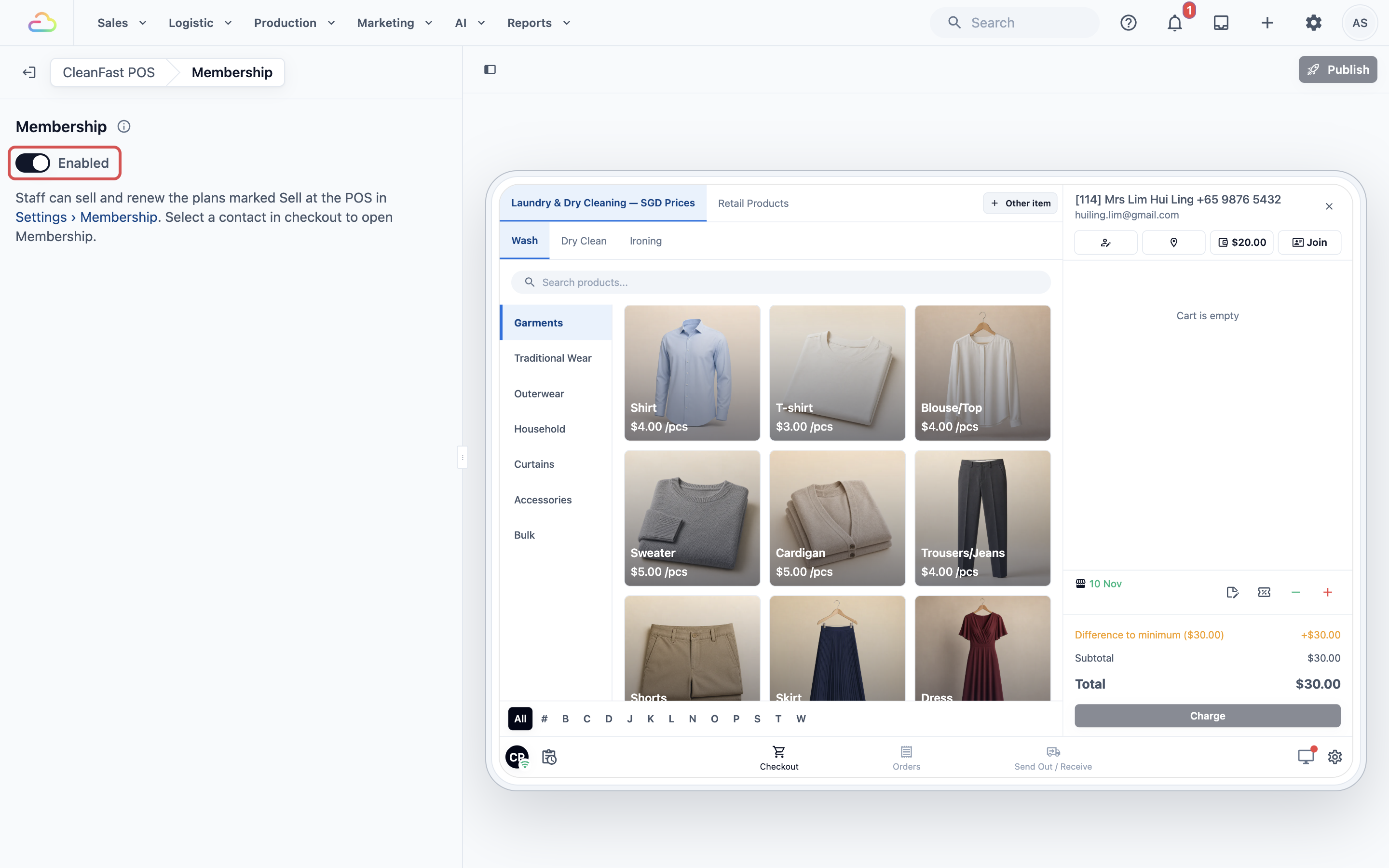
- Click Publish, then check Review your changes and click Publish again.
If you turn this on, a Membership button appears beside the customer in the Checkout cart. The POS sells every plan that has a fee and has Sell at the POS turned on in ⚙️ Settings › Membership.
Store Credit and Membership can be on together. Staff then see both buttons side by side, and each sale is paid for on its own.
Example setup
CleanFast Laundry sells a “Pay S$50, get S$55” package: Top up amount 50, Gift amount 5 and Sell at the POS on. At the Tampines shop, the owner turns on Store Credit and turns off Allow Custom Amount Entry, so staff sell only packages.
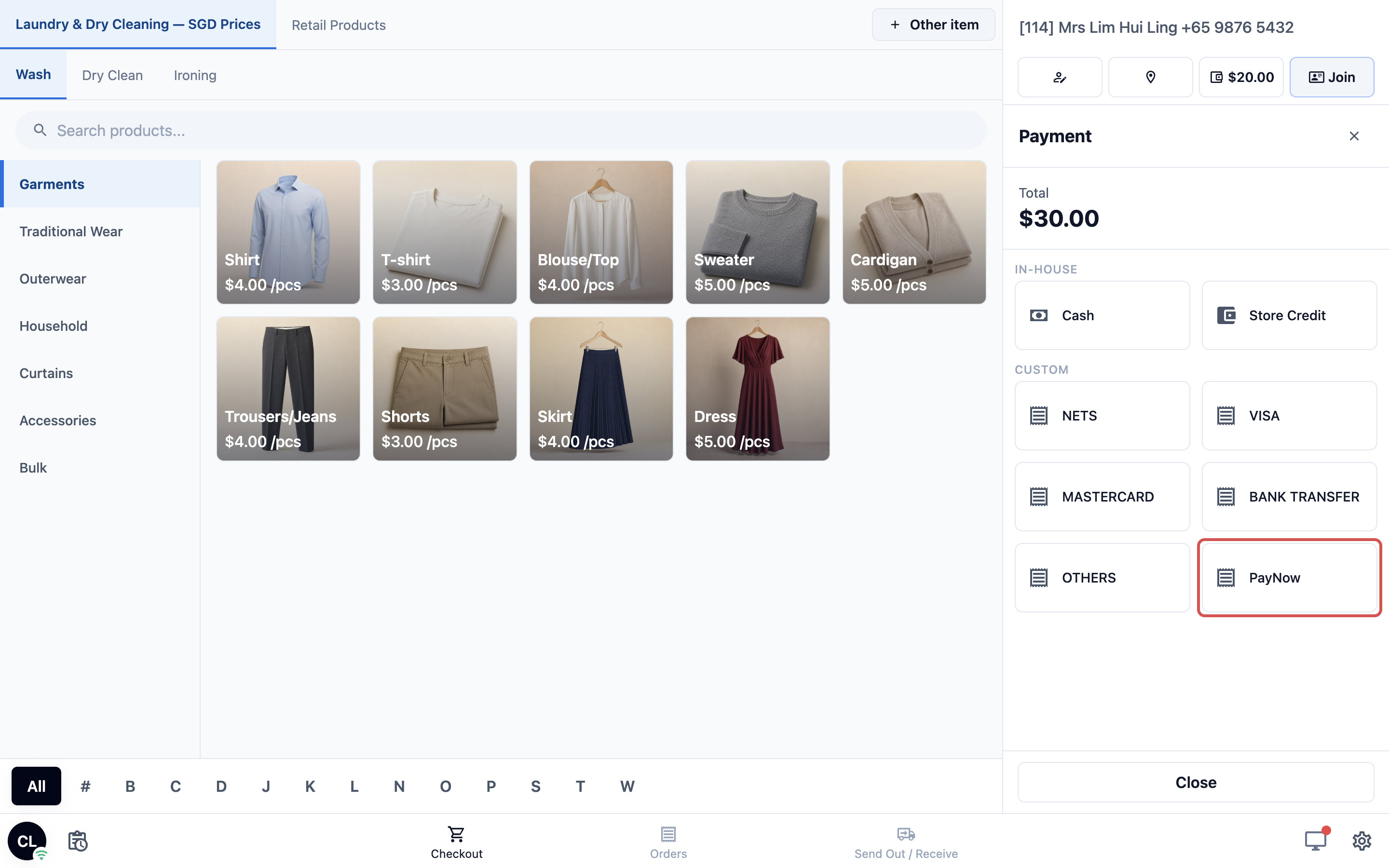
Mrs Lim already has S$20.00 of store credit. She buys the S$50.00 package and pays by PayNow. The summary on the POS shows:
- Current Balance: S$20.00
- Top-up Amount: + S$50.00
- Gift Bonus: + S$5.00
- New Balance: S$20.00 + S$50.00 + S$5.00 = S$75.00
Mrs Lim pays S$50.00. The extra S$5.00 is CleanFast's reward for paying upfront.
What staff see on the POS
Selling a top-up at checkout
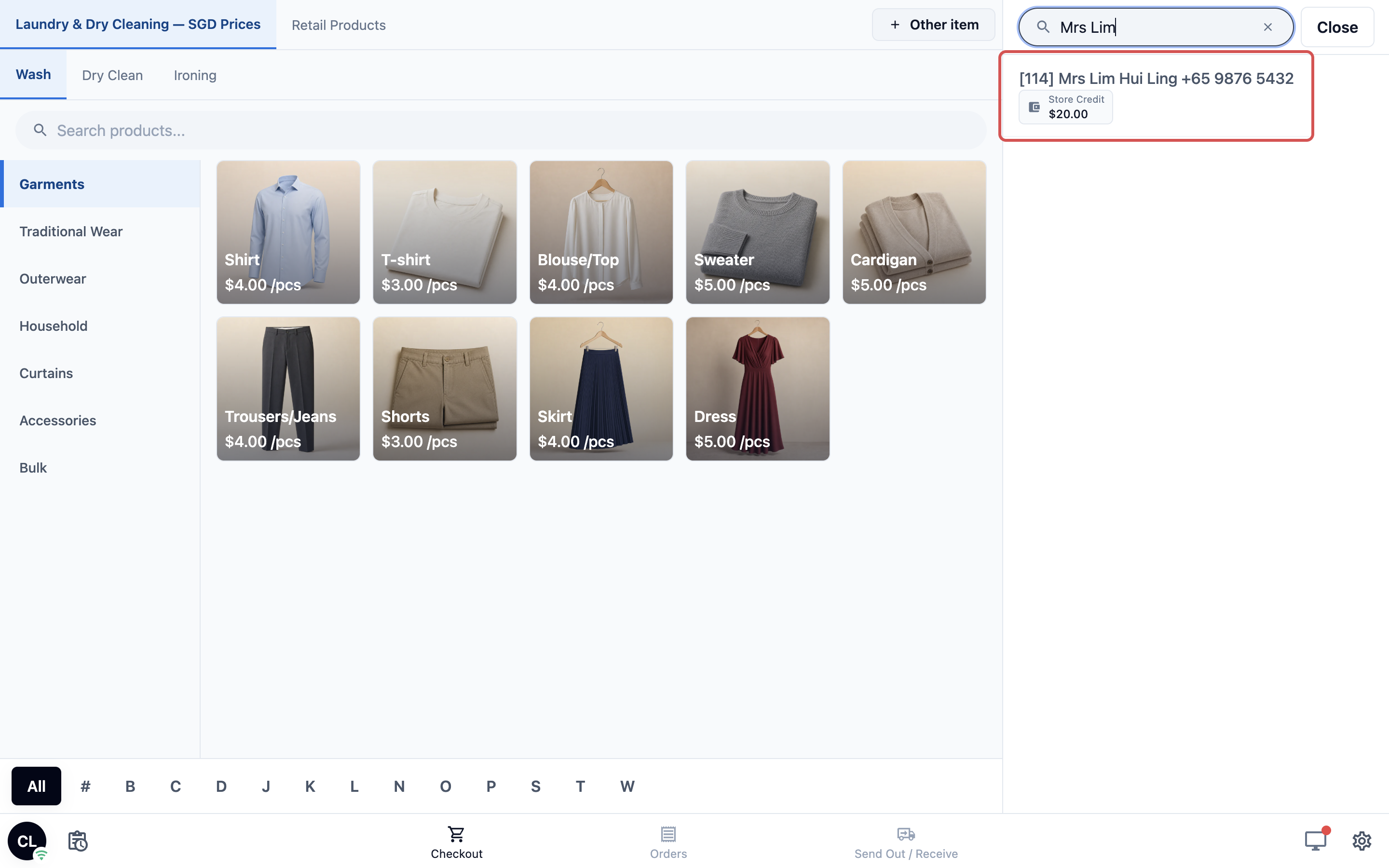
- On the Checkout page, type the customer's name or phone number in the search bar at the top of the cart (Search by name or phone...) and tap the customer.
- Beside the customer, the Store Credit button shows their balance, for example “S$20.00”. Tap it.
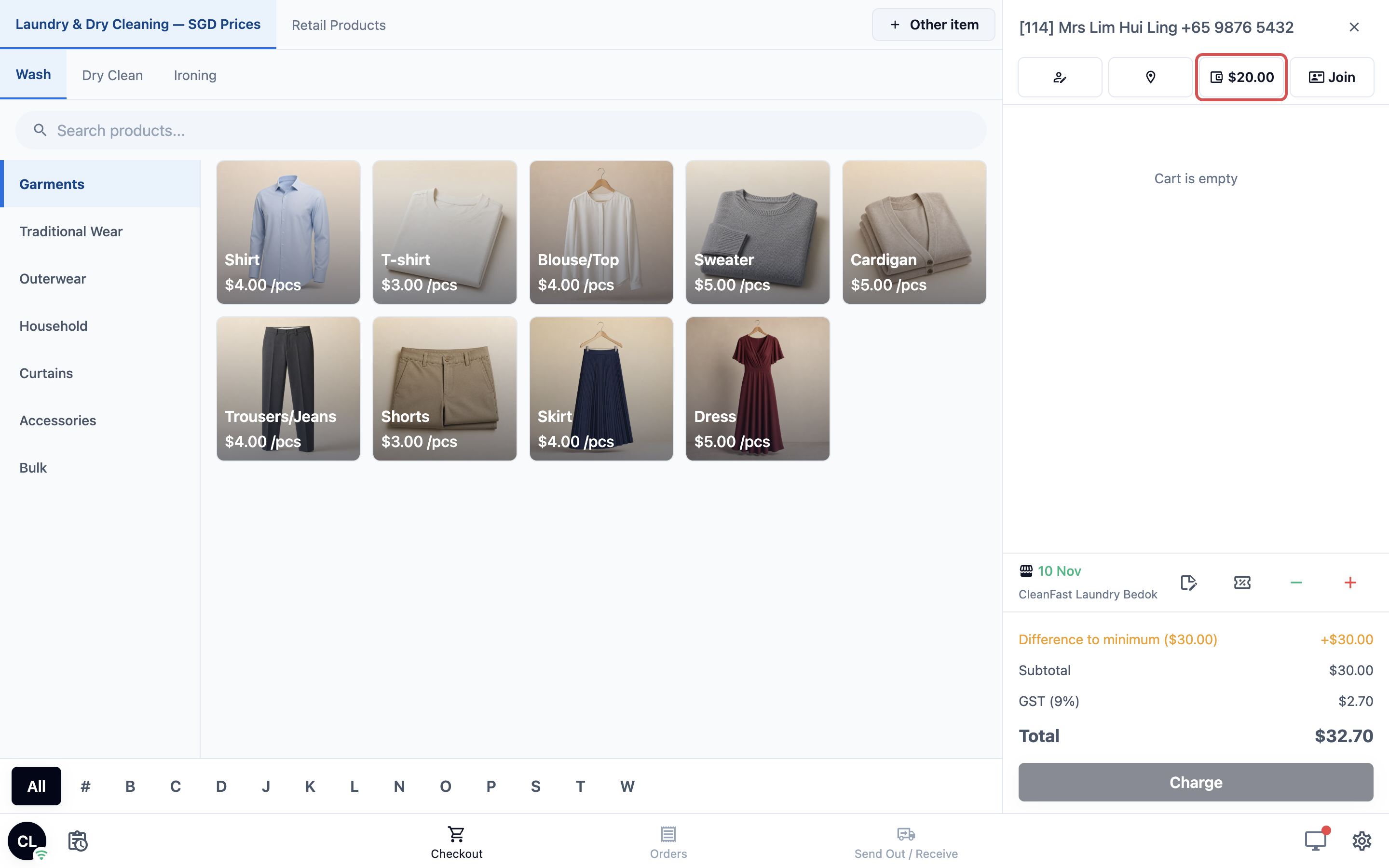
- The top-up opens in the cart. The cart doesn't need any items, so a customer who only wants to top up can do it straight away.
- Tap a package under Top-up Packages. Each card shows the amount and any bonus, for example “+S$5.00 gift”. If Allow Custom Amount Entry is on, staff can tap Custom Amount and type the amount instead.
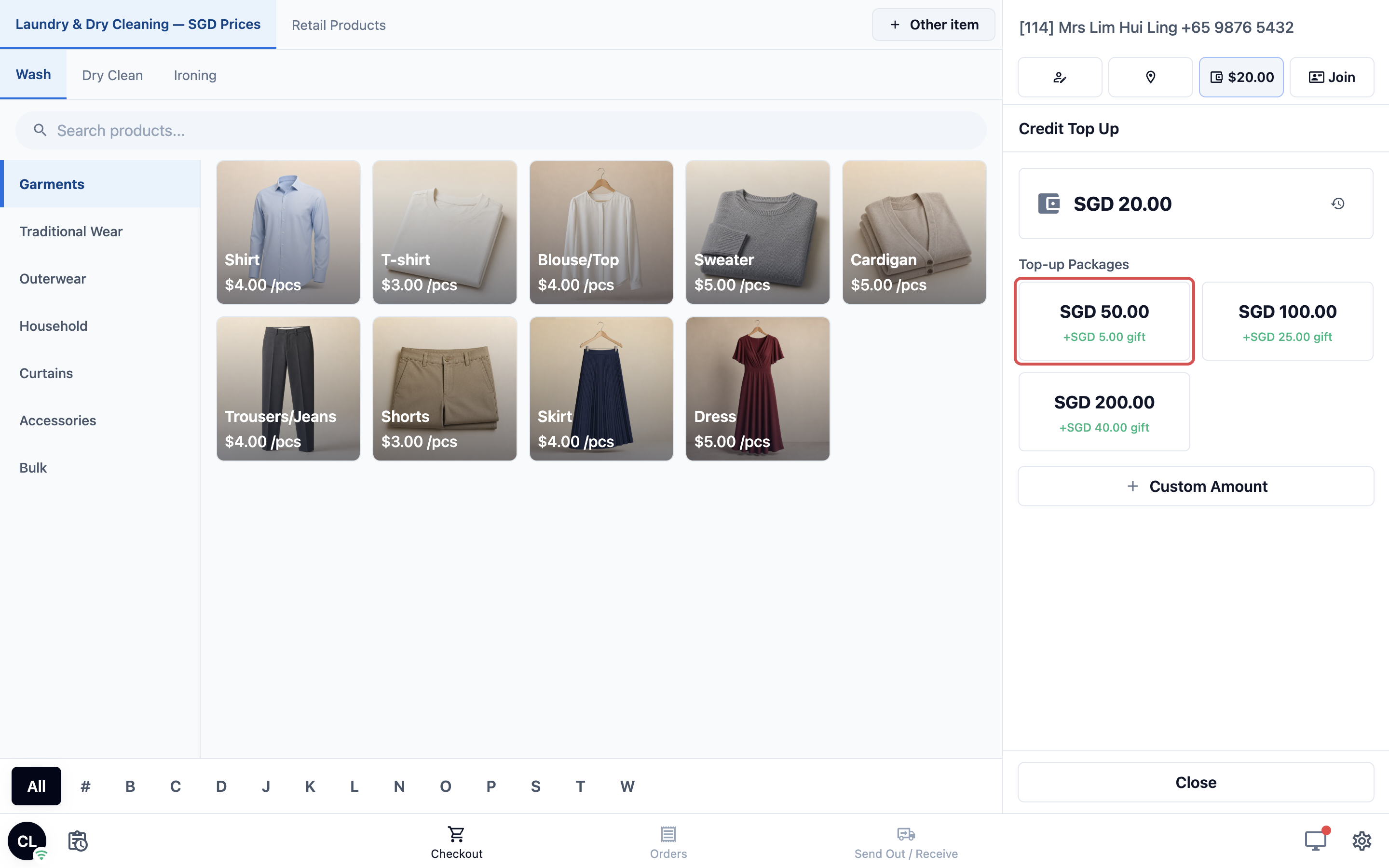
- Check the summary: Current Balance, Top-up Amount, Gift Bonus and New Balance. Tap Payment to go on, or Back to change the package.
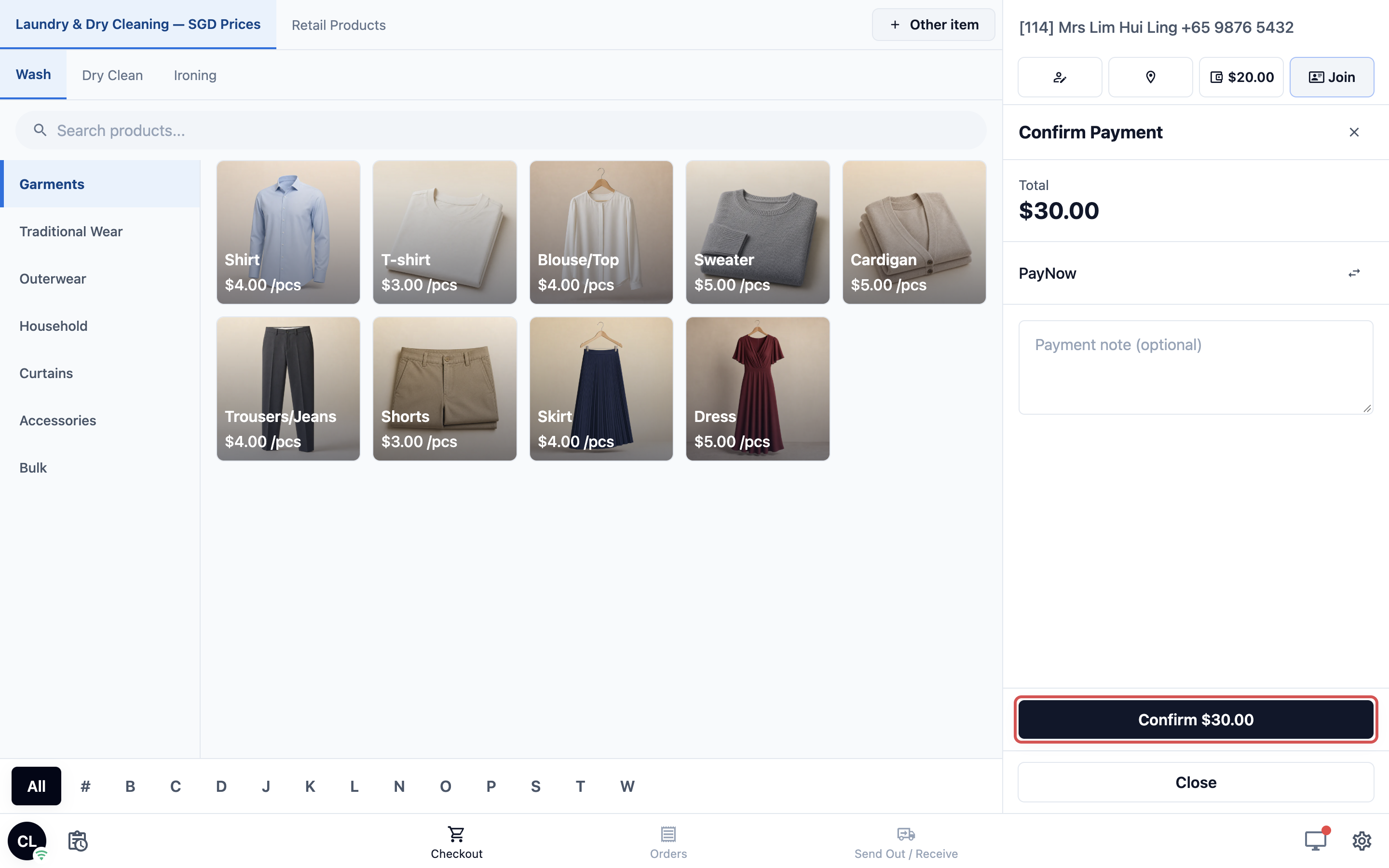
- Choose how the customer pays and confirm. For cash, staff type the amount received and the POS works out the change. For other methods, they can type a reference in the payment note.
- The screen shows Payment Succeeded! with the receipt. Tap Print receipt to print it.
Staff then carry on with the customer's order in the same cart. Tap the clock icon beside the balance at any time to see the customer's top-ups, spending and refunds.
The receipt follows your top-up receipt template, see Setting Up Your Top-Up Receipt Template. To connect a printer, see Connecting Your Printers to the POS.
Selling a membership at checkout
For Intermediate setups:
- On the Checkout page, search for and select the customer.
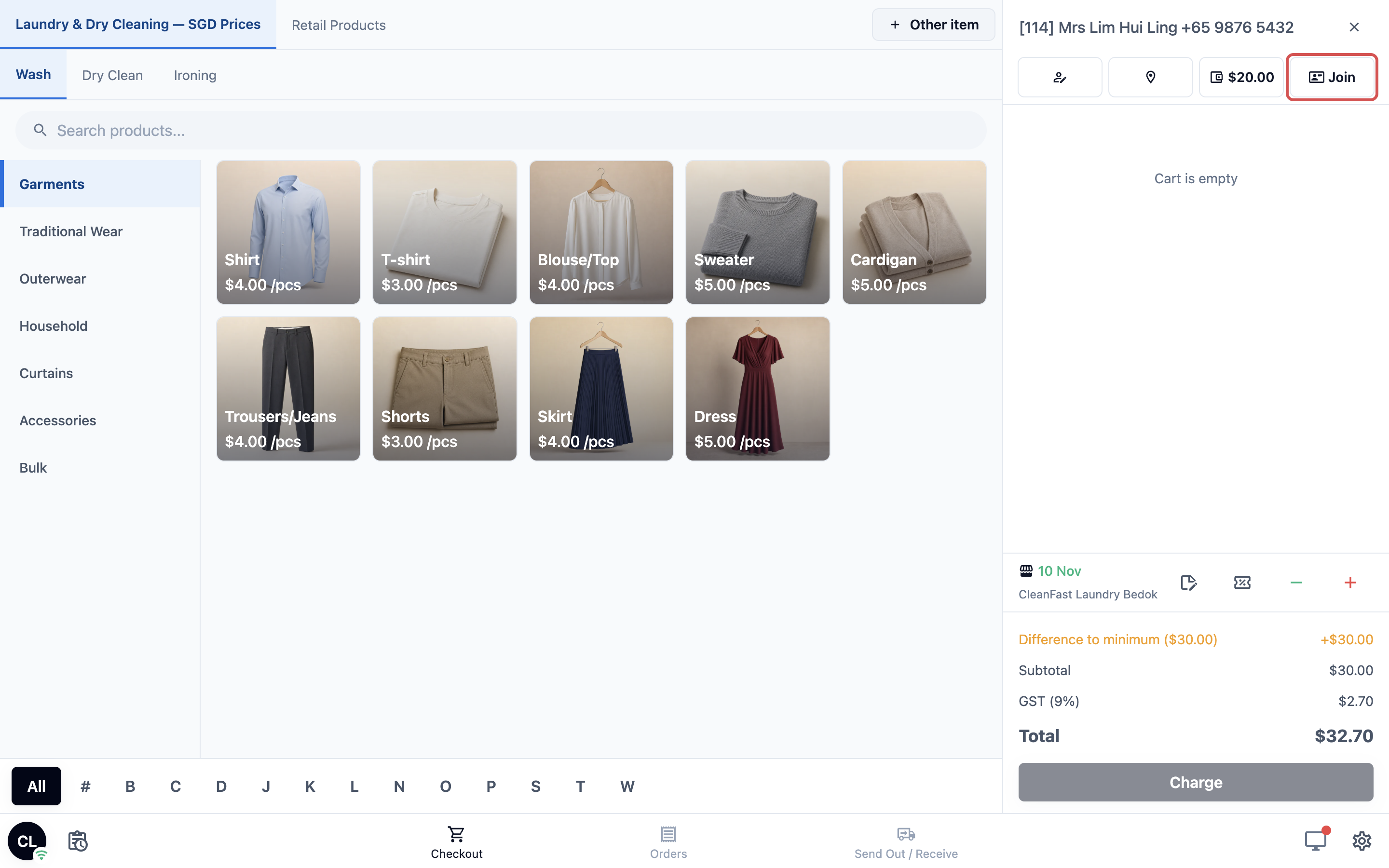
- The Membership button beside the customer shows their current plan, or Join if they aren't a member. Tap it.
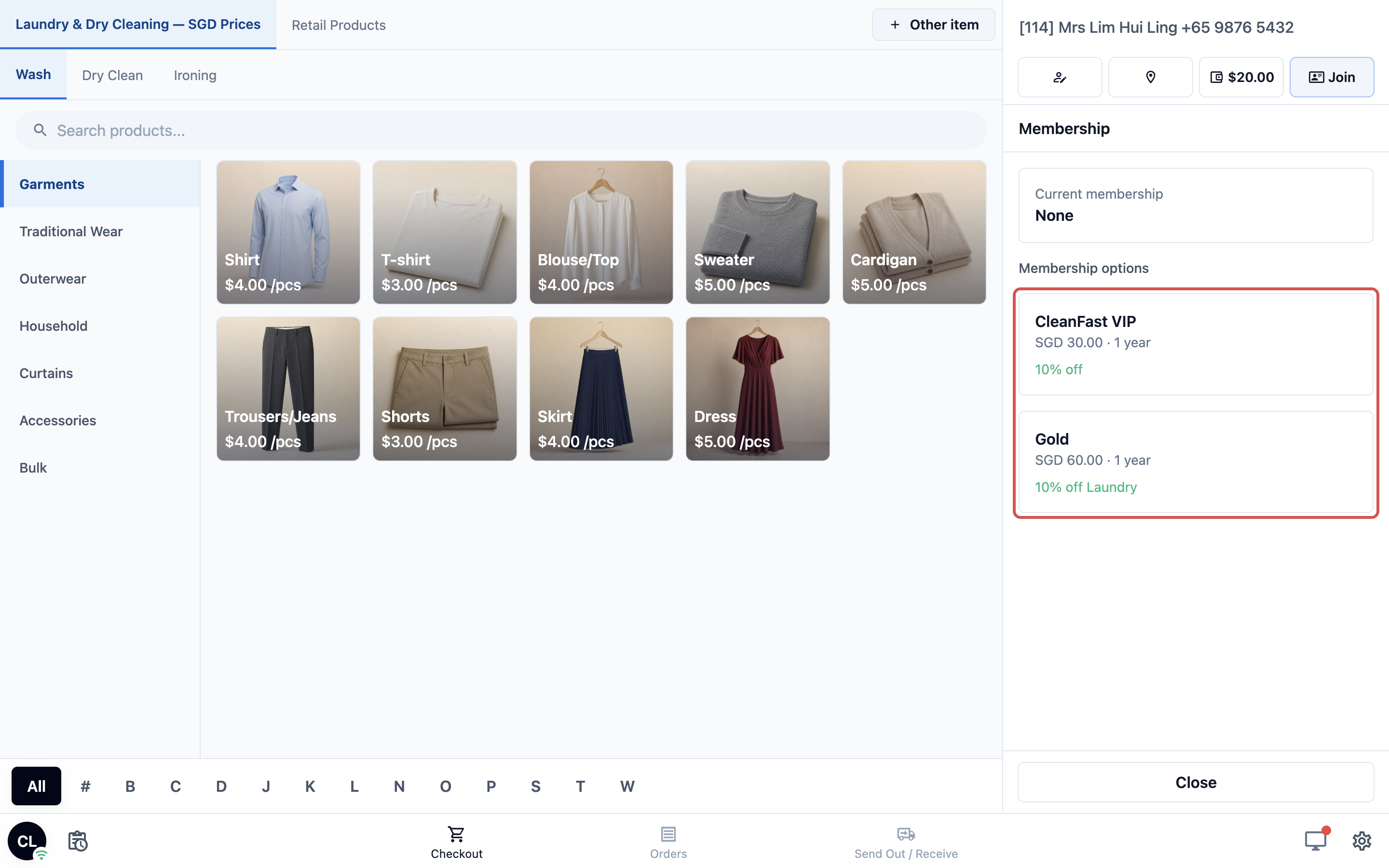
- You see their Current membership and the Membership options you sell at the POS. Tap a plan.
- A summary shows the Plan, whether it is a New membership from today or a Renewal of the current membership, when the membership ends after payment, and the total.
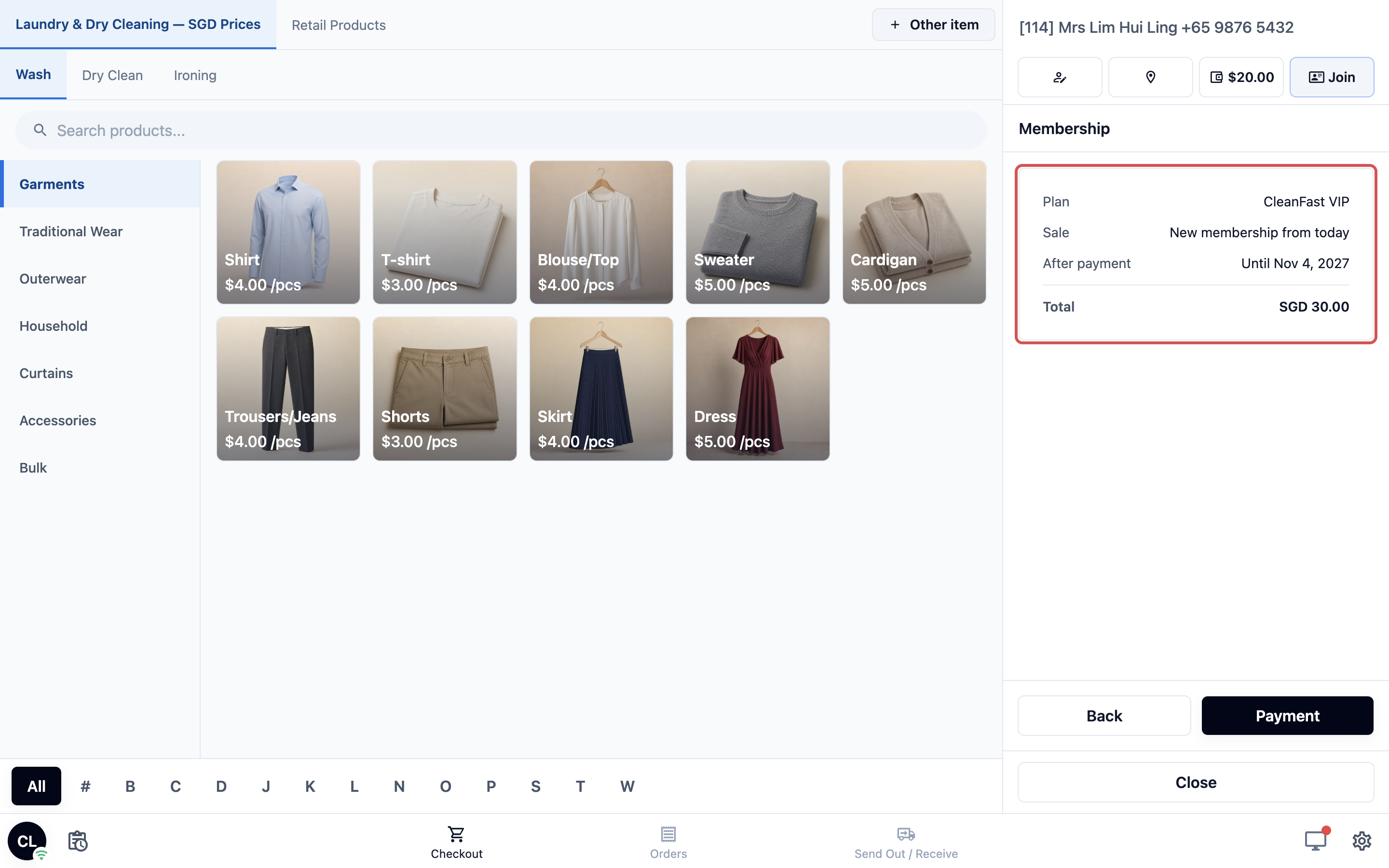
- Tap Payment, choose how the customer pays and confirm. The customer is a member straight away.
A renewal adds to the customer's current end date. If the customer has a different plan, the POS shows “End the customer's current membership first.” End it from the customer's contact in the Console, then sell the new plan.
When the balance isn't enough
When a customer pays an order with store credit and their balance is too low, the payment screen shows Insufficient balance. If Store Credit is turned on for this POS app, the warning has a Top Up Store Credit button, which opens the top-up right there.
Where the balance shows up
After a top-up, the customer's balance updates everywhere straight away:
- POS: the Store Credit button beside the customer.
- Console: the Loyalty section of the customer's contact.
- Online Store and Mobile App: the Wallet page, if your store offers one.
- Reports: Reports › Credits shows credited, debited and expired totals by period.
How it works with other features
- Paying with a balance: turning on Store Credit here sells top-ups. Customers pay with their balance only when Store Credit is on in the Payment feature, see Setting Up Payment Methods at the POS.
- Coupons and loyalty points: staff use them in the same cart and they need no switch here. See Create Your First Coupon and Reward Customers with Loyalty Points.
- Prepaid packages: a pack of services, such as 20 shirt washes, is sold as an item in the cart, not with these buttons. See Set Up Prepaid Packages for Contracts and Service Packs.
- How they fit together: for how store credit, memberships, points, coupons and packages work on one order, see Introduction to Loyalty & Rewards.
FAQs
I don't see the Store Credit or Membership button in the cart.
Check four things: the POS is on its Checkout page, a customer is selected in the cart, the feature is turned on and published for this POS app, and the POS is not in training mode.
Do I need to turn these on for every shop?
Each POS app has its own switches. If your Tampines and Jurong shops use different POS apps, turn the features on in both. Shops that share one POS app share its settings.
If I turn Store Credit off, can customers still pay with their balance?
Yes. Turning it off only stops staff selling top-ups on this POS app. Customers still pay with their balance while Store Credit is on in the Payment feature.
Can I offer different packages at different shops?
No. Every POS sells the same packages: the ones marked Sell at the POS in Settings › Store Credit. If you sell in more than one country, each POS shows only the packages in its own currency.
How does the first purchase bonus work at the counter?
A package's first purchase bonus is given once per customer, whether they bought that package at the counter or online. After that, they get the package's normal gift amount each time.
Can a customer top up if they've never had store credit?
Yes. Their wallet is created on their first top-up, with no extra setup.
Is there an extra charge for Store Credit or Membership?
No. Both come with your POS, Online Store and Mobile App at no extra charge.
What's Next
You have now switched on every POS feature: payment, receipts, staff, the time clock, the cash drawer, closing the day and store credit. Next, add the extra devices that work next to your POS, starting with a screen that shows customers their order in Connecting a Customer-Facing Display. No extra screen or phone at the counter? Skip to Getting Around Your POS Screen.