
When you finish, your POS knows who is at the counter, either because staff clock in when they choose or because nobody can start until they do.
Before You Start
- Add your counter staff and give each one a 4-digit clock-in PIN first. See Adding Counter Staff and Their POS Clock-In PINs.
- You need access to ⚙️ Settings in the Console.
- You need a POS app, set up as in the earlier articles of this series.
- If you set this up before: the Time Clock is now under Shift & cash in the POS app editor, not under Features. The old Enable Shift Management switch is now the Clock-in Mode setting explained below.
Overview
The Time Clock lets each staff member clock in at the start of their shift and clock out at the end, using their own PIN. While someone is clocked in, the POS shows their initials and saves every order they take under their name. Each shift is kept as its own record, with the shop, the start time and the end time. You choose how strict it is: staff can clock in when they want, or the POS can wait at a clock-in screen until someone does. It is already on in every new Service POS app, set to the more relaxed choice.
Where it works
- Console: you turn the Time Clock on or off and choose the Clock-in Mode in the POS app editor.
- POS: staff clock in and out from the profile icon at the bottom left, or on the clock-in screen when it is required.
- Paired phone: when clocking in is required, a phone paired to the POS waits until someone clocks in on the POS.
Why set it up
- Know who served each customer. Every order shows the staff member who was clocked in, so you can follow up a mistake or thank the right person.
- Keep a record of every shift. Each clock-in and clock-out is saved per person and per shop, ready for working out hours and pay.
- Stop anonymous sales. With Required, nobody can take an order until they enter their PIN.
If you turn the Time Clock off, nobody can clock in on that POS. Orders then show your shop's name instead of the person who took them.
Where to find it
- Click the ⚙️ Settings icon in the top-right corner.
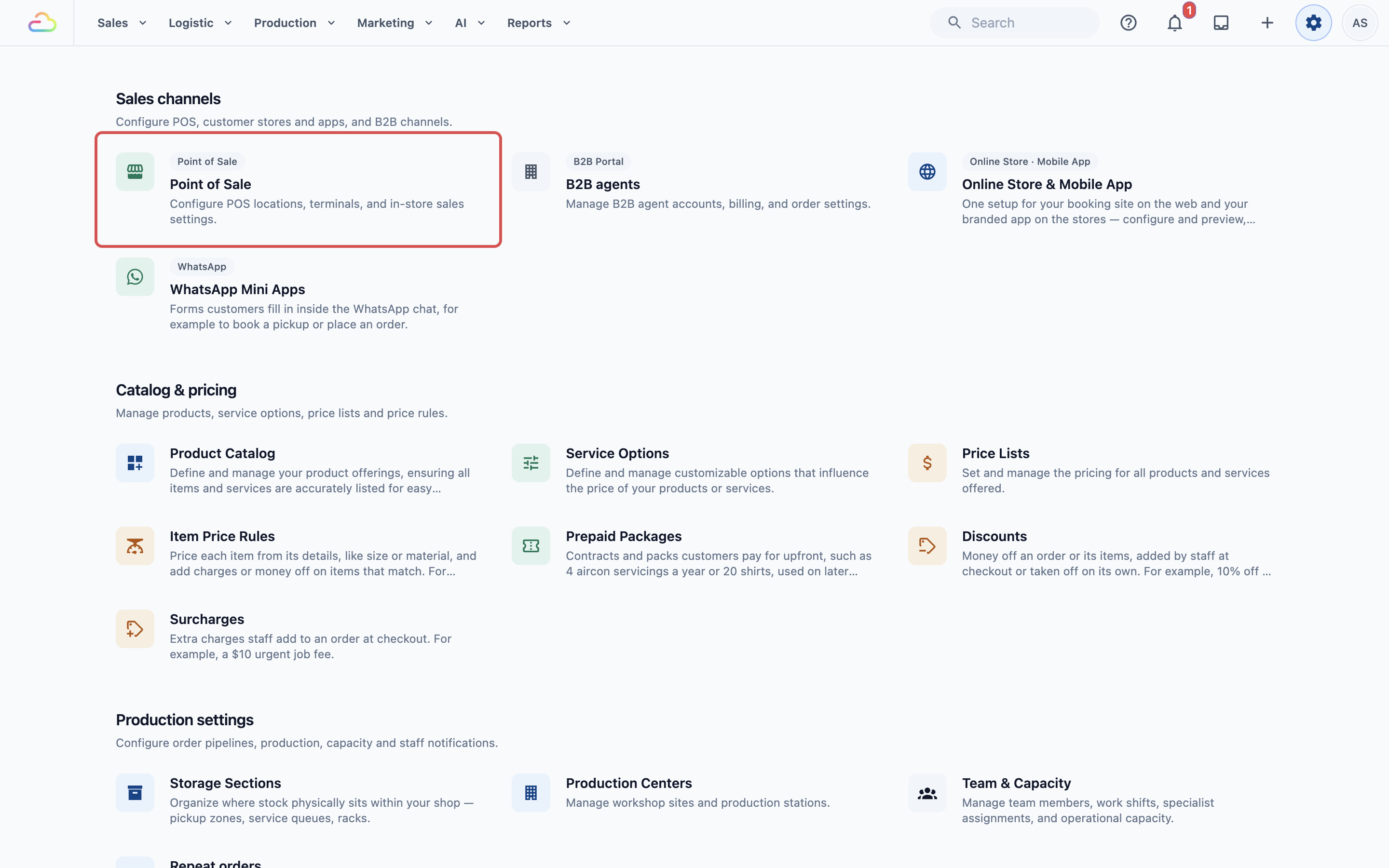
- Under the Sales channels section, click Point of Sale.
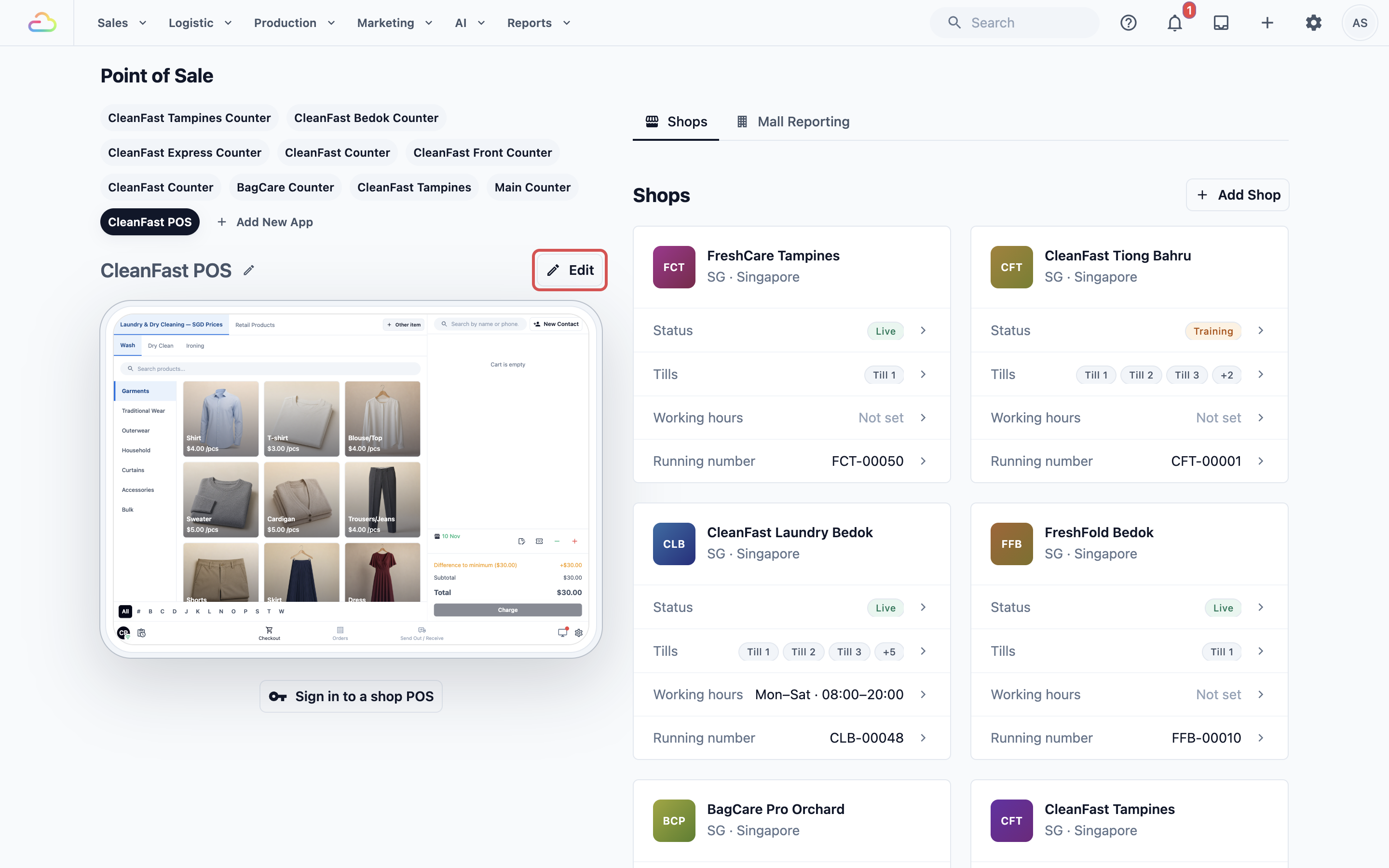
- Under POS Apps, click your app, for example CleanFast POS, then click Edit.
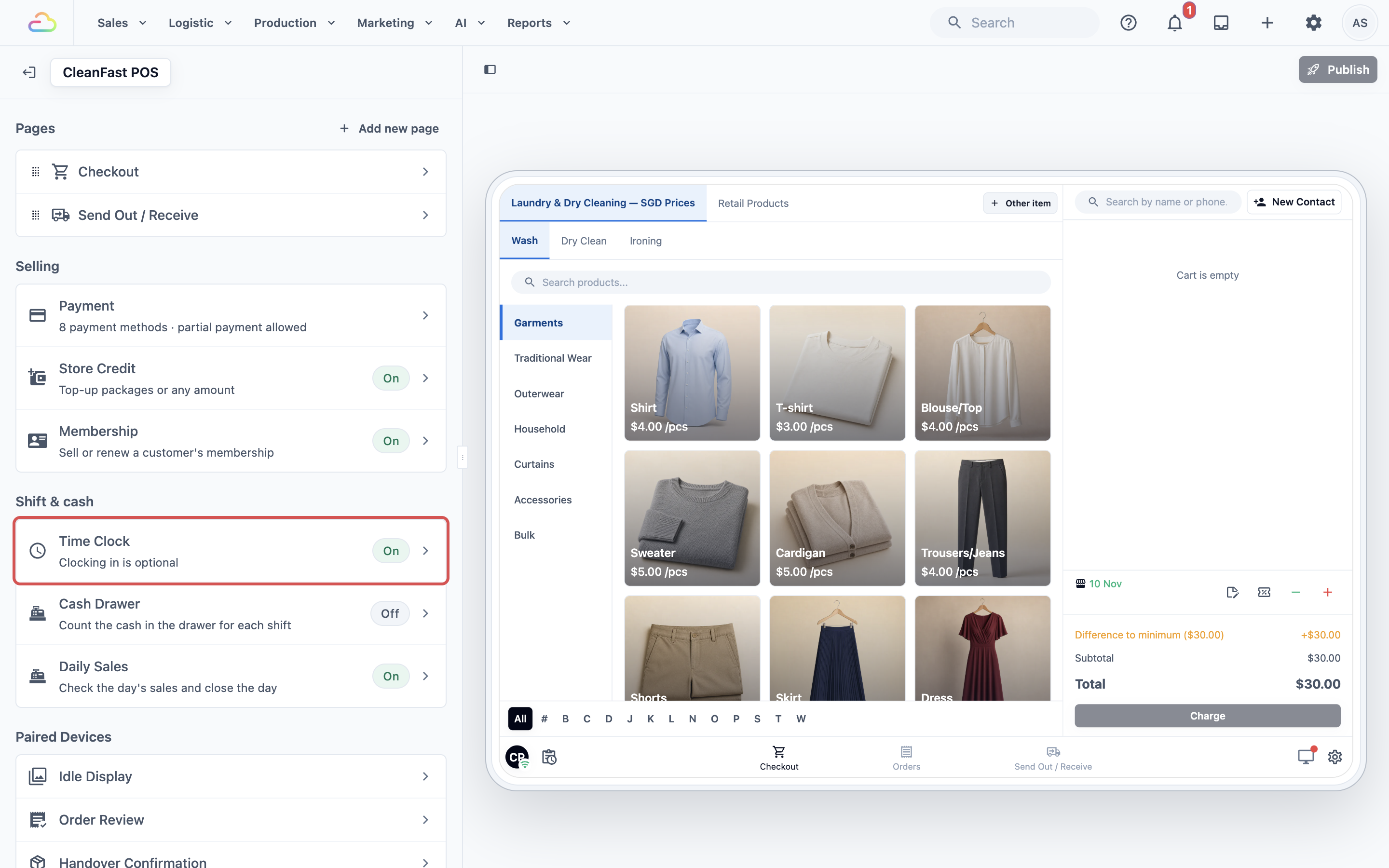
- Under Shift & cash, click Time Clock. Its line shows how it is set, for example "Clocking in is optional", and an On or Off tag.
Setting it up
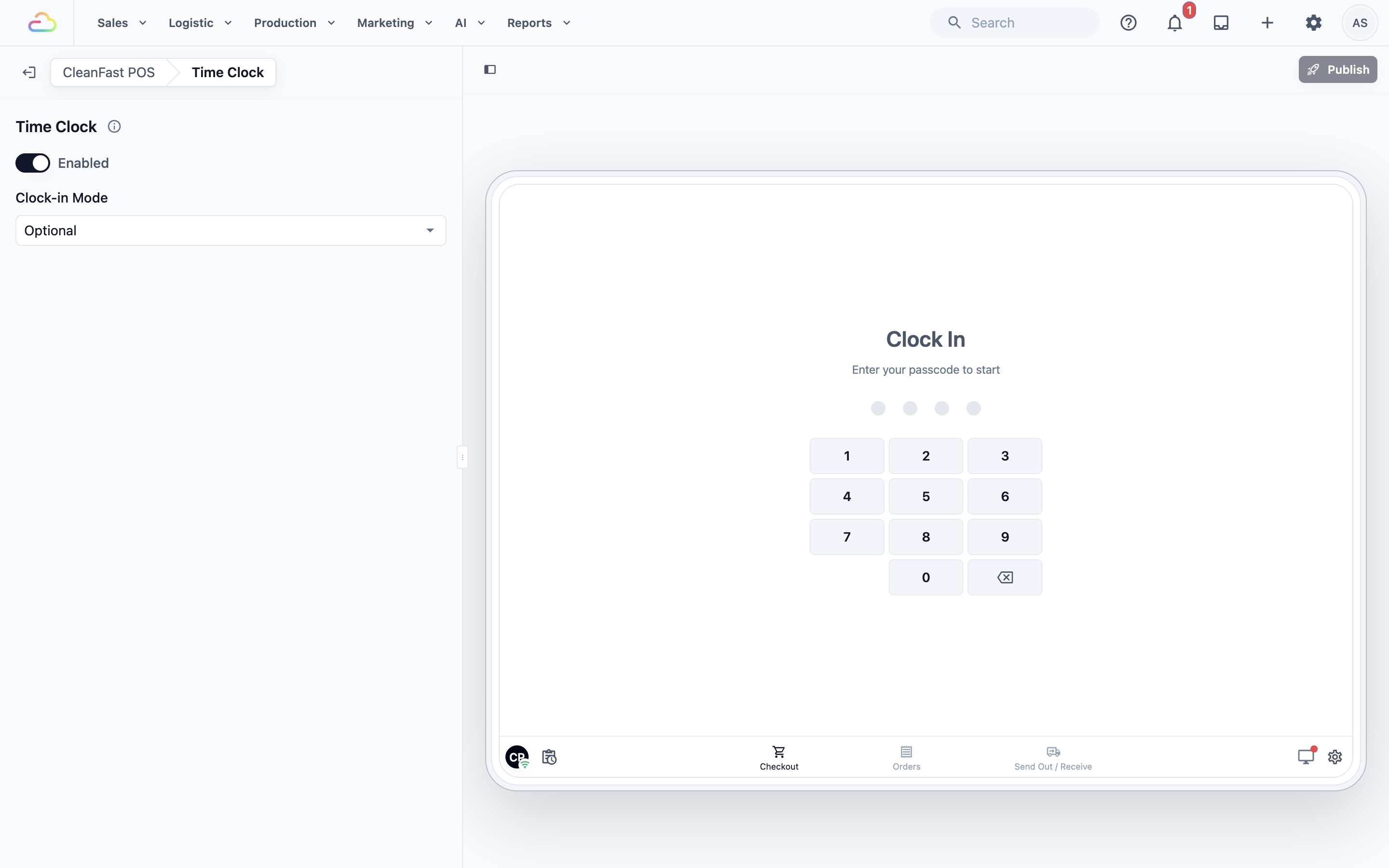
The Time Clock has two settings. The preview on the right changes as you choose, so you can see what staff will see before you publish.
- Enabled
If you turn this on, the profile icon at the bottom left of the POS offers Clock In, and the Clock-in Mode setting appears below. If you turn it off, the profile icon shows only your shop and its internet connection, and nobody can clock in on this POS.
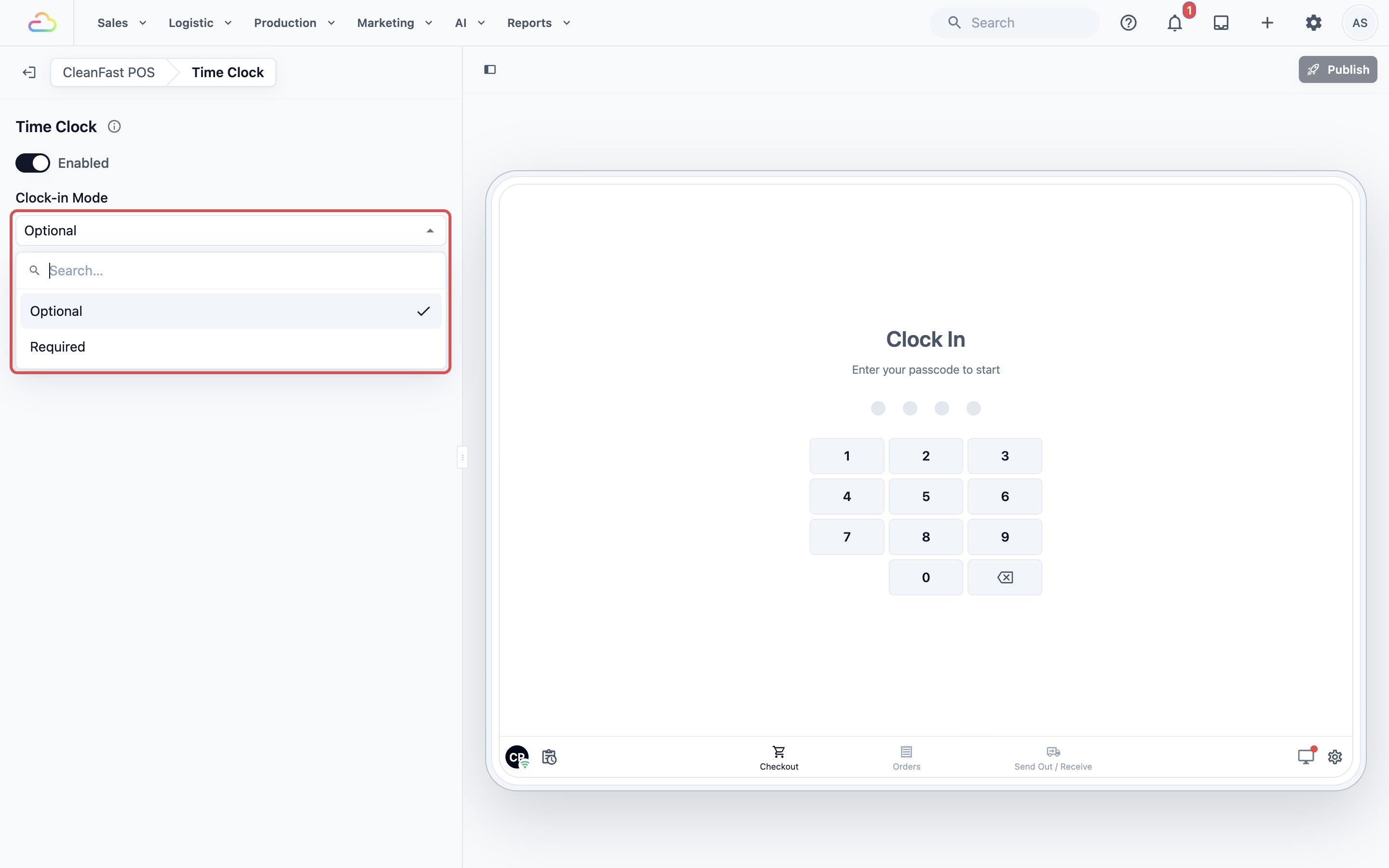
- Clock-in Mode
| Option | What staff see |
|---|---|
| Optional | The POS opens straight to Checkout. Staff clock in from the profile icon when they want to. This is the ready-made choice. |
| Required | The clock-in screen comes before any page. Nobody can use Checkout, Orders or any other page until someone enters their PIN. |
- Turn on Enabled, if it is off.
- Choose Optional or Required in Clock-in Mode.
- Click Publish at the top right.
- In Review your changes, check that Feature settings is listed, then click Publish.
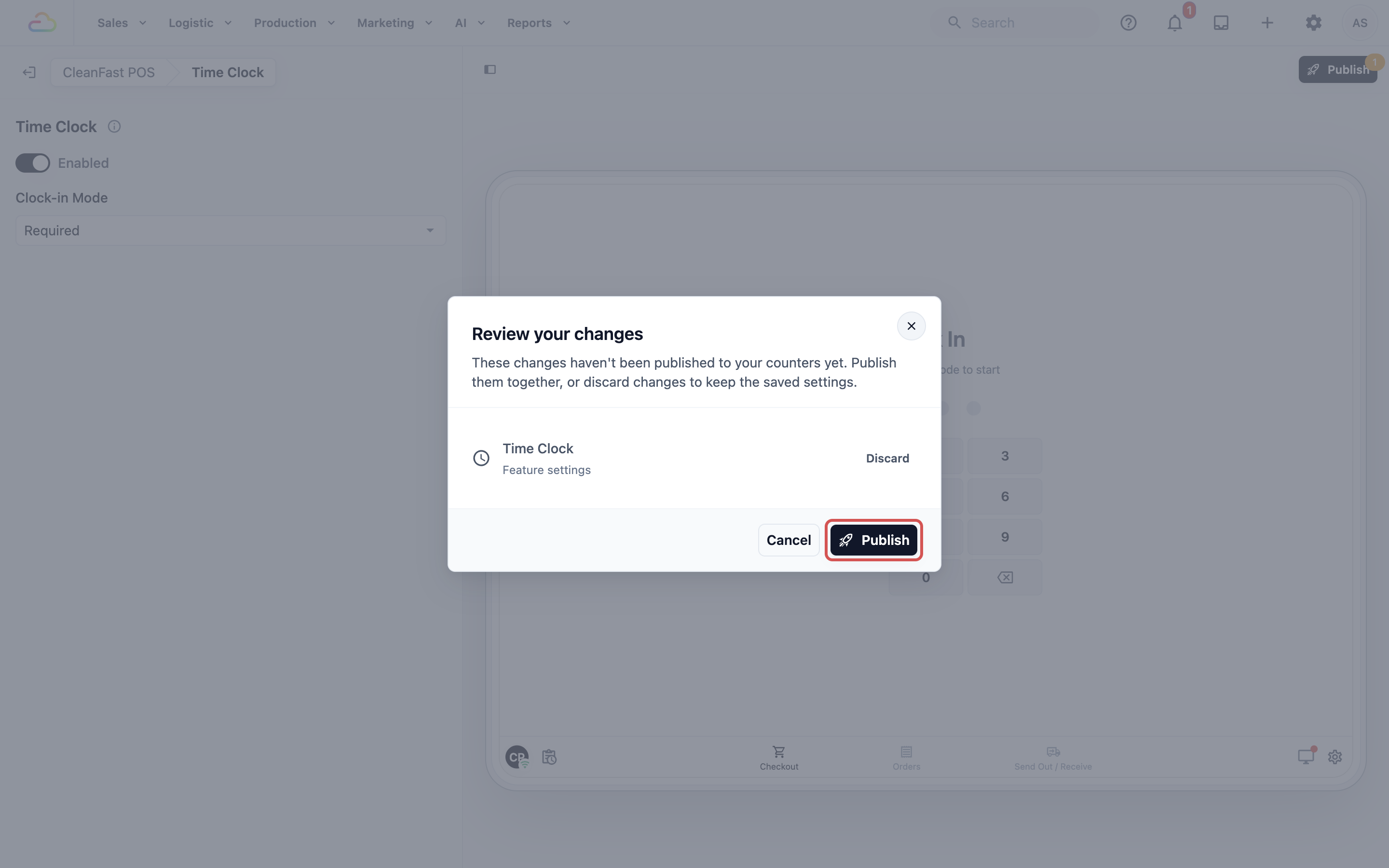
The Console shows "Published. Your counters have the changes." Each POS app has its own Time Clock, so changing it here changes only the shops that use this app.
Example setup
CleanFast Laundry's Jurong shop has three part-timers: Ahmad, Priya and Wei Jie. Each already has a PIN from Adding Counter Staff and Their POS Clock-In PINs. The owner wants every order to show who served the customer, so she sets the Jurong POS app's Clock-in Mode to Required and publishes.
On Saturday, Ahmad opens the POS at 9:00 and sees the clock-in screen. He enters 7306, and the POS opens with his initials, AH, at the bottom left. He takes Mrs Lim's order for 4 shirts, which shows Ahmad as the staff member who took it. At 13:00 he clocks out, and the clock-in screen comes back. Priya enters her own PIN at 13:05 and starts her shift. The day ends with two separate shift records: Ahmad from 9:00 to 13:00, and Priya from 13:05.
What staff see on the POS
When clocking in is Required
When the POS opens, the Clock In screen appears first, with "Enter your passcode to start", four dots and a dial pad. As soon as the staff member enters their 4-digit PIN, the POS shows "Clocking in..." and then opens Checkout.
When clocking in is Optional
The POS opens straight to Checkout. To clock in:
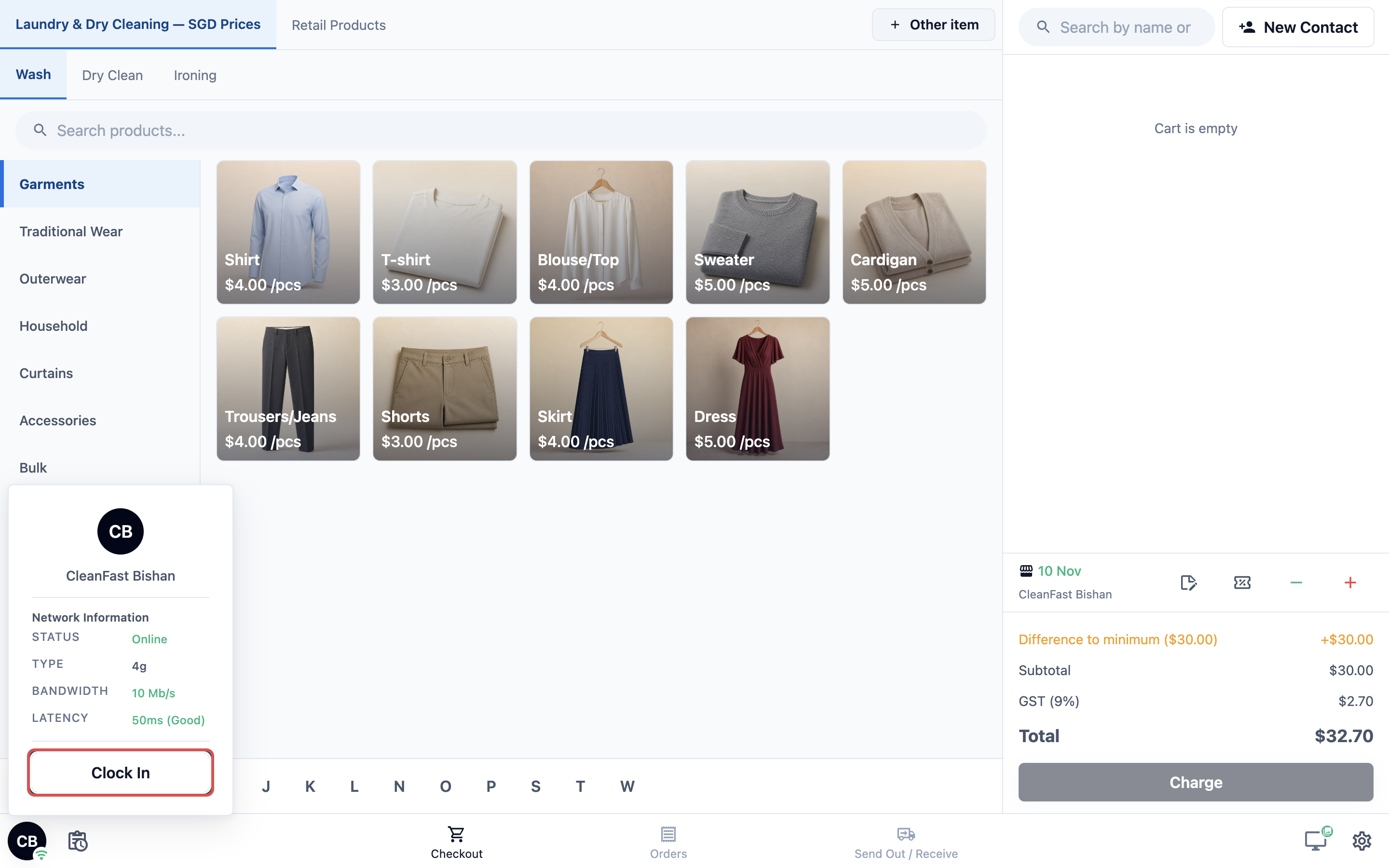
- Tap the profile icon at the bottom left of the POS. It shows your shop's initials while nobody is clocked in.
- A popup shows the shop name and the internet connection. Tap Clock In.
- Enter the 4-digit PIN on the dial pad that appears.
The profile icon changes to the staff member's initials, so everyone can see who is clocked in.
Clocking out
- Tap the profile icon with the staff member's initials.
- The popup shows their name, the shop, how long the shift has run, for example "Shift: 4h 0m", and the internet connection. Tap Clock Out.
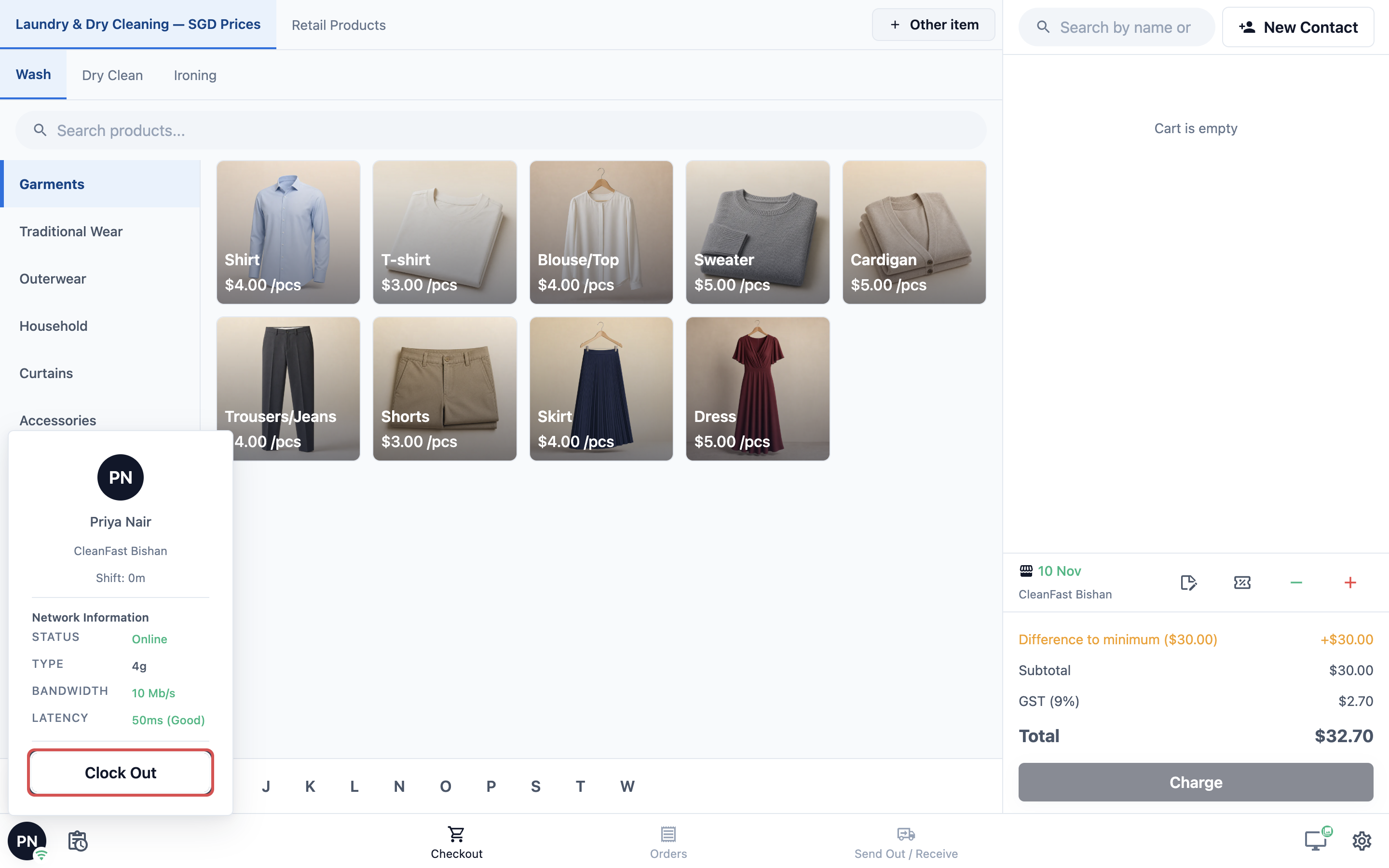
With Required, the clock-in screen comes back for the next person. With Optional, the profile icon goes back to your shop's initials.
If clocking in doesn't work
- "Check your passcode and try again." The PIN doesn't belong to anyone in your account. The staff member types it again, or you check their PIN in Users & Access.
- "No internet" in red under the profile icon. The POS is offline, and clocking in needs an internet connection. Reconnect the device, then try again.
On a paired phone
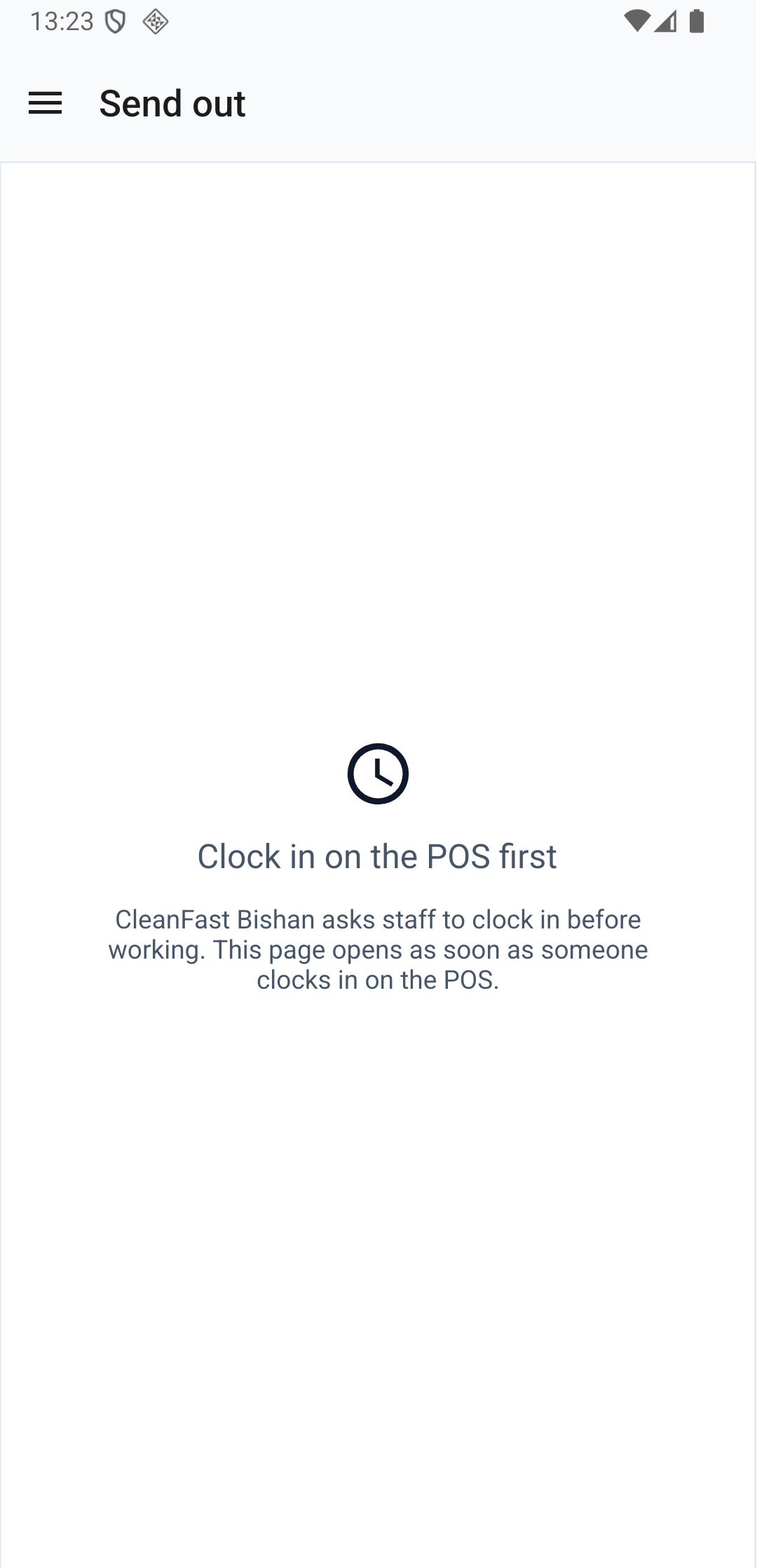
Use this only if you pair a phone to your POS, as in Pairing a Phone for Photos, Send Out and Receive. With Required, the phone shows "Clock in on the POS first" until someone clocks in on the main POS. It opens by itself the moment they do.
What if a staff member forgets to clock out?
There is no automatic clock-out. The POS stays clocked in under their name, even overnight, and their shift keeps running until someone taps Clock Out. Until then, the orders taken on that POS show their name.
FAQs
Do I have to set up the Time Clock?
No. It is already on and set to Optional in every new Service POS app, so staff can clock in when they want. Change it only if you want to make clocking in Required.
What's the difference between Optional and Required?
With Optional, the POS opens straight to Checkout and staff clock in from the profile icon when they want. With Required, nobody can open Checkout, Orders or any other page until someone enters their PIN on the clock-in screen.
Does the system clock staff out at the end of the day?
No. A shift keeps running until someone taps Clock Out on that POS, even overnight. Remind staff to clock out before they leave.
If two staff work the same shift, do they share one clock-in?
No. Each person clocks in with their own PIN and gets their own shift record. On one POS, only one person is clocked in at a time, so staff sharing a counter take turns clocking in and out.
Does Required stop my paired phone?
Yes. While nobody is clocked in on the main POS, the paired phone shows "Clock in on the POS first". It opens by itself as soon as someone clocks in on the POS.
Can a staff member clock in at another shop?
Yes. A PIN belongs to one person across your whole account, so they use the same PIN at Tampines or Jurong. Each shift is saved with the shop where they clocked in.
What's Next
Your staff now clock in with their own PIN, and every shift and order shows who was at the counter. Next, set the starting cash for each shift and count the drawer when the shift ends, in Tracking Cash in the Drawer. Cashless shop? Skip to Closing the Day at the POS.