
Before You Start
- Your account is set up and you can sign in to the Console. See Creating Your EasyBiz Account, and Trouble Signing In if you can't get in.
- You need billing access to see your trial dates and to add products. The account owner always has it. Other team members need Billing & plan ticked in their Administration settings. See Inviting Your Team and Managing Access.
- You don't need a payment card to start or use the trial.
What Your Trial Includes
A free trial is a 30-day period where you can use EasyBiz and add products without being charged. It starts on the day you sign up.
- Your Full seat. A Full seat is the user licence for one person. Yours opens Sales, CRM, Production and Field Service, so from day one you can take orders, keep customer records, track jobs and plan pickups and deliveries.
- Products you add during the trial. You can add POS shops, an Online Store, a Mobile App, WhatsApp Mini App numbers and the B2B Portal while you're on trial. They appear on your subscription, but nothing is charged until the trial ends.
AI Workforce plans are charged by use, so they can only be turned on after you subscribe. Their product page shows Subscribe to turn this on with a Subscribe / Activate button.
Check Your Trial Status and End Date
- Click the ⚙️ Settings icon in the top-right corner.
- Under the Billing & plan section, click Billing.
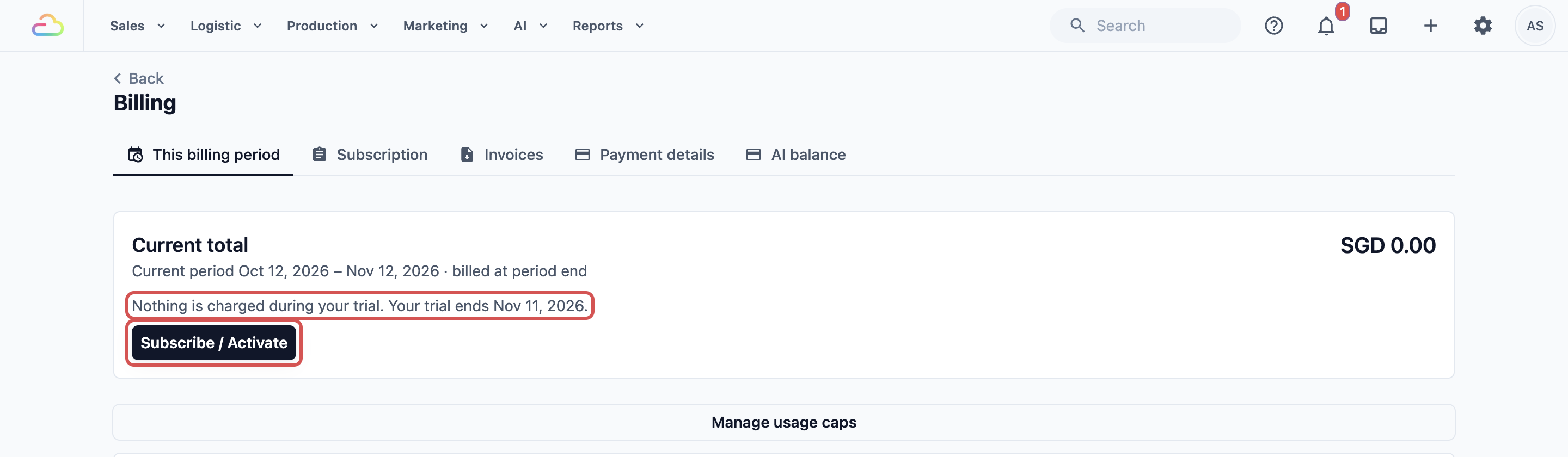
Billing opens on the This billing period tab. During the trial it shows "Nothing is charged during your trial. Your trial ends" with your end date, and a Subscribe / Activate button.
- Click the Subscription tab.
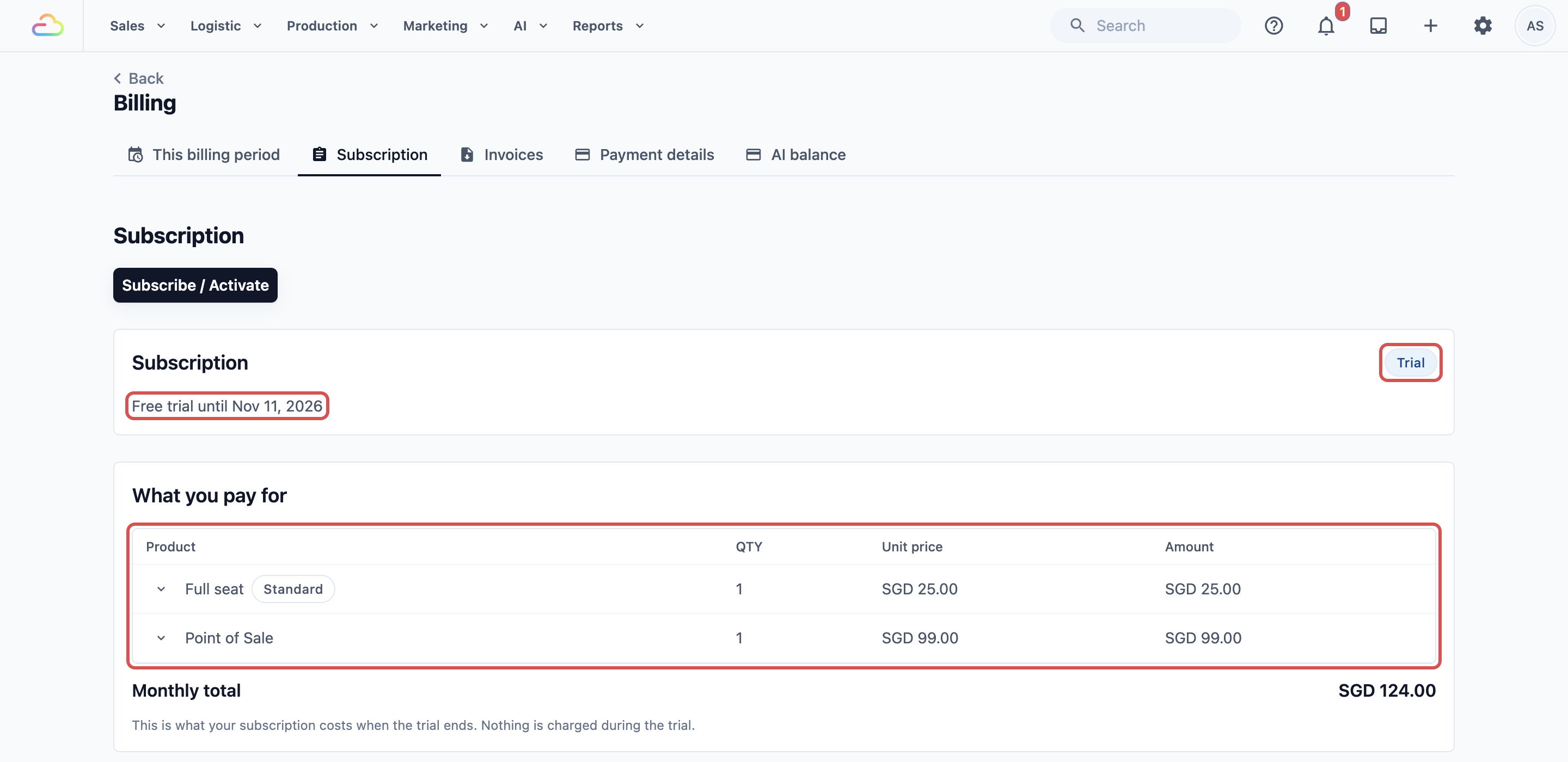
The Subscription card shows a status badge and, during the trial, "Free trial until" with your end date. Below it, What you pay for lists your products with the note "This is what your subscription costs when the trial ends. Nothing is charged during the trial." If you haven't added anything yet, it says "Your subscription is currently empty. Add products now to make the most of your trial!"
Subscription status
| Status | What it means |
|---|---|
| Trial | You're in your free trial. Nothing is charged yet. |
| Trial ended | Your trial date has passed. Your subscription starts if a card and a paid product are on file. Otherwise your workspace is paused. |
| Active | Your paid subscription has started. |
| Suspended | Your workspace is paused until you subscribe. |
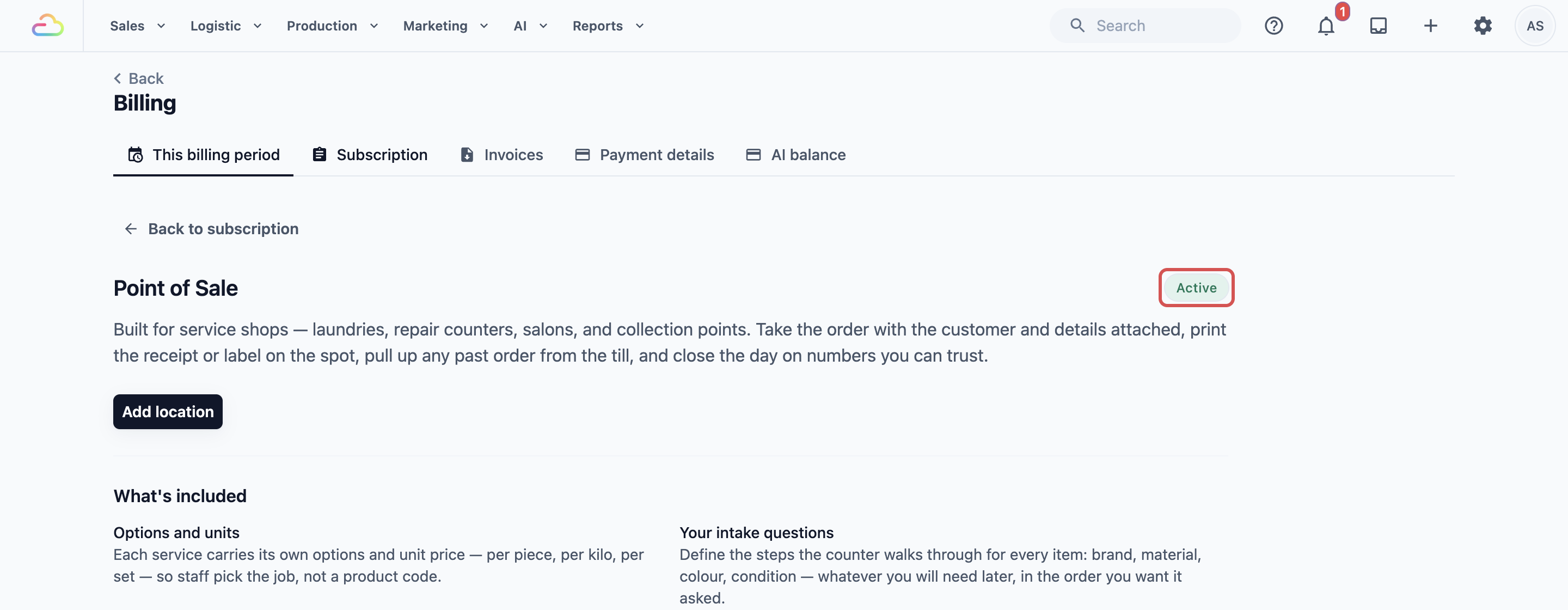
To see where a product stands, click its name under What you pay for. Its page shows one of these badges:
Product badge
| Badge | What it means |
|---|---|
| Active | The product is on your subscription. |
| Included in trial | You can use it free during the trial without adding it. |
The Console also shows people with billing access a "Your free trial is ending" banner that counts down the days left, with a link to Billing.
Add a Product You Don't Have Yet
Each product is added from the place you use it. The examples below cover the products most shops test first.
Add a POS shop
- Click the ⚙️ Settings icon in the top-right corner.
- Under the Sales channels section, click Point of Sale.
- On the Shops tab, click Add Shop.
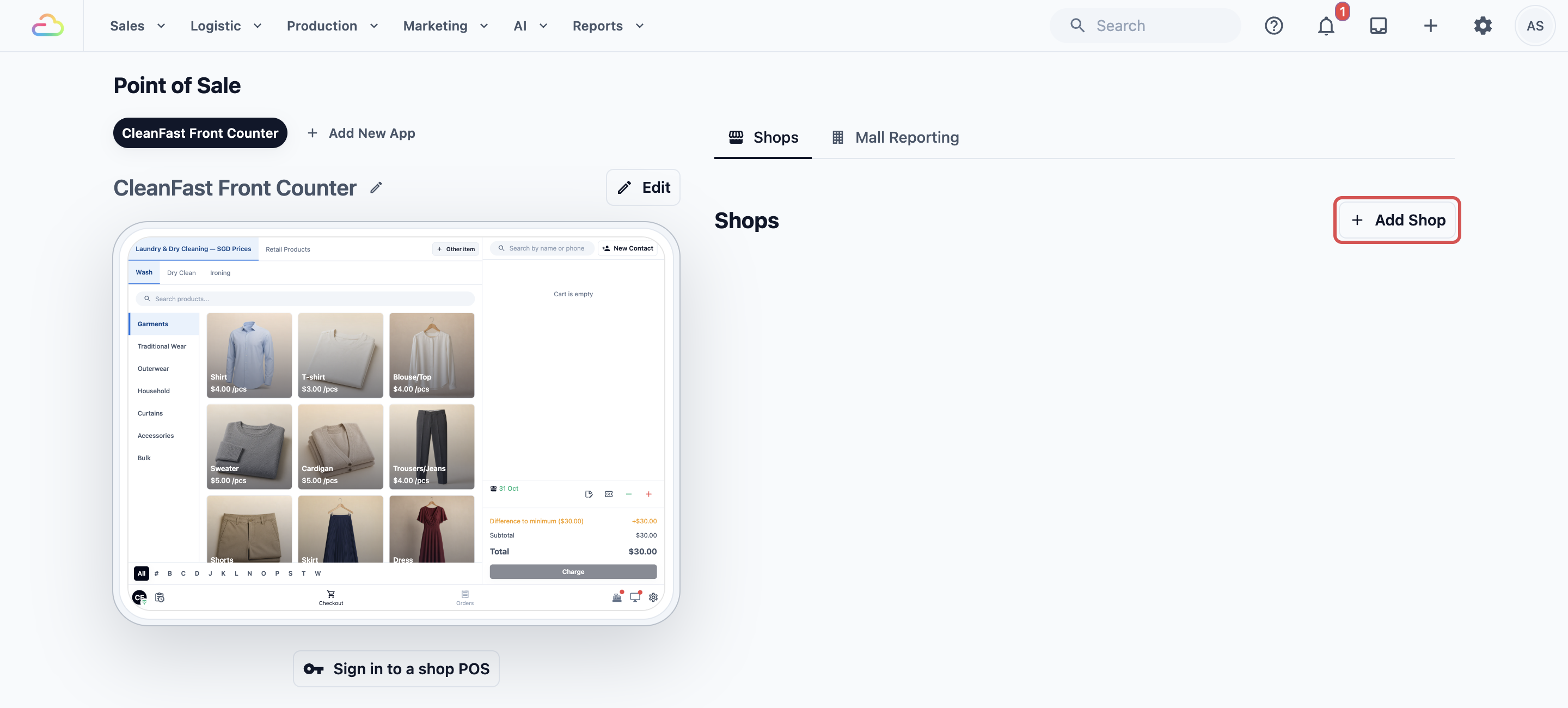
- Fill in the shop details and click Add training location.
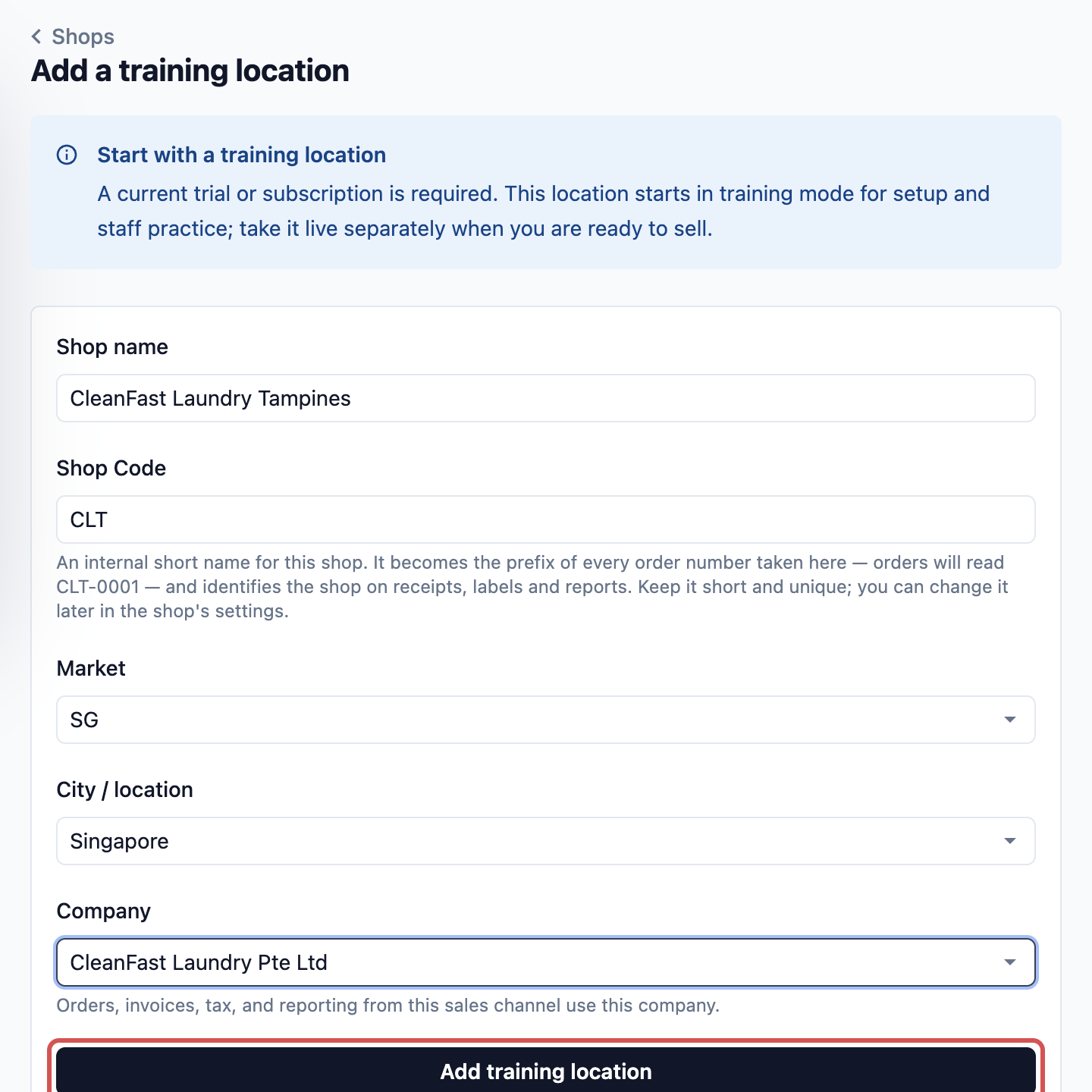
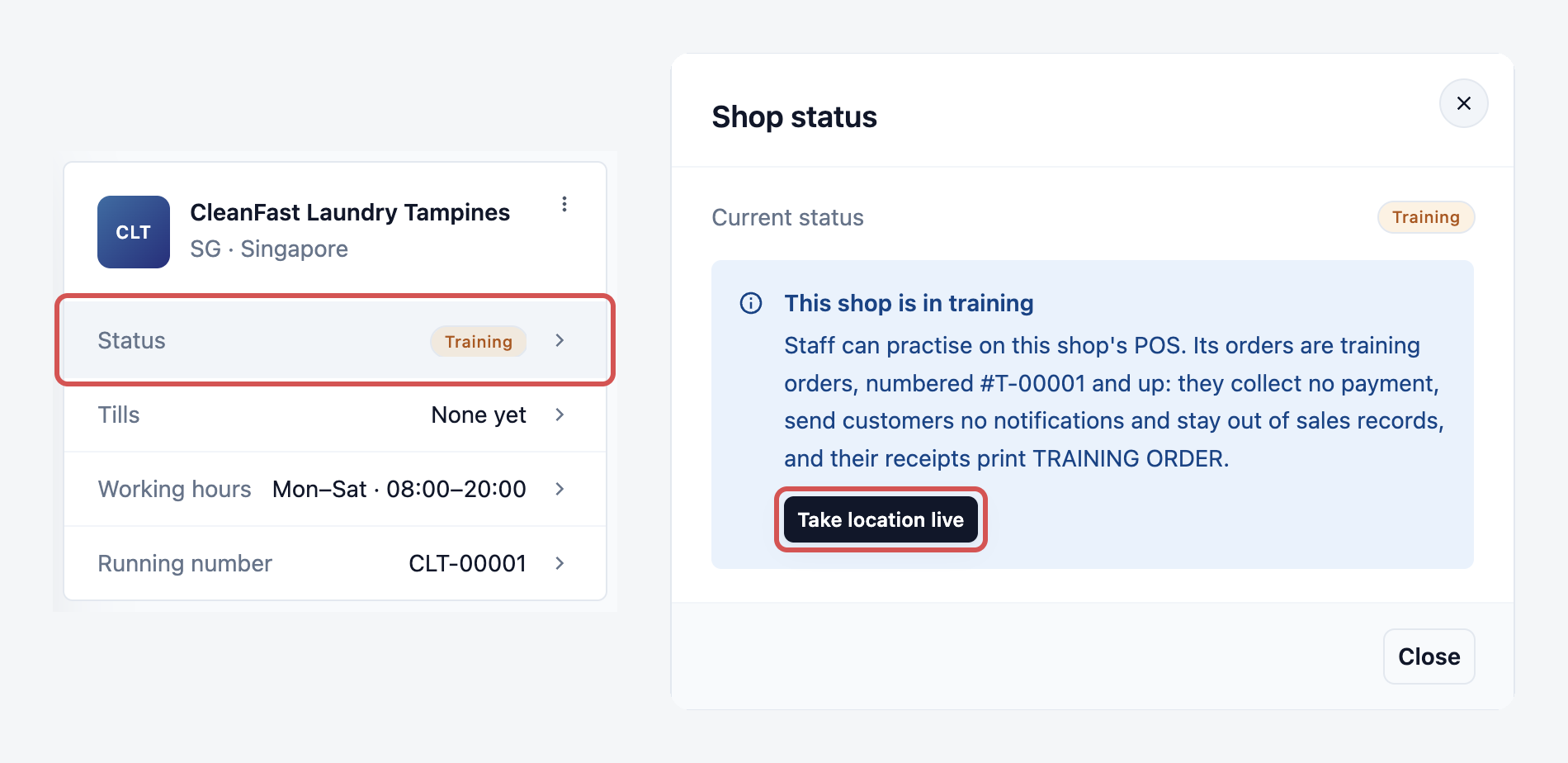
Every new shop starts as a training location. A training location is a practice shop: its orders collect no payment, send customers no messages and stay out of your sales reports. When the shop is ready to sell, someone with billing access clicks the shop card's Status row, then Take location live. This adds the shop to your subscription. On a trial, it is still free until the trial ends. For every shop field, see Setting Up a New POS Shop.
Turn on online ordering (Online Store or Mobile App)
Use this if your trial only has a POS shop and you want customers to order online.
- Click the ⚙️ Settings icon in the top-right corner.
- Under the Sales channels section, click Online Store & Mobile App.
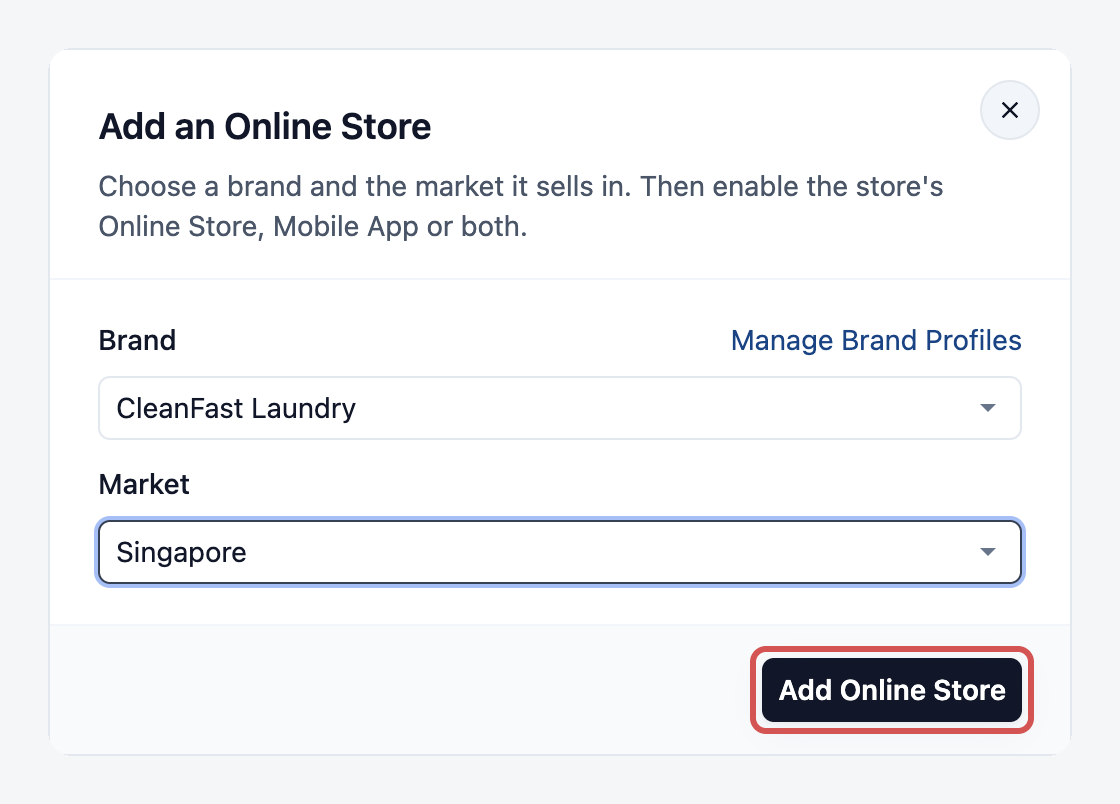
- Click Add Online Store, choose the brand and market, then click Add Online Store.
- On the store card, click Enable Online Store or Enable Mobile App, fill in the details, then click Enable.
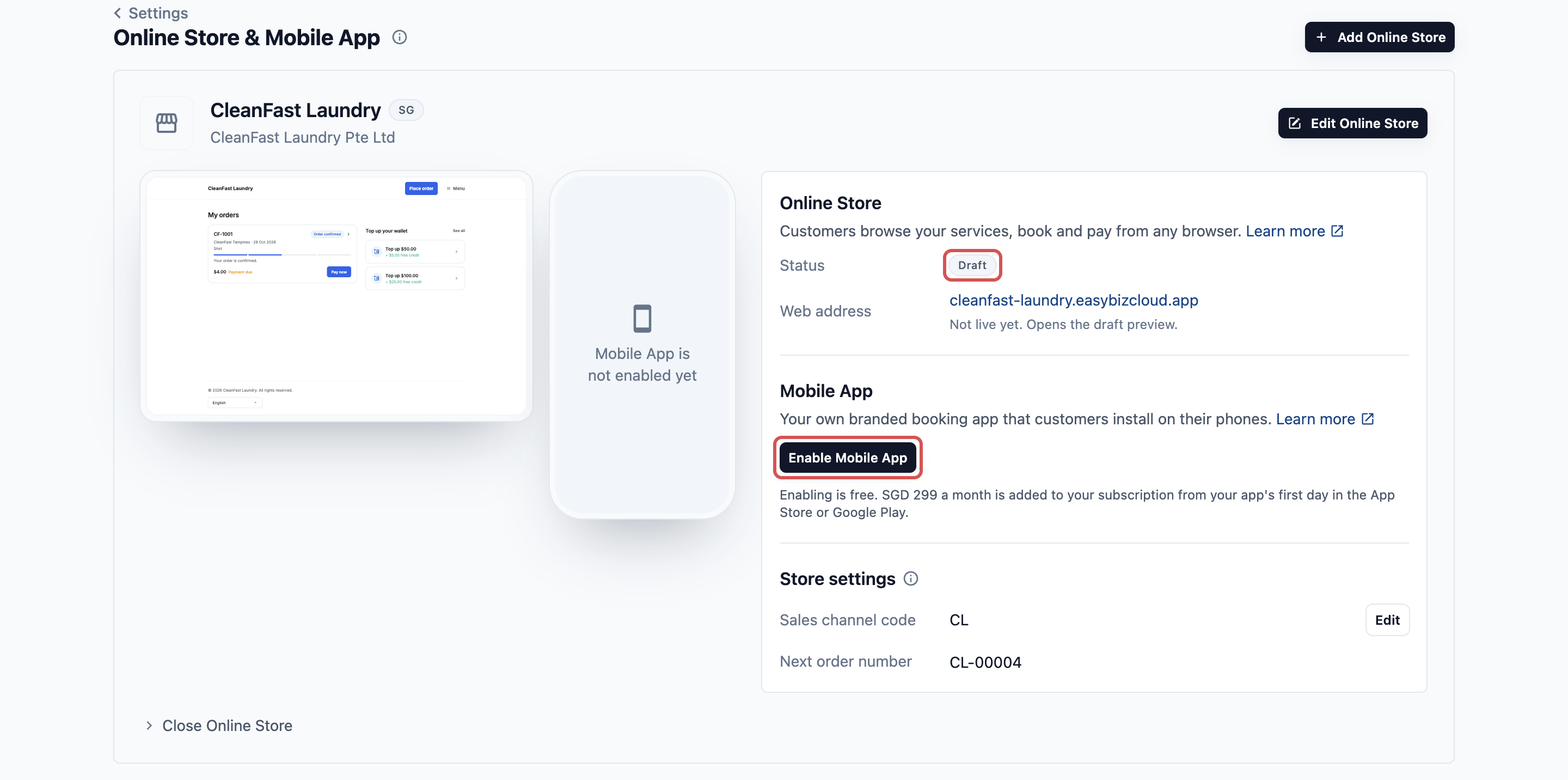
Building and testing your store in Preview is free. The Online Store or Mobile App is added to your subscription at its first Publish, which needs billing access. For the full setup, see Adding a Store and Turning On Online Store or Mobile App and Edit, Preview and Publish Your Online Store.
Already a Customer? Trying a New Product
The free trial is for new accounts, so an account with an active subscription doesn't get a second trial for a new product. When you add a product, it joins your bill. Where Billing asks you to confirm, it shows your new monthly total first, and the final amount is worked out when the billing period closes.
You can still test some products without paying first:
- Online Store and Mobile App. Building your store and testing it in Preview is free. Preview orders are test orders, and nothing is charged until the first Publish.
- A new POS shop. It starts as a training location, so staff can practise before you take it live and it joins your bill.
- A separate trial workspace. Sign up again with a different email address to get a fresh 30-day trial. It starts empty and doesn't copy your live settings, customers or price lists.
Moving from the older EasyBiz? If your account is on the older billing setup, you may not see the This billing period tab, and new POS shops are added from Billing instead. See Understanding Your Subscription and Billing.
When the Trial Ends and When You're First Charged
- With a saved card and at least one paid product, such as a live POS shop, your subscription starts automatically when the trial ends. You don't need to click Subscribe.
- Nothing is charged at that moment. EasyBiz bills monthly in arrears, so your first charge comes at the end of your first month after the trial.
- Without a saved card or a paid product, your workspace is paused. The Console shows "Your workspace is paused" with a Go to billing button. Your data is kept, and you can subscribe from Billing to carry on.
- The trial lasts 30 days. There is no option to extend it in the Console, so plan your testing within that time.
To check that you're ready before the trial ends:
- Click the ⚙️ Settings icon in the top-right corner.
- Under the Billing & plan section, click Billing.
- Click Subscribe / Activate.
- If no card is saved, enter your card details and click Save card and continue.
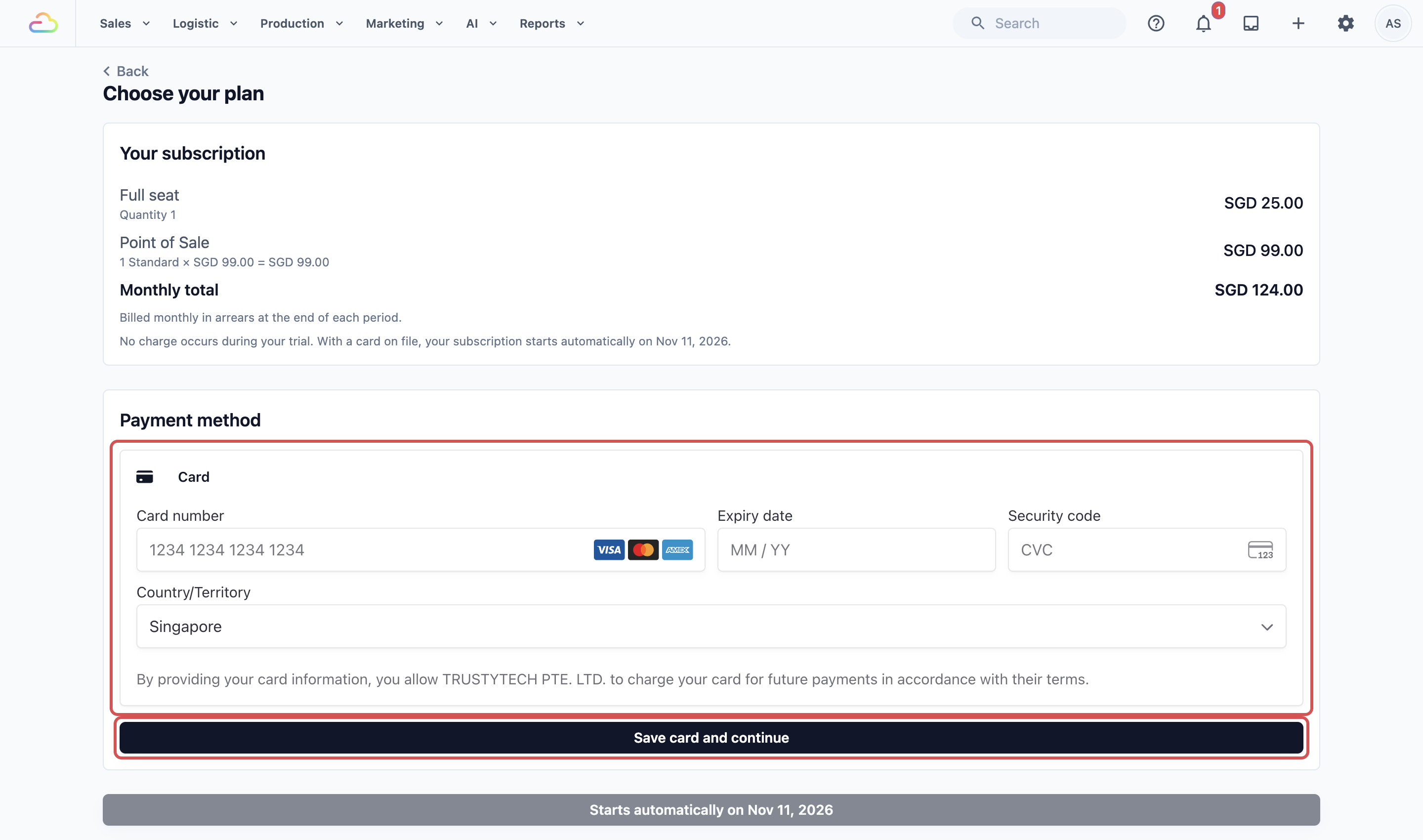
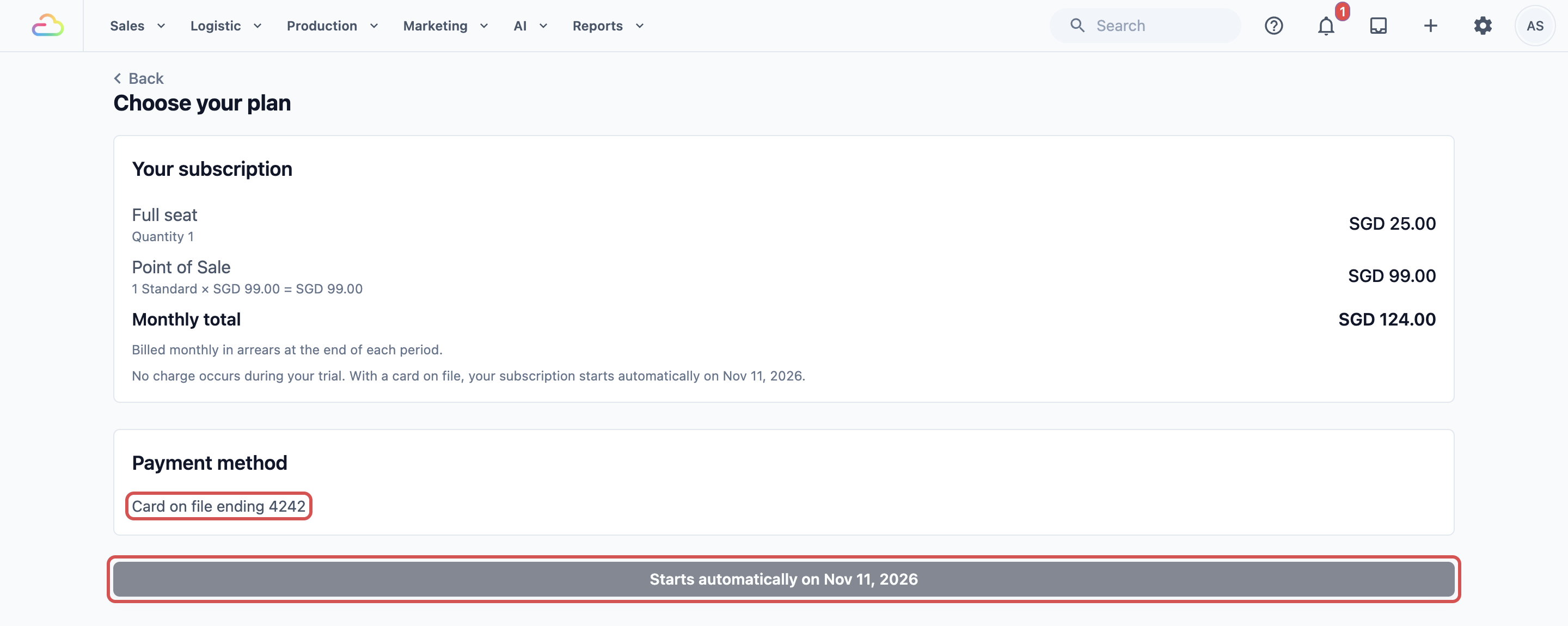
Saving a card during the trial doesn't charge it or end the trial early. Once a card is saved, the page shows "Card on file ending" with its last four digits, and the button reads "Starts automatically on" your trial end date. That means you're set.
Don't want to continue? A trial without a saved card never turns into a paid subscription. If you saved a card, the account owner can go to Billing, open the Payment details tab and click Cancel subscription before the trial ends. This ends the trial and your access straight away, and nothing is charged. See What Happens to Your Data When You Cancel.
FAQs
I signed up but I can't see a POS. Did something go wrong?
No. A new account starts with only your Full seat. Add your first shop from Settings › Point of Sale › Shops, as shown above, and it appears as a training location.
Will adding products during the trial charge me now or end my trial sooner?
No. Your trial end date stays the same, and nothing is charged during the trial. The Subscription tab's What you pay for list shows what you'll pay once the trial ends.
CRM shows Included in trial. Will I pay for it separately later?
No. Sales, CRM, Production and Field Service are all covered by the Full seat. One Full seat covers each person across all four and doesn't stack, so you pay for the seat, not for each of these products.
Do training orders or Preview orders count towards my bill or reports?
No. Training orders from a training location and test orders from Online Store Preview collect no payment and stay out of your sales reports. A shop or store only joins your bill when you take it live or publish it.
I removed a product during the trial. Is my data gone?
No. The Console pages that product adds stop being available at the end of the current billing period, but your data is kept and comes back if you add the product again.
My manager can't see the trial end date. Why?
The trial dates live in Billing, which only people with billing access can open. Give your manager Billing & plan in their Administration settings if they should handle your subscription.