
Before You Start
- Set up your Company first. This guide changes a Company that already exists. To create one, see Creating and Configuring a Company. To add a new shop, brand or country, see Expanding to a New Outlet, Brand or Country.
- Check your access. The account owner can make every change here. Other team members need these areas ticked in their Administration settings in ⚙️ Settings › Users & Access:
- Company & business structure to edit company details.
- Sales channels to edit a shop's profile and its billing company.
- Billing & plan to close a shop or change the name on your EasyBiz bill.
- No customer details are needed for anything in this guide.
What You Can Change and What Needs Our Team
| Change | Who makes it |
|---|---|
| Company name, registration number, tax number, address, phone, email | You, on the Company page |
| Move a shop or online store to a different Company | You, in the shop's profile |
| The company name and address on your EasyBiz bill | You, in Billing |
| Close, restore or relocate a shop | You, in Point of Sale |
| Change a Company's country (Market) | Not possible. Create a new Company instead |
| Transfer the account to a new owner | Our team |
A Company is your registered business, the legal name printed on receipts and invoices. A sales channel is a place where orders come in, such as a POS shop or your Online Store.
Update Your Company Name and Address
Use this when your registered name changes, you move your registered office, or you get a new tax number.
- Click the ⚙️ Settings icon in the top-right corner.
- Under the Administration section, click Company.
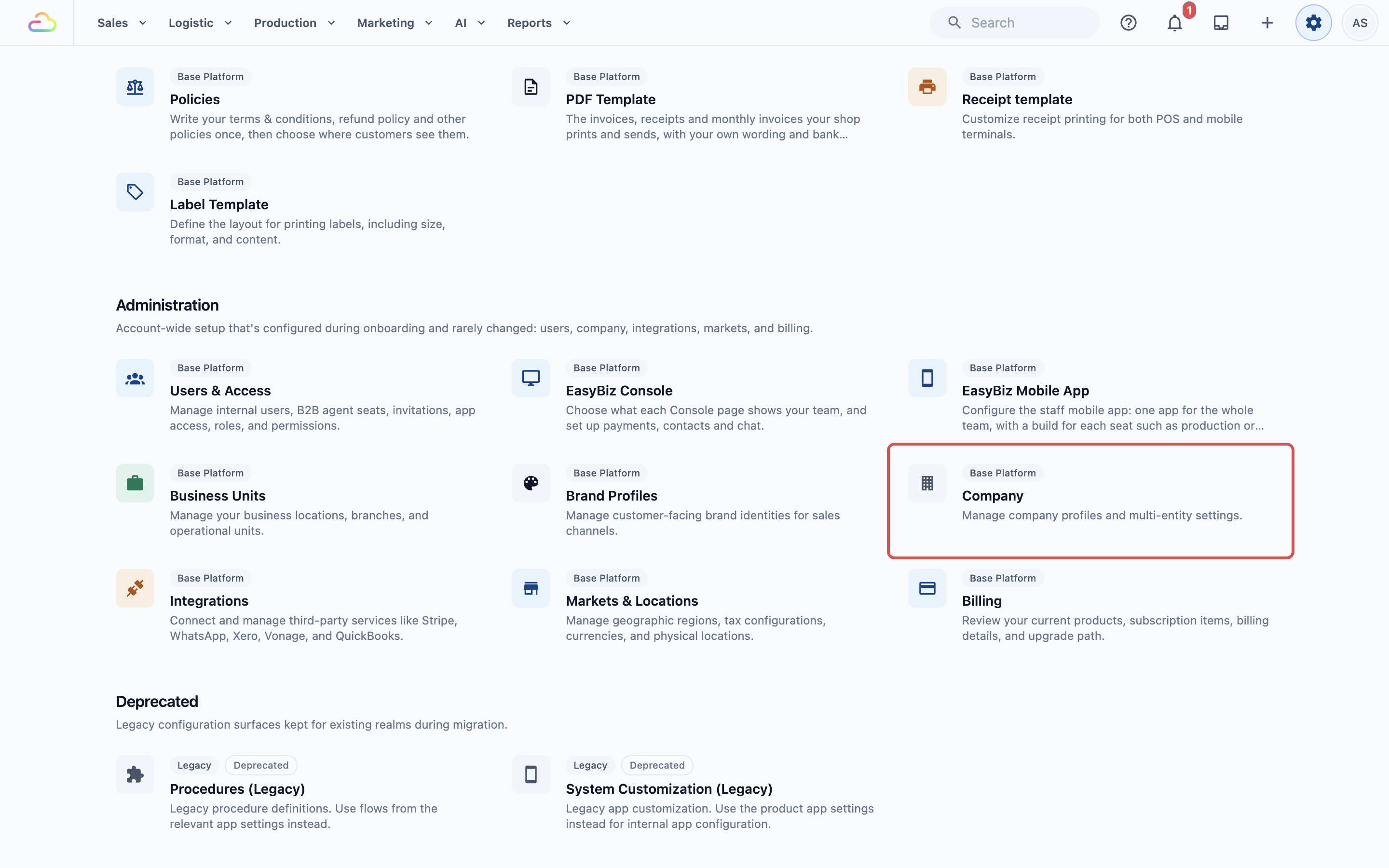
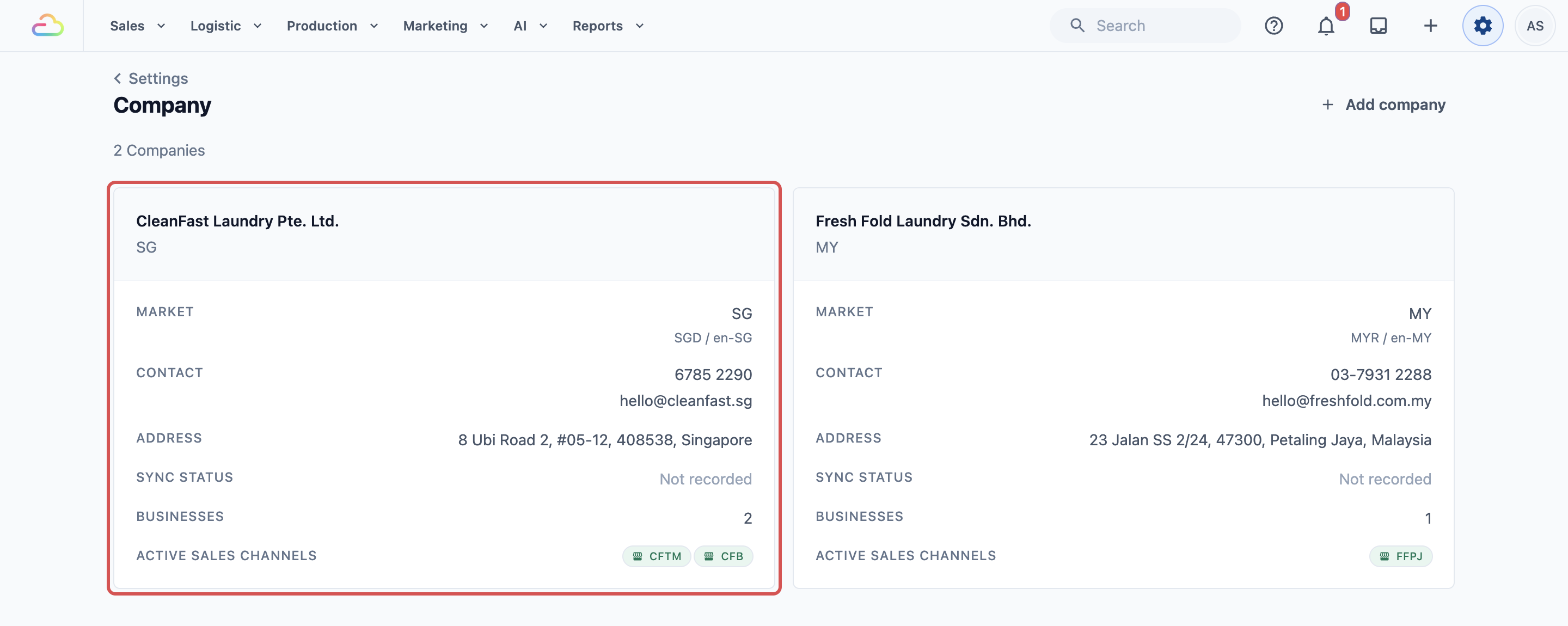
- Click the Company you want to update, for example "CleanFast Laundry Pte. Ltd.".
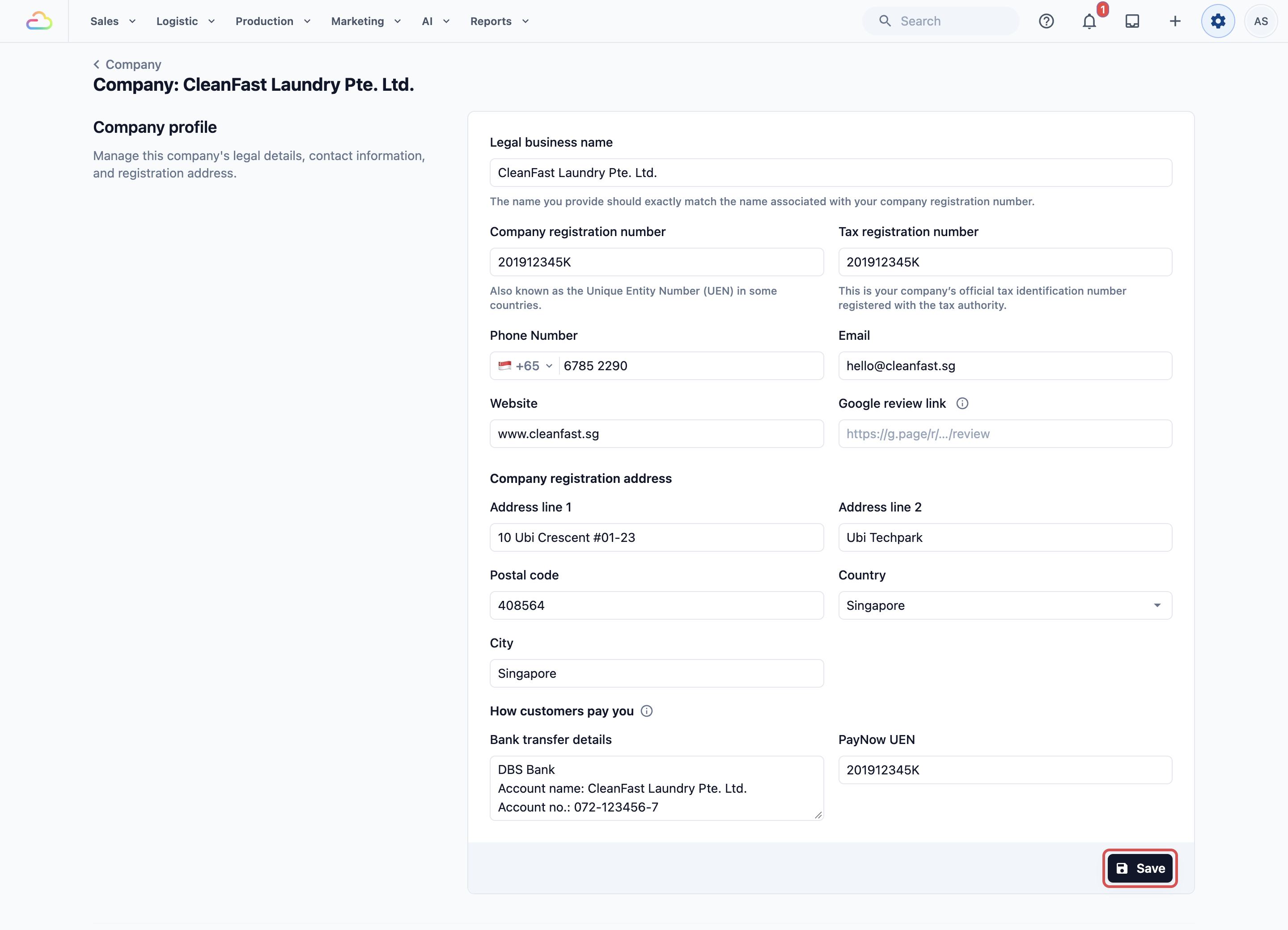
- In the Company profile section, change the details that are out of date:
- Legal business name. The exact registered name, as printed on receipts and PDF invoices.
- Company registration number and Tax registration number.
- Phone number, Email and Website.
- Company registration address: Address line 1, Address line 2, Postal code, Country, City, and State for Malaysia.
- Bank transfer details and PayNow UEN, if your bank account changed.
- Click Save at the bottom of the section.
What changes on past and new records
- New orders use the updated details straight away.
- Reprinting an old order shows the Company's current name and address, because the receipt reads the Company's details when it prints.
- Receipts and PDFs already sent to customers keep the old details. Reissue them by hand if a customer needs a corrected copy.
- Tax on past orders does not change. Each order keeps the tax rate, tax name and currency it was created with.
Move a Shop to a Different Company
Use this only if you have more than one Company, for example after setting up a new company for one outlet. The Billing company decides whose name the shop's sales are issued under. That shop's orders then use that Company's tax and rounding settings, and reports and e-invoices list them under it.
- Click the ⚙️ Settings icon in the top-right corner.
- Under the Sales Channels section, click Point of Sale.
- Click the shop's card to open its Shop profile.
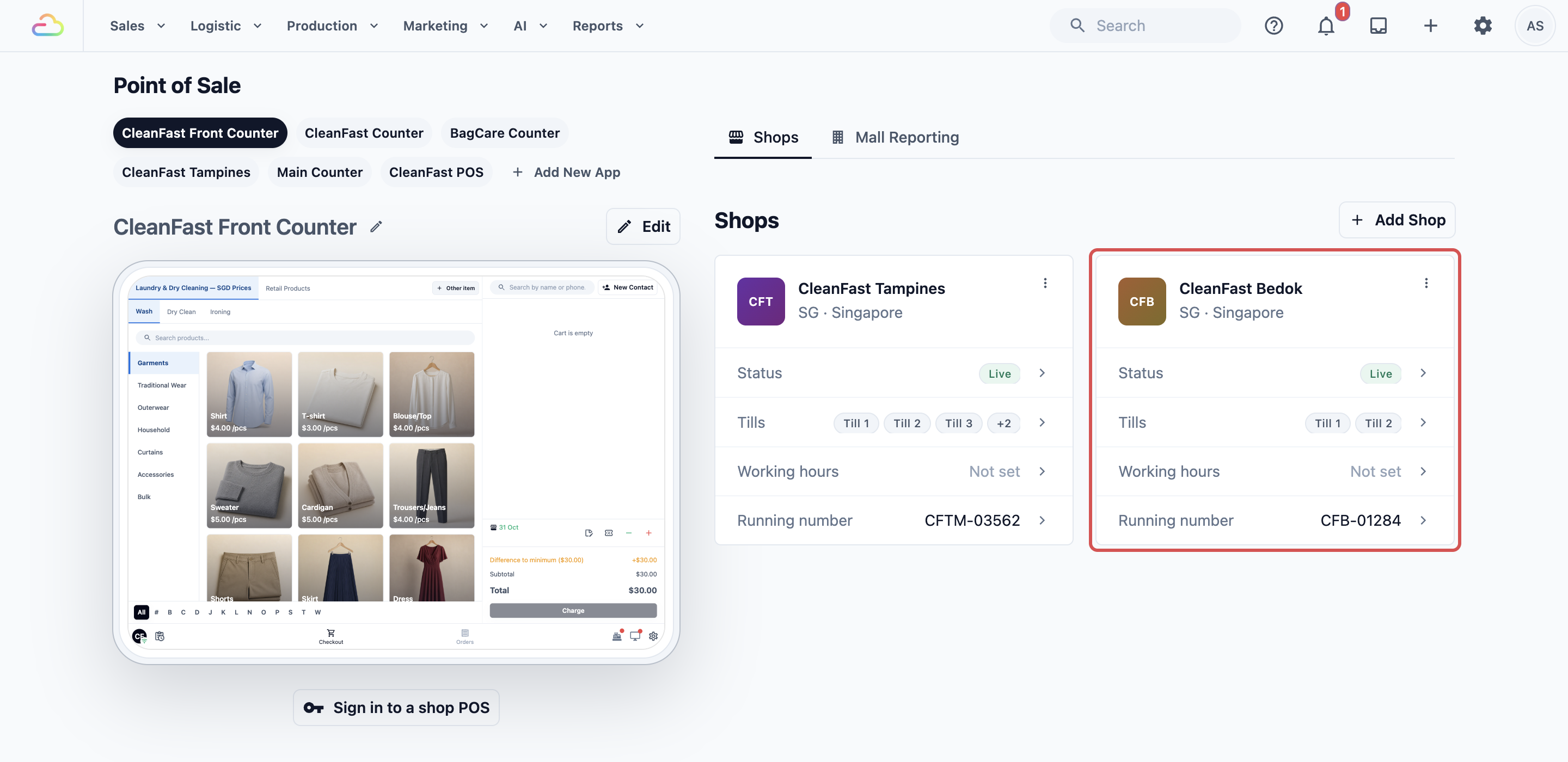
- In Billing company, pick the new Company.
- Click Save.
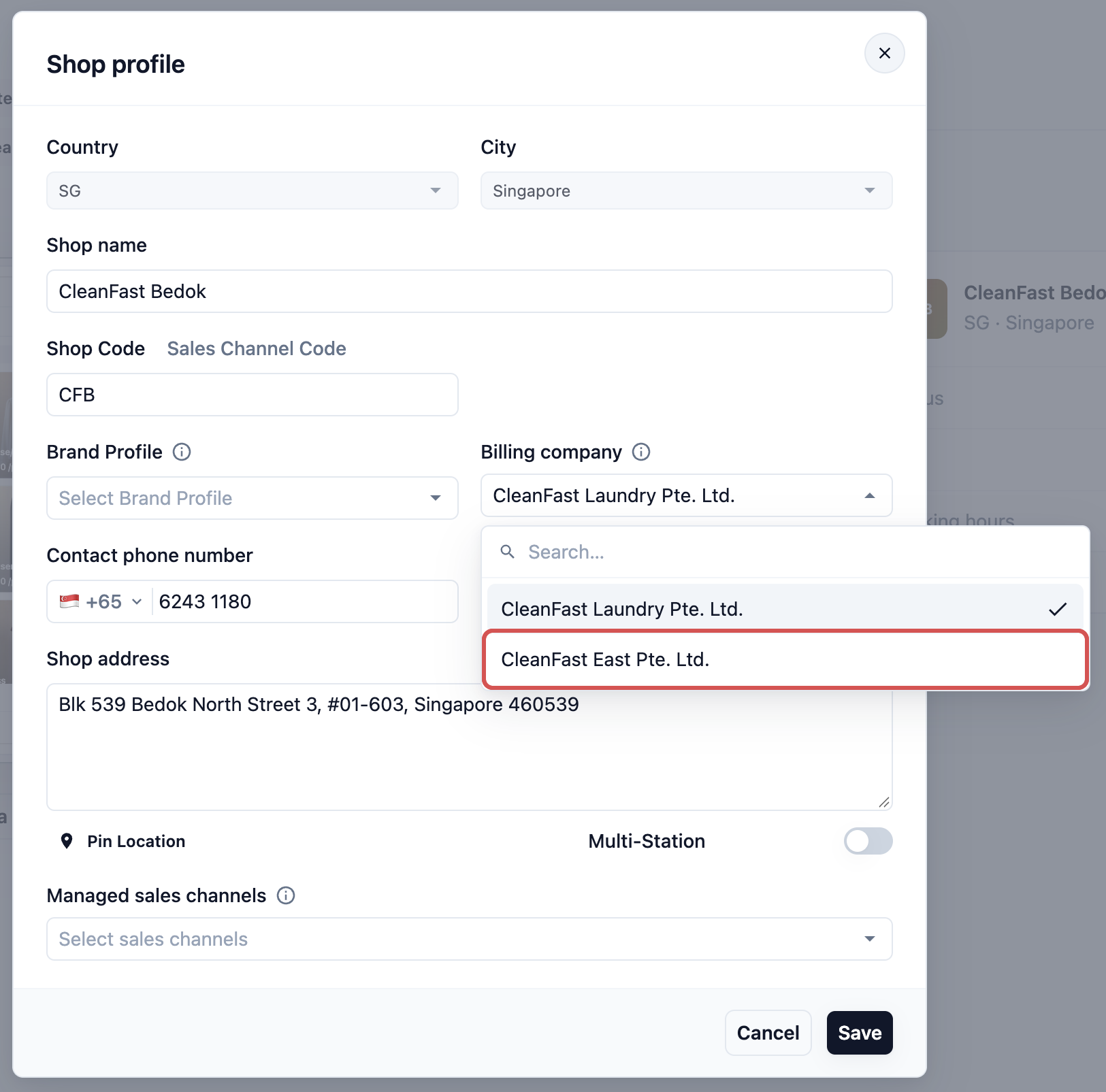
Your Online Store has the same Billing company field in its setup under ⚙️ Settings › Online Store & Mobile App.
What staff and customers see after the move
- New orders from the shop are issued under the new Company, with its name, tax and rounding.
- Past orders stay under the old Company in reports, e-invoices and reprints.
- Signed-in POS tills refresh their access on their own. Staff don't need to sign in again.
Messages you may see
- Company assignment required. You have more than one Company, so every shop must have one. Pick a Billing company before you save.
- Company market does not match this shop's market. The Company is registered in a different country from the shop. Pick a Company in the shop's country.
Delete a Company you no longer use
Once no shop or online store is under it, open the old Company and click Delete Company. EasyBiz refuses while any sales channel is still under it.
Change the Name on Your EasyBiz Bill
This is the name and address on the monthly bill EasyBiz sends you. It is separate from the Company printed on your customers' receipts.
- Click the ⚙️ Settings icon in the top-right corner.
- Under the Administration section, click Billing.
- Click the Payment details tab.
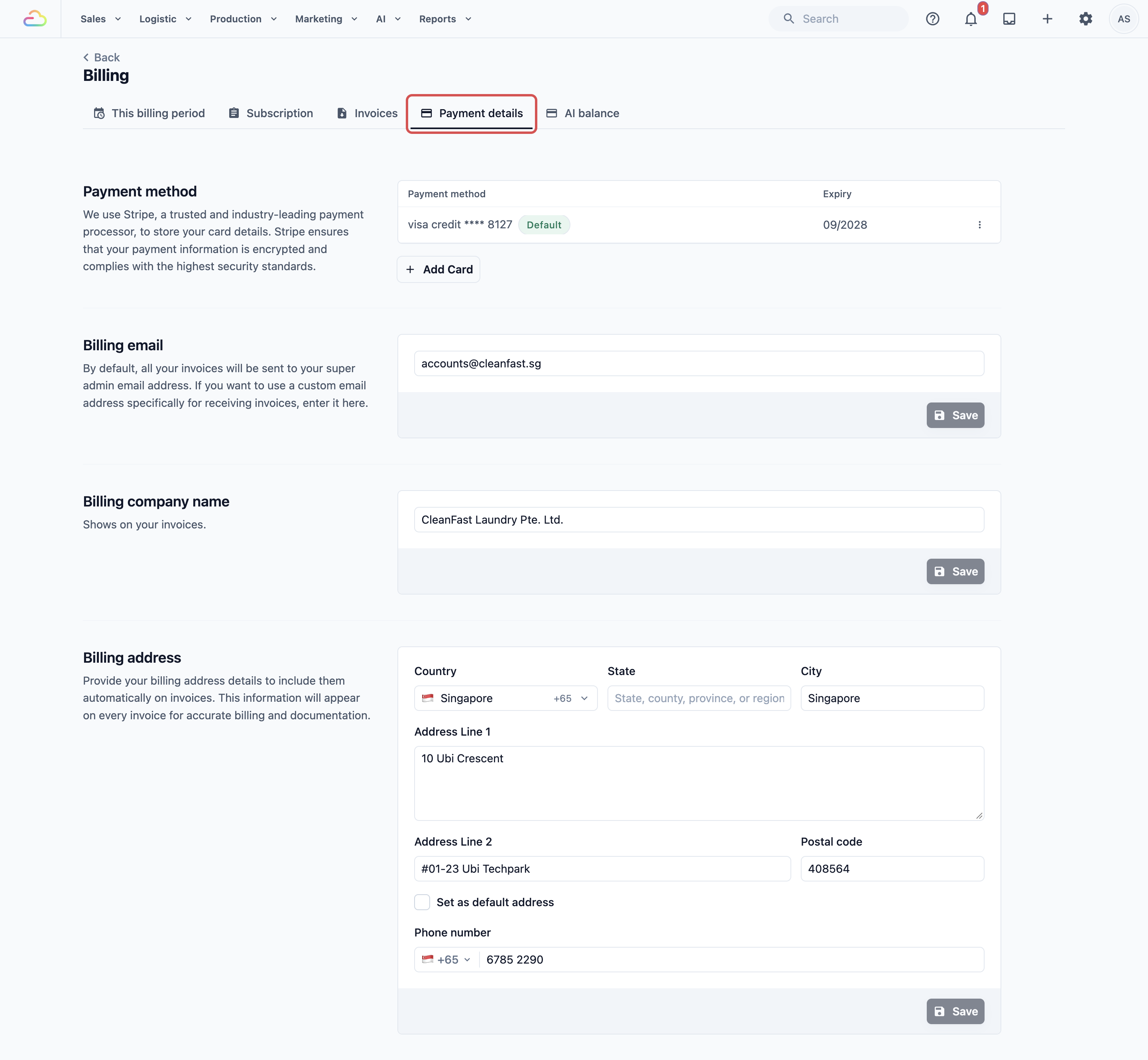
- Update the details that changed:
- Billing Email. Where your EasyBiz invoices are sent. Empty means the account owner's email.
- Billing Company Name. The name shown on your EasyBiz invoices.
- Billing Address. The address shown on your EasyBiz invoices.
- Click Save under each one you change.

Your next EasyBiz invoice shows the new details. Invoices already issued keep the details they had. For more on your bill, see Understanding Your Subscription and Billing.
Relocate a Shop
Use this when an outlet moves to a new address in the same country. The shop keeps its orders, tills, numbering and settings.
- Click the ⚙️ Settings icon in the top-right corner.
- Under the Sales Channels section, click Point of Sale.
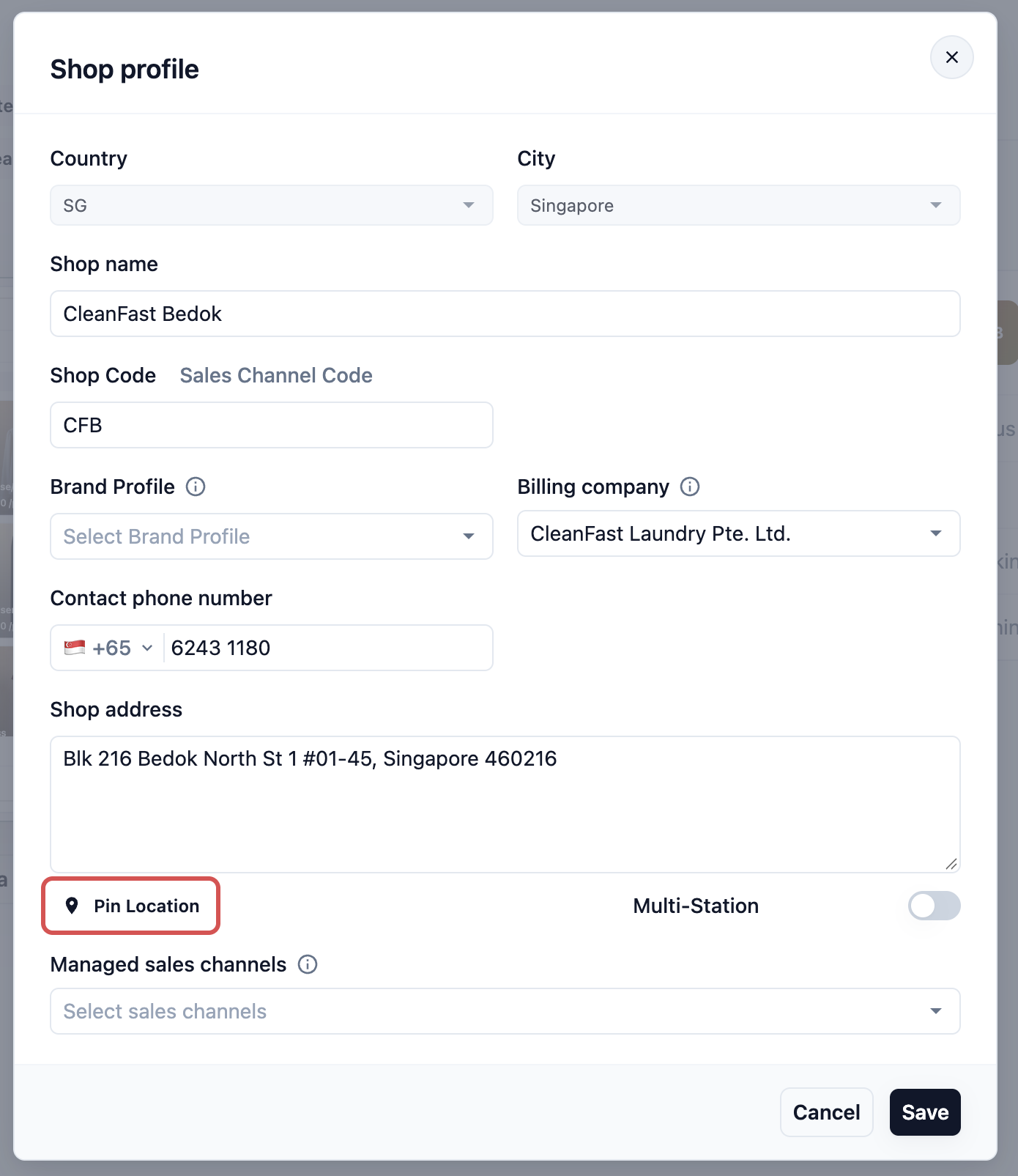
- Click the shop's card to open its Shop profile.
- Update Shop address and Contact phone number.
- Click Pin Location and move the pin to the new address.
- Click Save.
Moving an outlet to another country is a different setup, because it needs a Company and Market in that country. See Expanding to a New Outlet, Brand or Country.
Close a Shop
Use this when an outlet stops trading. Closing takes it off your subscription, so you stop paying for it.
- Click the ⚙️ Settings icon in the top-right corner.
- Under the Sales Channels section, click Point of Sale.
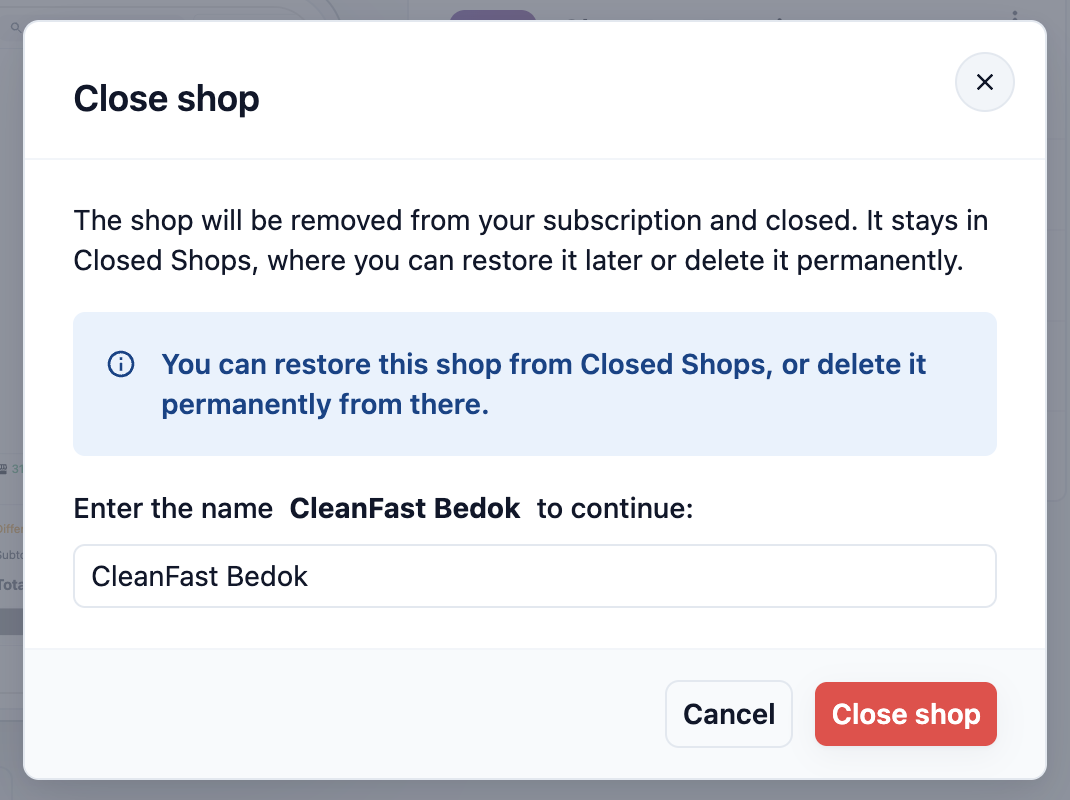
- On the shop's card, open its menu and click Close shop.
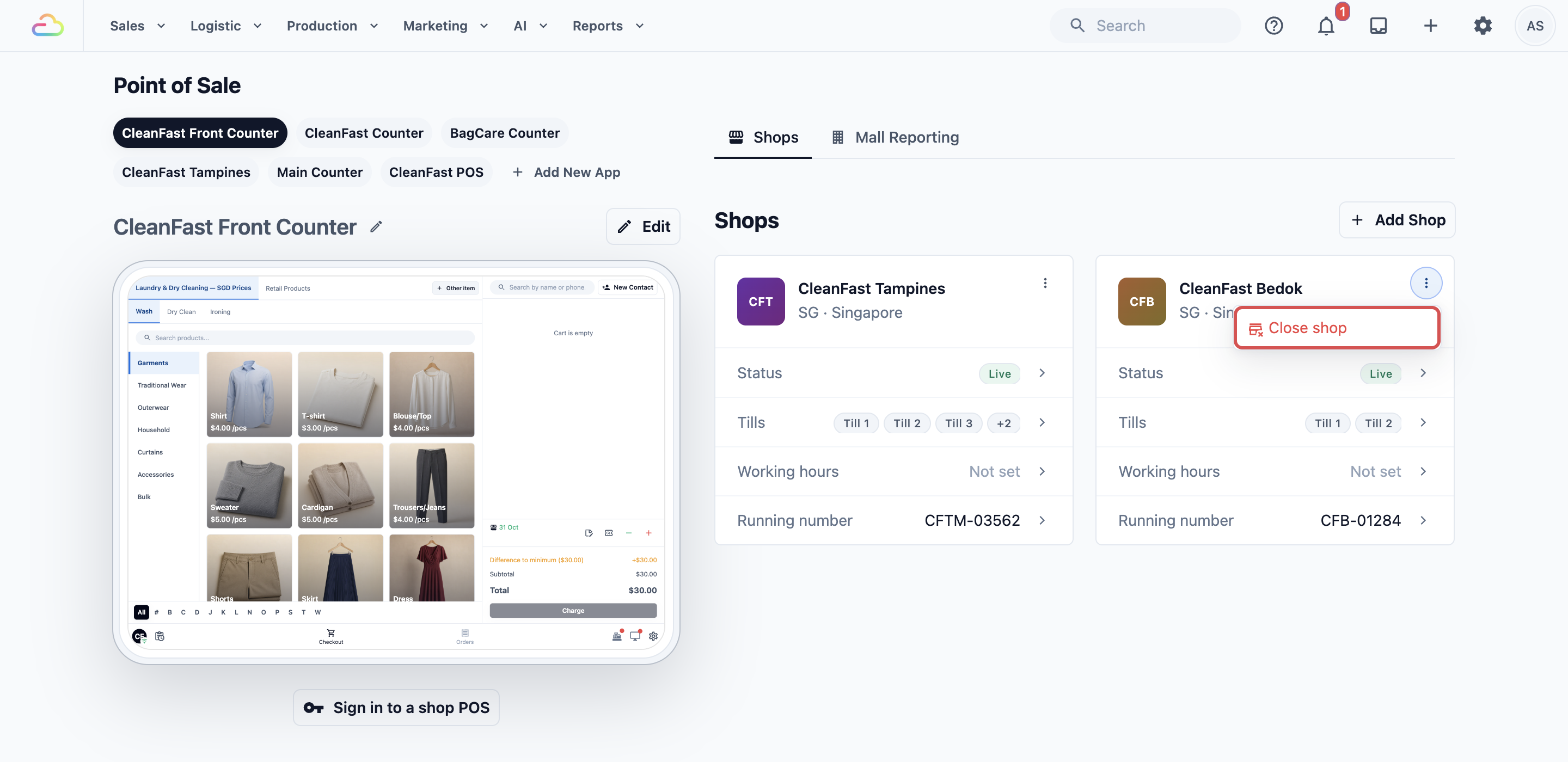
- In the Close shop box, type the shop's name, then click Close shop.
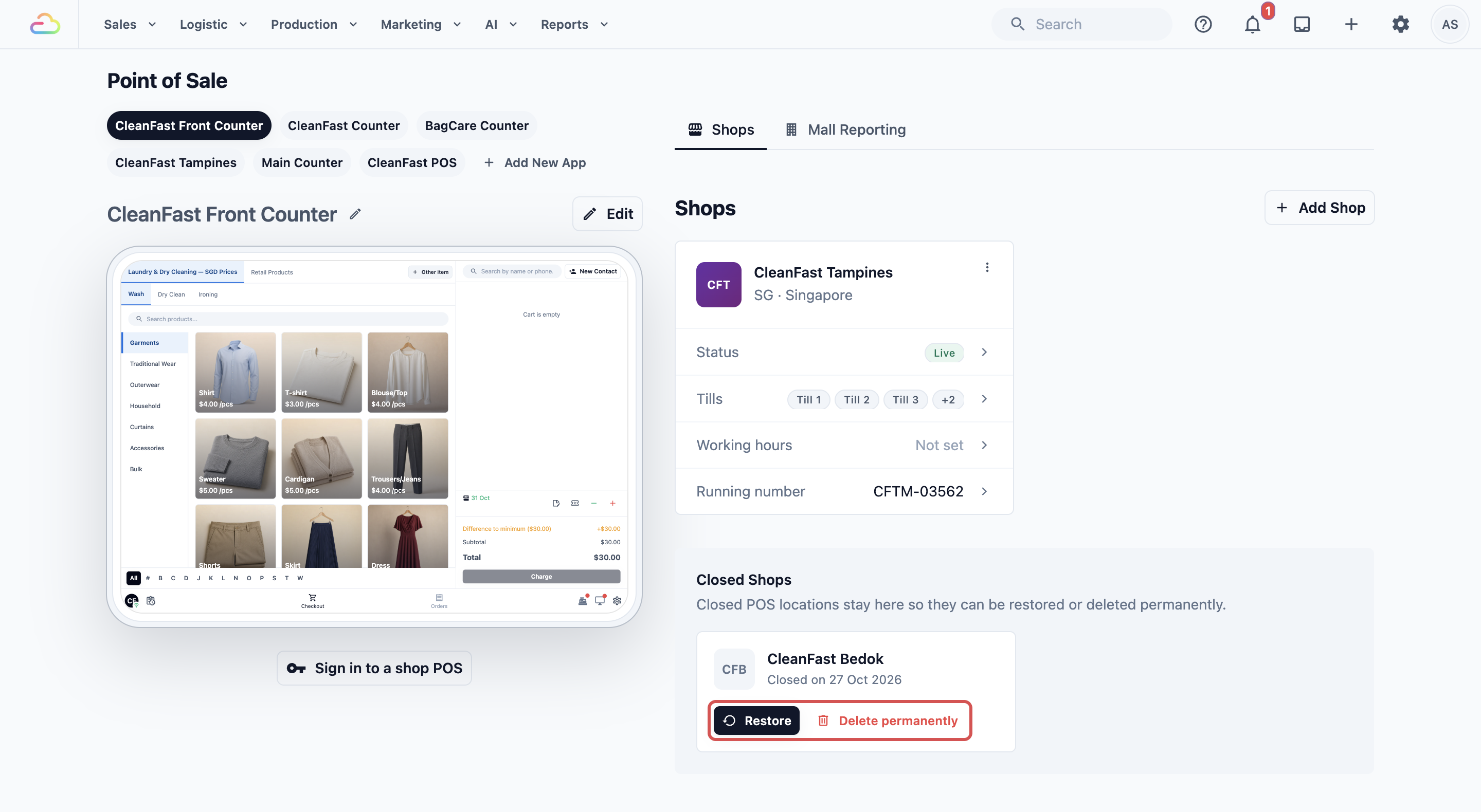
The shop moves to Closed Shops on the same page. From there:
- Click Restore to reopen it later.
- Click Delete permanently to remove its settings for good. You type the shop name to confirm. To use the outlet again after this, add it as a new shop.
Transfer the Account to a New Owner
The account owner is the person who signed up for EasyBiz. They always keep full access, and their seat cannot be removed from Users & Access. There is no self-serve owner transfer, so our team makes this change for you.
- Contact our support team from the account owner's email or the chat.
- Tell us the new owner's name and email address, and whether the registered company is also changing.
If the business has a new registered company, update your Company details and Billing Company Name as shown above once the transfer is done. To give someone full access without transferring ownership, add them as a team member instead. See Inviting Your Team and Managing Access.
FAQs
I changed my company address. Why does an old receipt now show the new address?
A receipt reads the Company's current details each time it prints. Reprints of old orders show the new name and address. Receipts and PDFs you already sent keep the old ones.
Will my past sales move to the new Company when I move a shop?
No. Each order remembers the Company it was created under. Past sales stay with the old Company in reports and e-invoices, and only new orders go to the new one.
Do I need more than one Company?
Only if you run more than one registered business, for example a separate company for an outlet or for Malaysia. One Company can cover all your shops in one country.
Does closing a shop stop its charge?
Yes. Closing removes the shop from your subscription. Moving a shop to training does not, because a training shop is still billed.
Why can't I see Close shop on the shop card?
Closing a shop changes your bill, so it needs Billing & plan access. Ask the account owner to close it or to give you that access.
Does changing the Billing Company Name change my customers' receipts?
No. It only changes the bill EasyBiz sends you. Your customers' receipts use the Company on the Company page.
I'm changing ownership and moving to a new company at the same time. What order should I follow?
Ask our team to transfer the owner first. Then create the new Company, move each shop across between months, update the Billing Company Name, and delete the old Company once it has no shops.