
Before You Start
- You can sign in to the Console or a POS. See Creating Your EasyBiz Account. If you can't sign in, see Trouble Signing In, or contact us on WhatsApp or by email (below).
- You don't need any special access. Anyone who can sign in to the Console or a POS can contact Support.
- You don't need to tell us your account details. A ticket sent from the Console or POS already shows us which business it comes from.
Ways to Reach Us
- Support in the Console. Send a ticket and read our replies in the same place. This is the best way for most questions.
- Support on the POS. The same tickets, from the Settings page of a POS, so counter staff can ask for help without a computer.
- WhatsApp. Message +65 8083 5257 with questions about products, pricing or getting set up.
- Email. Write to hi@easybizcloud.com.
- The AI Assistant. Ask setup and how-to questions in the Console at any time, and get an answer in seconds.
A support ticket is one conversation with our team about one problem. It keeps your messages, our replies and your screenshots together, so nobody has to repeat themselves.
Our Support Hours
Our team works Monday to Friday, 9 AM to 6 PM Singapore time (SGT).
- During these hours, the Support screen shows Available now · 9 AM–6 PM SGT .
- Outside these hours, you can still send a ticket. The Support screen tells you when we're back, for example Back tomorrow at 9 AM SGT, and we reply then.
- If EasyBiz is down and your shop can't work, send a ticket with the type System outage. Outages are handled outside office hours, including weekends.
Ask the AI Assistant First
For "how do I…?" questions, the AI Assistant is often the quickest answer. It has read every guide in this Help Center, can look up your own sales and orders, and can point you to the right settings page. It works around the clock, so you don't have to wait for office hours. See Meet Your AI Assistant and Using the AI Assistant for Setup.
Contact our team when something looks wrong, shows an error, or the Assistant can't solve it.
Send a Support Ticket from the Console
- Click the ❓ Help icon in the top-right corner.
- Click the Support tab.
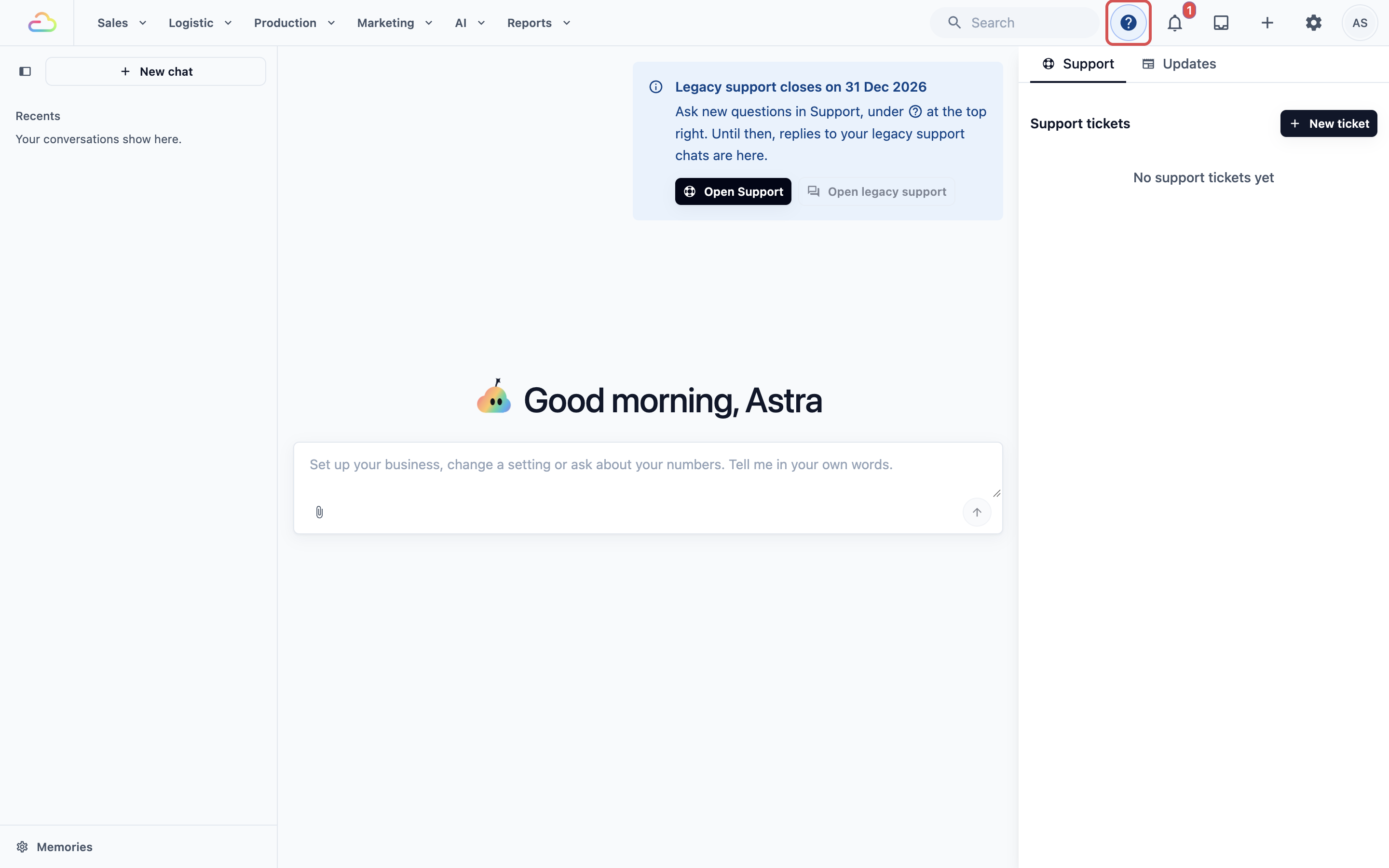
- Click New ticket .
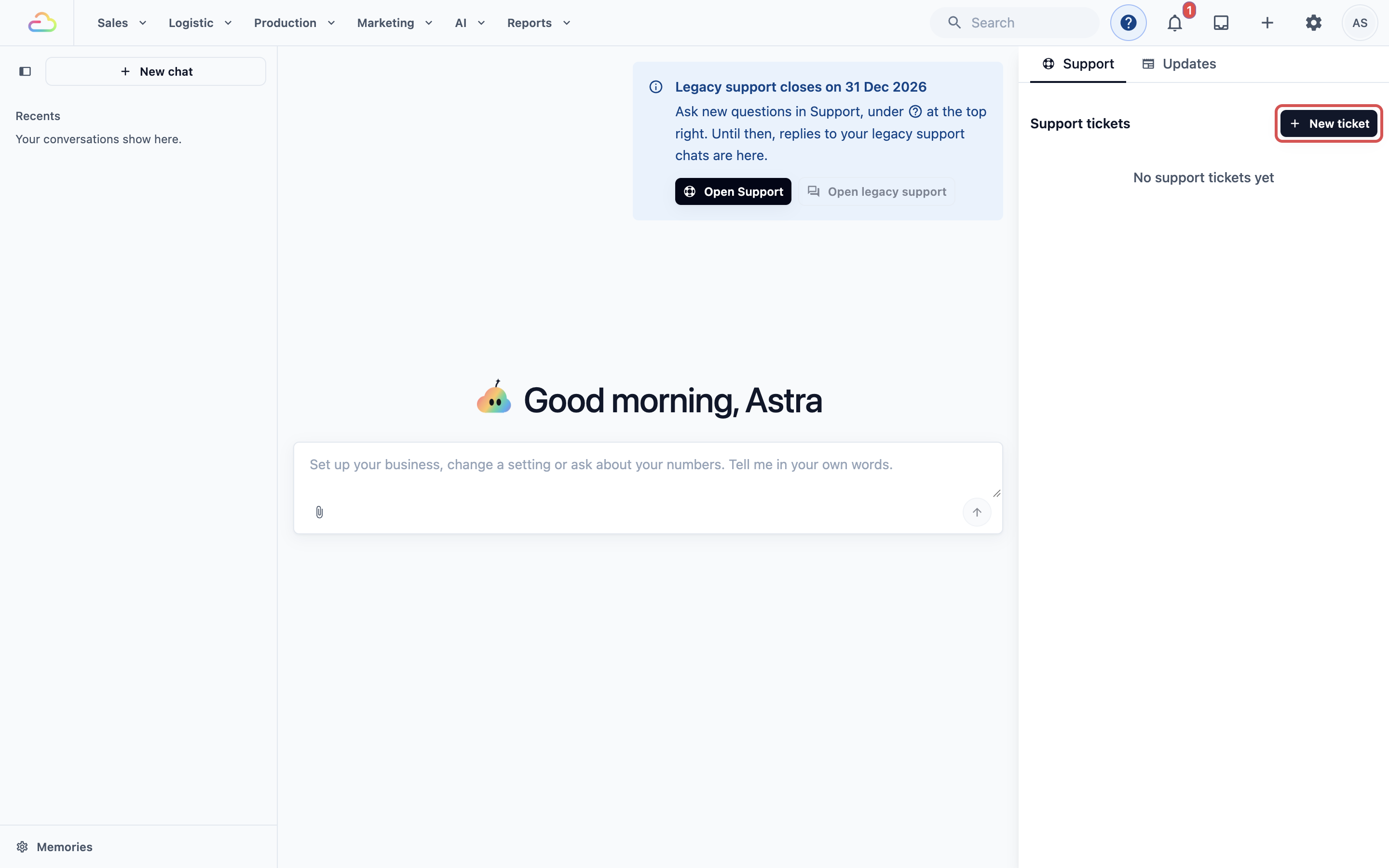
- Choose the Ticket type, then fill in Subject and Message.
- Add your screenshots or a short screen recording.
- Click Submit ticket .
Ticket type
| Option | When to choose it |
|---|---|
| General enquiry | You have a question about how something works. |
| Something is not working | A feature behaves wrongly or shows an error. |
| System outage | EasyBiz is down or can't be used, and your business is blocked. |
Subject
A few words that name the problem, for example "Receipt not printing at Bedok counter".
Message
Describe what happened. The section What to Send for a Fast Answer below lists what to include.
Attachments
You can add up to 5 photos, screenshots or videos to one ticket. Each file must be under 100 MB.
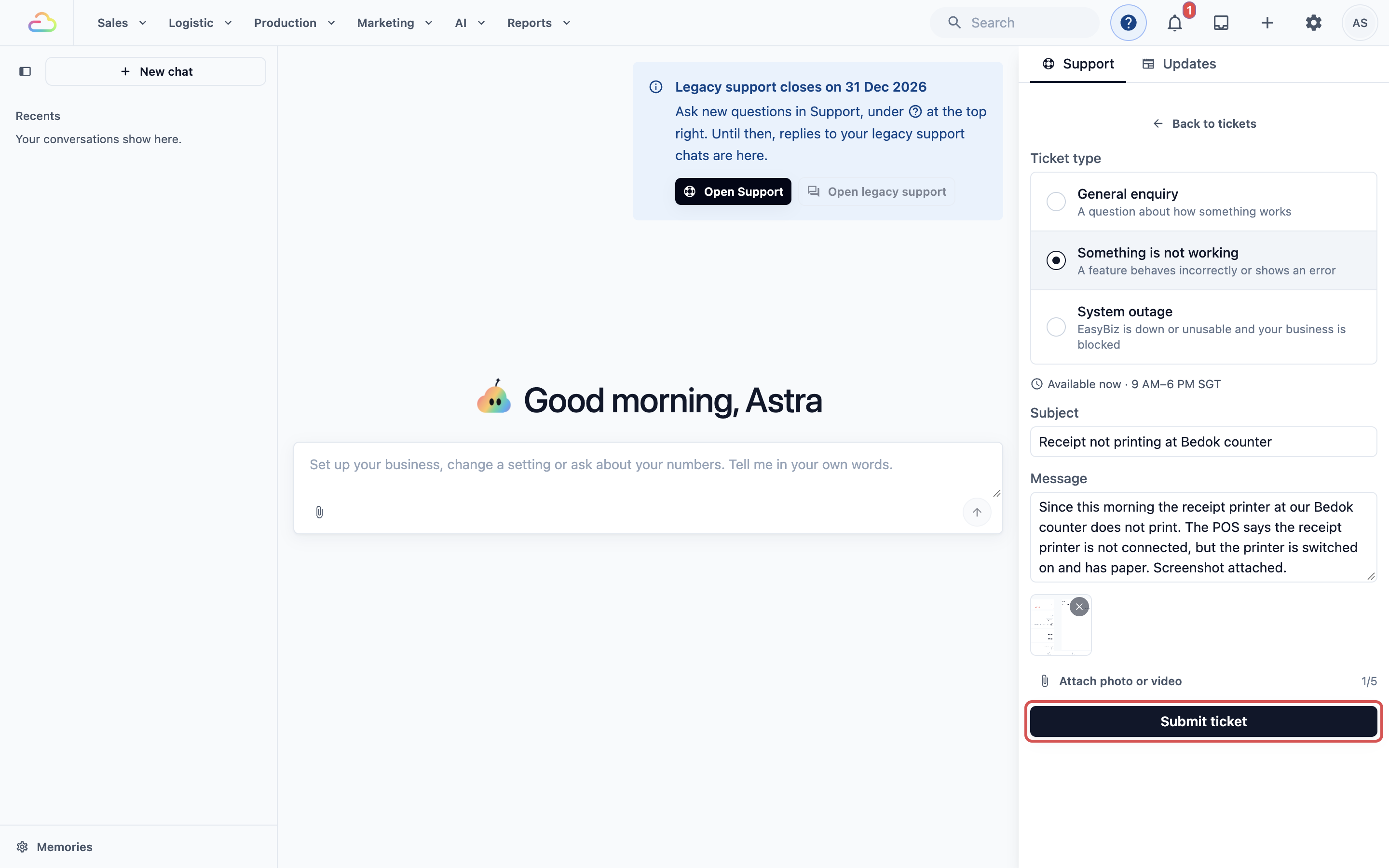
After you submit, the ticket opens and confirms that your message has been sent to the EasyBiz team. Outside office hours, it also says when we're back.
Following Up on a Ticket
When we reply, a small pop-up from EasyBiz Support appears next to the ❓ Help icon. Open the ticket to read the reply, and type in the reply box to answer us. You can attach more screenshots there too.
| Status | What it means |
|---|---|
| Open | Your ticket is with our team. |
| Replied | We've replied and are waiting for you. |
| Closed | The problem is sorted. To ask about something new, click Start a new ticket . |
When a ticket closes, we ask How did we do? Choose Good or Needs improvement , and add a comment if you like. Your rating helps us improve.
Send a Support Ticket from the POS
Counter staff can ask for help from the POS itself.
- Tap the ⚙️ Settings icon in the POS menu bar.
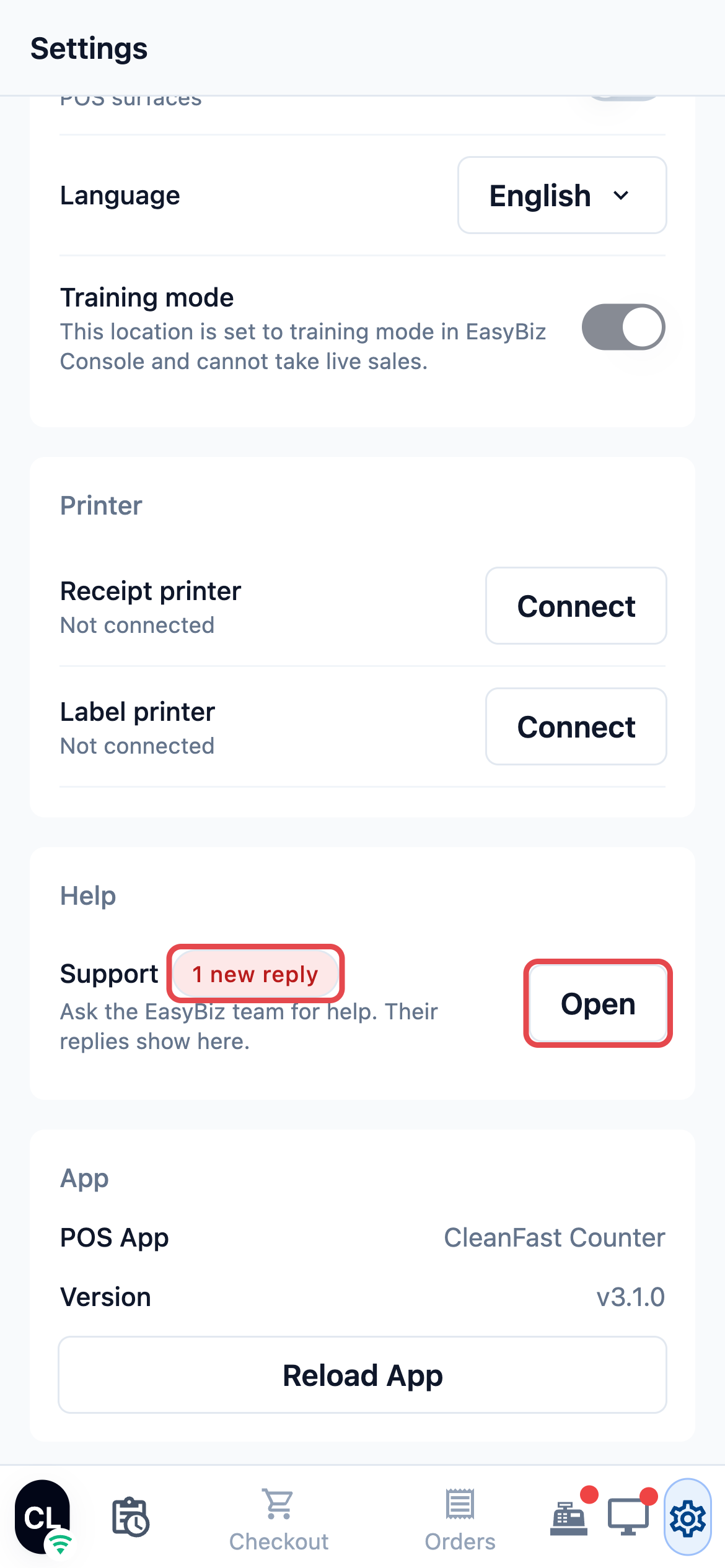
- On a tablet or computer screen, Support opens on the right of the Settings page. On a phone or small screen, scroll to the Help section and tap Open next to Support.
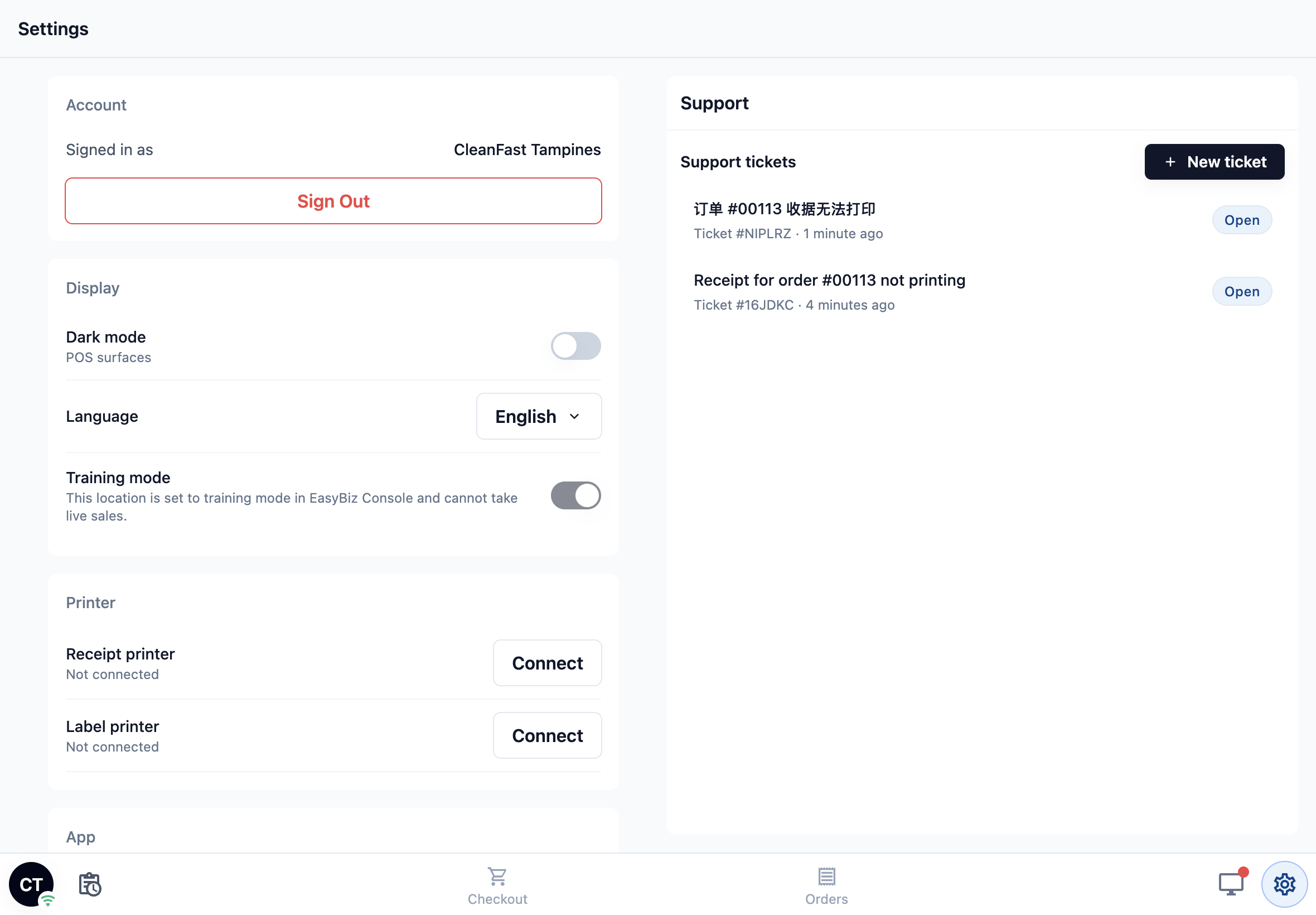
- Tap New ticket , then fill in the ticket the same way as in the Console.
When we reply, the Settings icon and the Support row show the number of new replies, for example 1 new reply.
Contact Us on WhatsApp or by Email
Use these when you can't sign in, or when you prefer to chat from your phone.
- WhatsApp: +65 8083 5257. Our team replies during Singapore business hours.
- Email: hi@easybizcloud.com.
Please include your business name and the email you sign in with, because we can't see which account you're writing from.
What to Send for a Fast Answer
Most back and forth happens because a detail is missing. Include these in your first message:
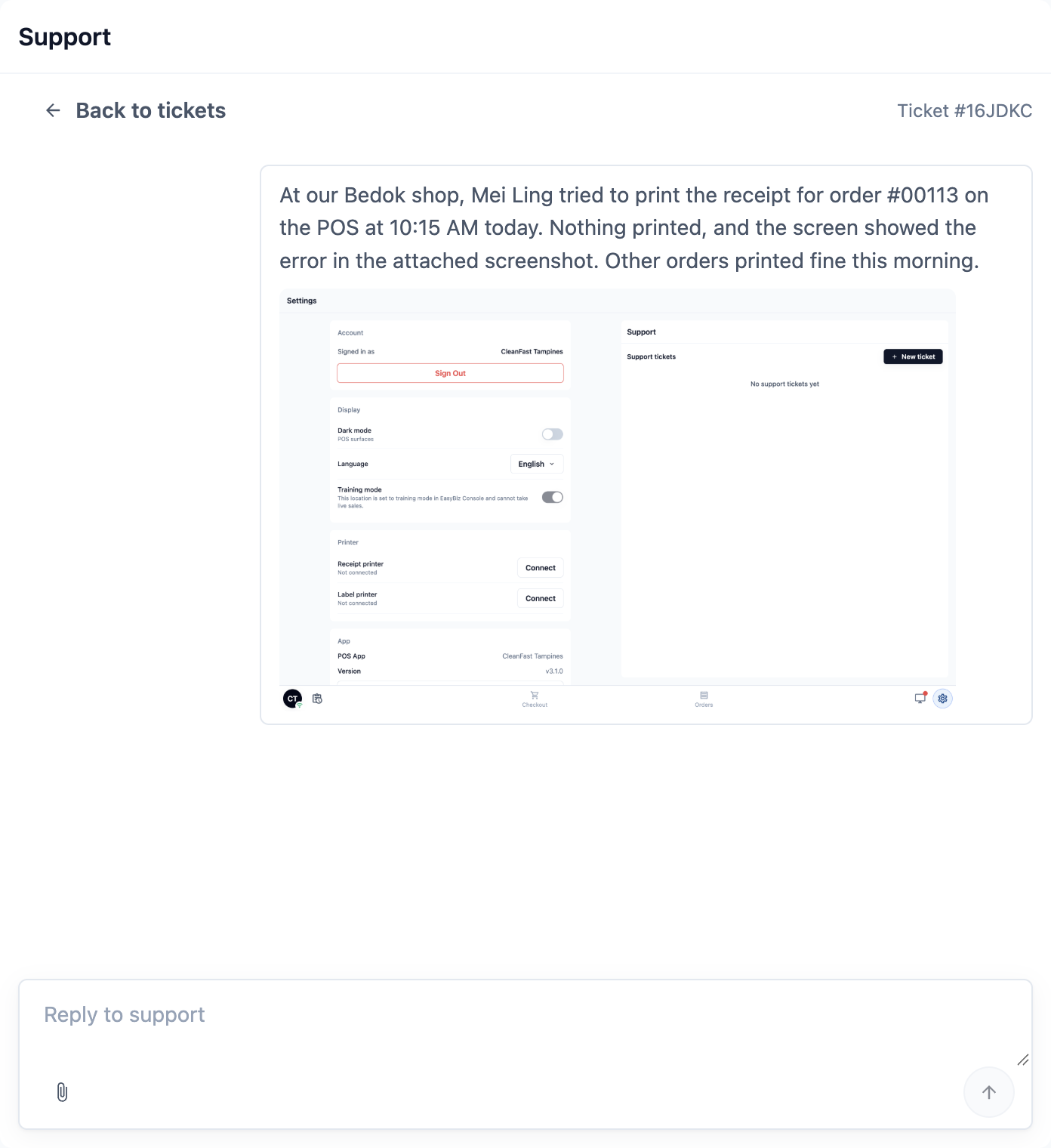
- A screenshot of the whole screen, including any error message. A short screen recording is even better for a problem that happens over several steps.
- The order number, for example #00113, if the problem is about an order. For an invoice, send the invoice number.
- The staff member who saw the problem.
- The device and place: the Console on a computer, a POS at which shop, or the phone app.
- What you did, what you expected, and what happened instead.
- When it happened, and whether it happens every time.
Need a Demo or a Test Account?
You can test EasyBiz without touching your live shop:
- A separate trial workspace. Sign up again with a different email address. You get 30 days free with no card needed, and its settings, customers and orders stay apart from your live business. See Making the Most of Your Free Trial.
- Training mode on the POS. In POS Settings, turn on Training mode so staff can practise. Practice orders do not collect payment or appear in sales.
Avoid test orders in your live workspace outside Training mode. They are real orders, so they can message your customers and count in your reports.
Moving from Console 2.0: What Changed
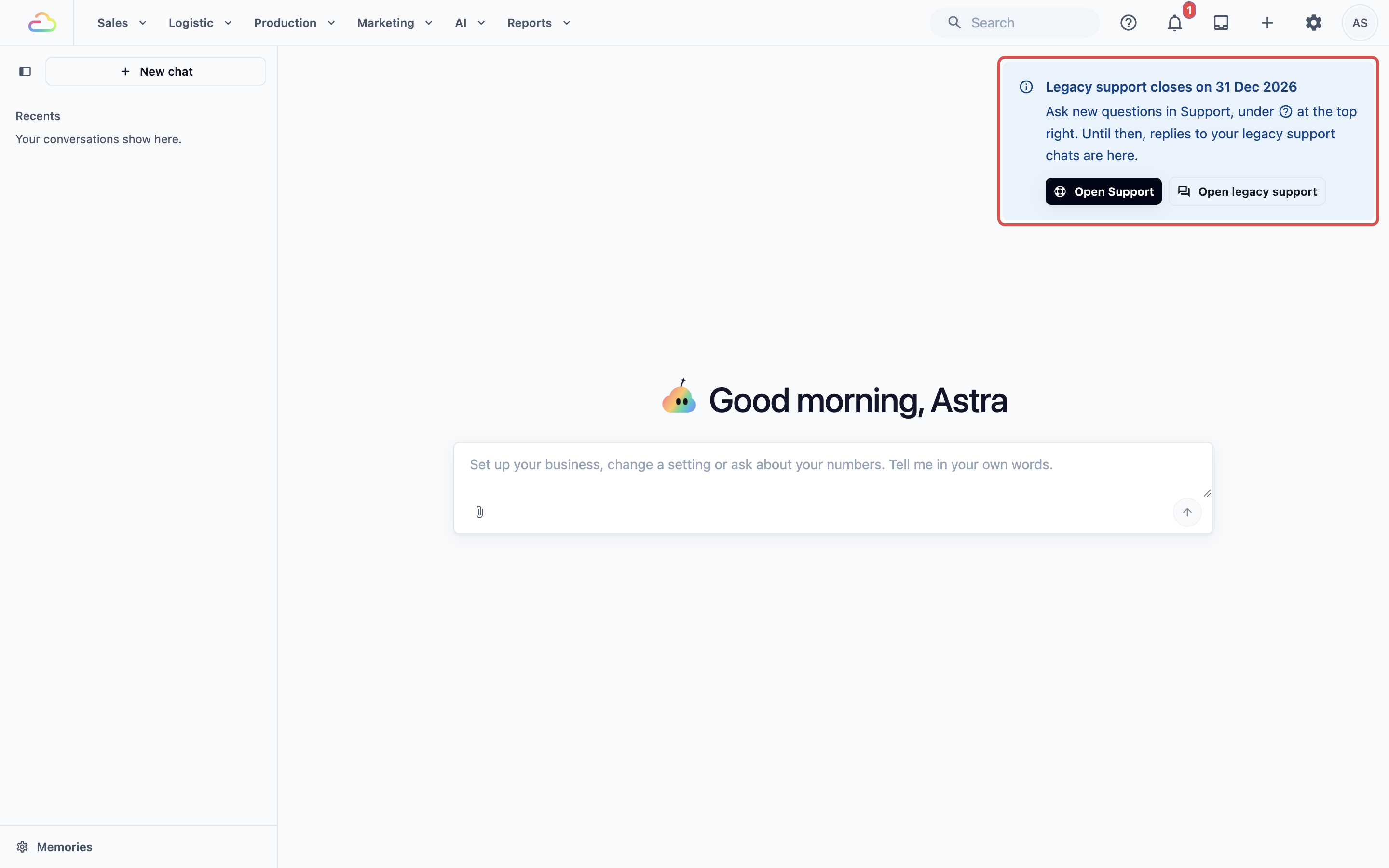
The Contact us chat button on the Console home page was removed on 17 October 2026. New questions now go to Support, under the ❓ Help icon.
- If you had chats with us in the old system, the Console home page shows Legacy support closes on 31 Dec 2026.
- Click Open legacy support to read our replies to those chats until then.
- Click Open Support to start a new ticket.
You don't need to set anything up. Support works for every signed-in user from day one.
FAQs
Can my staff see the tickets I send?
Not from the Console. Each person sees only their own Console tickets. Tickets sent from a POS are shared by all counters at that shop, so any staff member there can read the reply.
Do you reply on weekends?
Our team works Monday to Friday, 9 AM to 6 PM SGT. If EasyBiz is down and your shop is blocked, choose System outage as the ticket type. Outages are handled outside office hours, including weekends.
When should I choose System outage instead of Something is not working?
Choose System outage only when EasyBiz can't be used and your business has stopped, for example no counter can take orders. If one feature, printer or order has a problem, choose Something is not working.
Should I ask the AI Assistant or contact Support?
Ask the Assistant for how-to and setup questions, and to find a setting. Contact Support when something shows an error, looks wrong, or the Assistant can't help.
Can I send a video instead of a screenshot?
Yes. A short screen recording often shows the problem faster. You can attach up to 5 files per ticket, each under 100 MB.
Will testing in a trial workspace change my live shop?
No. A trial workspace has its own settings, customers and orders. Nothing you do there reaches your live customers or reports.