
Before You Start
- Know your billing area first. This guide builds on Understanding Your Subscription and Billing, which explains each Billing tab, your free trial and cancelling.
- You need billing access. The account owner always has it. Other team members need a Full seat with Billing & plan ticked in their Administration settings. See Inviting Your Team and Managing Access.
- Check which billing your account is on. If the Subscription tab shows two columns, V1 billing (currently charging) and V2 billing from a date, your account is still on the previous EasyBiz billing. A few screens below look different for you, and each section says how.
- No customer details are needed for anything in this guide.
See What You Pay For
Start here before you change anything, so you know what is already on your plan.
- Click the ⚙️ Settings icon in the top-right corner.
- Under the Administration section, click Billing.
- Click the Subscription tab.
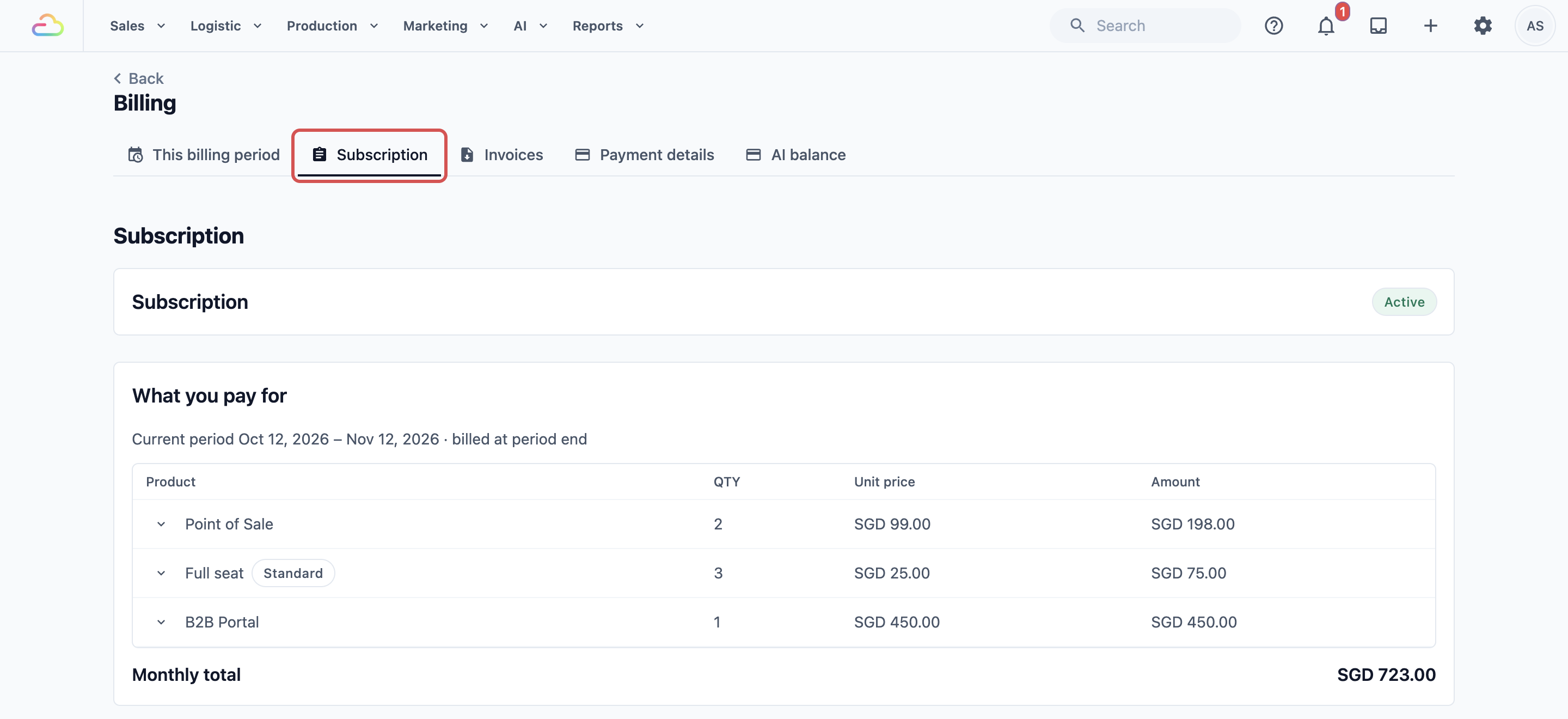
The What you pay for panel lists each product on your plan:
- Product. The product's name. Click it to open that product's page.
- Qty. How many you have, such as 2 shops or 3 people.
- Unit price and Amount. The price of one, and the total for that line.
- Monthly total. What your plan costs for a full month.
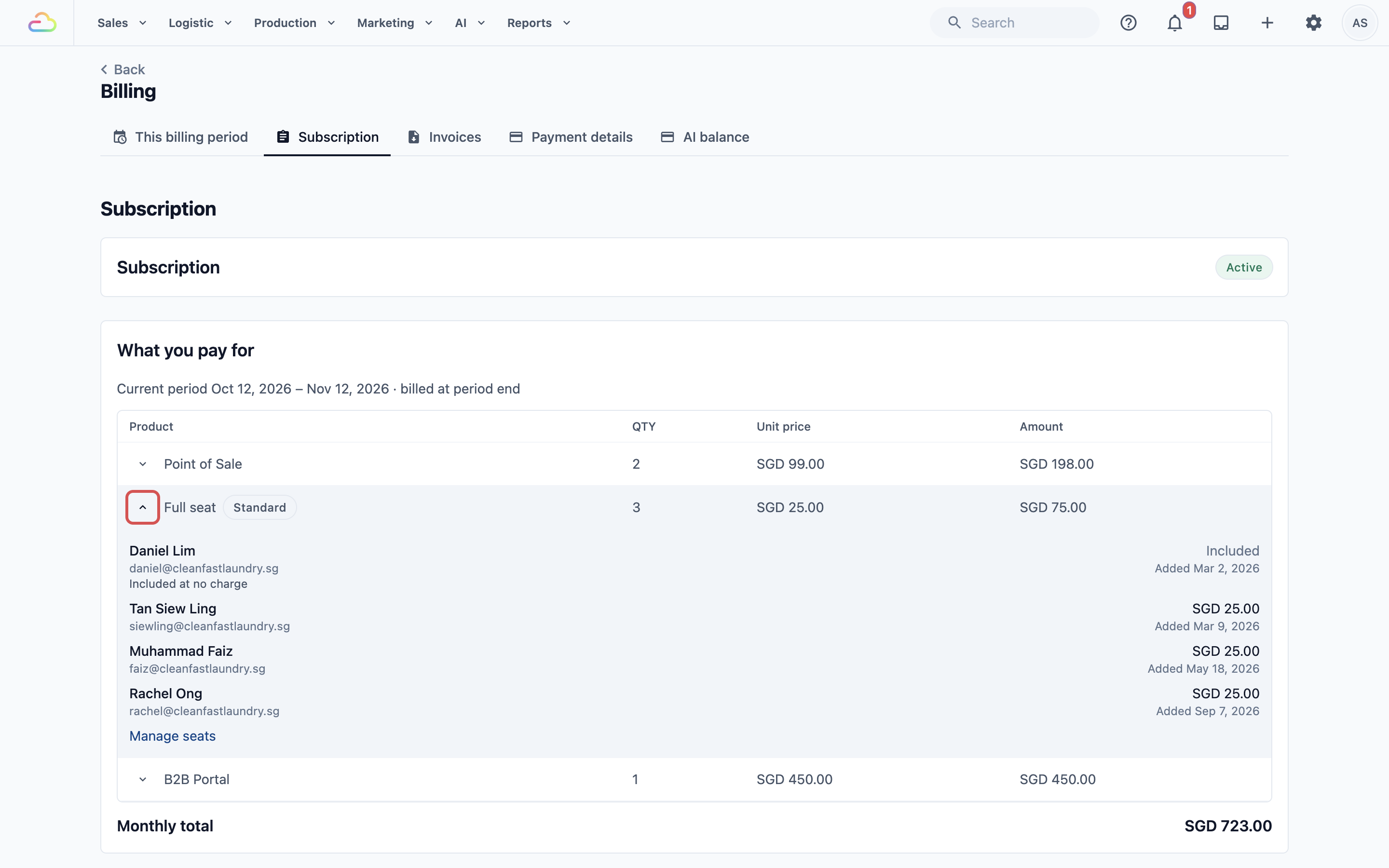
Click Show what is billed on a line to see exactly who and what is counted, such as each person holding a seat or each shop.
During your free trial, a note under the total says this is what your subscription costs when the trial ends. Nothing is charged during the trial.
Add a Product
EasyBiz adds each product from the page where you use it, not from a shop list in Billing. Before anything is added, the screen shows you the price. Here is where each one starts:
- Point of Sale shop. In ⚙️ Settings, under Sales Channels, click Point of Sale, then Add Shop. Each shop adds one to the Point of Sale line on your bill.
- Online Store or Mobile App. In ⚙️ Settings, under Sales Channels, click Online Store & Mobile App. Enabling and previewing are free. An Online Store joins your plan when you first publish it. A Mobile App joins on its first day in the App Store or Google Play.
- Team members. Adding a person who works in the back office gives them a Full seat. Counter staff who only clock in at the POS don't need one. See Inviting Your Team and Managing Access.
- B2B Portal. Follow the steps below.
Add B2B Portal
Use this only if you sell to business customers, such as hotels or partner shops, who order through their own portal.
- Click the ⚙️ Settings icon in the top-right corner.
- Under the Sales Channels section, click B2B Agents.
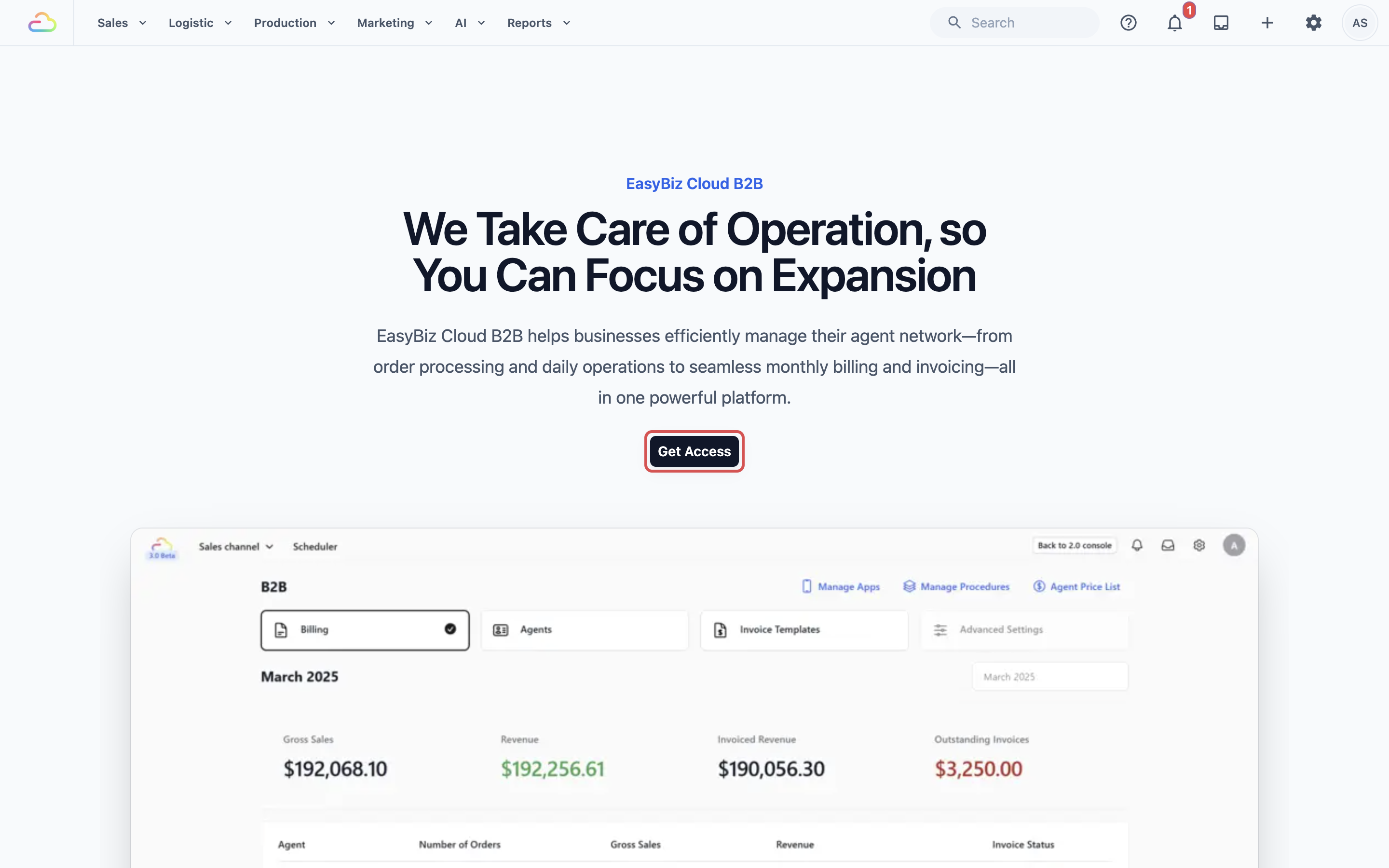
- Click Get Access.
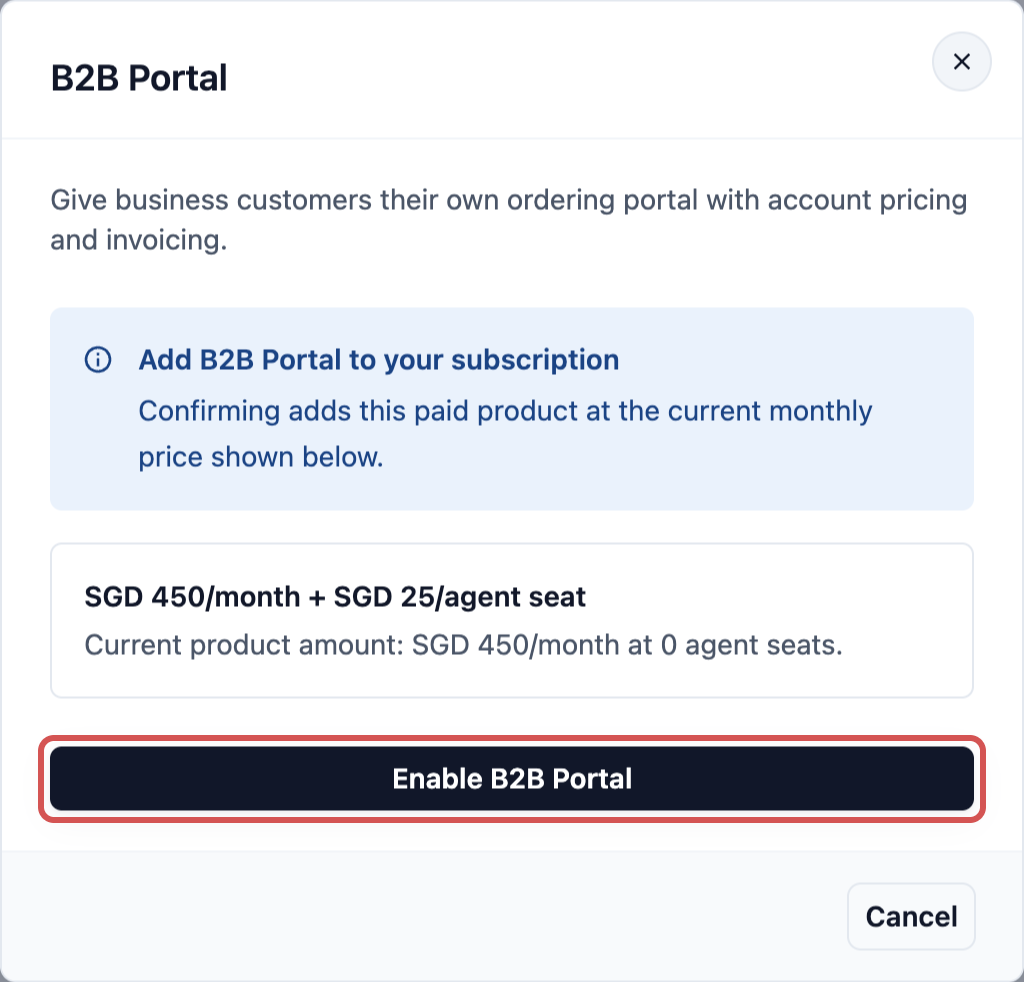
- Read the Add B2B Portal to your subscription box. It shows the monthly price and the price per agent seat.
- Click Enable B2B Portal, then Done.
B2B Portal now appears on your Subscription tab, and B2B Agents opens your agent list. During your trial the box says it is free during your trial instead of showing a charge.
Remove a Product
Like adding, each product is removed where it lives. Once it is removed, it comes off your plan and is no longer charged.
Remove B2B Portal
- Click the ⚙️ Settings icon in the top-right corner.
- Under the Administration section, click Billing.
- Click the Subscription tab, then click B2B Portal in the What you pay for list.
- In the Remove from subscription box, click Remove product.
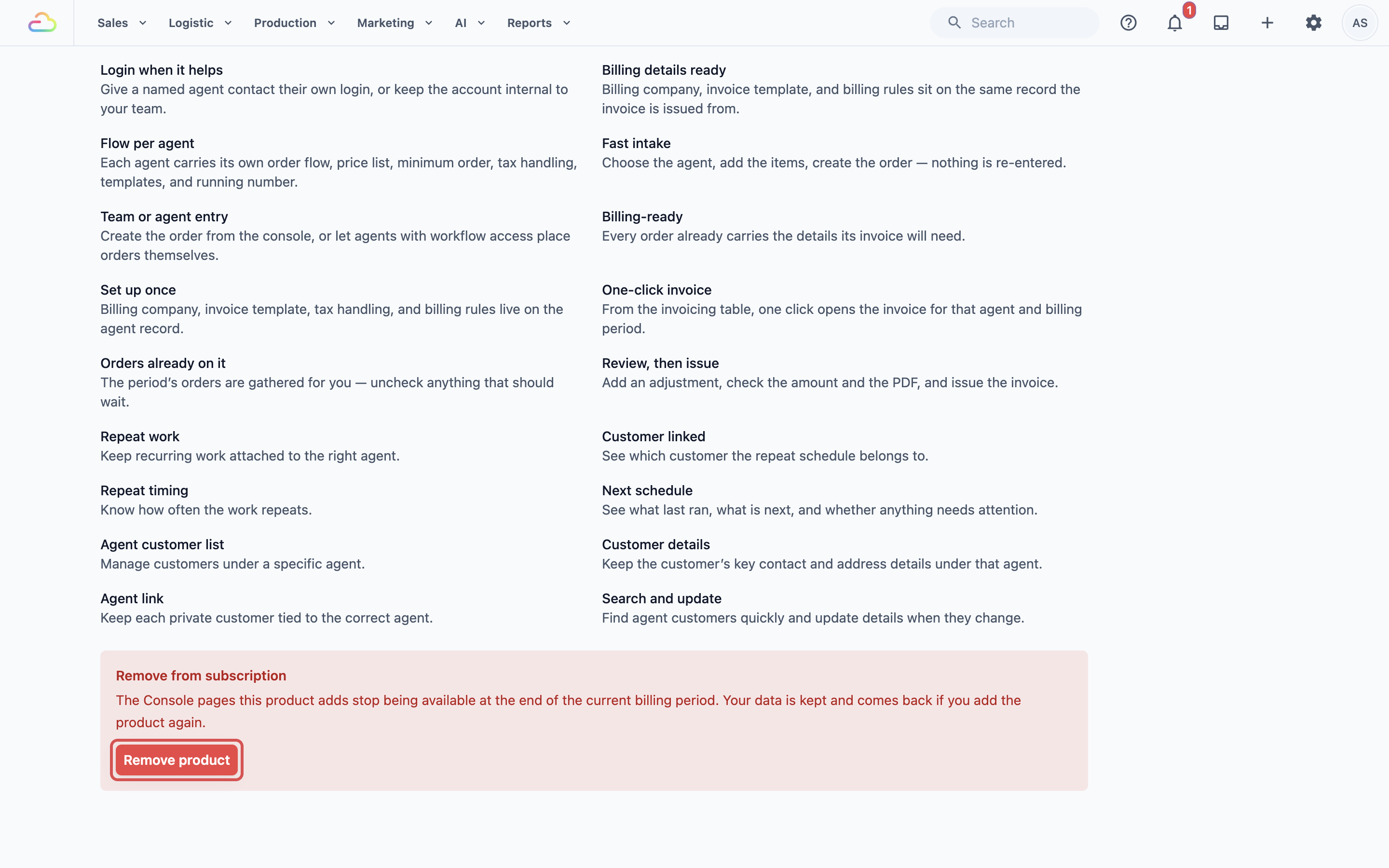
Your agents, their prices and their past orders are kept. They come back if you add B2B Portal again.
Close a Point of Sale shop
- In ⚙️ Settings, under the Sales Channels section, click Point of Sale.
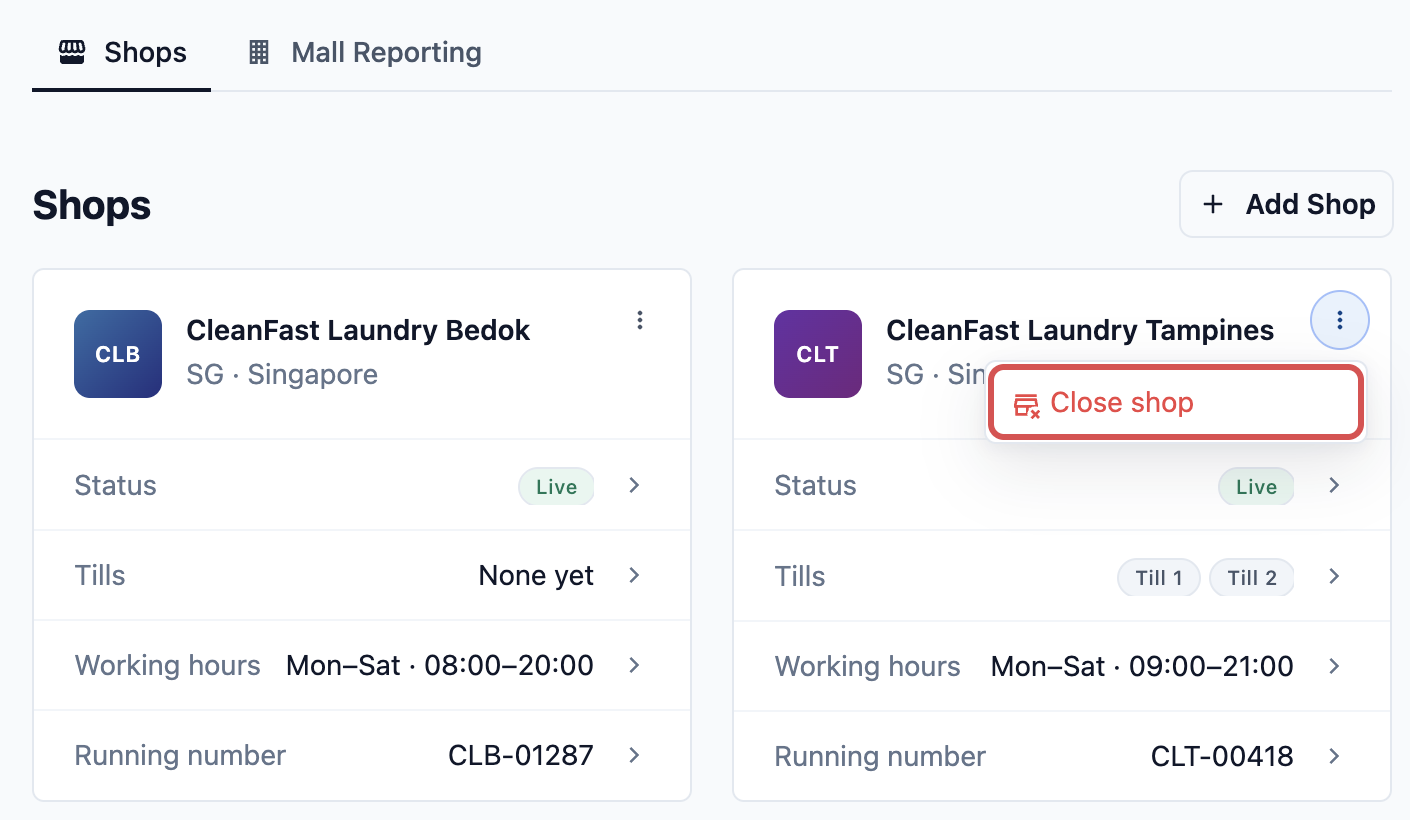
- On the shop's card, open its menu and click Close shop.
- Confirm. The shop is removed from your subscription and moves to Closed Shops, where you can restore it later.
Close an Online Store or Mobile App
- In ⚙️ Settings, under the Sales Channels section, click Online Store & Mobile App.
- Click Close Online Store or Close Mobile App.
- Type the store name when asked, then click the close button again to confirm.
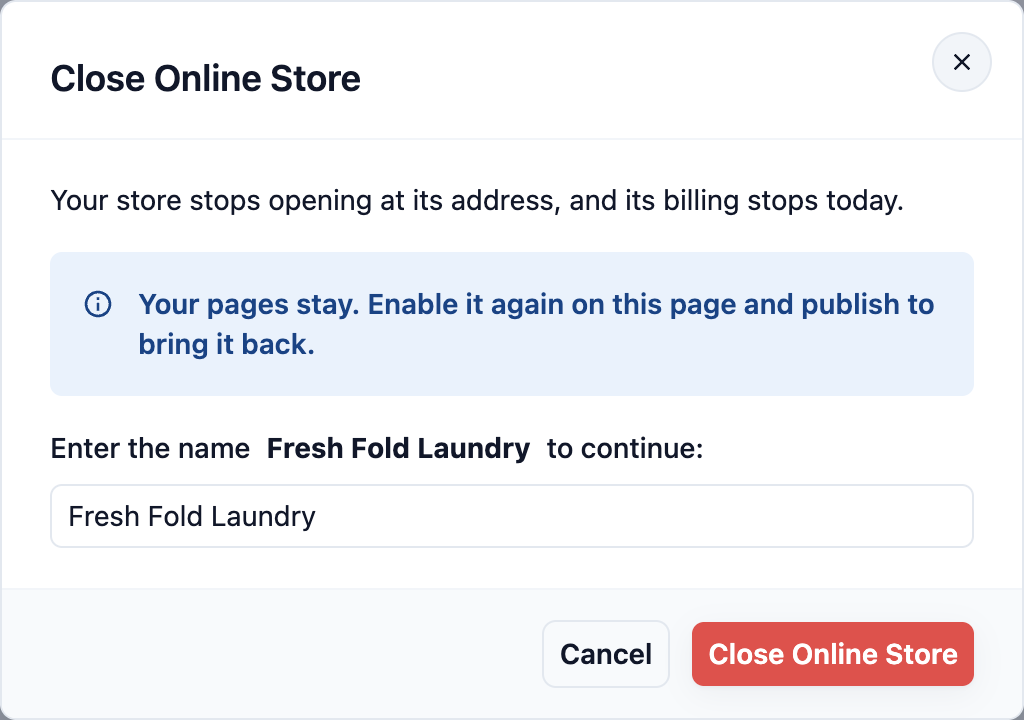
The store stops opening at its web address, and its billing stops that day. Your pages are kept. To bring it back, enable it again on the same page and publish.
Remove a team member's seat
Remove the person, or their Full seat, in ⚙️ Settings › Users & Access. Turning off some products for a person narrows what they can reach, but it does not change the seat price.
Why a Page Can Still Show After a Change
Your plan and your menus are separate. Removing a product stops the product. It doesn't tidy every link to it.
- B2B Agents still shows in Settings. The B2B Agents card stays in the Sales Channels section for staff with full settings access. Without B2B Portal, opening it shows the Get Access page, not your agents. This is not a charge.
- An Online Store you hid is still live. Changing your store's pages, removing its link from your website, or stopping orders for a service does not take the store offline. Only Close Online Store stops its charge.
- A shop in training is still billed. Moving a shop to training lets staff practise, but billing and the shop's POS licence don't change. Use Close shop to stop the charge.
Why Your Bill Changed
EasyBiz bills at the end of each billing period. Each bill counts what is on your plan at the end of that period, at the full monthly price. There is no part-month charge, so the timing of a change matters.
Your bill goes up when:
- You added a person who works in the back office. Each one holds a Full seat.
- You added a shop, or published a store. A new Point of Sale shop, a newly published Online Store, a Mobile App that reached the App Store or Google Play, or a WhatsApp number with Mini-Apps turned on each adds a line.
- You moved a product to Professional. Moving Sales, CRM, Production or Field Service to Professional moves every Full seat on your account to the Professional rate. Point of Sale Professional does not change seat prices.
- You added something near the end of the period. It is charged for the whole period, even if you added it on the last day.
- Your B2B agents grew. B2B Portal includes 10 agent seats. Each one after that adds to the bill.
- Your trial ended. Your first bill arrives at the end of your first paid month.
Your bill goes down when you remove a product, close a shop or store, or remove a seat before the period ends. That period's bill no longer includes it.
To check, open the Subscription tab and click Show what is billed on the line that grew.
Find Your Monthly Invoice
- Click the ⚙️ Settings icon in the top-right corner.
- Under the Administration section, click Billing.
- Click the Invoices tab.
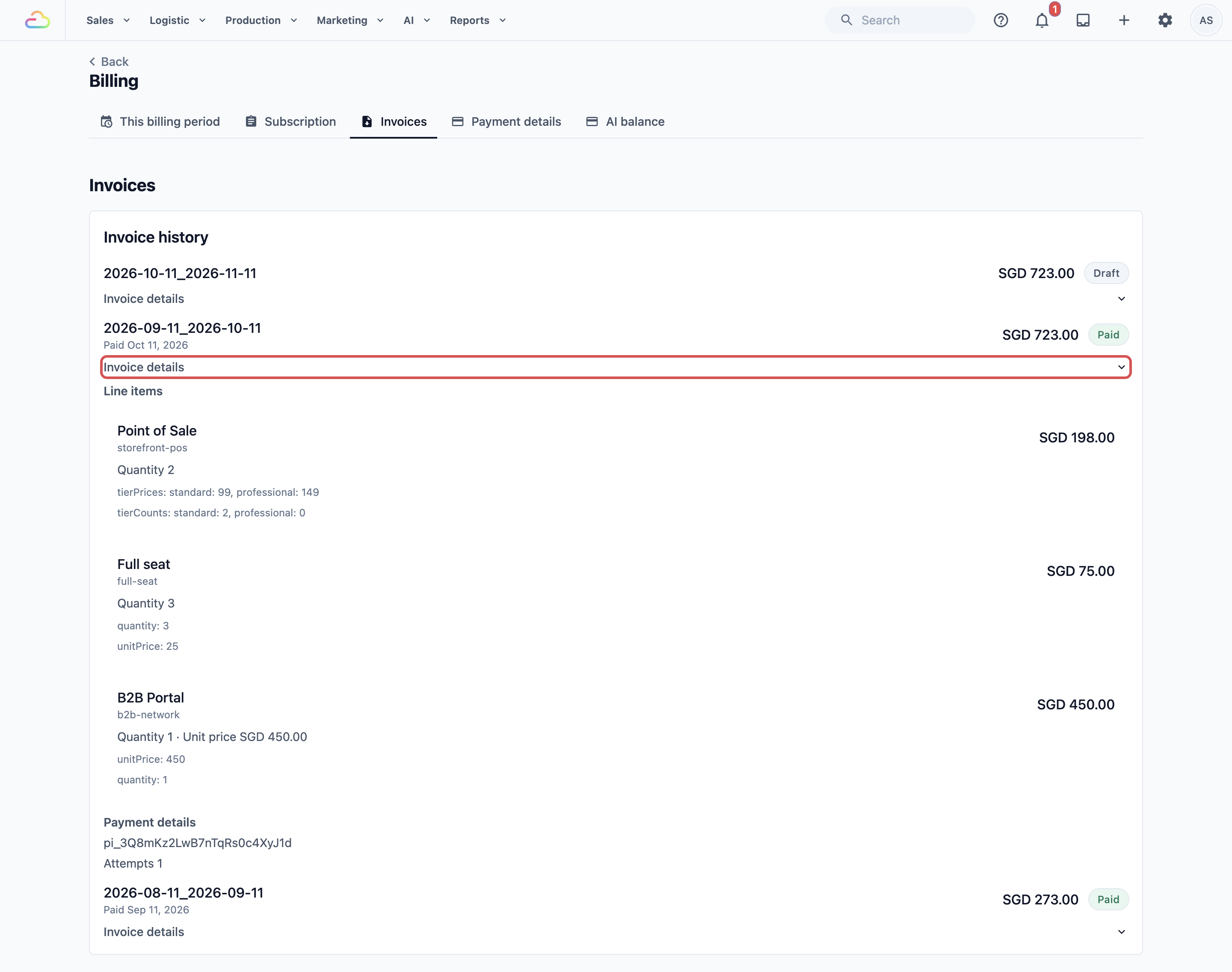
Each month shows its total and a status:
Status
| Status | What it means |
|---|---|
| Draft | The current period. Its amount can still change until the period ends. |
| Open | The bill is final and waiting to be paid. |
| Paid | Your card was charged. The date paid shows under the month. |
| Payment failed | The charge did not go through. See the next section. |
| Uncollectible | This bill is no longer being collected. Contact Support if you have a question about it. |
Click Invoice details to see the line items behind the total and how it was paid. When a payment goes through, a receipt is emailed to your billing email.
On the previous billing, the Invoices tab is a table instead. Use Download invoice or Download receipt on a row to save a copy for your accountant.
Change Your Card and Pay Again
If your card expired or a payment failed, add the new card first, then pay.
- Click the ⚙️ Settings icon in the top-right corner.
- Under the Administration section, click Billing.
- Click the Payment details tab.
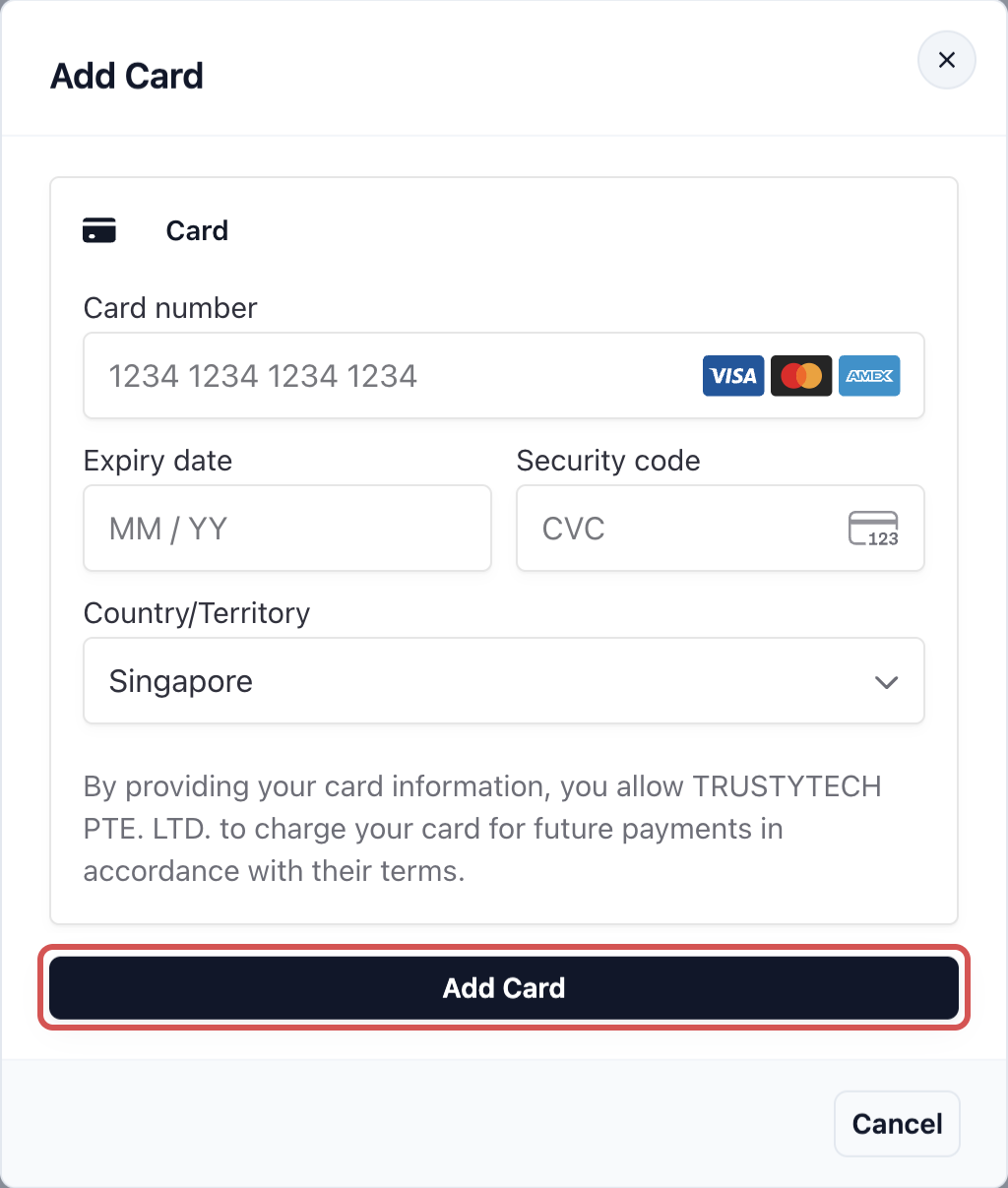
- Under Payment method, click Add Card, enter the card, then click Add Card at the bottom of the box.
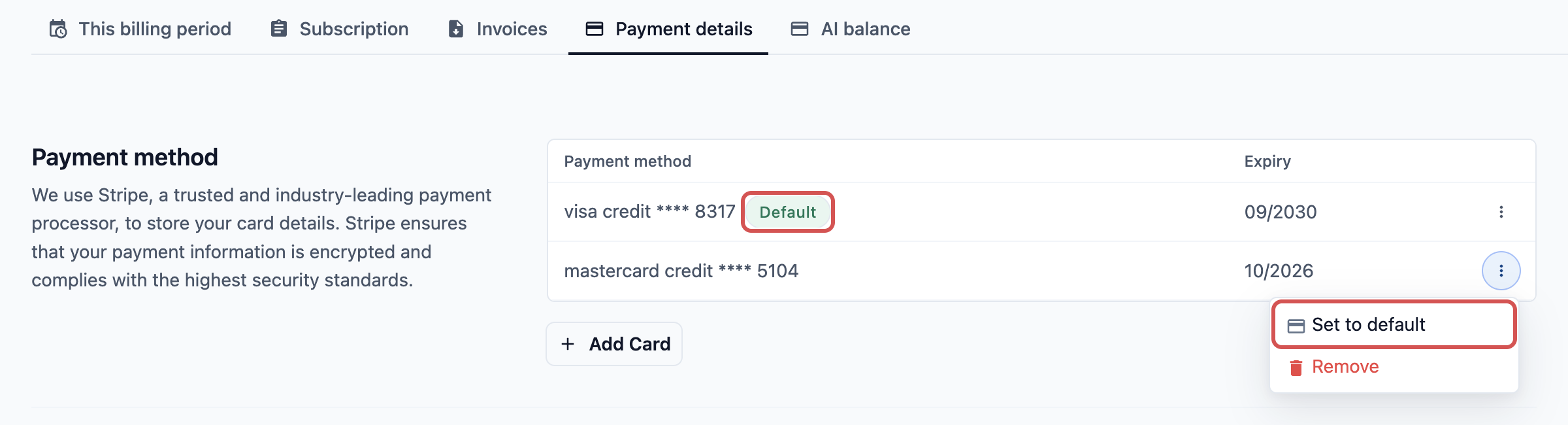
- Check the new card shows Default. If it doesn't, click Set to default on it. Your bills are always charged to the default card.
- Click the This billing period tab. In You have an unpaid invoice, click Pay now.
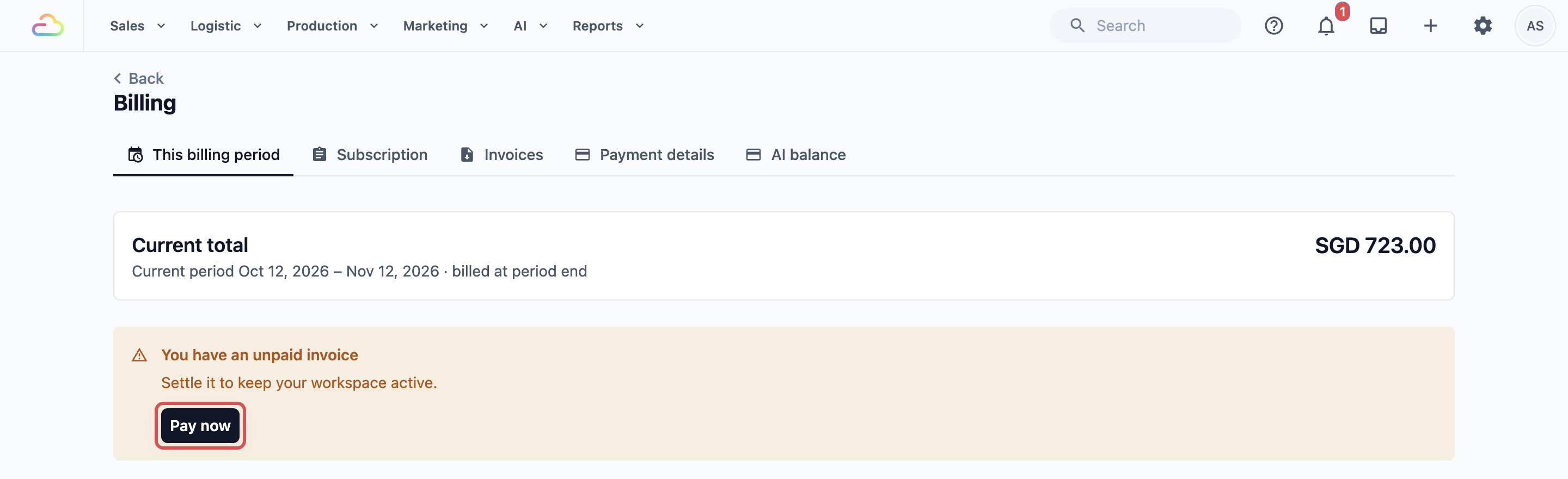
When it goes through, you see Invoice paid. If you see Payment was not completed, check the reason shown and the invoice status before trying again.
On the previous billing, open the Invoices tab and click Pay on the unpaid invoice instead.
You can remove your old card once the new one is the default. EasyBiz won't remove the default card while your subscription is active.
FAQs
I turned off my online store. Why am I still being charged?
A store is charged while it is live at its web address, whether or not anyone orders. Editing its pages or hiding its link doesn't take it offline. Use Close Online Store on the Online Store & Mobile App page, and its billing stops that day. If you still run an online store from the older system, contact Support to stop it.
I closed my store. Why did a bill come after that?
On current EasyBiz billing, each bill is issued just after the billing period it covers ends. A bill that comes soon after you close a store can be for the period before, when the store was still live, so check the period dates on the invoice. On the previous billing, an online store charged per order is billed after each period ends, for that period's orders. For example, a bill issued on 1 October for the period up to 30 September counts September's orders.
Do cancelled orders count towards my bill?
No. On current EasyBiz pricing, no product is charged per order. A shop, store or app costs the same in a busy month and a quiet one, so cancelled orders, refunds and test orders don't change your bill.
I removed B2B Portal. Why is B2B Agents still in my Settings?
The B2B Agents card stays in Settings for staff with full settings access. Without B2B Portal, it opens the Get Access page instead of your agents, and nothing is charged. Your agents and their orders are kept for when you add it again.
Does moving a shop to training stop its charge?
No. Training lets staff practise without real sales, but the shop's POS licence and billing don't change. To stop the charge, close the shop.
If I turn off some products for a staff member, is their seat cheaper?
No. One Full seat covers a person across Sales, CRM, Production and Field Service, at your account's tier. Narrowing what they can reach doesn't change the price. Remove their seat in Users & Access if they no longer need the back office.
I updated my card. Will the failed payment go through on its own?
EasyBiz retries on its own a few days later, but you don't have to wait. Make sure the new card is the default, then click Pay now on the This billing period tab.
Do I need the Mobile App if I already have an Online Store?
No. They are separate products. The Online Store works in any web browser, and the Mobile App is your own branded app in the App Store and Google Play. Each is charged only once it is live, so you can start with one and add the other later.