
Before You Start
- Your POS app is ready. A POS app is the layout your counter shows, set up in the Console. If you have not made one yet, follow Create Your POS App.
- You have a suitable counter device. Check the supported devices in What You Need Before Setting Up Your POS.
- Required access: signing in a counter device needs an owner or admin who can open Settings in the EasyBiz Console. Your counter staff do not need their own login for this.
- Customer identification: none. Nothing in this guide changes your customers' records or orders.
Which App Does What
| App | Who uses it | Where it runs |
|---|---|---|
| EasyBiz POS | Counter staff taking orders and payments | A Windows PC or Mac in Chrome or Edge, an iPad, or an Android tablet of 10 inches or larger |
| EasyBiz Workflow | Drivers, cleaners, technicians, production staff and owners on the go | iPhone or Android phone |
| EasyBiz Console | Owners and admins running settings, orders and reports | A web browser on a computer |
There is no separate driver app. Your drivers use EasyBiz Workflow, and their access decides which pages they see.
Download the POS App
Pick the option that matches your counter device.
iPad
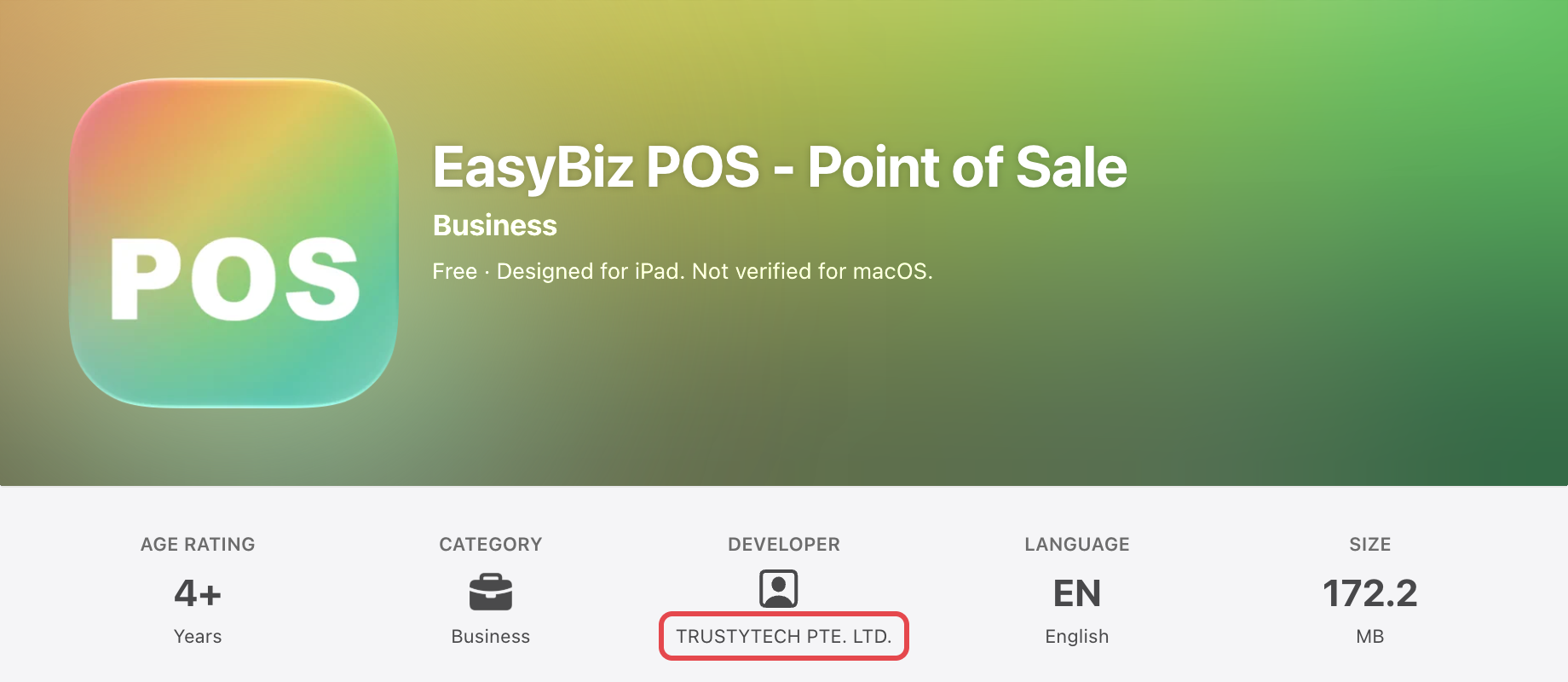
- Open the App Store and search for EasyBiz POS.
- Check that the developer is TRUSTYTECH PTE. LTD.
- Tap Get.
Android tablet
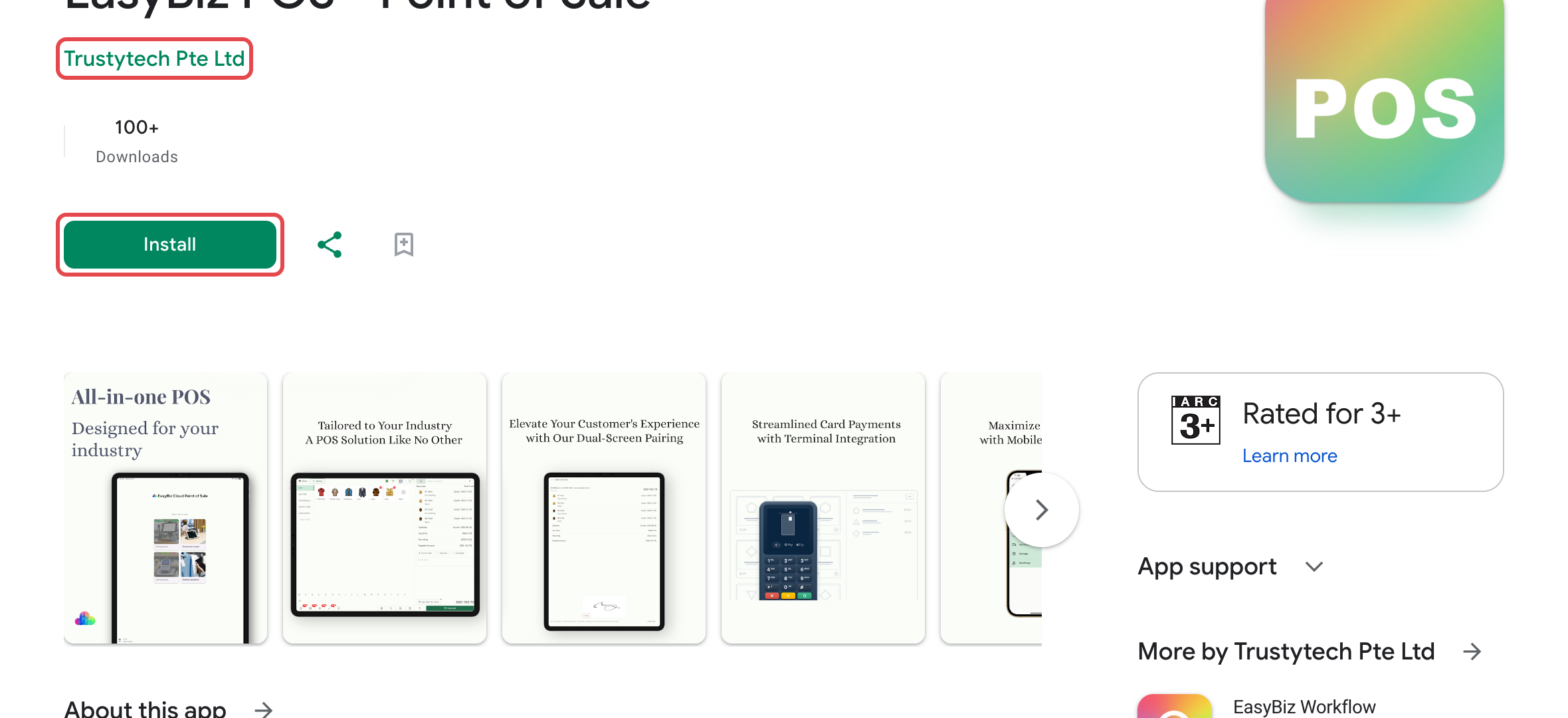
- Open Google Play and search for EasyBiz POS.
- Check that the app is EasyBiz POS by Trustytech.
- Tap Install.
Windows PC or Mac
On a computer there is nothing to download from a store. The POS runs in Google Chrome or Microsoft Edge, and you can install it so it opens like an app.
- Open Chrome and go to newpos.easybizcloud.com.
- Click the install icon on the right side of the address bar, then click Install.
- Open EasyBiz POS from the Start Menu on Windows, or from Applications or Launchpad on a Mac. Pin it to the Taskbar or Dock so your staff find it each morning.
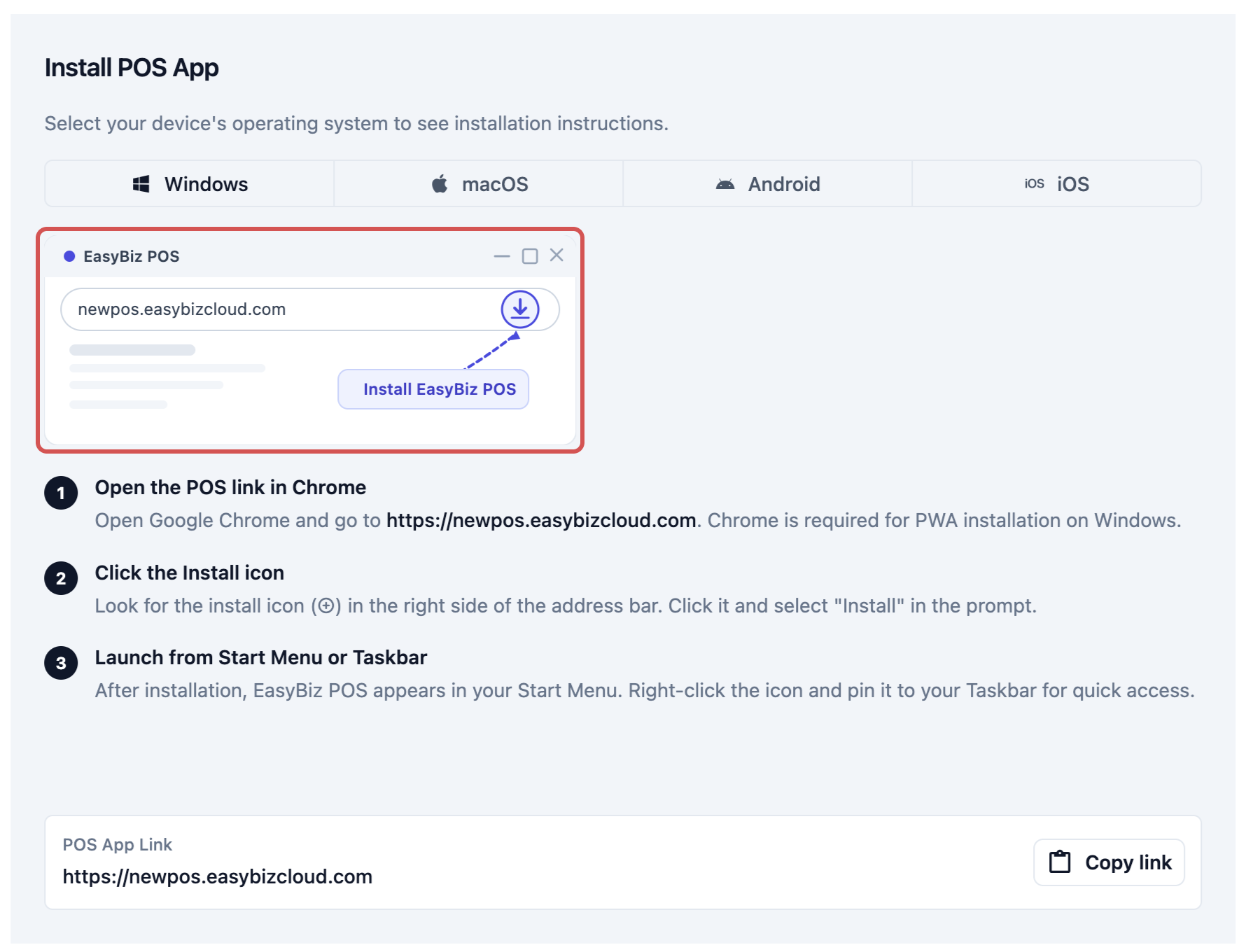
You can see the same install steps inside the Console. Go to the Point of Sale settings, click Sign in to a shop POS, and pick your device under Install POS App. The POS App Link at the bottom has a copy button, so you can send the address to the counter computer.
Register a New POS Device
Registering a device means linking that tablet or computer to one of your shops and one of your POS apps. You do it once per device, with an 8-character device code. Your counter staff never type an email or password on the POS.
On the counter device
- Open EasyBiz POS.
- On an iPad or Android tablet, the app asks How will you use this device? Tap Set up as main POS on the Main POS card.
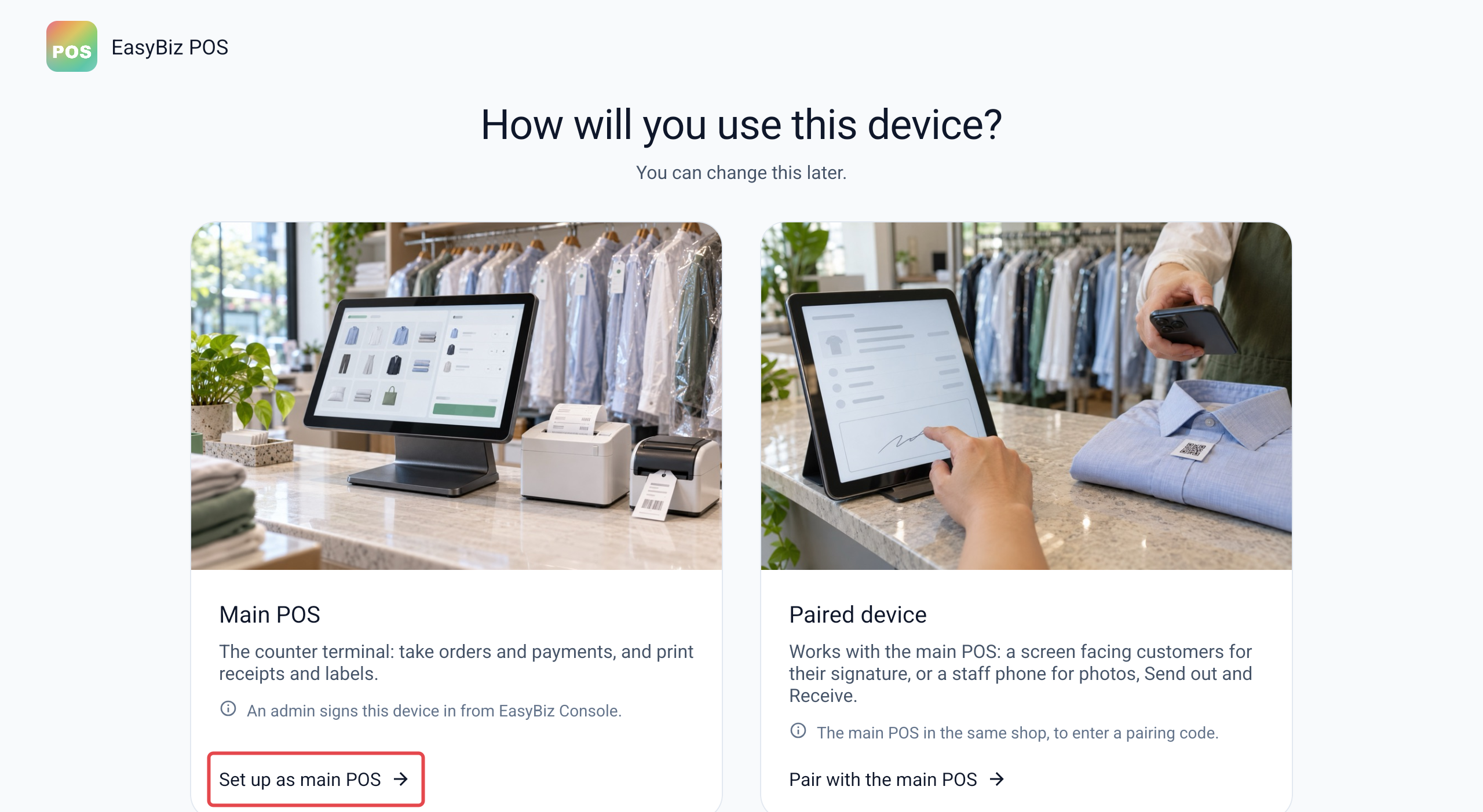
- The screen now shows a large Device Code in the format XXXX-YYYY, with Waiting for authorization below it. On a computer, the POS opens straight to this screen.
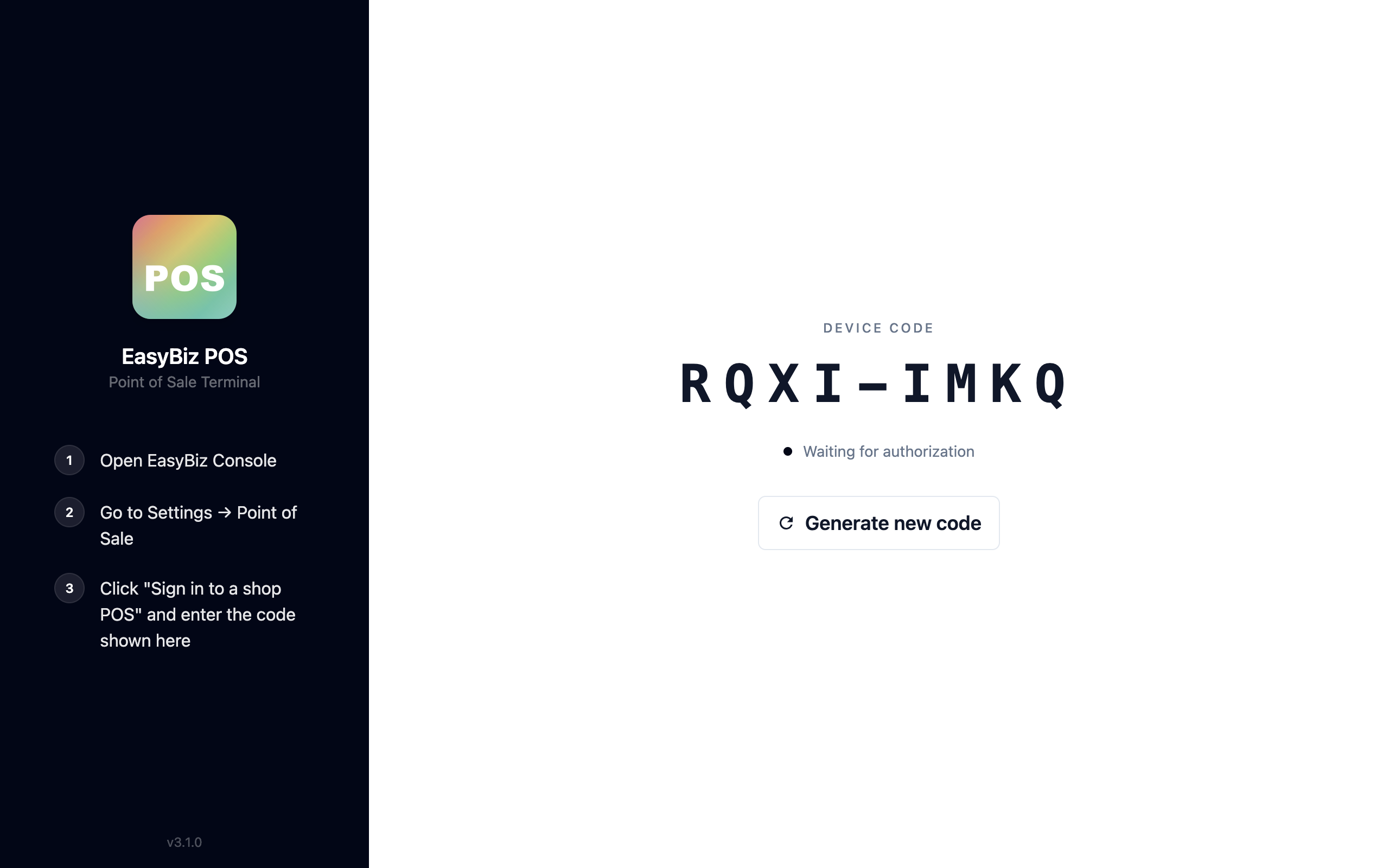
- Send the code to the owner or admin, for example as a photo on WhatsApp.
In the EasyBiz Console
- Click the ⚙️ Settings icon in the top-right corner.
- Under the Sales Channels section, click Point of Sale.
- Click Sign in to a shop POS.
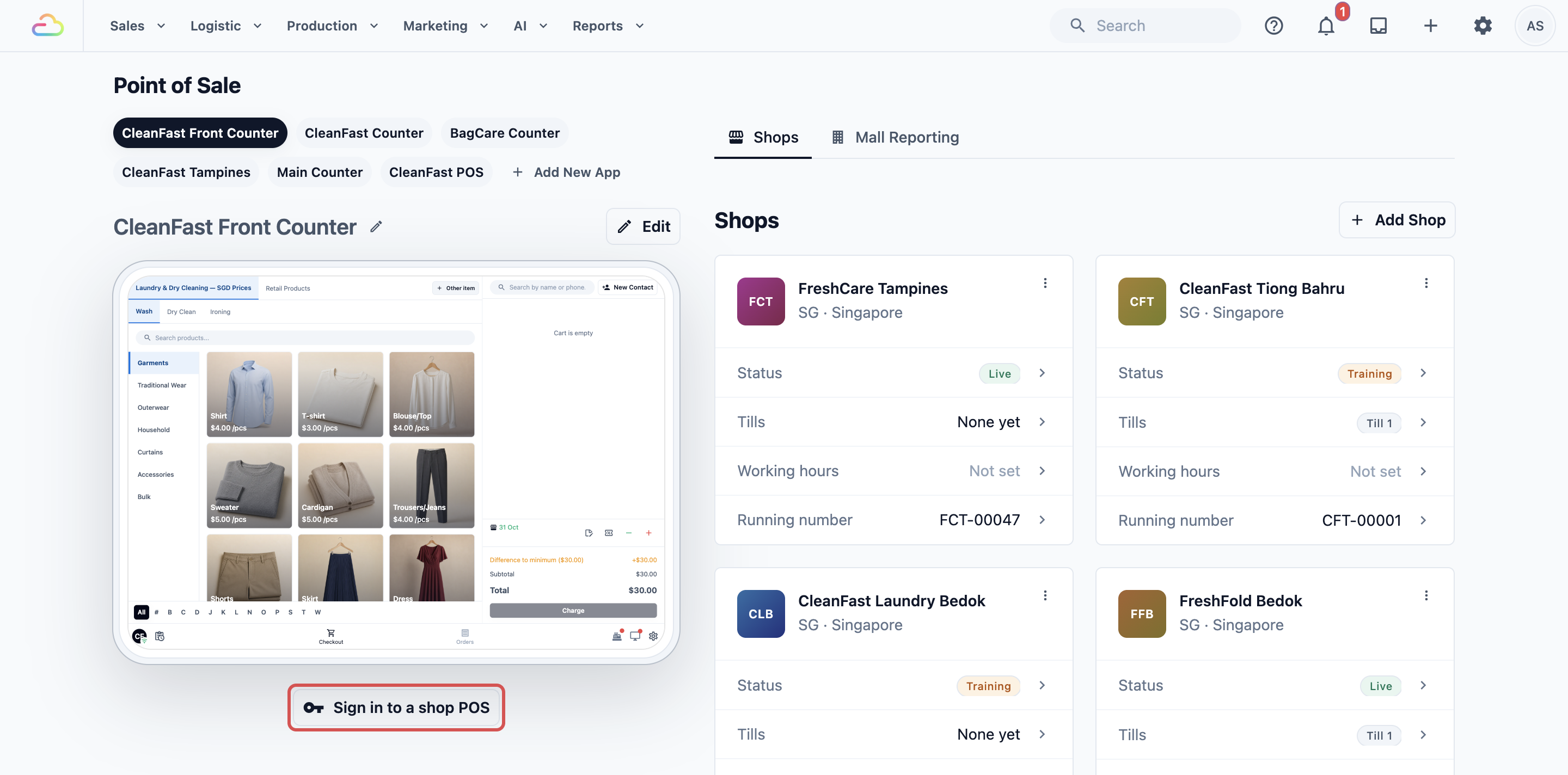
- In the Sign In to POS section, fill in the three fields below.
- Click Sign in.
Sign In Shop
Choose the shop where this device sits. Each shop shows its code and status, for example FCT · Live for FreshCare Tampines.
POS App
Choose the POS app this device should show, for example Main Counter. Shops with one counter layout only have one to choose.
Enter the 8-character code displayed on the POS screen
Type the code your staff sent you, for example ABCD-EFGH.
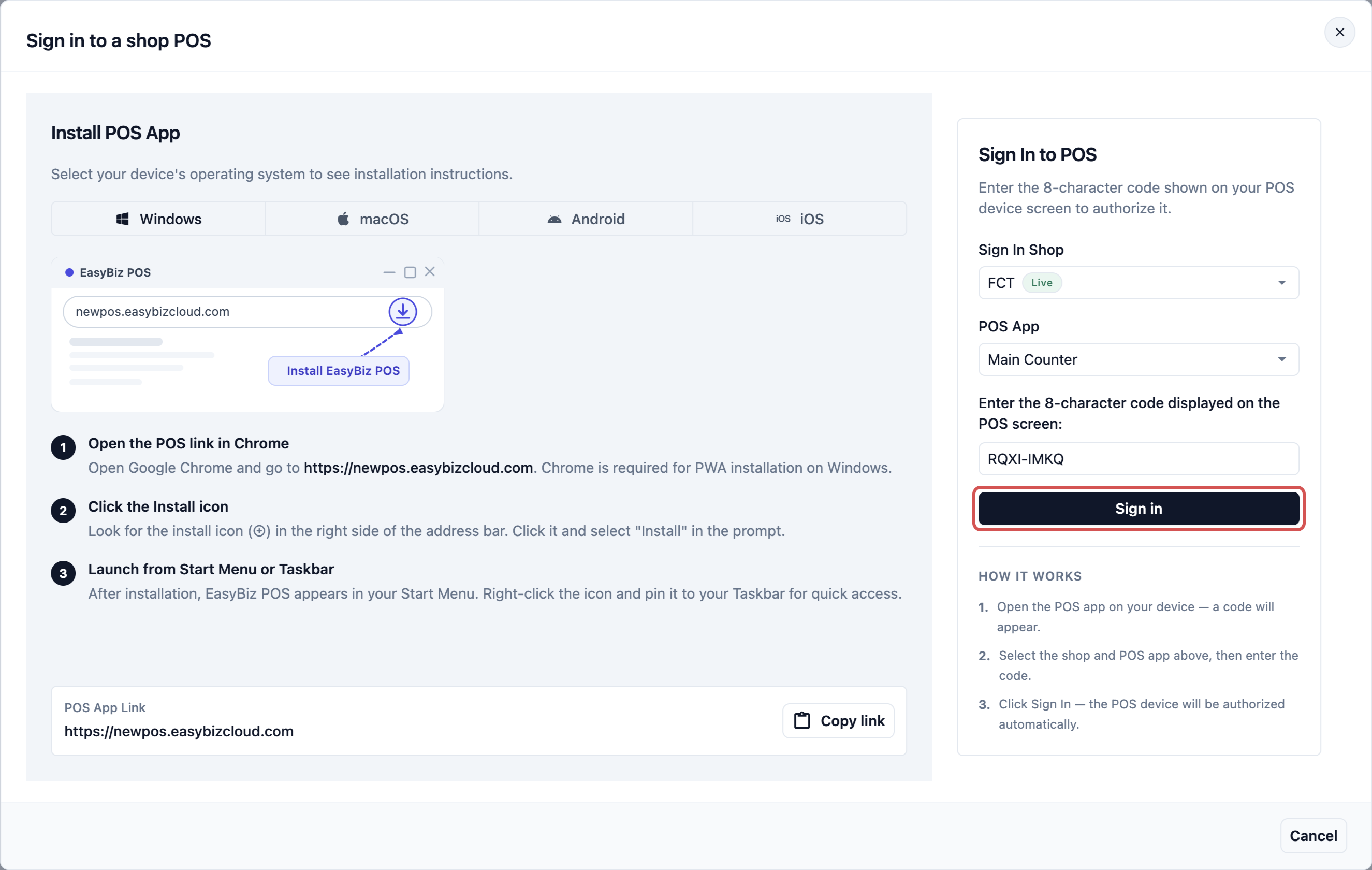
A green message confirms the device is signed in, and the code box clears so you can sign in the next device. The counter device loads the POS on its own within a few seconds.
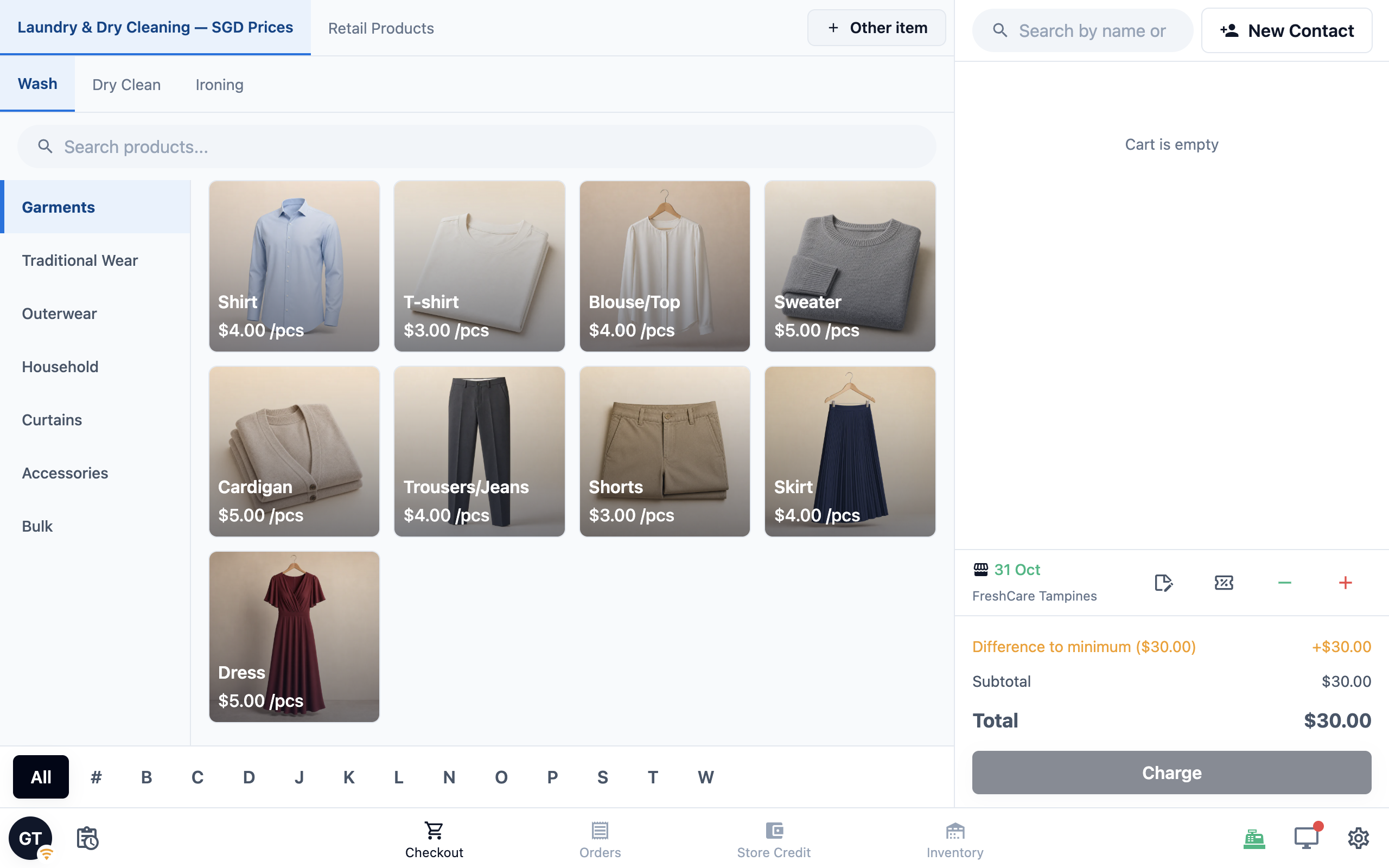
If your staff see a Time Clock screen instead of Checkout, clock-in is required in your POS settings. They clock in first, then reach Checkout. For the full sign-in walkthrough, see Sign In to Your POS.
Get Your Drivers on the Right App
Drivers use EasyBiz Workflow on their own iPhone or Android phone. They sign in with the email and password you set up for them, not with a device code. Before they install it, give them a Full seat with Field Service turned on and add the app under Mobile App Access.
The install and sign-in steps are in Install and Sign In to EasyBiz Workflow. Send that link to each new driver.
Fix Common Install and Sign-In Problems
"Not available in your country or region"
EasyBiz POS and EasyBiz Workflow are both listed in the Malaysian App Store. When a store says an app is not available, check these in order:
- Check that you searched for EasyBiz POS or EasyBiz Workflow, and not the older EasyBiz Cloud app.
- Check the country of the Apple ID or Google account signed in to the store. A store account set to another country only shows that country's apps.
- While you sort out the store, open newpos.easybizcloud.com in Chrome on the tablet. The POS works fully in the browser, and you can register it with the same device code.
The device is stuck on the code screen
Waiting for authorization stays on screen until someone enters the code in the Console. Check these:
- Nobody has entered the code yet. An owner or admin enters it under Sign in to a shop POS.
- The code has expired. Tap Generate new code on the POS and enter the new code.
- The Console shows an error. Check the code for typing mistakes, then try a fresh code.
- The screen says Device registration, or keeps loading. That is the older EasyBiz Cloud app. Install EasyBiz POS for the counter, or EasyBiz Workflow for a staff phone.
The POS page is blank or will not load
- Check the address. The current POS is newpos.easybizcloud.com. The address pos.easybizcloud.com belongs to the older system.
- Use Chrome or Edge on a computer. On an iPad, use the EasyBiz POS app rather than Safari, because Safari cannot connect to your printers.
- Check the internet connection on the device. If the POS says Having trouble connecting, it is waiting for the internet to come back.
- Reload the page. If the POS shows an error screen, tap Reload.
- In the app, tap Update available if it shows, or update EasyBiz POS in the App Store or Google Play.
If the page is still blank, contact EasyBiz Support with the device type and a photo of the screen.
FAQs
Do I need the POS app on a computer, or is the browser enough?
The browser is enough. Installing it from Chrome or Edge only gives your staff an icon to open it from, and everything else works the same.
Can I sign in my existing counter tablet from the older system?
Yes, if it is an iPad or an Android tablet of 10 inches or larger. Remove the old EasyBiz Cloud app, install EasyBiz POS, and register the tablet with a device code.
Can a driver use the POS app to see deliveries?
No. Deliveries and pickups assigned to drivers appear in EasyBiz Workflow. The POS app on a phone only works as a paired helper for the counter.
Can I use an iPhone or Android phone as the counter POS?
No. The counter needs a computer, an iPad or an Android tablet of 10 inches or larger. On a phone, EasyBiz POS only pairs with the main POS as a helper, for example to take photos of items.
Do my counter staff need their own EasyBiz login?
Not to open the POS. The device code signs the device in. If you turn on Time Clock, each staff member clocks in with their own passcode, which shows who served each customer.
Does the POS app I pick at sign-in change what my staff see?
Yes. The device shows the layout and buttons of the POS app you chose when you signed it in. That is why a shop with two counter layouts picks the right one for each device.