
Before You Start
Ask your EasyBiz administrator to prepare your account before you install the app.
Your administrator must:
- Create your user under Settings → Users & Access.
- Give you a Full seat.
- Add the correct app under Mobile App Access.
- Give you your login email and password.
A Full seat lets you work in EasyBiz. Mobile App Access decides which mobile workspace you can open.
Administrators can follow Inviting Your Team and Managing Access. This guide does not repeat those account setup steps.
Download on iPhone
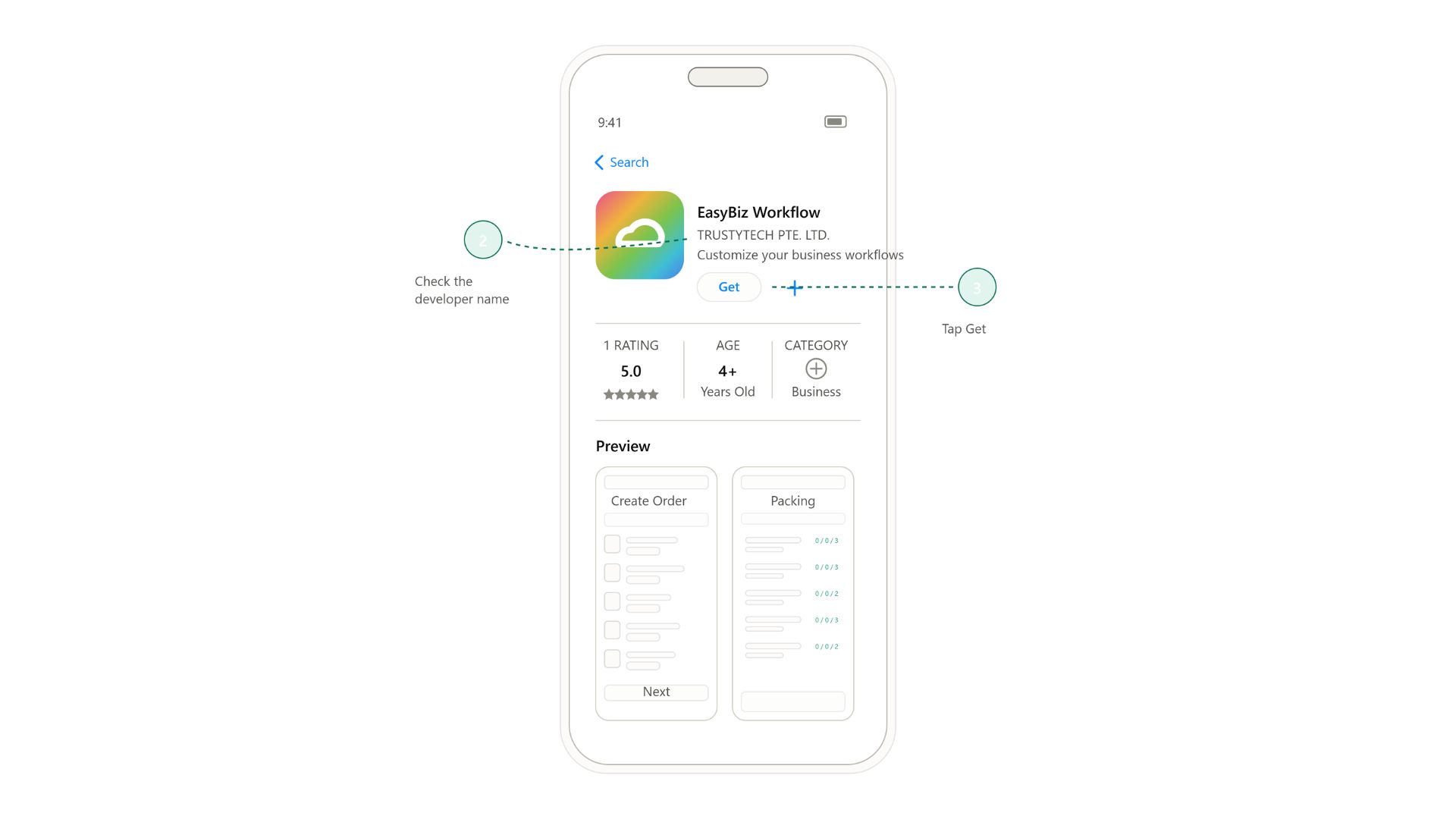
- Open the EasyBiz Workflow App Store page, or search for EasyBiz Workflow in the App Store.
- Check that the developer is TRUSTYTECH PTE. LTD.
- Tap Get or the download icon.
Download on Android
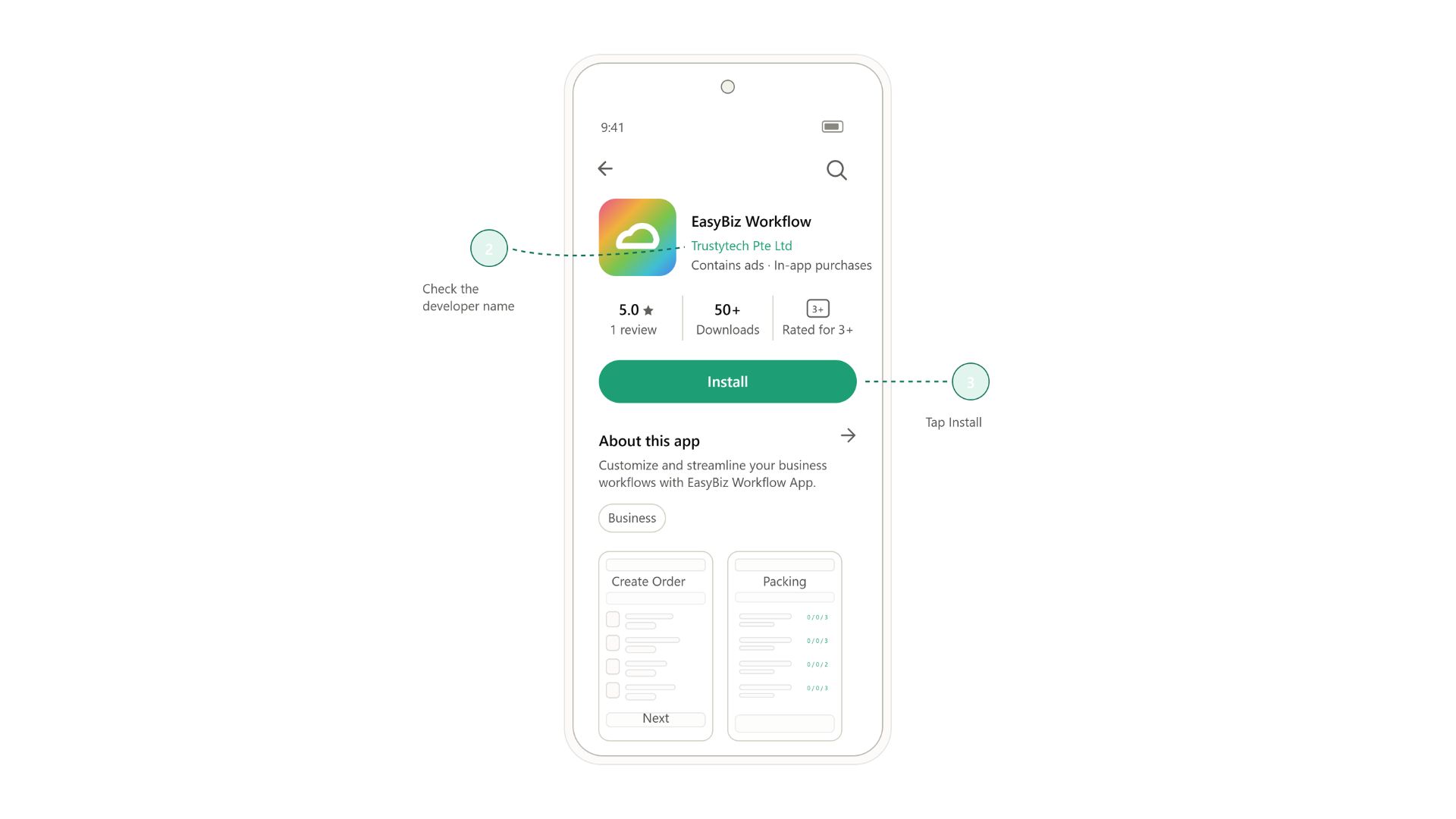
- Open the EasyBiz Workflow Google Play page, or search for EasyBiz Workflow in Google Play.
- Check that the developer is Trustytech Pte Ltd.
- Tap Install.
Sign In
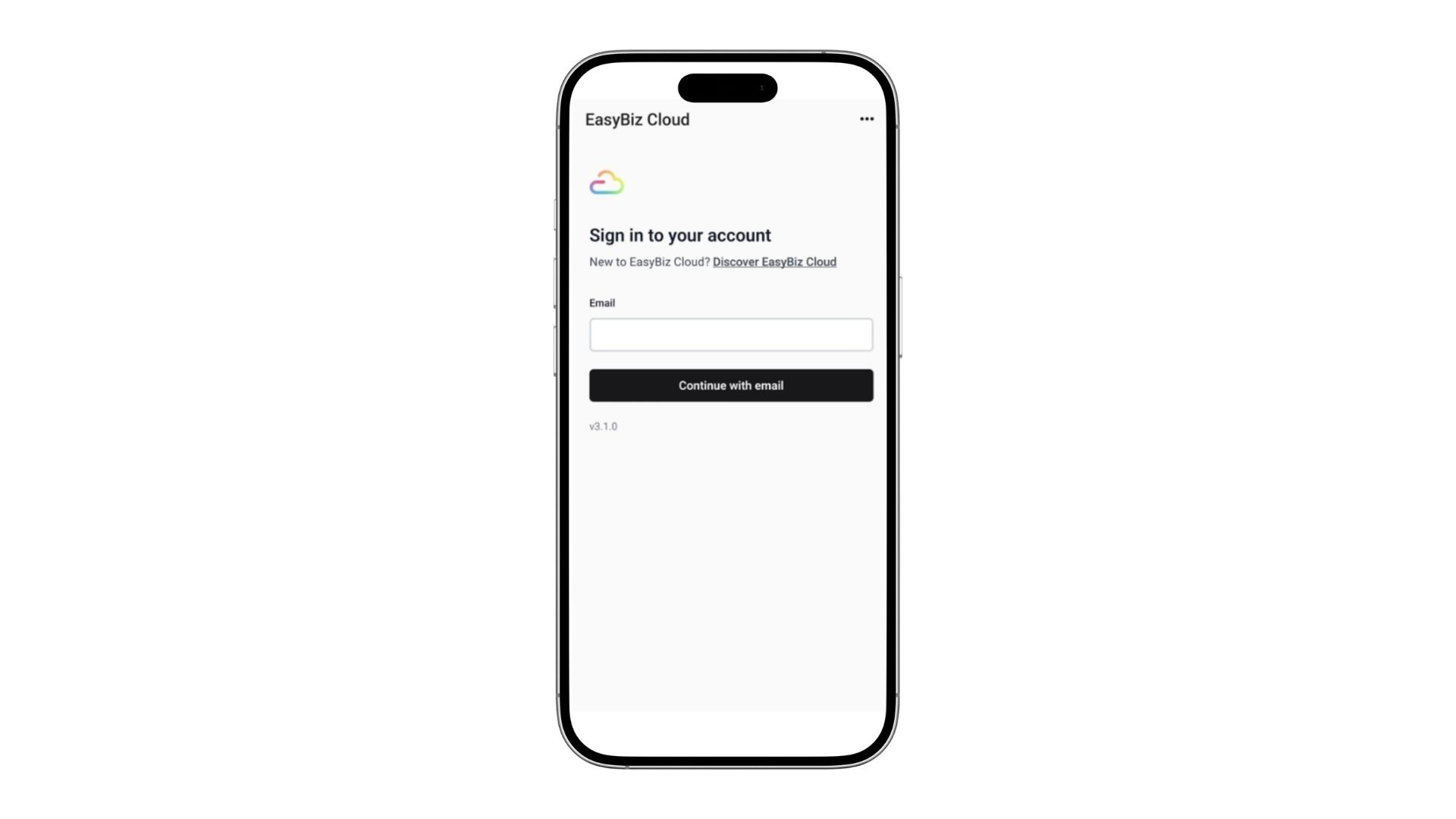
Open EasyBiz Workflow.
On the Sign in to your account screen, enter the email address your administrator used for your account.
Tap Continue with email.
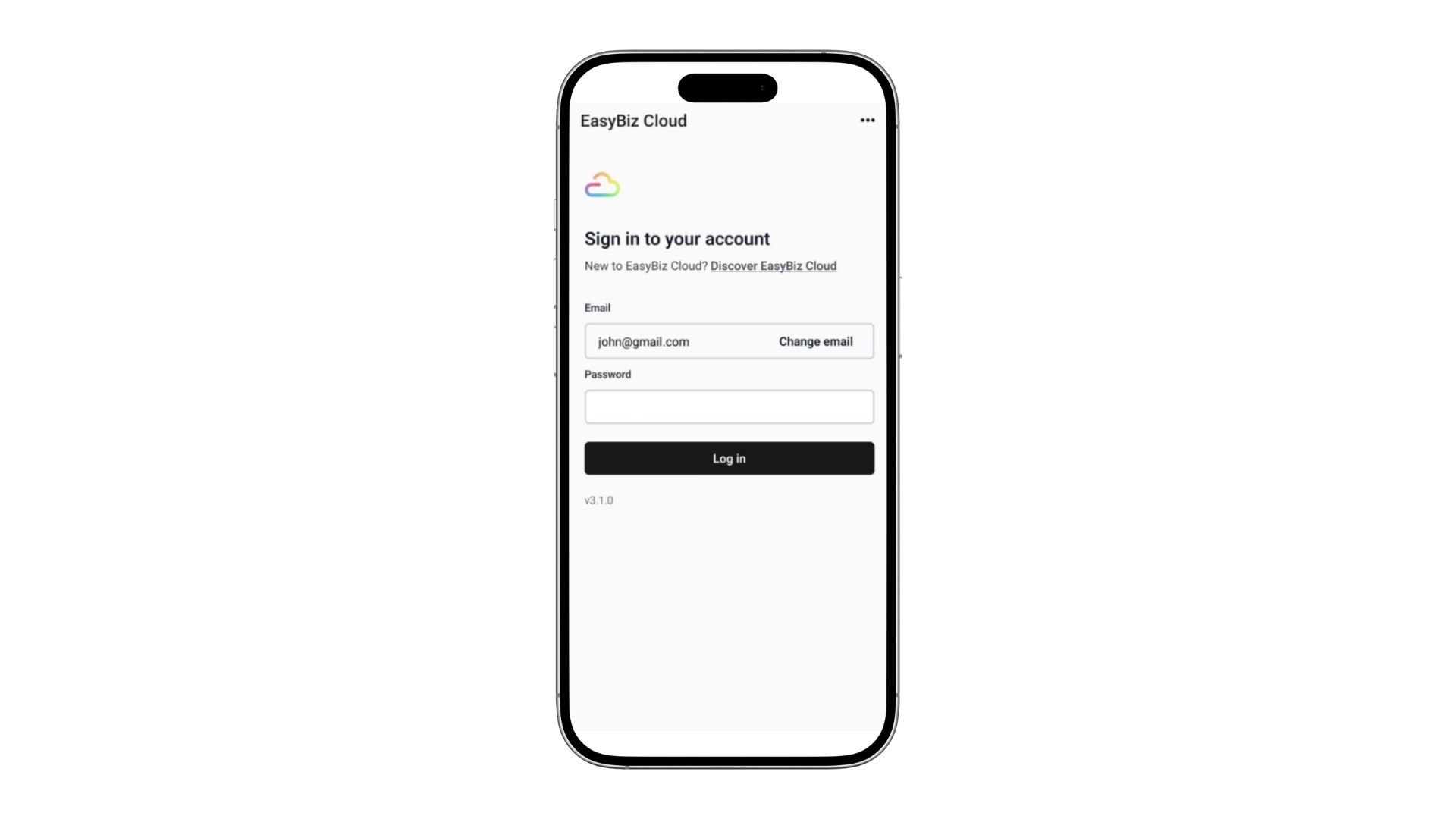
Enter the password given to you by your administrator.
Tap Log in.
Do not share your login with another person. Each staff member should use their own account so your business can see who completed each action.
Check Your Access
After signing in, you should see the pages prepared for your role. For example, a driver may see assigned jobs, while a production worker may see work orders or packing tasks.
If the app opens but you cannot see the page you need, ask your administrator to check:
- Your Full seat is active.
- The correct app appears under Mobile App Access.
- The mobile app contains the pages needed for your role.
- The job or task has been assigned to you, where required.
To learn what is available in the app, see What Your Team Can Do in the EasyBiz Workflow App.
If You Cannot Sign In
- Your email is not accepted — check that it is the same email shown for you under Users & Access. Ask your administrator to confirm that your account has been created.
- Your password is not accepted — check for typing mistakes. If it still does not work, ask your administrator to reset it.
- The app opens but looks empty — ask your administrator to check your Full seat and Mobile App Access.
- The app asks you to update — open the App Store or Google Play and install the latest version.
- You still cannot sign in — follow Trouble Signing In.
FAQs
Is there a separate app for drivers?
No. Drivers and other mobile staff use the same EasyBiz Workflow app. Their assigned access decides which pages they see.
Can staff install the app on their own phones?
Yes. Staff can use their own iPhone or Android phone. Each person should sign in with their own account.
Is EasyBiz Workflow the same as EasyBiz POS?
No. EasyBiz Workflow is for mobile jobs and daily work. EasyBiz POS is the separate counter app used to serve customers and take sales. See What Is EasyBiz POS.
Can staff create their own account in the app?
No. An administrator must create the user, assign a Full seat, and add Mobile App Access first.