
Before You Start
Mini-Apps published — You need at least one scheduling-related Mini App published (e.g. "Schedule Delivery" or "Reschedule Pickup & Delivery"). Your Mini Apps are configured in the Mini-Apps tab within WhatsApp settings.
Test Group — Add at least one phone number in General Settings.
If you are new to auto reply rules, read Setting Up Auto Reply Rules first.
When This Rule Fires
Pre-configured condition:
- App submitted — Fires when a customer completes and submits a Mini App. The default message is tailored to include pickup date and time details.
How to Set It Up
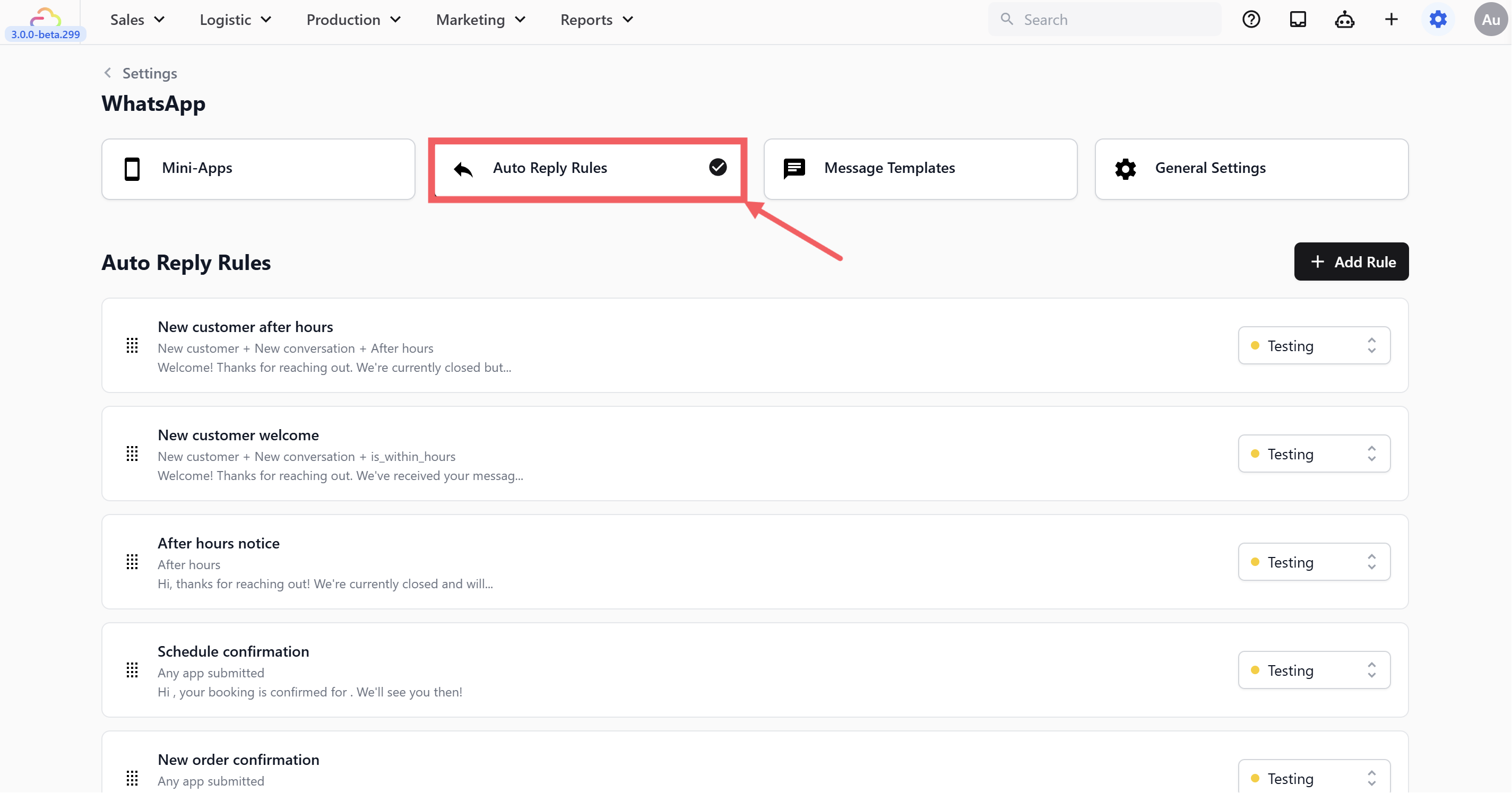
- Go to WhatsApp Settings → Auto Reply Rules tab
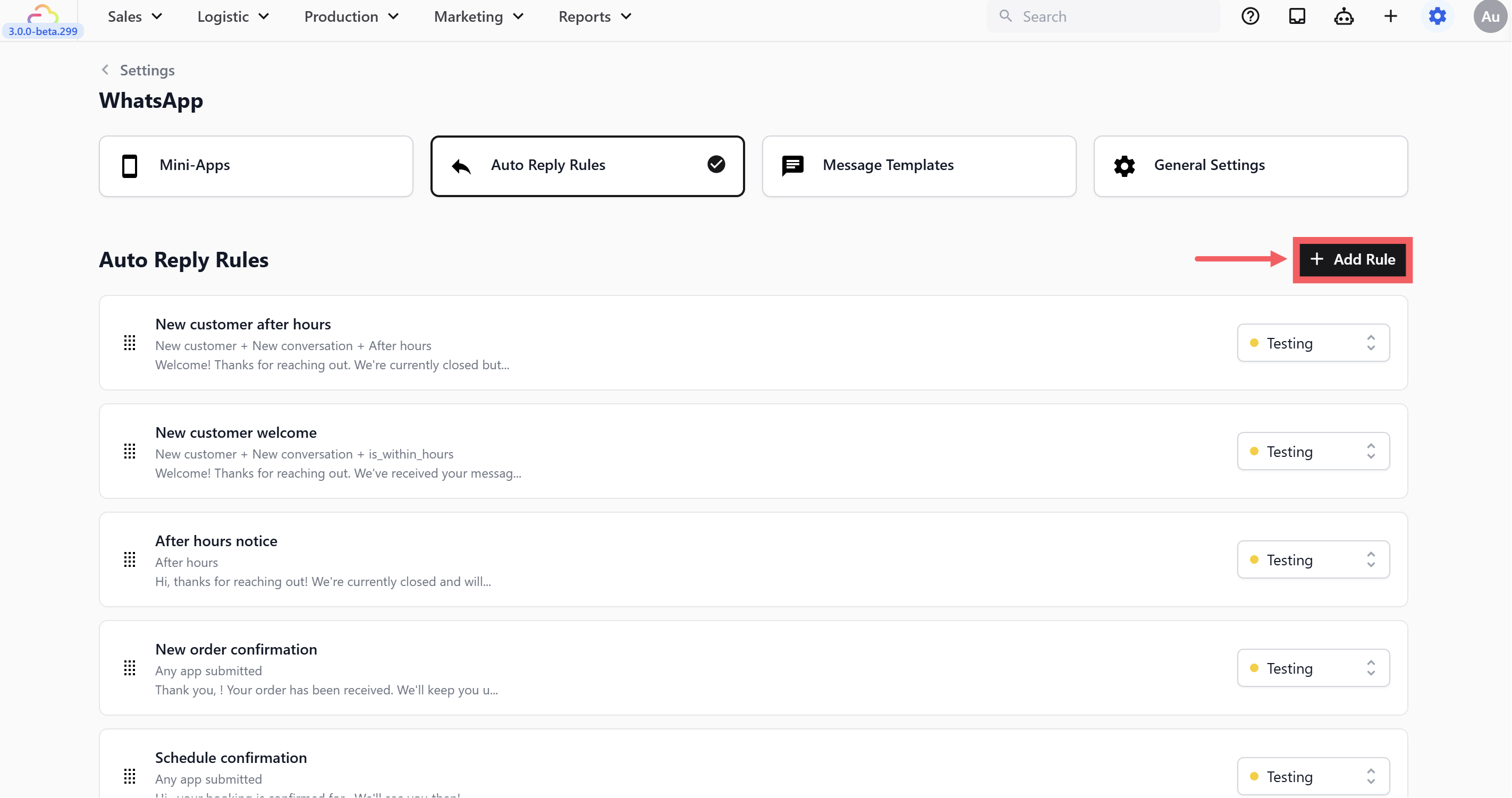
- Click + Add Rule
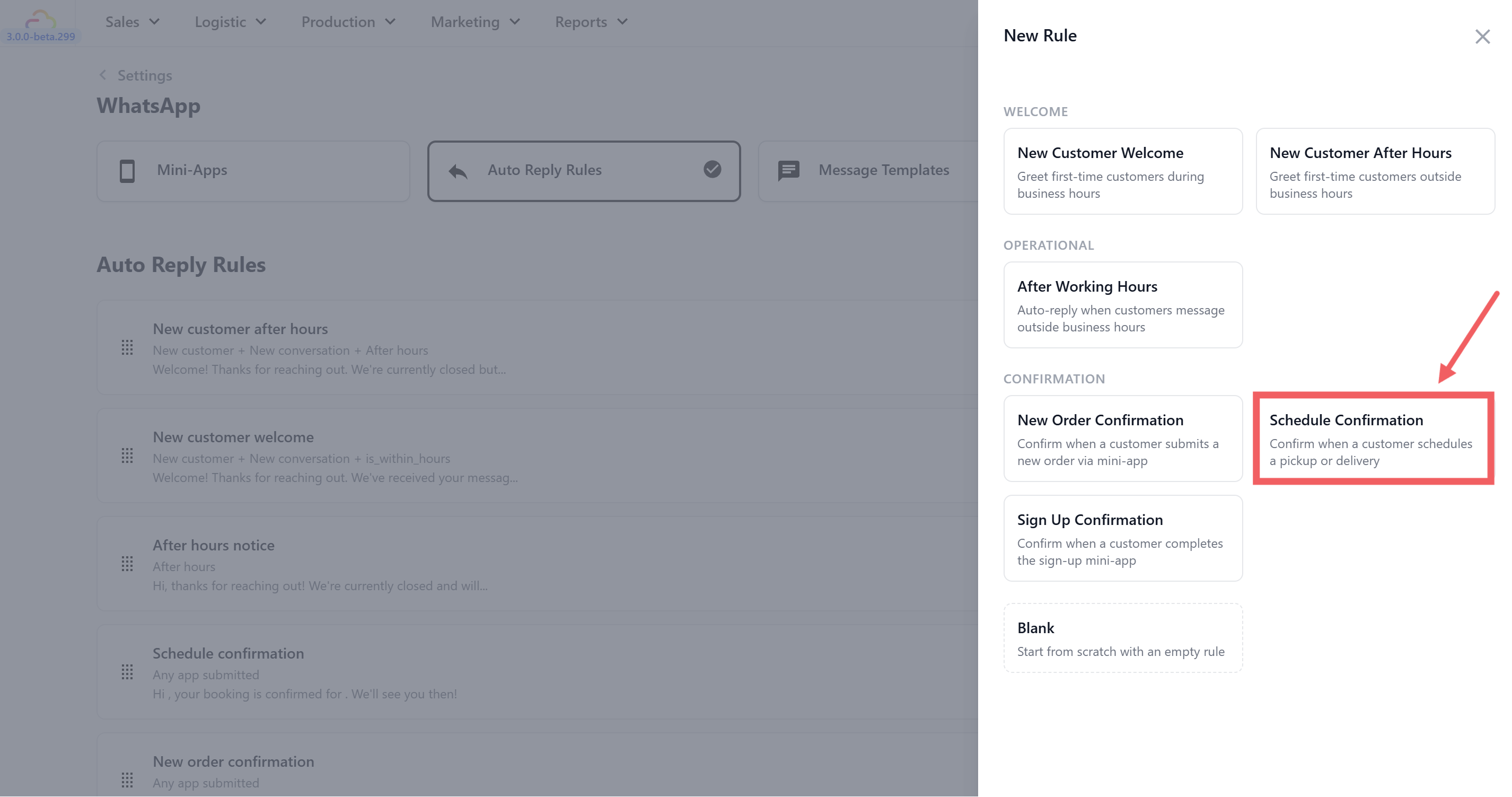
- Under Confirmation, select Schedule Confirmation
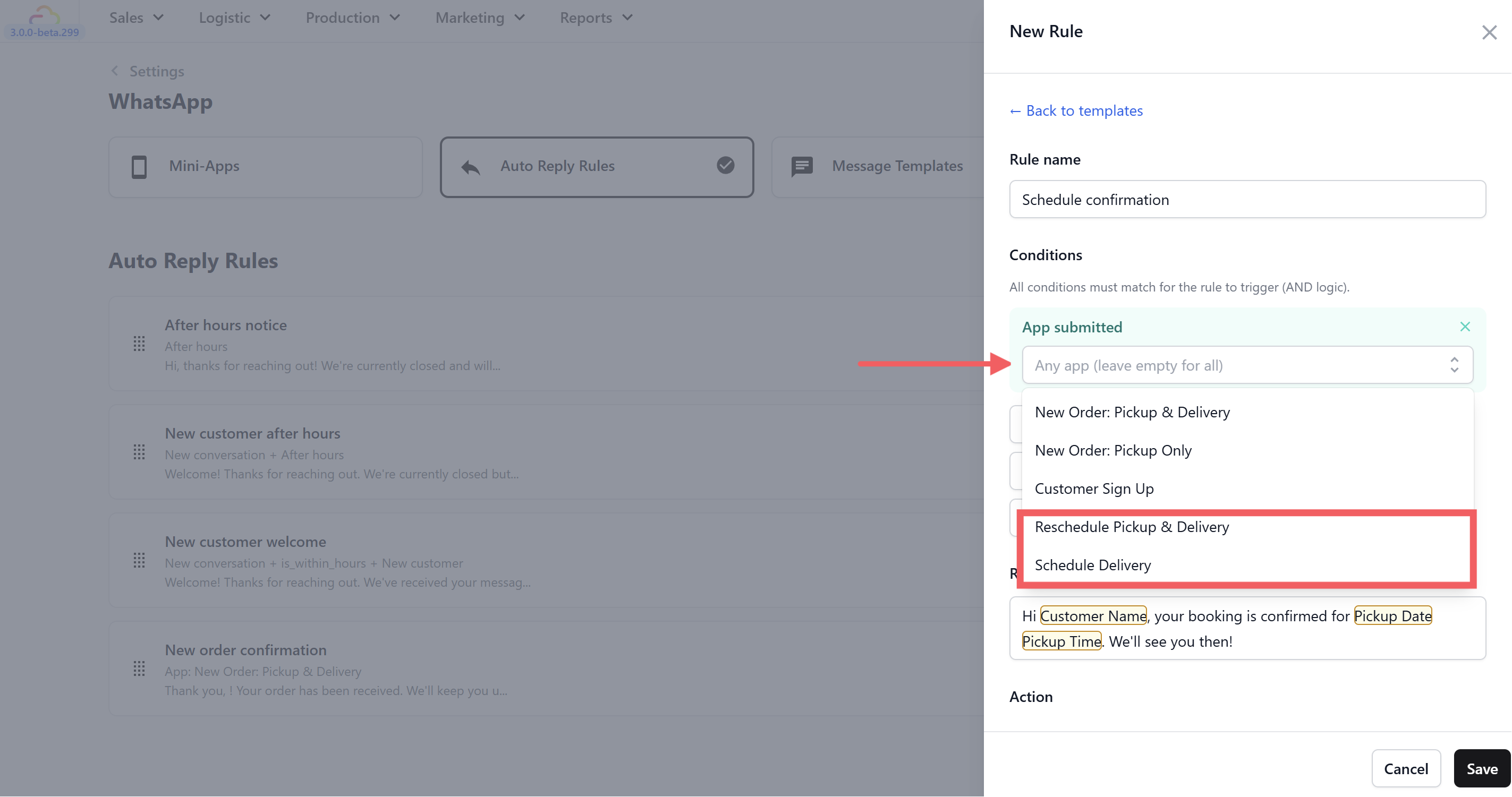
- Set the app filter — click the dropdown and select your scheduling Mini App(s):
Schedule Delivery
Reschedule Pickup & Delivery
- Edit the reply message (optional). The default is:
"Hi @Customer Name, your booking is confirmed for @Pickup Date @Pickup Time. We'll see you then!"
Set Action type — the default is None.
Set Send frequency to Every time — a customer might reschedule or book multiple deliveries in the same conversation.
Click Save.
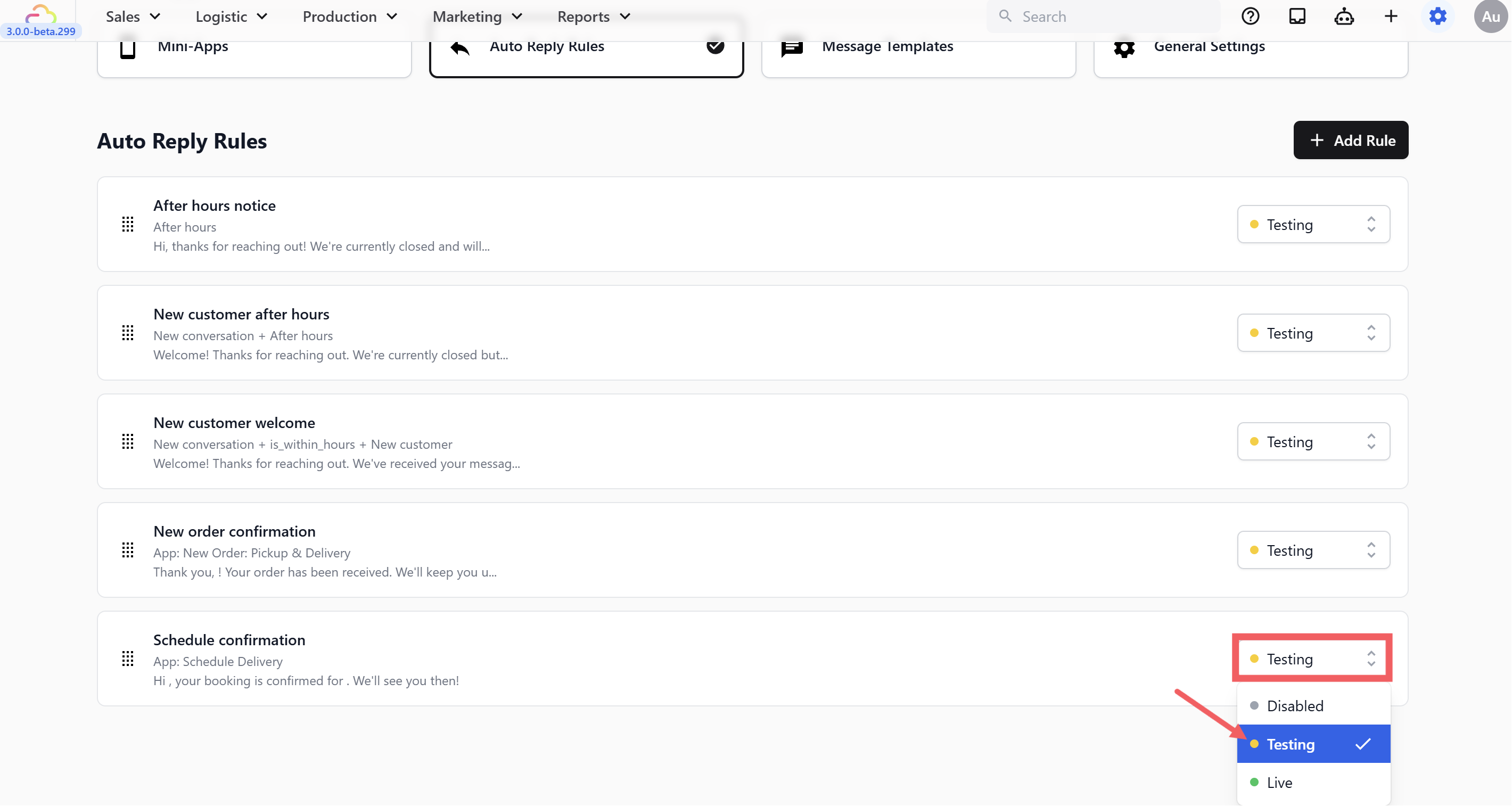
Set Status to Testing.
Testing the Rule
Make sure the rule is set to Testing status
Confirm your test phone number is in the Test Group (General Settings)
From your test number, open your scheduling Mini App on WhatsApp and submit a test booking
You should receive the schedule confirmation with the correct date and time filled in
Verify you only receive this confirmation — not an order or sign-up confirmation on top of it
Once verified, switch the status from Testing to Live.
What's Next
Now that schedule details are confirmed automatically, continue to Sign Up Confirmation to set the welcome reply that goes out when a customer signs up through one of your mini apps.