
New first-time customers who message while you are closed get a friendly welcome that tells them exactly when you will be back.
Before You Start
- Read Setting Up Auto Reply Rules for Your WhatsApp first if you have not added an auto reply before.
- Your WhatsApp number must be connected to EasyBiz.
- You need access to Settings in the Console.
- Your Business Hours must be turned on. This reply only goes out when a message arrives outside them. You can check them in Checking your Business Hours.
- Add at least one phone number to the Test Group so you can try the reply before customers get it.
If you set this up before: auto replies are now under Settings › CRM › Auto replies, and Business Hours and the Test Group are on that same page instead of in WhatsApp General Settings. Your saved replies, hours and test numbers are still there.
Overview
New Customer After Hours is an auto reply, which means a WhatsApp message EasyBiz sends for you when a customer's message matches the situation you chose. This one is for a person who has never been your customer, starting a chat while your shop is closed. They get a welcome straight away, with your next opening time filled in for them. Your staff can then pick up the chat when the shop opens, without the customer wondering whether anyone saw it. It comes ready to use, so most shops only need to check the message and their opening hours.
Where it works
- WhatsApp: the new customer gets the reply in their chat with your business number.
- Console: you set it up in Settings, and your staff see the reply in that customer's chat, so they know what was already sent.
Why set it up
- Customers who message at night get an answer in seconds instead of silence until morning.
- They know exactly when to expect a reply, so fewer people message twice or go to another shop.
- Your staff no longer type "Sorry, we're closed" first thing every morning.
If you skip it, a new customer who messages after closing time gets nothing until a staff member replies. If you only use the general After Hours Notice, new customers get the same closed message as your regulars, without a welcome.
Where to find it
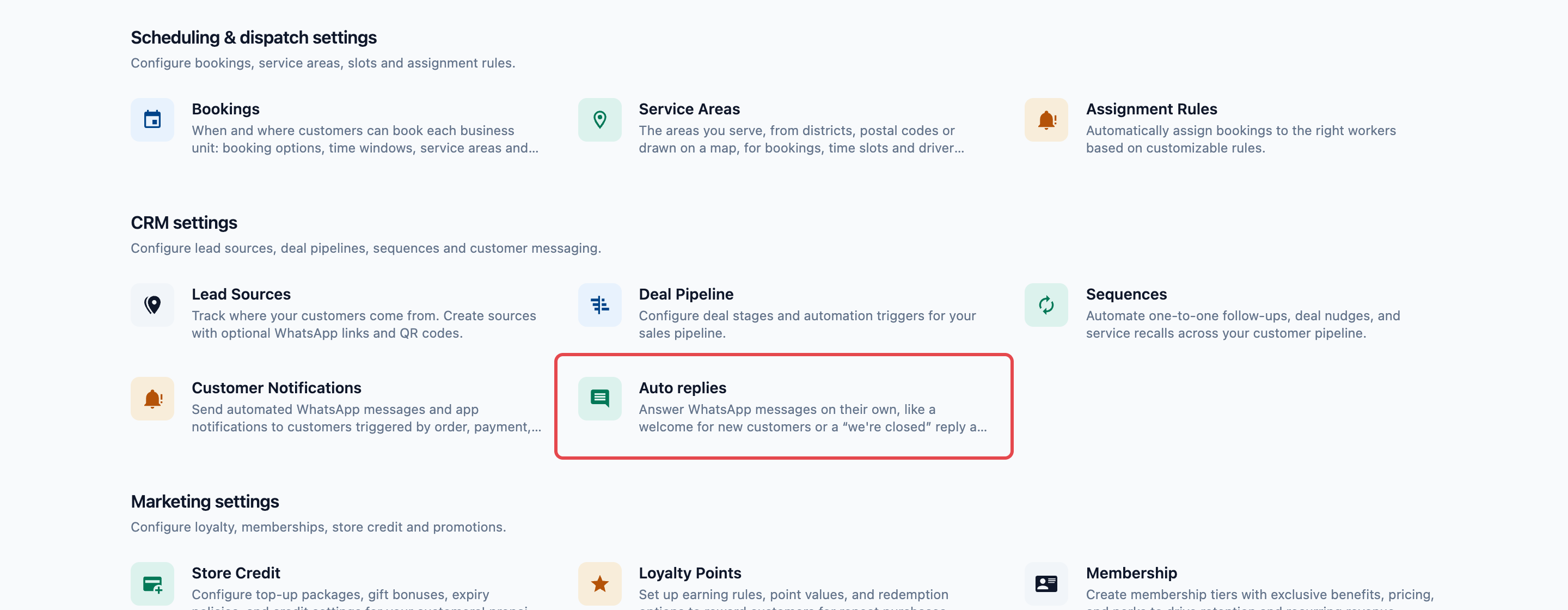
- Click the ⚙️ Settings icon in the top-right corner.
- Under the CRM section, click Auto replies.
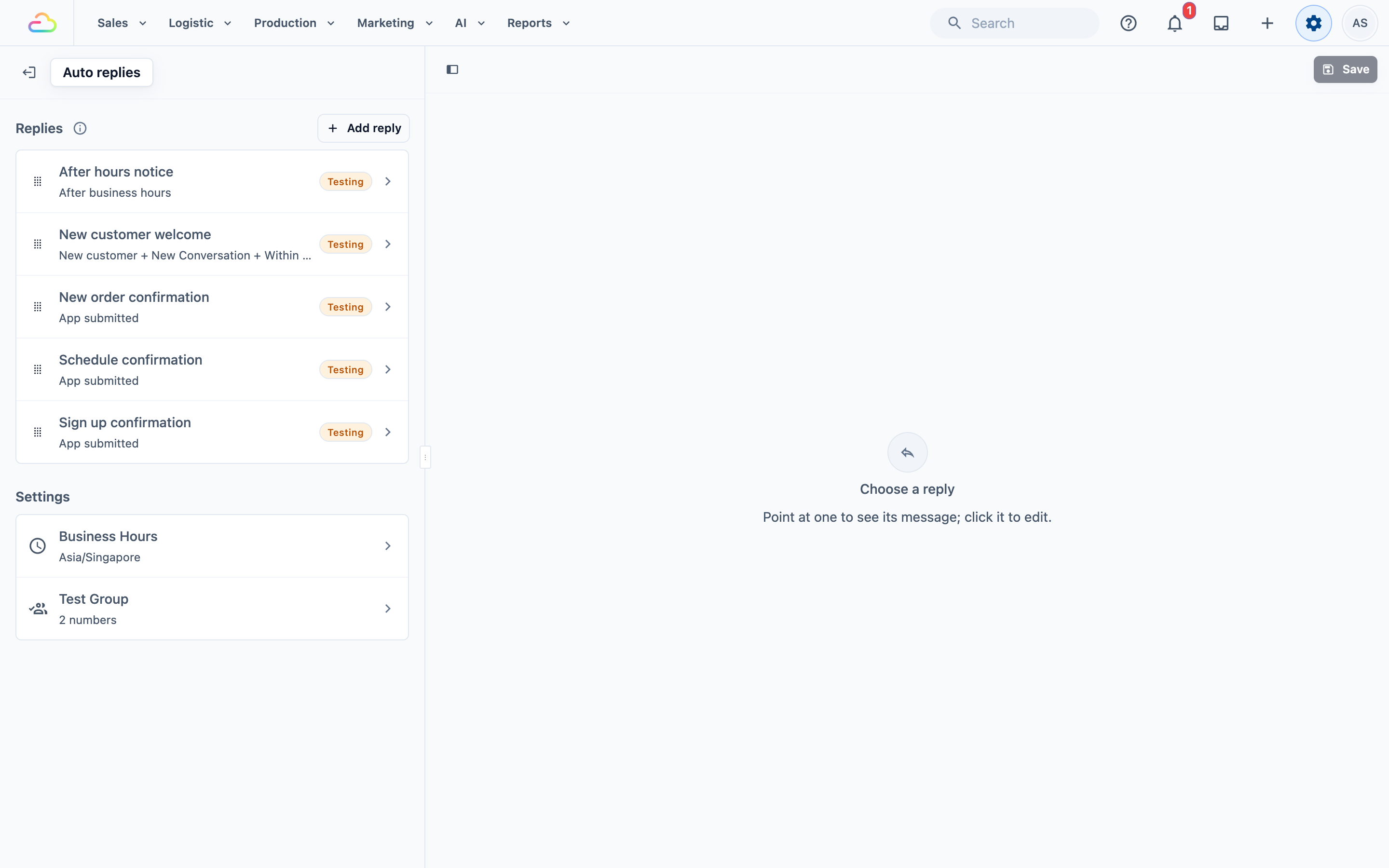
The page shows your Replies list on the left and a phone preview on the right. Under the list, the Settings section holds Business Hours and Test Group.
Setting it up
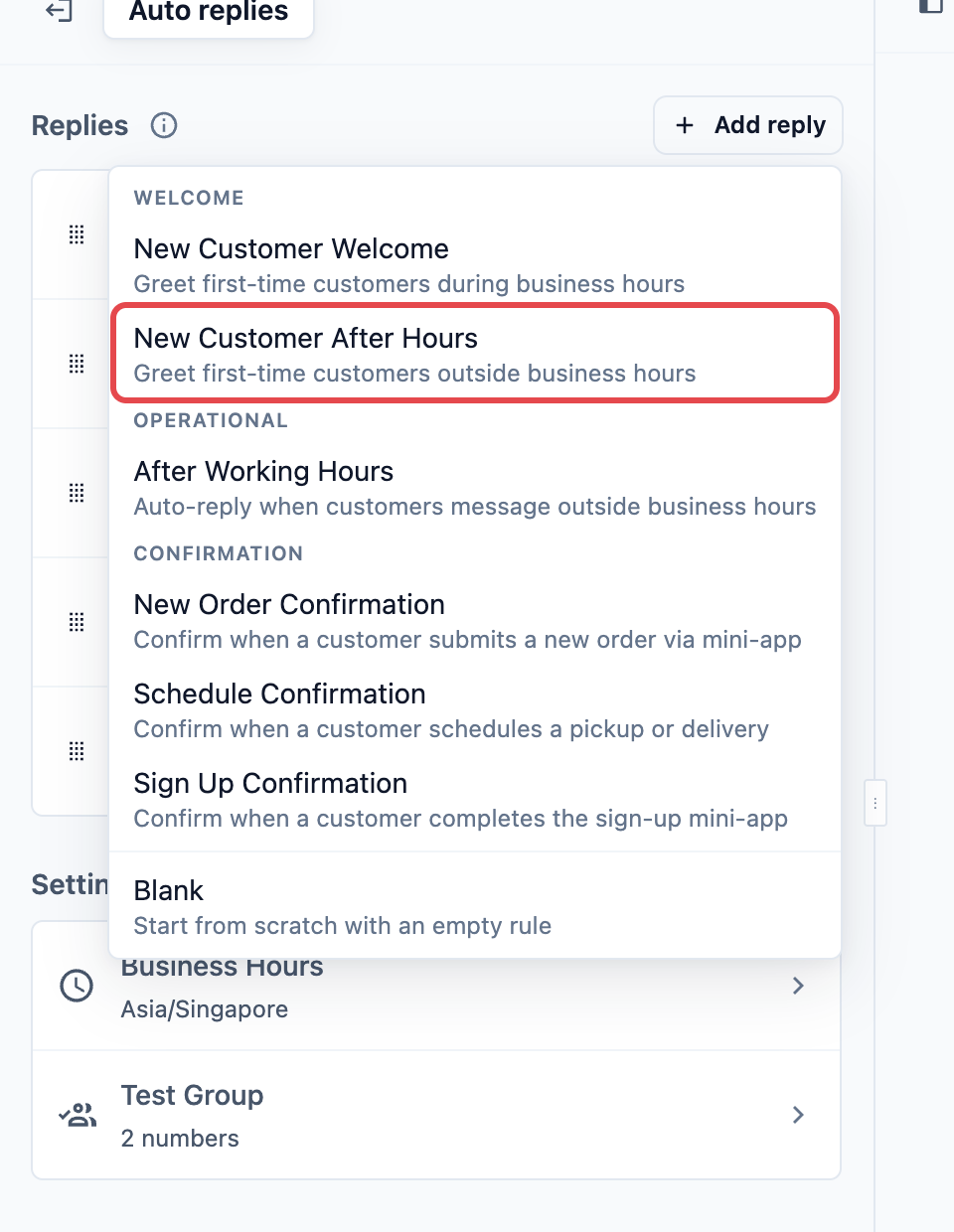
- Next to Replies, click Add reply.
- Under Welcome, click New Customer After Hours.
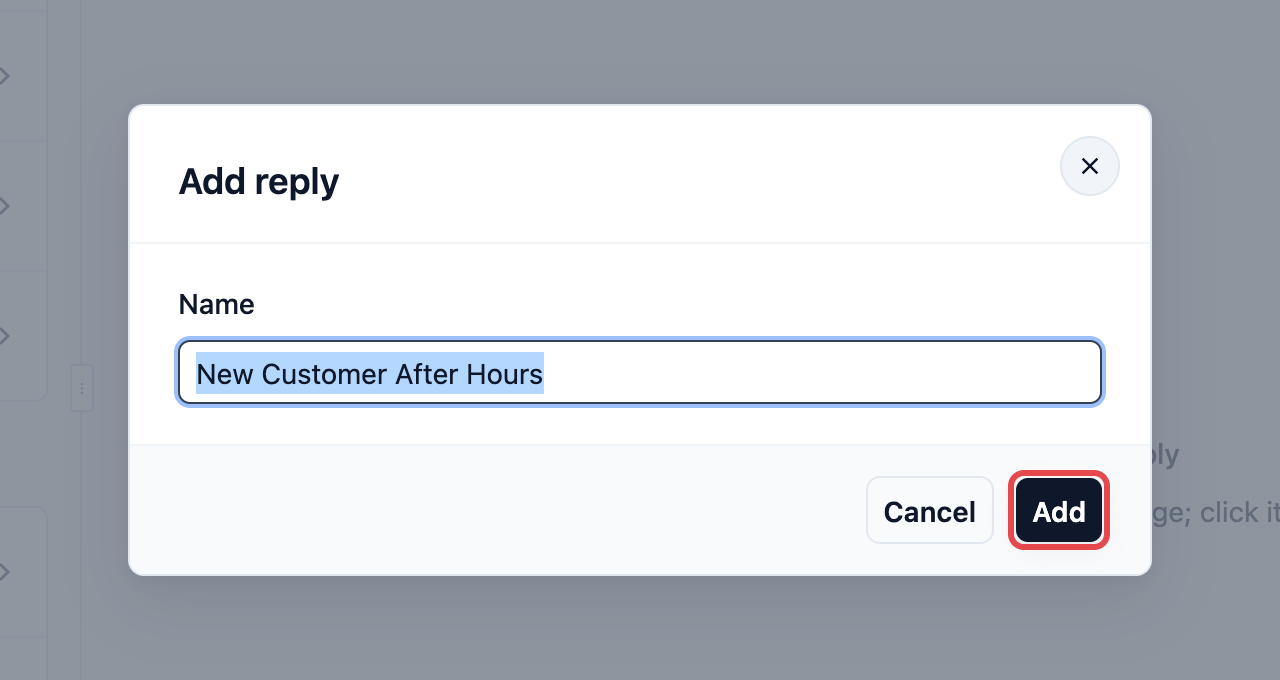
- In the Add reply box, the Name is already filled in as New Customer After Hours. Keep it, or type a name your staff will recognise, then click Add.
- The reply opens with its conditions, message and send frequency already filled in. Check each one using the sections below.
- Click Save at the top right. You see "Auto replies saved", and the reply appears at the bottom of your list marked Testing.
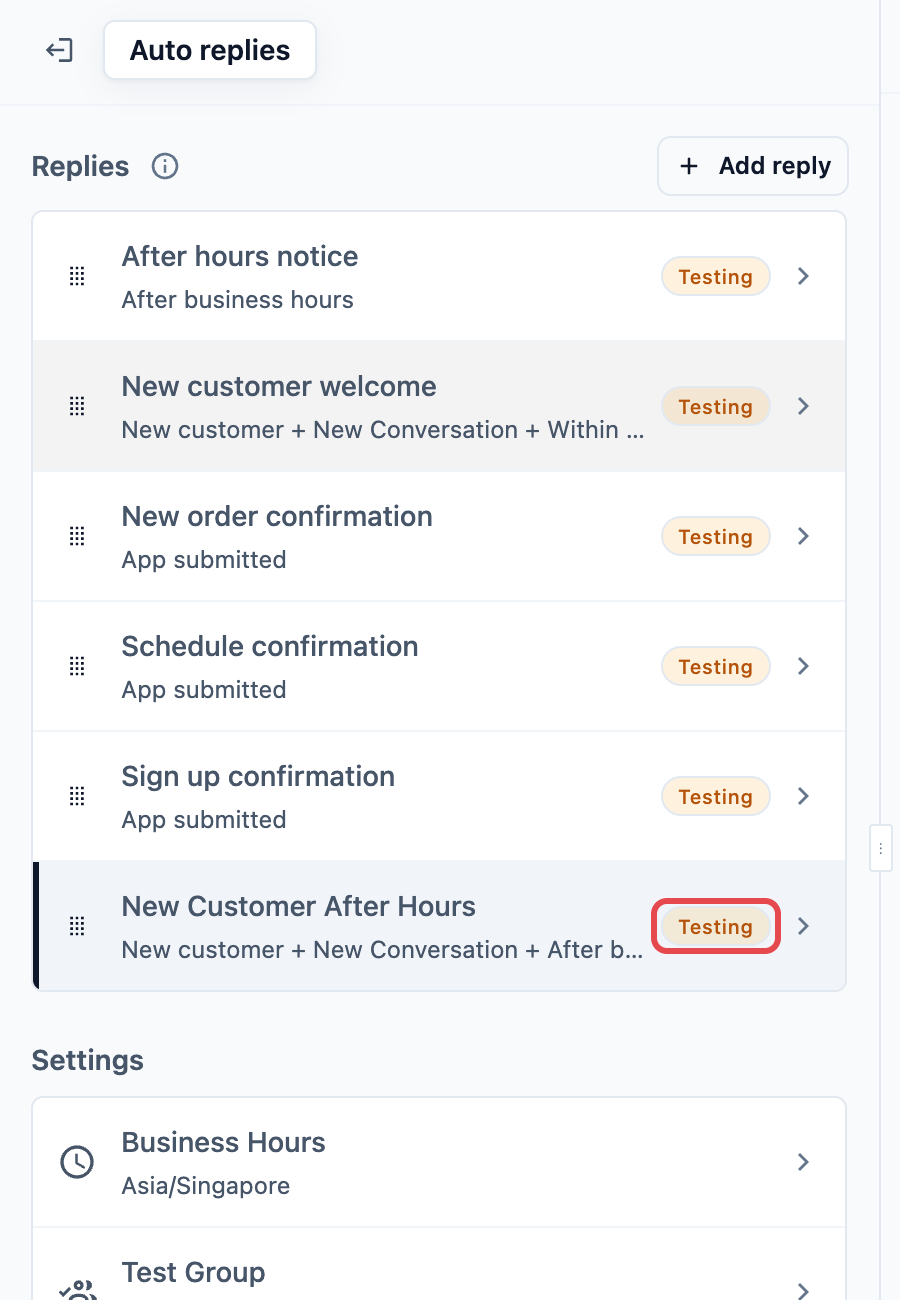
The name is only for your staff. Customers never see it.
Status
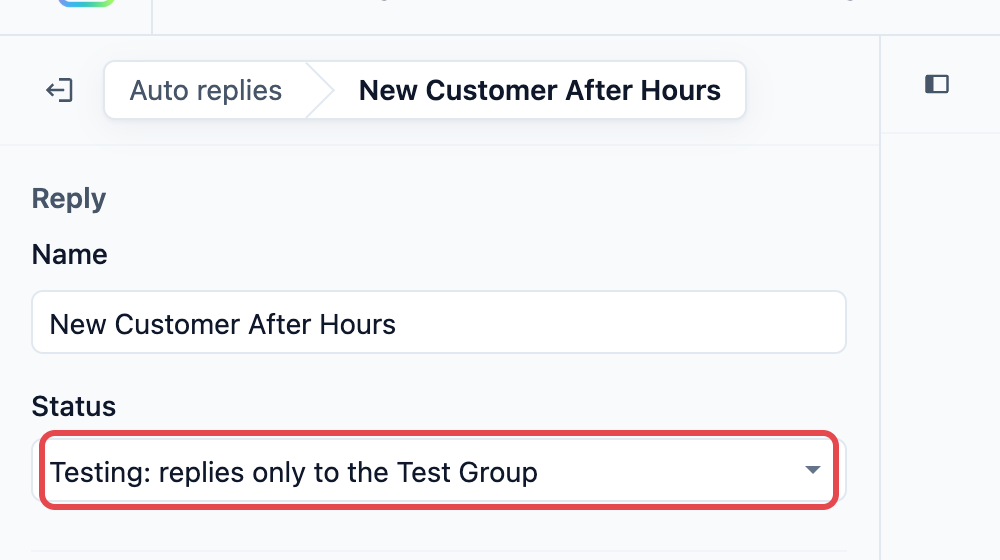
A new reply always starts in Testing, so customers do not get it until you are ready.
| Status | What it means |
|---|---|
| Live: replies to every customer | Every customer who fits the conditions gets the reply. |
| Testing: replies only to the Test Group | Only the phone numbers in your Test Group get it. Use this while you check the reply. |
| Off: never replies | Nobody gets it. The reply stays in your list so you can turn it back on later. |
Conditions
The three conditions come filled in. All of them must be true at the same time for the reply to go out.
- New customer: the phone number is not saved as a customer in EasyBiz yet.
- New Conversation: it is the first message of a chat, or the first message after the chat was closed.
- After business hours: the message arrives outside your Business Hours, including days you have switched off and break times.
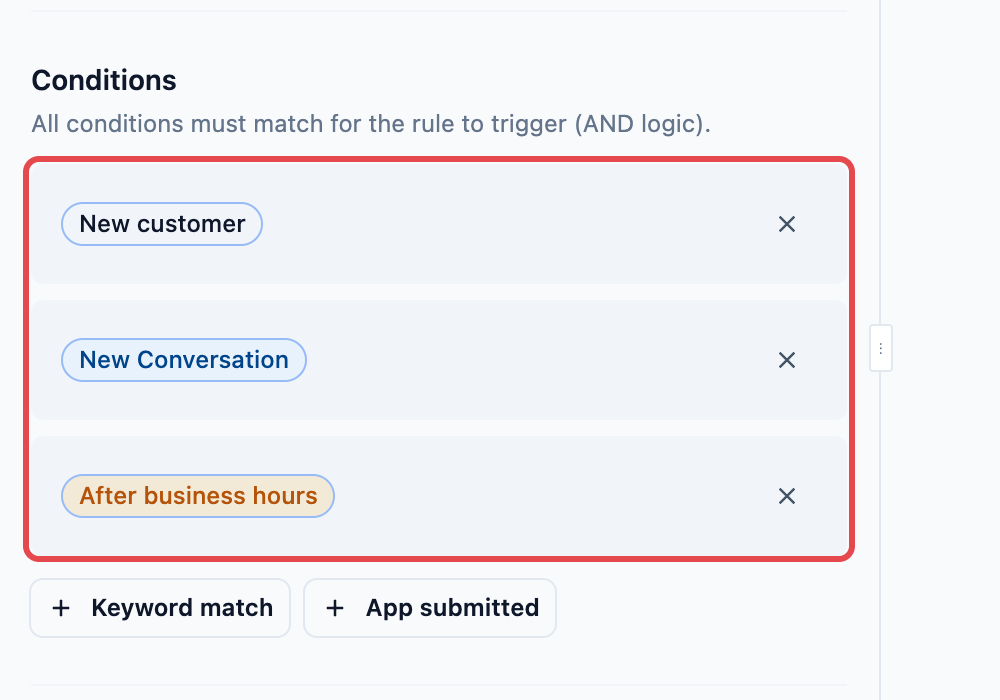
If you remove New customer, this reply also goes to your regular customers, which is what the After Hours Notice is for. A reply can have After business hours or Within business hours, never both, so the button for the other one is hidden here.
Reply Message
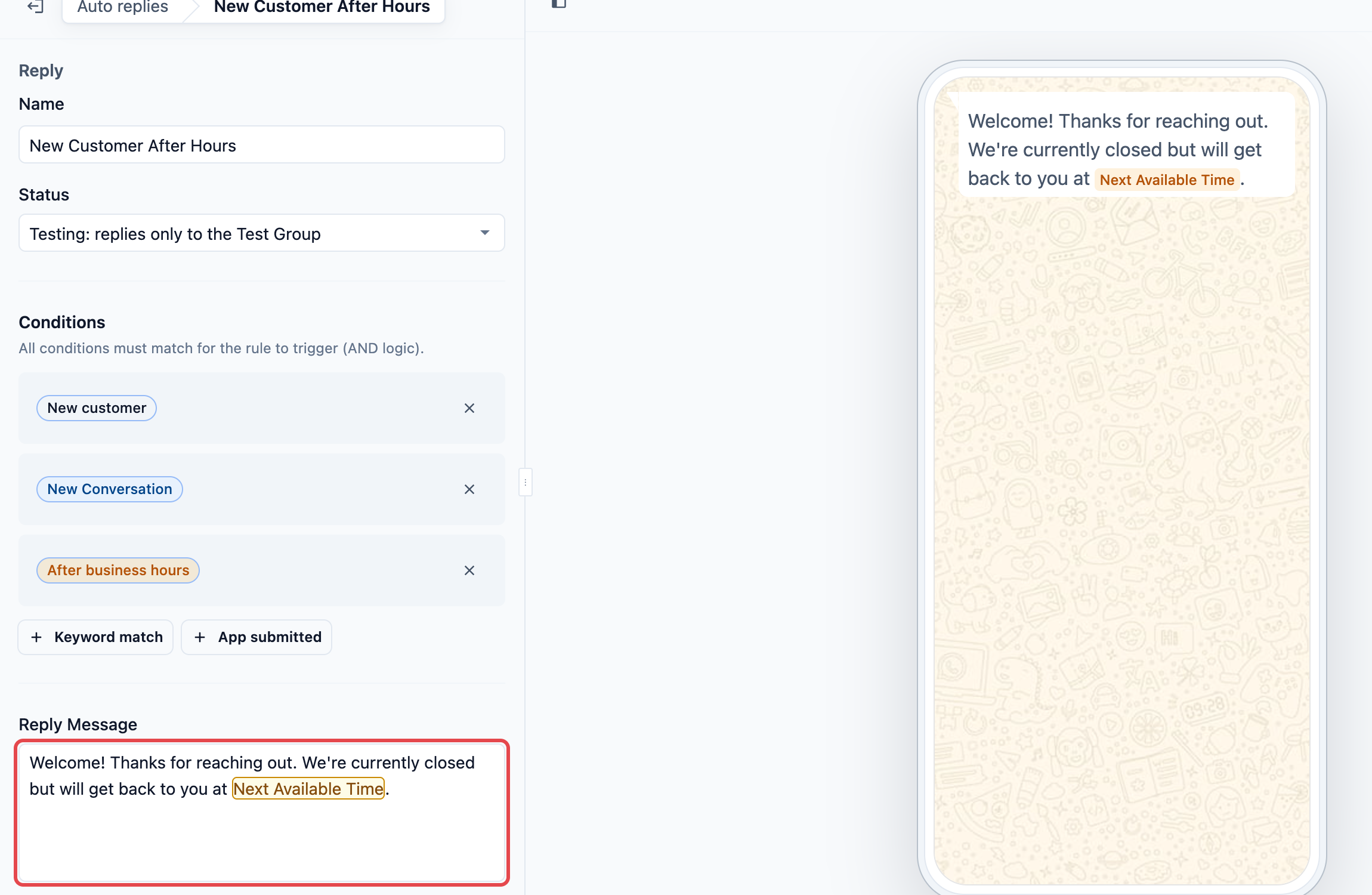
The message comes filled in:
Welcome! Thanks for reaching out. We're currently closed but will get back to you at @Next Available Time.
Edit it to sound like your shop. Type @ to add a placeholder, which is a tag that EasyBiz swaps for real information when the message is sent. You can use Next Available Time, Current Date and Current Time. The preview on the right shows the message as customers get it, with @Next Available Time as a tag, because the actual time depends on when the customer messages.
Action
Use this only if you want a button under the message. Action type is set to None by default, which sends the message as plain text.
| Action type | What the customer sees |
|---|---|
| None | The message only, no button. |
| Open Website | A button that opens a web page, for example your price list. |
| Quick Replies | Up to three buttons the customer taps to answer, such as "Book a pickup". |
| Select options | A list the customer chooses one item from. |
| Open mini App | A button that opens one of your WhatsApp mini-apps, such as your booking form. |
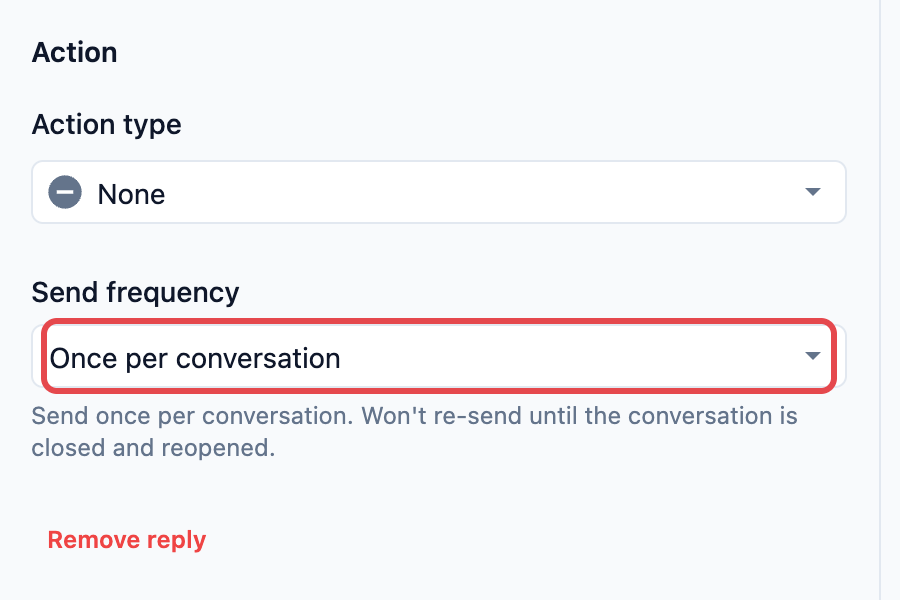
Send frequency
Keep this on Once per conversation, which is the default.
| Option | What it does |
|---|---|
| Once per conversation | Sends once per chat. It won't send again until the chat is closed and reopened. |
| Once per 24 hours | Sends at most once every 24 hours to the same number. |
| Every time | Sends on every matching message. |
Checking your Business Hours
The time in @Next Available Time, and whether a message counts as after hours at all, both come from Business Hours on the Auto replies page.
- At the top of the page, click Auto replies to go back to the list.
- Under the Settings section, click Business Hours.
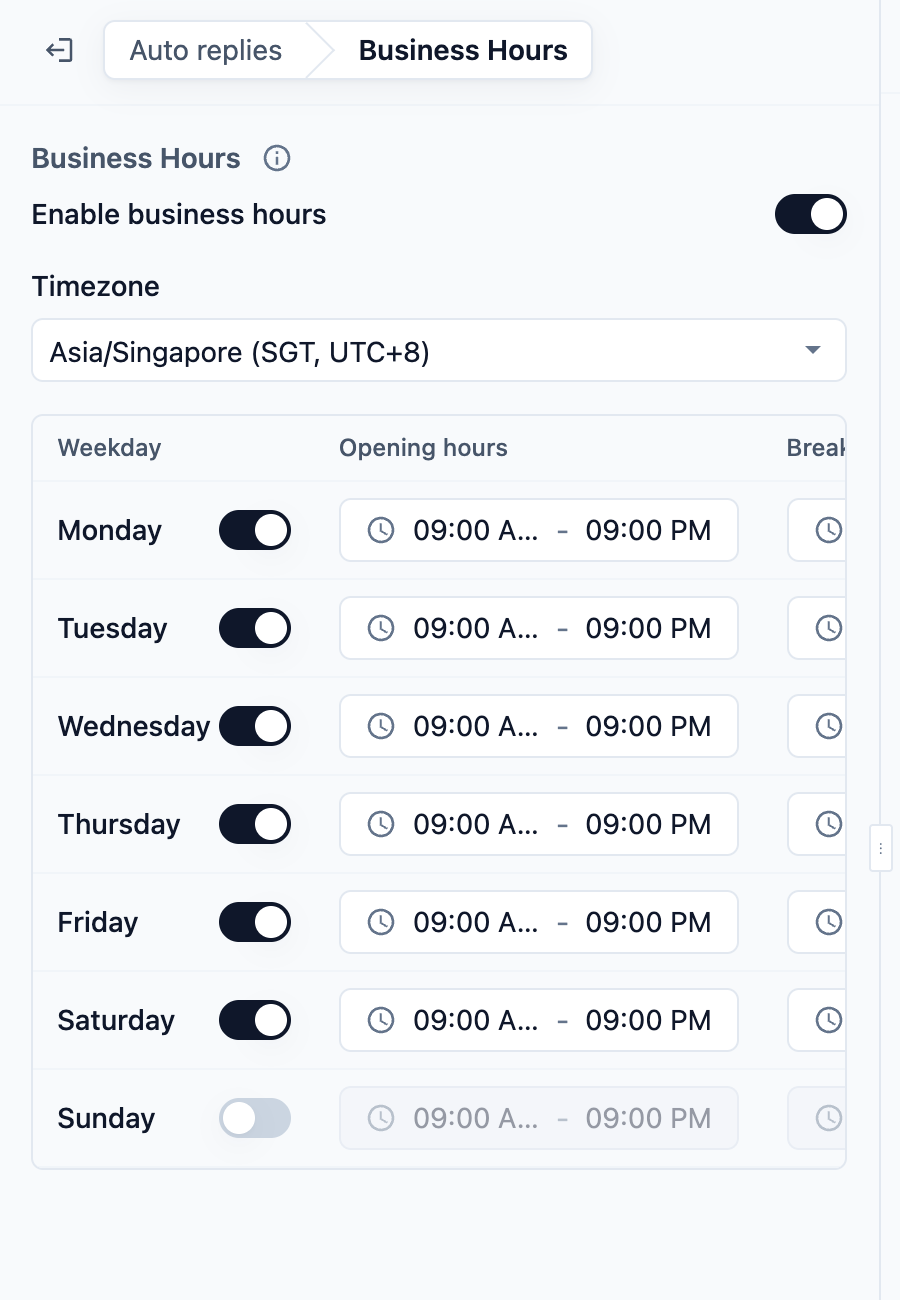
- Make sure Enable business hours is on.
- Choose your Timezone, for example Asia/Singapore (SGT, UTC+8).
- For each Weekday, switch the day on or off, then set its Opening hours. Add a Break if you close for lunch.
- Click Save.
- If Enable business hours is off, the Business Hours row reads "Off: replies never count a message as after hours", and this reply never goes out.
- A weekday that is switched off counts as closed all day, and @Next Available Time skips to your next open day.
- Business Hours are shared by every reply on this page, so a change here also changes when the After Hours Notice and the New Customer Welcome go out.
Example setup
CleanFast Laundry opens Monday to Saturday from 09:00 to 21:00 and closes on Sundays, with the timezone set to Asia/Singapore. The owner adds New Customer After Hours, names it "Night welcome for new customers" and changes the message to:
Hi, welcome to CleanFast Laundry! We're closed right now and will reply @Next Available Time. You can also book a pickup anytime in our app.
On Saturday at 10:30 pm, a person who has never used CleanFast sends "How much to wash a duvet?". Within seconds they get:
Hi, welcome to CleanFast Laundry! We're closed right now and will reply Monday at 09:00. You can also book a pickup anytime in our app.
Sunday is switched off, so the next opening time is Monday at 09:00. On Monday morning, the staff at Tampines see the customer's question and the welcome already sent in the chat.
Testing the reply
- Make sure the reply's Status is Testing.
- On the Auto replies page, under Settings, click Test Group. Enter your Phone number, click Add, then click Save.
- Use a phone number that is not saved as a customer in EasyBiz. If it is, the New customer condition doesn't match and this reply won't send.
- Outside your Business Hours, send a WhatsApp message from that phone to your business number. Start a new chat, or use one that has been closed.
- You get the welcome with your next opening time filled in, and a "⚠ Test Mode" line at the bottom. Customers never see that line.
If the reply doesn't arrive, check that:
- Enable business hours is on and the current time is outside your opening hours.
- Your phone number is in the Test Group.
- The phone number is not saved as a customer.
- The chat is new, or was closed before you messaged.
- No reply above this one in your list matched first, such as the After Hours Notice.
When it works, change Status to Live: replies to every customer and click Save.
Putting it in the right order
Each new WhatsApp message is checked against your replies from the top, and only the first one that fits is sent. A new reply is added at the bottom, so move this one up.
Recommended order:
- New Customer After Hours (this reply, at the top)
- After Hours Notice
- New Customer Welcome
To move it:
- Hold the drag handle on the left of the New Customer After Hours row and drag it to the top of the list.
- Click Save.
The After Hours Notice also matches a new customer at night. If it sits above this reply, new customers get the general closed message instead of the welcome. The New Customer Welcome only goes out within business hours, so it never competes with this reply.
FAQs
Will my regular customers get this welcome?
No. It only goes to phone numbers that are not saved as customers yet. Regular customers who message after hours get your After Hours Notice instead, if you set one up.
I set this up in the old WhatsApp settings. Do I need to do it again?
No. Your replies, Business Hours and Test Group numbers moved to Settings › CRM › Auto replies as they were. Open the page to check the order of your list and that the reply's status is what you expect.
Why does the preview show @Next Available Time instead of a time?
The time depends on when each customer messages, so EasyBiz fills it in at the moment it sends the reply. The preview shows where it will go.
What happens to my other replies if I turn off Business Hours?
No message counts as after hours, so this reply and the After Hours Notice stop going out. Replies set to Within business hours, such as the New Customer Welcome, then go out at any time of day.
How do I handle a public holiday?
Switch that weekday off in Business Hours before the holiday, and the message will name your next open day. Switch it back on afterwards. For a special message, add your own reply such as "Closed for Hari Raya" and place it at the top of your list.
Will a customer get this every time they message at night?
Not in the same chat. With Once per conversation, it goes out once per chat, and again only if the chat was closed and they message while you are closed. Once their number is saved as a customer, they get your After Hours Notice instead.
What's Next
You have set up a welcome for new customers who message while you are closed, checked the hours it uses and put it at the top of your list. Next, set up the After Hours Notice so your regular customers also know when you will be back.