
A customer who places an order through your WhatsApp Mini App gets a thank-you message with their name and order number a few seconds later, without anyone on your team typing it.
Before You Start
- Read Setting Up Auto Reply Rules first. It explains how auto replies, their order and their status work.
- You need at least one published order Mini App, for example New Order: Pickup & Delivery or New Order: Pickup Only. See What Is a Mini App if you have not made one yet.
- Add your own phone number to the Test Group on the Auto replies page, so you can try the reply before customers get it.
- You need access to Settings in the Console.
If you set this up before: Mini Apps used to be a tab in WhatsApp Settings, and Auto Reply Rules another tab there. Mini Apps are now in ⚙️ Settings › Sales Channels › WhatsApp Mini Apps, and auto replies are in ⚙️ Settings › CRM › Auto replies. Your saved Mini Apps and replies are already there, so there is nothing to set up again.
Overview
New Order Confirmation is one of the ready-made replies on the Auto replies page. It comes with its condition, message and send frequency already filled in. Its one condition, App submitted, means a customer has filled in a Mini App and pressed submit. You choose which Mini App it answers, check the message, then save it. You test it from your own phone first, then switch it on for every customer.
Where it works
- WhatsApp: customers get the confirmation in the same chat where they opened your Mini App.
- Console: your staff see the reply in the conversation in your Inbox, and the order itself in your order list.
Why set it up
- Customers know the order went through. They get their order number straight away, so they can quote it when they ask about their laundry later.
- Fewer "Did you get my booking?" messages. Your staff spend less time answering the same question.
- No typing for your staff. The name and order number fill in by themselves for every order.
If you skip it, the order still reaches your Console, but the customer gets nothing on WhatsApp until a staff member replies by hand.
Check your order Mini App is published
The reply can only answer a Mini App your customers can open, and customers can only open a Mini App once it is published.
- Click the ⚙️ Settings icon in the top-right corner.
- Under the Sales Channels section, click WhatsApp Mini Apps.
- Find your order Mini App in the list and look at the label on the right of it.
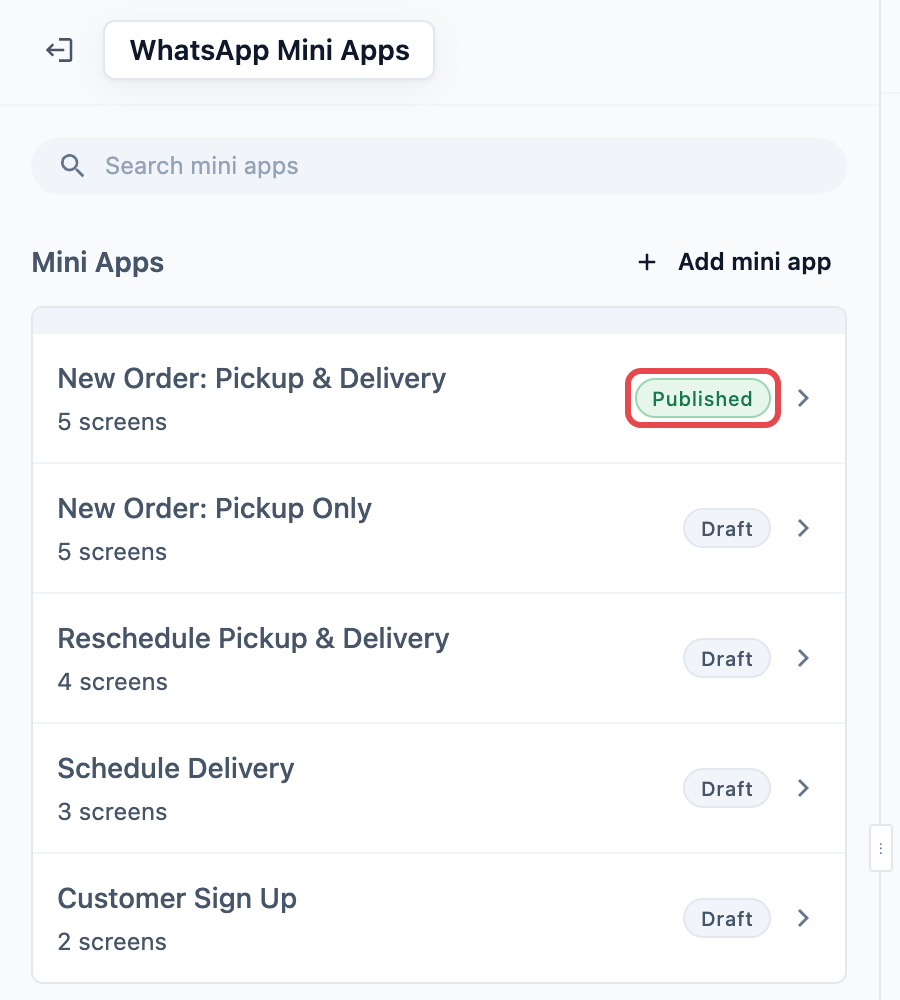
| Label | What it means |
|---|---|
| Published | Customers can open it on WhatsApp. You're ready. |
| Unpublished changes | Customers see the last published version. Your newer edits are not live yet. |
| Draft | It has never been published. Customers can't open it. |
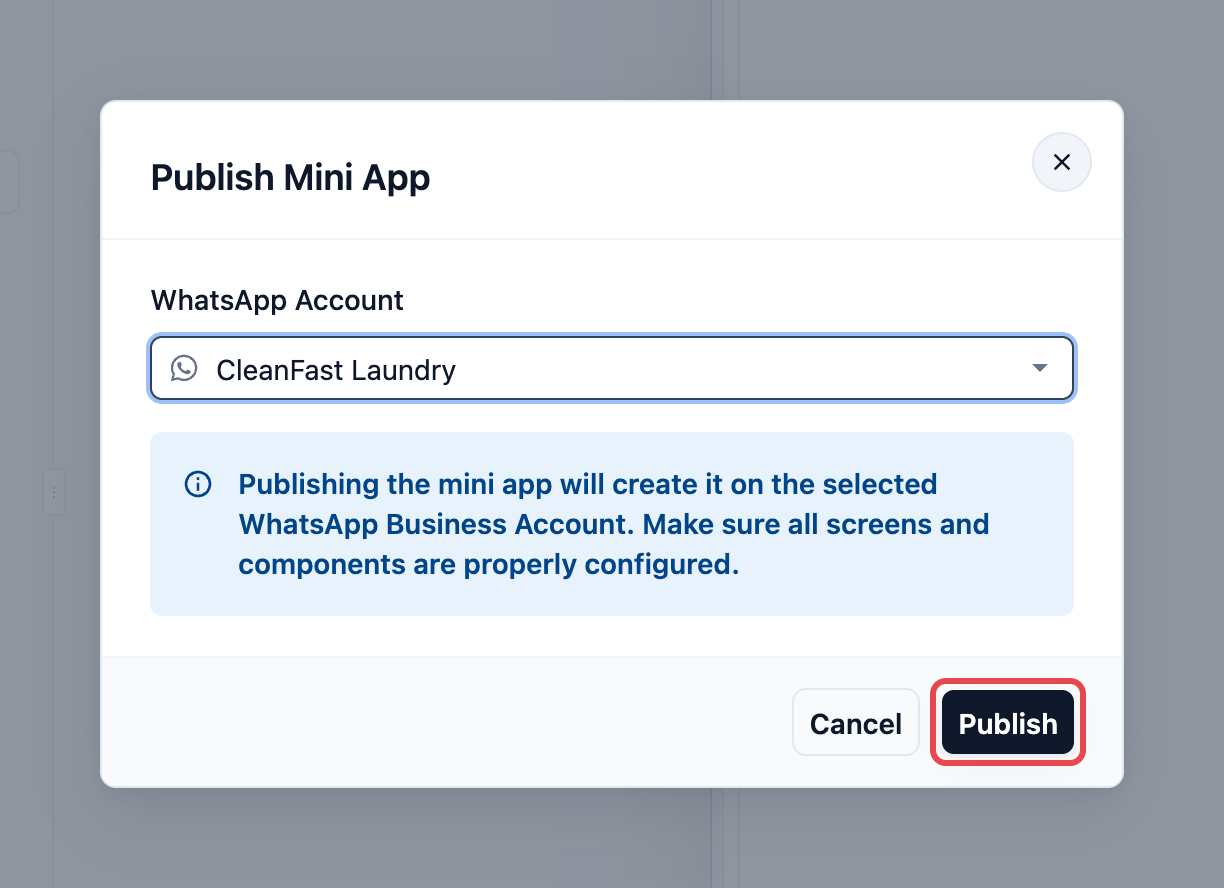
If it shows Draft or Unpublished changes, open it and click Publish at the top right. In the Publish Mini App window, choose your WhatsApp Business Account and click Publish. If the window says Add to subscription and publish, that WhatsApp number is not on your Mini App subscription yet, and publishing adds it.
Where to find it
- Click the ⚙️ Settings icon in the top-right corner.
- Under the CRM section, click Auto replies.
Setting it up
Step 1: Add the reply
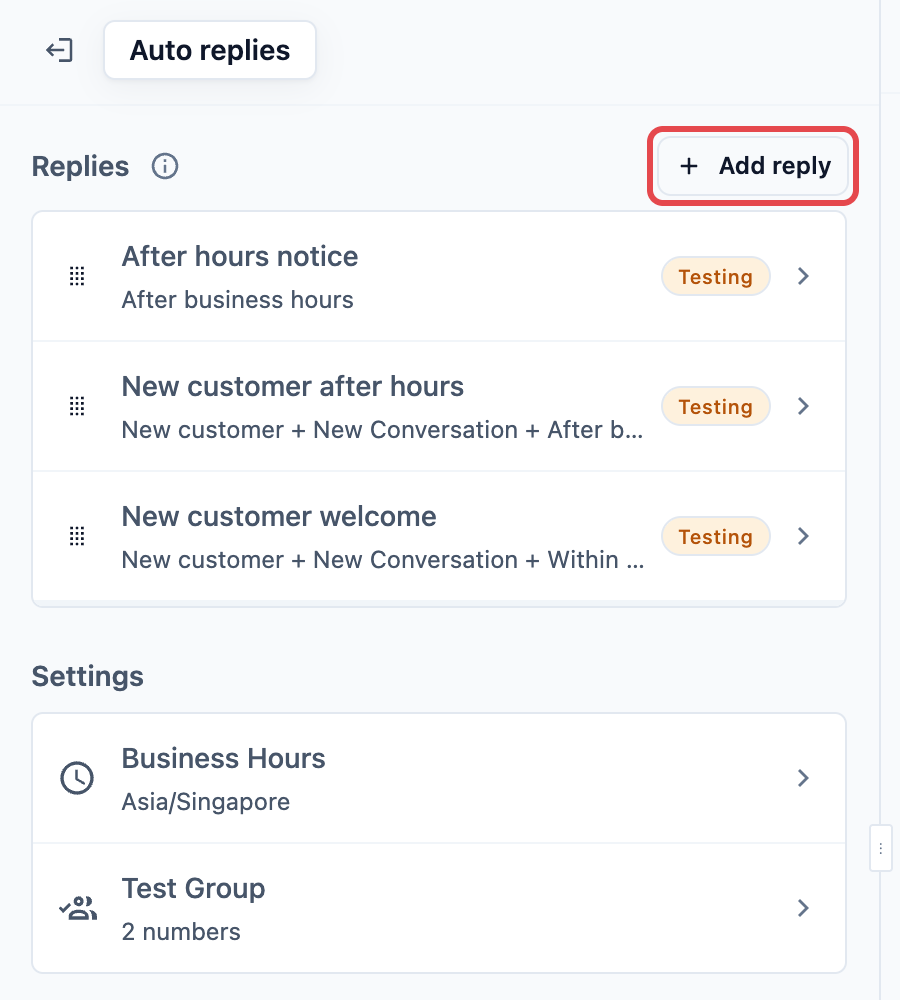
- Click Add reply above the list.
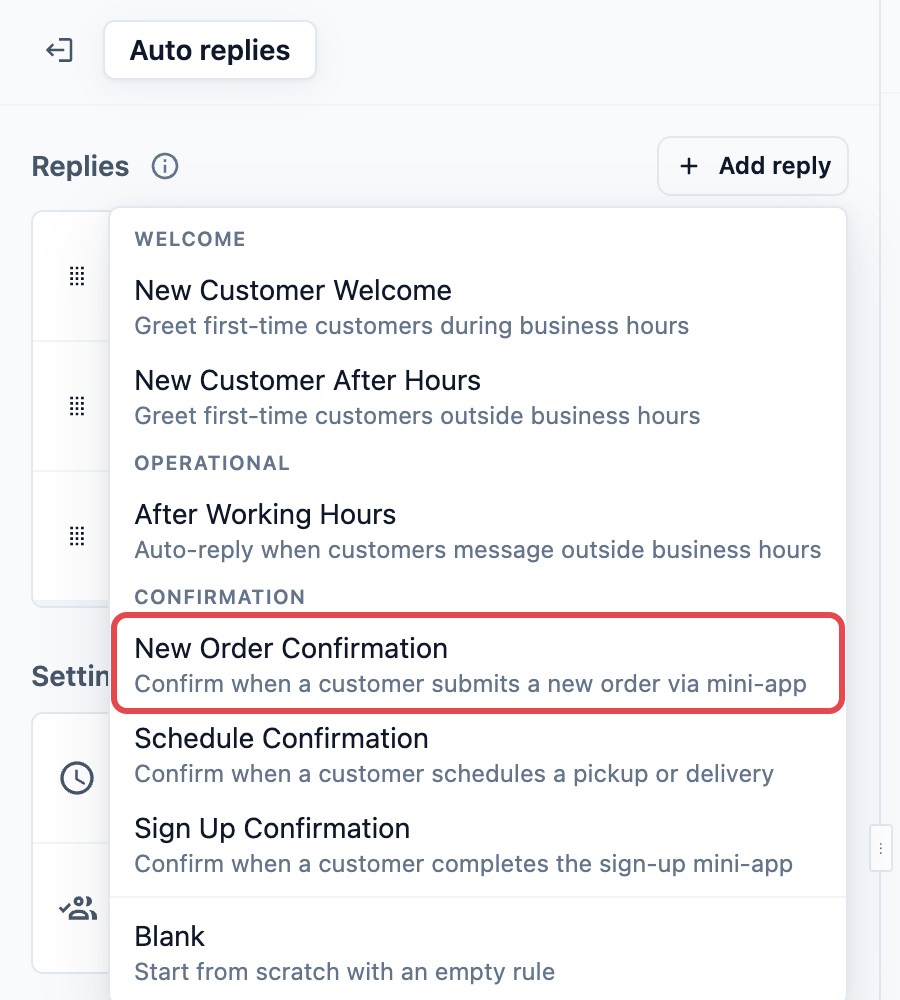
- Under Confirmation, click New Order Confirmation.
- In the Add reply window, keep the suggested name or type your own in Name, for example Order confirmation: Pickup & Delivery. Only your staff see this name, so a name that says which Mini App it answers helps later.
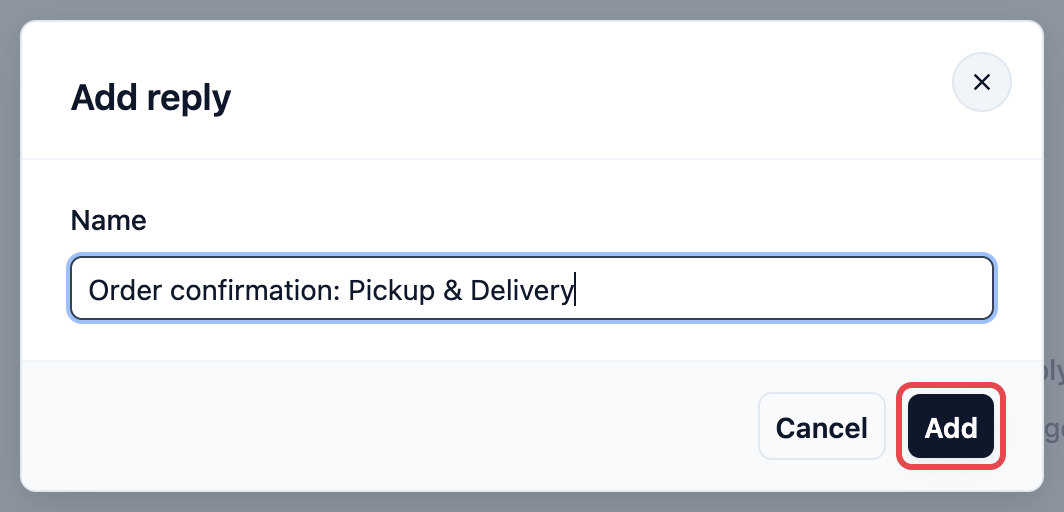
- Click Add.
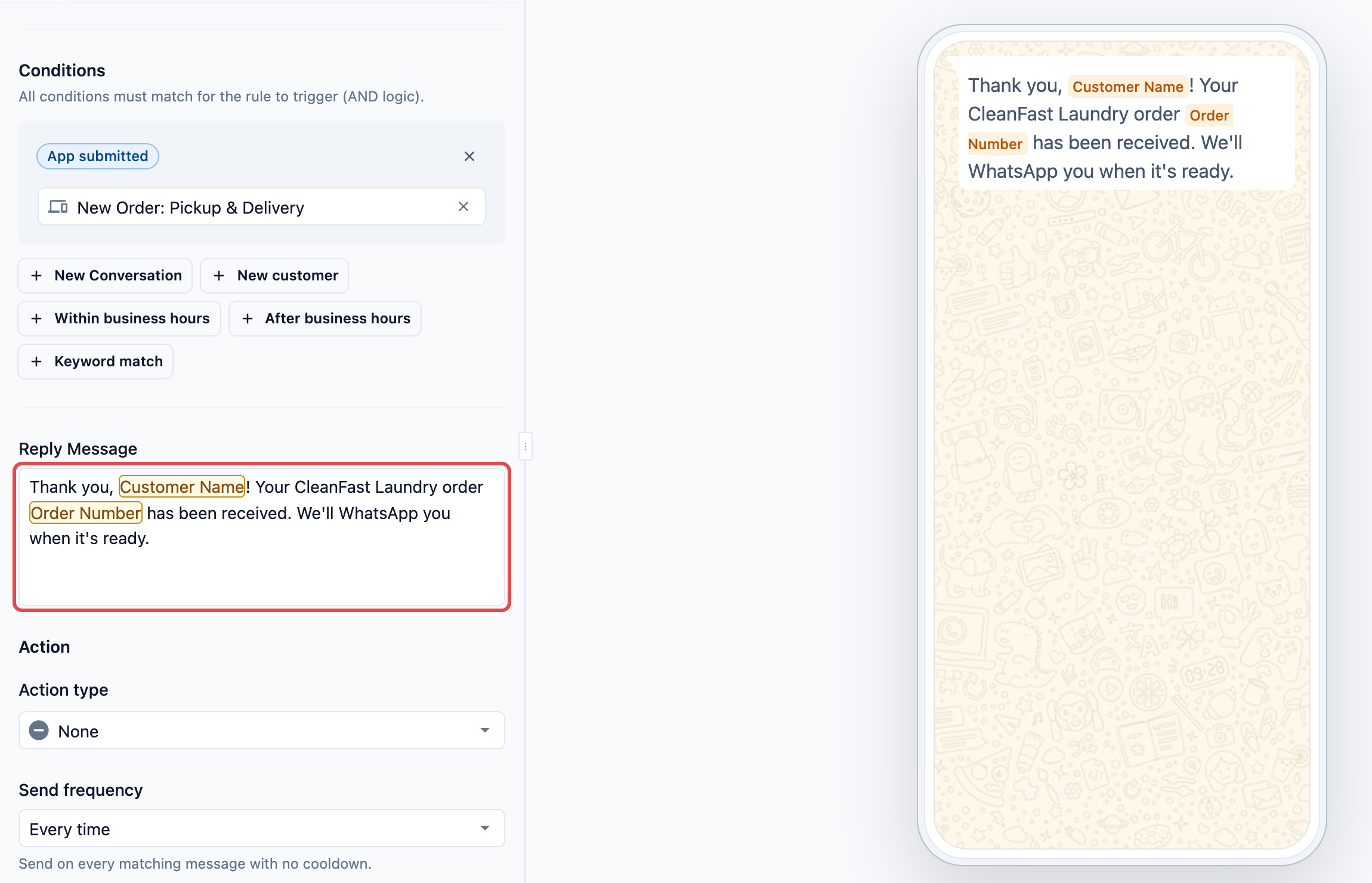
The reply opens with everything already filled in. The phone on the right shows the message as your customer will get it.
Step 2: Choose the Mini App it answers
Under Conditions, the reply comes with one condition, App submitted. Below it is a box that says Any app (leave empty for all).
- Click the box under App submitted.
- Choose your order Mini App, for example New Order: Pickup & Delivery.
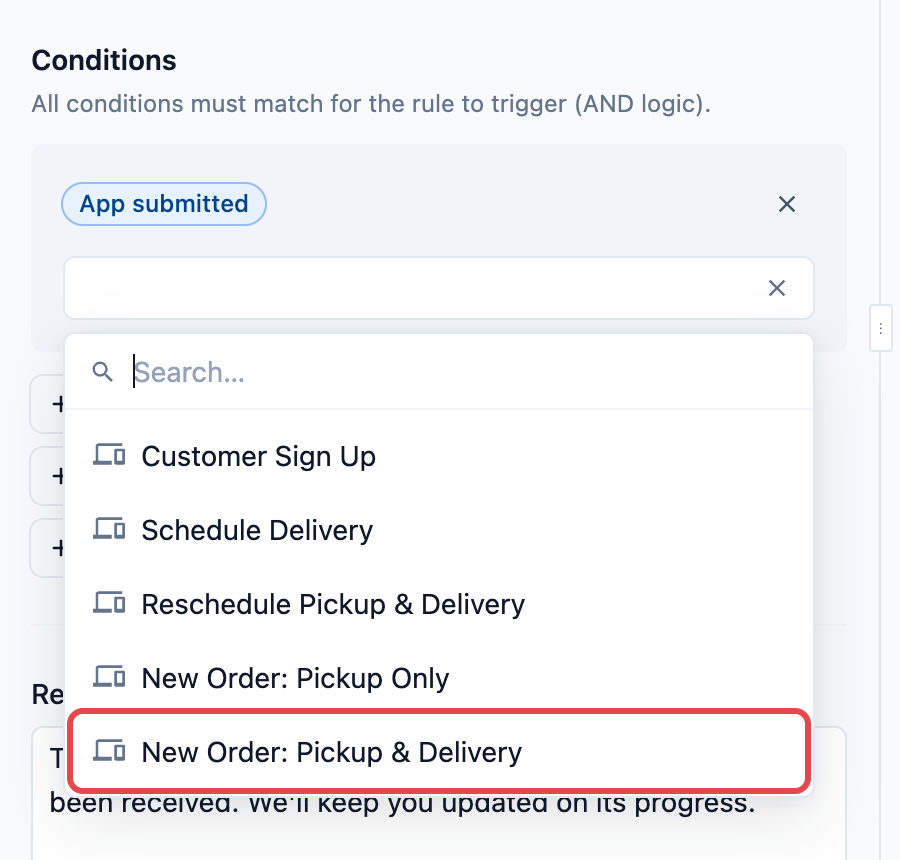
The list shows every Mini App in your shop by its name, including ones you have not published yet. Choose the one your customers use to place orders, and check it is published.
App submitted
| Choice | What happens |
|---|---|
| Leave empty | The reply answers every Mini App a customer submits, including scheduling and sign-up forms. A customer who reschedules a pickup would get "Your order has been received". |
| One Mini App | The reply answers only that Mini App. This is the right choice for almost every shop. |
You can choose only one Mini App per reply. If you use both New Order: Pickup & Delivery and New Order: Pickup Only, add a second New Order Confirmation and choose the other Mini App in it.
Step 3: Check the message
Reply Message
The message comes filled in as:
Thank you, @Customer Name! Your order @Order Number has been received. We'll keep you updated on its progress.
@Customer Name and @Order Number fill in by themselves when the message is sent. Change the wording to sound like your shop, and type @ to add other details from the order, such as the pickup date.
Action
Action type comes set to None, so the confirmation goes out as plain text. Use this only if you want a button under the message, for example Open Website with a link to your price list. Most shops keep None.
Send frequency
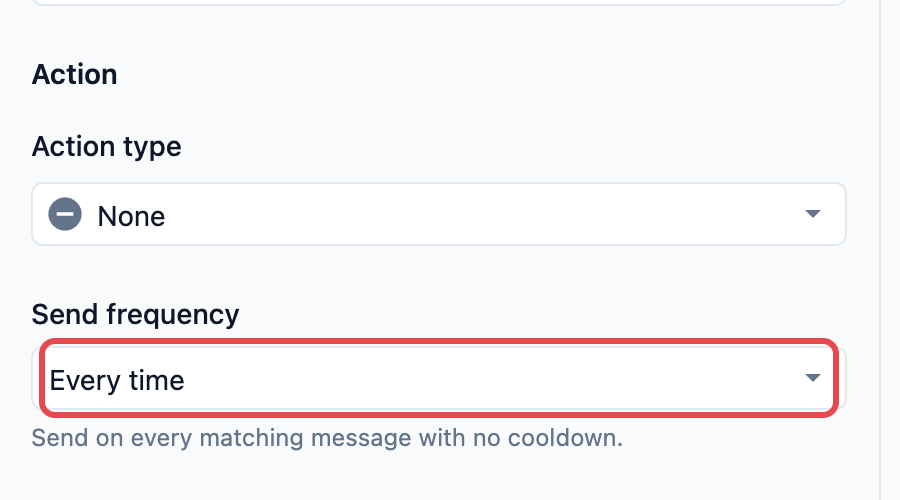
Send frequency comes set to Every time. Keep it. Every order should get its own confirmation, and a customer may place two orders in the same chat, for example one for shirts and one for a bag repair.
| Send frequency | What it does |
|---|---|
| Once per conversation | Sends once. A second order in the same chat gets no confirmation until the conversation is closed. |
| Once per 24 hours | Sends at most once a day to the same person. A second order that day gets nothing. |
| Every time | Sends for every order. |
Status
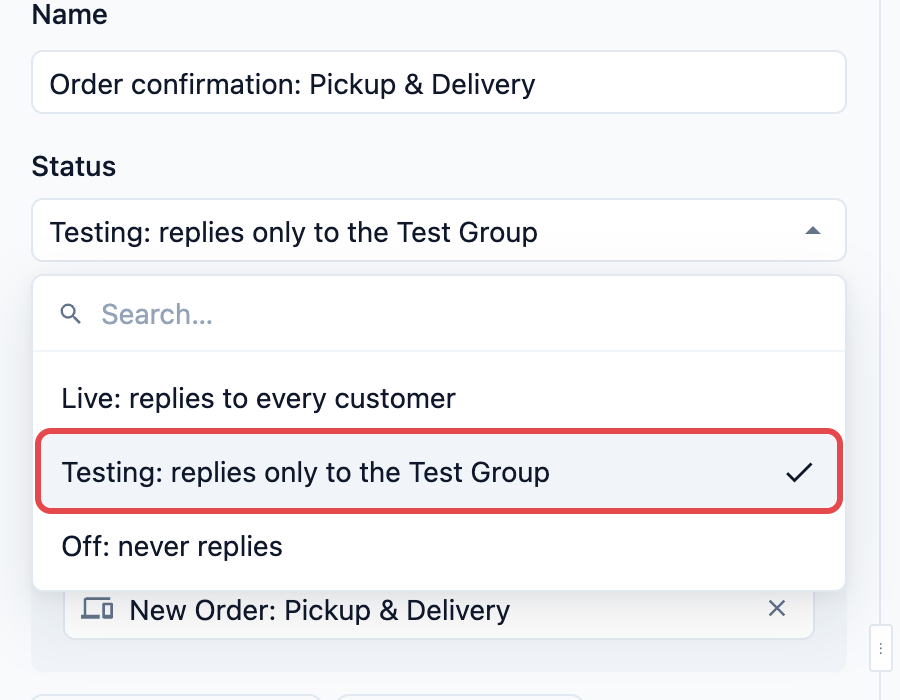
A new reply starts as Testing. Keep it on Testing until you have tried it yourself.
| Status | What it does |
|---|---|
| Live: replies to every customer | Sends to every customer who submits the Mini App. |
| Testing: replies only to the Test Group | Sends only to the numbers in your Test Group. Customers get nothing. |
| Off: never replies | The reply is kept but never sends. |
Step 4: Save
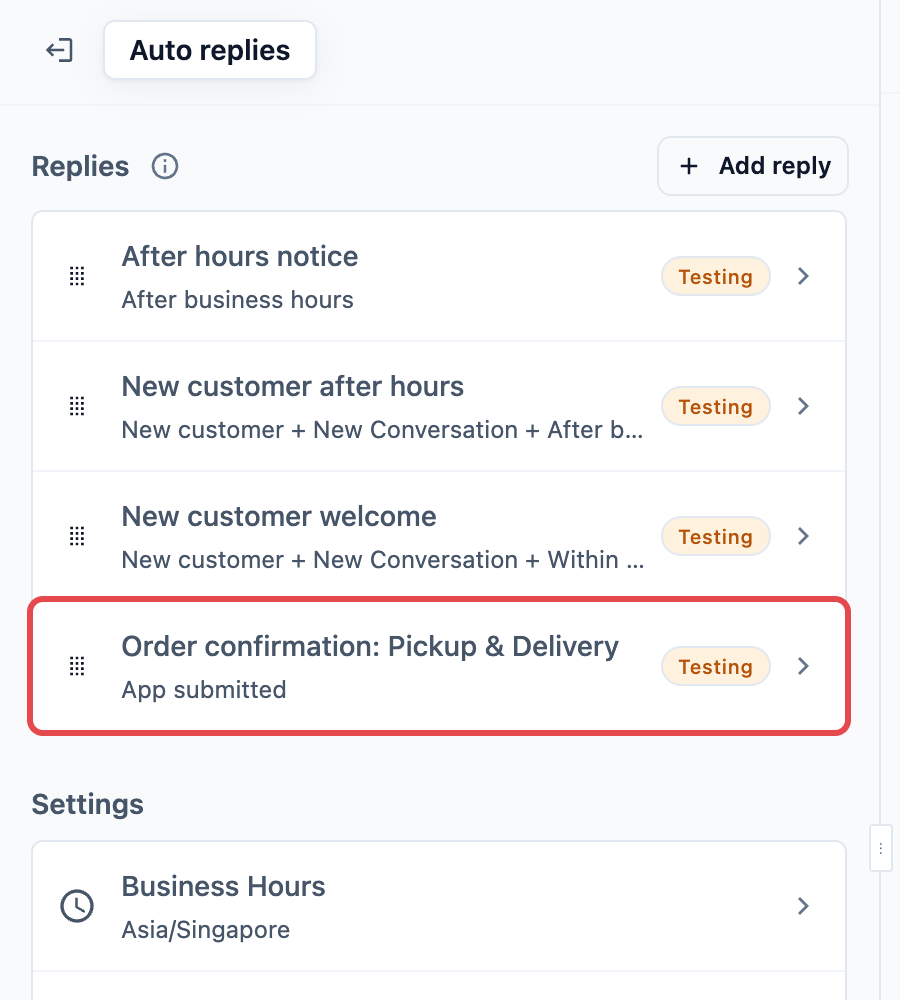
Click Save at the top right. Back on the list, your new reply is added at the bottom with a Testing label.
Testing the reply
- Check that the reply's status is Testing and your phone number is in the Test Group.
- From that phone, open your order Mini App on WhatsApp and submit an order.
- The confirmation arrives within a few seconds, with your name and the new order number.
If the confirmation doesn't arrive, check that:
- Your phone number is in the Test Group.
- The reply has the Mini App you submitted chosen under App submitted, and that Mini App is published.
- No other reply higher in your list also answers that Mini App. EasyBiz sends only the first one that fits.
When it works, open the reply, change Status to Live: replies to every customer, and click Save.
Example setup
CleanFast Laundry takes home pickups through its New Order: Pickup & Delivery Mini App and lets customers change times through Reschedule Pickup & Delivery.
- Name: Order confirmation: Pickup & Delivery
- App submitted: New Order: Pickup & Delivery
- Message: "Thank you, @Customer Name! Your CleanFast Laundry order @Order Number has been received. We'll WhatsApp you when it's ready."
- Action type: None
- Send frequency: Every time
- Status: Testing, then Live after the owner tried it
On Wednesday at 8:40 PM, Mei Ling books a pickup for 5 shirts and a duvet. A few seconds later she gets "Thank you, Mei Ling! Your CleanFast Laundry order 00482 has been received. We'll WhatsApp you when it's ready." When she later changes the pickup time in the reschedule Mini App, she gets the Schedule Confirmation message instead, not a second order confirmation.
FAQs
Will customers get this and my welcome or after-hours reply at the same time?
No. Your welcome and after-hours replies answer messages a customer types. New Order Confirmation answers only a submitted Mini App, so they never compete.
Can I use New Order Confirmation and Schedule Confirmation together?
Yes. Choose a different Mini App in each, for example your new order Mini App in this reply and your reschedule Mini App in Schedule Confirmation. Each customer then gets the one message that fits what they did.
Does it send for orders my staff create in the Console or POS?
No. It only answers orders placed through a WhatsApp Mini App.
What if the order number is missing from the message?
The order number only exists for Mini Apps that create an order, such as New Order: Pickup & Delivery. If you chose a sign-up or schedule Mini App, there is no order number to fill in, so pick your order Mini App instead.
I use both New Order Mini Apps. Do I need two replies?
Yes. Each reply answers one Mini App, so add one New Order Confirmation for each and choose a different Mini App in each.
I set up order confirmations before. Do I need to do them again?
No. Your saved replies are already on Settings › CRM › Auto replies. Open each one and check the right Mini App is chosen under App submitted.
What's Next
Customers now get their order number the moment they book through your Mini App. Continue to Schedule Confirmation to confirm the pickup or delivery time when customers schedule or change it.