
A brand-new customer who messages your shop during opening hours gets your welcome message straight away, without anyone on your team typing it.
Before You Start
- Read Setting Up Auto Reply Rules first. It explains how auto replies, their order and their status work.
- Your shop's WhatsApp number is connected to EasyBiz, so customer messages arrive in your Inbox.
- You need access to Settings in the Console.
- Business Hours and the Test Group are set on the same Auto replies page. This article shows you where to check them.
If you set this up before: Auto Reply Rules used to be a tab in WhatsApp Settings, with Business Hours and the Test Group in WhatsApp General Settings. They are now together on one page, ⚙️ Settings › CRM › Auto replies. Your saved replies, business hours and test numbers are already there, so there is nothing to set up again.
Overview
New Customer Welcome is one of the ready-made replies on the Auto replies page. It comes with its conditions, message and send frequency already filled in, so you only need to check them and save. An auto reply's conditions are the things that must all be true before EasyBiz sends it. For this reply, the person must be new to your shop, it must be the start of a conversation, and your shop must be open. You test it with your own phone first, then switch it on for every customer.
Why set it up
- First-time customers get an answer in seconds. Someone asking “How much to dry clean a suit?” knows straight away that your shop has seen their message.
- Your staff stop typing the same greeting. They can reply with the real answer when they are free.
- Fewer lost enquiries. A new customer who hears nothing often messages another shop instead.
If you skip it, new customers see nothing until a staff member replies by hand, which can take a while on a busy day.
Where to find it
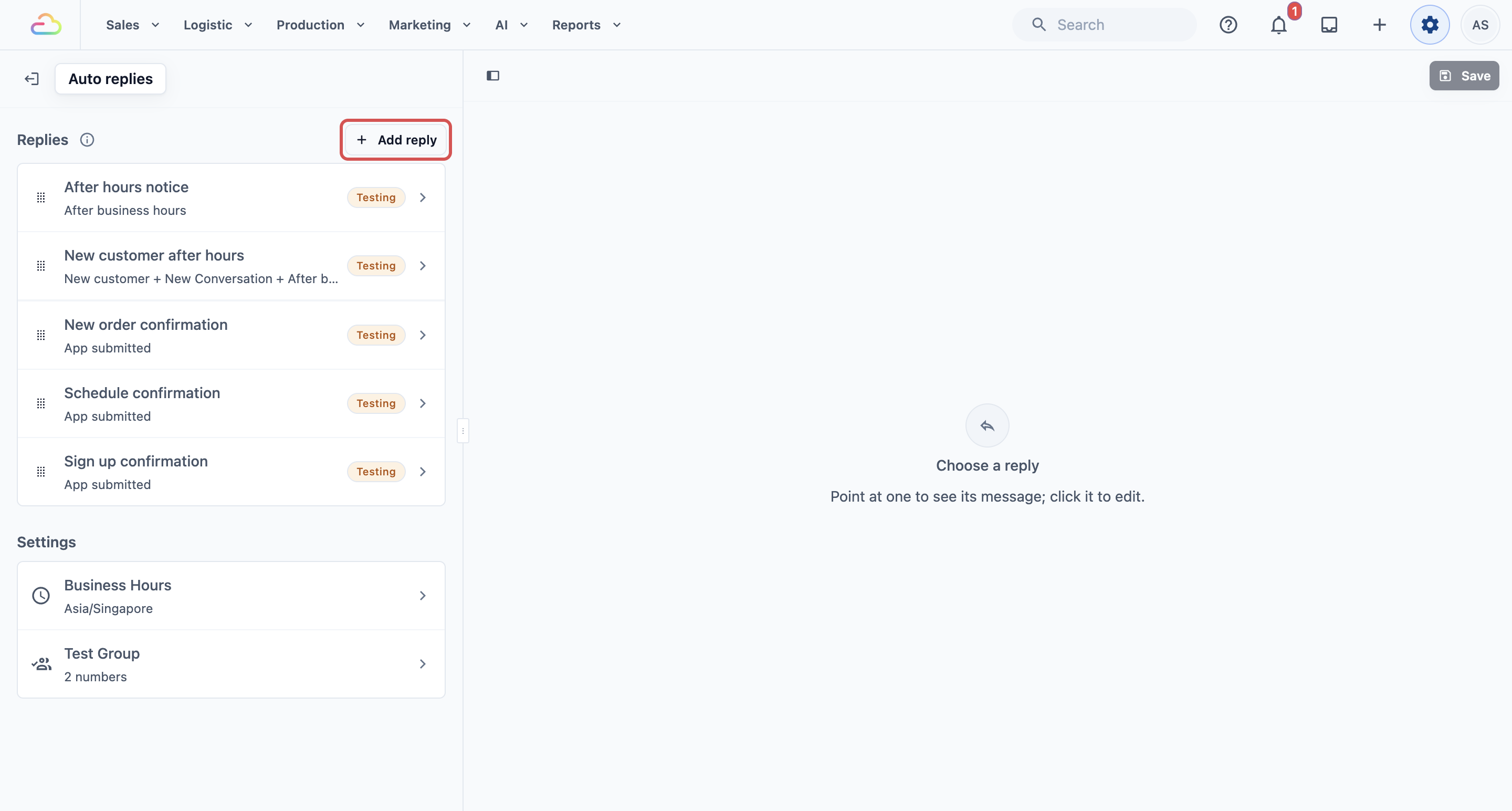
- Click the ⚙️ Settings icon in the top-right corner.
- Under the CRM section, click Auto replies.
The page lists your replies under Replies, in the order EasyBiz checks them. Under Settings below the list are Business Hours and Test Group, which every reply shares.
Check your Business Hours and Test Group
This reply uses your business hours to know when your shop is open, and you test it with a number in the Test Group. Check both before you add the reply.
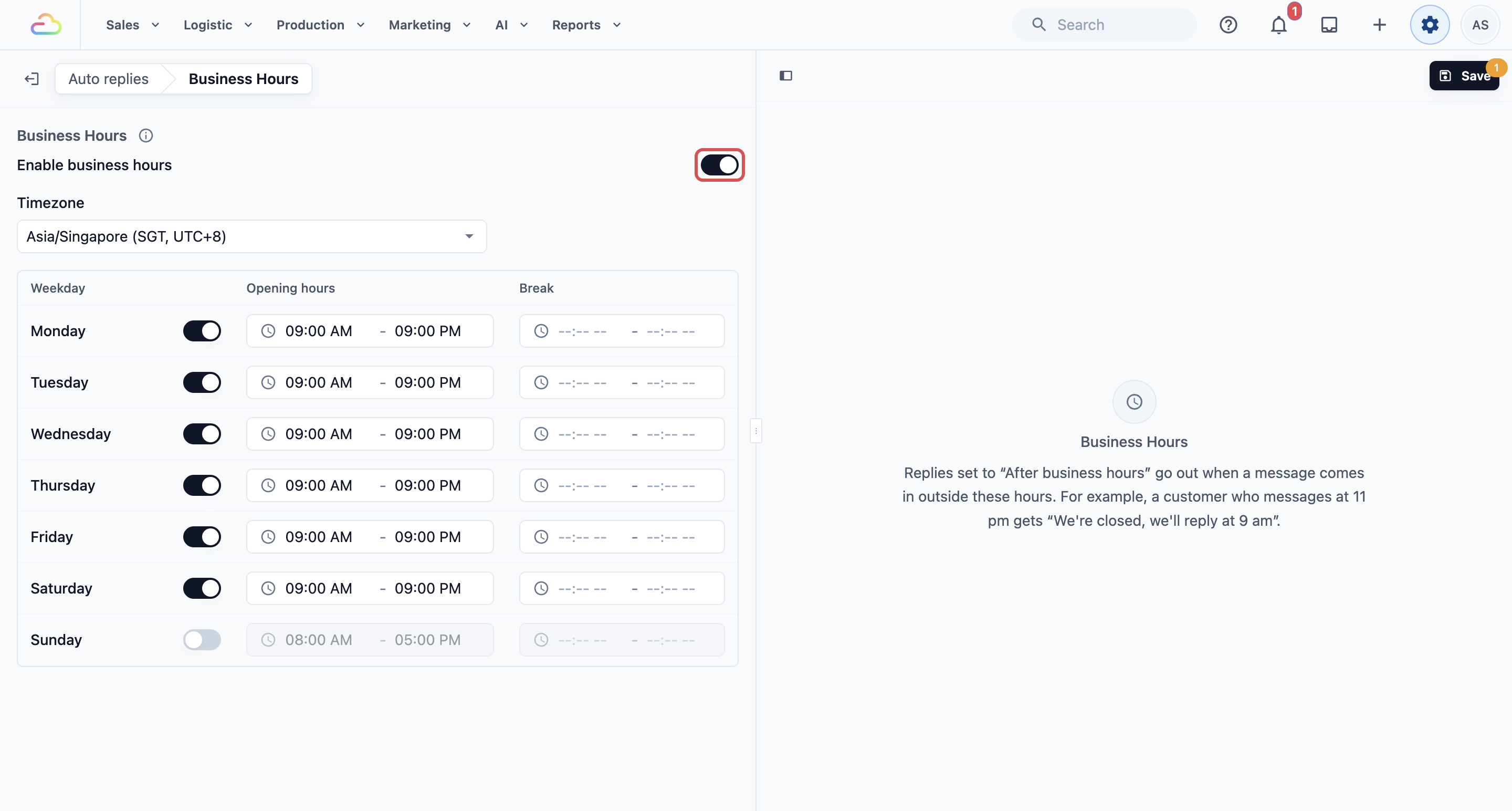
Business Hours
- On the Auto replies page, under Settings, click Business Hours.
- Turn on Enable business hours.
- In Timezone, choose your shop's timezone, for example Asia/Singapore (SGT, UTC+8).
- For each weekday, turn the switch on for days you open and off for days you close.
- In Opening hours, set the start and end time for each open day. Use Break only if you close for lunch.
- Click Save at the top right.
Test Group
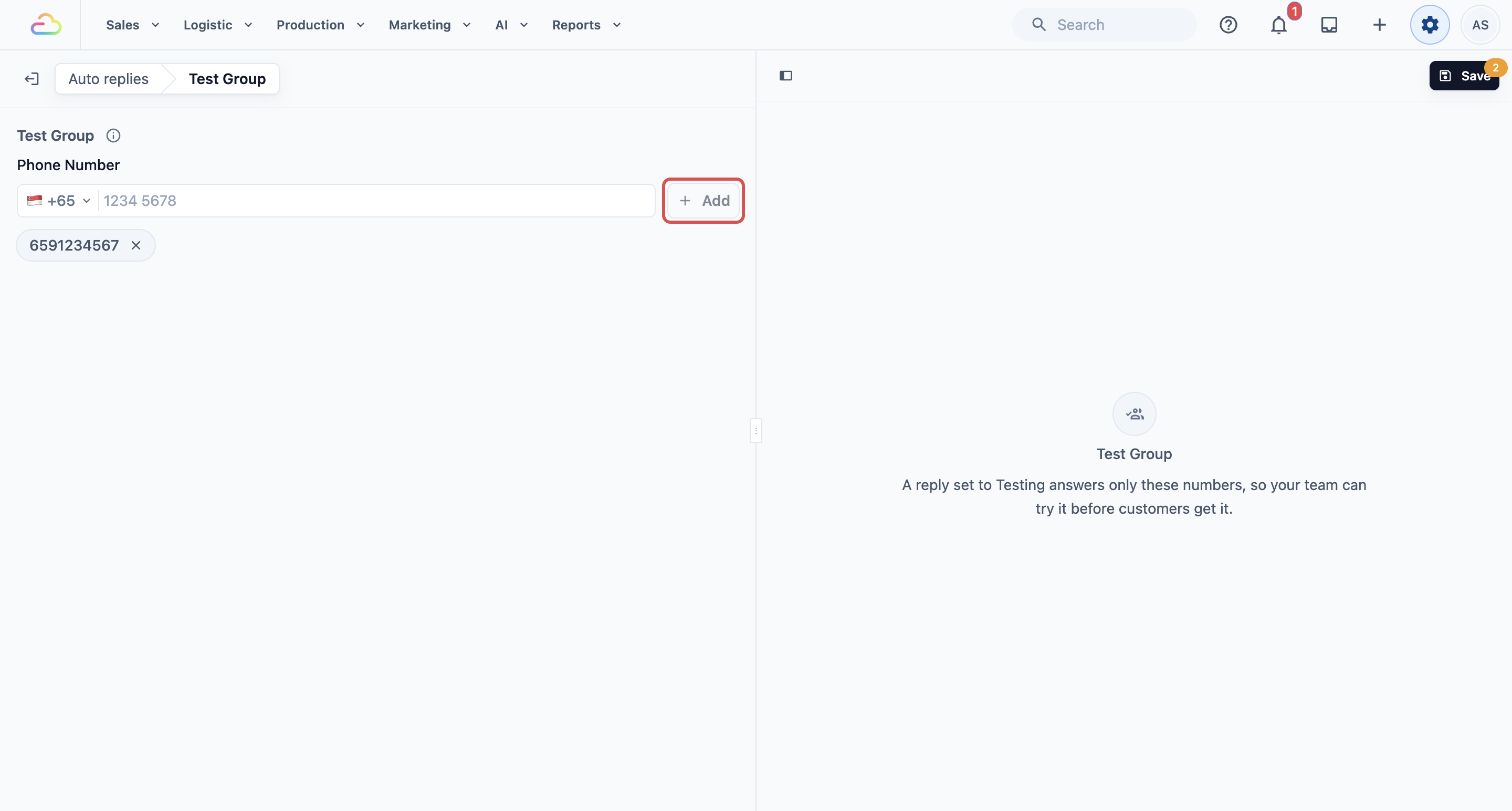
The Test Group is a list of your own team's phone numbers. A reply set to Testing answers only these numbers, so you can try it before customers get it.
- On the Auto replies page, under Settings, click Test Group.
- Enter a phone number in Phone number, then click Add.
- Click Save at the top right.
Setting it up
Step 1: Add the reply
- Go back to the list by clicking Auto replies at the top of the page.
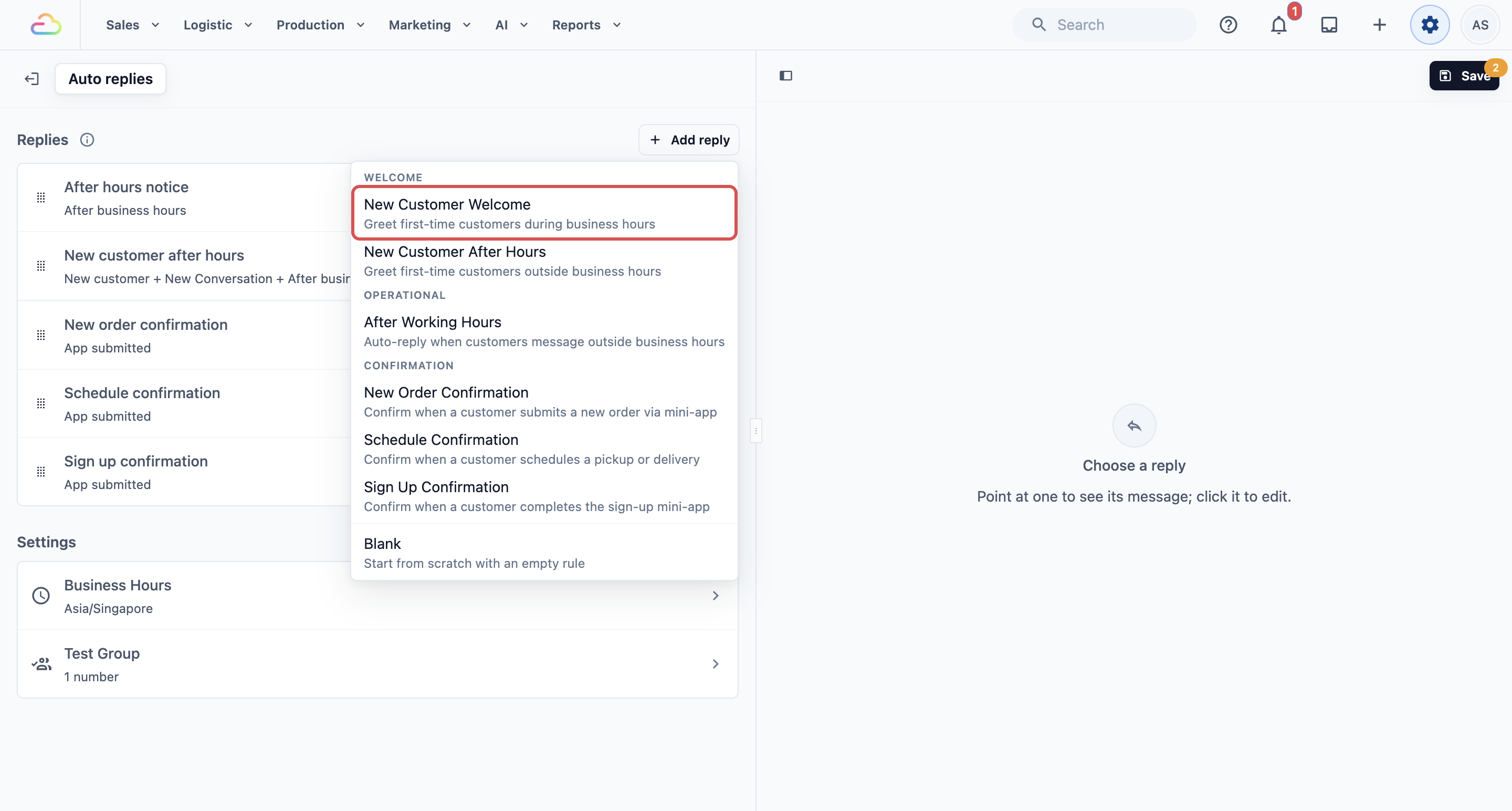
- Click Add reply above the list.
- Under Welcome, click New Customer Welcome.
- In the Add reply window, keep the suggested name or type your own in Name, for example Welcome new customers. Only your staff see this name.
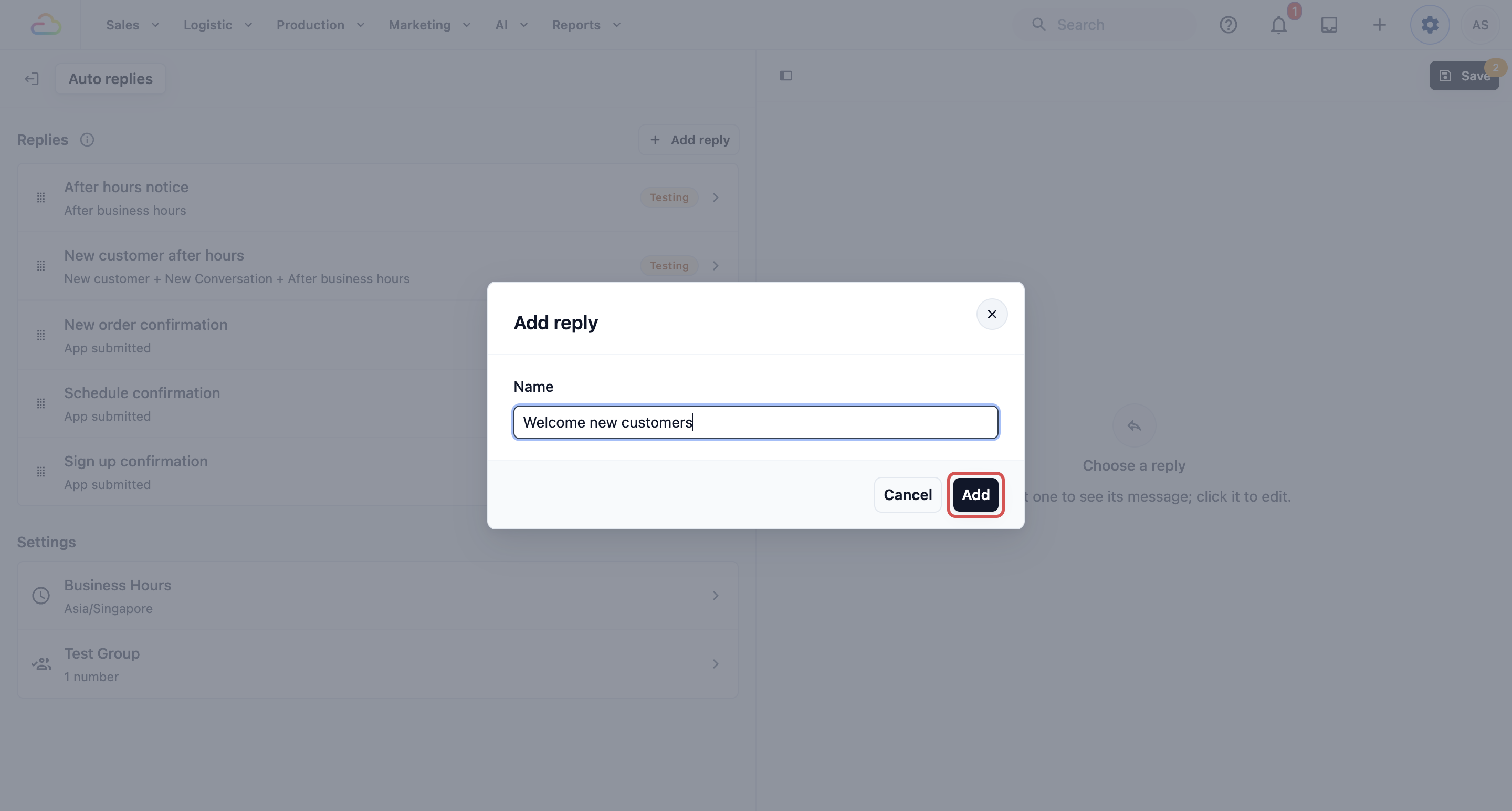
- Click Add.
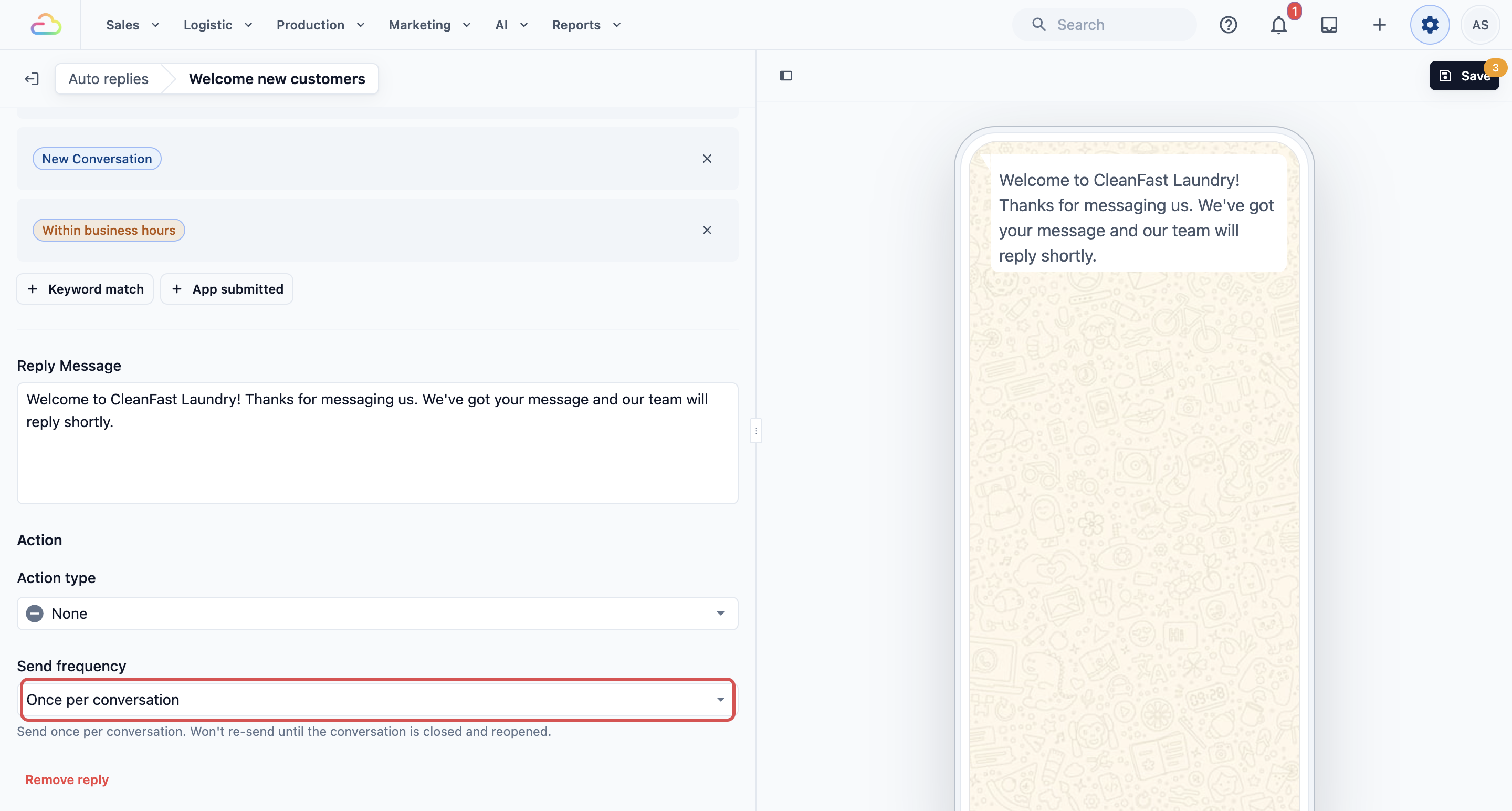
The reply opens with everything already filled in. The phone on the right shows the message as your customer will get it.
Step 2: Check what comes filled in
Work down the reply from top to bottom.
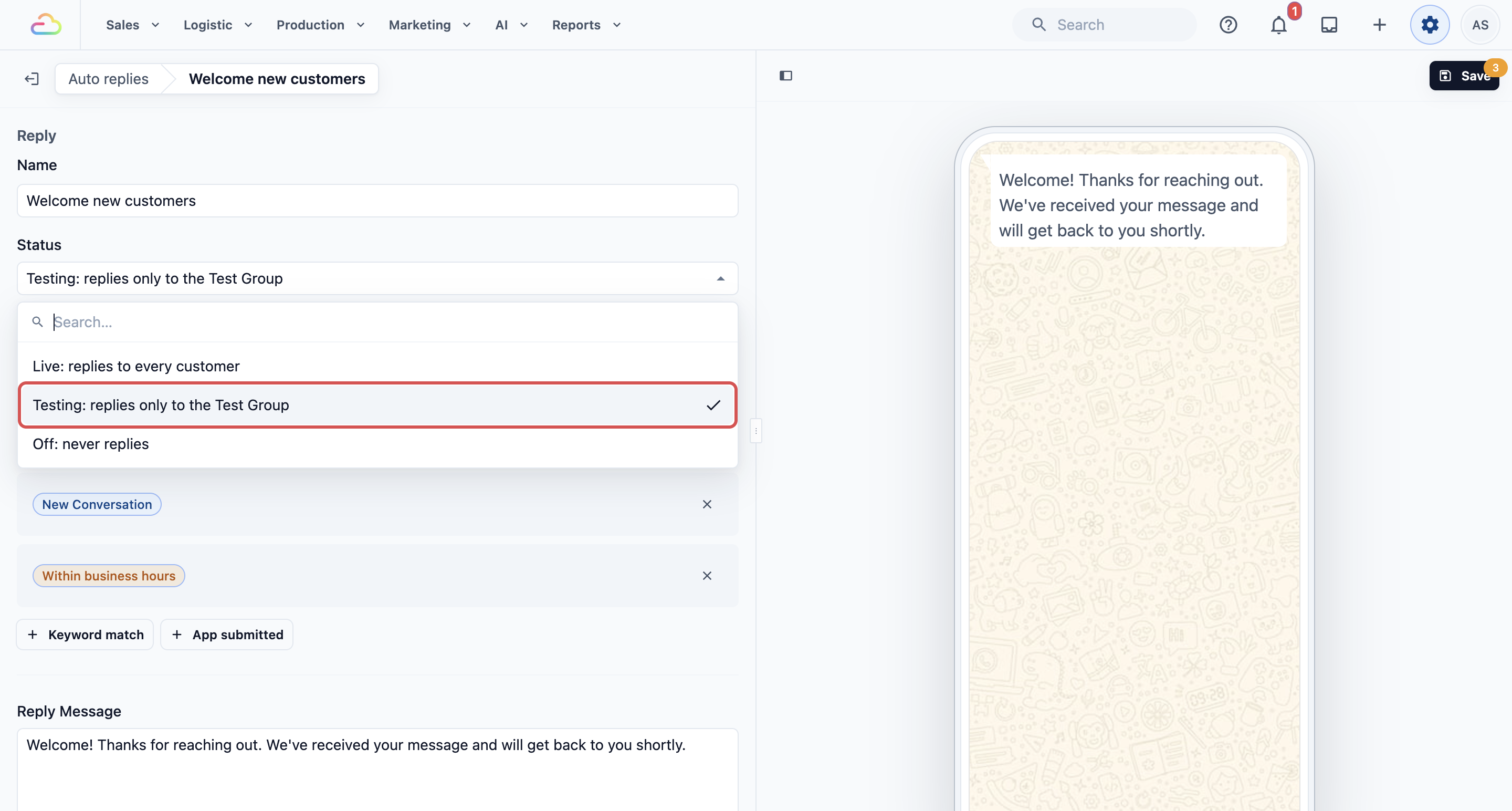
Status
A new reply starts as Testing. Keep it on Testing until you have tried it yourself.
| Status | What it does |
|---|---|
| Live: replies to every customer | Sends to any customer whose message fits the conditions. |
| Testing: replies only to the Test Group | Sends only to the numbers in your Test Group. Customers get nothing. |
| Off: never replies | The reply is kept but never sends. |
Conditions
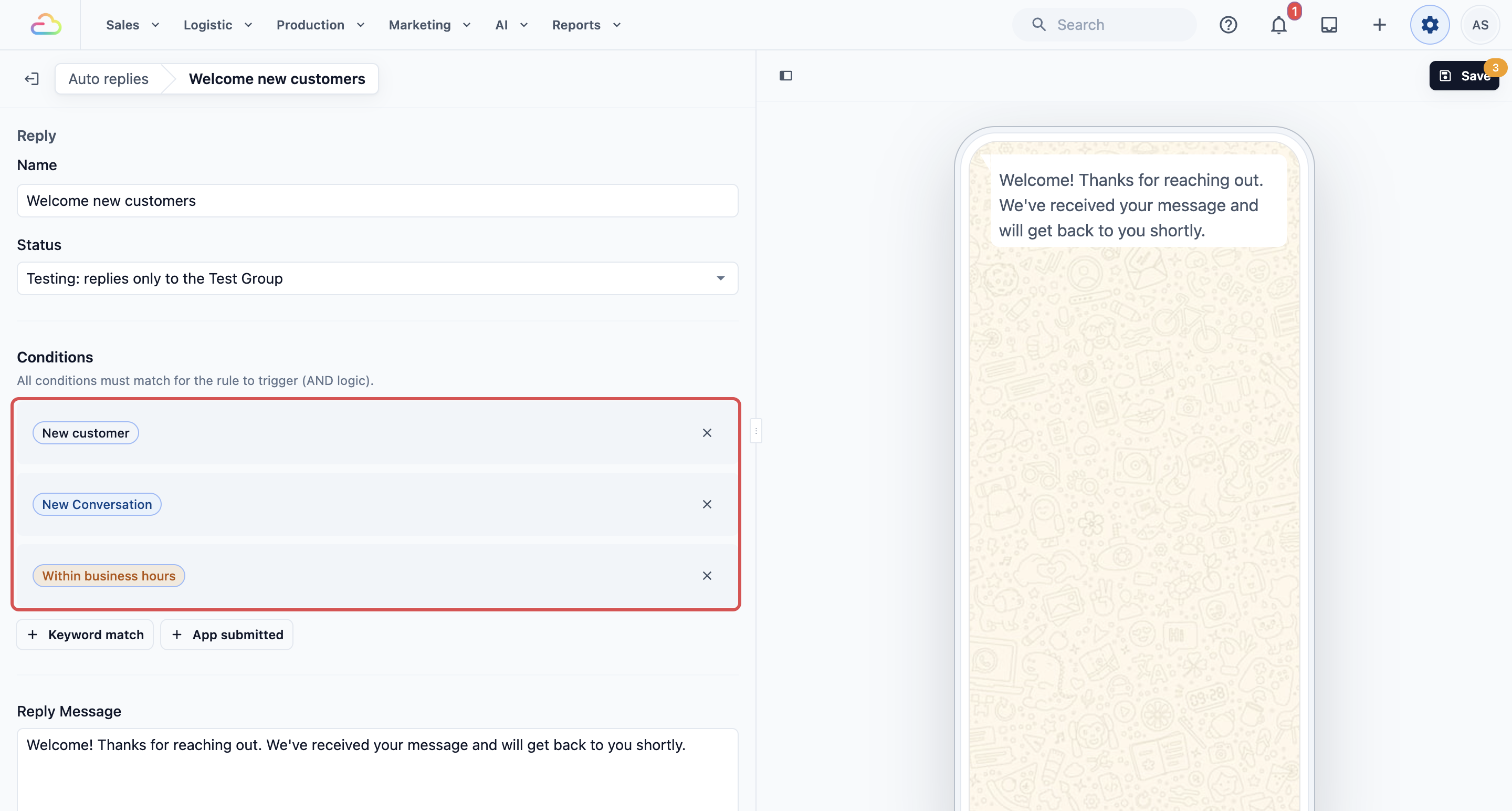
Three conditions come already filled in. All three must be true at the same time:
- New customer: the phone number has no customer profile in EasyBiz yet. Customers already saved in your Customers list do not get this welcome.
- New conversation: it is the first message of a conversation, or the first message after you closed the last one.
- Within business hours: the message arrives while your shop is open, based on your Business Hours.
Keep all three. If you remove New customer, your regular customers get the welcome too. If you remove Within business hours, it also sends at night, at the same time as your after-hours replies would. A reply can't have both Within business hours and After business hours.
Reply Message
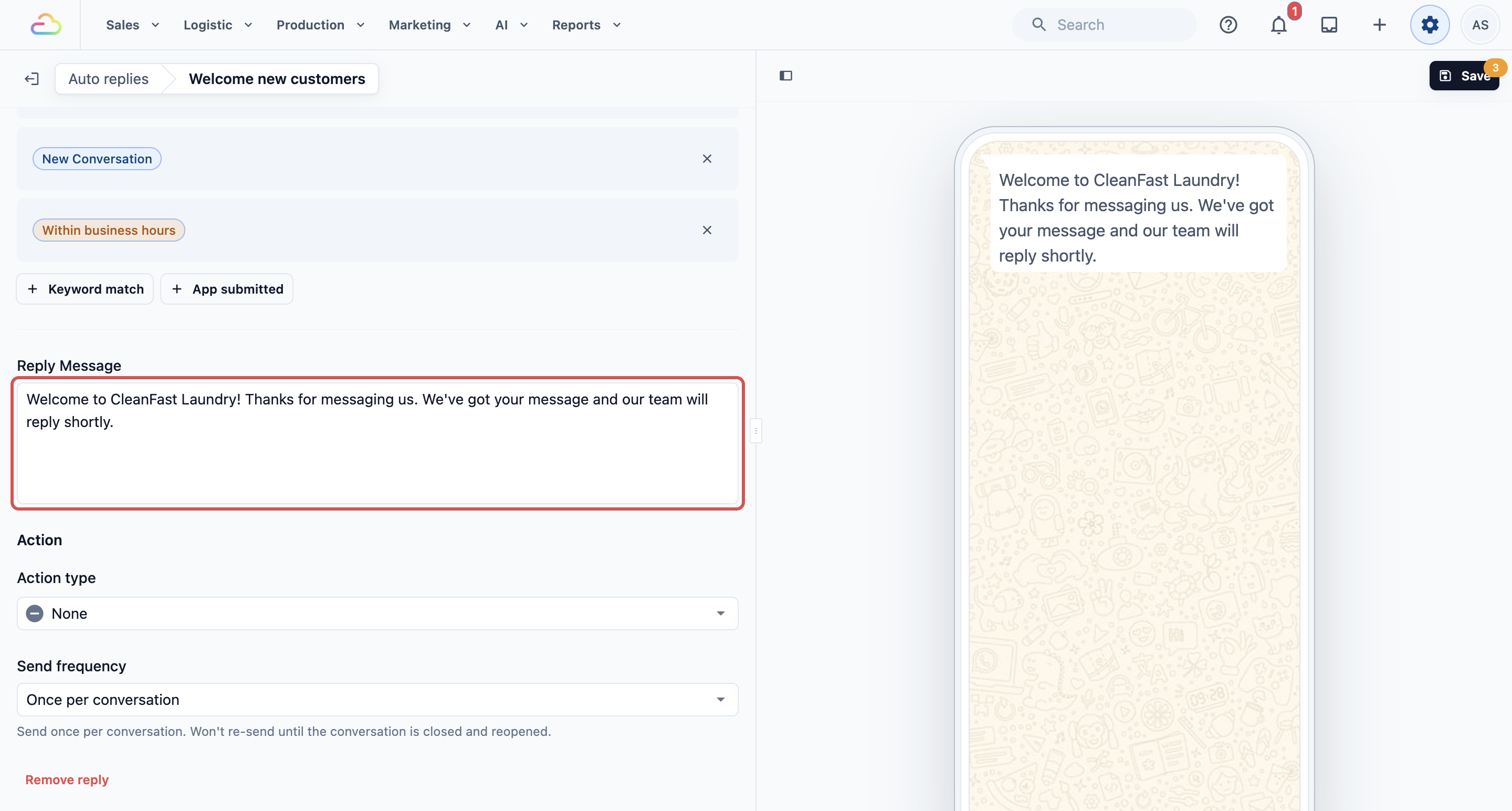
The message comes filled in as:
Welcome! Thanks for reaching out. We've received your message and will get back to you shortly.
Change it to sound like your shop. Type @ to add details that fill in by themselves when the message is sent: Next Available Time, Current Date or Current Time.
Action
Action type comes set to None, so the welcome goes out as plain text. Use this only if you want a button under the message.
| Action type | What the customer gets |
|---|---|
| None | The message only. |
| Open Website | One button that opens a web page, such as your price list. |
| Quick Replies | Up to 3 buttons the customer taps to answer, such as “Prices” or “Pickup”. |
| Select options | One button that opens a list of up to 10 choices. |
| Open mini App | One button that opens one of your WhatsApp mini apps, such as your booking form. |
Send frequency
Send frequency decides how often the same person can get this reply.
| Send frequency | What it does |
|---|---|
| Once per conversation | Sends once. It won't send again until the conversation is closed and the customer messages again. |
| Once per 24 hours | Sends at most once a day to the same person. |
| Every time | Sends on every message that fits. |
Keep Once per conversation. A welcome only needs to arrive once, not after every message the customer sends.
Step 3: Save
Click Save at the top right. The same button also saves any changes you made to Business Hours or the Test Group.
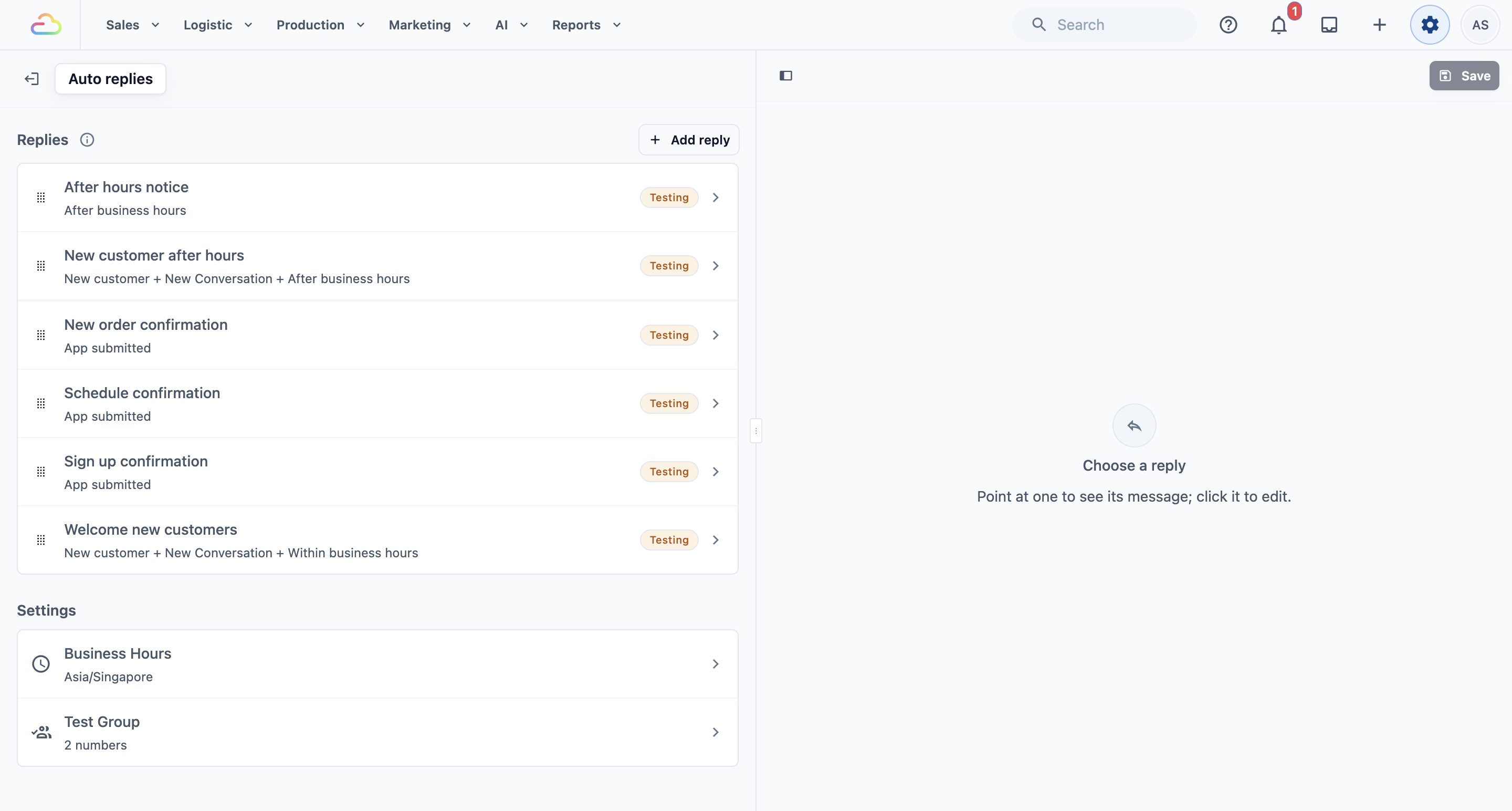
Back on the list, your new reply shows a Testing label. It is added at the bottom of the list.
Testing the reply
- Check that the reply's status is Testing and your test number is in the Test Group.
- During your opening hours, send a WhatsApp message to your shop's number from that test phone.
- The welcome message arrives within a few seconds.
If the welcome doesn't arrive, check that:
- Enable business hours is on, and the time now is within your opening hours.
- Your test number is in the Test Group.
- Your test number is not saved as a customer.
- It is a new conversation. If you messaged from that phone before, close that conversation in your Inbox first, or test from another number.
When it works, open the reply, change Status to Live: replies to every customer, and click Save.
Recommended rule order
EasyBiz checks each new WhatsApp message against your replies from the top of the list, and sends only the first one that fits. Put the replies for the series in this order:
- New Customer After Hours (top)
- After Hours Notice
- New Customer Welcome (this reply)
The welcome sends only while you are open, and the two after-hours replies only while you are closed, so they never get in each other's way. What matters is keeping any reply that should win above the welcome, such as a holiday closing notice.
To change the order:
- On the Auto replies page, point at the handle on the left of a reply and drag it up or down.
- Click Save at the top right.
Example setup
CleanFast Laundry has shops in Tampines and Jurong and opens Monday to Saturday, 9:00 AM to 9:00 PM.
- Business Hours: on, Asia/Singapore, Monday to Saturday 9:00 AM to 9:00 PM, Sunday off.
- Name: Welcome new customers
- Status: Testing, then Live after the owner tried it
- Message: “Welcome to CleanFast Laundry! Thanks for messaging us. We've got your message and our team will reply shortly.”
- Action type: None
- Send frequency: Once per conversation
On Tuesday at 10:15 AM, a first-time customer asks “Do you clean curtains?”. She gets the welcome a few seconds later, and a staff member answers her question from the Inbox when free. If she messages again in the same conversation, she doesn't get the welcome a second time.
FAQs
Will my existing customers get this welcome?
No. It only goes to phone numbers with no customer profile in EasyBiz. Anyone already saved in your Customers list gets nothing from this reply.
What happens if I turn Business Hours off?
EasyBiz then treats your shop as always open. The welcome sends at any hour, and replies that use After business hours, such as After Hours Notice, never send.
Can a customer get the welcome and another auto reply for the same message?
No. EasyBiz sends only the first reply in your list that fits. That is why the order on the Auto replies page matters.
Do I need to add buttons to the welcome?
No. Most shops keep Action type on None. Add a button only when you want new customers to go somewhere next, such as your booking form.
I set up auto replies before. Do I need to do them again?
No. Your saved replies, business hours and test numbers are already on Settings › CRM › Auto replies. Check that the replies are in the order you want.
What's Next
New customers now get a welcome while your shop is open. Continue to New Customer After Hours to greet first-time customers who message you after closing time.