
Before You Start
- A personal Facebook login: Meta, the company behind WhatsApp, uses it only to confirm who you are.
- A business phone number: a new number, or one already on the WhatsApp Business app.
- Access: a Console login that can open Settings › Integrations, usually the owner or an admin.
- About 10 to 15 minutes. You connect once, and the number stays connected.
You need Connect Multiple WhatsApp Numbers only if your shop uses more than one WhatsApp number.
Overview
The WhatsApp integration connects your WhatsApp Business number to your whole EasyBiz account, not to one shop or device. Customer messages then arrive in the Inbox, where any staff member with access can pick them up and reply. Replies always go out from your business number, whoever sends them. EasyBiz also uses the same number for automatic order messages, campaigns and booking forms. This article shows what you get and where each part lives.
Where it works
- Console: connect WhatsApp, reply in the Inbox, and set up templates, auto replies, notifications and campaigns.
- POS: with Professional POS, counter staff answer the same chats on a WhatsApp Chat page.
- Customers: they message your number as usual and get your replies, order updates and booking forms in WhatsApp.
Why set it up
- No more missed chats. The whole team works from one Inbox, so a staff member's day off doesn't leave customers waiting.
- Every chat has an owner. Everyone can see who replied and what was promised, and the history stays with your business.
- Less typing. Order confirmations, ready-for-collection messages and payment reminders go out by themselves.
What you get and where to find it
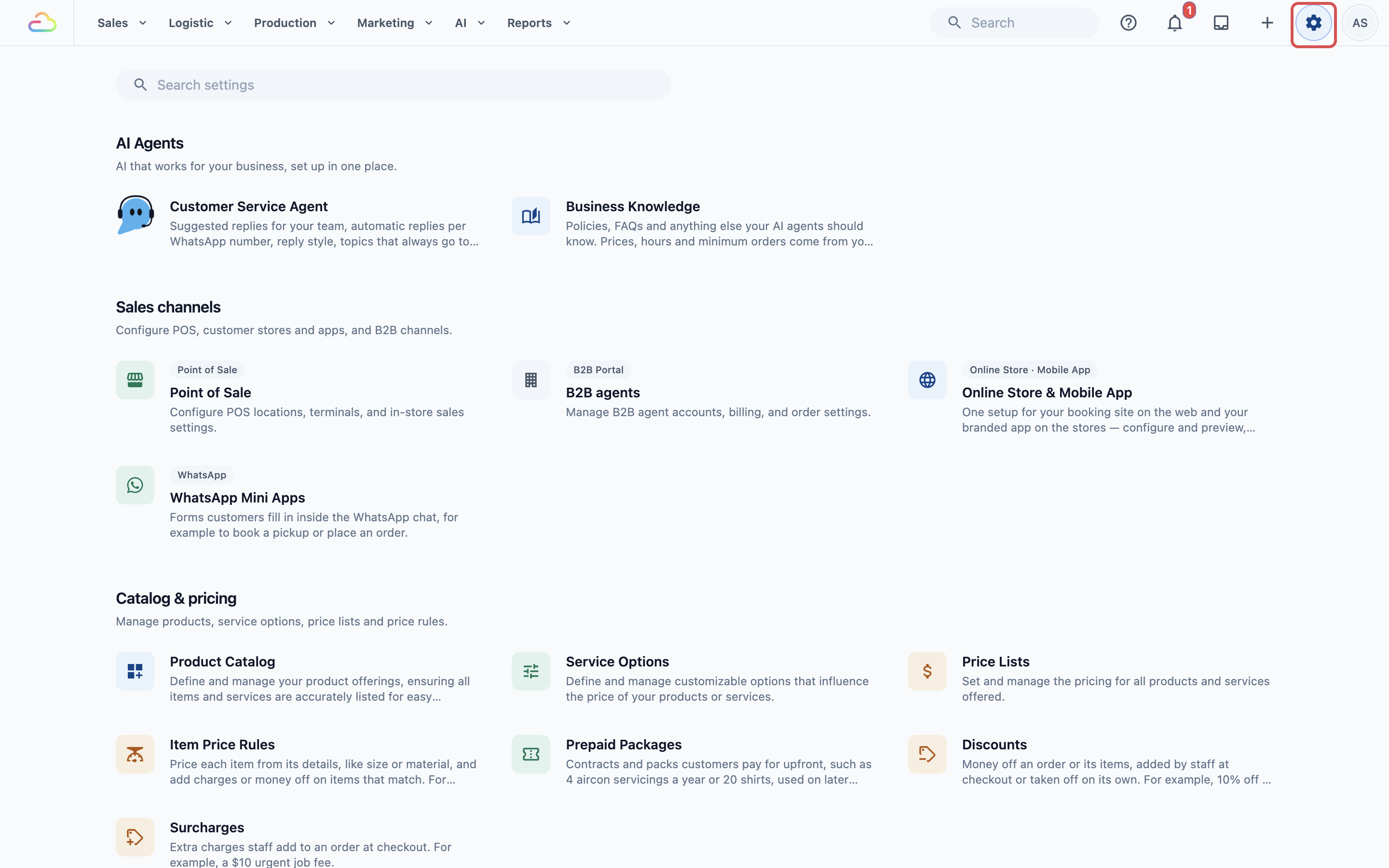
Most parts are in Settings. To open it, click the ⚙️ Settings icon in the top-right corner of the Console.
| Part | What it does | Where to find it |
|---|---|---|
| WhatsApp connection | Links your number to EasyBiz. | Settings › Administration › Integrations |
| Inbox | One place to read and reply to every chat. | The Inbox icon in the top bar |
| WhatsApp Chat on the POS | The Inbox on the counter screen. Needs Professional POS. | Your POS app |
| WhatsApp Templates | Meta-approved messages and saved quick replies. | Settings › Library › WhatsApp Templates |
| Auto replies | Answers messages by themselves, such as an after-hours notice. | Settings › CRM › Auto replies |
| Customer Notifications | Order updates and payment reminders, sent automatically. | Settings › CRM › Customer Notifications |
| Campaigns | One message to many customers, such as a promotion. | Top navigation bar › Marketing › Campaigns |
| Lead Sources | Links and QR codes that show where new customers came from. | Settings › CRM › Lead Sources |
| WhatsApp Mini Apps | Booking and order forms inside WhatsApp. | Settings › Sales Channels › WhatsApp Mini Apps |
| Deal Pipeline | Tracks each enquiry until it is won or lost. | Settings › CRM › Deal Pipeline |
The WhatsApp connection itself is on the Integrations page.
- Click the ⚙️ Settings icon in the top-right corner.
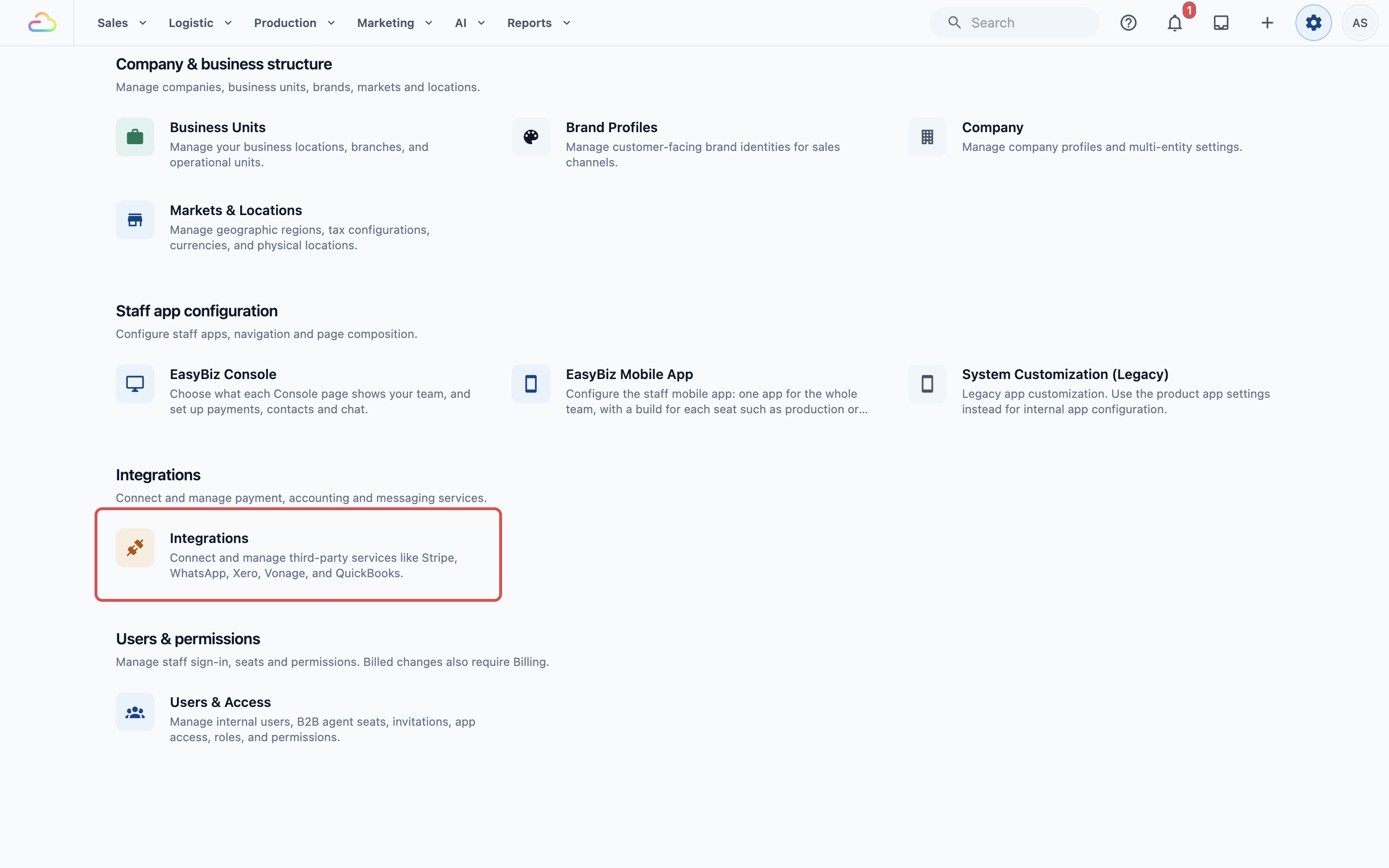
- Under the Administration section, click Integrations.
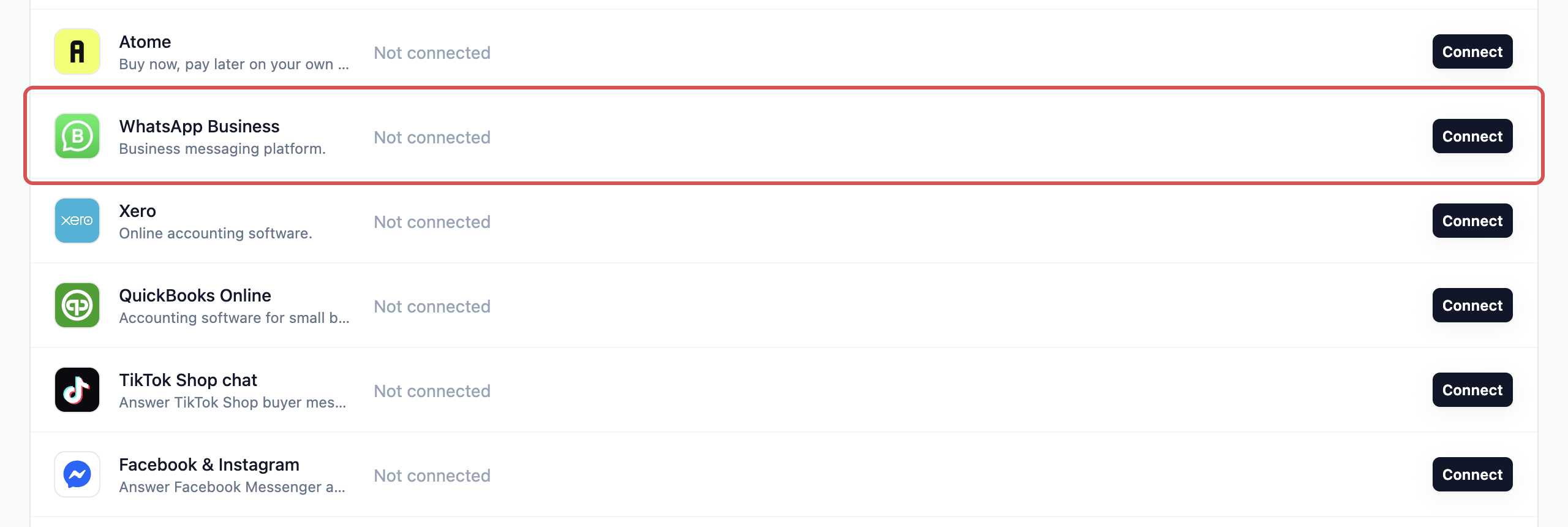
- Find the WhatsApp Business card.
Once you are connected, open the Inbox from any page with the Inbox icon in the top bar.

The order to set it up
- Connect your number. See Connect Your WhatsApp Business Number.
- Fill in your business profile, so customers know the chat is really your shop. See Set Up Your WhatsApp Business Profile.
- Add more numbers, if you have them. See Connect Multiple WhatsApp Numbers.
- Open the Inbox and reply. See Find Your Way Around the Inbox.
Templates, auto replies, notifications and campaigns can be added any time after step 1.
Example setup
CleanFast Laundry runs Laundry and Bag Repair at its Tampines and Jurong shops. Evening messages to the owner's phone often waited until the next morning.
- The owner connects the shop number +65 6123 4567 in Settings › Integrations.
- The owner adds the CleanFast Laundry logo and address to the business profile.
Costs
Meta charges for some WhatsApp messages, such as templates sent outside a live chat, and for WhatsApp calls by the minute.
Replying within 24 hours of a customer's last message keeps template fees low. The Inbox articles explain this 24-hour rule.
FAQs
Do I need the WhatsApp Business app?
No. You can connect a new number that has never used WhatsApp, or a number your shop already uses on the WhatsApp Business app.
Can I keep using WhatsApp on my phone?
Yes, if your number is on the WhatsApp Business app, it keeps working on your phone after you connect it. A number still active on the regular WhatsApp app must be removed there first.
Who pays Meta, EasyBiz or me?
You pay Meta directly from your WhatsApp account. EasyBiz does not collect these fees or add anything on top.
Will my staff see my personal Facebook?
No. Facebook is only used to confirm who you are during setup. Customers see your business profile, and staff see only the chats in the Inbox.
Is WhatsApp connected per shop?
No. One connection covers your whole account, so the Console and every POS share the same chats. If your shops each have their own number, add them as extra numbers.
Do I need Professional POS to use WhatsApp?
No. The Console Inbox, templates, auto replies, notifications and campaigns work without it. Professional POS is needed only for the WhatsApp Chat page on the counter screen.
What's Next
You now know what WhatsApp gives your shop and where each part lives. Start by linking your number in Connect Your WhatsApp Business Number.