Building a Sign Up Flow
This guide walks you through the steps of creating a Sign Up Mini App. This allows new customers to register their data directly within WhatsApp without visiting an external website.
1. Create a New Mini App
Start by defining the purpose of your Mini App.
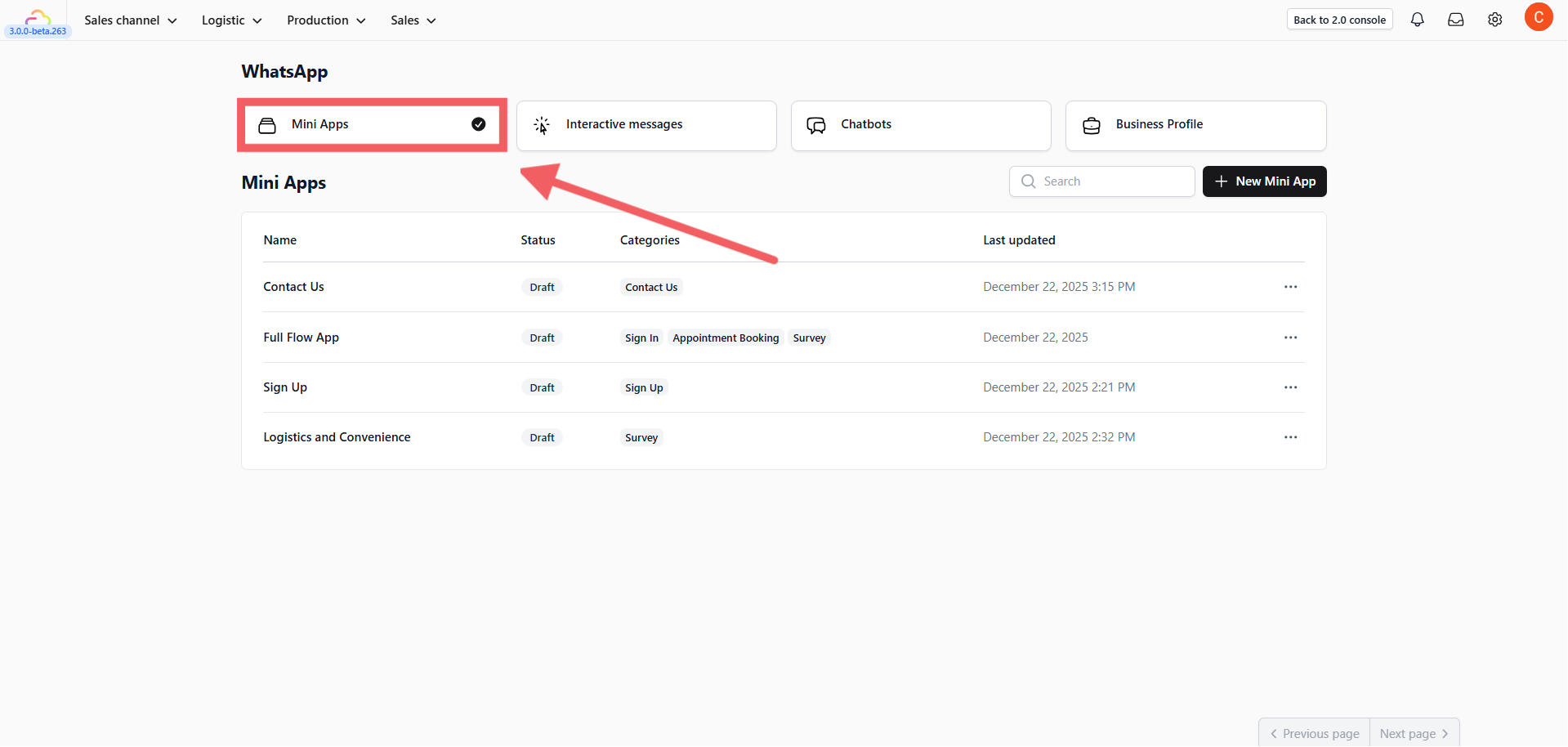
- Navigate to Sales Channel > WhatsApp and select the Mini Apps tab.
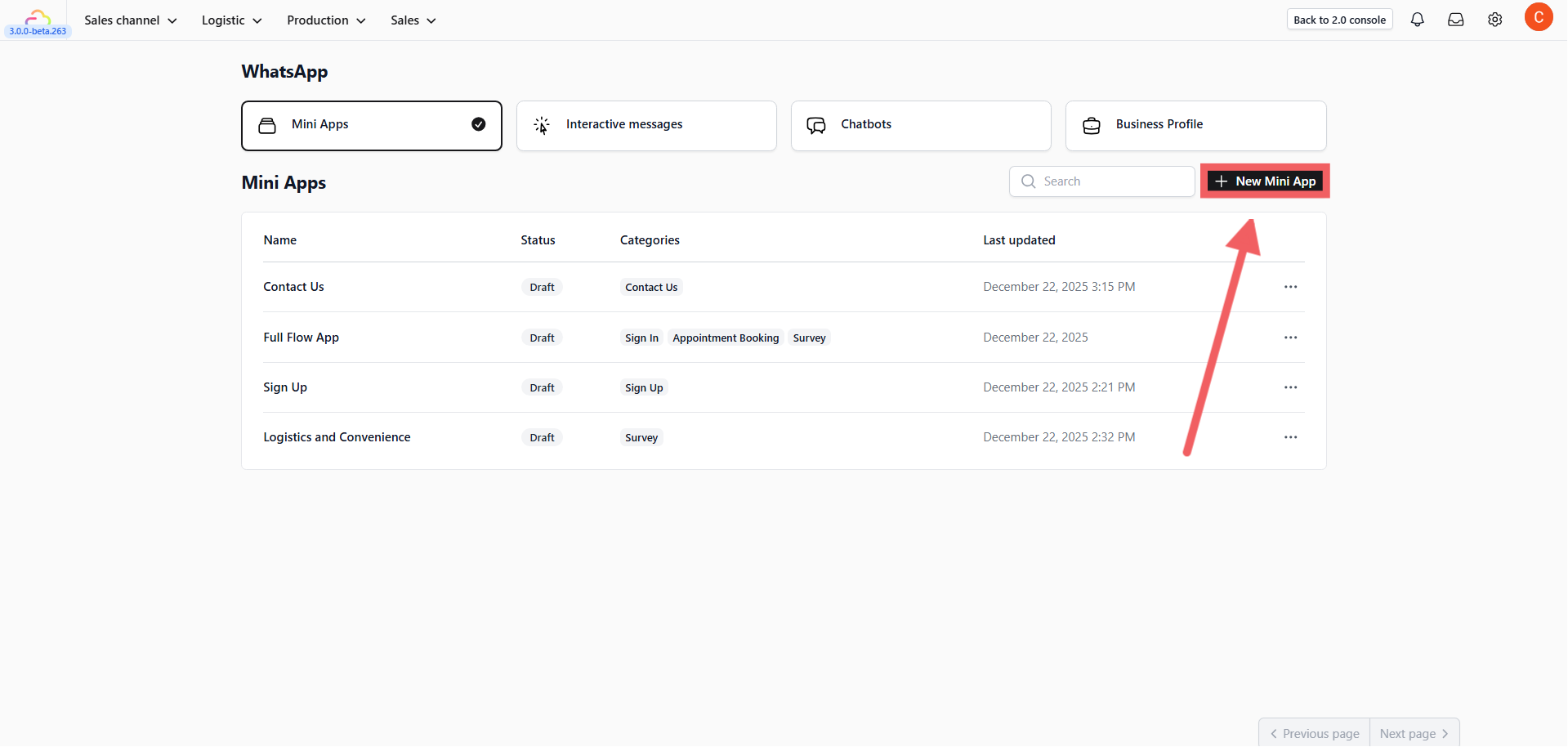
- Click the + New Mini App button.
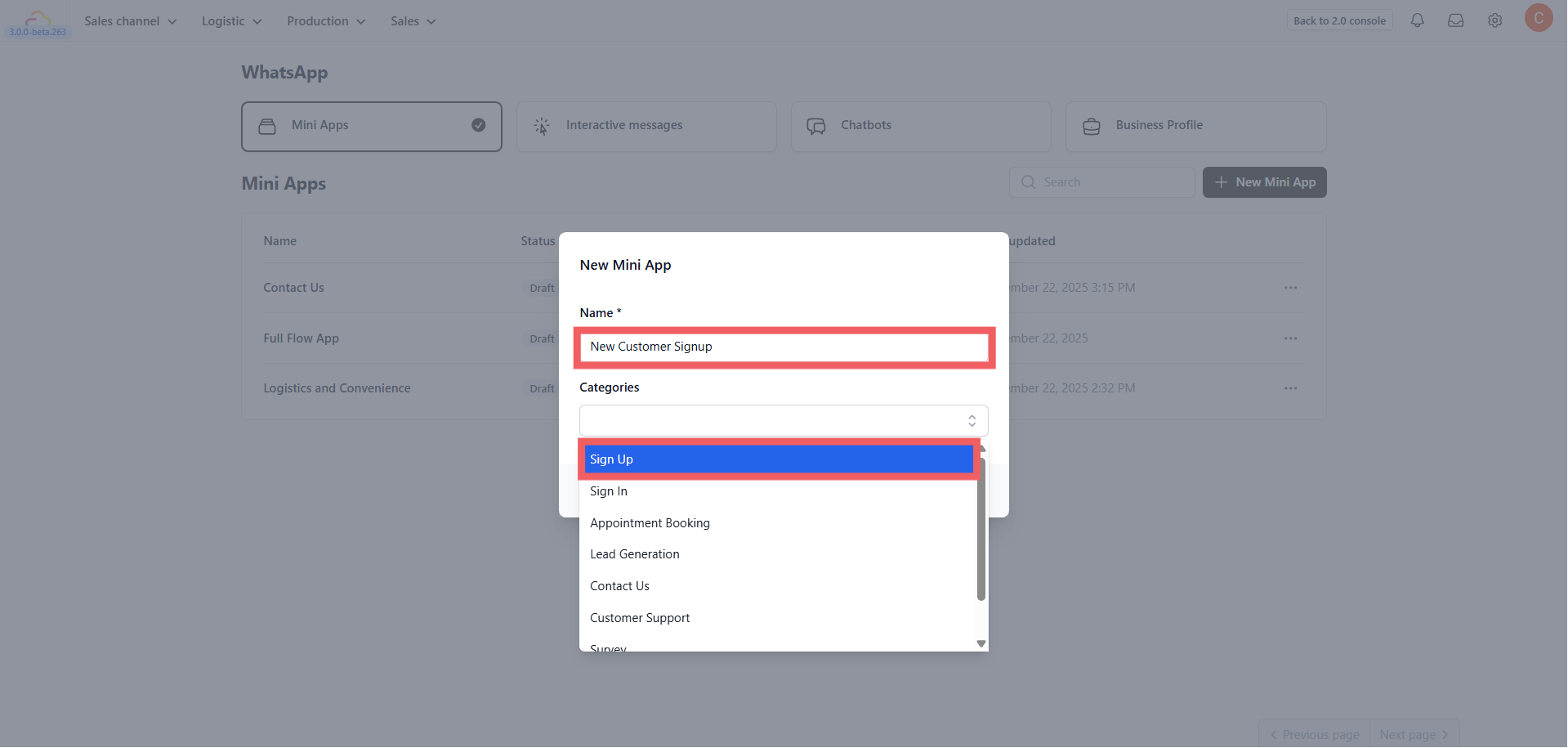
- In the popup window, configure the basics:
-
Name: Enter a unique name for your app (e.g., “New Customer Signup”).
-
Categories: Select Sign Up.
- Click Create.
2. Add Screens & Layouts
Once created, you need to define the page (Screen) your customer will see.
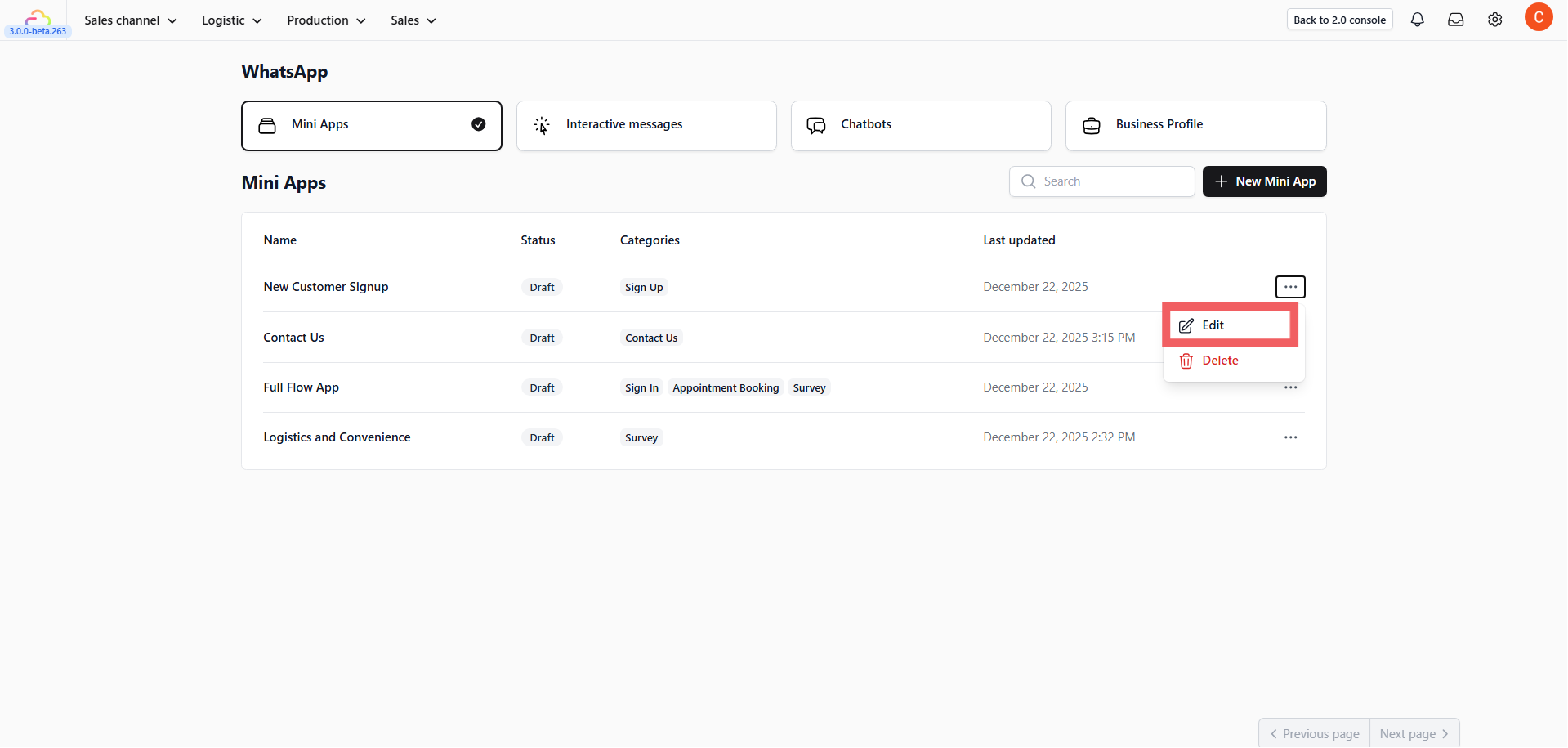
- Find your new app in the list, click the three dots icon •••, and select Edit.
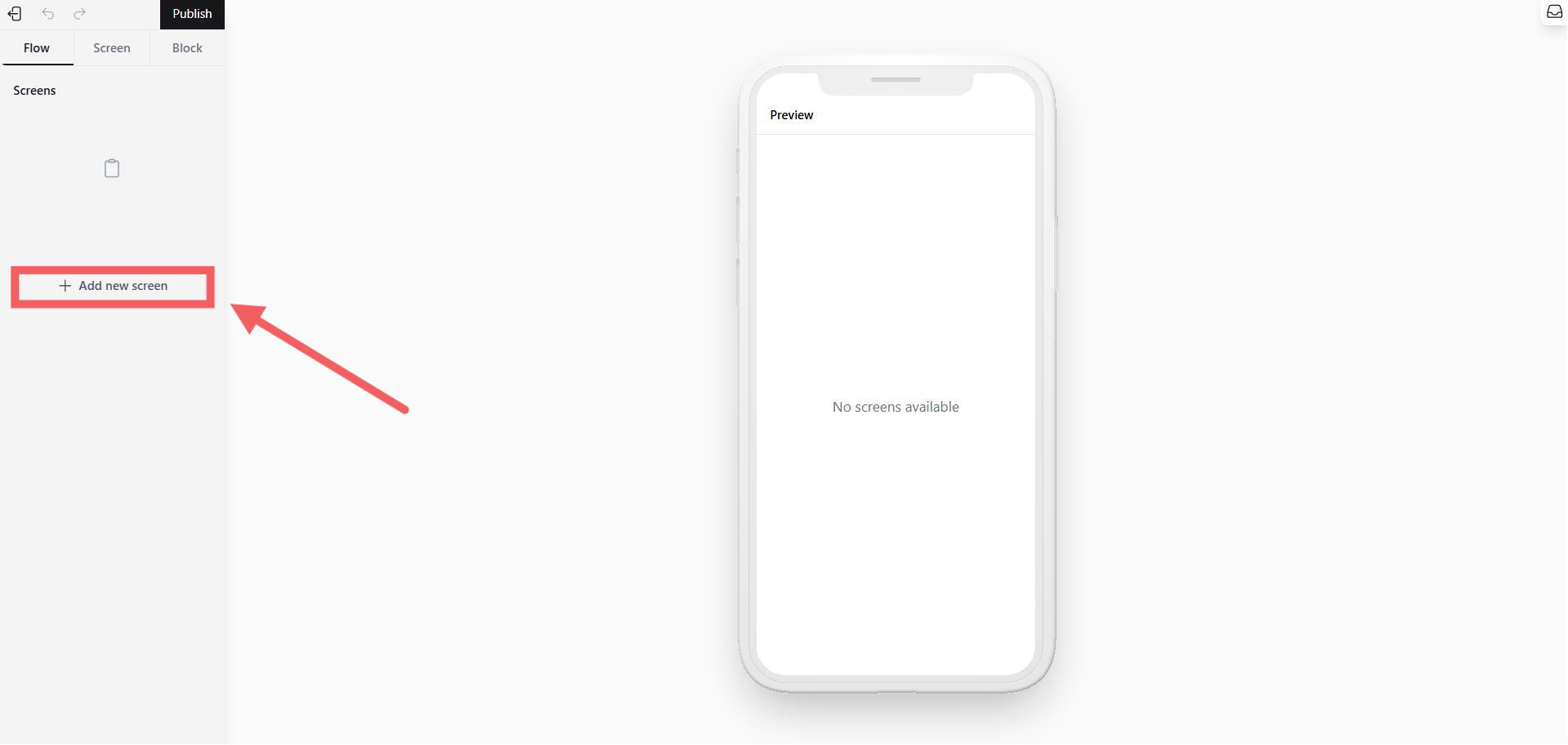
- To add a page, click + Add New Screen on the left sidebar.
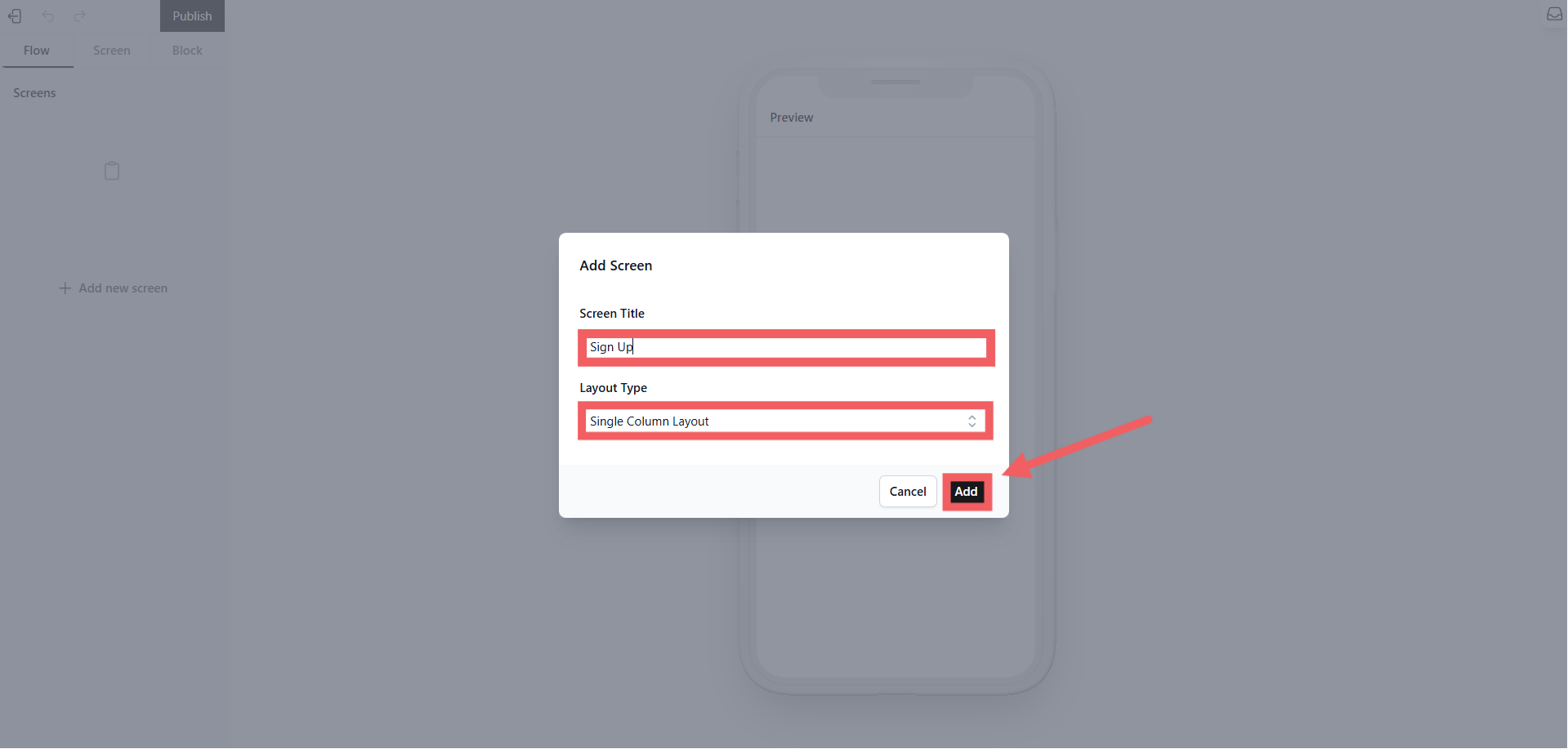
3. Configure the Screen:
-
Screen Title: Give this screen a unique name (e.g., “sign_up_page”).
-
Layout Type: Select Single Column Layout.
- Click Add.
3. Build Content with Blocks
Now, design the content customers will interact with.
-
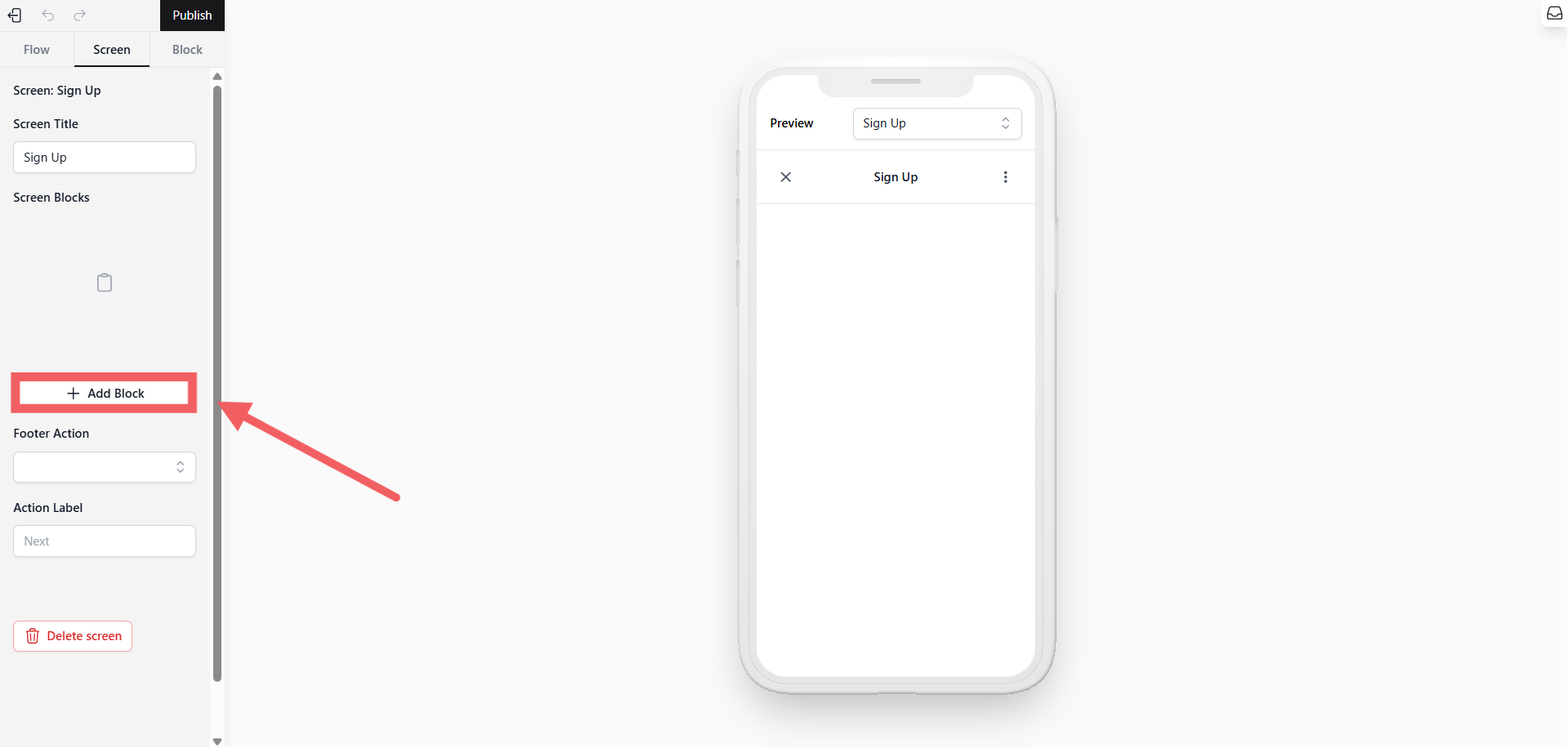
Under the “Screen Blocks” section, click + Add Block.
-
Add an Introduction (Optional):
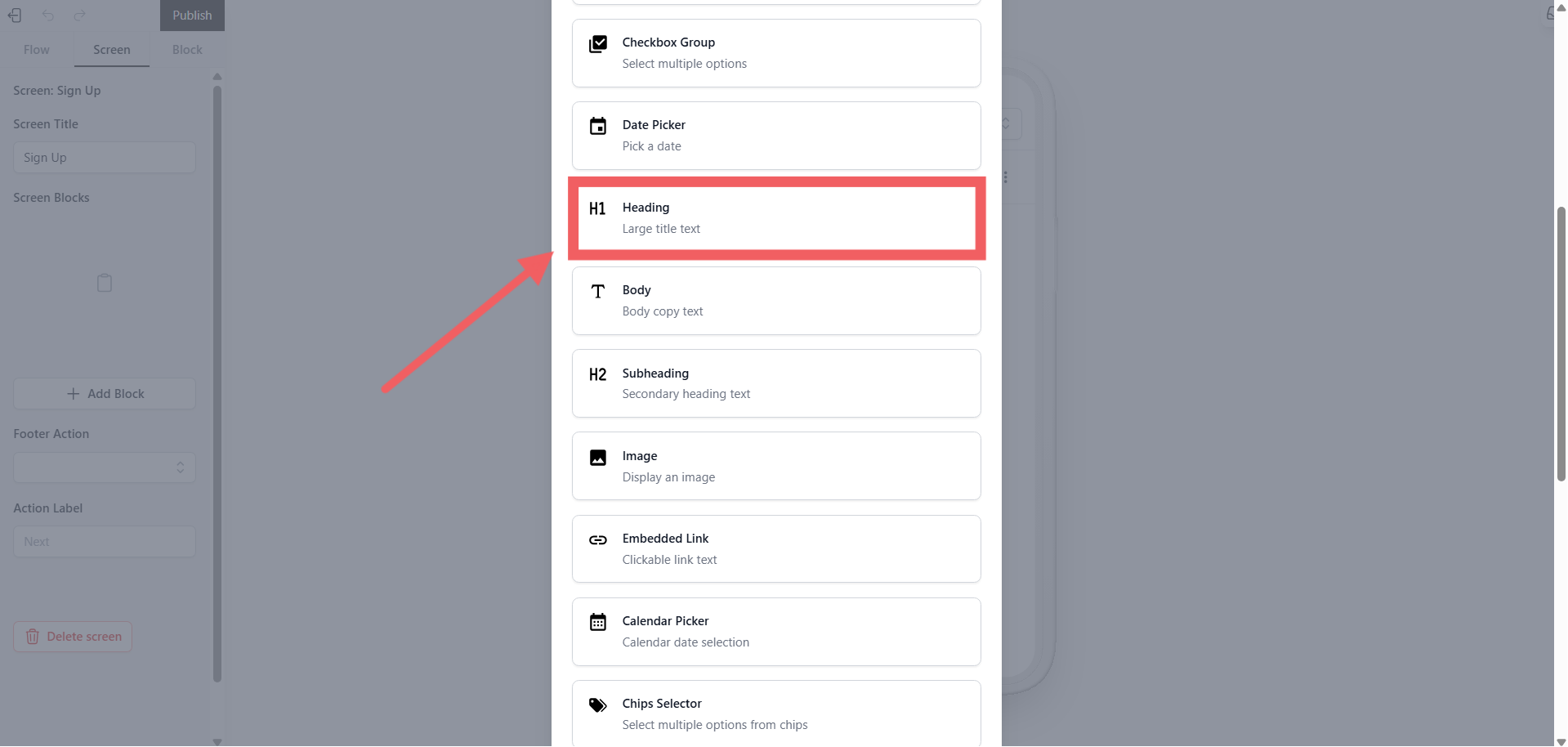
- Choose the Heading or Body block.
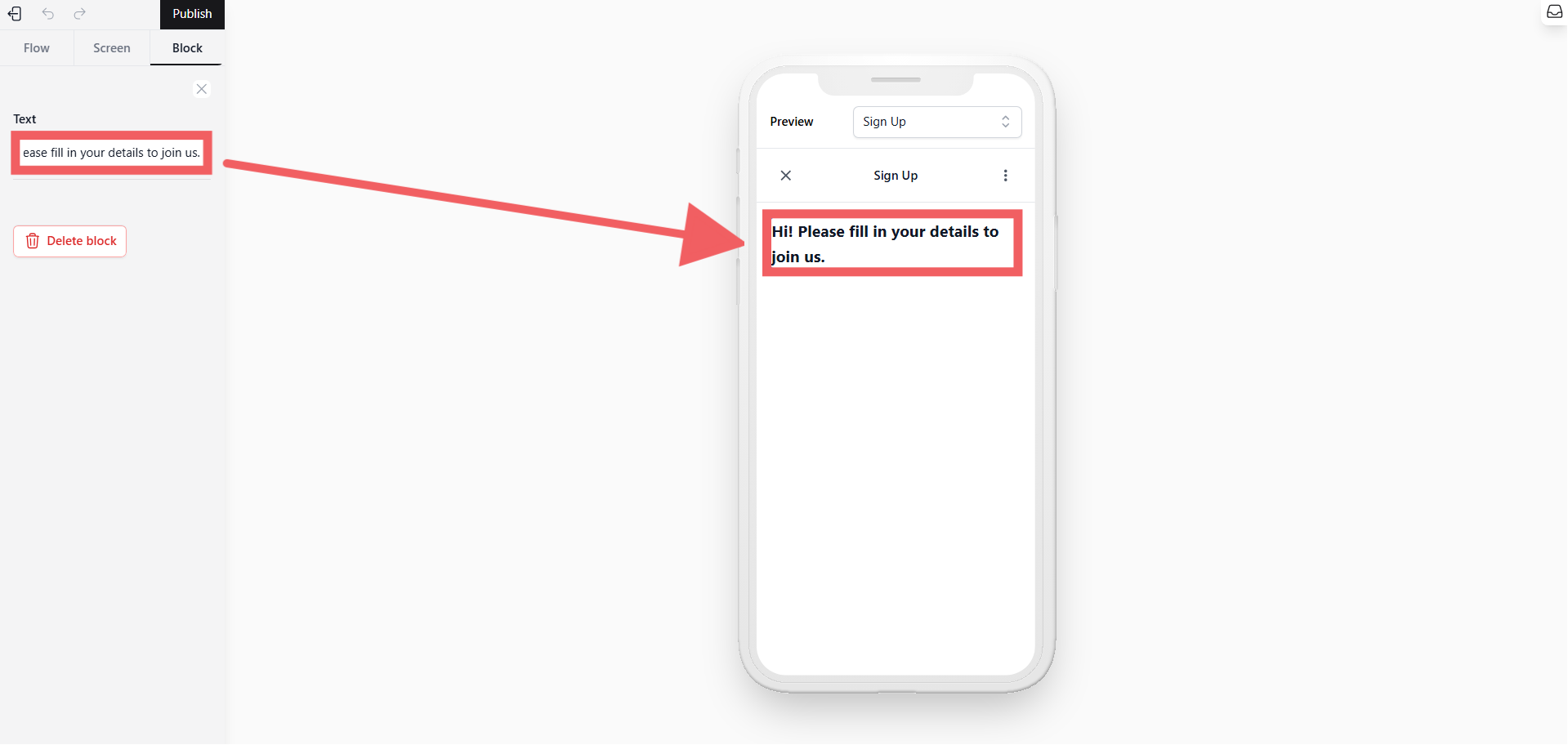
- Example Text: “Hi! Please fill in your details to join us.”
- Add Input Fields:
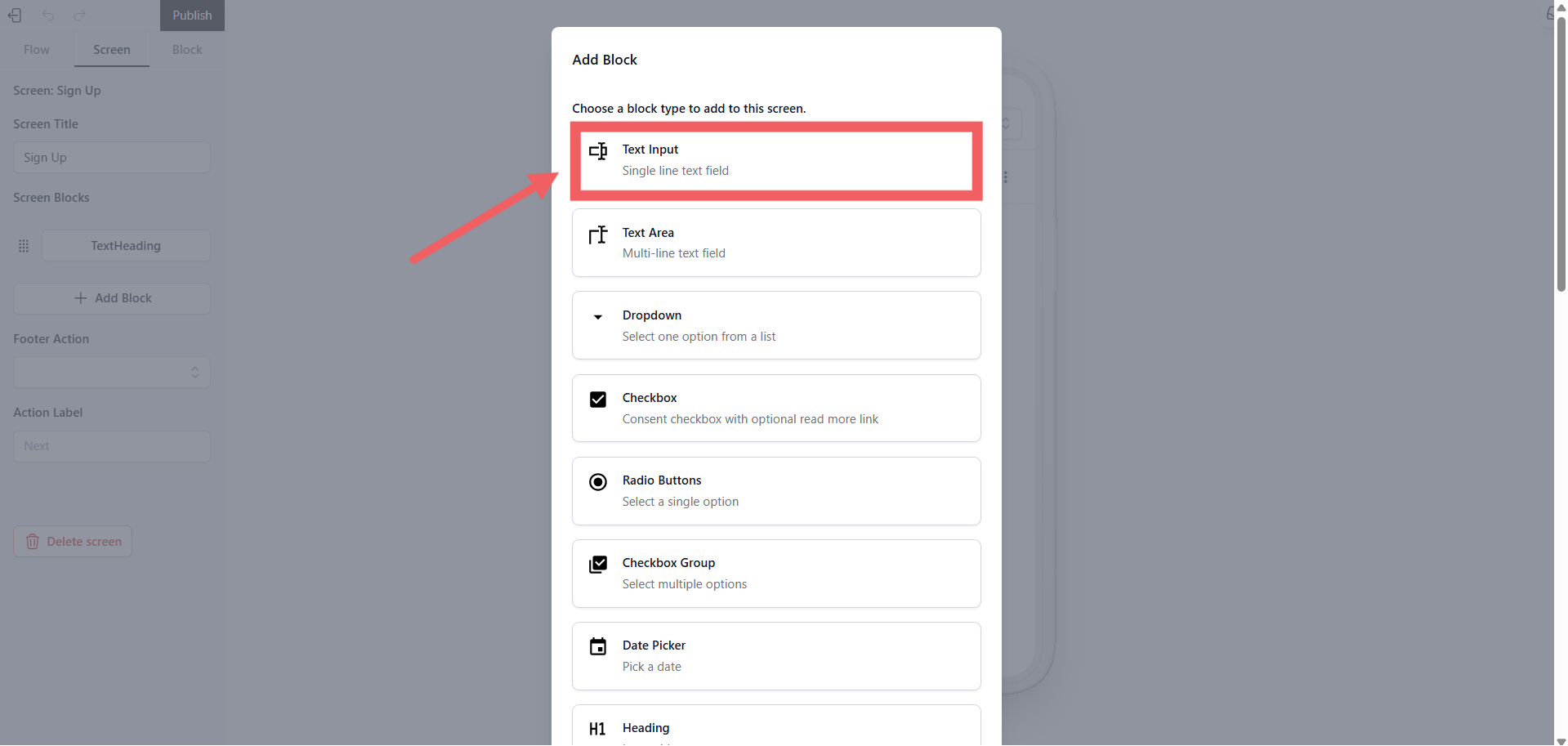
- Choose the Text Input block.
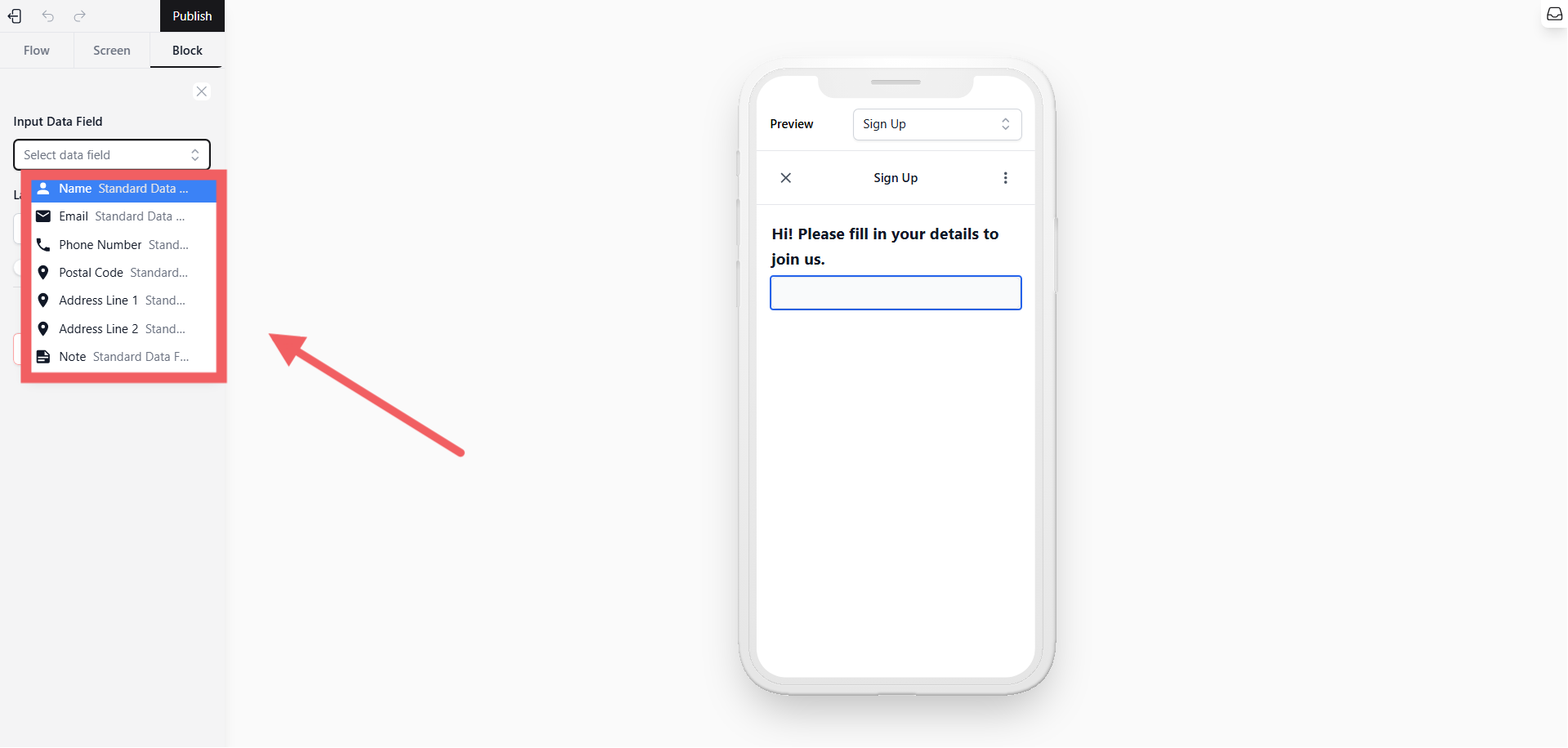
-
Label: Give the field a name visible to the customer (e.g., “Full Name”).
-
Data Field: [Important] Select the correct database field (e.g., select Name for the name input, Phone Number for the phone input).
-
Required: Toggle this switch ON if the field is mandatory.
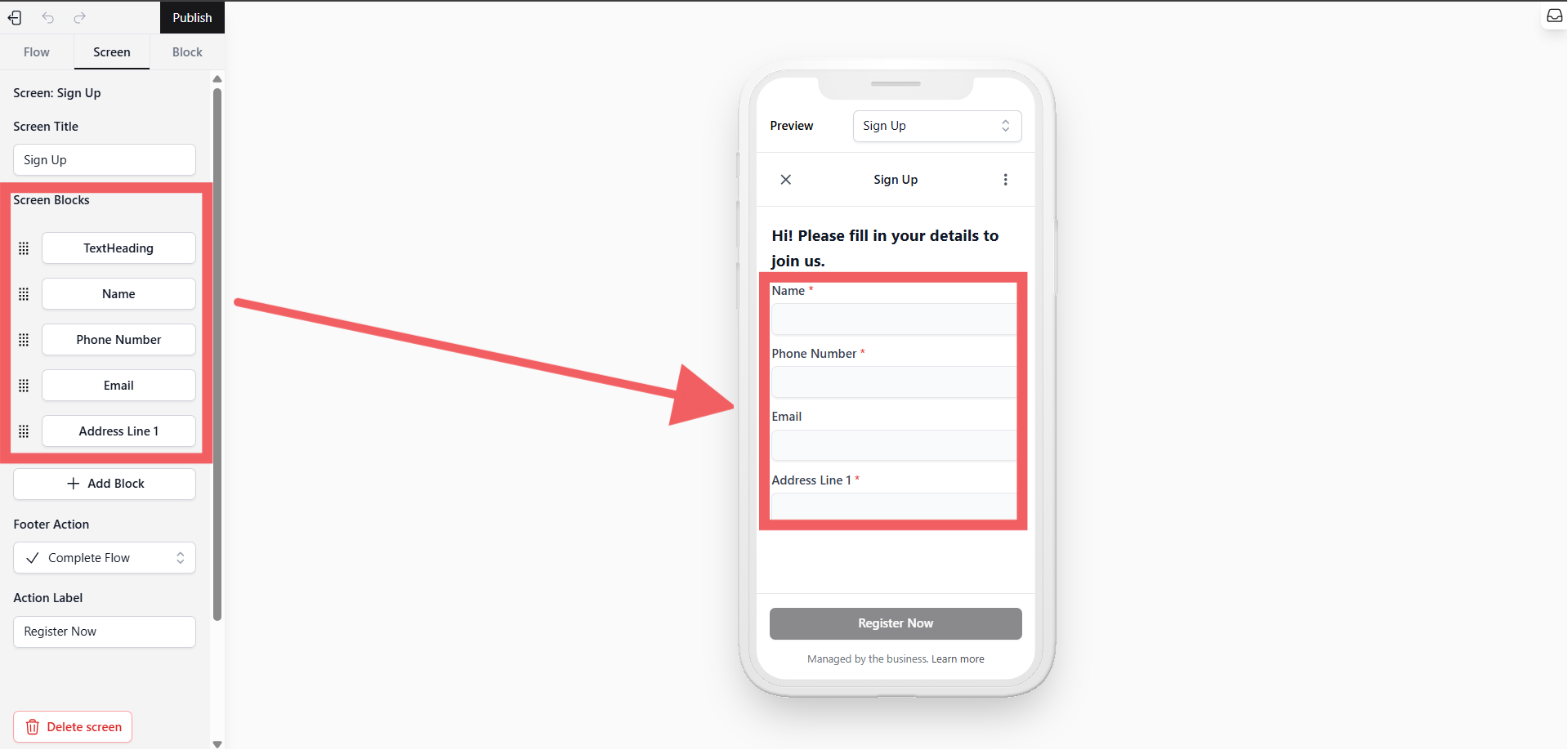
- Repeat the step above to add more fields like Email or Address if needed.
4. Configure Footer Actions
Define what happens when the customer clicks the button at the bottom of the screen.
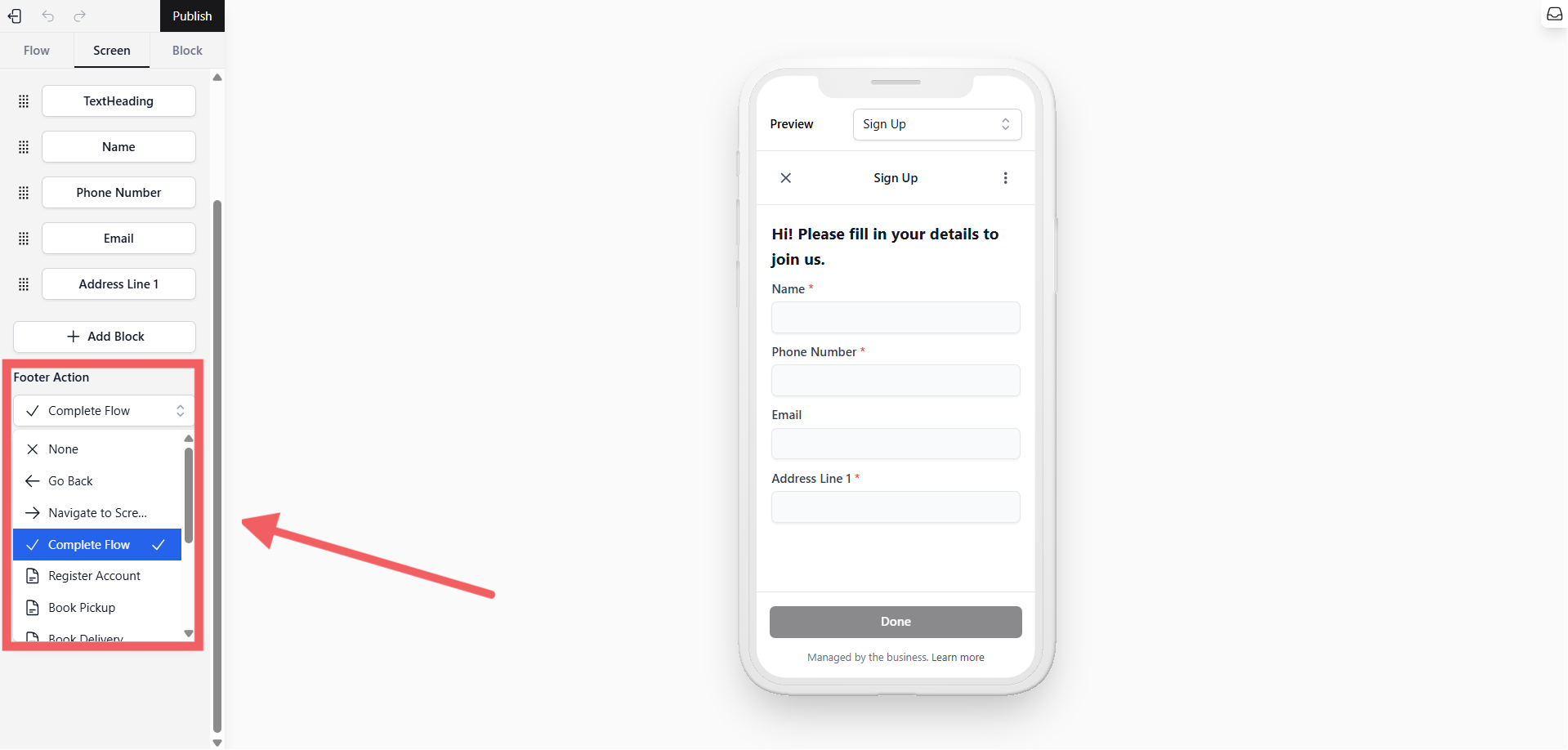
- Make sure you are in the Screen Settings (do not select any specific block).
-
Scroll down to the Footer Action Type setting.
-
Select Complete Flow.
- This action will submit the data and close the form.
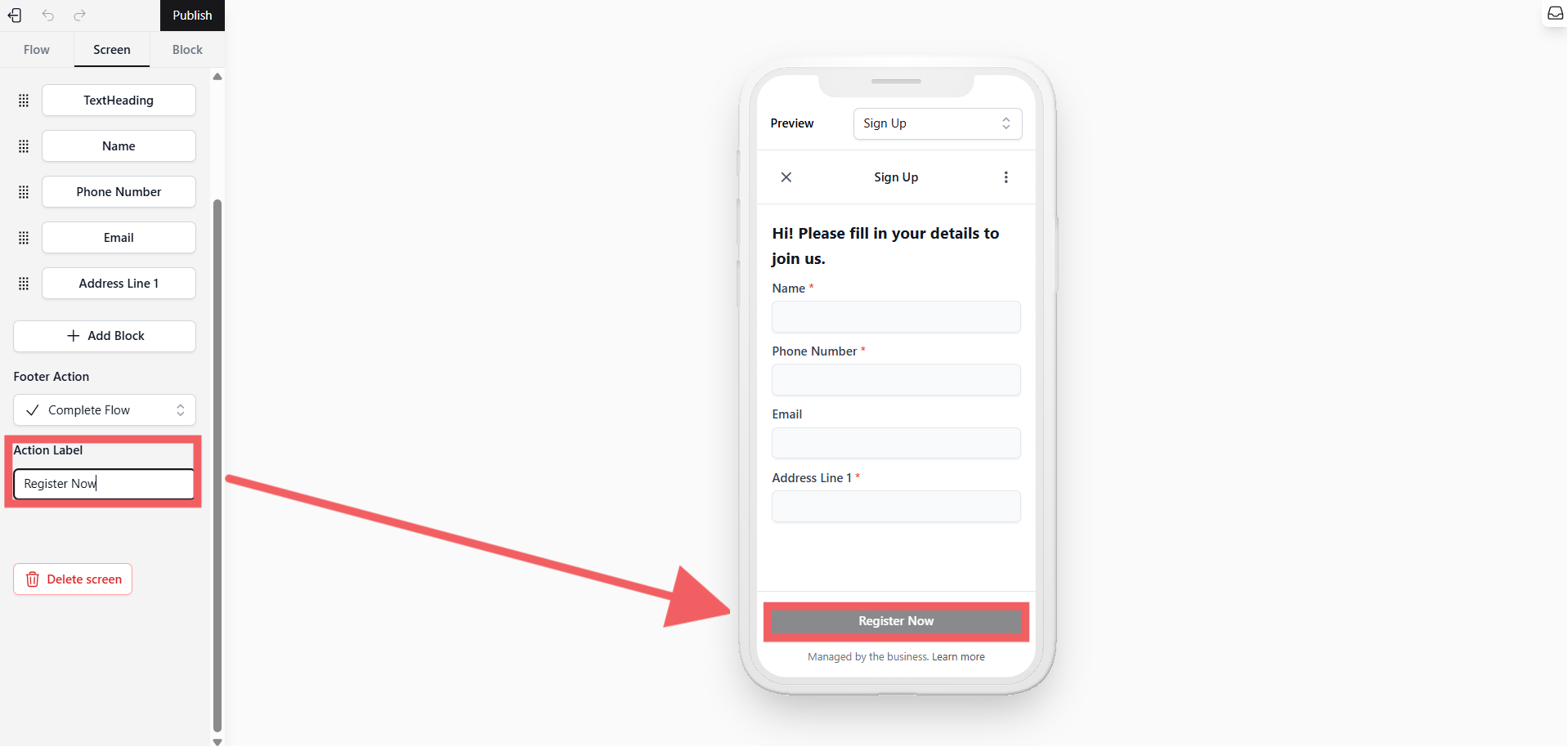
- Fill in your Footer Button Text (e.g., “Register Now”).
5. Publish
-
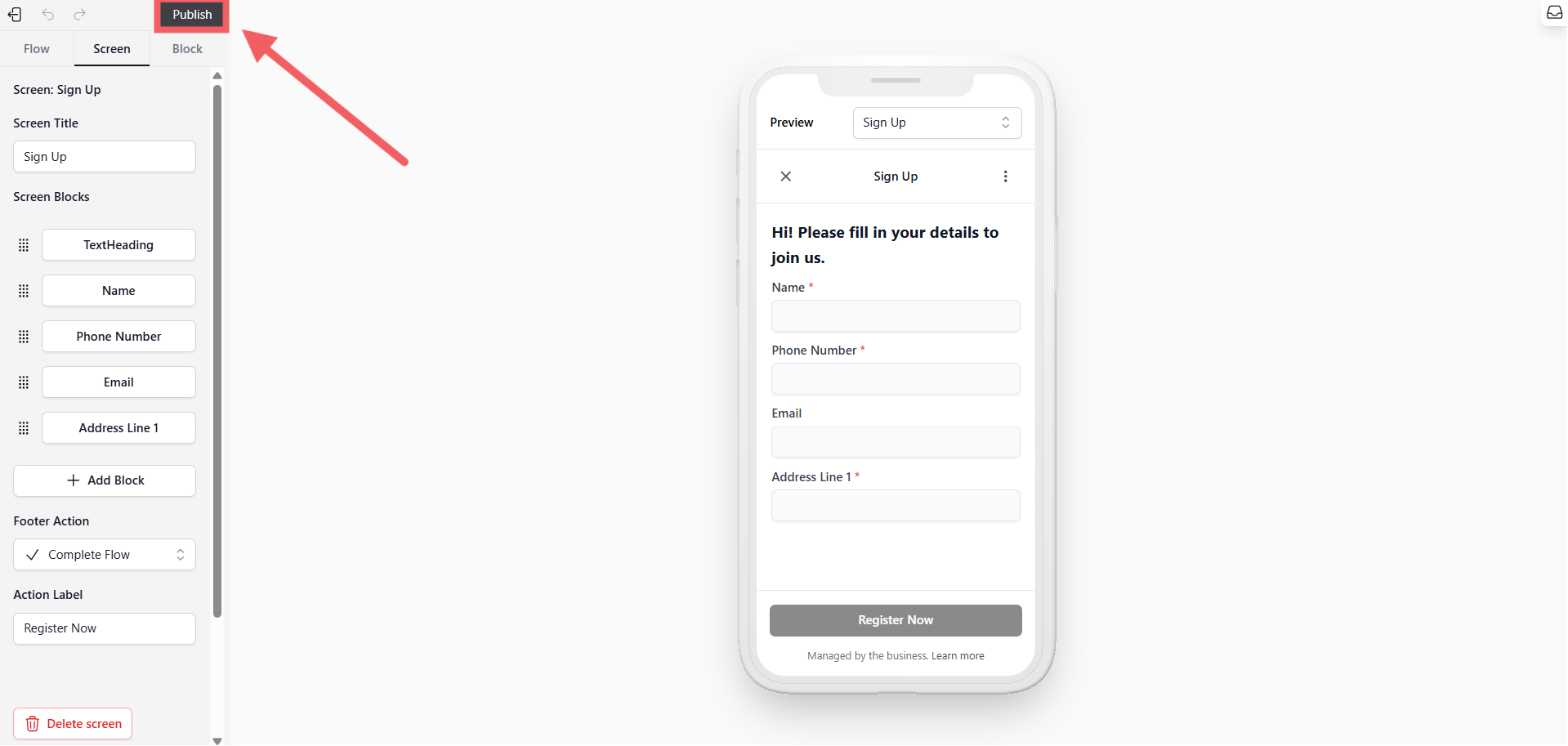
Click the Publish button at the top left of the editor.
-
Your Mini App is now live and ready for use in Interactive Messages.
[Go to Interactive Messages Settings]