
Log in with Facebook once and pick your Page, and customers' Messenger and Instagram messages come into your EasyBiz Inbox.
Before You Start
You need:
- A Facebook Page for your shop, and a Facebook account that manages it. A Page is your shop's public page on Facebook, separate from anyone's personal profile. If you don't have one yet, create a Facebook Page first. You need one even if you only use Instagram.
- For Instagram messages, your shop's Instagram account and its password.
- Access to Integrations in your EasyBiz settings.
The steps take about 10 minutes. If you only want Messenger, start at Step 3.
Overview
Customers message your shop on Facebook and Instagram to ask about prices, collection times and their orders. Today your staff answer those messages in Facebook and Instagram, separately from the WhatsApp and website chats they answer in EasyBiz. When you connect your Facebook Page, its Messenger messages come into your EasyBiz Inbox, along with messages to the Instagram account linked to that Page. Your staff reply from the Inbox, and the customer gets the reply in Messenger or Instagram as usual. Your customers don't need to install or change anything.
Where it works
- Settings › Integrations in the Console. You connect your Page here, once.
- The Inbox in the Console. Your staff read and answer the chats here, next to WhatsApp.
- Messenger and Instagram. Customers keep writing and reading their messages there, as they do today.
Why set it up
- One place for every chat. Staff stop switching between Facebook, Instagram and EasyBiz, so no customer message is missed.
- Your passwords stay private. Staff answer with their own EasyBiz login, so you don't share your Facebook or Instagram password with them.
- Your team shares the chats. Everyone who can open the Inbox sees the same chats, so whoever is free can answer.
If you skip this, nothing changes. Messages stay in Facebook and Instagram, and your staff keep answering them there.
How it works
Messenger and Instagram both come into EasyBiz through your Facebook Page:
- Instagram links to your Page. Facebook manages Instagram messages through the Page they're linked to, so your Instagram account needs to be a business account linked to your Page. Messenger doesn't need this.
- You connect your Page to EasyBiz. You log in with Facebook and pick your Page. Facebook shows the name EasyBiz Inbox on its screens, which is EasyBiz's app on Facebook.
- Messages come in. New messages to your Page and its Instagram account appear in your Inbox. When your staff reply, the customer gets the reply in the app they wrote from.
Step 1: Switch Instagram to a business account
Use this step only if you want Instagram messages. If your shop's Instagram is already a business account, go to Step 2.
- On a computer, go to instagram.com/accounts/convert_to_professional_account and sign in with your shop's Instagram account.
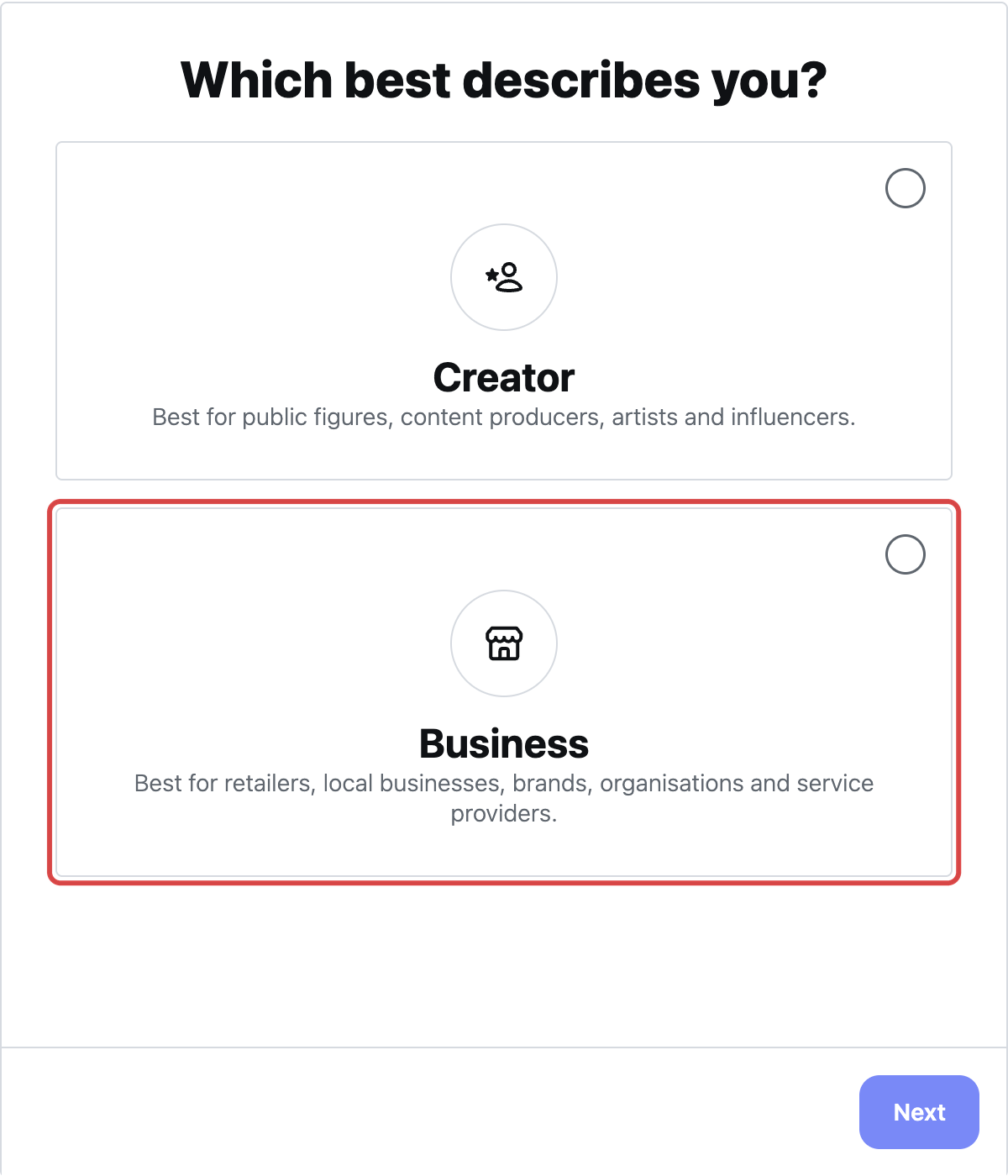
- Under Which best describes you?, click Business, then click Next .
- Instagram lists what a business account gives you. Click Next .
- Under Select a category, choose the one closest to your shop, for example Product/service, and click Done .
- Instagram tells you a business account's profile is public. Click Continue .
- On Review your contact info, click Save to show your shop's contact details on your profile, or Don't Use My Contact Info to leave them off.
- When you see Your Instagram business account is ready, click Done .
Step 2: Link Instagram to your Facebook Page
Use this step only if you want Instagram messages. You do it once, in Meta Business Suite, Facebook's free tool for managing a Page and its Instagram account together.
- Go to business.facebook.com/latest/inbox/all and log in with the Facebook account that manages your Page. Make sure your shop's Page is the one selected.
- Click Connect to Instagram . If you don't see this button, your Instagram account may already be linked, so go on to Step 3.
- Click Connect , then Log in to Instagram .
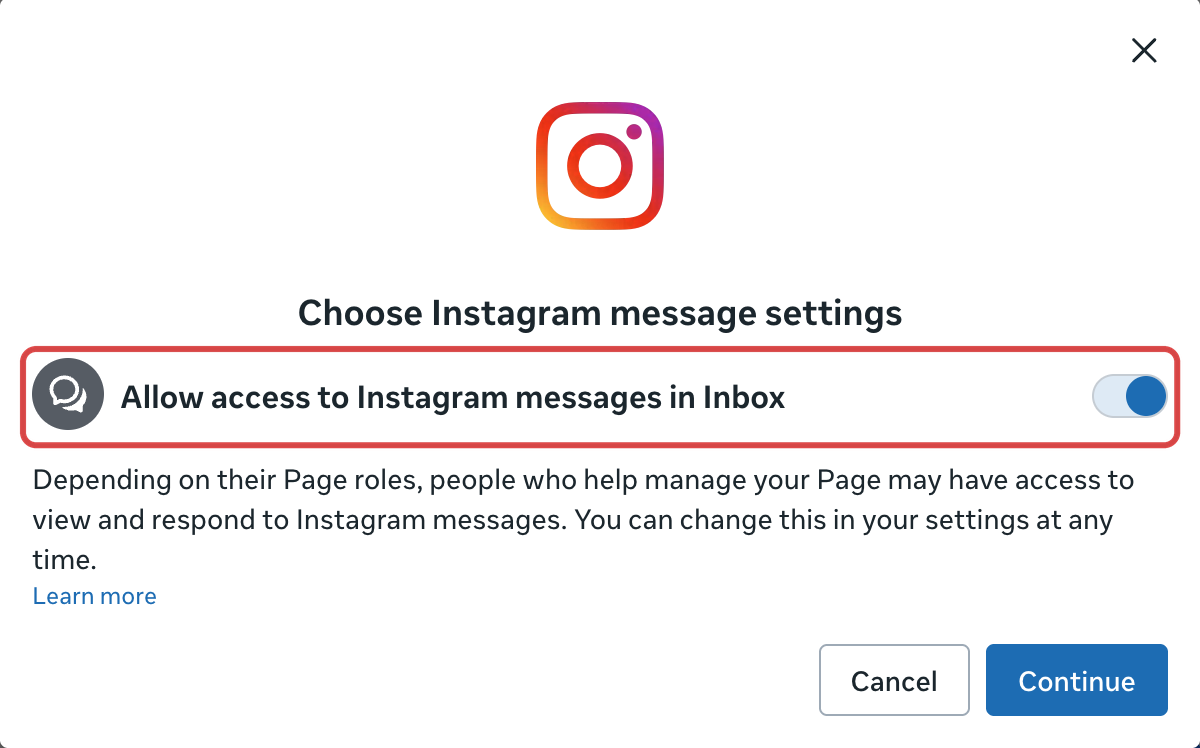
- On Choose Instagram message settings, keep Allow access to Instagram messages in Inbox on, and click Continue . Your Instagram messages can't reach EasyBiz without this.
- Instagram opens a new window. Sign in with your shop's Instagram account, then click the button with your account's name, for example Log in as cleanfastlaundry .
- If Facebook asks to add the Instagram profile to your business portfolio, click Add . Then click Done .
Step 3: Connect Facebook & Instagram in EasyBiz
- Click the ⚙️ Settings icon in the top-right corner.
- Click Integrations . Owners find it in its own Integrations section, and other users find it under the Administration section.
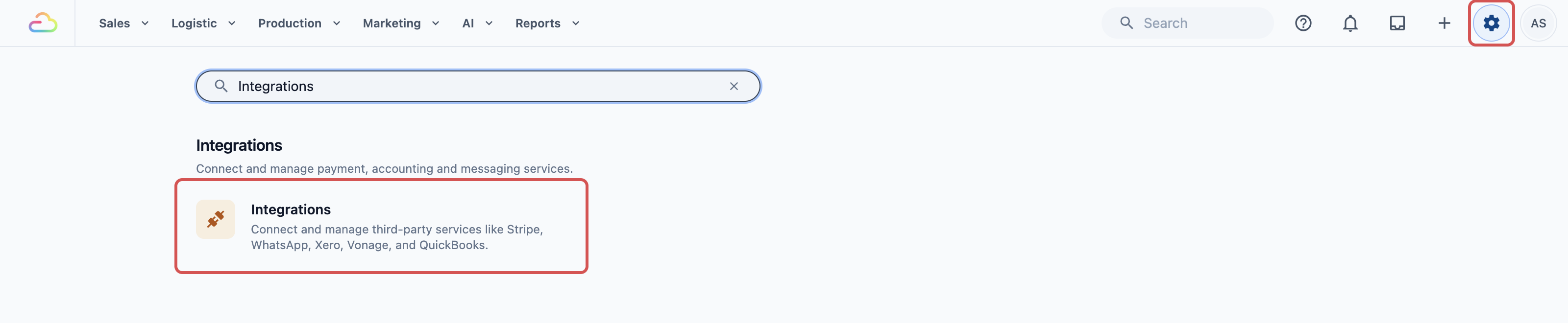
- Find Facebook & Instagram and click Connect .

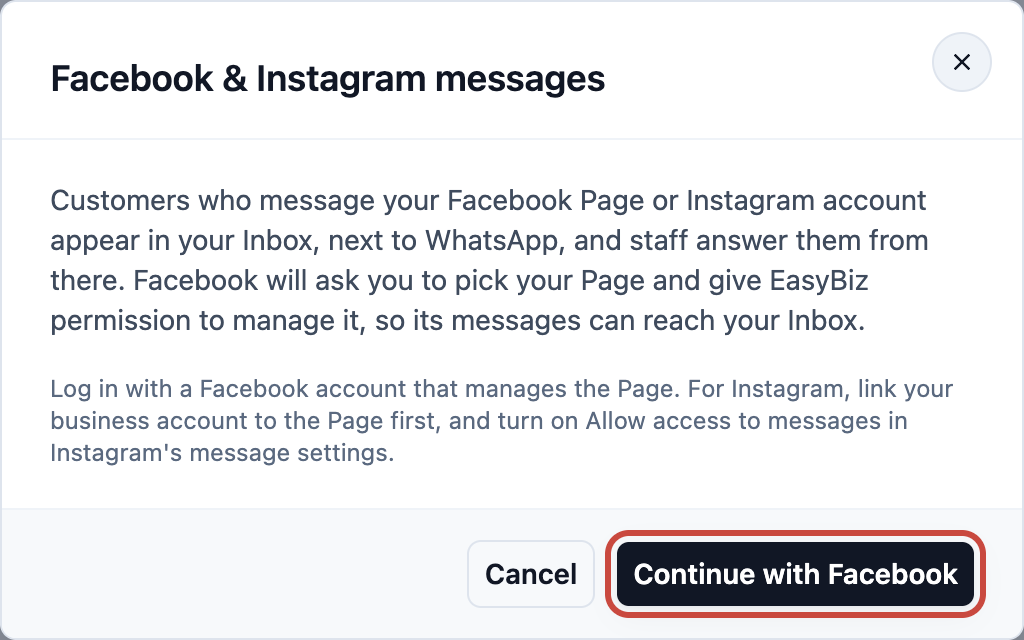
- Read the note and click Continue with Facebook . Facebook opens in the same window.
Step 4: Pick your Page on Facebook
- If Facebook asks, log in with the Facebook account that manages your Page.
- Under Business portfolio, choose your shop's portfolio. This is Facebook's folder that keeps your shop's Page and accounts together. If you don't have one, choose Create a business portfolio.
- Under Page, choose your shop's Facebook Page.
- Under Instagram account, check that your Instagram account is filled in. If you only want Messenger, leave it empty.
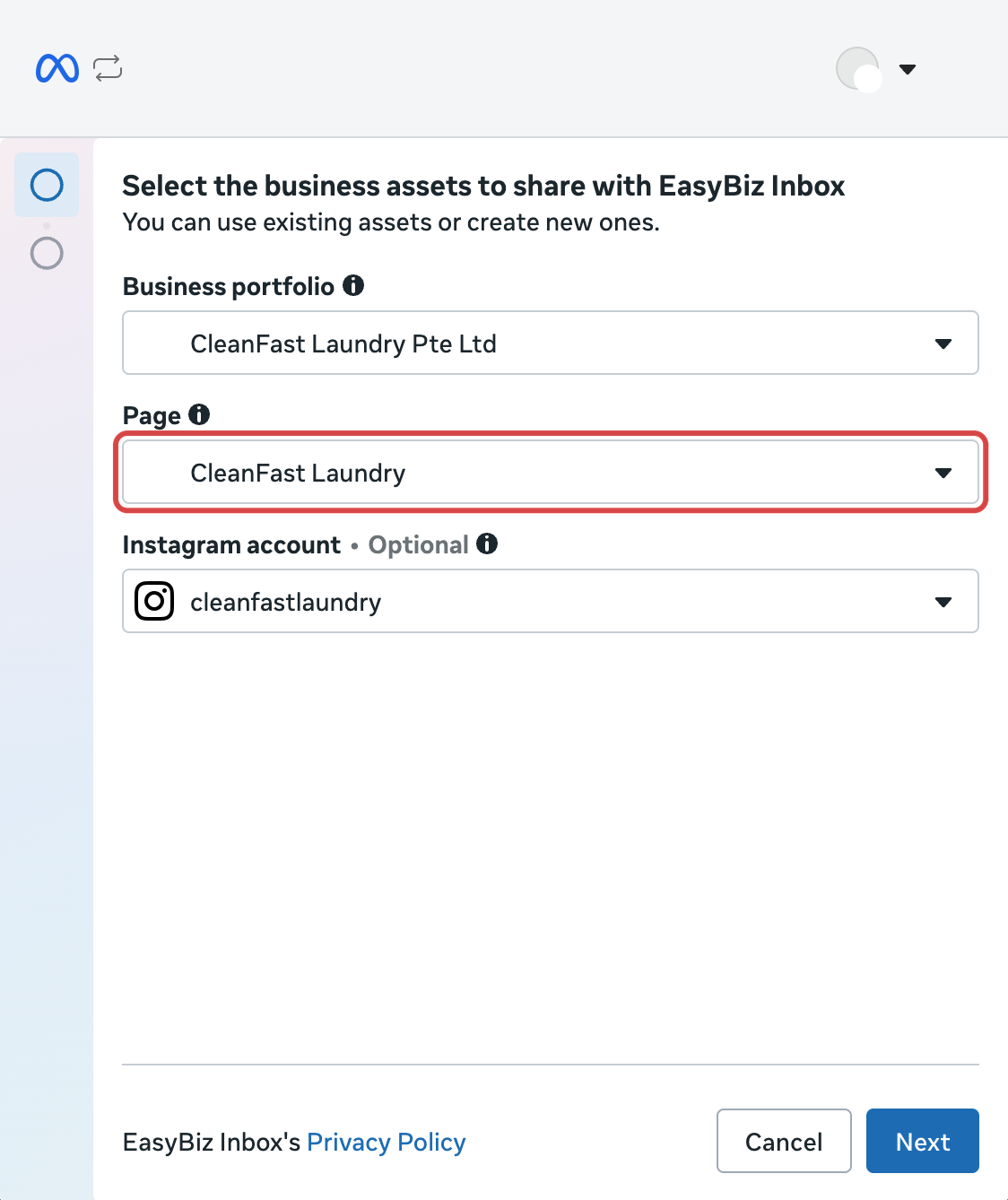
- Click Next .
- On Review what you'll share, check that your Page and Instagram account are right, then click Confirm .
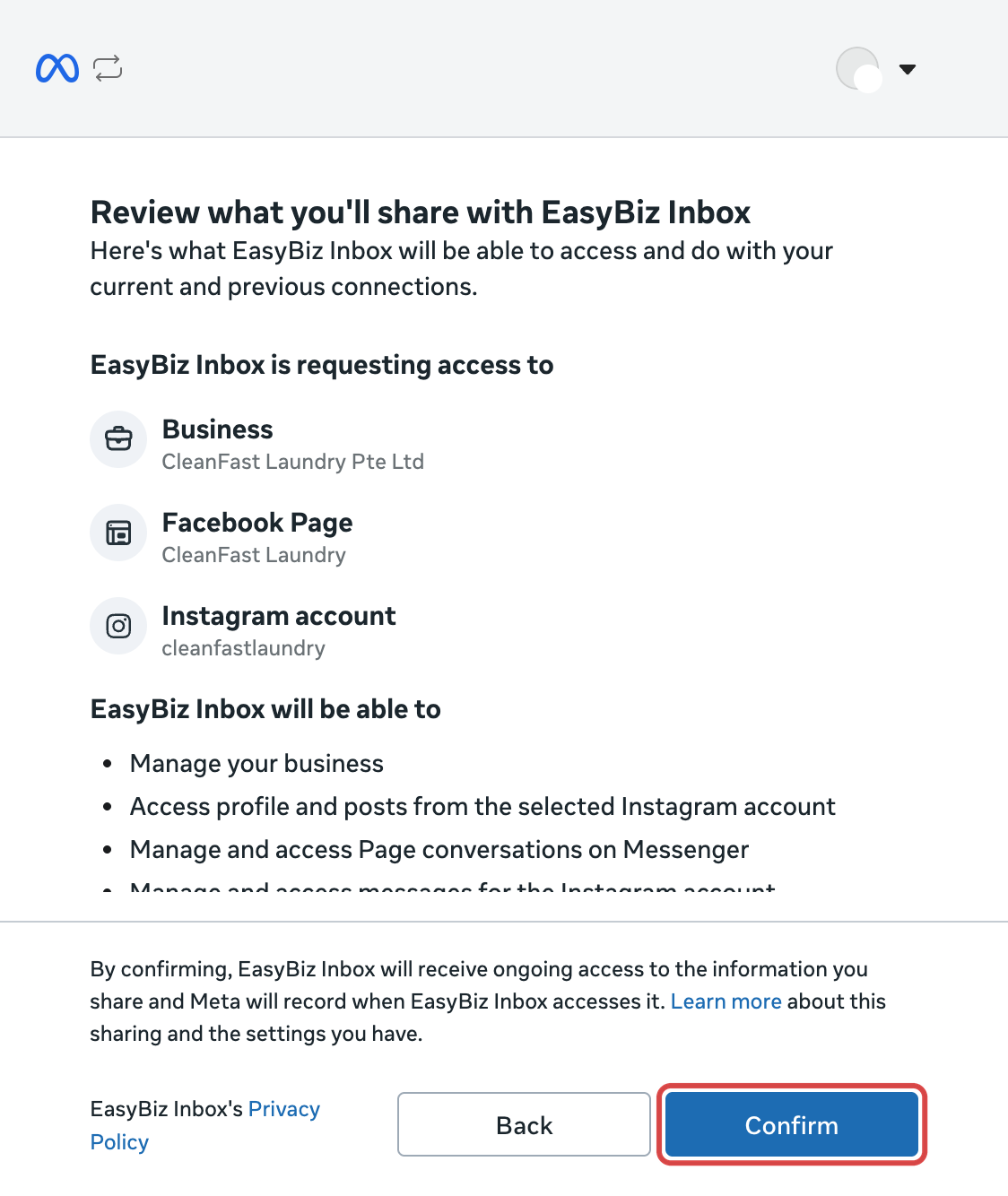
- When Facebook says your portfolio has been connected to EasyBiz Inbox, click Finish . You don't need to add a payment method.
Facebook brings you back to EasyBiz, which says Connected. Messages to CleanFast Laundry will come into your Inbox, with your own Page's name.
Step 5: Check that messages come in
- In Settings › Integrations, the Facebook & Instagram row now shows your Page and your Instagram account with a green dot.

- Ask a staff member to message your Page on Messenger and your Instagram account, from their own personal accounts.
- In EasyBiz, click the Inbox icon in the top bar. Their messages appear as new chats, with a Messenger or Instagram icon.
- Reply to one. Your staff member gets your reply in Messenger or Instagram.
What staff and customers see
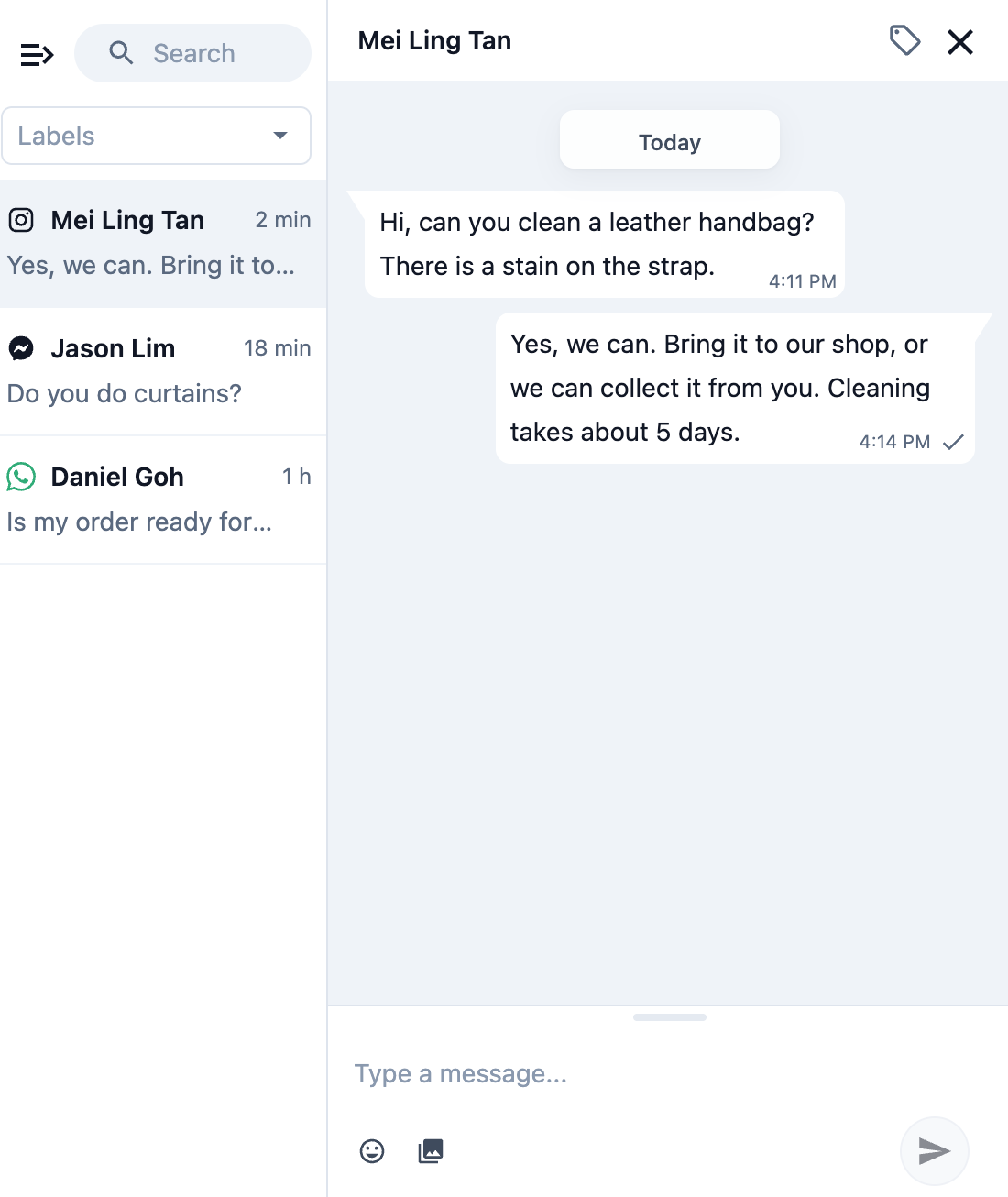
Here's an example. CleanFast Laundry connects its Page and its Instagram account, @cleanfastlaundry. Mei Ling messages @cleanfastlaundry on Instagram to ask if the shop can clean a stained handbag. Her chat appears in the Inbox with an Instagram icon, next to a Messenger chat and a WhatsApp chat. A staff member replies from the Inbox, and Mei Ling reads the reply in Instagram.
- What customers can send. Text, photos, videos, voice messages and files all come in. Shared posts and links show as a title and a link. GIFs and stickers sent on Instagram don't come through.
- What your staff can send. Text, plus pictures and videos from your Media Center. A caption arrives as a separate message.
- How long your staff can reply. Up to 7 days after the customer's last message. After that, the Inbox tells you the customer needs to message you again before you can reply.
- Deleted and unsent messages. If a customer unsends a message on Instagram, it changes to Message deleted in your Inbox. Staff can also delete a message with the bin button beside it. That removes it from your Inbox, but the customer still sees it.
If something goes wrong
| What EasyBiz says | What to do |
|---|---|
| This approval has expired. Click Connect again. | Facebook's screens stayed open for more than 10 minutes. Click Connect and go through Step 4 again. |
| Facebook did not share a Page with EasyBiz. Click Connect again and pick your Page. | Click Connect again, and choose your Page in Step 4. |
| Your Facebook account cannot manage messages for your Page. Ask an admin of this Page to connect it. | The Facebook account you used doesn't have enough access to that Page. Ask someone who manages the Page to do Steps 3 and 4. |
| Your Page is already connected to another EasyBiz account. | A Page brings its messages into one EasyBiz account only. Disconnect it in the other account first. |
| Facebook could not finish connecting. Click Connect again. | Click Connect again. If it keeps happening, contact us. |
| Facebook and Instagram messages need reconnecting in Settings › Integrations. | On the Facebook & Instagram row, click Manage , then Reconnect , and pick your Page again. |
FAQs
Can my staff still answer in Facebook or Instagram?
Yes. Both keep working. A reply typed there also shows in the EasyBiz chat, but the chat can still show as waiting for a reply in your Inbox.
Which of my staff can see these chats?
Everyone who can open your Inbox: the shop owner, and staff with a CRM seat. They don't need your Facebook or Instagram login.
I have more than one Facebook Page. Can I connect them all?
Yes. On the Facebook & Instagram row, click Manage , then Reconnect , and pick the other Page. Pages you've already connected stay connected.
Will my old Facebook and Instagram messages come in?
No. Only messages sent after you connect come into your Inbox. Older chats stay in Facebook and Instagram.
Why does a chat say "Facebook customer" or "Instagram customer" instead of a name?
Facebook doesn't always share a customer's name. The chat works as usual, and your staff can still reply.
Can my staff see the customer's orders in these chats?
Not in the chat. Facebook and Instagram don't share a customer's phone number, so the chat isn't linked to a customer record. To find their orders, ask for their phone number and look them up in EasyBiz.
Will comments on my posts come in too?
No. Only direct messages come into your Inbox. Comments stay in Facebook and Instagram.
Do suggested replies and auto replies work on these chats?
No. Your staff answer Facebook and Instagram chats themselves.
What's Next
You've connected your Facebook Page and Instagram account, and your staff now answer those messages in your Inbox, next to WhatsApp. To see how your team picks up and closes chats, read Managing Conversations Inbox. To stop, open Settings › Integrations, click Manage on the Facebook & Instagram row, and then click Disconnect . New messages stop coming into your Inbox, and chats already there stay.