
Forward your shop's mailbox to EasyBiz once, and your customers' emails come into your Inbox, where your staff can answer them.
Before You Start
You need:
- Access to your shop's mailbox settings, in Gmail, Outlook or Microsoft 365. Use a computer, because the phone apps don't show these settings.
- Access to Settings › Integrations in EasyBiz.
- A second email address to send a test from, for example your personal email.
The steps take about 10 minutes. If you want replies to go out from your shop's own address, you also need whoever manages your web address. That part is optional, and you can do it later.
Overview
Customers email your shop to ask about opening hours, prices and their orders. Today someone has to open the mailbox to see those emails, separately from the WhatsApp chats your staff answer in EasyBiz. In this guide you get a private EasyBiz address and tell your mailbox to send a copy of each new email there. Your staff then answer those emails from the same Inbox, and your customers get the replies by email as usual.
Why set it up
- One place for every chat. Staff stop switching between the mailbox and EasyBiz, so no customer email is missed.
- Everyone can answer. Staff can reply to an email without having the mailbox password.
- The customer's photos come too. Photos and PDFs on an email show in the chat, so staff can see a stain or a receipt while they reply.
If you skip this, nothing changes. Emails stay in your mailbox and someone keeps answering them there.
How it works
Email comes into EasyBiz in three stages:
- Your EasyBiz address. EasyBiz gives your business a private address ending in @inbox.easybizcloud.com. Customers never need to know it.
- Forwarding. You set your mailbox to send a copy of each new email to that address. The emails also stay in your mailbox.
- Replies. Staff answer in the Inbox. The customer gets the reply by email with your shop's name on it, and their answer comes back to the same chat.
Step 1: Get your EasyBiz address
- In EasyBiz, go to Settings › Integrations.
- Find Email and click Connect .
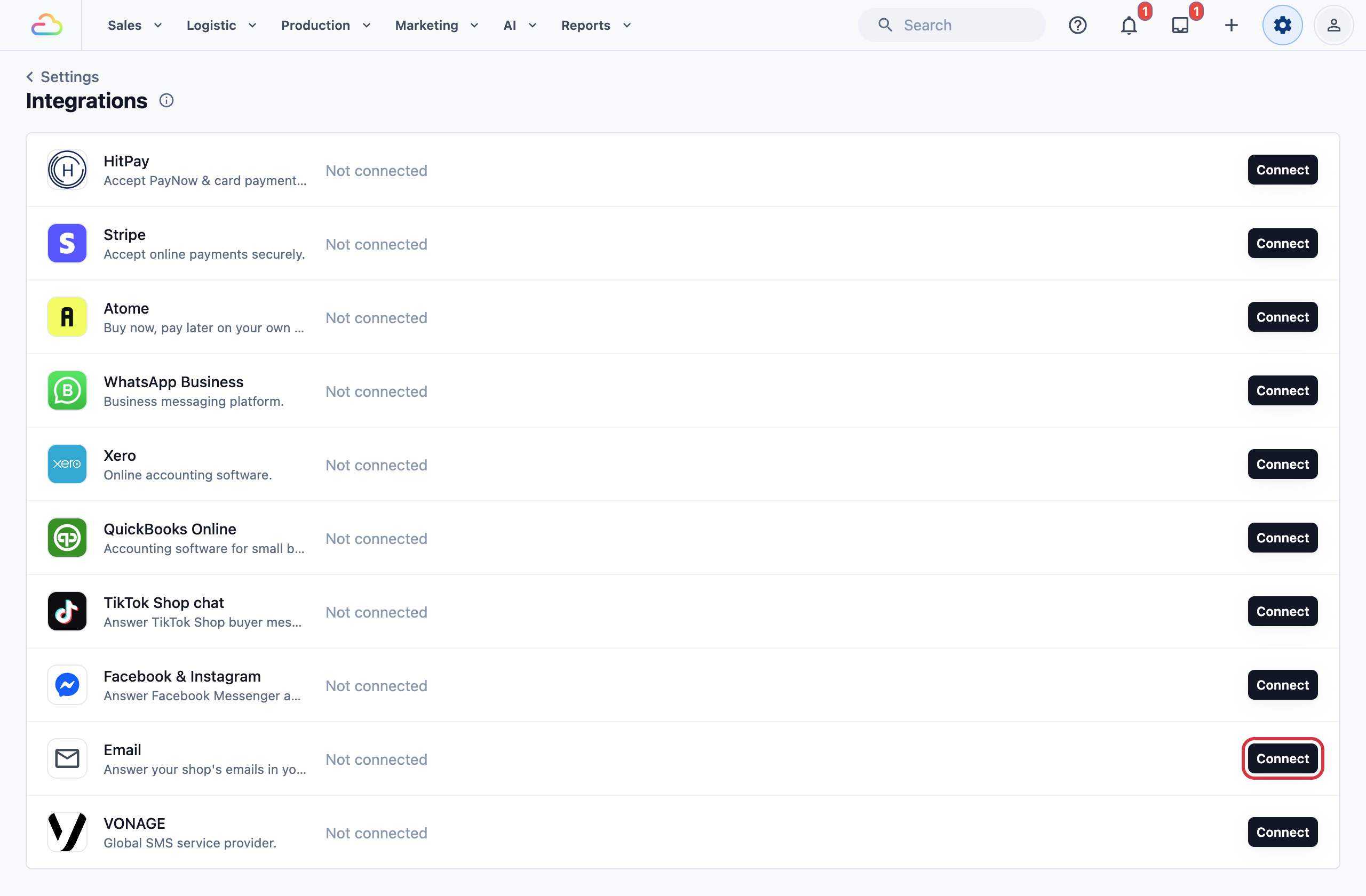
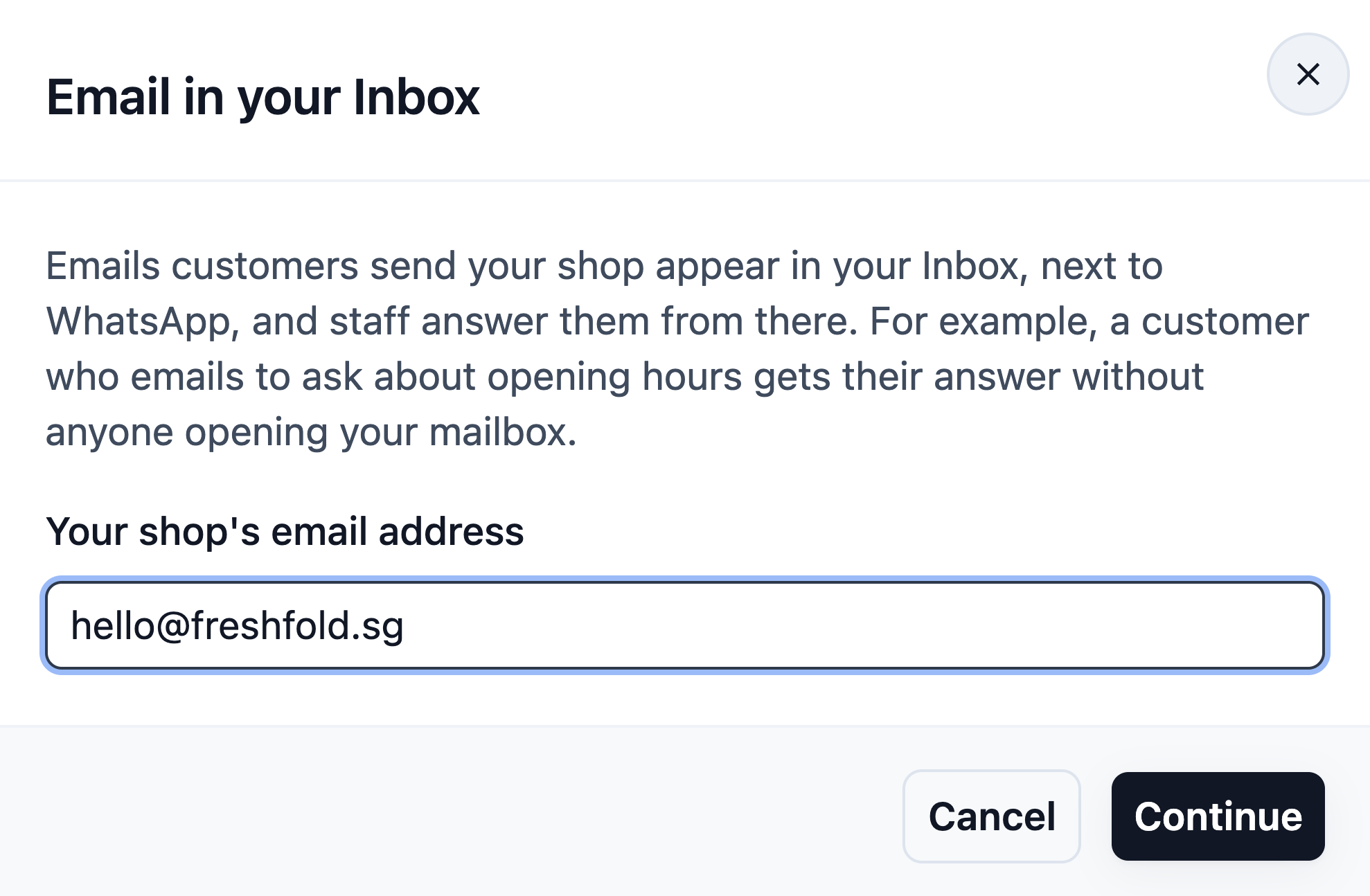
- Type your shop's email address, for example hello@freshfold.sg, and click Continue .
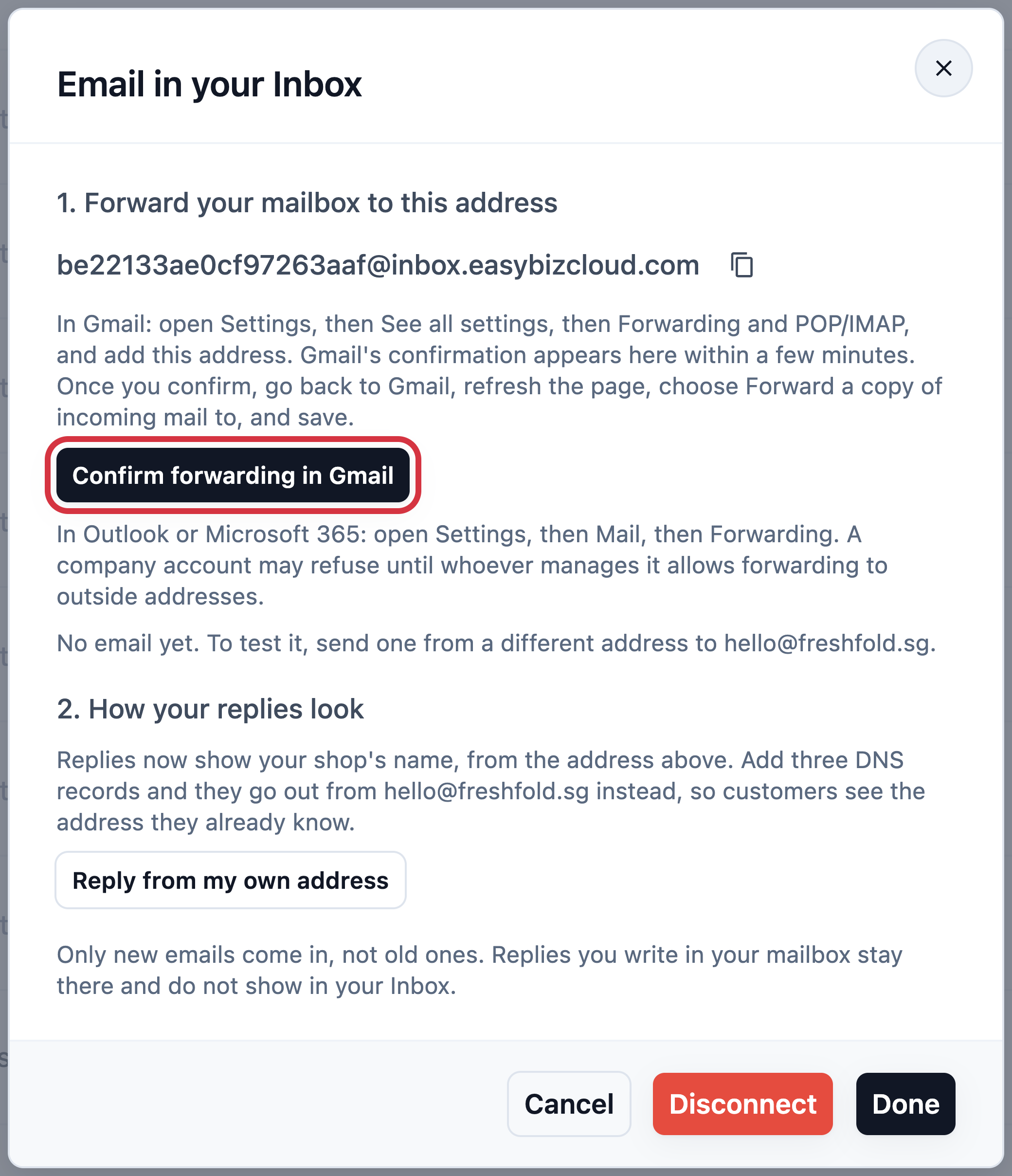
- EasyBiz shows your own address ending in @inbox.easybizcloud.com. Click the copy button beside it, and keep this window open.
Step 2: Forward your mailbox to that address
Follow the steps for your mailbox.
If you use Gmail or Google Workspace
- In Gmail, click the gear at the top right, then See all settings.
- Open the Forwarding and POP/IMAP tab and click Add a forwarding address .
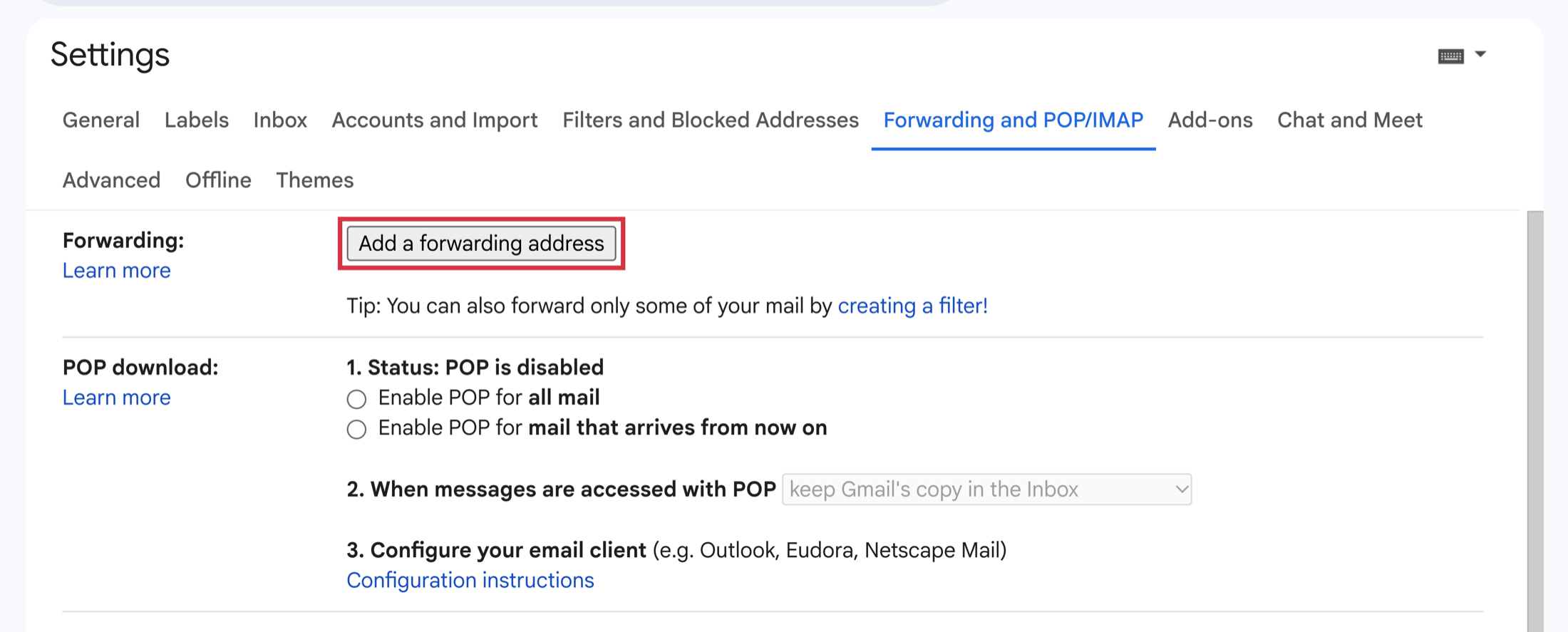
- Paste your EasyBiz address, then click Next , Proceed and OK . If Google asks you to verify it's you, with your passkey, phone or password, follow its steps. That's normal.
- Gmail sends a confirmation to your EasyBiz address, so it won't arrive in your mailbox. Go back to the EasyBiz window, where it shows within a few minutes.
- Click Confirm forwarding in Gmail and confirm on the page that opens. If EasyBiz shows a code and Gmail asks for one instead, copy the code into Gmail's box and click Verify .
- Go back to Gmail and refresh the page. Click Inbox on the left, then the gear, See all settings and Forwarding and POP/IMAP. If you see only an empty box next to Forward a copy of incoming mail to, click Inbox and open these settings the same way again.
- Choose Forward a copy of incoming mail to, and pick your EasyBiz address. Next to it, choose keep Gmail's copy in the Inbox, so your emails also stay in your mailbox.
- Click Save Changes at the bottom of the page. For about a week, Gmail shows a notice at the top saying your email is being forwarded. That's normal.
If you use Outlook or Microsoft 365
- In Outlook, click the gear at the top right.
- Open Mail, then Forwarding. On a personal Outlook.com account it's called Forwarding and IMAP.
- Turn on Enable forwarding and paste your EasyBiz address.
- Tick Keep a copy of forwarded messages, so your emails also stay in your mailbox.
- Click Save .
If you use another email provider
Look for Forwarding in your mailbox settings and paste your EasyBiz address there. Choose to keep a copy in your mailbox if you're asked. If your provider asks you to confirm in some other way, contact us and we'll help.
Step 3: Send a test email
- From a different address, such as your personal email, send an email to your shop's address.
- Wait a minute or two, then open your Inbox in EasyBiz. The email shows as a new chat with an email icon.
- Type a reply and send it. It arrives in your personal email, in the same thread as your test.
- Answer that reply from your personal email. Your answer comes back to the same chat.
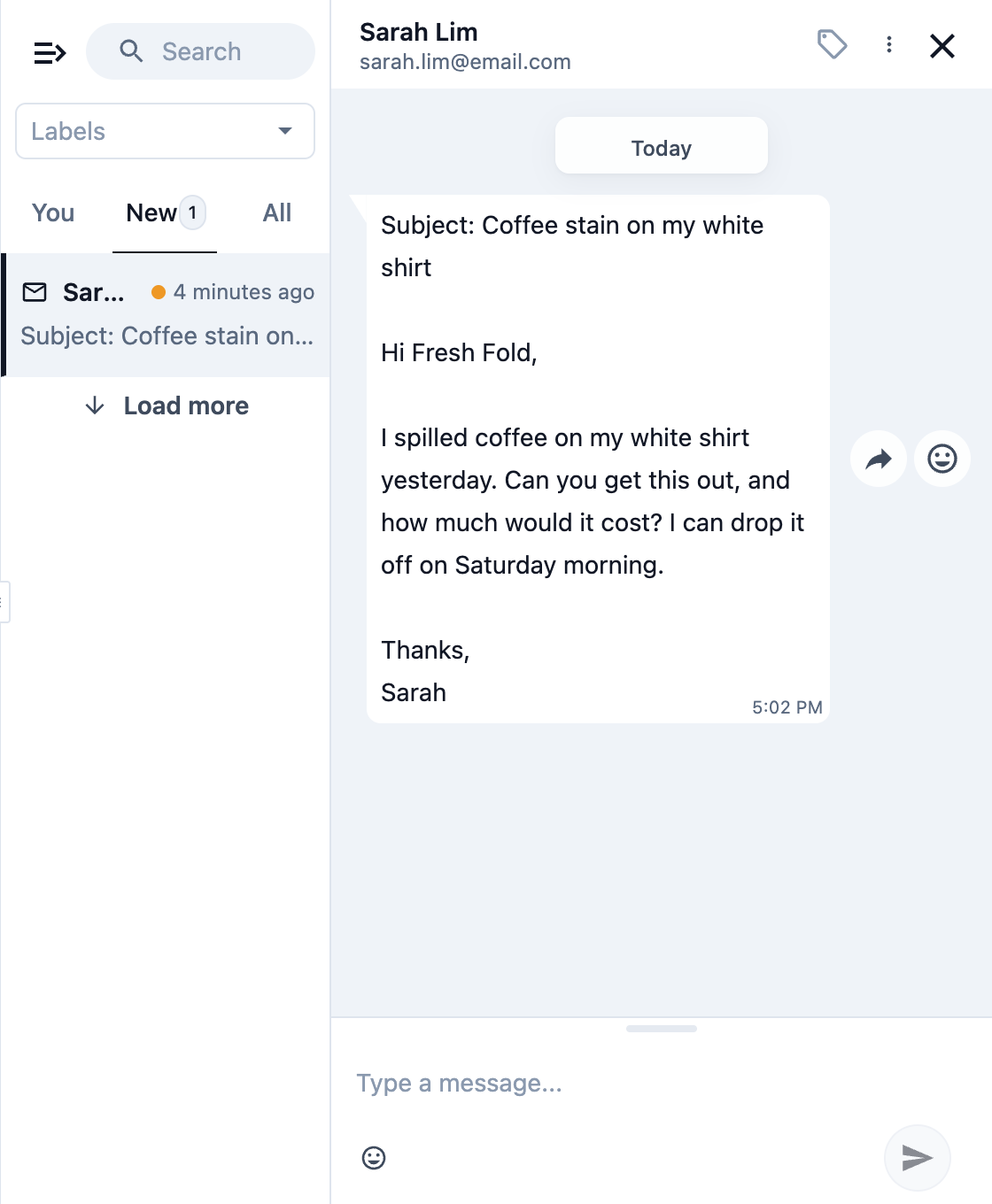
When an email has come in, the Email window at Settings › Integrations shows "Working" and the time of the last email.
Step 4 (optional): Reply from your shop's own address
Replies first go out with your shop's name, from your @inbox.easybizcloud.com address. If your email uses your own web address, like hello@freshfold.sg, they can go out from that address instead, so customers see the one they already know. A free address like @gmail.com or @outlook.com can't do this. Its replies stay as they are, and they still work.
- Go to Settings › Integrations, find Email and click Manage .
- Under How your replies look, click Reply from my own address . EasyBiz shows three records.
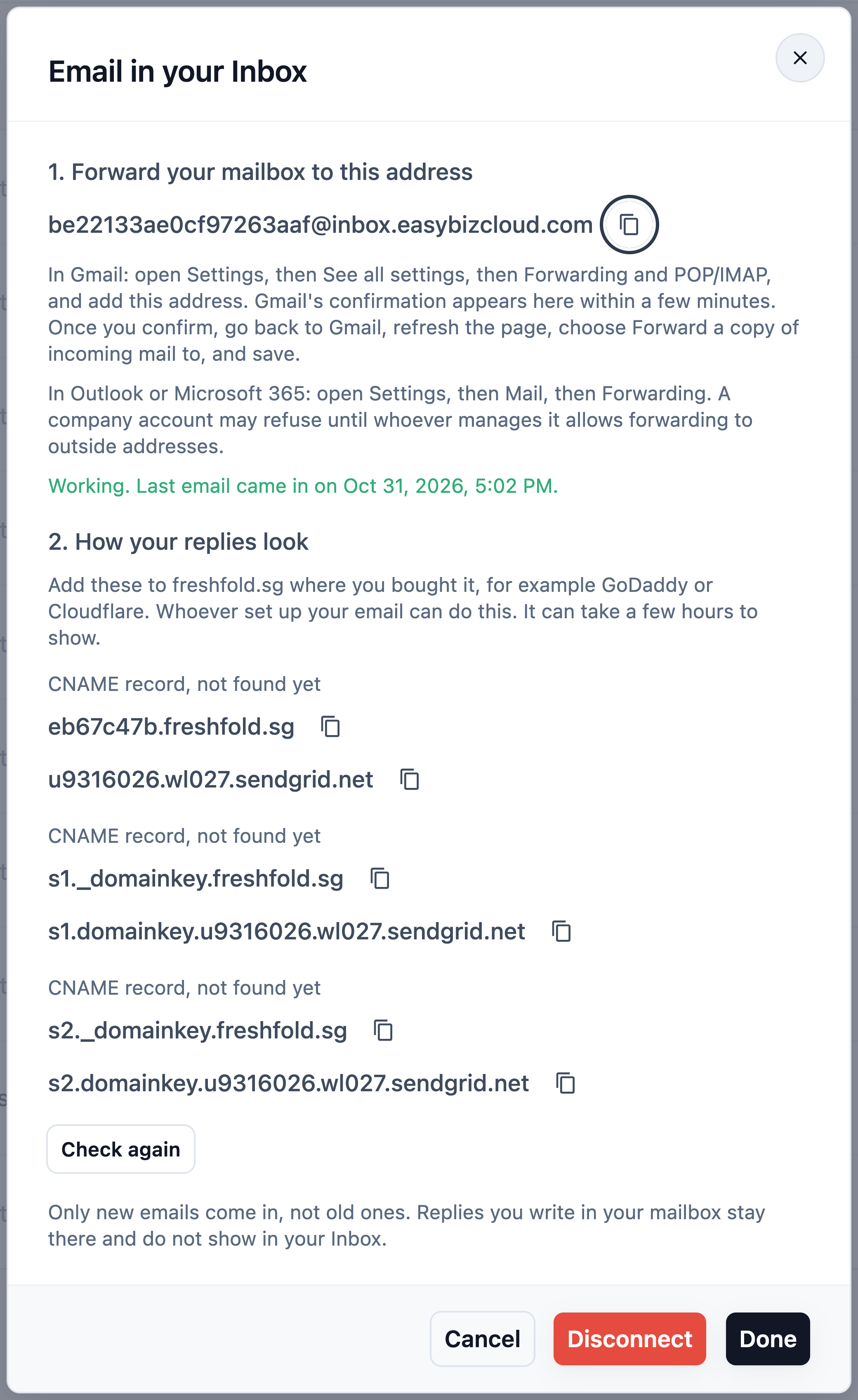
- Add the three records where you bought your web address, for example GoDaddy or Cloudflare. Whoever set up your email can do this.
- It can take a few hours to show. Then click Check again .
When all three are found, the window says replies go out from your shop's address.
FAQs
Do my emails leave my mailbox?
No. If you chose to keep a copy in Step 2, every email stays in your mailbox as well.
Will my old emails come in?
No, only new emails from the day you turn on forwarding.
If I reply from my mailbox, do my staff see it?
No. A reply written in your mailbox stays there and doesn't show in the Inbox. Agree with your staff to answer from the Inbox, so customers don't get two answers.
Can customers send photos and files?
Yes. Photos and PDFs show in the chat, up to 10 files per email, 10 MB each and 20 MB in total. Zip files and programs stay out, and a note in the chat names them. The whole email is still in your mailbox.
Can my staff send photos or files by email from the Inbox?
Not yet. Replies from the Inbox are text. To send a file, reply from your mailbox.
Do newsletters and automatic emails come in too?
No. Newsletters, out-of-office replies and spam stay out, so your staff see emails from real customers.
Will the AI suggest replies to emails?
No. Your staff write email replies themselves.
Gmail's confirmation never showed in EasyBiz. What now?
Check that you pasted the whole address, ending in @inbox.easybizcloud.com, with the Email window open at Settings › Integrations. In Gmail, remove the address and add it again to get a new confirmation. If it still doesn't show after 10 minutes, contact us.
Gmail has no Forwarding and POP/IMAP tab, or won't let me forward.
On a company Google Workspace account, whoever manages it may have turned forwarding off. Ask them to allow automatic forwarding for this mailbox.
Gmail shows a notice that my emails are being forwarded. Is something wrong?
No. Gmail shows that reminder for about a week after you turn forwarding on.
Can I connect more than one email address?
No. Each business connects one email address.
Our shop changed its email address. What do I do?
Click Manage , then Disconnect , then Connect with the new address. Your EasyBiz address stays the same. Then turn on forwarding in the new mailbox.
What's Next
You've forwarded your mailbox to EasyBiz. Your customers' emails now come into your Inbox next to WhatsApp, and your staff answer them there. To stop, open Settings › Integrations › Email, click Manage and then Disconnect , and turn off forwarding in your mailbox too. Chats already in your Inbox stay there.