
Before You Start
- You need at least one online booking option, such as a home pickup, home delivery or onsite visit. Time windows sit inside an option. See Setting Up Online Booking Options.
- To give each area its own limit, set up your service areas first. See Setting Up Service Areas.
If you used the old console, time windows replace the Time Slots page. They now sit inside each booking option on the Bookings page.
What Time Windows and Daily Limits Do
A time window is the time range a customer picks for their booking, for example 9:00 AM to 12:00 PM. When a customer books, they pick a day first, then one of the windows open that day.
The daily booking limit is the number of bookings one window can take on one day. When the limit is reached, the window shows as Full and customers pick another time.
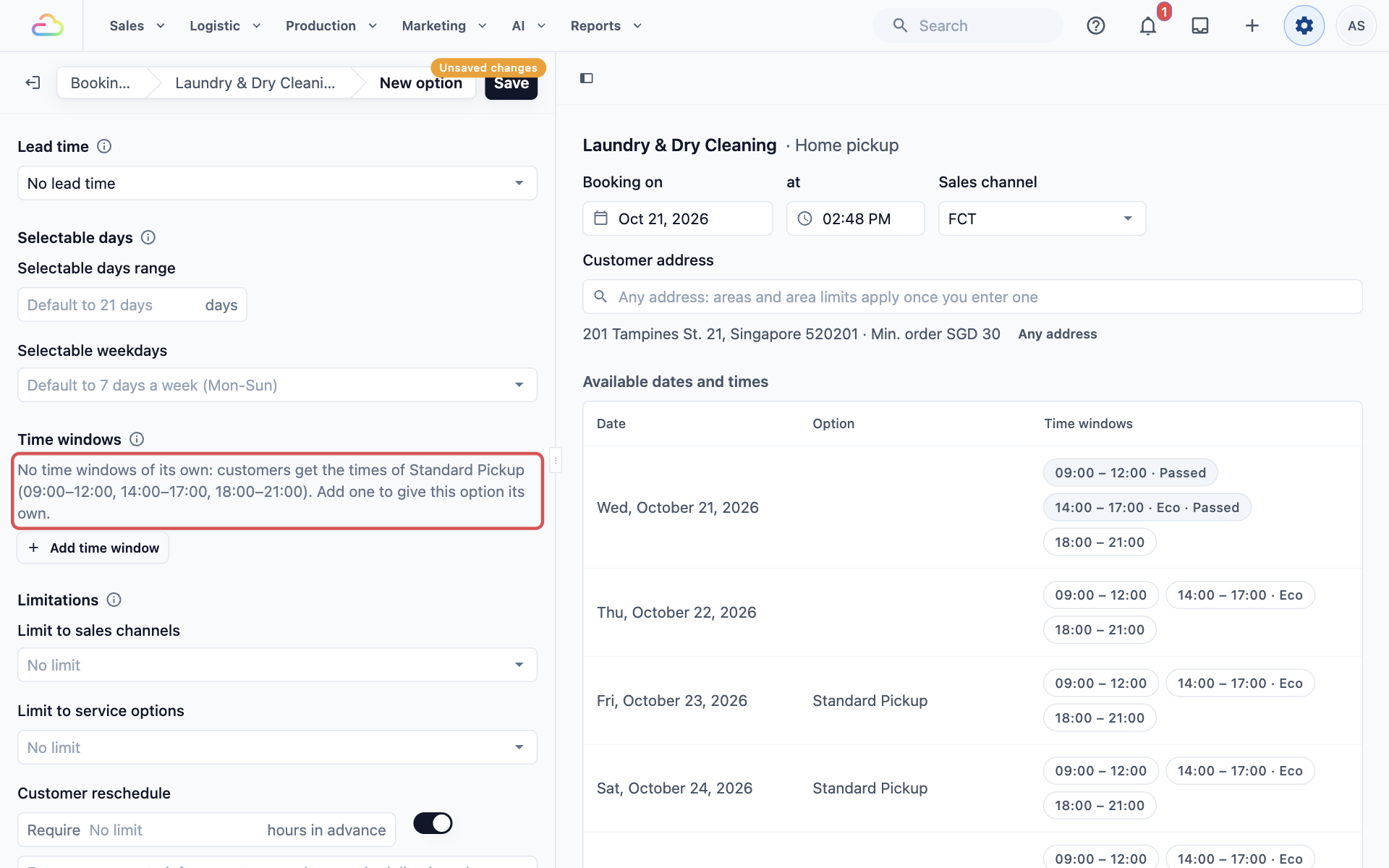
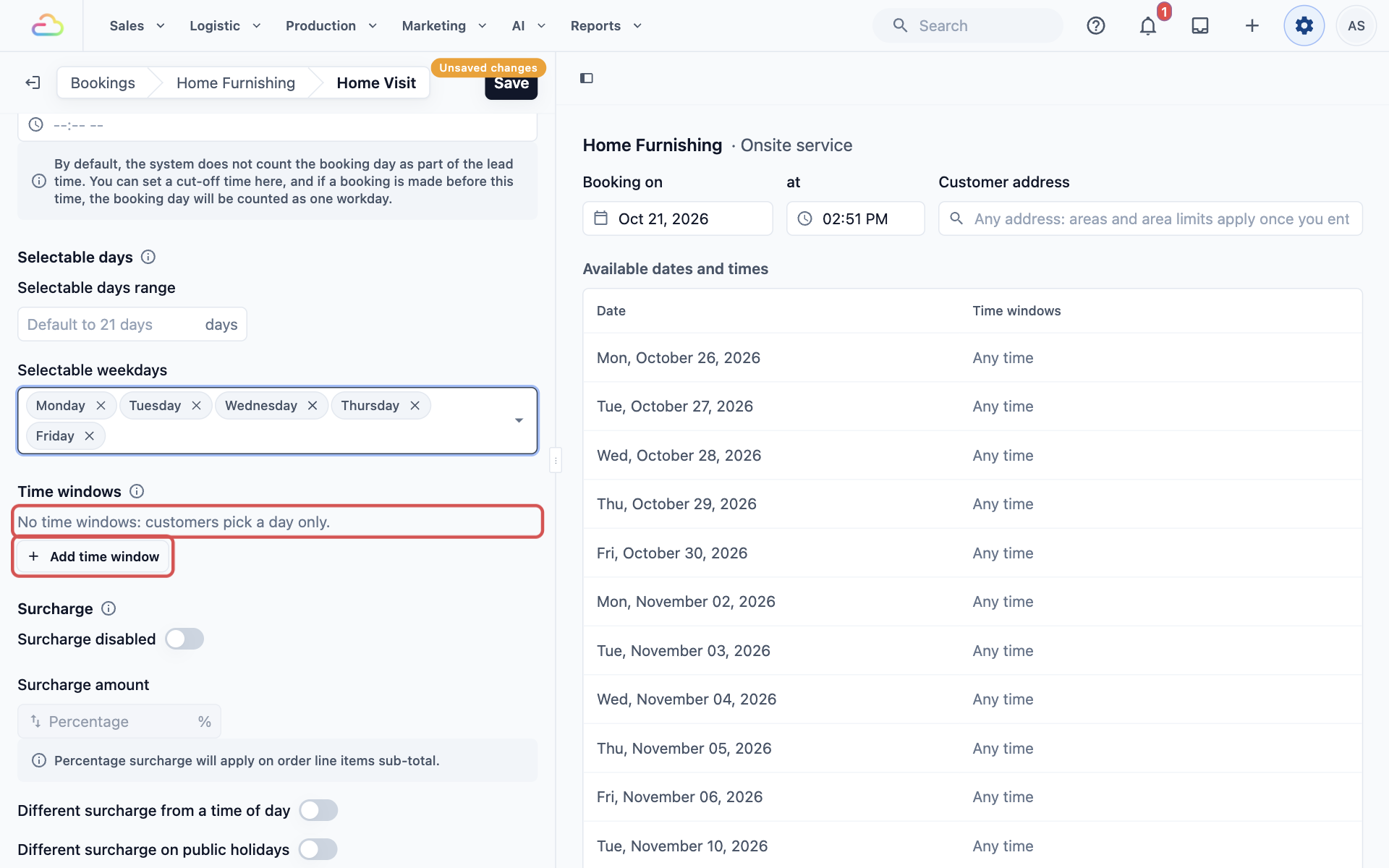
If an option has no time windows of its own, it uses the windows of the other options of the same type in the same business unit (one line of service in your shop, for example Laundry & Dry Cleaning). The option then says, for example, "No time windows of its own: customers get the times of Standard Pickup". If no option of that type has any windows, customers pick a day only, with no time.
Add a Time Window
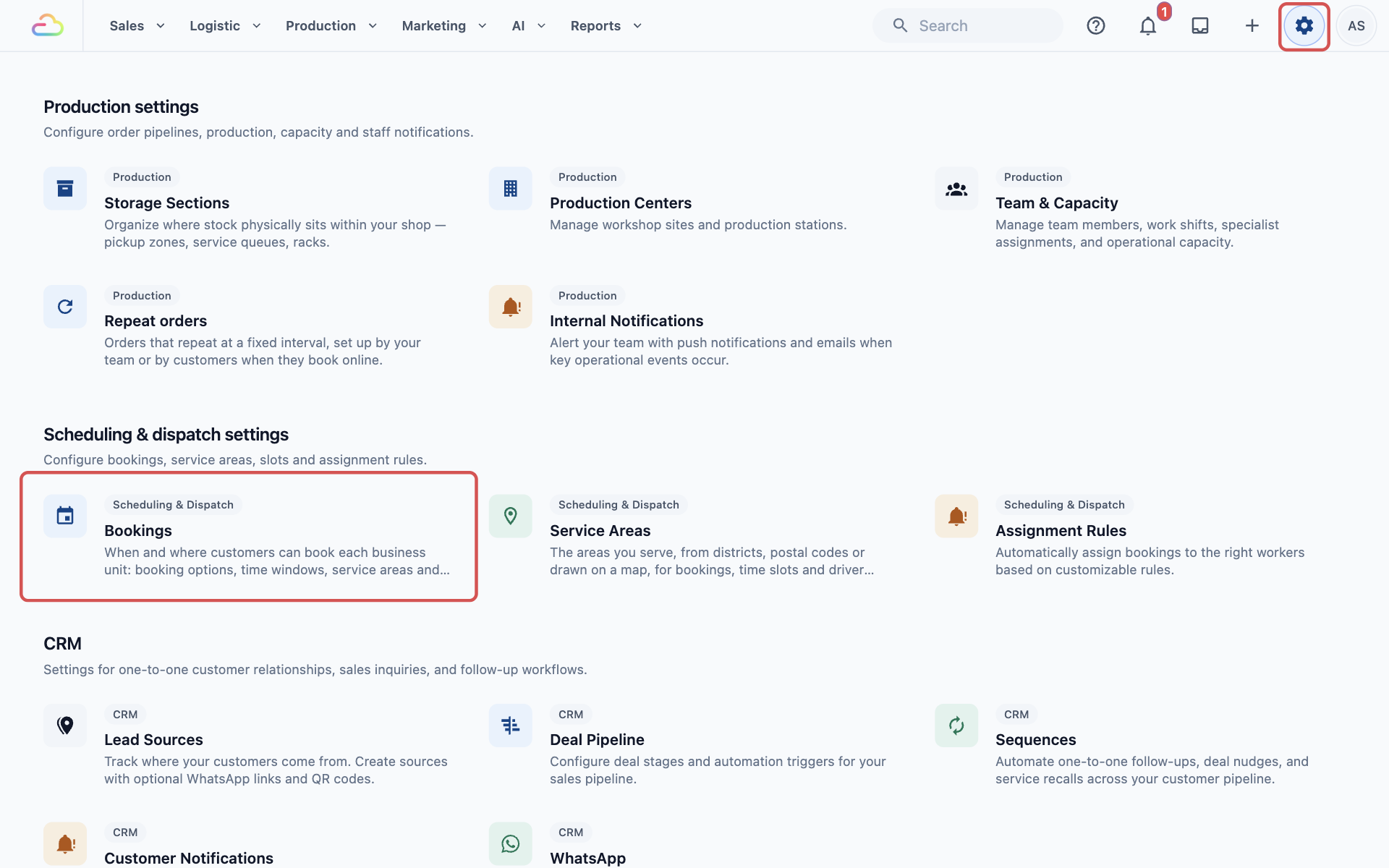
- Click the ⚙️ Settings icon in the top-right corner.
- Scroll down to the Scheduling & dispatch settings section and click Bookings.
- Under Business Units, click the business unit, for example Laundry & Dry Cleaning.
- Under Online booking options, click the option you want to add times to, for example Standard Pickup.
- Scroll down to Time windows and click Add time window.
A new window opens, called "New time window", ready for you to fill in.
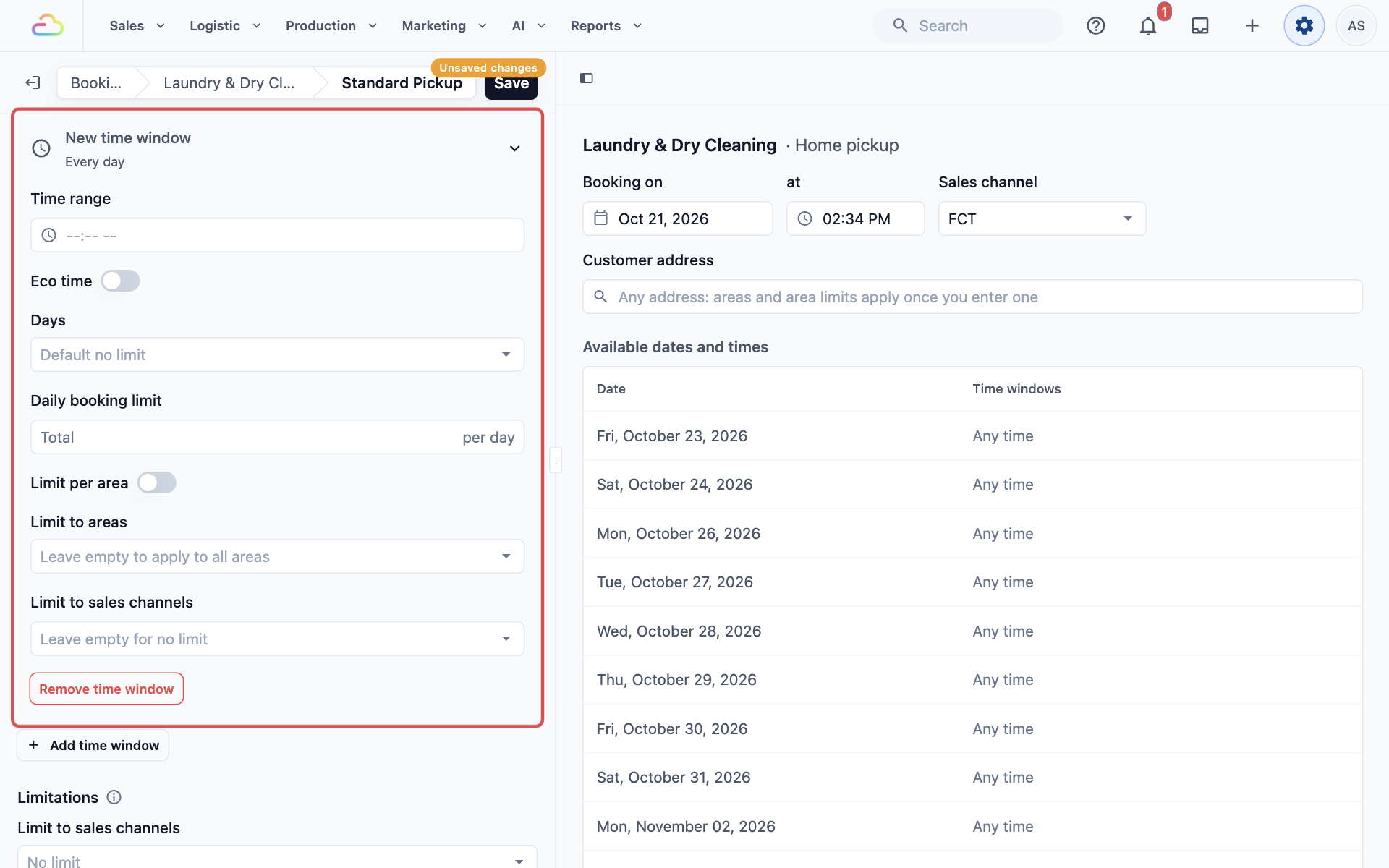
- Fill in the settings below.
- Click Save at the top of the settings panel. Nothing changes for customers until you save.
Time Window Settings
Time range
Click the box, choose the Start time and End time, then click Confirm. For example, 09:00 AM to 12:00 PM. Customers see this as the time they can expect your team. Every window needs both a start and an end, or the page won't save.
Eco time
Turn this on for the window you would like customers to choose, for example a time when your driver is already in the area. The Eco window is picked for customers by default and shown first, with an Eco label. Customers can still pick another time.
Days
Choose the days of the week this window is open.
| Choose | What happens |
|---|---|
| Leave empty | The window is open on every day the booking option is open |
| Monday to Saturday | The window is closed on Sundays |
| Any days you like | For example, a morning window on weekdays only |
A window only shows on days its booking option is also open.
Daily booking limit
Type how many bookings this window can take on one day, for example 10. Leave it empty for no limit.
- Limit per area: turn this on to count the limit separately in each service area. The box then reads "per day per area". With a limit of 4, the East area and the Jurong area can each take 4 bookings in that window.
- Customize: appears once Limit per area is on. Click it to give an area its own limit, for example 6 for East when you have an extra driver there. An area you leave empty uses the main limit. You only see an area here after you choose it in Limit to areas below.
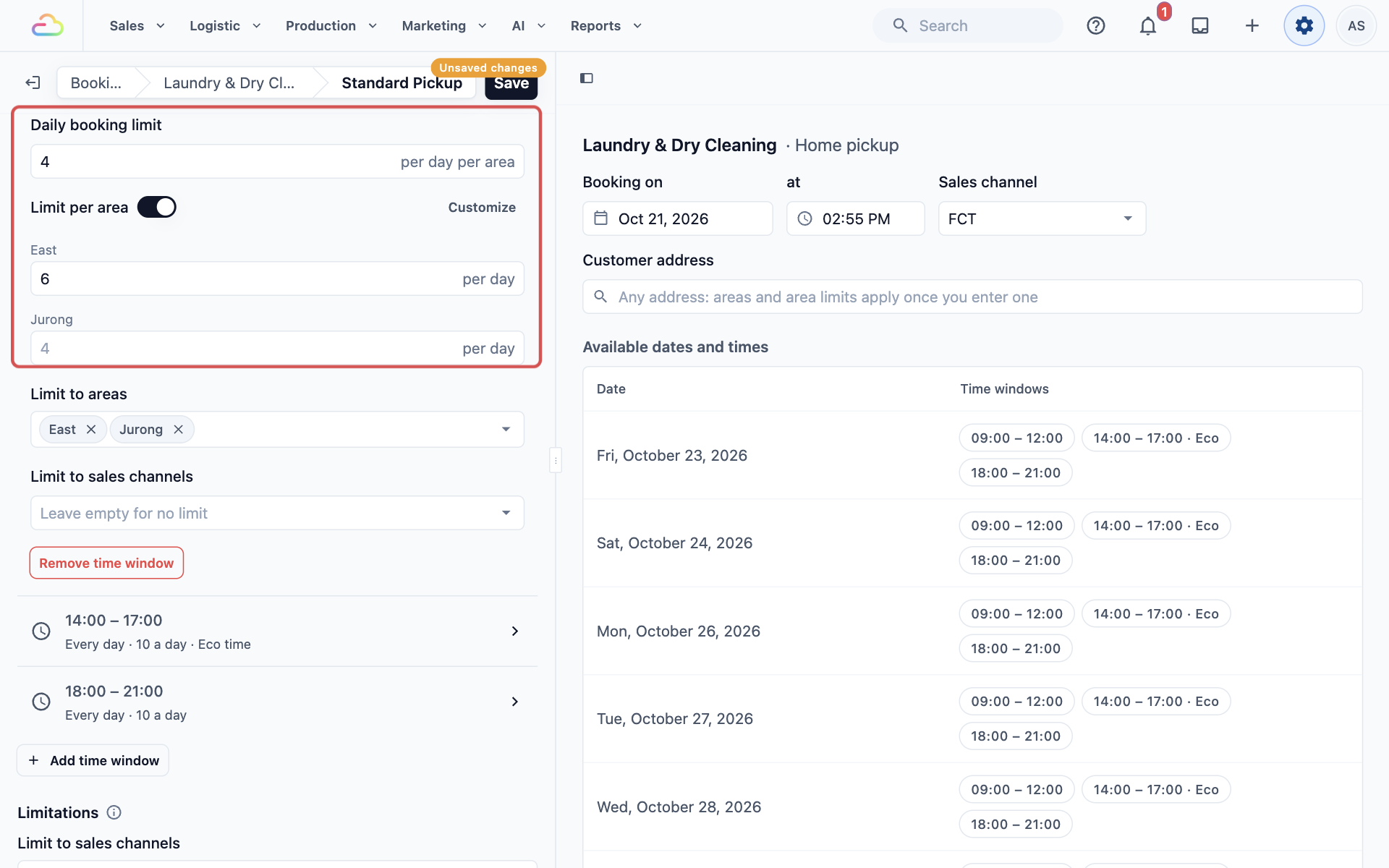
Limit to areas
Choose the service areas this window is offered in.
| Choose | What happens |
|---|---|
| Leave empty | The window is offered in all your areas |
| One or more areas | Only customers with an address in those areas see this window |
| All other areas | The window is offered to addresses outside every area chosen on your other windows |
Limit to sales channels
A sales channel is a place bookings come from, for example your Online Store, Mobile App or one of your POS shops. Leave it empty to offer the window everywhere, or pick channels, for example your Mobile App only, to give app customers an extra evening window.
Remove time window
Click Remove time window to delete the window from this option, then click Save. Bookings customers already made keep their time.
How Visits Count Toward the Limit
Most bookings take 1 place in a window. Onsite visits can take more. On each item in your price list, and on each of its sizes, Places per visit sets how many places one job takes, for example 2 for a deep clean that needs 2 cleaners. A deep clean then uses 2 of the window's 4 places. A booking takes the places of its items added together, and always at least 1. An item with no Places per visit adds none, so set it on every item that needs its own cleaner. For a worked example, see Running a Home Cleaning Business.
Example: CleanFast Laundry's Home Pickups
CleanFast Laundry has more pickups in the morning in the East, where it has an extra driver. Under Laundry & Dry Cleaning › Standard Pickup, it adds 3 time windows:
- 9:00 AM to 12:00 PM, East and Jurong only, 4 bookings per day per area, with East raised to 6
- 2:00 PM to 5:00 PM, 10 bookings a day, Eco time on
- 6:00 PM to 9:00 PM, 10 bookings a day
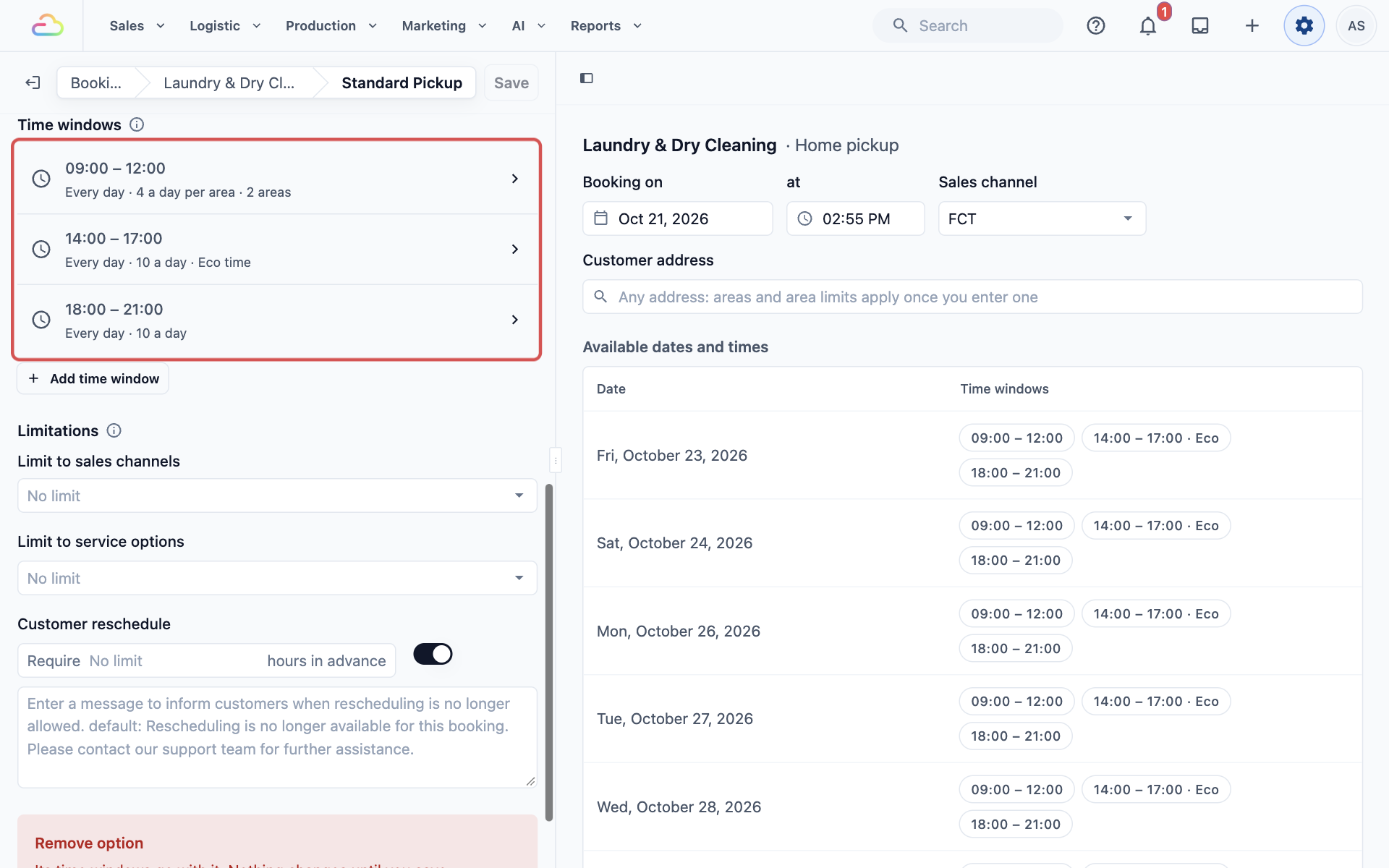
After saving, the live preview on the right of the Bookings page shows each day with its windows. A window marked Full has no places left. Too soon means it starts inside the option's lead time (the notice you need before a booking), and Passed means the time is over.
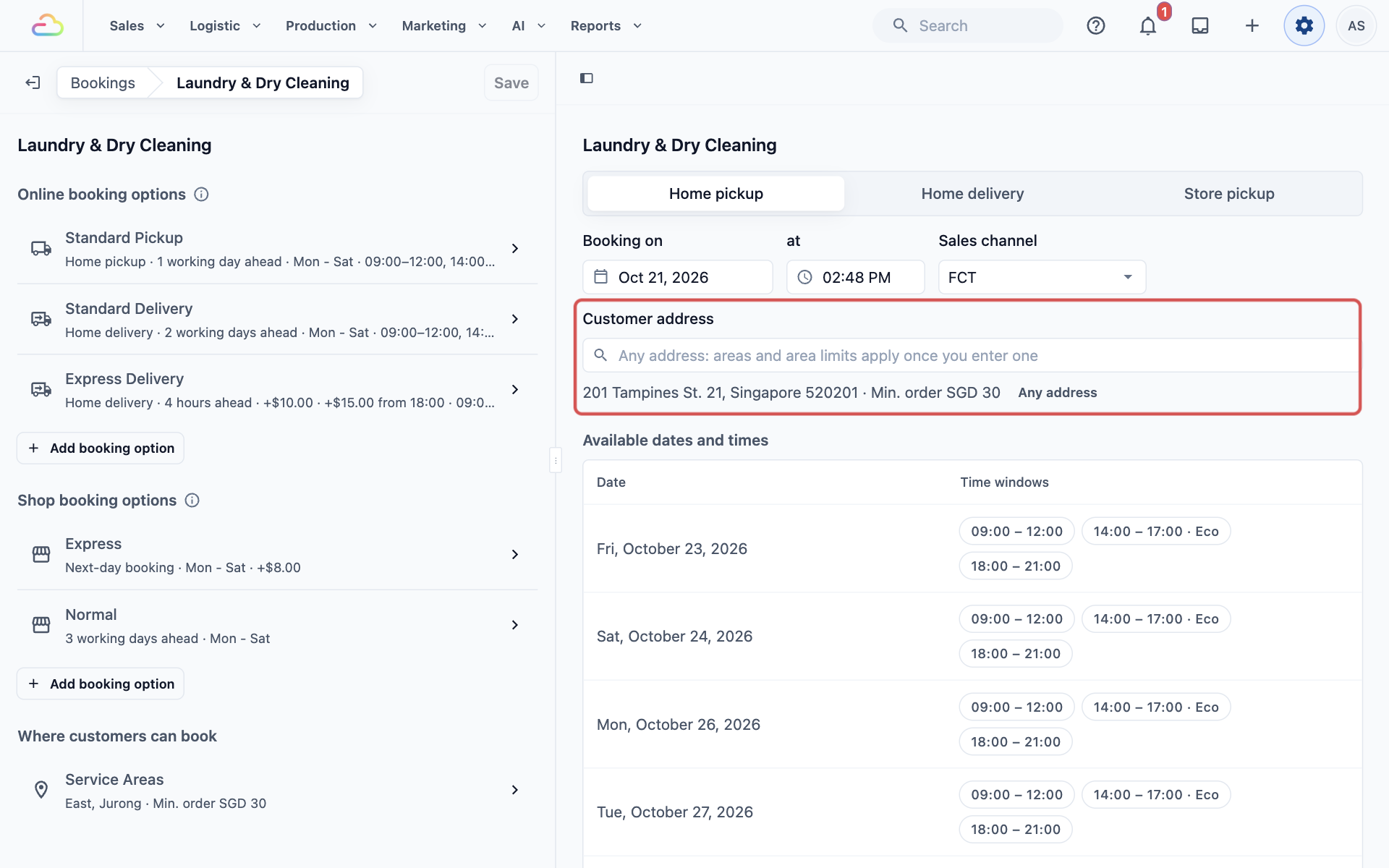
Online, a customer in Tampines who books a pickup sees all three windows, with 2:00 PM to 5:00 PM already picked because it is the Eco time. Once 6 pickups are booked in the East for a morning, that morning window shows Full for East customers, while Jurong customers can still book it until they reach 4.
At the POS, staff booking a home delivery for a customer see the time windows of your home delivery options, with the same limits as customers online.
FAQs
Why does a window show Full when it has fewer bookings than my limit?
There are 3 common reasons. A visit with Places per visit set to 2 or more needs that many free places, so a 2-cleaner deep clean sees Full when only 1 place is left. With Limit per area on, only bookings in the customer's own area count, so one area can be full while another is not. And all bookings in the same business unit that start at the same time count together, even when they come from different options.
Can 2 booking options share one time window?
No. Each option keeps its own windows, and Add time window adds a window to that option only. To offer the same time on 2 options, add the window to each. Bookings at the same start time in the same business unit still count toward each other's limit. If an older window is still linked to more than one option, it says "Also offered by" with the other option names, and its button reads Remove from this option.
Do bookings my staff make at the POS or in the Console count toward the limit?
Yes. Bookings staff make count the same as online bookings. When a window is full, staff can't book it either.
If I lower a limit or remove a window, what happens to bookings already made?
Nothing. Existing bookings keep their date and time. The new limit applies only to bookings made after you save. If a window already has more bookings than the new limit, it shows as Full until bookings drop below it.
Can a customer move their booking within a window that is already full?
Yes. A customer's own booking doesn't block them. If they reschedule to a different time in a window they already hold, the window stays open for them.
What's Next
You have set the times customers can book and how many bookings each time can take. Next, set the collection dates your staff give customers who drop off and collect at your shop in Setting Collection Dates for Store Pickup.