
Before You Start
Have these ready before you add your first rule:
- Field Service on your plan. Rules only assign jobs when Field Service is part of your EasyBiz plan.
- A staff login for each driver. A driver is the staff member who goes out to do the job, such as a delivery driver or a cleaner. Each driver needs their own staff login with a Field Service seat, so they can receive and work their jobs in the EasyBiz Workflow app.
- Your service areas. To assign jobs by area, set up your areas first. See Setting Up Service Areas.
What Assignment Rules Do
A rule is a short instruction, for example "East jobs on weekdays go to Ahmad". A job is one pickup, delivery or onsite visit, with a date, a time window (the time range the customer booked) and an address.
When a new job comes in, EasyBiz checks it against your rules. If a rule matches the job's business unit, day, time window and area, the job goes to that rule's driver. The job then shows the driver's name.
If no rule matches, nothing breaks. The job stays unassigned, and your staff assign it by hand as usual.
Rules work the same for online bookings and for home deliveries taken at the POS (the counter app your staff use to take orders). If your staff choose a driver themselves when they take the order, their choice is kept and the rules are skipped.
Add an Assignment Rule
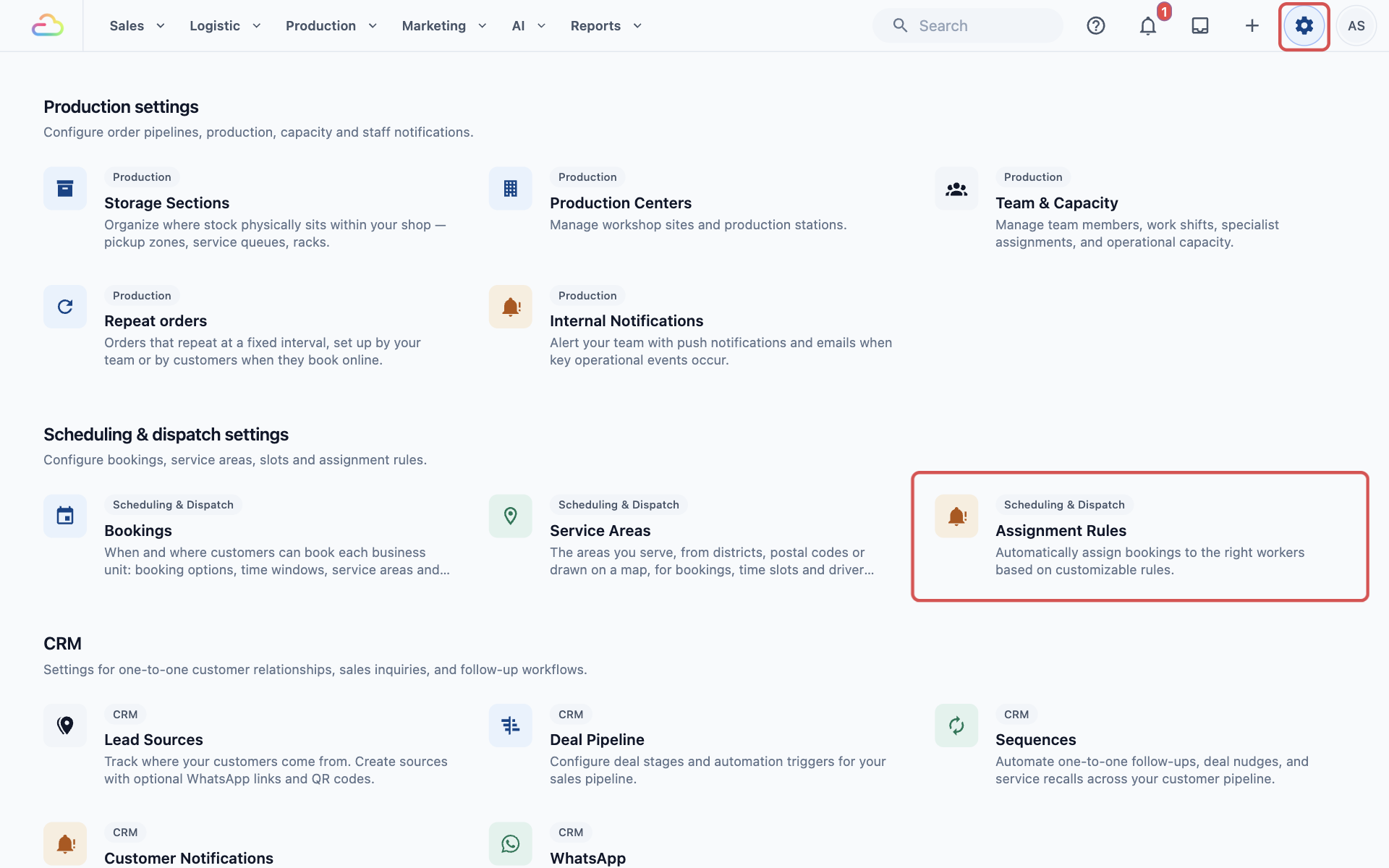
- Click the ⚙️ Settings icon in the top-right corner.
- Scroll down to the Scheduling & dispatch settings section and click Assignment Rules.
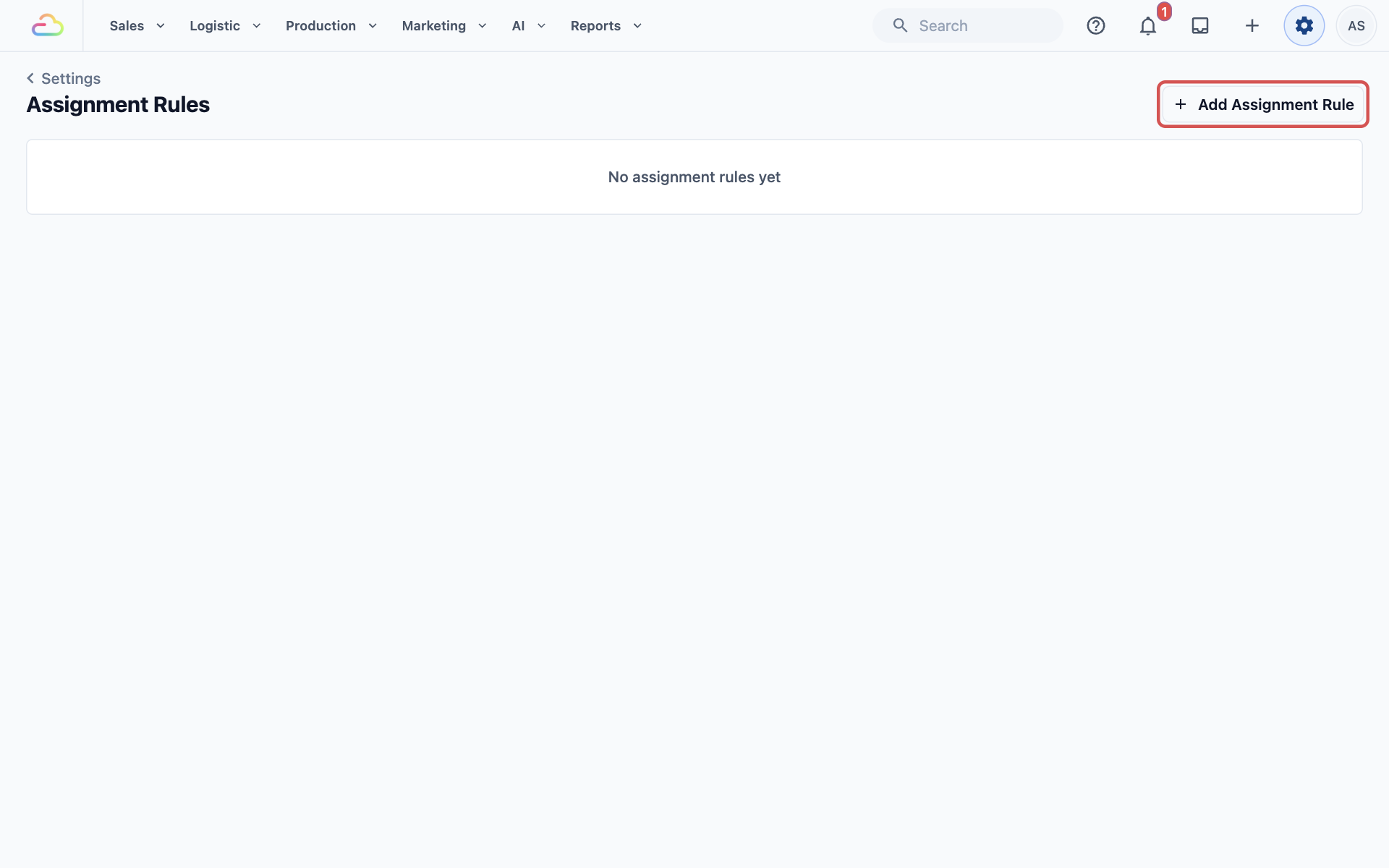
- Click Add Assignment Rule in the top-right corner.
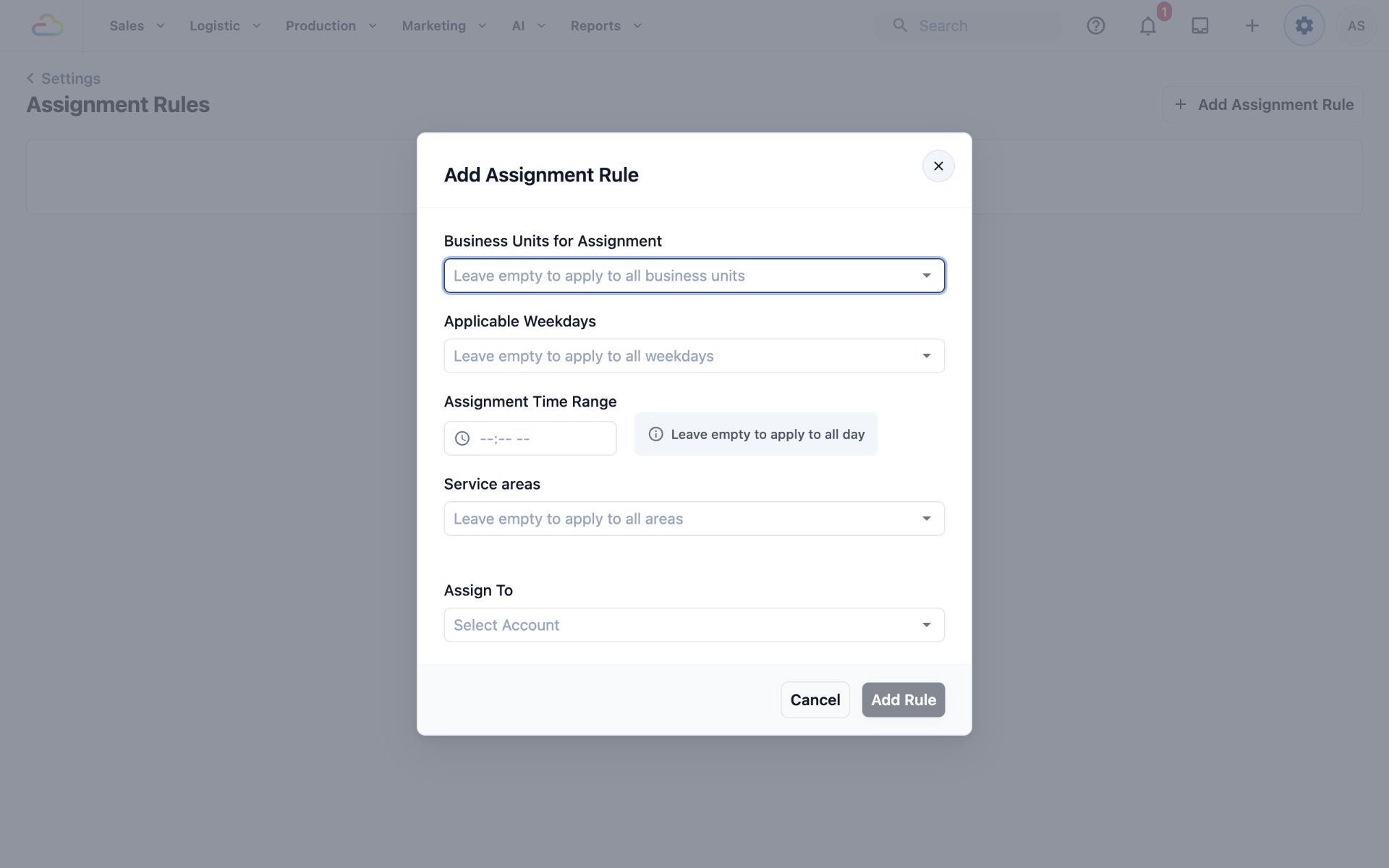
- Fill in the settings in the Add Assignment Rule window. Each one is explained below.
- Click Add Rule.
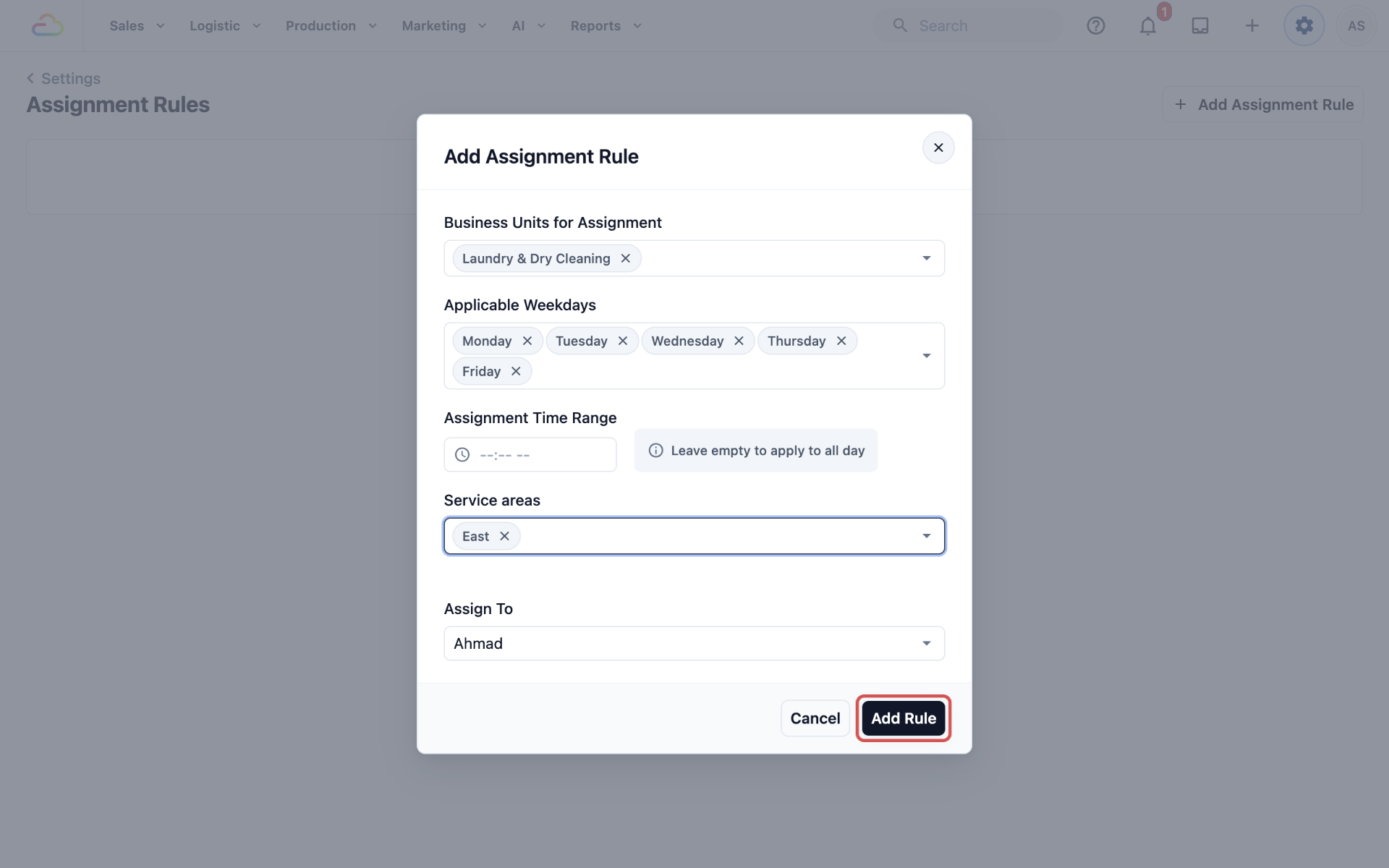
The Add Rule button stays greyed out until you choose someone in Assign To. Every other setting is optional.
Rule Settings
Business Units for Assignment
A business unit is one line of service in your shop, for example Laundry & Dry Cleaning or Bag Repair.
| Choose | What happens |
|---|---|
| Leave empty | The rule covers jobs from all business units |
| One business unit | The rule covers only that unit's jobs, for example Laundry & Dry Cleaning |
| Several units | The rule covers all the units you pick |
Applicable Weekdays
| Choose | What happens |
|---|---|
| Leave empty | The rule covers every day of the week |
| One day | The rule covers only that day, for example Saturday |
| Several days | For example, Monday to Friday |
Assignment Time Range
Click the box, choose a Start time and an End time, then click Confirm, for example 09:00 AM to 01:00 PM. Leave it empty to cover the whole day.
The customer's whole time window must fit inside this range. A 10:00 to 12:00 booking fits inside 09:00 to 13:00. A 12:00 to 14:00 booking does not, because it ends after 13:00, so this rule skips it.
Service areas
| Choose | What happens |
|---|---|
| Leave empty | The rule covers every address |
| One area | The rule covers only addresses inside that area, for example East |
| Several areas | The rule covers addresses in any of the areas you pick |
Assign To
Choose the driver who gets the matching jobs. This is the only setting you must fill in.
Avoid Overlapping Rules
Two rules overlap when one job could match both. For example, "all areas on Monday to Ravi" and "East on weekdays to Ahmad" both match an East booking on a Monday.
When that happens, only one person gets the job, and you can't choose which one. To keep things predictable, give each rule its own area, day or time, so every job matches only one rule.
Edit or Delete a Rule
Your rules are listed in a table with these columns: Business Units, Weekdays, Time, Area and Assignee. A setting you left empty shows as "All business units (no filter)", "7 days a week", "All day" or "All areas".
- Click the ⋮ menu at the end of the rule's row.
- Click Edit to change the rule, then click Update.
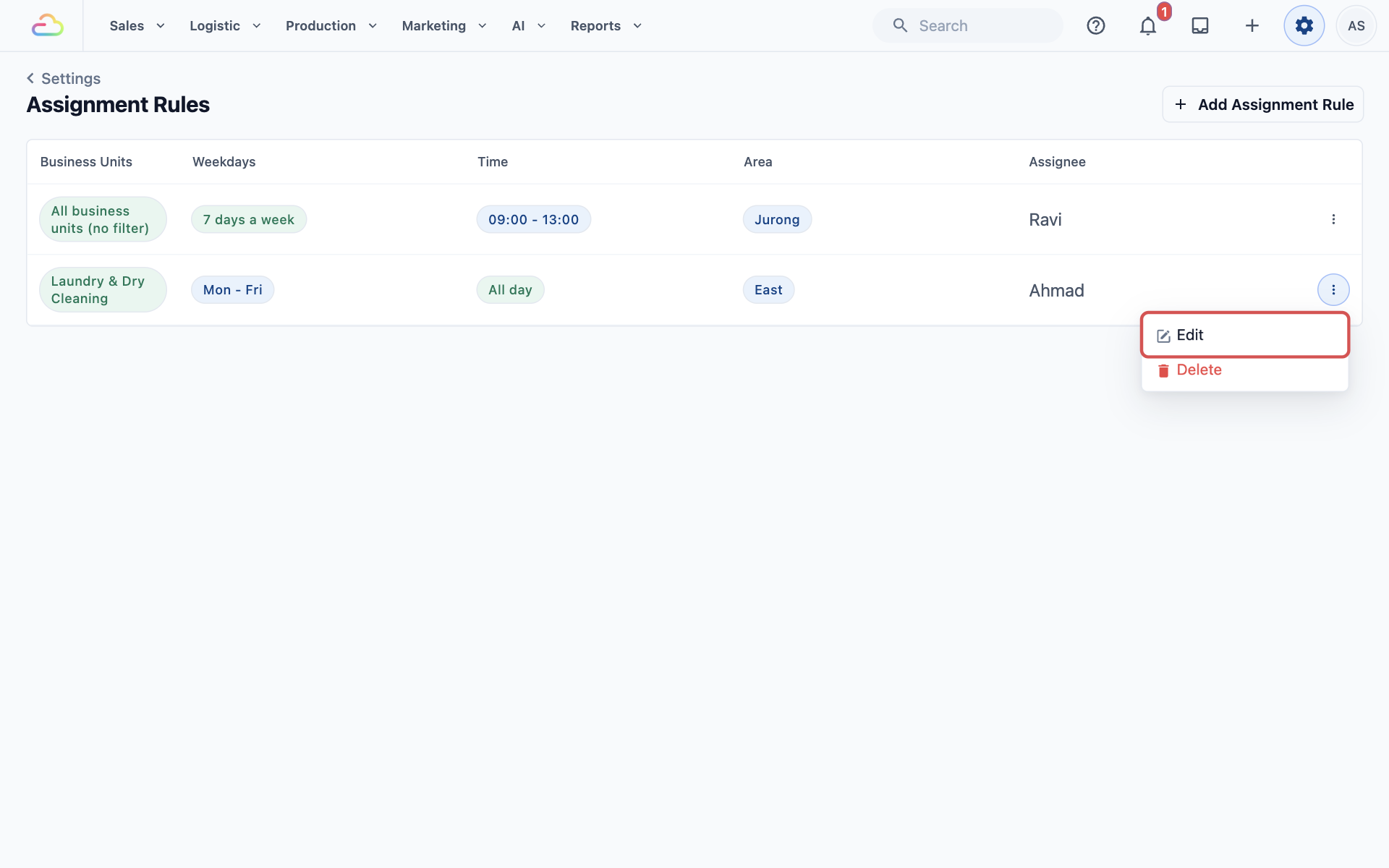
- To remove a rule, click Delete in the same menu, then click Delete again to confirm.
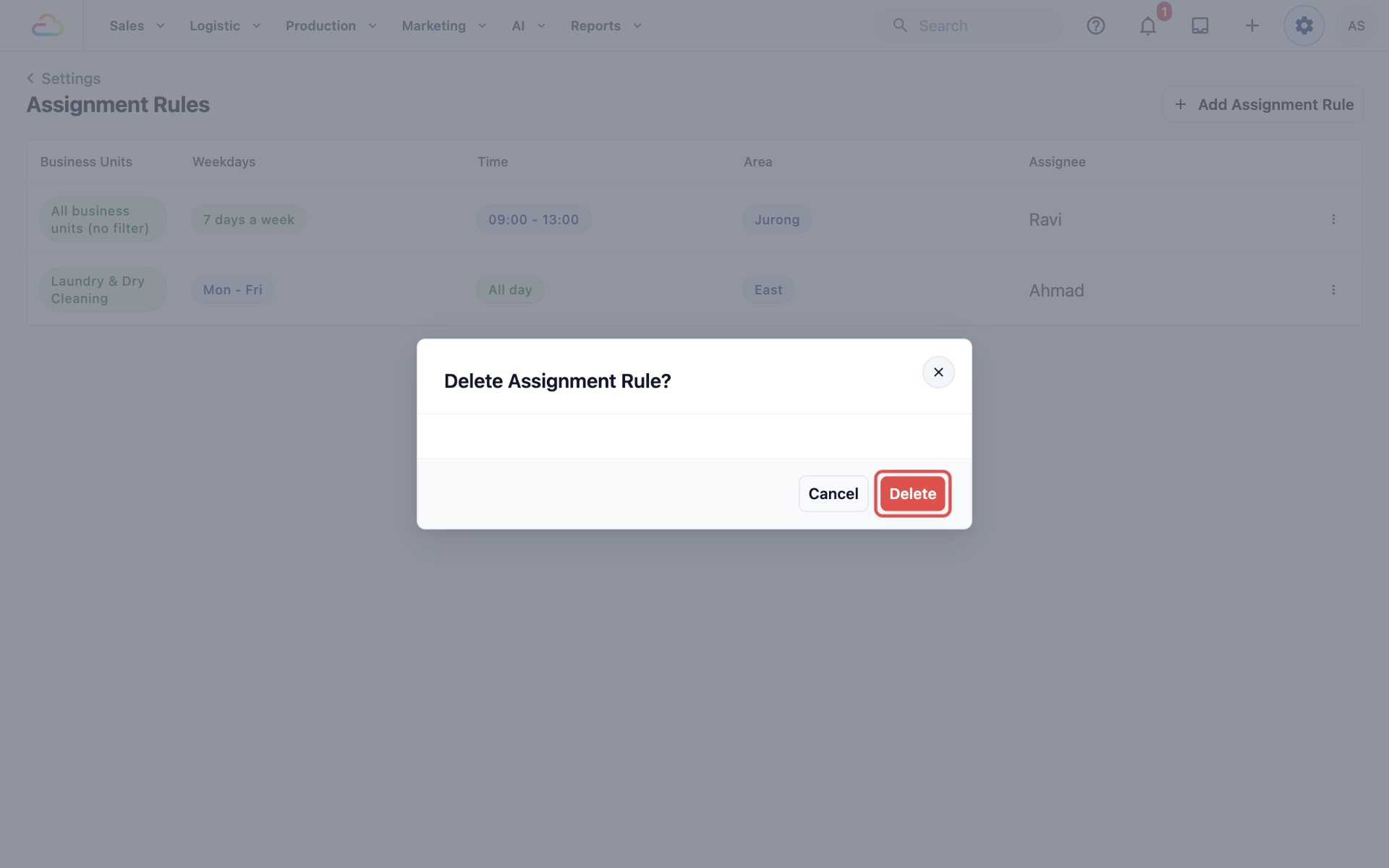
Changes apply only to jobs created after you save. Jobs that are already assigned keep their driver.
Example Setup
CleanFast Laundry has two drivers. Ahmad covers the East on weekdays. Ravi covers Jurong every morning.
| Setting | Rule 1 | Rule 2 |
|---|---|---|
| Business Units for Assignment | Laundry & Dry Cleaning | Leave empty (all) |
| Applicable Weekdays | Monday to Friday | Leave empty (every day) |
| Assignment Time Range | Leave empty (all day) | 09:00 AM to 01:00 PM |
| Service areas | East | Jurong |
| Assign To | Ahmad | Ravi |
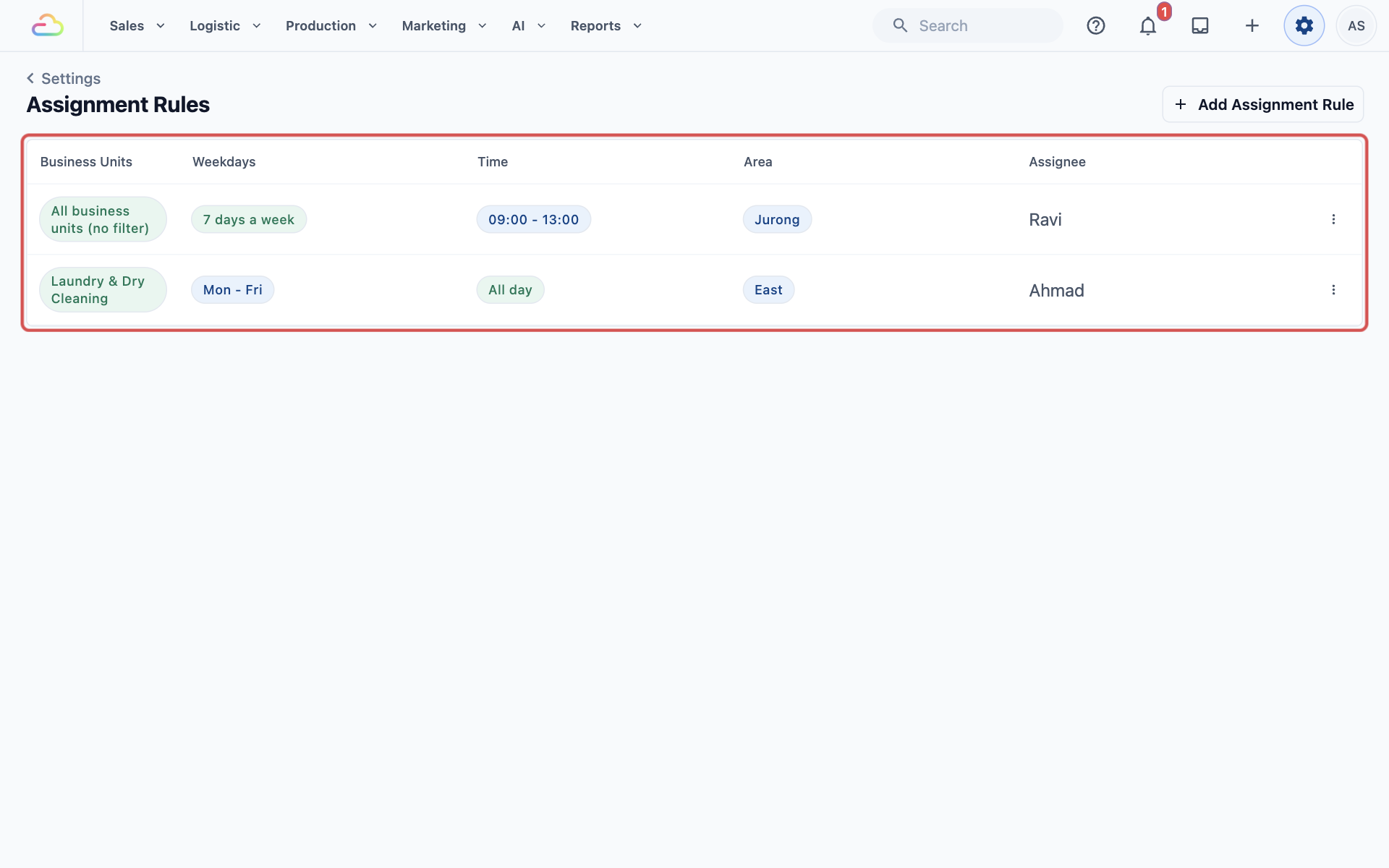
The two rules never overlap, because they cover different areas. What happens next:
- A customer in Bedok books a laundry pickup on Tuesday, 2:00 PM to 5:00 PM. The job goes to Ahmad.
- A customer in Jurong West books a pickup on Saturday, 9:00 AM to 12:00 PM. The job goes to Ravi.
- A customer in Bedok books a pickup on Saturday. No rule covers the East on Saturday, so the job stays unassigned for your staff to assign.
FAQs
Two rules match the same job. Who gets it?
Only one of them, and you can't choose which. Change one of the rules so they cover different areas, days or times.
Why wasn't a new job assigned?
Usually no rule matched it. Check that the booking's whole time window fits inside the Assignment Time Range, and that its day, area and business unit are covered. A job also stays unassigned if Field Service is not on your plan, or if the person in the rule no longer has a staff login.
Do home deliveries taken at the POS get assigned too?
Yes. A home delivery booked at the counter follows the same rules as an online booking. If your staff choose a driver when they take the order, their choice is kept.
Can my staff change the driver after a job is assigned?
Yes. A rule only makes the first choice. Your staff can reassign or unassign the job at any time, and rescheduling it keeps the driver it already has.
Will a new rule assign jobs I already have?
No. Rules only apply to jobs created after you save. Assign existing unassigned jobs by hand.
Does adding more drivers to my rules cost more?
Each person you assign jobs to needs a Field Service seat. Someone who already has one doesn't need another.
What's Next
You have finished the Scheduling & Dispatch series. Your areas, booking options, time windows, closed dates and assignment rules are all set up. To see how your staff handle these bookings each day, continue to Handling Online Orders in the Console.