
Where to Find It
Click the ⚙️ Settings icon in the top-right corner.
Under the Scheduling & Dispatch section, click Blocking Rules.
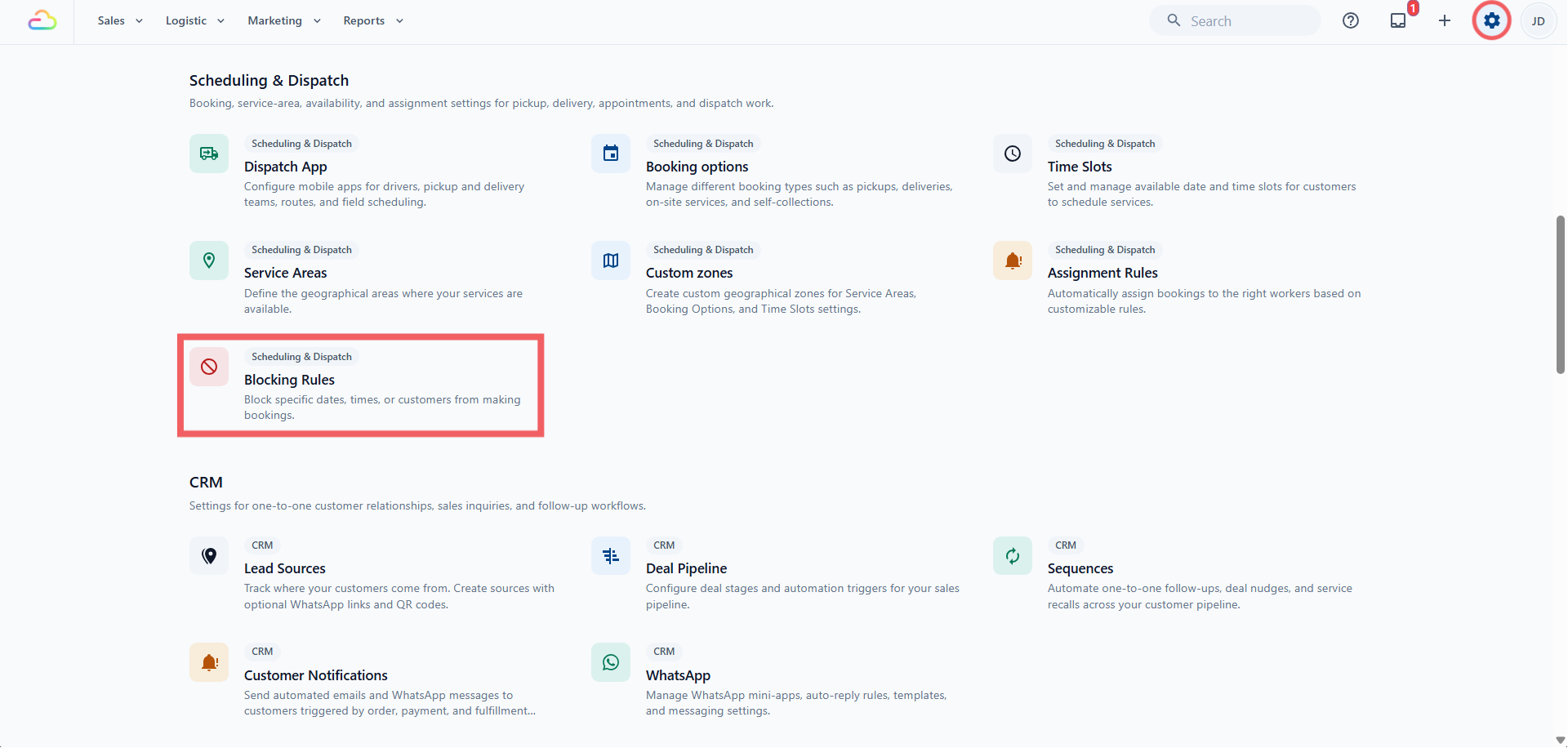
- You land on the Block dates tab. Click Block customers to switch.
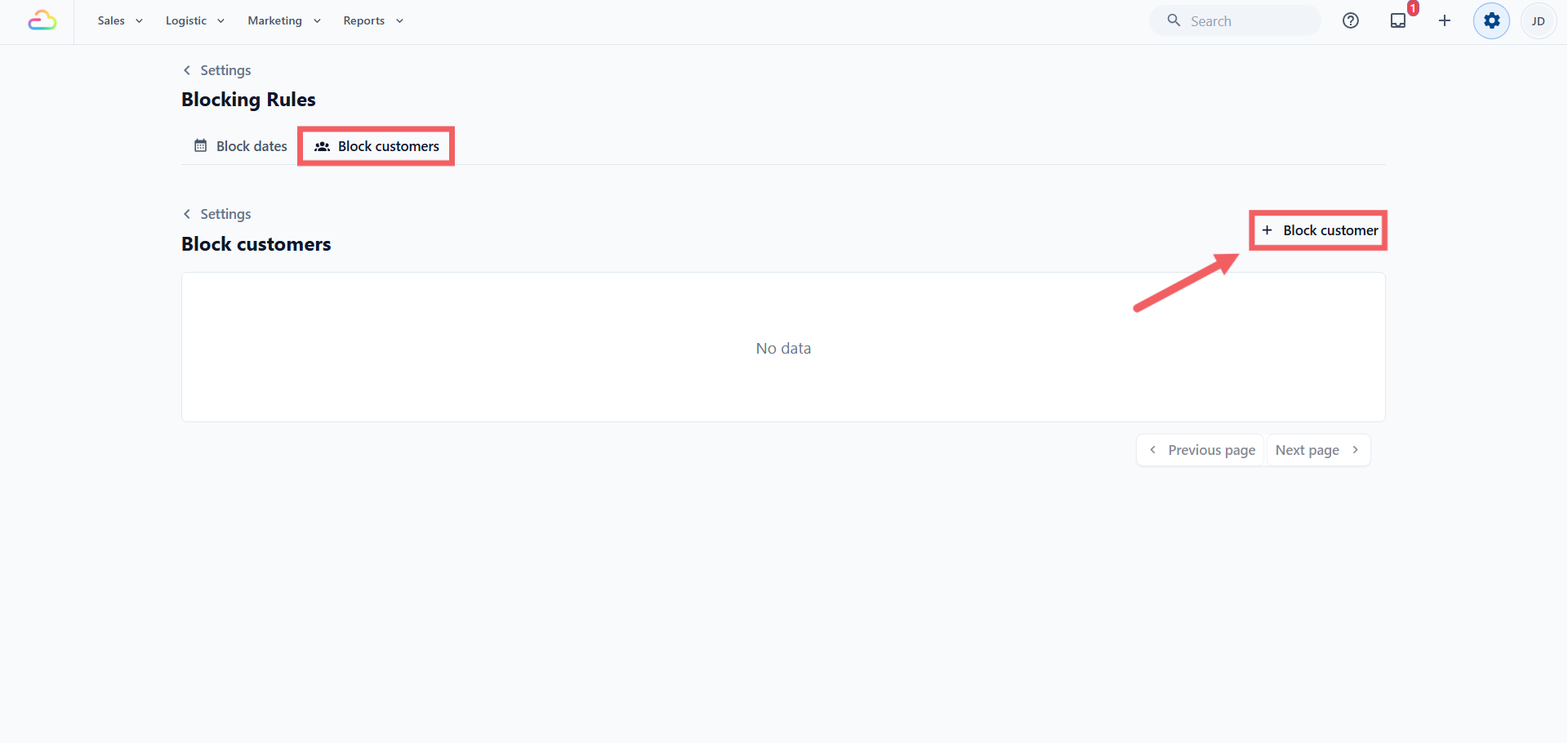
Before you add any rules, each tab shows a "No data" line. The Add button stays in the top right.
The Block Dates Tab
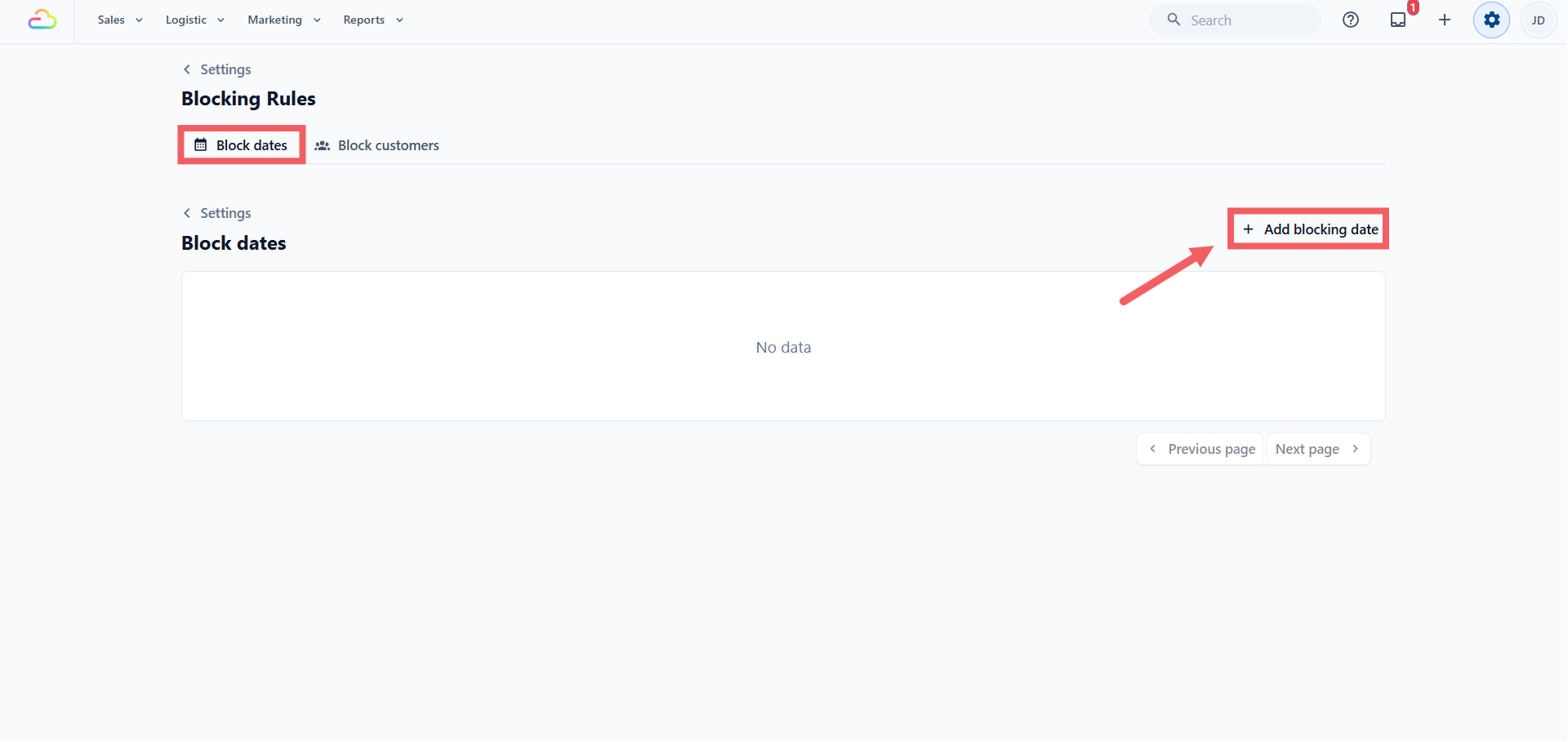
Click + Add blocking date at the top right to open the Add Blocking Rule dialog. Fill in the fields, then click Add.
| Field | Options |
|---|---|
| Date range | Pick a start date and an end date, and every day in between is blocked. To block a single day, click the same date twice, once as the start and once as the end. Past dates cannot be picked, with today as the earliest. |
| Blocked business units | Pick one or more. Empty blocks all units. |
| Blocked booking types | Pick the booking types to block, like home pickup or delivery. Empty blocks all of them. |
| Also mark as Non-working days | On by default. "On" treats the blocked day as a closed day, so it is not counted when the system works out how soon an order can be ready. Off blocks the day but still counts it as a working day. |
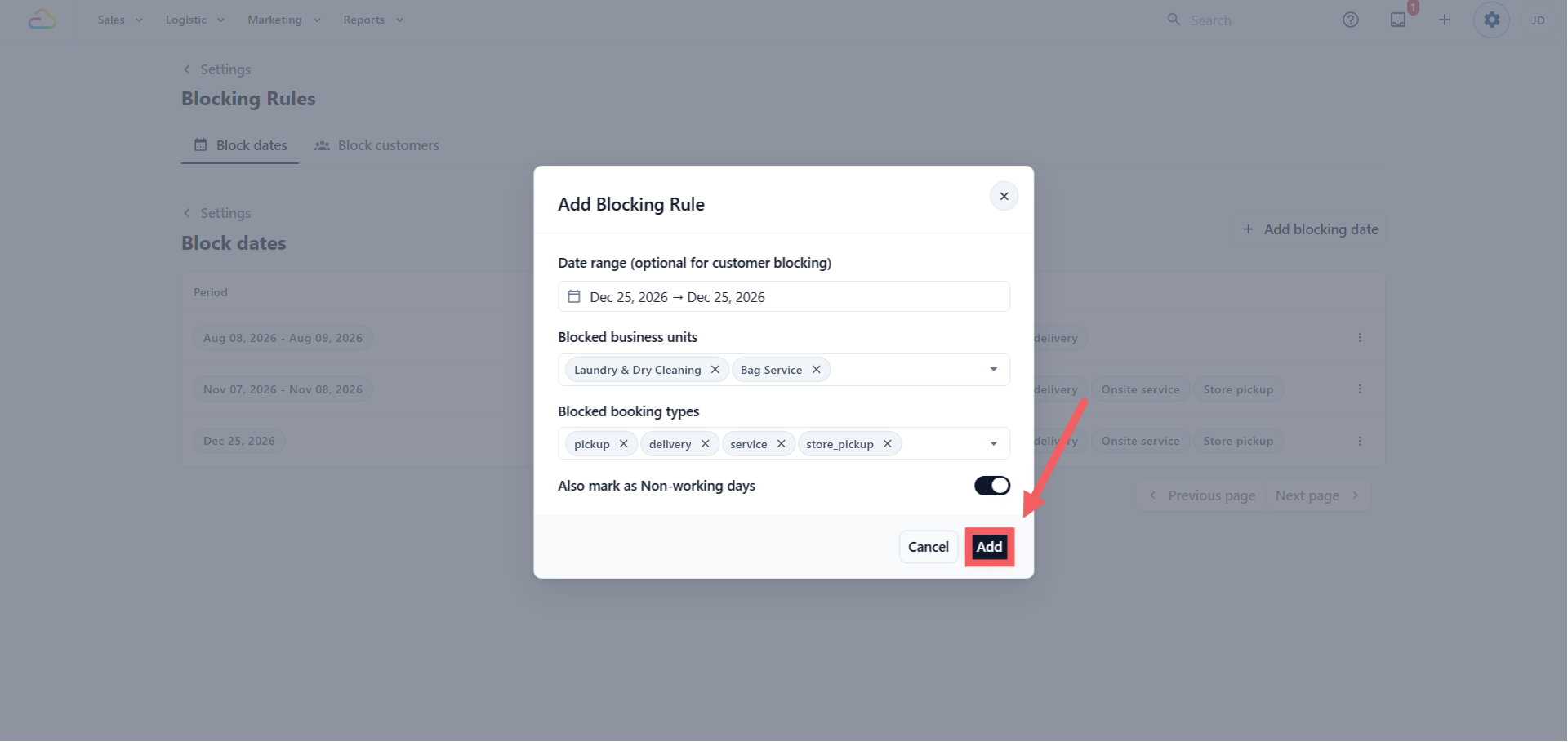
Once saved, the rule appears in the table on this tab, which lists every date rule ending today or later:
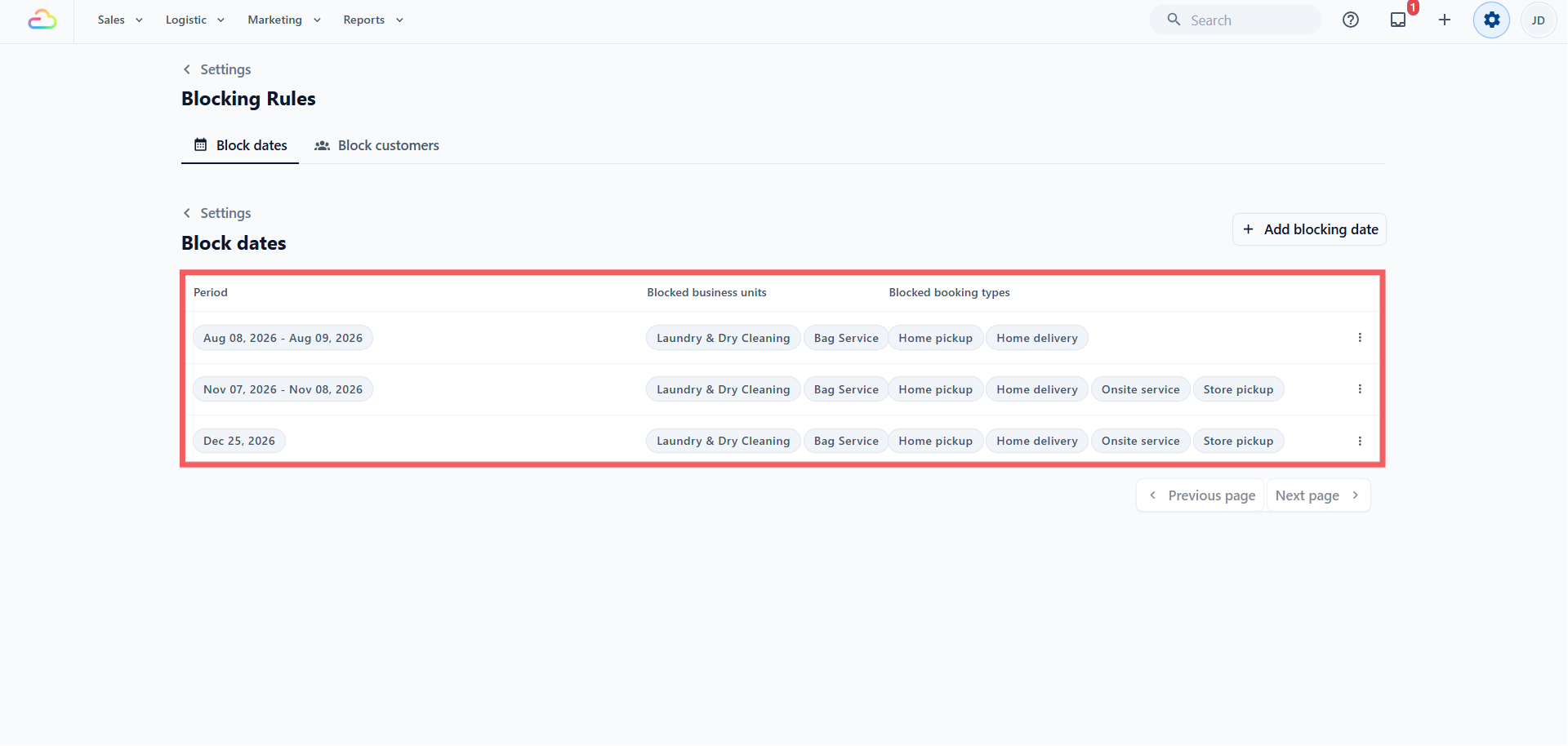
| Column | What it shows |
|---|---|
| Period | The blocked date or range, as a red badge |
| Blocked business units | The units affected, or "All business units" |
| Blocked booking types | The types affected, or "All booking types" |
| ⋮ | The three-dot menu with Edit and Delete |
The Block Customers Tab
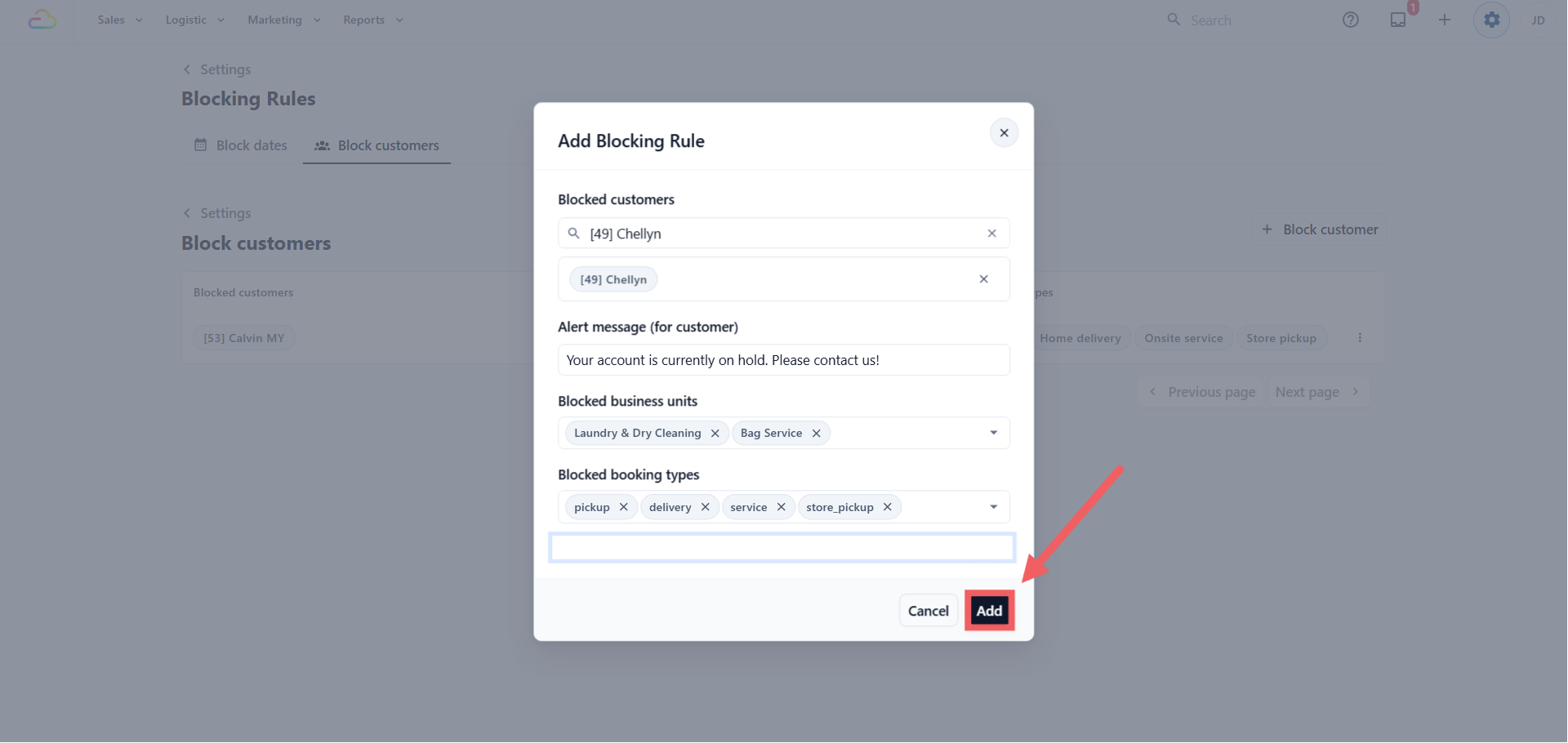
Click + Block customer at the top right to open the Add Blocking Rule dialog. Fill in the fields, then click Add.
| Field | Options |
|---|---|
| Blocked customers | Search and add one or more accounts. Each shows as a badge with the customer number and name. |
| Alert message | Free text shown to the customer when they try to book online. Leave it empty for a generic "booking unavailable" message. |
| Blocked business units | Pick one or more. Empty blocks all units. |
| Blocked booking types | Pick the booking types to block, like home pickup or delivery. Empty blocks all of them. |
Once saved, the rule appears in the table on this tab:
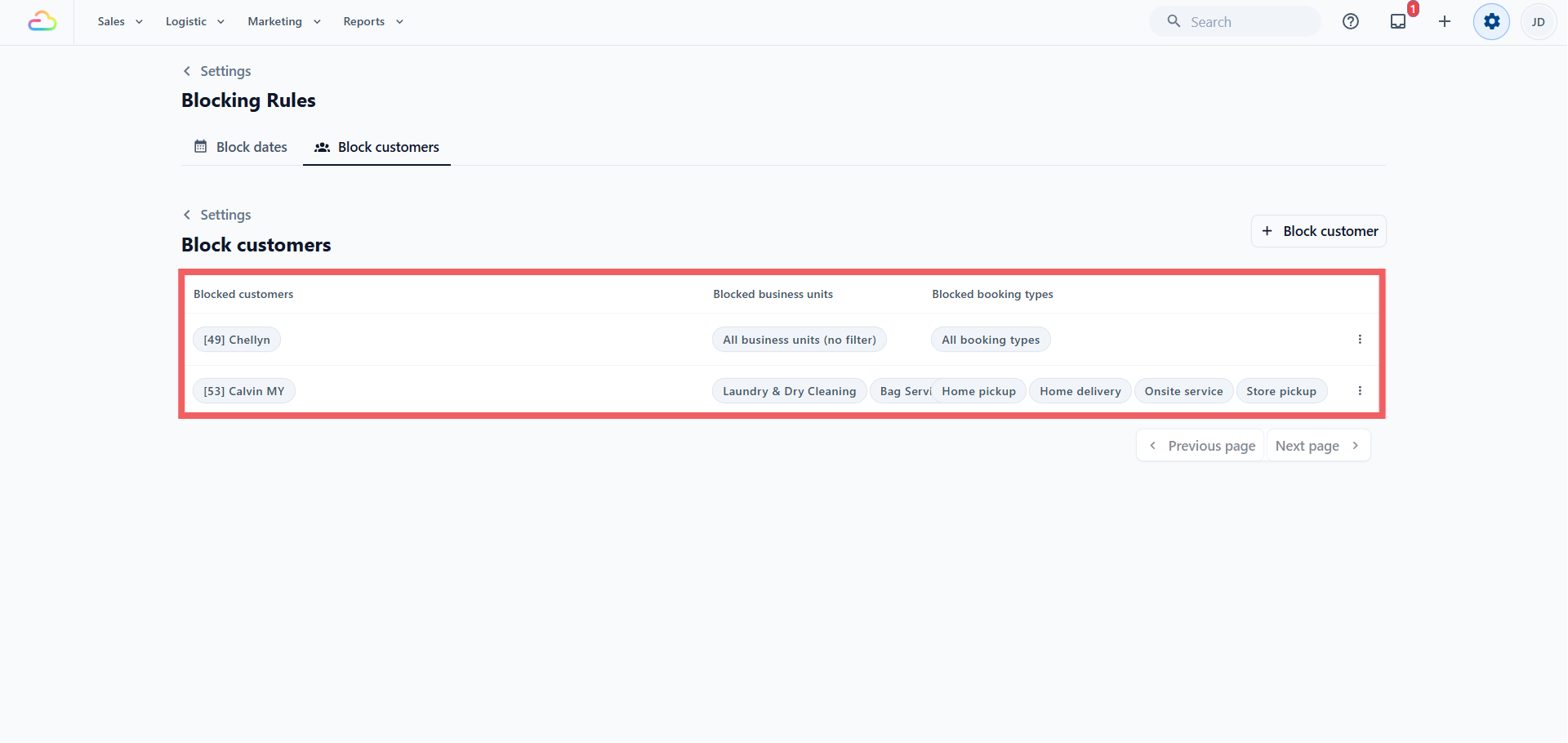
| Column | What it shows |
|---|---|
| Blocked Customers | Up to three customer names as red badges, plus a "+N more" badge if there are more |
| Blocked business units | The units affected, or "All business units" |
| Blocked booking types | The types affected, or "All booking types" |
| ⋮ | The three-dot menu with Edit and Delete |
Editing and Deleting
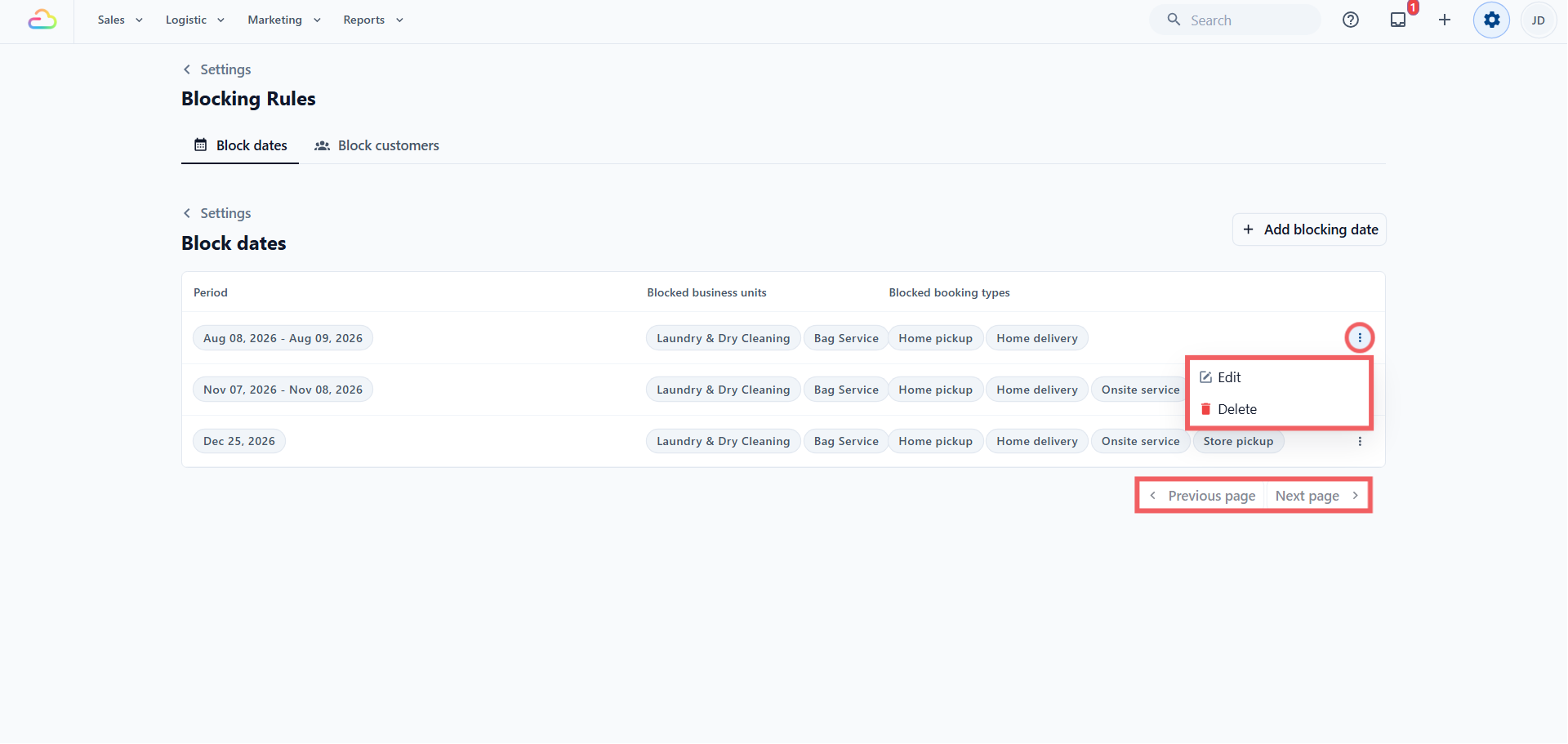
Every row has a three-dot menu with Edit (reopens the dialog with the current values) and Delete. Bookings already made while a rule was active stay as they are. When there are many rules, the list paginates, with Previous and Next buttons at the bottom right.
What Happens to Existing Bookings
A new rule only affects future bookings. Orders already on your calendar are untouched, and jobs in progress keep moving.
For recurring schedules, a date block shifts rather than cancels. If a recurring pickup lands on a blocked date, it moves to the next open day, and a paired delivery moves with it so the turnaround gap stays the same. The schedule keeps its normal day afterwards, so a Monday schedule blocked one week is served the next open day and stays on Monday. Only when a whole cadence cycle is blocked, like an entire week, is that one cycle skipped.
FAQs
If I block a date today, what happens to orders already booked for it?
Nothing. They stay scheduled and your teams complete them as planned. The block only stops new bookings.
If I block one business unit on a date, can customers still book the others?
Yes. Leave the other units out of the rule. You can close Bag Repair on a holiday and keep Laundry and Garment Care running. The same works for booking types.
Can my counter staff still take an order from a blocked customer or date?
Yes. The block applies online only, so staff at the POS or console can still create the order.
What happens to a recurring pickup that falls on a blocked date?
It moves to the next open day, and a paired delivery shifts with it. The schedule keeps its normal day. Recurrence only pauses when the whole cycle is blocked.
Does "Also mark as Non-working days" affect my Time Slot capacity?
No, only the timing of when an order can be ready. Time Slot capacity is set separately.