
Before You Start
You need a Market and a Location. A Market is the country you operate in. A Location is the city inside it, for example Singapore. Service areas are drawn on that Location's map, so the Location must be set up first. See Introduction to Markets and Locations.
Set up your areas before anything else in Scheduling & Dispatch. Your Bookings and Assignment Rules both use them.
What Service Areas Do
A service area is a named part of your city that you agree to serve, such as "East" or "Jurong". You create it once on the Service Areas page. Then you choose it wherever it is needed:
- A business unit takes bookings only in the areas it chooses. A business unit is one line of service in your shop, for example Laundry & Dry Cleaning or Bag Repair.
- A time window (the time range customers pick, such as 9:00 AM to 12:00 PM) can be offered only in certain areas.
- An assignment rule can send all jobs in an area to one driver, the staff member who goes out to do the job.
The same areas apply wherever a booking is made: by customers online, and by your staff when they book a home delivery at the POS (the counter app your staff use to take orders).
The Service Areas page replaces the old Custom Zones page.
If you skip this, your business units take bookings at every address in your Location. That is fine if you serve the whole city. If you don't, customers can book addresses your drivers never go to.
Open Service Areas
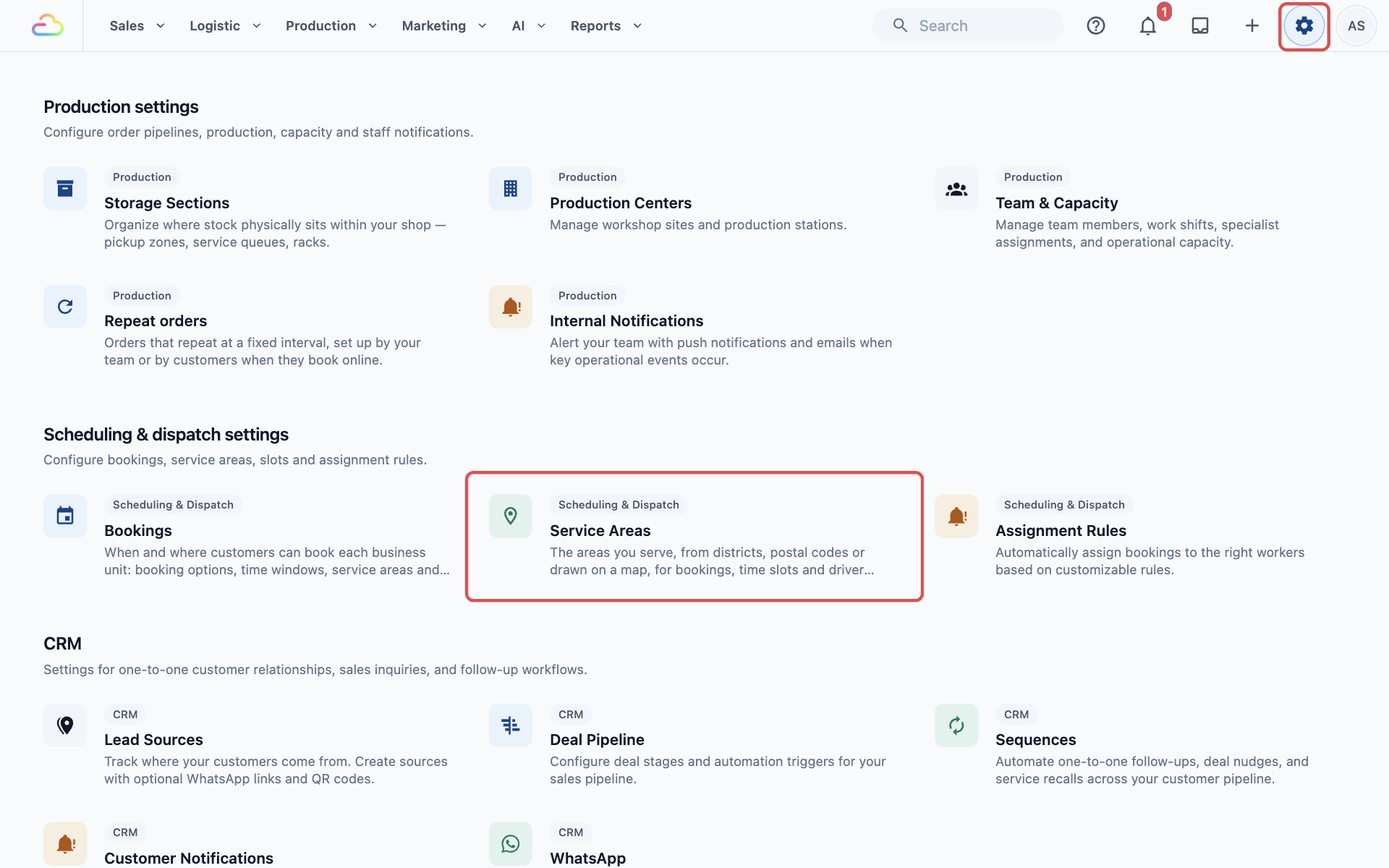
- Click the ⚙️ Settings icon in the top-right corner.
- Scroll down to the Scheduling & dispatch settings section and click Service Areas.
- If you have more than one Location, choose it in the dropdown at the top of the list.
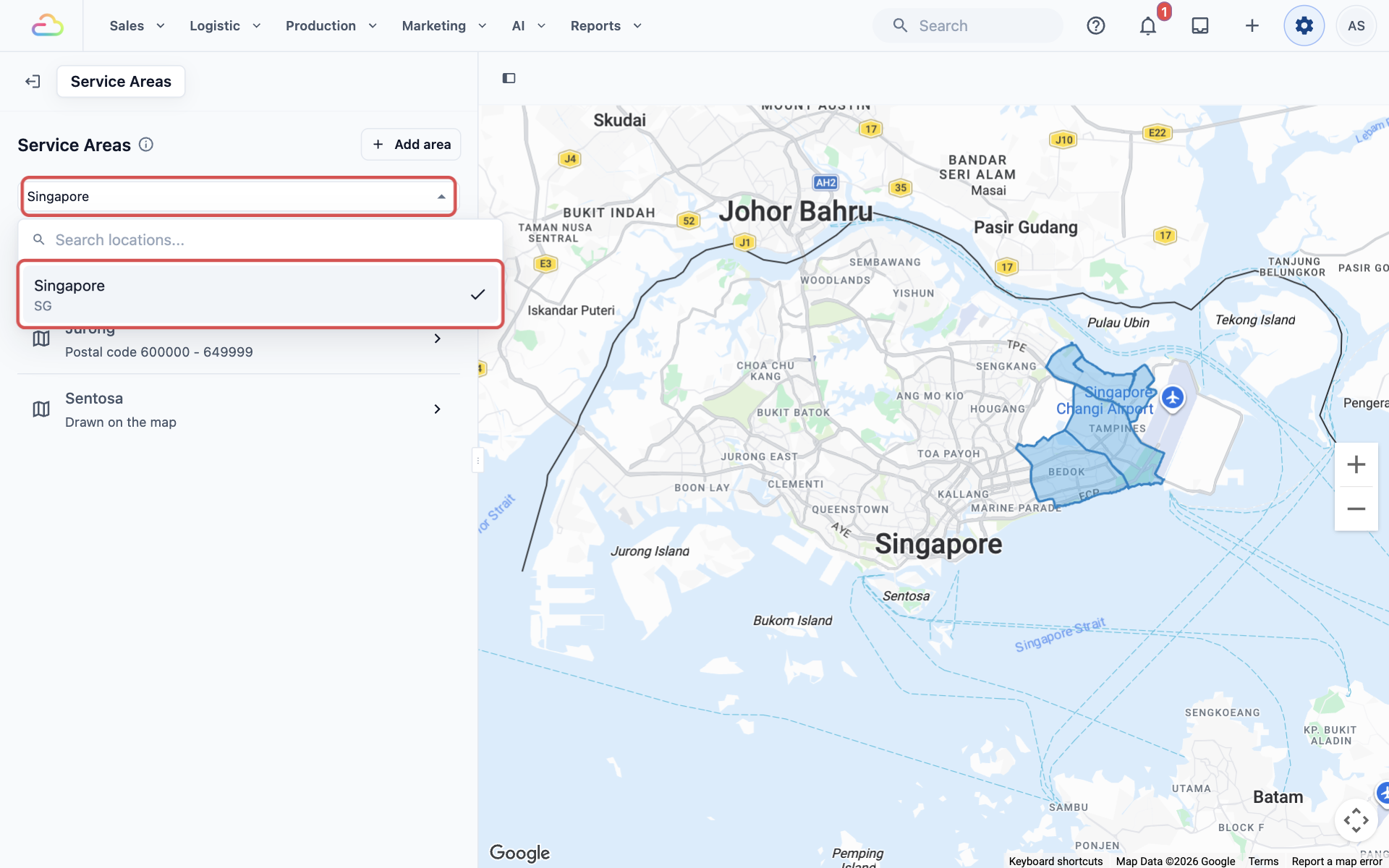
The list shows that Location's areas, and the map on the right shows where they are. If the Location has no areas yet, you'll see "No service areas in this Location yet".
Add an Area
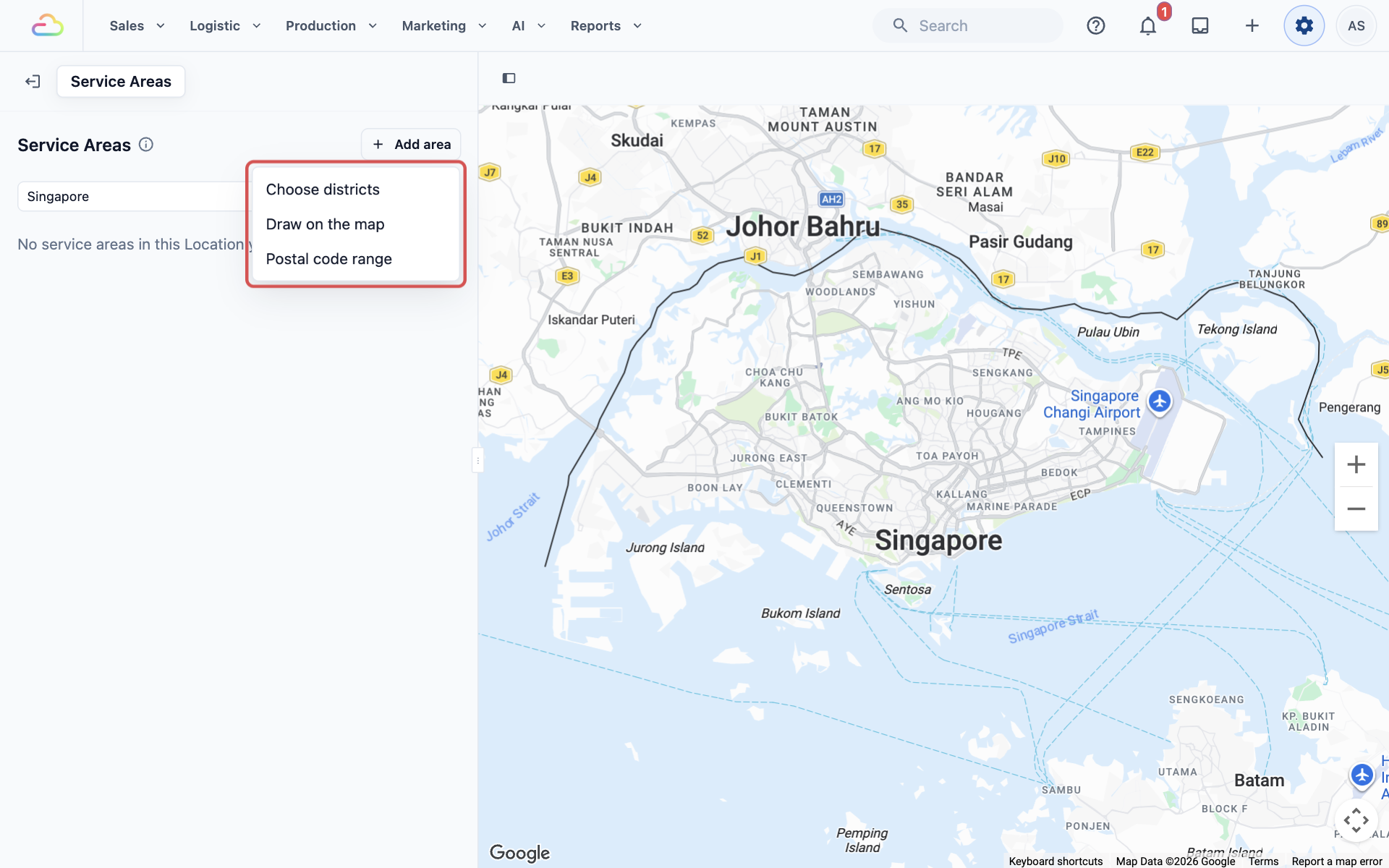
- Click Add area.
- Choose how to mark the area: Choose districts, Draw on the map or Postal code range.
| Option | How it works | Best for |
|---|---|---|
| Choose districts | Tick the districts you serve in the list | Covering whole neighbourhoods quickly |
| Draw on the map | Click around the edge of the area on the map | An island, an estate or a shape that doesn't follow district lines |
| Postal code range | Enter the first and last postal code | Shops that already think in postal codes |
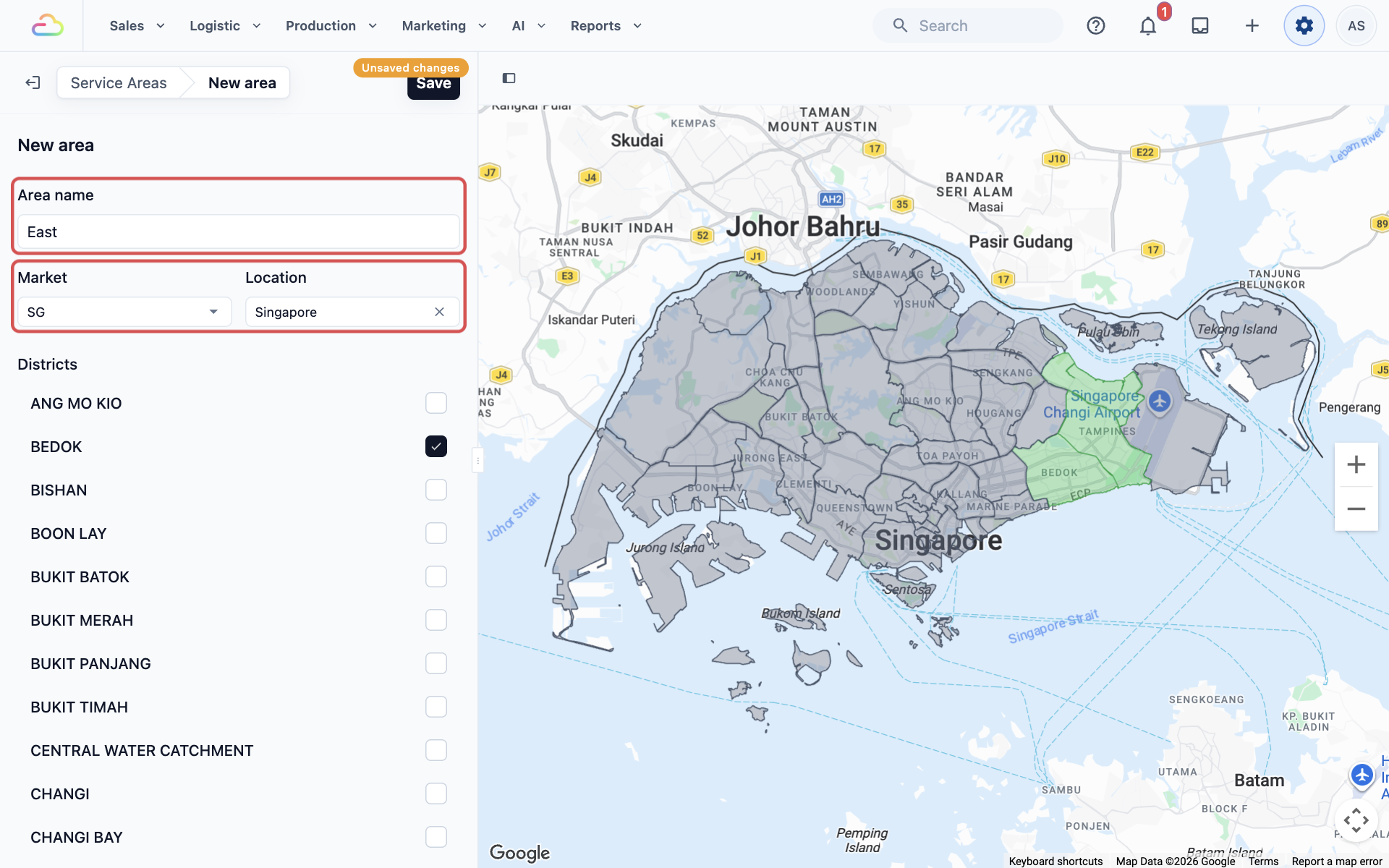
- Type an Area name, for example East. Every area needs a name.
- Check the Market and Location. They are already filled in with the Location you chose.
- Mark the area, as described below for each option.
- Click Save at the top of the panel.
You'll see "Area East added", and the area opens so you can check it.
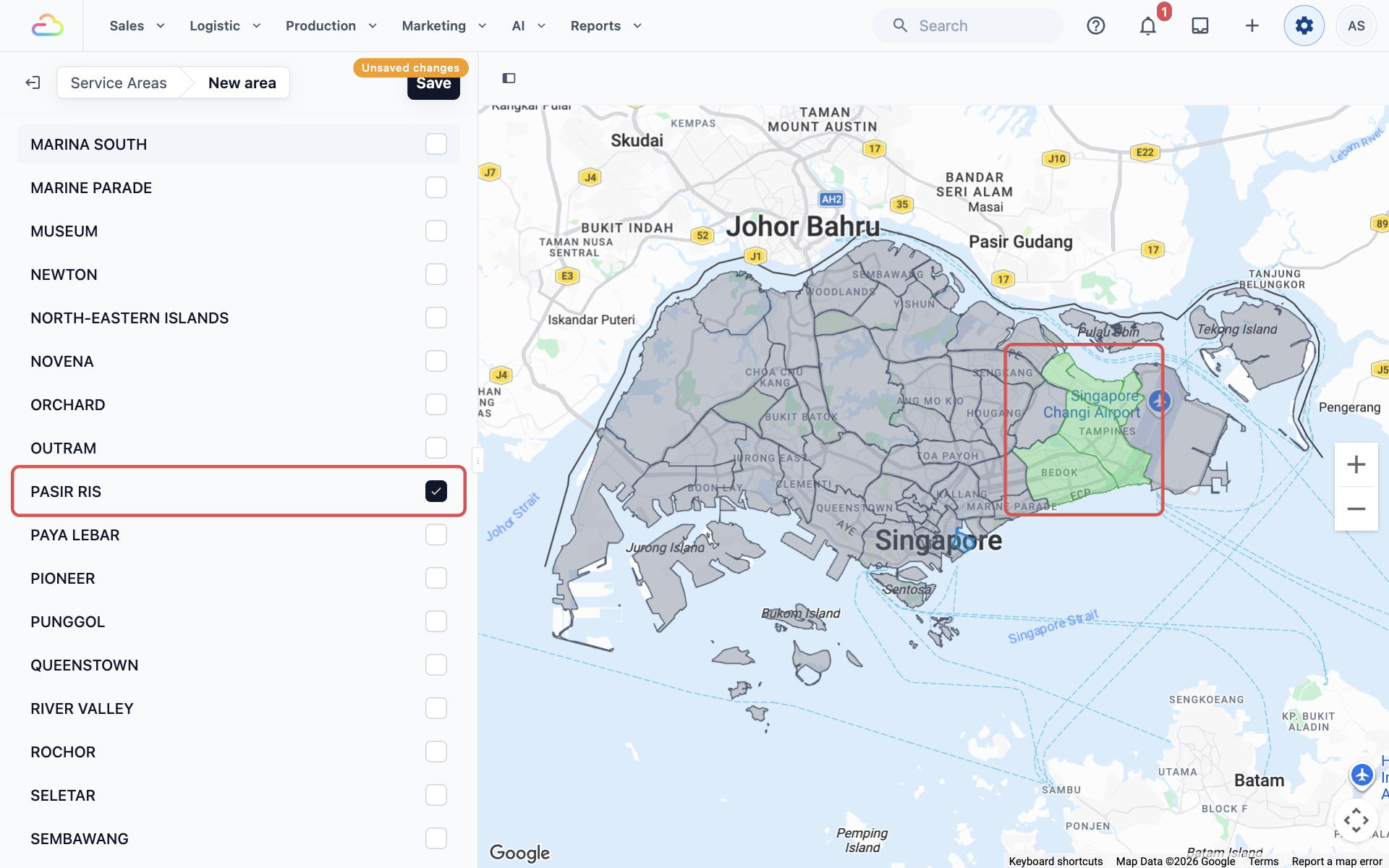
Choose districts
Under Districts, tick each district you want. You must choose at least one. The ticked districts turn green on the map.
Draw on the map
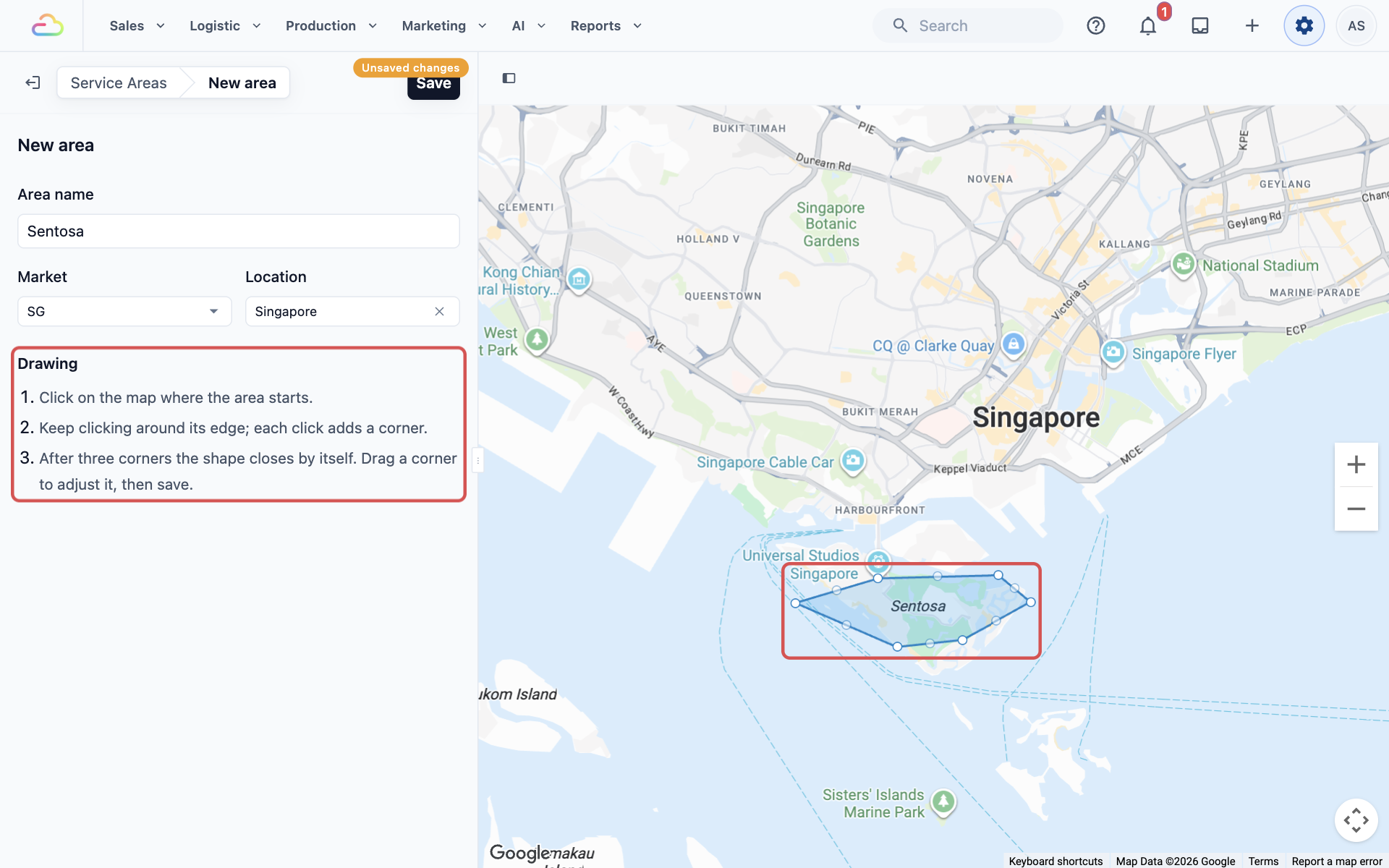
- Zoom the map in on the place you want.
- Click on the map where the area starts.
- Keep clicking around its edge. Each click adds a corner.
- After three corners the shape closes by itself. Drag any corner to adjust it.
Postal code range
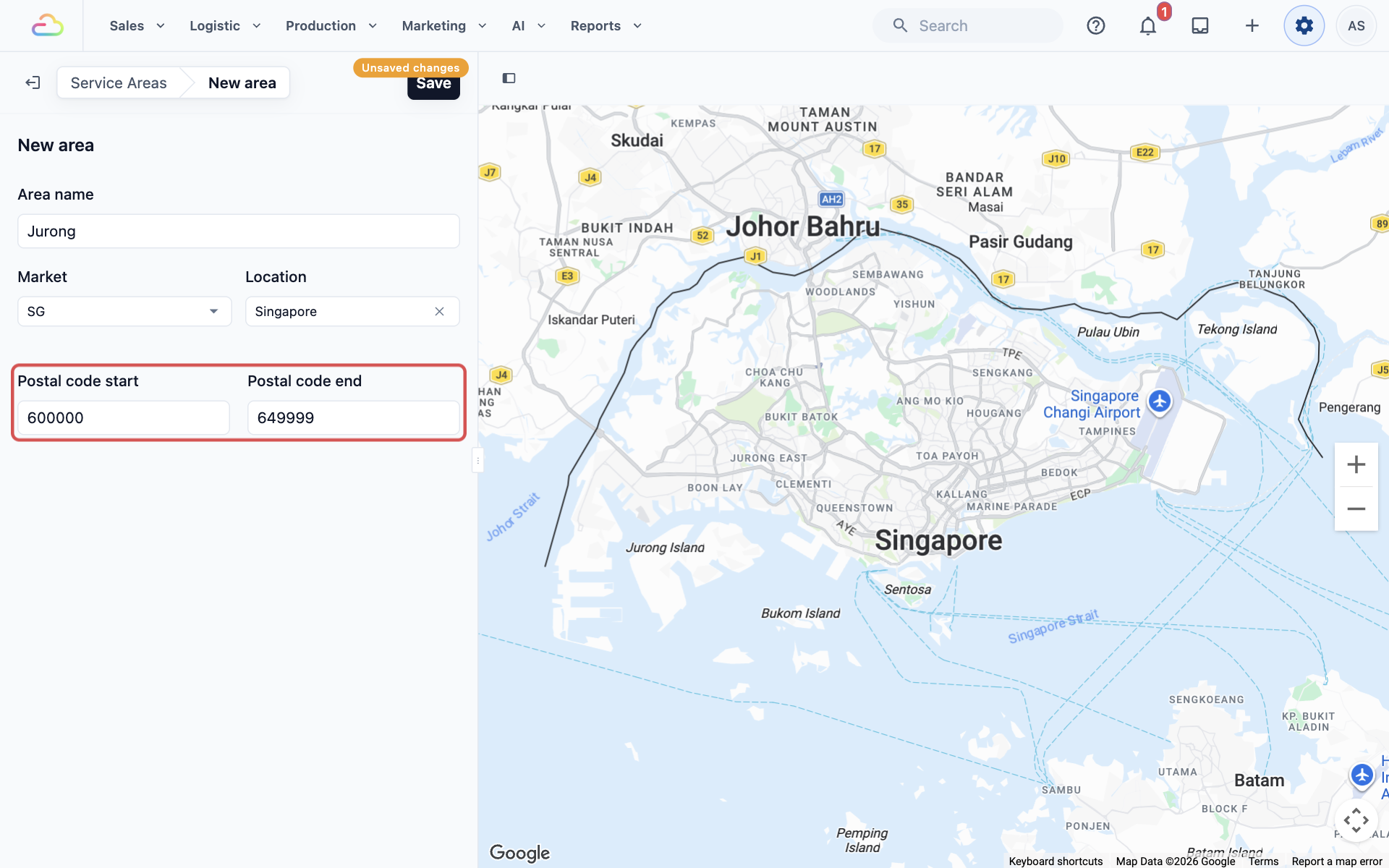
Enter the Postal code start and Postal code end. Every address with a postal code between the two numbers falls in the area. For example, 600000 to 649999 covers Jurong.
A postal code range has no shape, so the map shows a note instead, with the range you entered. For example, "Postal code ranges don't show on the map. Customers with postal codes 600000–649999 can book pickup and delivery."
Messages you may see
If something is missing when you click Save, a message tells you what to fix:
- "Enter a name for the area": the Area name is empty.
- "Please select a Location": no Location is chosen.
- "Choose at least one district": no district is ticked.
- "Draw the area on the map: click at least three points": the shape has fewer than 3 corners.
- "Starting postcode must be a number" or "Ending postcode must be a number": a postal code box is empty or has letters in it.
- "Ending postcode must be larger than starting postcode": the end number is smaller than the start number.
- "District map data isn't available for (your Location)": there is no district map for that Location yet. Use Draw on the map or Postal code range instead.
Example: CleanFast Laundry
CleanFast Laundry serves the east of Singapore, Jurong, and a few hotels on Sentosa. It sets up 3 areas:
| Area name | Type | Set up as |
|---|---|---|
| East | Choose districts | Bedok, Pasir Ris and Tampines |
| Jurong | Postal code range | 600000 to 649999 |
| Sentosa | Draw on the map | A shape drawn around the island |
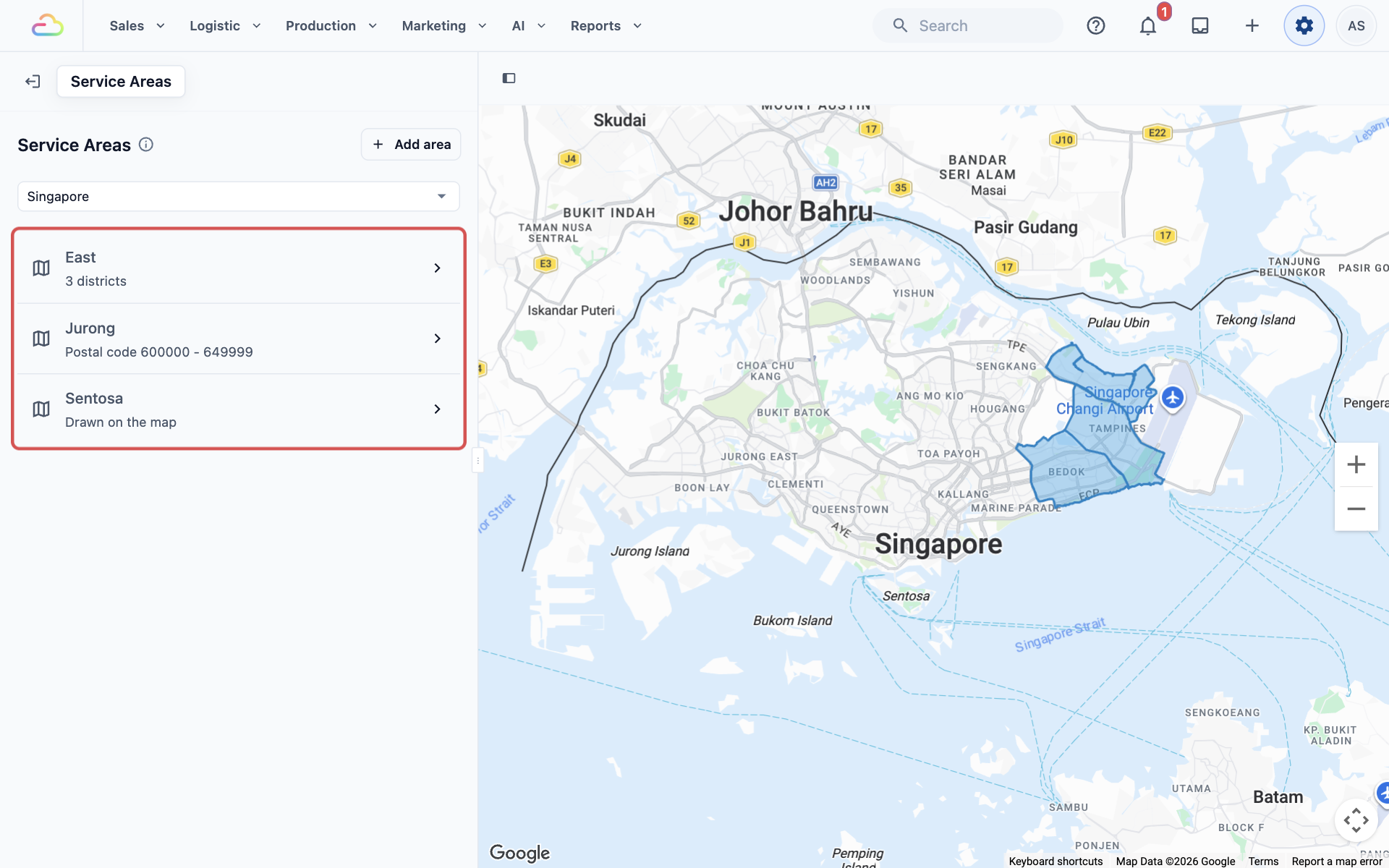
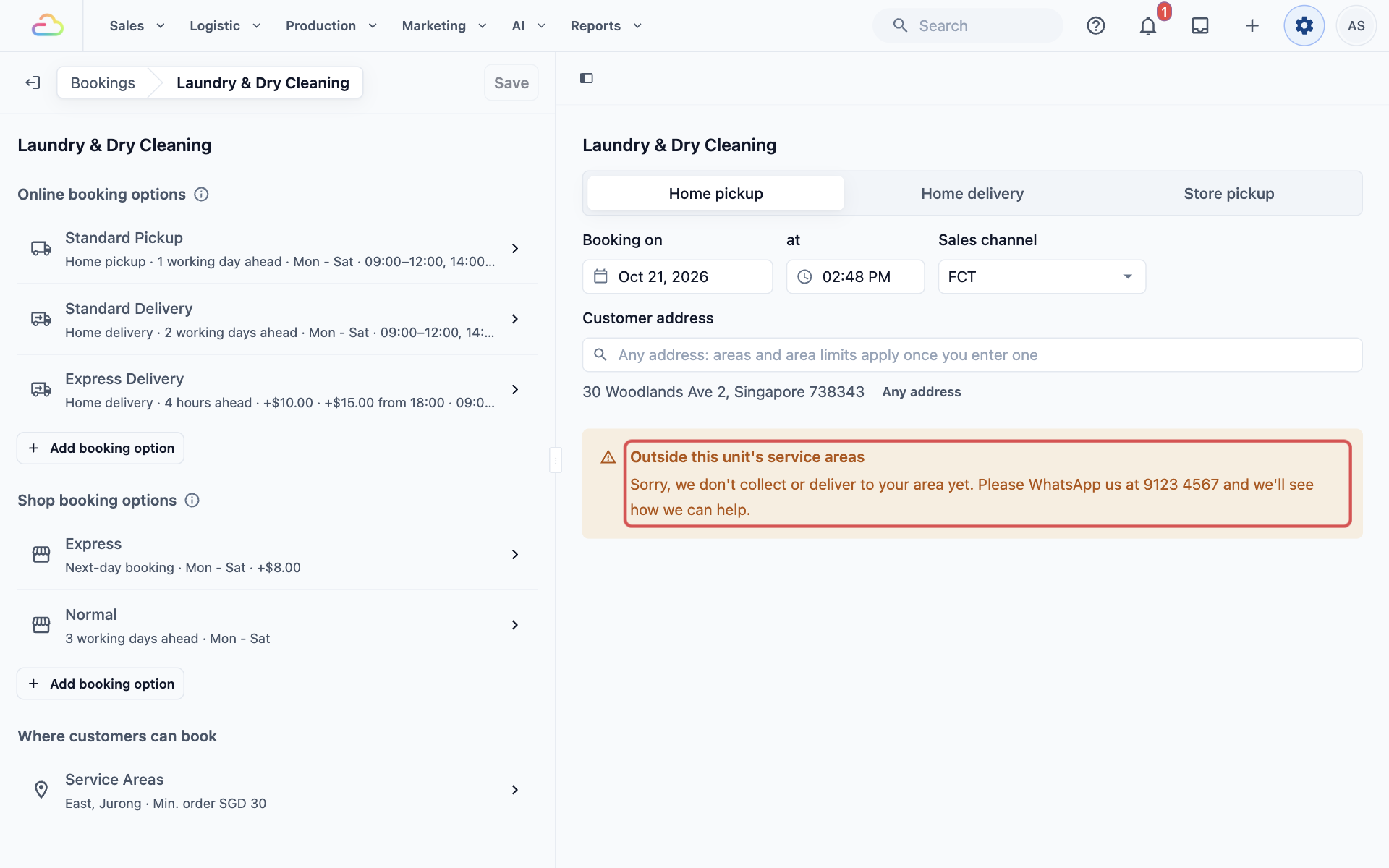
The areas don't change any bookings yet. Bookings change once CleanFast's Laundry & Dry Cleaning unit chooses East and Jurong. After that:
- Customers booking a pickup or delivery online can only use addresses inside those areas. Customers at other addresses see the unit's "not in service" message.
- When staff book a home delivery at the POS, the delivery address is checked against the same areas.
You choose a unit's areas and write its message in Choosing Where Each Business Unit Takes Bookings.
See What Uses an Area
- Click an area in the list to open it.
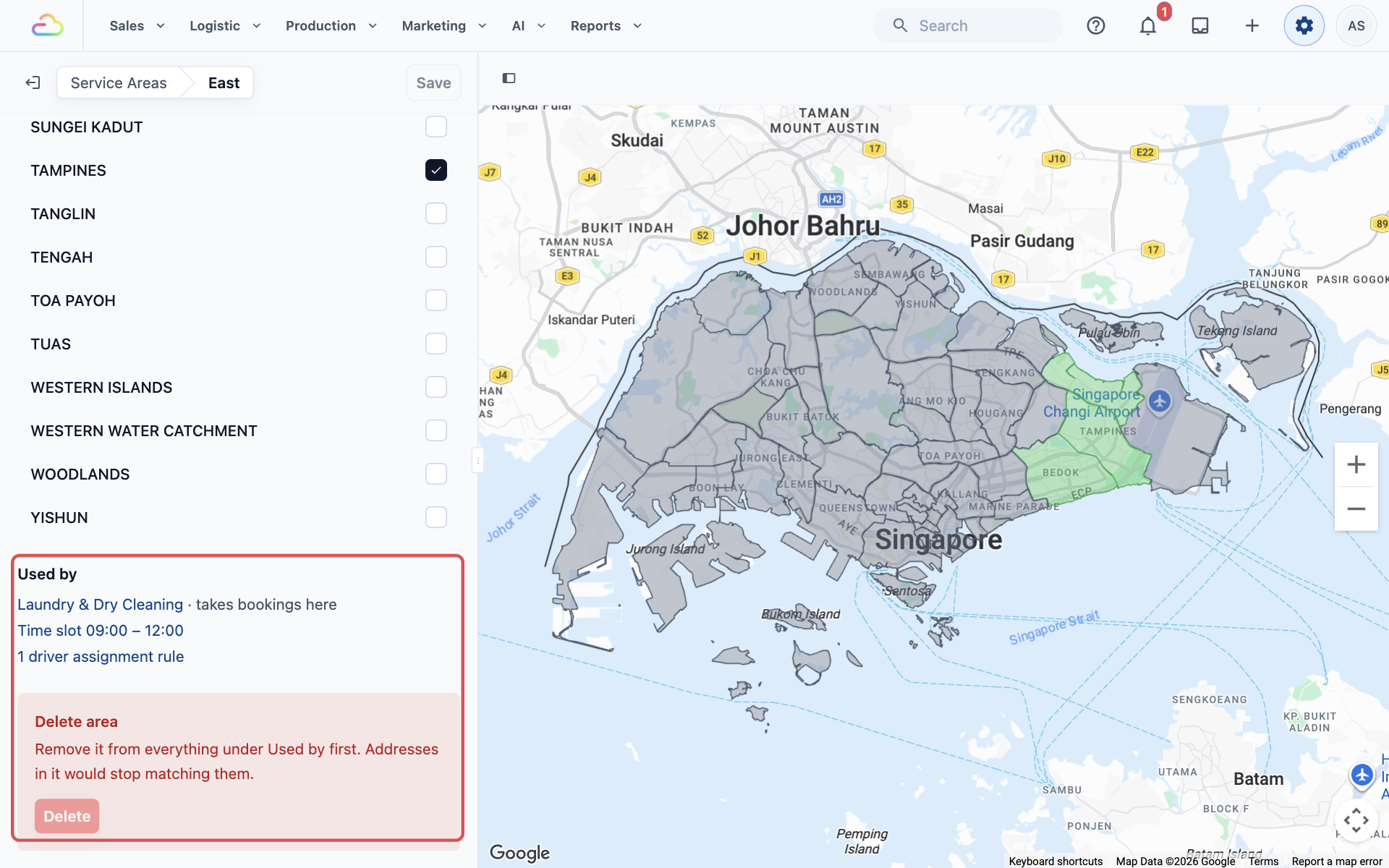
- Scroll down to Used by. You'll see everything that uses the area:
- Business units, shown as "takes bookings here".
- Time windows limited to this area, shown as "Time slot".
- Assignment rules that use it, shown as "driver assignment rule".
Each item is a link to its own setting. If nothing uses the area yet, you'll see "Nothing uses this area yet."
Delete an Area
- Open the area from the list.
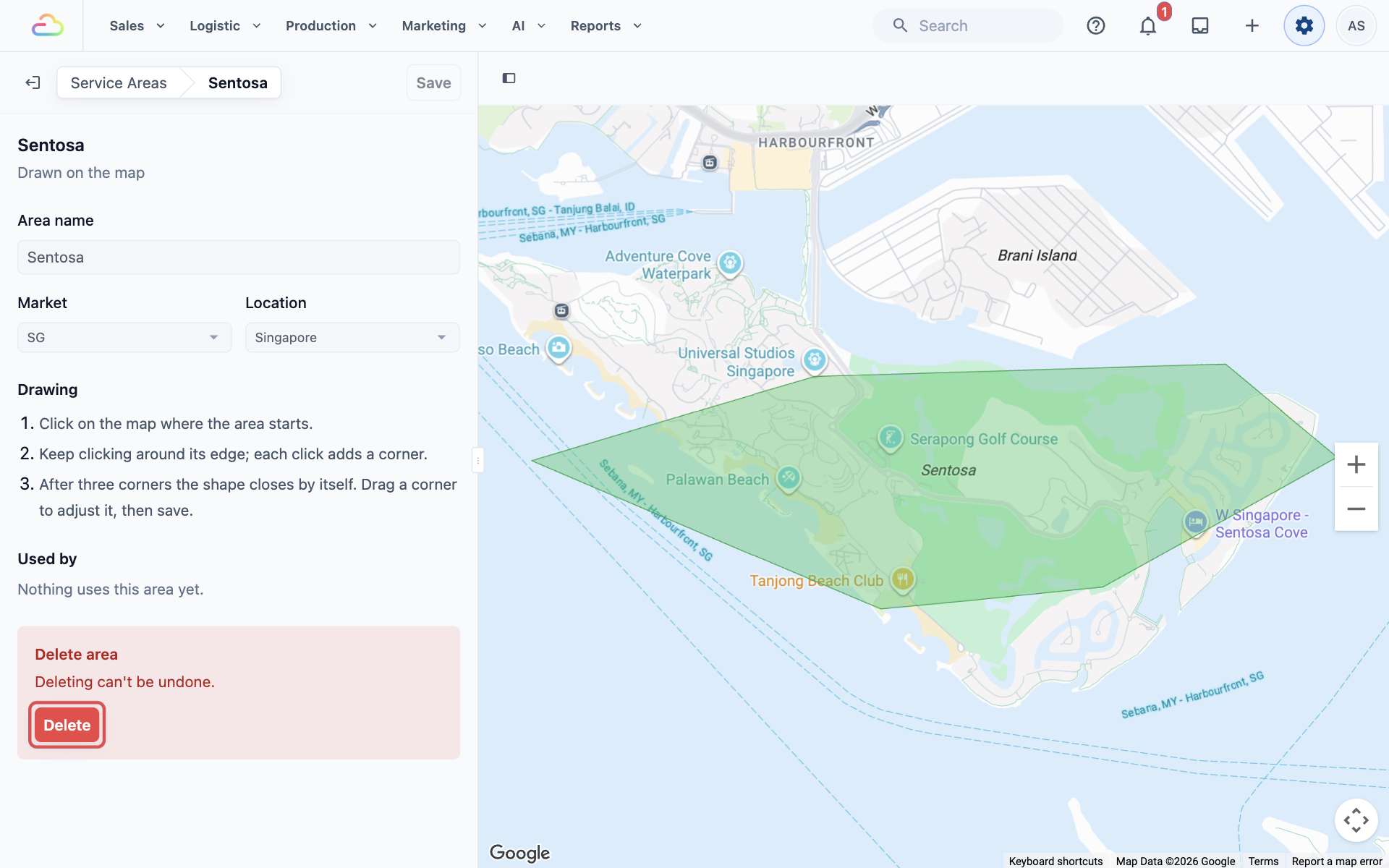
- Scroll to the bottom. Under Delete area, click Delete.
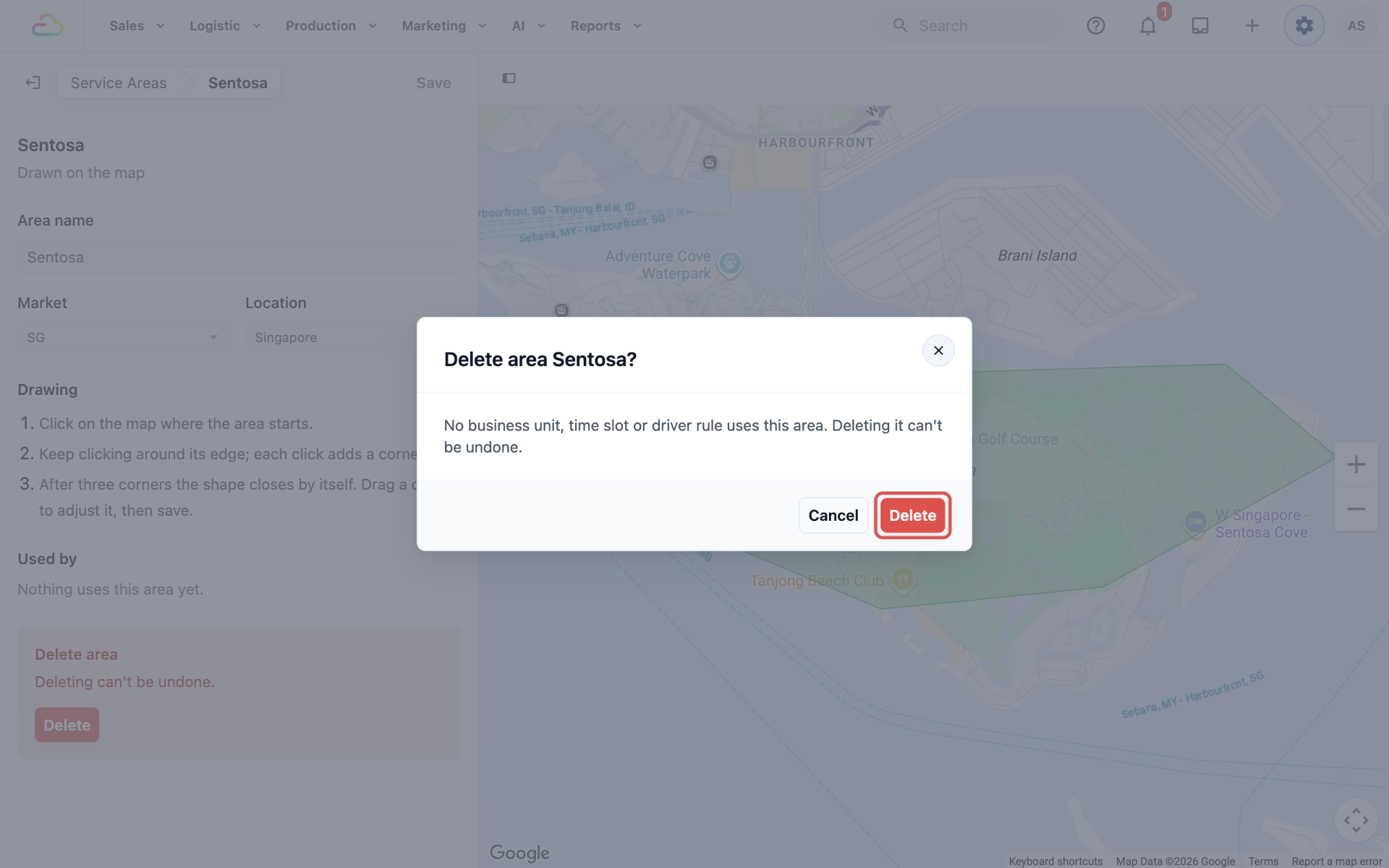
- In the "Delete area Sentosa?" box, click Delete again.
You can't delete an area while anything uses it. The Delete button stays greyed out and the box says "Remove it from everything under Used by first. Addresses in it would stop matching them." Deleting can't be undone.
FAQs
Does adding an area open bookings there?
No. An area only affects bookings once a business unit chooses it. A business unit with no areas chosen takes bookings at every address. Choosing areas is what limits it.
Do my areas also apply to home deliveries my staff book at the POS?
Yes. The POS checks the delivery address against the areas the business unit serves, and only offers the time windows open to that address. For an address outside the unit's areas, no delivery dates or times are offered.
Why doesn't my postal code area show on the map?
A postal code range is a list of numbers, not a shape, so there is nothing to draw. On the Bookings page, a unit that only uses postal code areas shows "No areas to draw". The area still works. Addresses match it by their postal code, so customers' addresses need a postal code.
Can one address fall in 2 areas?
Yes, areas are allowed to overlap. When an address is in two areas, EasyBiz uses the first one it finds. That could pick a time window or driver you didn't expect, so keep your areas from overlapping where you can.
Why can't I delete an area?
Something still uses it. Open the area and check Used by. Remove the area from each business unit, time window and assignment rule listed there, and the Delete button becomes available.
I spelt an area's name wrong. Can I rename it?
No. The name is locked after saving, because your business units, time windows and assignment rules use it to find the area. Add a new area with the right name, choose it in each place listed under Used by, then delete the old one.
I can't see districts for my city. What do I do?
Some Locations don't have a district map yet, so you'll see "District map data isn't available". Use Draw on the map or Postal code range instead. Both work the same way for bookings, time windows and drivers.
What's Next
You've now marked the parts of your city you serve. Next, find your way around the page where your bookings are set up in Getting Around the Bookings Page and Its Live Preview.