
Before You Start
- Read Introduction to Discounts and Surcharges first. It shows the 2 Settings cards and when a staff discount is the right tool.
- Set up your business units and service options if you want to limit a discount. A business unit is a line of service in your shop, for example Laundry or Bag Repair. A service option is the kind of service done on an item, for example Wash & Fold or Dry Clean. See Introduction to Business Units and Setting Up Service Options.
Discounts staff add at checkout are included in the Standard plan at no extra cost.
Where It Works
- POS: your staff tap the green − button in the cart and pick the discount.
- Console: your staff add it the same way when they create an order, or when they edit the items on an order that already exists.
- Online Store, Mobile App and WhatsApp mini-app: customers cannot pick a staff discount. If your staff add one to their order later, customers see its name and amount on the receipt and invoice.
- Only your staff decide when to give it. Nothing comes off on its own.
If you set this up before: the discount options you saved on the old Adjustment Options page are now on Discounts › Added by staff, with the same name, value and limits.
What a Staff Discount Is
A staff discount is a saved amount your staff take off an order when something calls for it: a sorry for a late order, a senior's discount, or a promotion you only give when a customer asks. You set it up once with a name and a value. At checkout, your staff tap it instead of working out the amount in their head.
Why set them up:
- Every staff member gives the same amount for the same reason.
- The receipt shows a clear name, like "Senior $3", instead of a number nobody can explain.
- You can limit each discount, so staff cannot give it on the wrong order.
If you skip this, the discount list in the POS cart stays empty, so your staff cannot take money off an order at checkout. You can add discounts any time later.
Create a Staff Discount
- Click the ⚙️ Settings icon in the top-right corner.
- Under the Catalog & Pricing section, click Discounts.
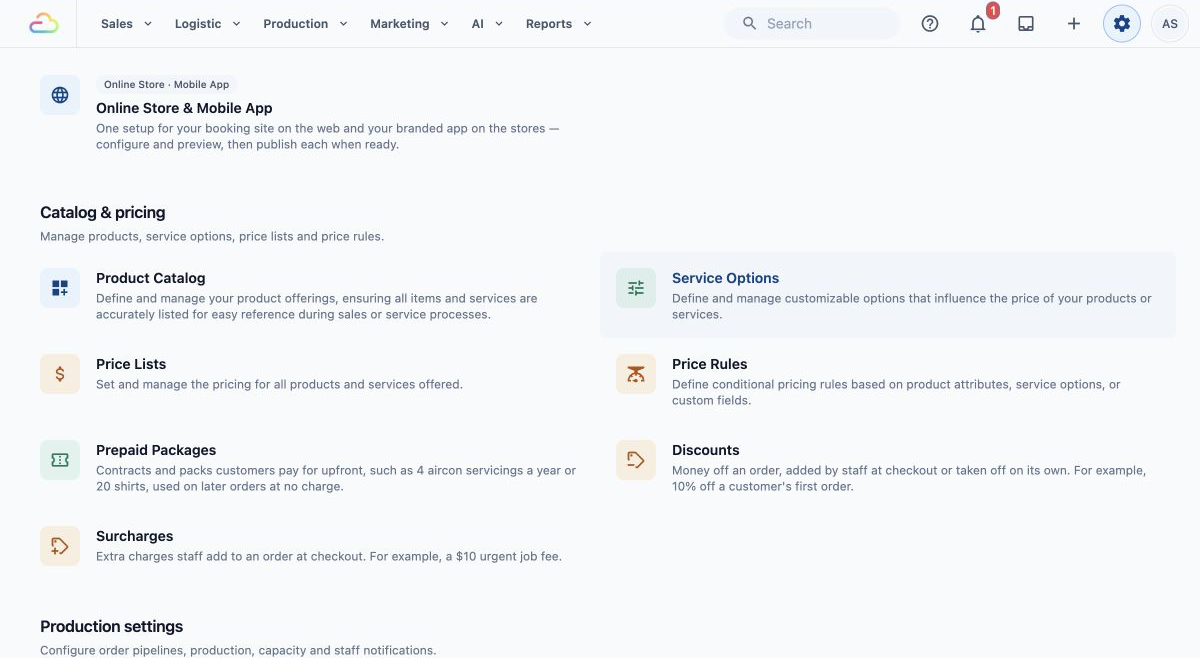
- Stay on the Added by staff tab.
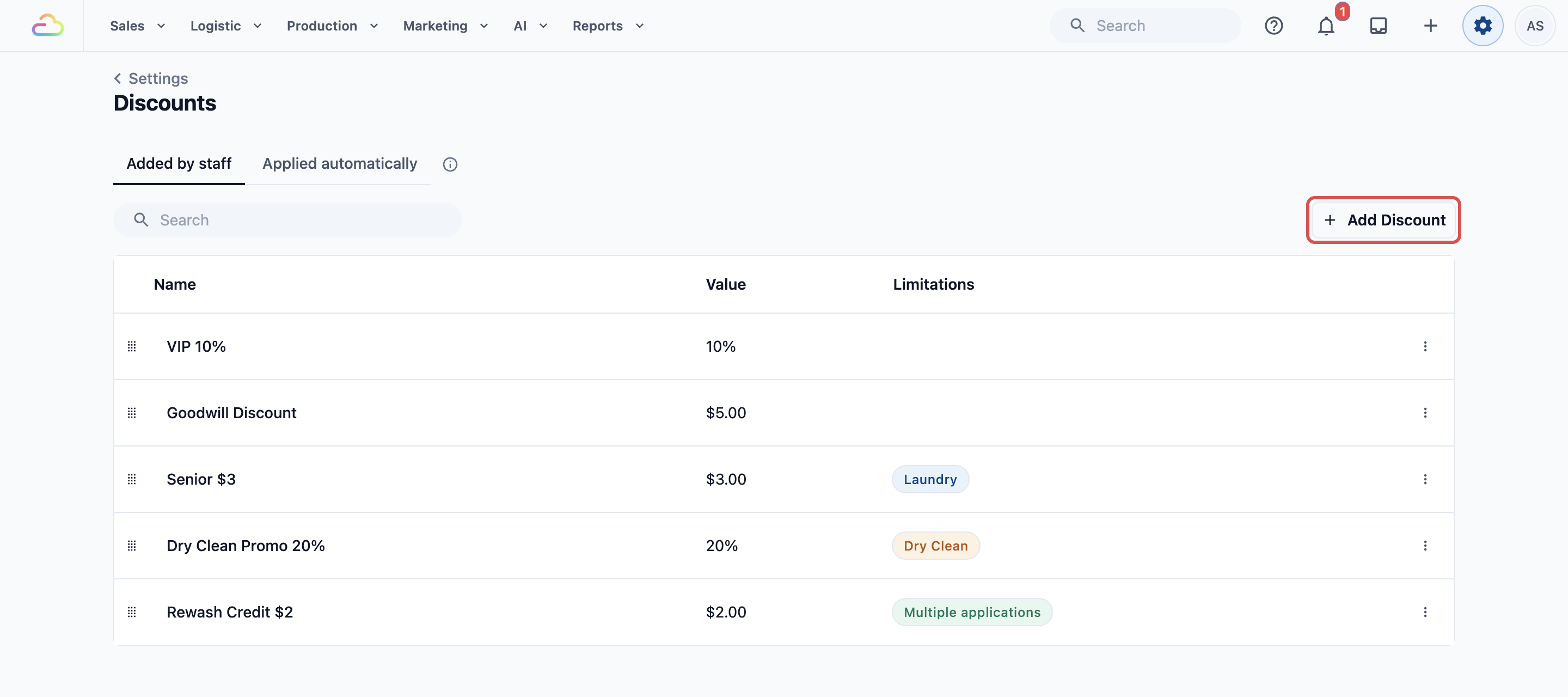
- Click Add Discount. The Add Discount Option dialog opens.
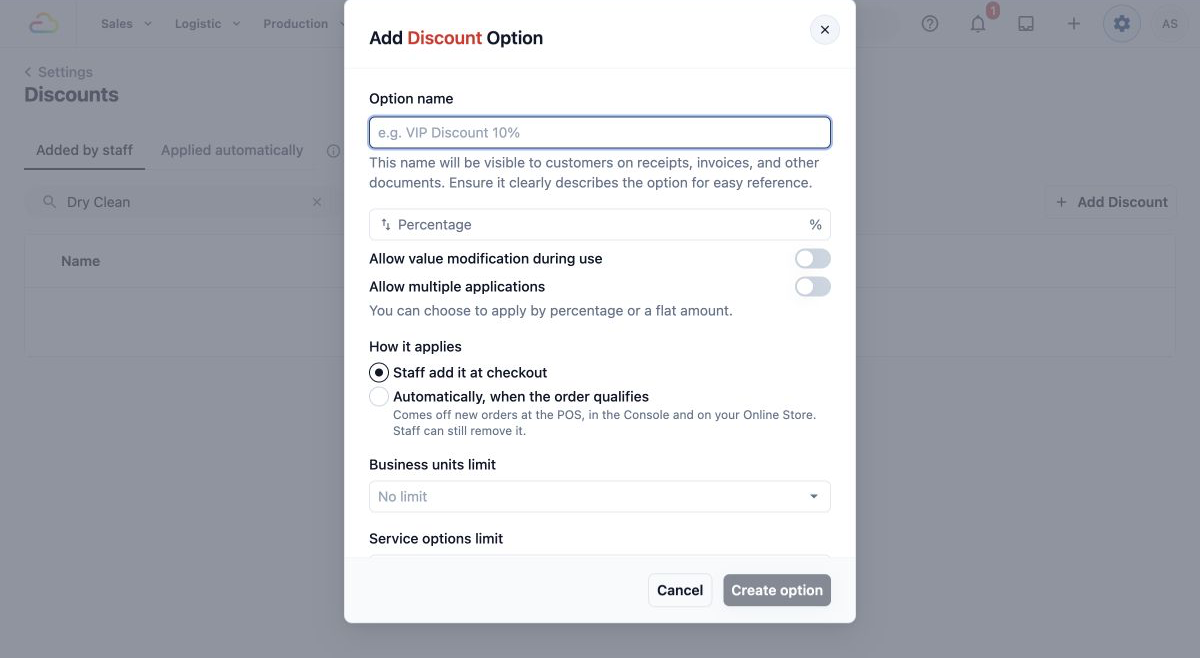
- Fill in the fields, explained below.
- Click Create option. The button only works once the discount has a name and a value.
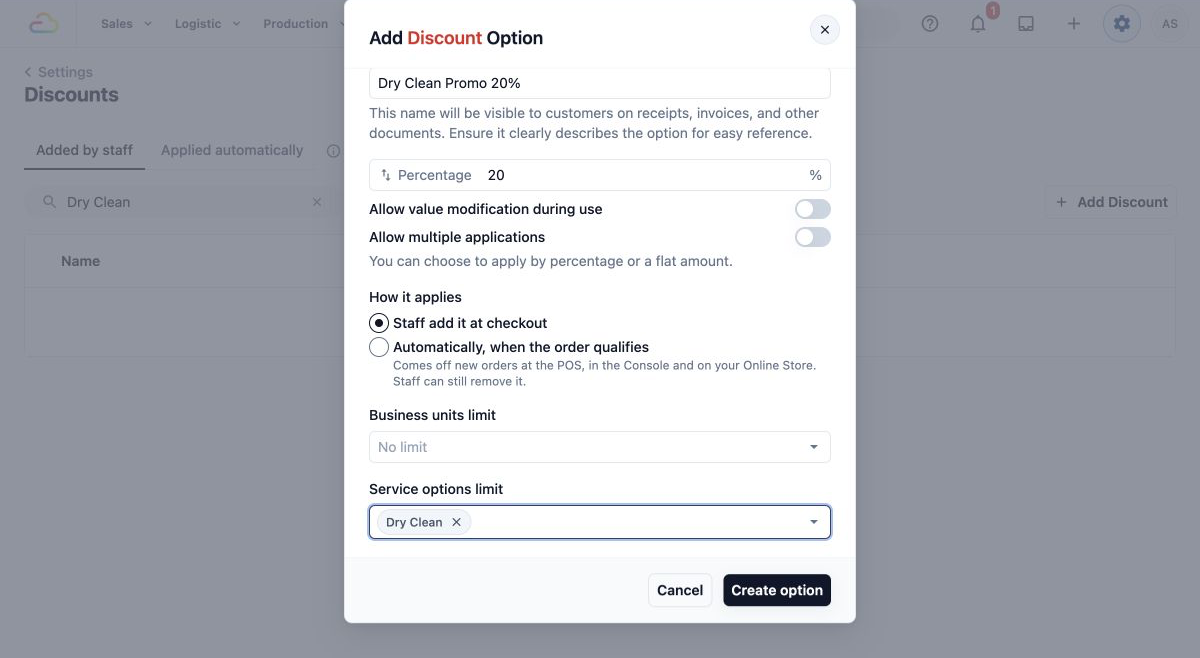
The new discount appears at the bottom of the list, and in the POS cart the next time your staff open the discount list.
The Fields
- Option name
Type a short, clear name, for example "VIP Discount 10%" or "Senior $3". This is exactly what your staff see in the cart, and what the customer sees on the receipt, the invoice and any other document the order appears on.
- Value
Click the swap arrows at the left of the box to switch between a percentage and a flat amount. A new discount starts on Percentage.
| Pick this | What comes off | CleanFast example |
|---|---|---|
| Percentage | A share of the order, up to 100% | VIP 10% |
| Flat amount | A fixed amount of money | Senior $3 |
- Allow value modification during use
Off by default. If you turn this on, your staff can change the amount each time they add the discount, and switch it between Flat and Percentage. The value you save is the starting amount. Use it for a goodwill discount the manager decides case by case. If it stays off, the saved amount is fixed and staff cannot change it.
- Allow multiple applications
Off by default. If you turn this on, your staff can add the same discount more than once on one order, and each one shows as its own row. If it stays off, the discount can only be added once, and the list shows it as Added after the first time.
- How it applies
| Pick this | What happens |
|---|---|
| Staff add it at checkout | The discount waits in the cart's discount list until your staff tap it. This article covers this kind. |
| Automatically, when the order qualifies | The discount comes off new orders on its own. See Setting Up Automatic Discounts. |
Leave it on Staff add it at checkout.
- Business units limit
| Pick this | What happens |
|---|---|
| No limit (leave empty) | The discount shows on orders for every business unit. |
| One business unit | The discount only shows on orders for that unit. On other units' orders, staff don't see it in the list at all. |
| Mix and match | Pick any combination, for example Laundry only, or Laundry and Bag Repair. |
- Service options limit
| Pick this | What happens |
|---|---|
| No limit (leave empty) | The discount is worked out on the whole order. |
| One service option | Staff still add it to the whole order, but it only comes off the items with that service option. A percentage is worked out on those items only. A flat amount never takes off more than those items cost. |
| Mix and match | Pick several, for example Dry Clean and Pressing. |
Example: CleanFast Laundry's Staff Discounts
CleanFast Laundry has 2 business units, Laundry and Bag Repair, POS shops in Tampines and Jurong, and an Online Store. CleanFast adds 9% GST on top of its prices. If your prices already include tax (a tax-inclusive price, where the price on your list is what the customer pays), the tax stays inside the total instead.
| Name | Value | Switches and limits |
|---|---|---|
| VIP 10% | Percentage, 10 | None |
| Goodwill Discount | Flat amount, $5 | Allow value modification during use on |
| Senior $3 | Flat amount, $3 | Business units limit: Laundry |
| Dry Clean Promo 20% | Percentage, 20 | Service options limit: Dry Clean |
| Rewash Credit $2 | Flat amount, $2 | Allow multiple applications on |
VIP 10%
A long-time customer at the Jurong shop gets 10% off.
- Wash & Fold, 5 kg at $4.00: $20.00
- Shirt Dry Clean, 2 at $6.00: $12.00
- Subtotal: $32.00
- VIP 10%: −$3.20
- Tax (9%): $2.59
- Total: $31.39
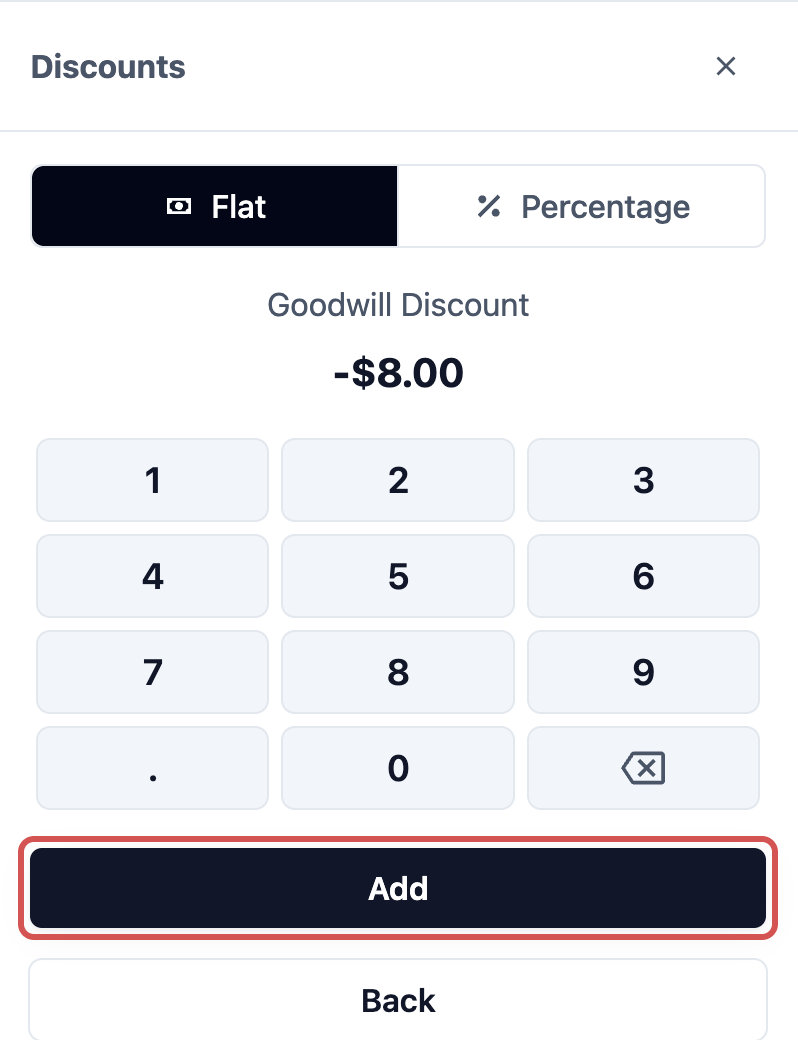
Goodwill Discount, staff type the amount
An order at the Jurong shop came back with a missing button. The manager decides $8 is fair, so staff pick Goodwill Discount and change $5 to $8 before tapping Add.
- Wash & Fold, 5 kg at $4.00: $20.00
- Blouse Dry Clean, 1 at $8.00: $8.00
- Subtotal: $28.00
- Goodwill Discount: −$8.00
- Tax (9%): $1.80
- Total: $21.80
Senior $3, Laundry orders only
- Wash & Fold, 3 kg at $4.00: $12.00
- Subtotal: $12.00
- Senior $3: −$3.00
- Tax (9%): $0.81
- Total: $9.81
On a Bag Repair order, Senior $3 does not appear in the discount list, because it is limited to Laundry.
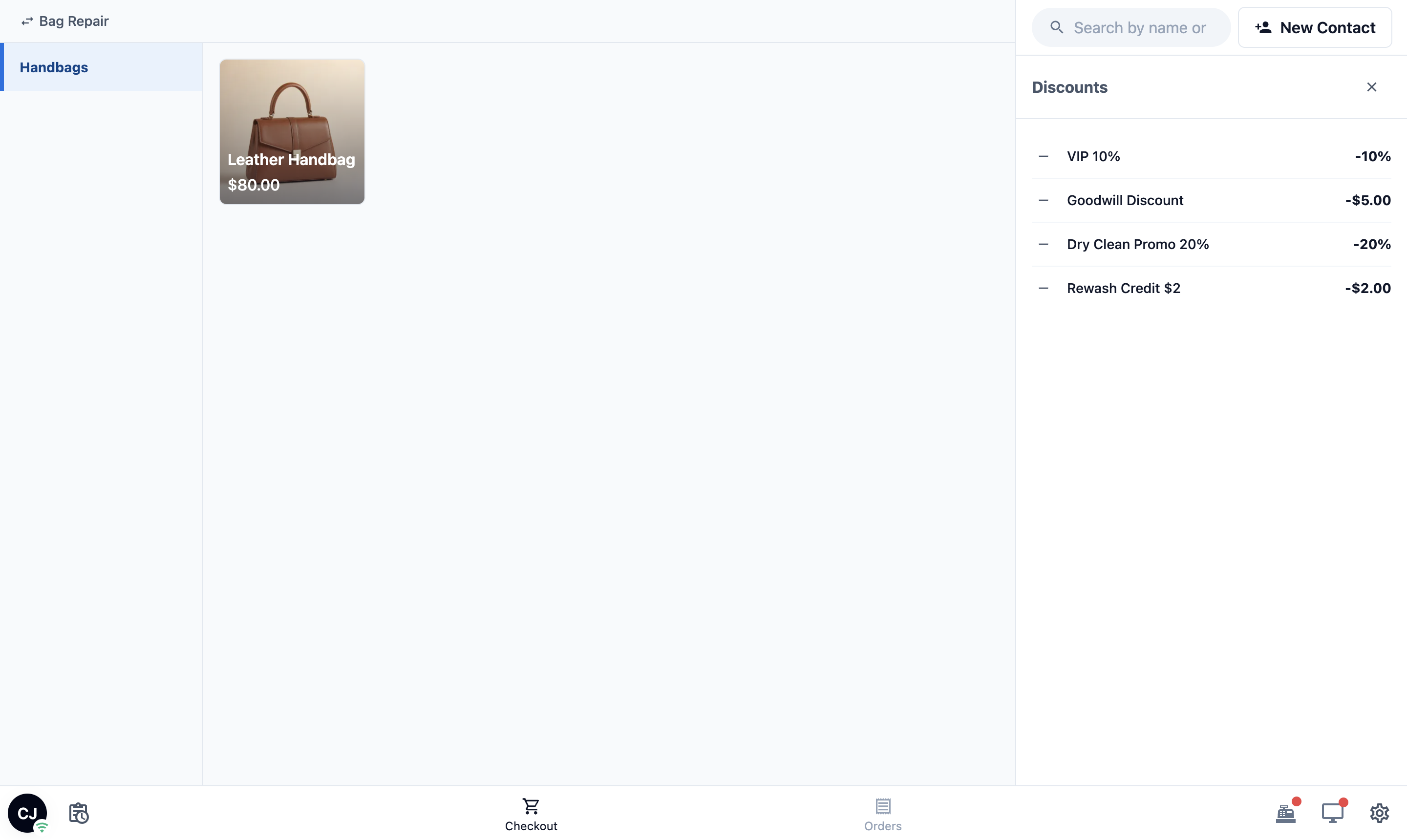
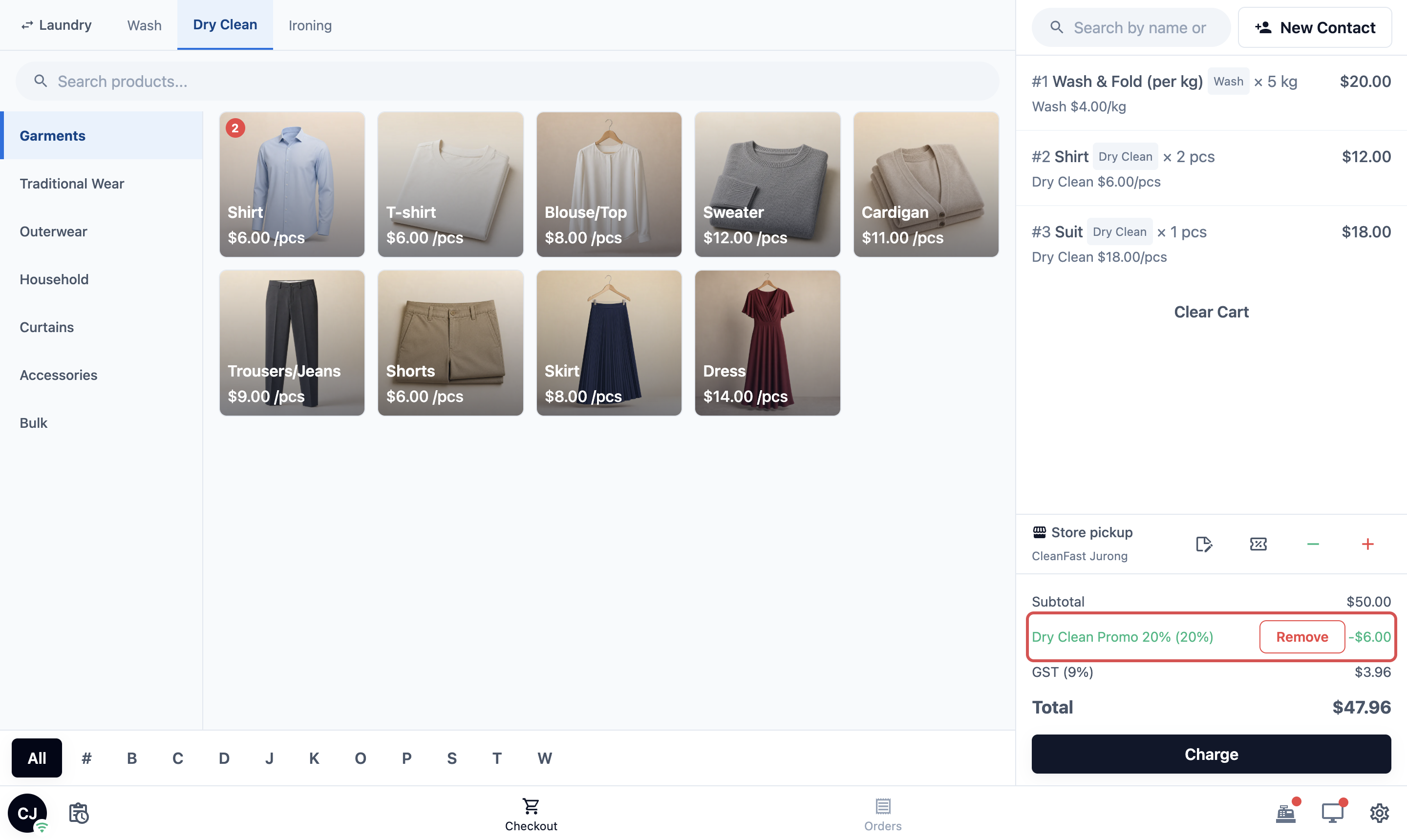
Dry Clean Promo 20%, Dry Clean items only
Staff add it to the whole order, but only the Dry Clean items get 20% off.
- Wash & Fold, 5 kg at $4.00: $20.00
- Shirt Dry Clean, 2 at $6.00: $12.00
- Suit Dry Clean, 1 at $18.00: $18.00
- Subtotal: $50.00
- Dry Clean Promo 20% (20% of the $30.00 Dry Clean items): −$6.00
- Tax (9%): $3.96
- Total: $47.96
Rewash Credit $2, added once per garment
Three shirts needed a rewash, so staff add Rewash Credit 3 times.
- Shirt Dry Clean, 5 at $6.00: $30.00
- Subtotal: $30.00
- Rewash Credit $2: −$2.00
- Rewash Credit $2: −$2.00
- Rewash Credit $2: −$2.00
- Tax (9%): $2.16
- Total: $26.16
To learn the full counter routine, including removing a discount, see Giving Discounts and Surcharges at the POS and in the Console.
Manage Your Staff Discounts
The Added by staff tab lists your discounts with 3 columns:
- Name: what staff and customers see.
- Value: the percentage or flat amount.
- Limitations: a tag for each limit. Multiple applications shows when that switch is on, then the business units and service options the discount is limited to. Allow value modification during use has no tag.
Use the Search bar to find a discount by name.
| To | Do this |
|---|---|
| Change the order staff see | Drag a row up or down. The POS discount list follows this order, and it saves on its own. |
| Edit a discount | Click anywhere on the row, change the fields in the Update Discount Option dialog, and click Update option. |
| Delete a discount | Click ⋮ at the right of the row, click Delete, then click Delete again in the Delete option dialog. |
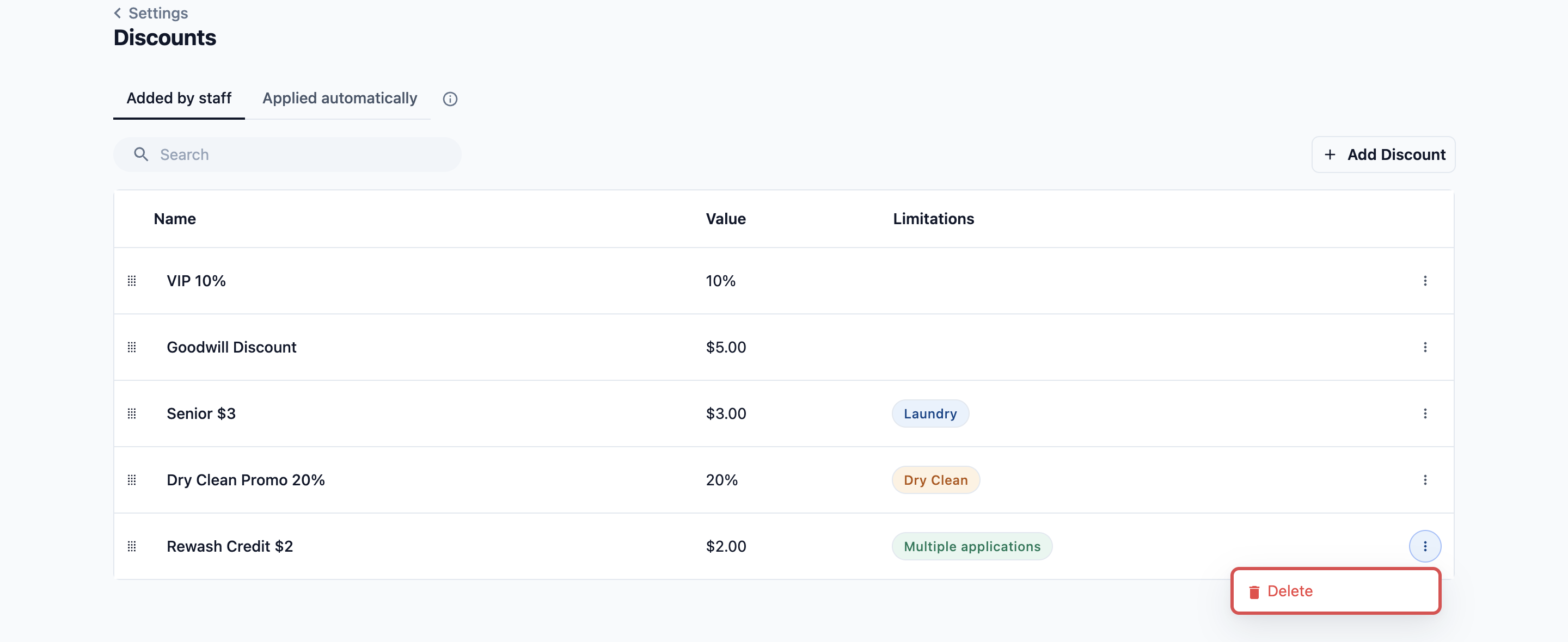
Editing or deleting a discount only affects new orders. Past orders and receipts keep the name and amount they had.
Good to Know
- Switching to automatic moves it. If you change How it applies to Automatically, when the order qualifies and save, the discount leaves the staff list and moves to the Applied automatically tab. It then comes off orders on its own, and its Allow value modification during use, Allow multiple applications and Service options limit settings are cleared. See Setting Up Automatic Discounts.
- A discount stays a discount. You cannot turn a discount into a surcharge. Delete it and create a surcharge instead. See Setting Up Surcharges.
- Who can give discounts. Your staff only see the green − button if their role allows Apply Discounts and the POS has Discounts switched on in its Cart settings. See Giving Discounts and Surcharges at the POS and in the Console.
FAQs
Can staff add two discounts to one order?
Yes. Each one shows as its own row. A percentage discount is worked out on the same amount as the other staff discounts, not on what is left after them. For example, VIP 10% and Senior $3 on a $50.00 order take off $5.00 and $3.00, so tax is worked out on $42.00.
Does a staff discount work with a coupon, a membership or an automatic discount?
Yes. Coupons, member discounts and automatic discounts come off first. A staff percentage discount is then worked out on what is left. For example, on a $40.00 order with a $5.00 coupon, VIP 10% takes off $3.50, not $4.00.
Does a staff percentage discount also come off an Express or delivery fee?
Yes, unless you limit it with Service options limit. Without a limit, the percentage is worked out on the whole order, fees included. For example, if an order has a $10.00 Express fee, VIP 10% takes $1.00 off the fee as well. For booking fees, see Setting Up Booking Options.
Can a staff discount take an order below its minimum order?
Yes. A minimum order is the lowest amount a customer pays for an order, even if the items come to less. Automatic discounts stop at the minimum, but a discount your staff add can go below it, because your staff chose to give it. A discount never takes an order below $0.
Is the discount taken off before or after tax?
Before tax. The discount lowers the amount tax is worked out on, so the customer also pays less tax. You don't set tax on the discount itself. See How Discounts, Surcharges and Tax Add Up on an Order.
If I edit or delete a discount, do past orders change?
No. Past orders and receipts keep the name and amount applied at the time. Only new orders use the change.
Is there an extra charge for staff discounts?
No. They are included in the Standard plan.
What's Next
You have set up the discounts your staff add at checkout, with their names, values, switches and limits. Where you go next depends on what your shop needs:
- To start giving these discounts to customers, see Giving Discounts and Surcharges at the POS and in the Console. You don't need to set up surcharges first.
- To charge extra fees, like stain treatment, see Setting Up Surcharges.
- To have discounts come off orders on their own, like a first order or birthday discount, see Setting Up Automatic Discounts.