
Before You Start
This article brings together everything from the 5 articles before it. Read them first, so each tool here is already familiar:
- Introduction to Discounts and Surcharges
- Setting Up Discounts Staff Add at Checkout
- Setting Up Surcharges
- Setting Up Automatic Discounts
- Giving Discounts and Surcharges at the POS and in the Console
There is nothing to switch on here. The system always works out an order in the same order of steps.
If you set this up before: the sums did not change when Adjustment Options split into the Discounts and Surcharges cards, and past orders keep the amounts they were charged.
Where It Works
- POS (POS Web and the POS app on tablets): staff see every line in the cart, from Subtotal to Total, and the total updates as they add or remove a discount or surcharge.
- Console: staff see the same lines on the order page, from Subtotal to Amount Payable, and the total is worked out again when they edit the order.
- Online Store and Mobile App: customers see the items total, any minimum charge, a booking option fee such as Express, their member discount, automatic discounts, their coupon and tax on the booking review before they confirm. They never see staff discounts or surcharges until staff add one to their order.
- WhatsApp mini-app: orders booked there are worked out the same way. Staff add any staff discount or surcharge afterwards in the Console.
Only your staff can add staff discounts and surcharges, and only they can turn off an automatic discount for one order.
The Order Things Are Worked Out
Every order goes through the same steps, from top to bottom. Each step only changes the total from that point down.
- Items subtotal. Each item at its price. Item Adjustments from Price Rules are already inside each item's price. If a customer's prepaid package (a bundle of service they paid for in advance) covers an item, that part comes off here. Two top-ups can follow:
- A service minimum charge. If a service, such as Dry Clean, has its own minimum and the items for it come to less, the cart adds a Minimum charge for Dry Clean line.
- The minimum order. If the order comes to less than your minimum order (the smallest amount your shop charges for one order), the cart adds a Difference to minimum line that tops it up.
- Coupon or member percentage discount. Worked out on the items subtotal. Only one percentage coupon or member discount comes off, the one that saves more.
- Booking fee. The fee of the booking option the customer picked, such as Express, a late time of day or a public holiday. It is either a fixed amount, like $8.00, or a percentage of the items subtotal.
- Flat coupons. A fixed dollar amount, like $5 off.
- Automatic discounts. A percentage is worked out on the items subtotal, the same base as step 2. An item offer, such as "2nd Curtain 50% off" or "3 Shirts for $10", takes off what its matching items save, worked out on those items only.
- Staff discounts and surcharges. A percentage is worked out on the total so far, which includes the booking fee and every discount above.
- Tax. Added on top of the total after every discount and surcharge, or kept inside it if your prices include tax.
- Rounding. If your shop rounds totals, for example to the nearest 5 cents, a Rounding line evens out the last cents.
There is no separate delivery fee step. If you charge for delivery or for a fast collection, put the fee on the booking option. See Setting Up Booking Options.
Example: One Order, Every Step
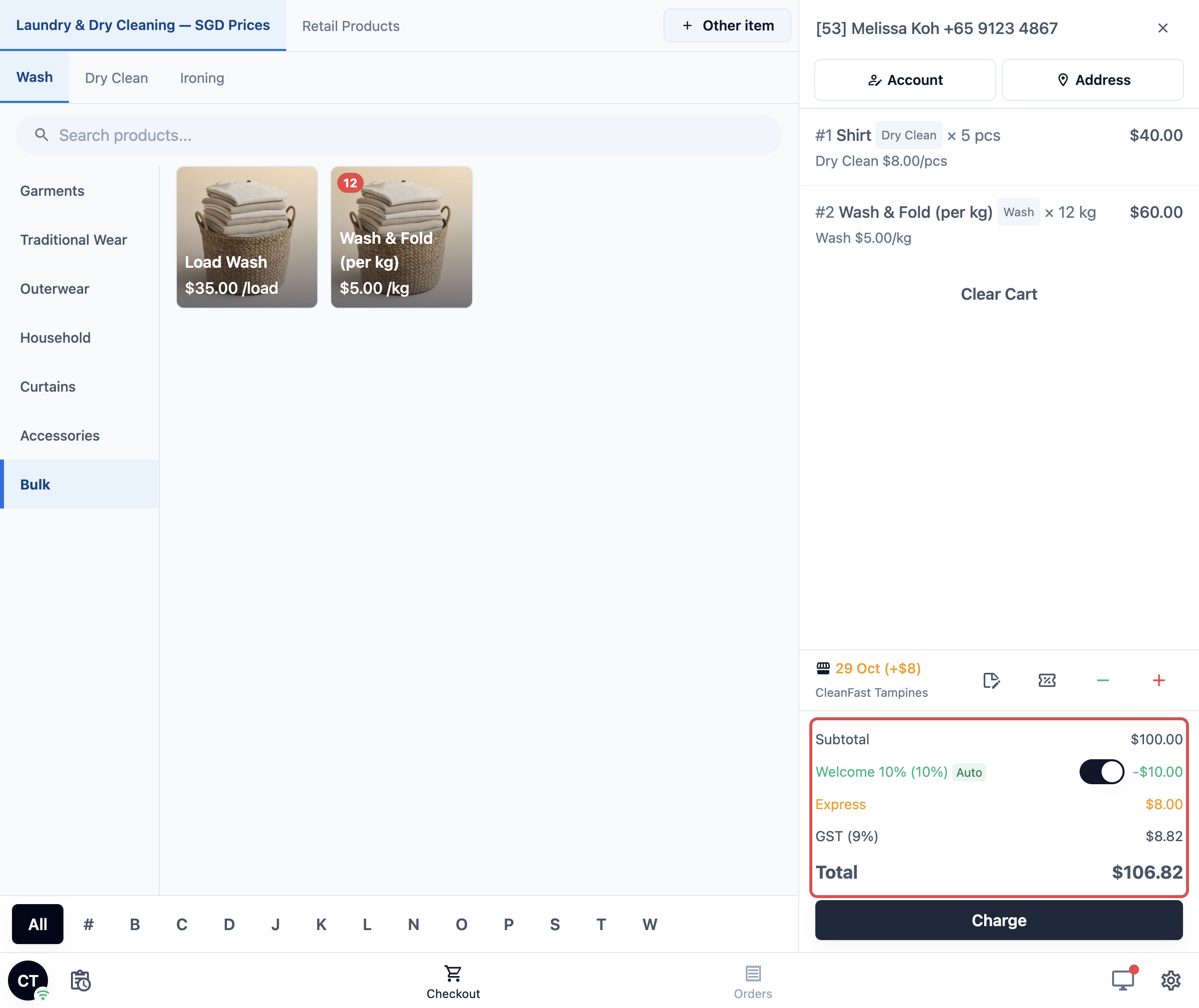
A new customer drops off 12 kg of Wash & Fold and 5 shirts for dry cleaning at the CleanFast Laundry Tampines counter, and wants them back the next day. CleanFast's next-day collection is the Express booking option, +$8.00. CleanFast has a Welcome 10% automatic discount for first orders, and adds 9% GST on top of its prices.
- Wash & Fold, 12 kg at $5.00: $60.00
- Shirt Dry Clean, 5 at $8.00: $40.00
- Subtotal: $100.00
- Welcome 10% (10% of the $100.00 items): −$10.00
- Express: +$8.00
- GST (9%) on $98.00: $8.82
- Total: $106.82
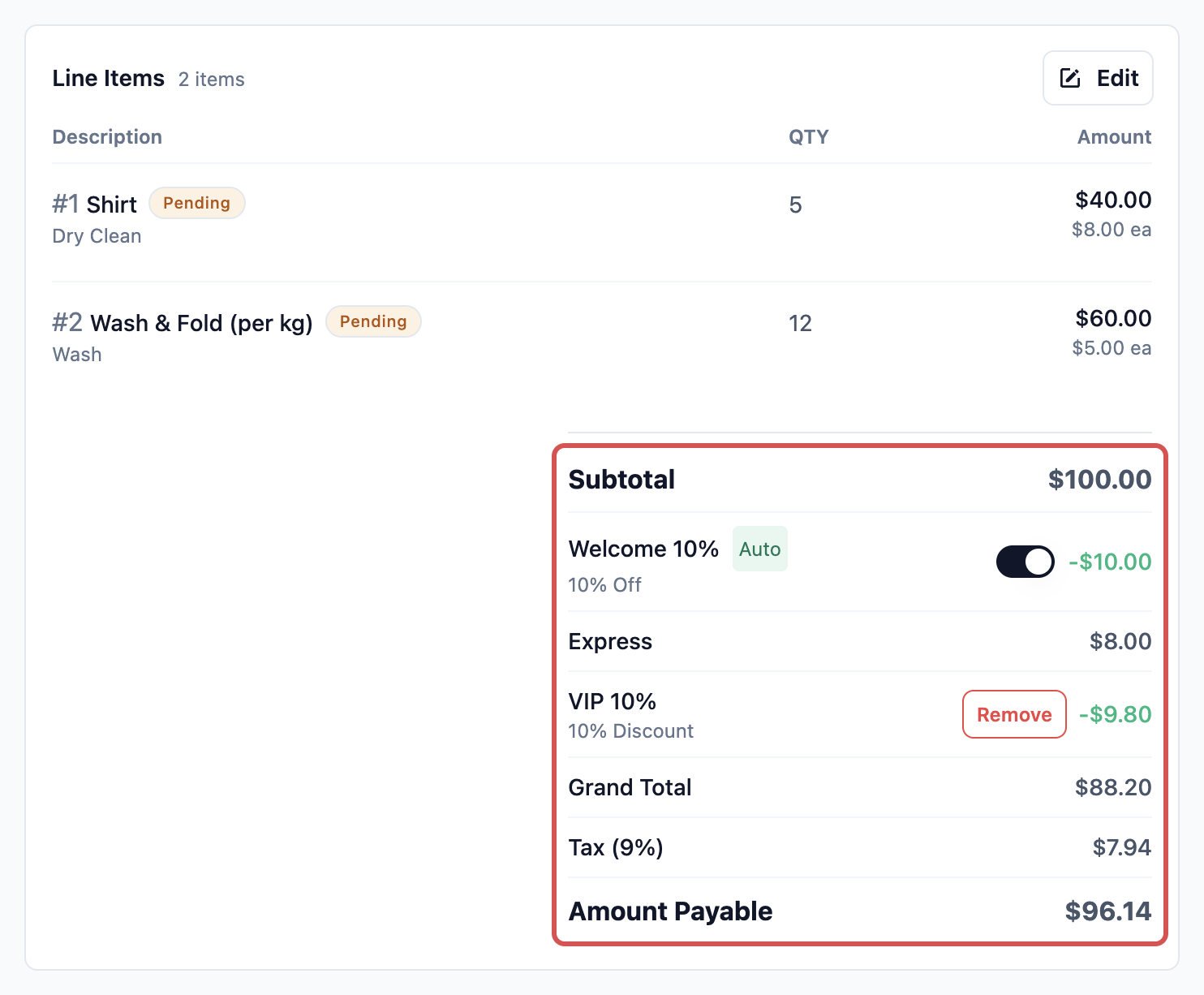
The customer is a friend of the owner, so your staff tap the green − button, pick VIP 10% and tap Add. VIP 10% is worked out on the total so far, $98.00, which already has Welcome 10% taken off and the Express fee added:
- Subtotal: $100.00
- Welcome 10%: −$10.00
- Express: +$8.00
- VIP 10% (10% of $98.00): −$9.80
- Grand Total: $88.20
- GST (9%) on $88.20: $7.94
- Total: $96.14
Once the order is saved, the Console order page shows the same sum. There the line before tax is called Grand Total, the tax line Tax (9%) and the last line Amount Payable.
If the booking fee is a percentage, it is worked out on the items subtotal, before any discount. With a 20% Express fee instead of $8.00, the same order would get +$20.00 (20% of the $100.00 items), even though Welcome 10% comes off.
Tax Always Comes Last
Tax is worked out after every discount and surcharge. A discount lowers the amount tax is charged on, so the customer pays less tax. A surcharge raises it, so the customer pays tax on the surcharge too. You never need to adjust anything for GST or SST. The system follows the tax setup of your price list or company. See Setting Up Tax and Rounding Rules.
If you add tax on top of your prices, the tax line is added after the Grand Total, as in the example above.
If your prices already include tax (a tax-inclusive price, where the price on your list is what the customer pays), nothing is added on top. The tax stays inside the lower total, and the receipt shows how much of the total is tax.
For example, if CleanFast Laundry's Jurong price list included 9% GST:
- Suit Dry Clean, 1 at $109.00: $109.00
- VIP 10% (10% of $109.00): −$10.90
- Total: $98.10
- Inclusive of GST (9%): $8.10
- Total w/o GST: $90.00
Without VIP 10%, the same suit would include $9.00 of GST. The discount lowered the tax inside the price by $0.90.
When Discounts Meet Each Other
| When an order has | What comes off |
|---|---|
| 2 staff percentage discounts | Both. Each is worked out on the same total, then added together. VIP 10% and a 5% staff discount on $98.00 take off $9.80 and $4.90, together $14.70. |
| A staff discount and an automatic discount | Both. If that is too much, staff turn off the automatic one with its switch for this order. |
| A coupon and an automatic discount | Both. |
| A flat coupon and a member percentage discount | Both. |
| A percentage coupon and a member percentage discount | Only the one that saves more. If the coupon saves less, it stays in the cart crossed out, with the note "Only one percentage discount can be applied". If the member discount saves less, its line disappears and the coupon comes off instead. |
| 2 automatic discounts | Both, only if both have Combines with other automatic discounts turned on. Otherwise only the one higher in your list. See Setting Up Automatic Discounts. |
| An item offer and another automatic discount | The same rule as 2 automatic discounts: both only if both combine, otherwise the one higher in your list. When 2 item offers that combine want the same pieces, each piece counts toward one of them only, split the way that saves the customer the most. |
| An item offer and an Item Adjustment from Price Rules | Both, unless the Item Adjustment has Combine with bundle deals turned off. Then the Item Adjustment is taken back on that order. See Setting Up Price Rules. |
For example, a CleanFast VIP member (10% off) brings 12 kg of Wash & Fold and a Loyal Customer 5% Off coupon. The member discount saves more, so it stays:
- Wash & Fold, 12 kg at $5.00: $60.00
- Subtotal: $60.00
- CleanFast VIP (10%): −$6.00
- Loyal Customer 5% Off: crossed out, nothing comes off
- GST (9%) on $54.00: $4.86
- Total: $58.86
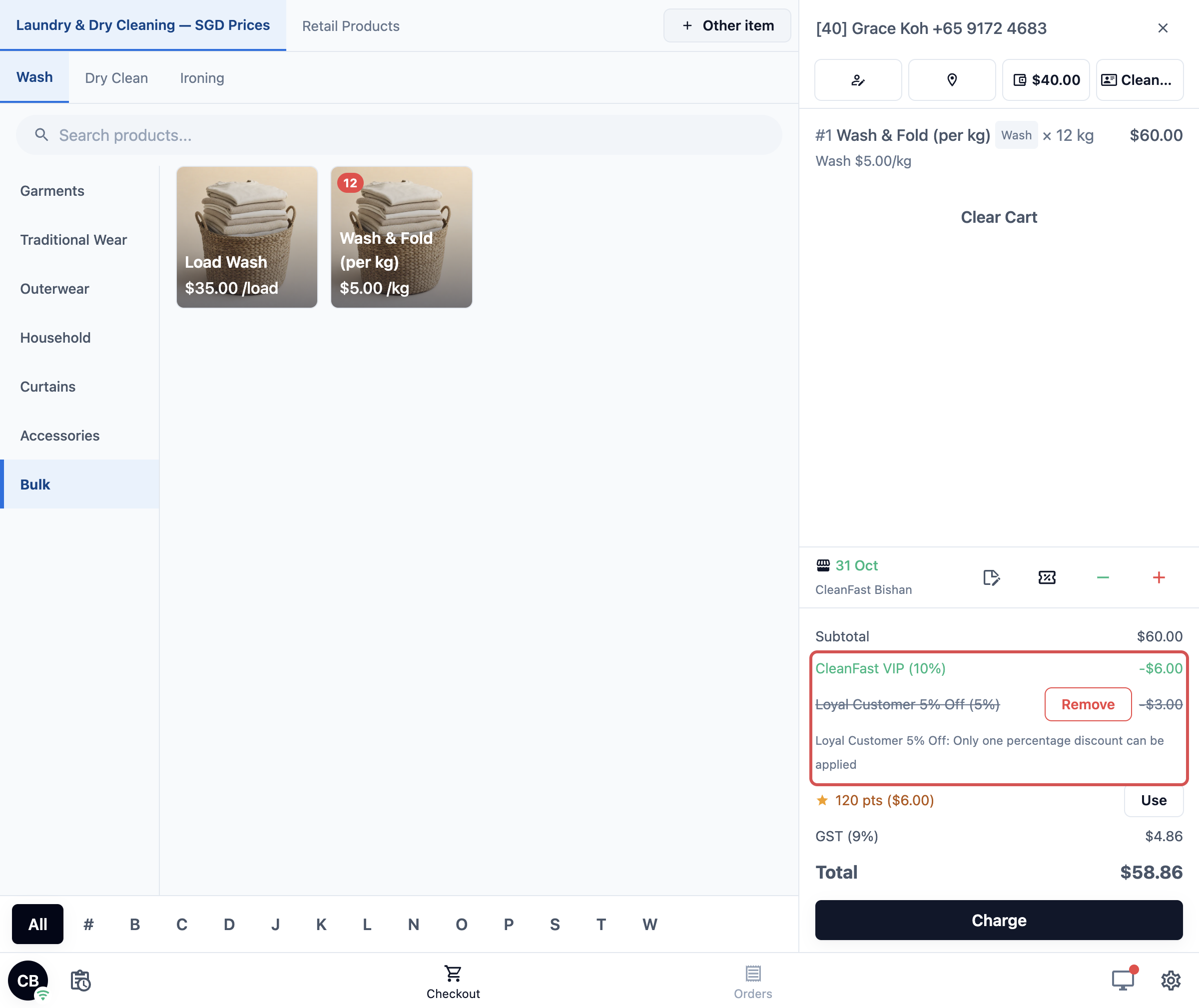
The coupon is not used up. It stays in the customer's account for a later order.
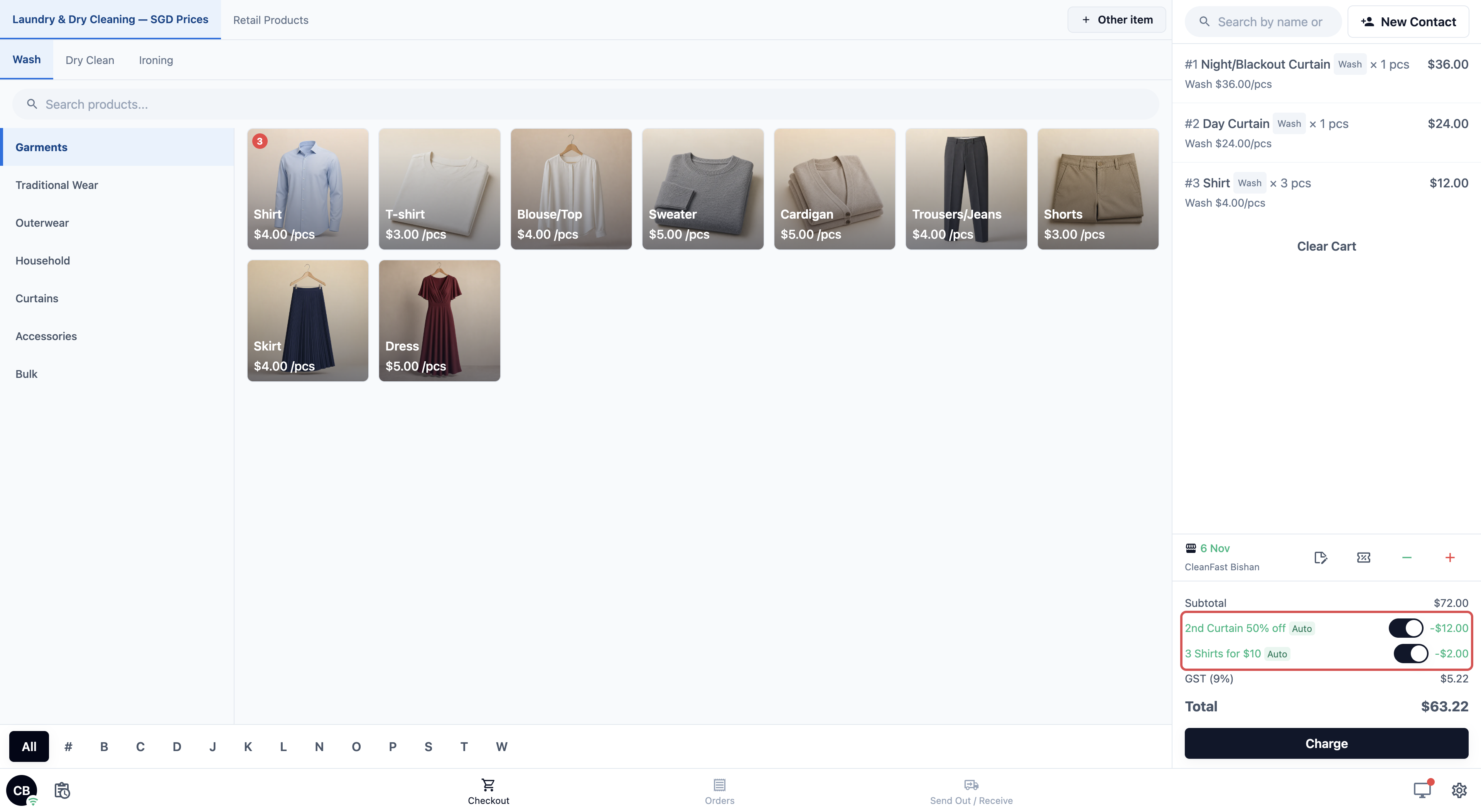
Here is an order with two item offers that both combine, "2nd Curtain 50% off" and "3 Shirts for $10", at the CleanFast Bishan counter:
- Night/Blackout Curtain Wash, 1 at $36.00: $36.00
- Day Curtain Wash, 1 at $24.00: $24.00
- Shirt Wash, 3 at $4.00: $12.00
- Subtotal: $72.00
- 2nd Curtain 50% off (50% of the cheaper curtain, $24.00): −$12.00
- 3 Shirts for $10 ($12.00 down to $10.00): −$2.00
- GST (9%) on $58.00: $5.22
- Total: $63.22
Limits That Protect Your Total
- Coupons, member discounts and automatic discounts stop at your minimum order. If a discount would take the order below the minimum, it is cut down to fit. A dollar coupon that is cut down shows "Discount reduced: Minimum order applies". A coupon that cannot come off at all shows "Discount waived: Minimum order not met". A member or automatic discount that is cut down just shows the smaller amount, and one that cannot come off at all does not show. See Choosing Where Customers Can Book.
- Staff discounts can go below the minimum order. Your staff decide, so the system lets them.
- A discount never makes the total negative. A $20 discount on a $15 order takes off $15.
- A prepaid package's covered value counts toward the minimum order and a percentage booking fee only. Coupons, member discounts, automatic discounts and staff discounts are worked out on what the customer still pays. See Set Up Prepaid Packages.
The Minimum Order in Action
CleanFast Laundry has a $30.00 minimum order. If a customer brings only 4 kg of Wash & Fold ($20.00), the cart adds Difference to minimum ($30.00) +$10.00, and the subtotal is $30.00.
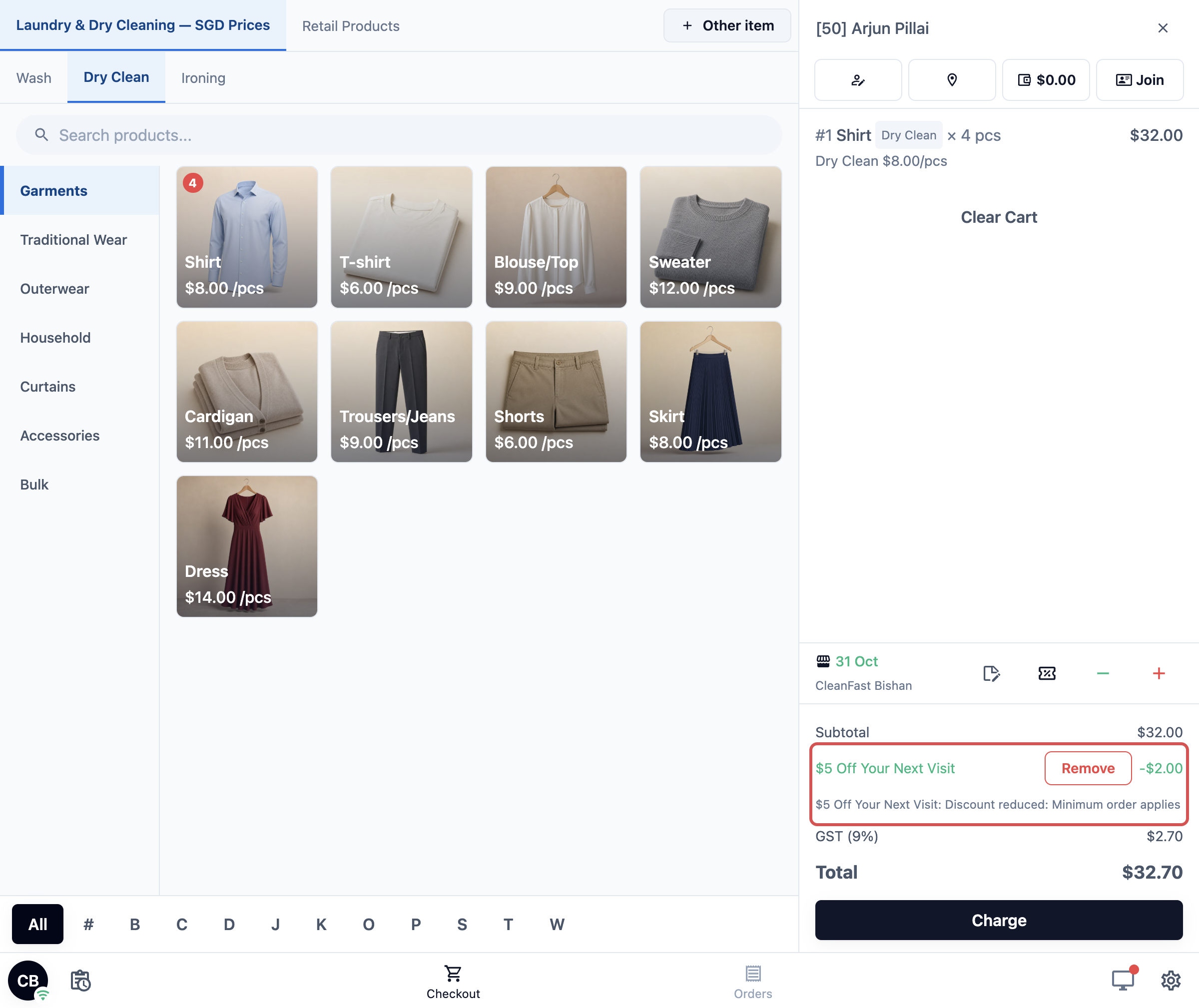
Now a customer brings 4 shirts for dry cleaning ($32.00) and a $5 Off Your Next Visit coupon. The full $5.00 would take the order below $30.00, so only $2.00 comes off:
- Shirt Dry Clean, 4 at $8.00: $32.00
- Subtotal: $32.00
- $5 Off Your Next Visit: −$2.00, "Discount reduced: Minimum order applies"
- GST (9%) on $30.00: $2.70
- Total: $32.70
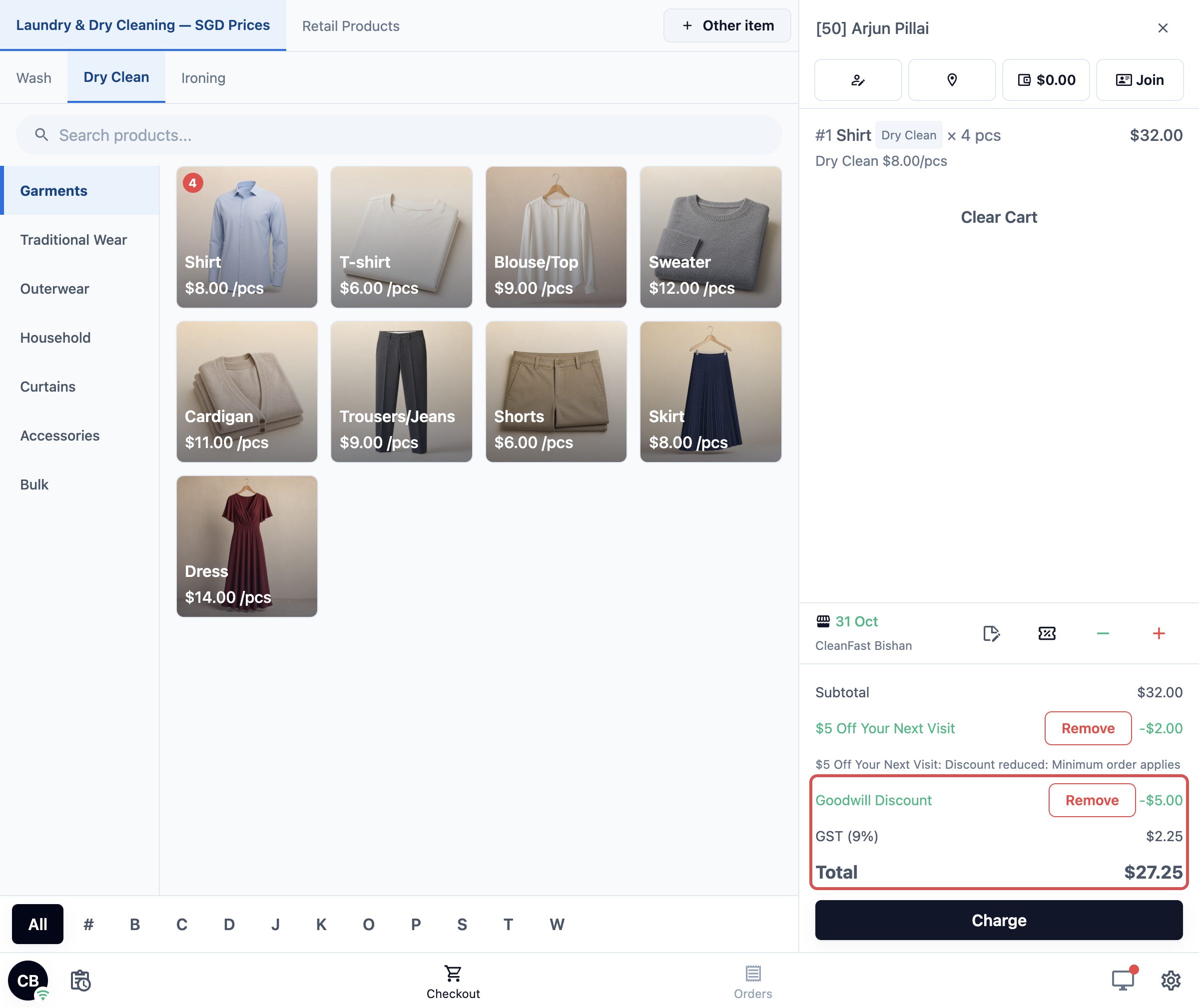
If your staff then add the Goodwill Discount of $5.00, it comes off in full, even though the order drops below the minimum:
- Subtotal: $32.00
- $5 Off Your Next Visit: −$2.00
- Goodwill Discount: −$5.00
- GST (9%) on $25.00: $2.25
- Total: $27.25
A Prepaid Package in Action
A CleanFast VIP member (10% off) has a 20 Shirts Pack. She brings 5 shirts to wash and 6 kg of Wash & Fold. The pack covers the shirts, and her member discount comes off only what she still pays:
- Shirt Wash, 5 at $4.00: $20.00, covered by the 20 Shirts Pack, so $0.00
- Wash & Fold, 6 kg at $5.00: $30.00
- Subtotal: $30.00
- CleanFast VIP (10% of the $30.00 she pays): −$3.00
- GST (9%) on $27.00: $2.43
- Total: $29.43
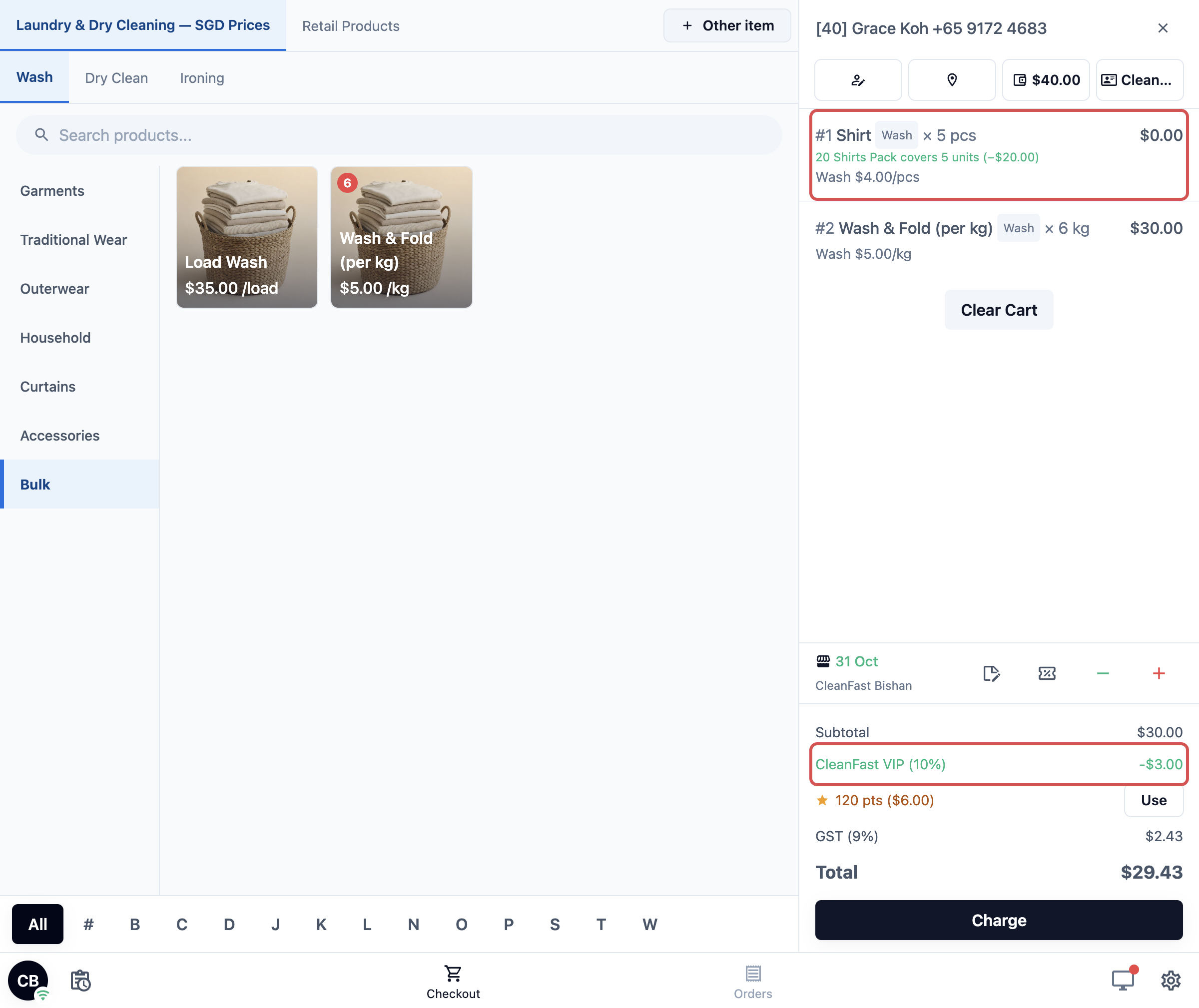
The $20.00 the pack covers still counts toward the $30.00 minimum order, so the cart adds no top-up.
Rounding
Rounding is the last step and only changes the final cents. If CleanFast Laundry rounds totals to the nearest 5 cents, the VIP example order above becomes:
- Total: $96.14
- Rounding: +$0.01
- Amount Payable: $96.15
If your shop does not round totals, there is no Rounding line. See Setting Up Tax and Rounding Rules.
FAQs
Why is my 10% staff discount not $10 on a $100 order?
A staff percentage is worked out on the total so far, which includes the booking fee and any coupon, member or automatic discount. On a $100.00 order with Welcome 10% (−$10.00) and Express (+$8.00), VIP 10% takes off $9.80. Coupon, member and automatic percentages are worked out on the items only, so they would take off exactly $10.00.
Is the discount taken off before or after GST?
Before. Every discount and surcharge comes off first, then tax is worked out on what is left. The customer pays less tax after a discount and more after a surcharge.
A customer booked Express. Can staff also add an Urgent Job surcharge?
Yes, and both stay on the order, so the customer pays for speed twice. The staff surcharge percentage is also worked out on the Express fee. For example: items $30.00, Express +$8.00, Urgent Job 20% of $38.00 +$7.60, GST (9%) $4.10, total $49.70. Check for a booking fee before adding a rush surcharge. See Setting Up Surcharges.
Why did only one of two percentage discounts come off?
A percentage coupon and a member percentage discount never come off together. The order keeps the one that saves more. Automatic and staff discounts are not part of this rule, so they still come off.
How do I charge a delivery fee?
Put it on the booking option the customer picks, for example a Standard Delivery or Express Delivery option with its own fee. It is then added as the booking fee, in step 3. If you only charge it now and then, your staff can add a surcharge instead. See Setting Up Booking Options.
Does the invoice show the same sum as the POS?
Yes. The invoice, the receipt and the customer's order page use the amounts saved on the order. Each discount and surcharge prints as its own line under its name, between the subtotal and the total, followed by tax and any rounding. See Setting Up Your Invoice and Order PDFs.
If I change a discount or the tax rate, do past orders change?
No. A past order keeps the amounts it was charged. It is only worked out again if your staff edit that order in the Console, and then the new total shows in the confirmation before it is saved.
What's Next
You now know how every discount, surcharge, fee and tax on an order adds up to the amount your customer pays, and why a percentage is not always the amount you expect. This is the last article in the Discounts and Surcharges group. To see what your discounts cost you each month, open the Discount Breakdown in Reading the Sales Report.