Why set up Price Rules?
Configuring this section gives you three powerful capabilities:
-
Automation: Automatically apply extra fees (e.g., for “Silk” material) without staff needing to remember the price.
-
Upselling Strategy: Create “Buy X, Get Y” bundle deals to encourage larger orders.
-
Accuracy: Prevent undercharging by enforcing rules that trigger based on specific item conditions.
Base Price Rules
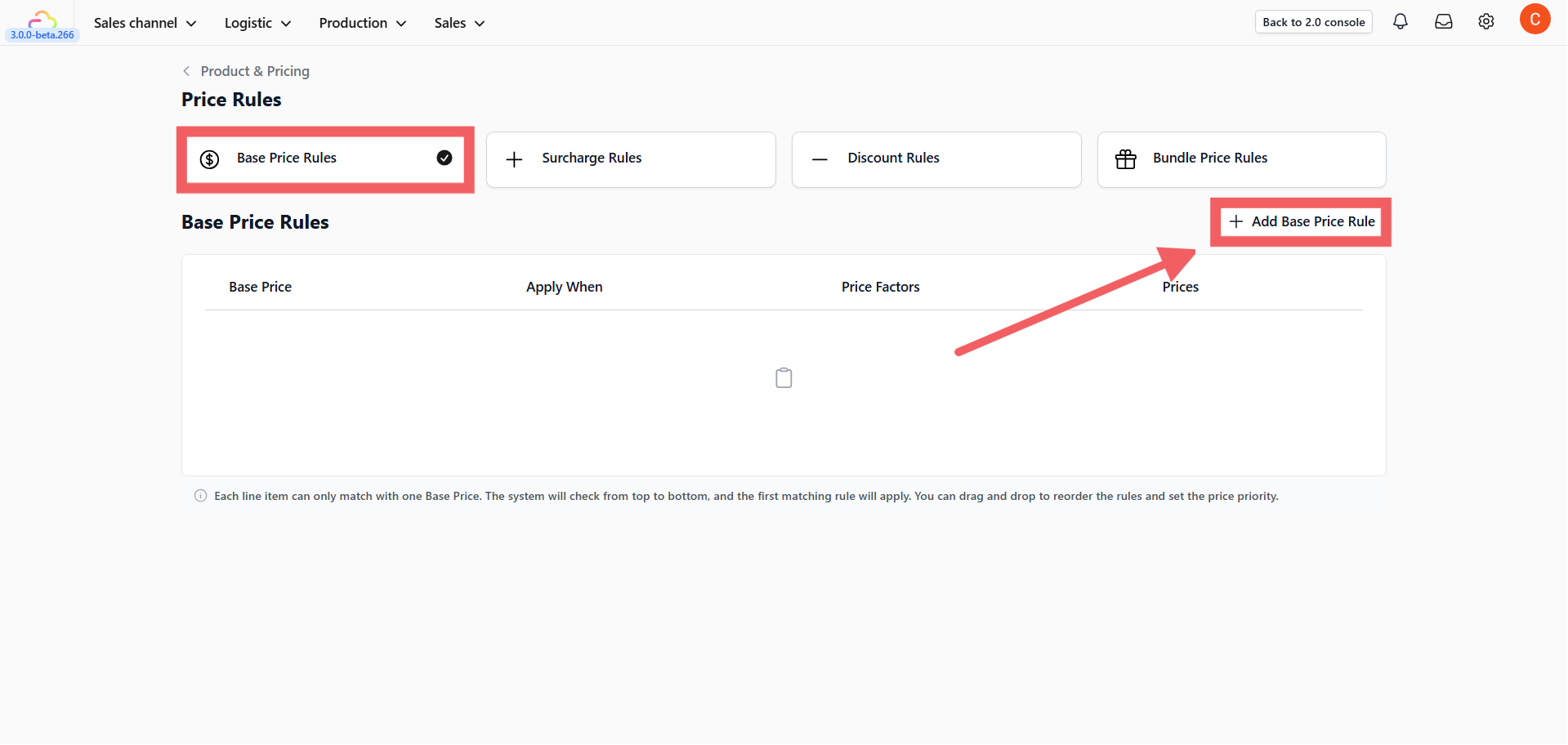
This section allows you to set the foundational logic for how an item’s starting price is determined before any extra fees are added.
Surcharge Rules
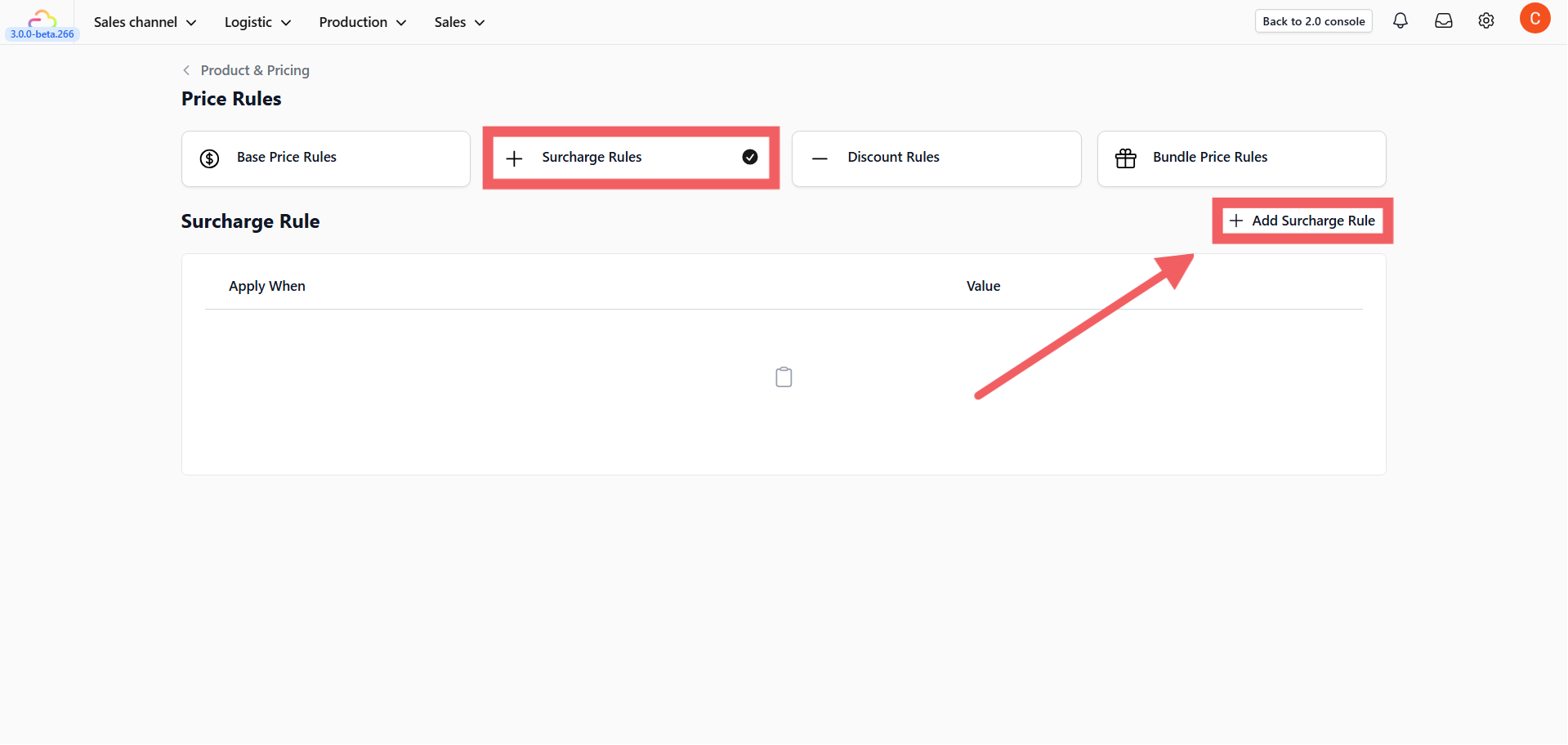
Surcharges are used to add extra costs to an order based on specific conditions (e.g., Material = Silk)
Set the Trigger Conditions
First, determine exactly when this rule should apply by clicking + Add Condition.
- Field: Select the data source. This can be a Product, a Service Option, or a Custom Data Field (e.g., Damage, Material, Brand).
-
Operator: Choose is (exact match), is not (excludes value), or is any of (matches multiple values).
-
Value: Select the specific attribute (e.g., “Silk”).
Choose Surcharge Type
Select whether the fee is a percentage or a fixed amount.
1. Flat Amount ($)
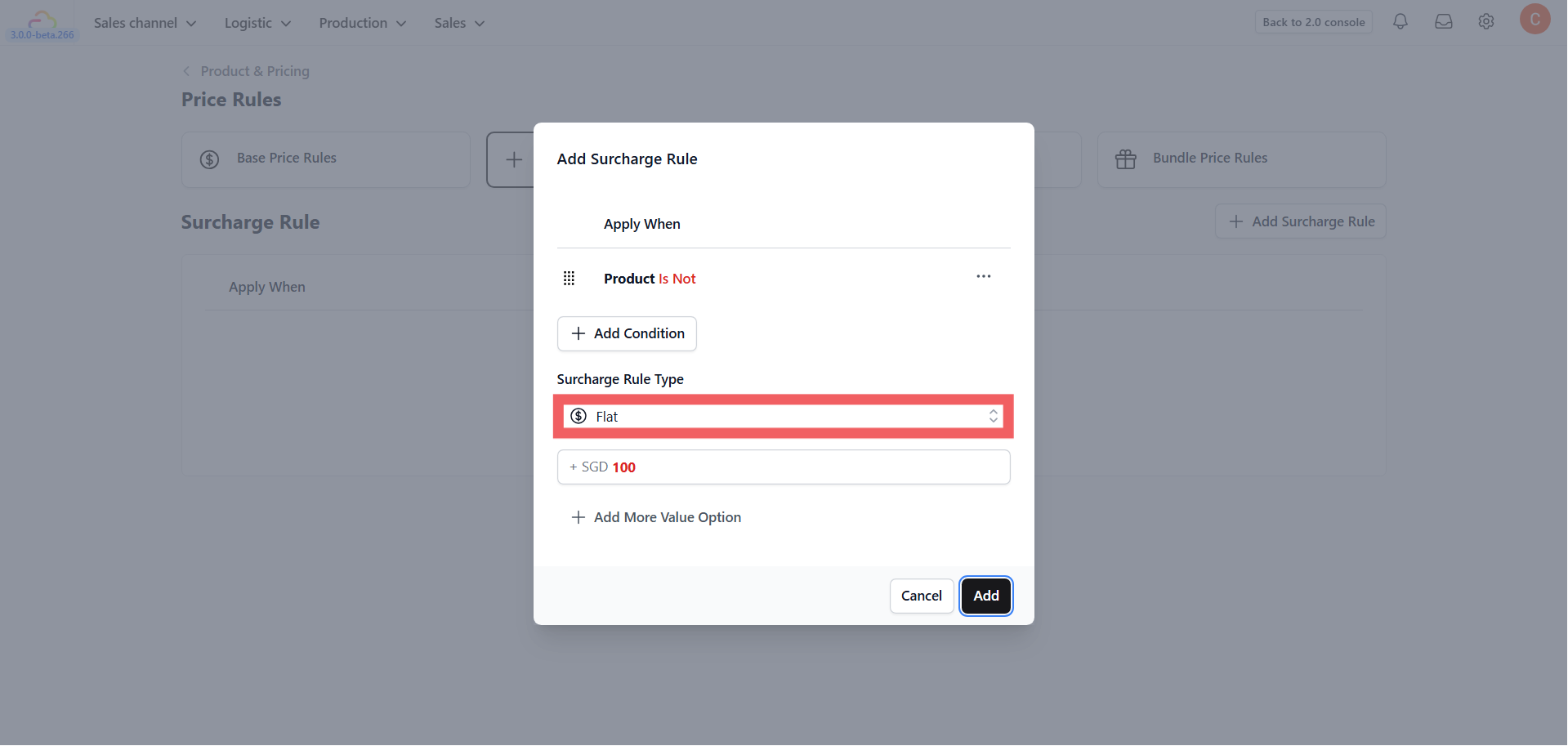
Simply enter a fixed dollar amount (e.g., +$5.00) to add to the price.
2. Percentage (%)
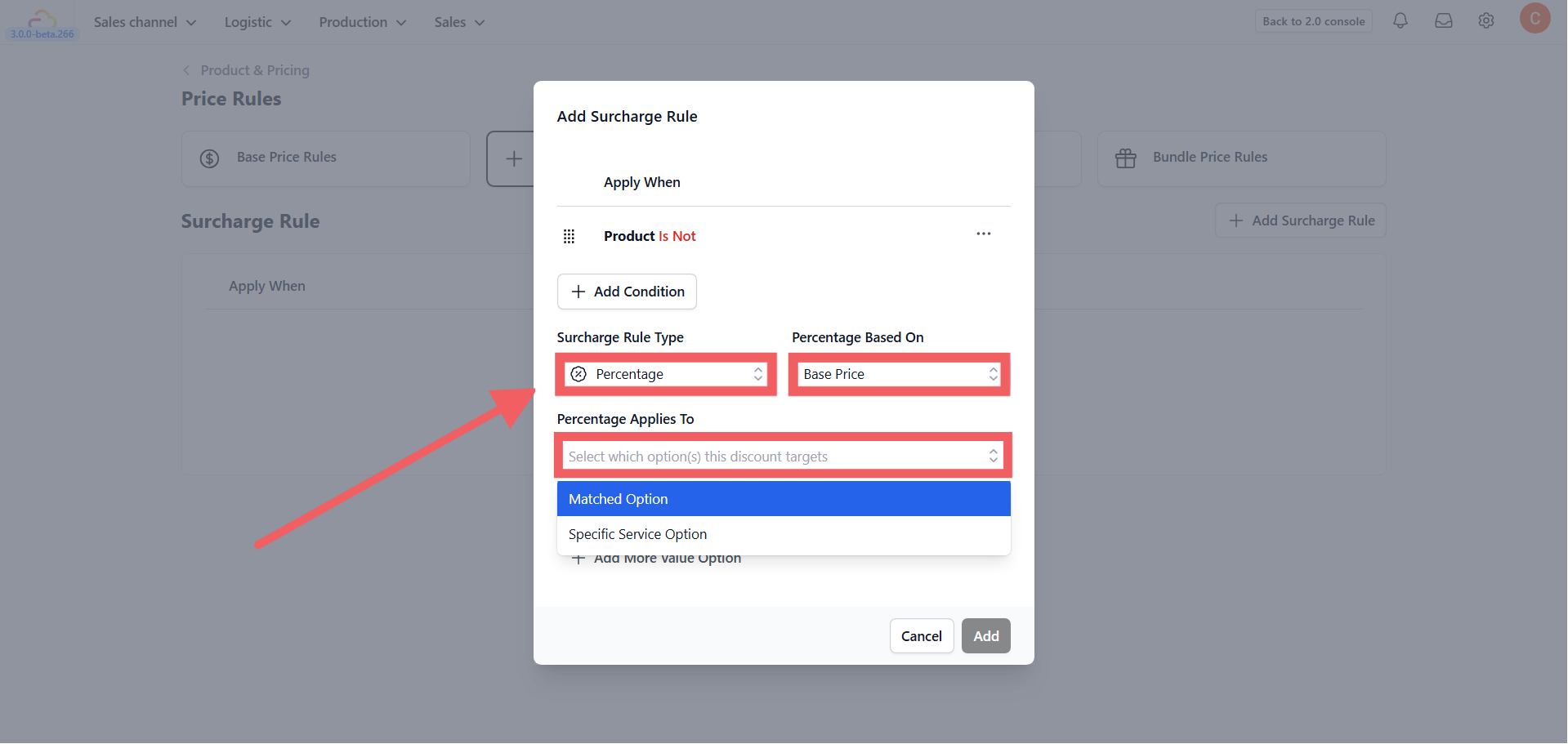
Adds a calculated fee based on the item’s value. You must configure two settings:
-
Percentage Based On: Choose Base Price (original item price) or Accumulated Amount (item price + previous surcharges).
-
Percentage Applies To: Choose Matched Option (applies to the specific attribute) or Specific Service Option (targets a specific service line).
Advanced Options
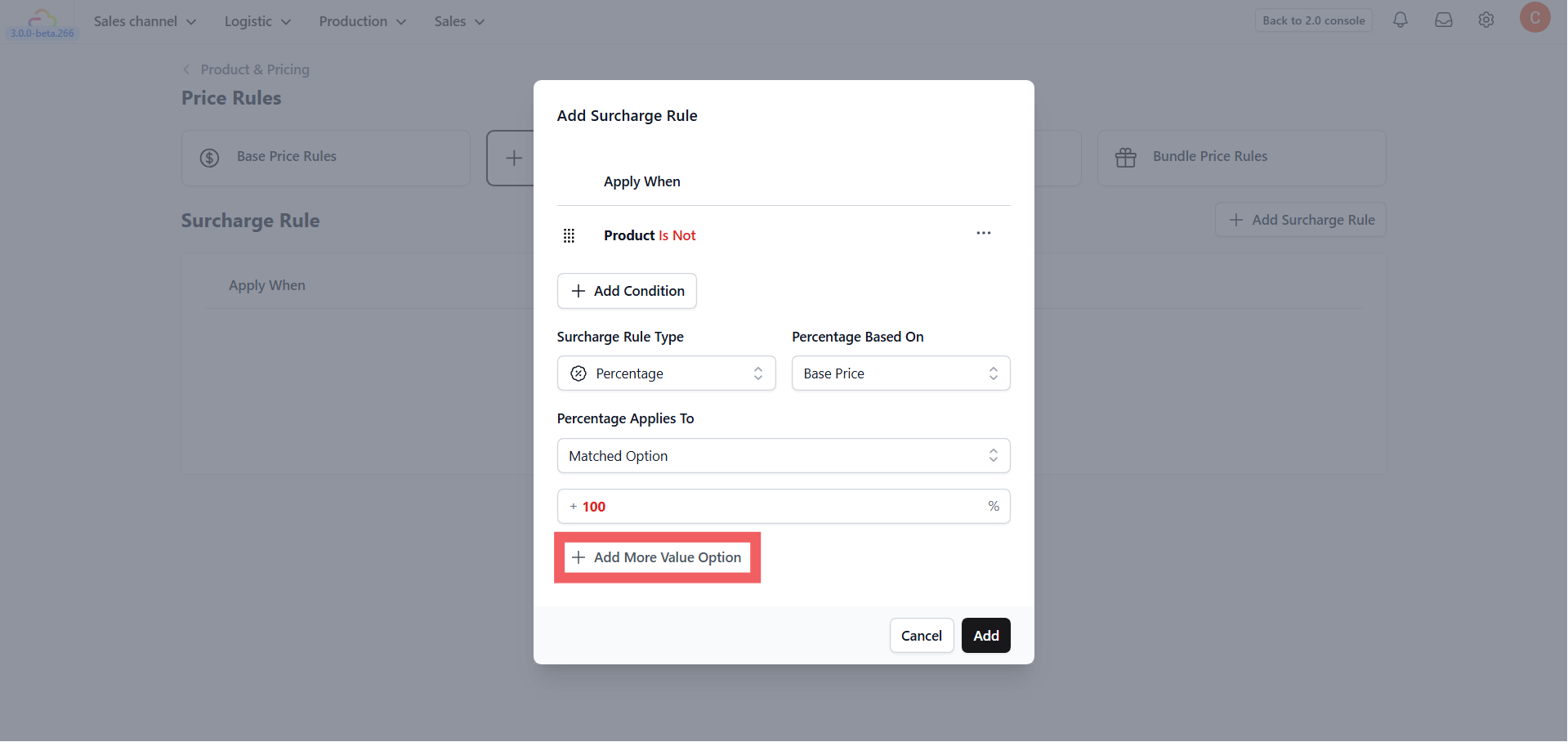
You can add multiple value rows (e.g., +$5, +$10, +$15) within a single rule.
Discount Rules
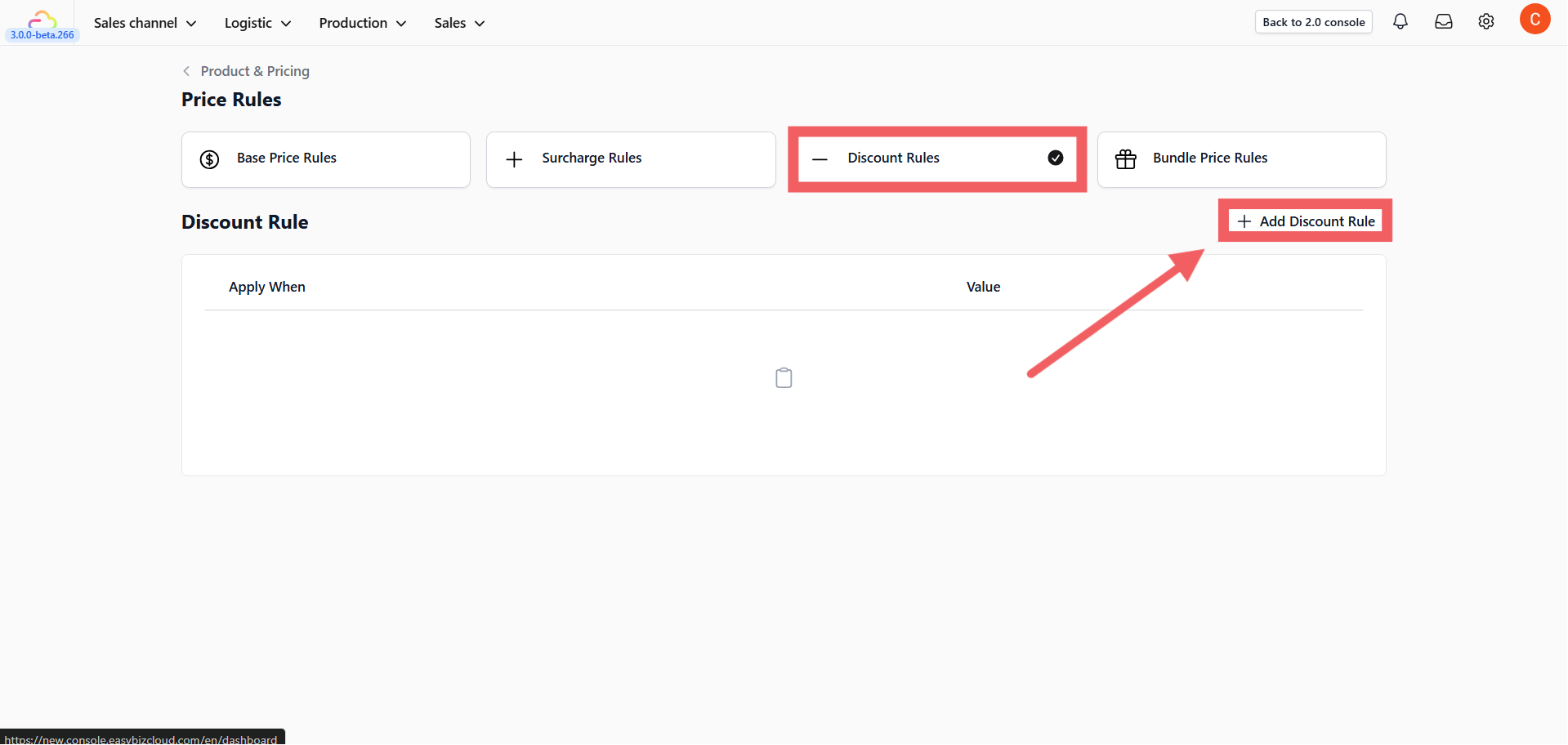
Discount rules function exactly like Surcharges but subtract value from the order.
The setup for Trigger Conditions (Apply When) and Rule Types (Percentage vs. Flat) is identical to Surcharges. However, the value is applied as a deduction (e.g., - 10% or - $5.00)
Bundle Rules
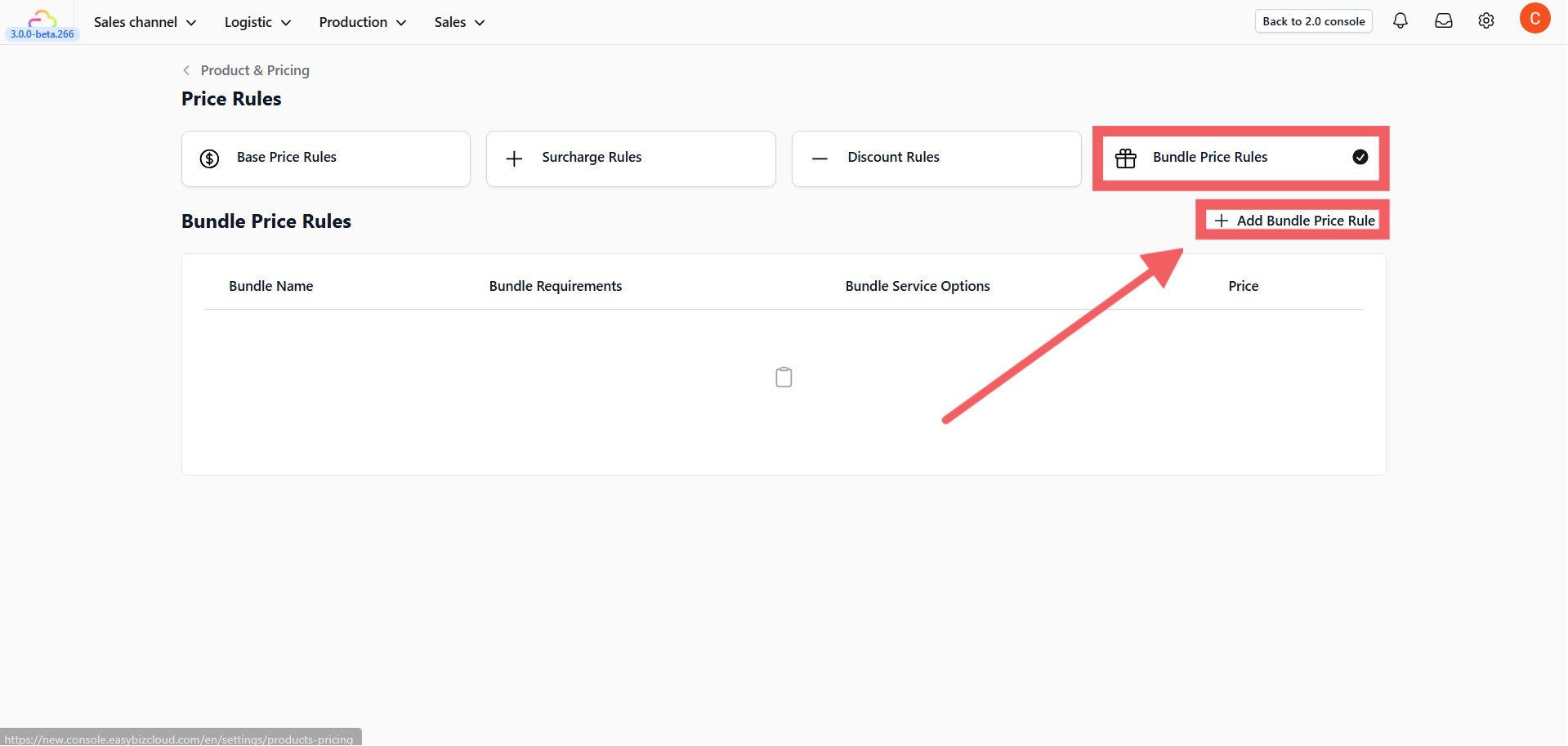
Bundle Rules allow you to create automated package deals (e.g., “3 Shirts for $20”).
Bundle Name
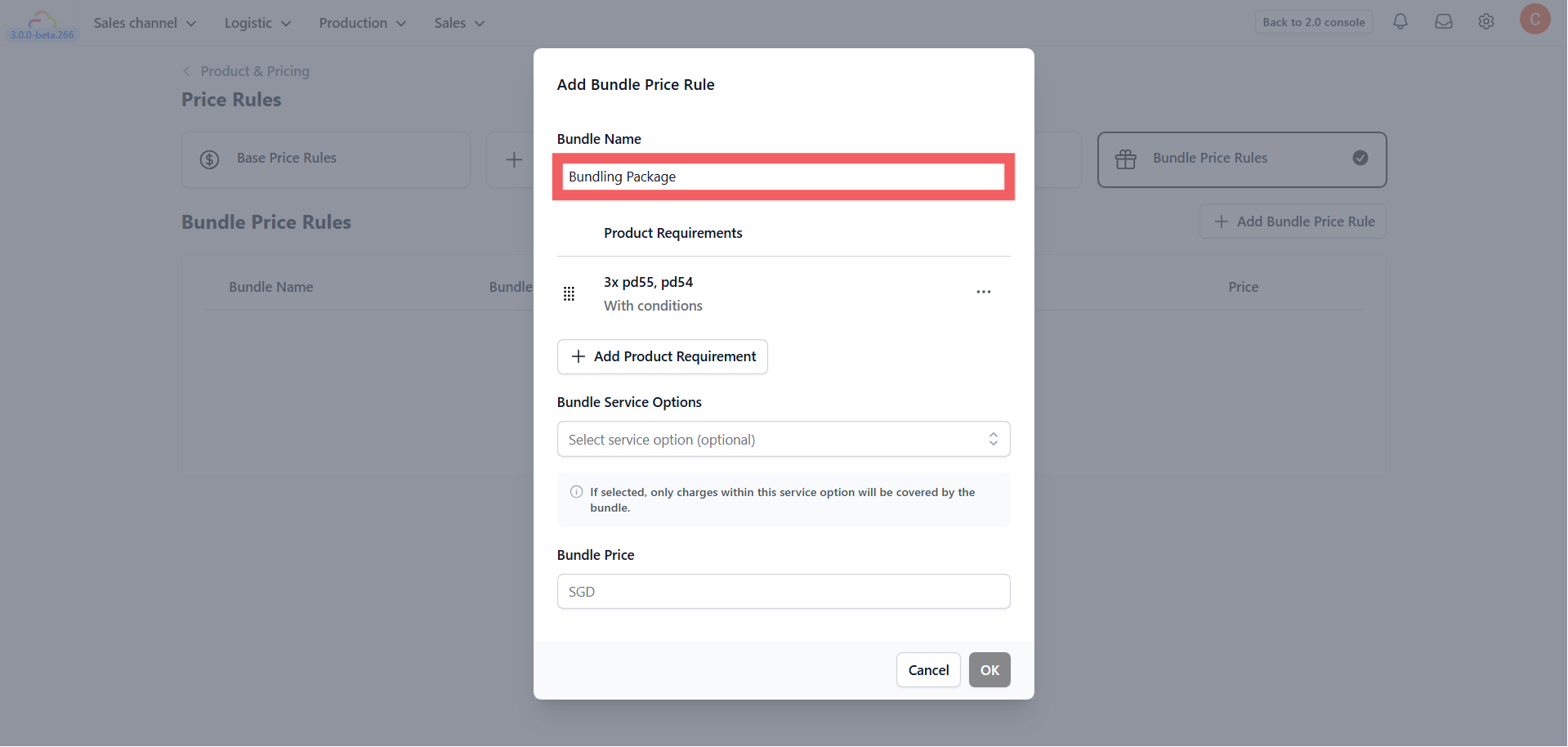
Enter a clear name for the bundle (e.g., “3-Pc Suit Promo”). This is for internal reference.
Add Product Requirement
Define the qualifying items.
-
Products: Select one or more eligible items (e.g., “Shirt” and “Trousers”).
-
Quantity: Define how many items are needed to trigger the price (e.g., “3”).
-
Item Conditions (Optional): Add restrictions, such as limiting the bundle to “Cotton” items only.
Bundle Service Options (Optional)
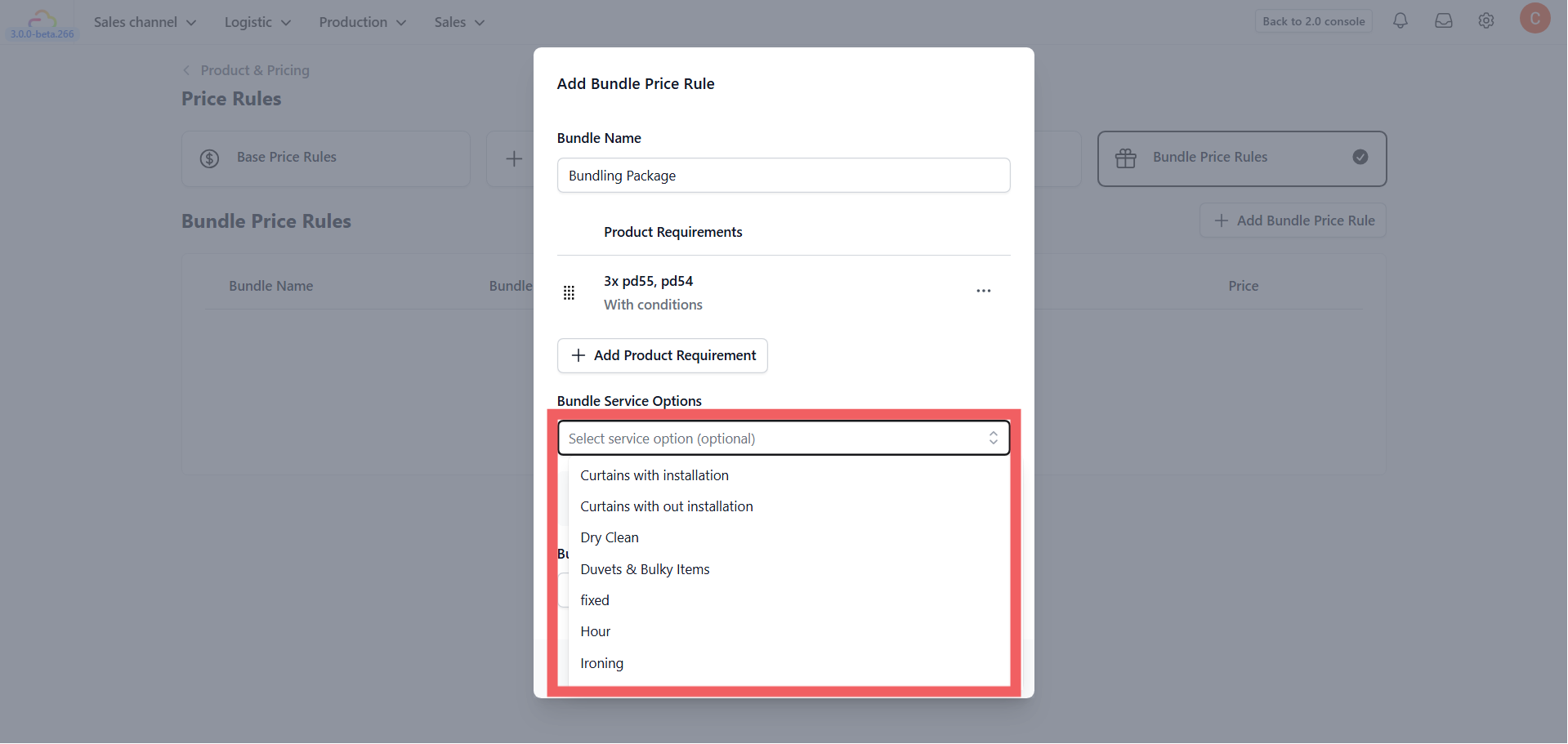
Select specific service options to limit the scope of the bundle price.
Bundle Price
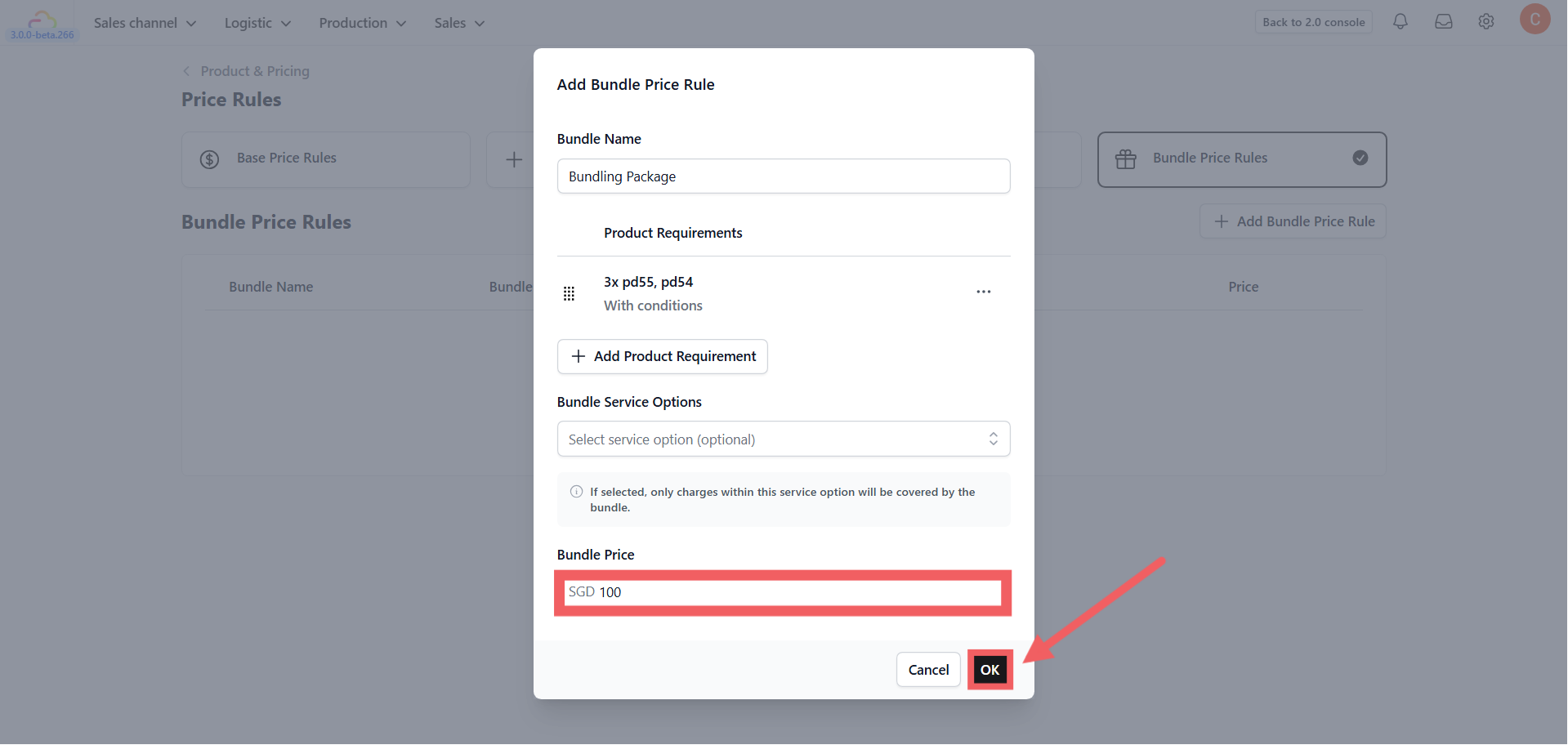
Enter the final fixed price for the entire package (e.g., $20.00).
Click OK to save.