Why Use Points Program?
-
Encourage Habitual Visits: “I just need 50 more points” is a powerful motivator for a customer to return sooner than planned.
-
Encourage Eco-Friendly Behavior: You can award points for returning hangers or bags, saving you operational costs while rewarding the customer.
-
Flexible Rewards: You decide the exchange rate. It’s a low-cost way to give value without drastically hurting your margins.
Accessing Points Settings
To configure these rules, you must be in the 2.0 Console.
-
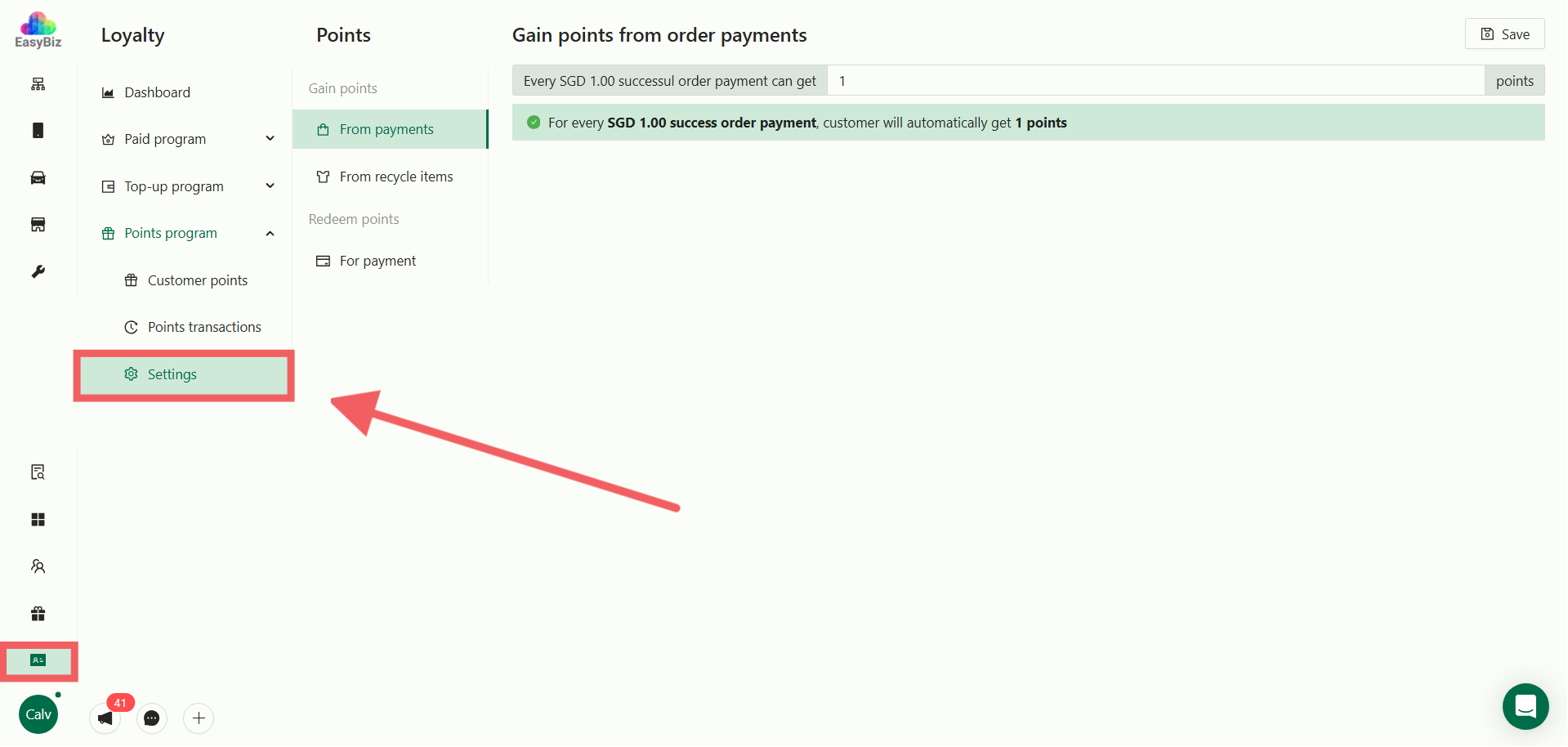
Navigate to Loyalty > Points Program on the left sidebar.
-
Select Settings.
Configure Earning Rules
On the Settings page, look for the specific configuration blocks:
A. Gain Points from Payments (Spending)
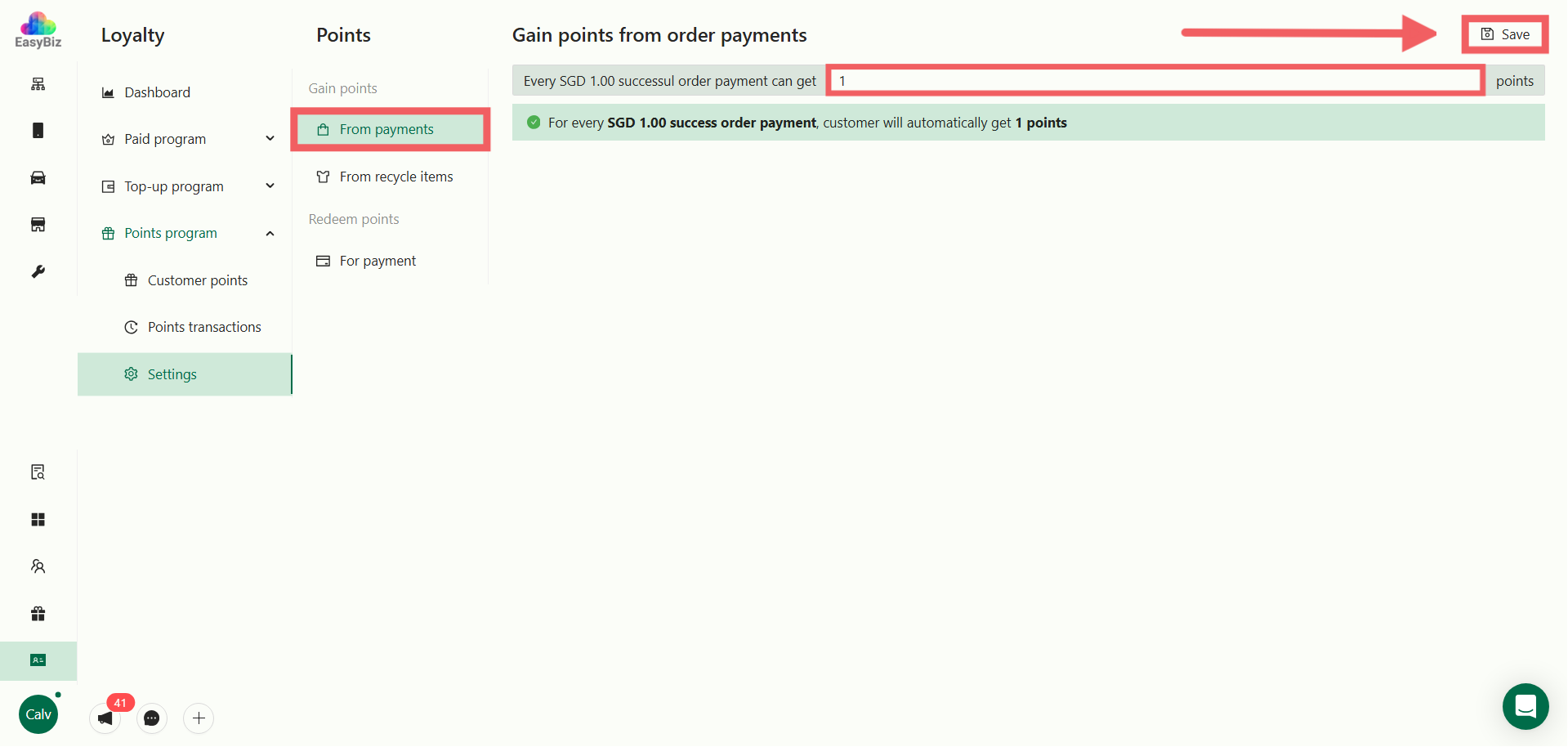
Locate the block labeled Gain points and find the From payments setting. This defines the base exchange rate for regular transactions.
-
Action: Enter the ratio in the text fields.
-
Rule: “Every SGD [X] successful order payment can get [Y] points.”
-
Example: Every SGD 1.00 gets 1 Point.
-
Click Save.
B. Gain Points from Recycle Items (Eco-Rewards)
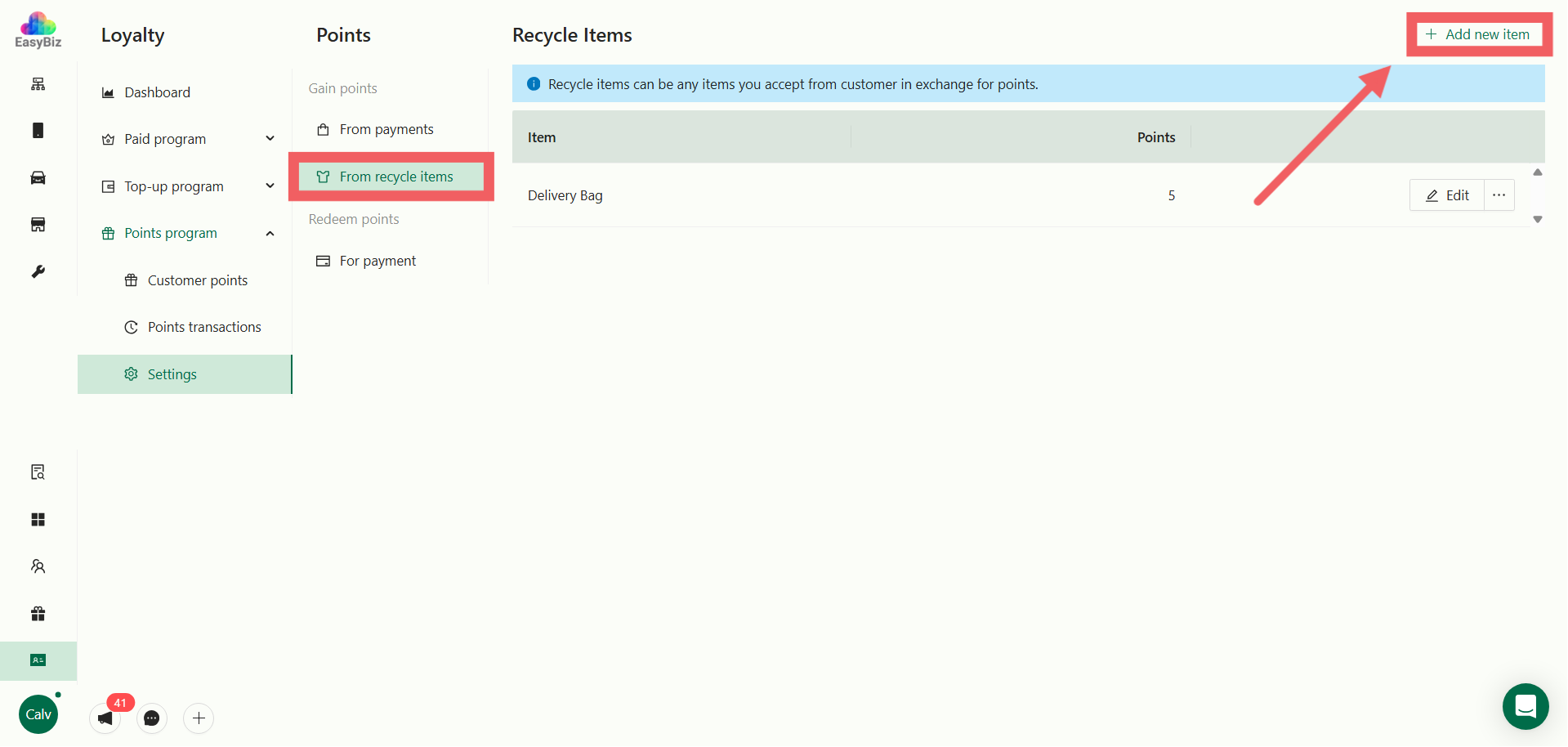
Locate the block labeled Gain points and find the From recycle items setting. This allows you to reward customers for returning reusable items (like hangers or bags).
-
Click the + Add Item button in this section.
-
In the pop-up window:
-
Item Name: Enter the item name (e.g., “Delivery Bag”).
-
Exchange Points: Set how many points one unit is worth (e.g., 1 unit = 5 Points).
- Click OK
Configure Redemption Rules (Redeem Points)
Scroll down to the section titled Redeem points. Look for the header “For payments”. This determines the monetary value of your points when a customer wants to use them to pay for an order.
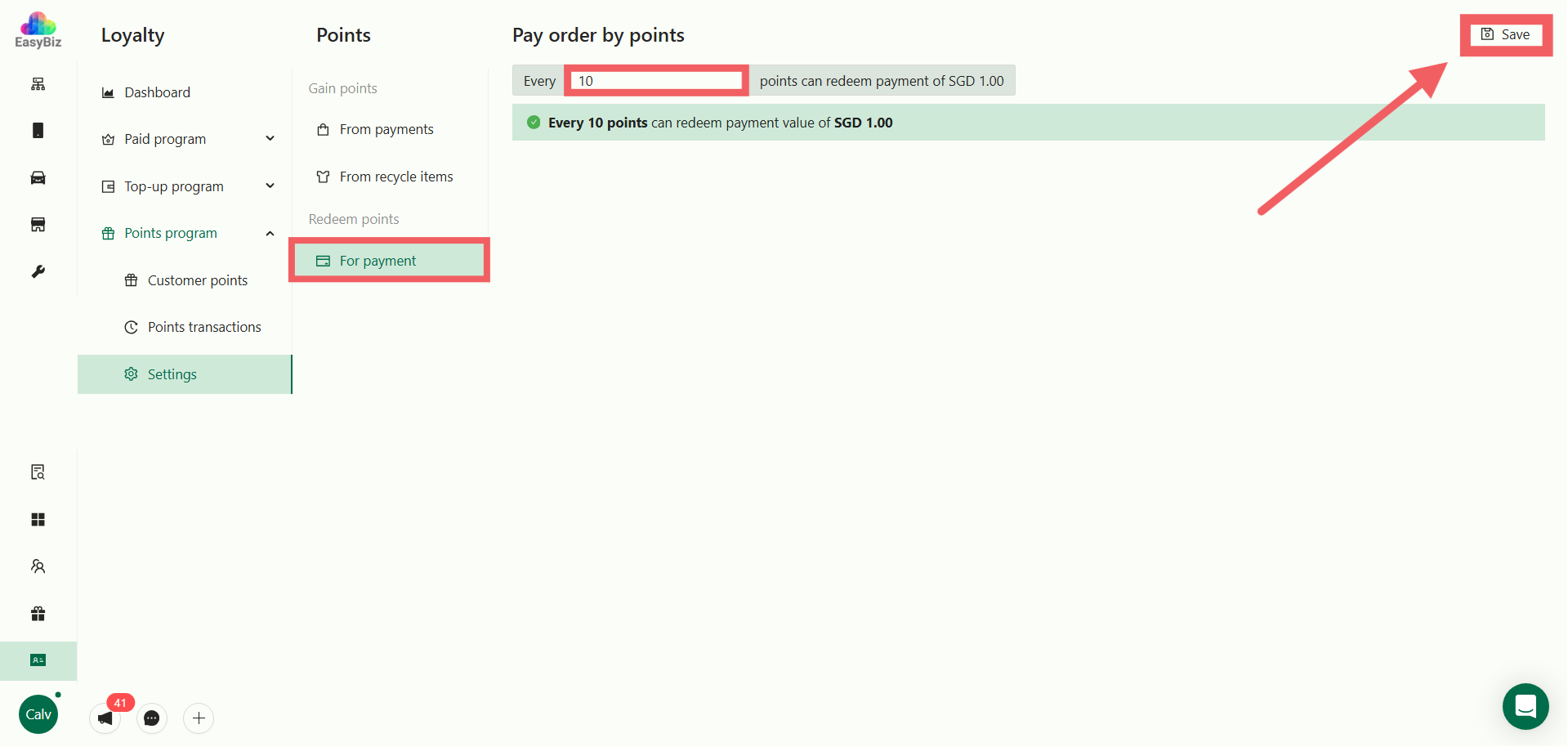
- Enter the redemption value.
-
Rule: “Every [X] points can redeem payment of SGD 1.00.”
-
Example: Every 100 points = SGD 1.00.
-
This means if a customer has 500 points, they can get a $5 discount.
- Click Save
Monitoring Customer Points
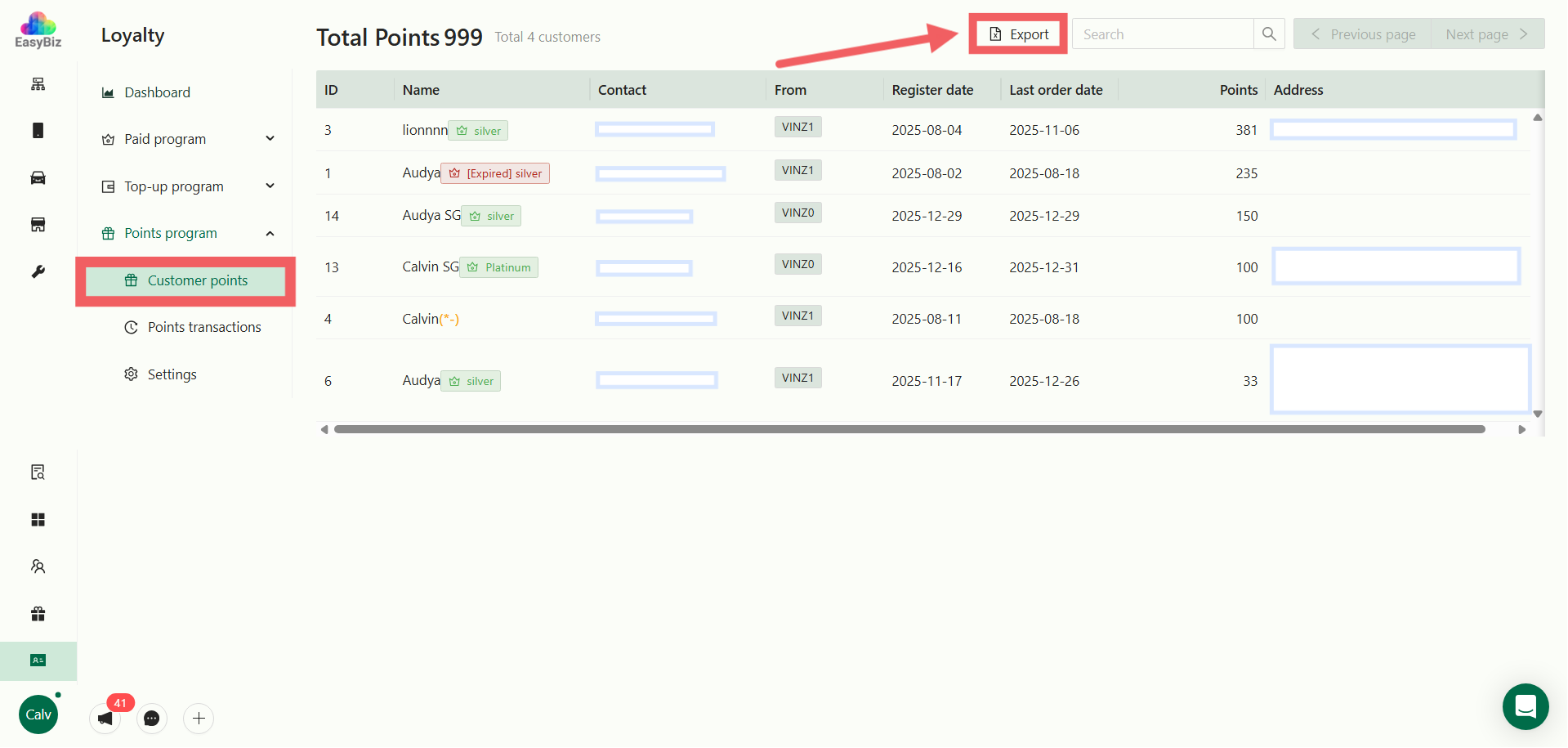
To view current point balances:
-
Click on Customer Points in the left sidebar.
-
The table displays key details including:
-
Points: The customer’s current available balance.
-
Last Order Date: Useful to identify inactive customers with high point balances.
- Export: Click Export to download the data. You can filter by Store, Register Date, or Last Order Date.
Tracking Point Transactions
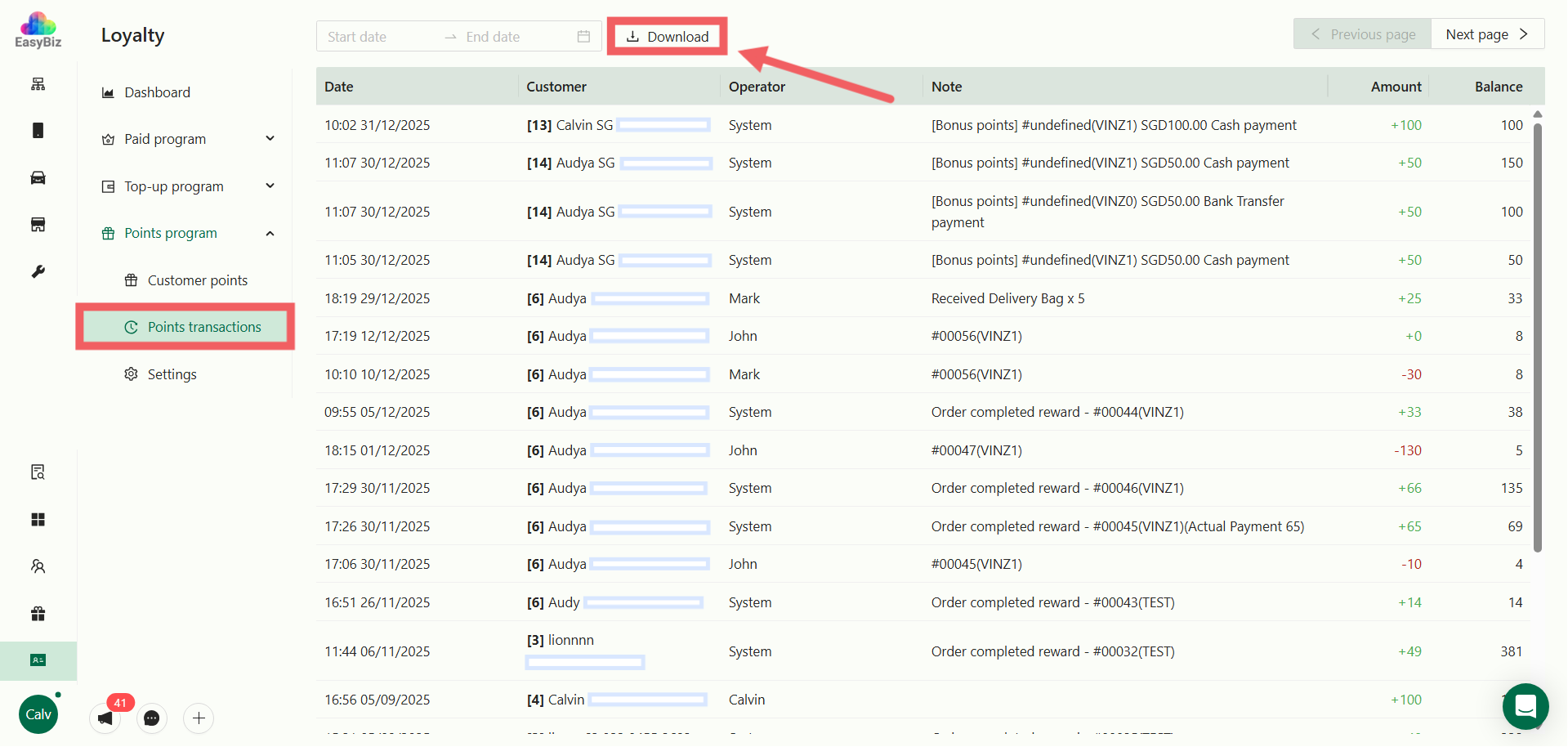
To audit how points are being earned or spent:
-
Click on Point Transactions in the left sidebar.
-
This log tracks every change, showing:
-
Amount: The number of points added (+) or deducted (-).
-
Balance: The remaining points after the transaction.
-
Note: Context for the transaction (e.g., “Order #12345” or “Recycled Bag”).
- Click Download to generate a full report.
Managing Points & Recycling on POS
Your staff can manage points directly from the POS interface without accessing the backend console.
A. Checking Points History
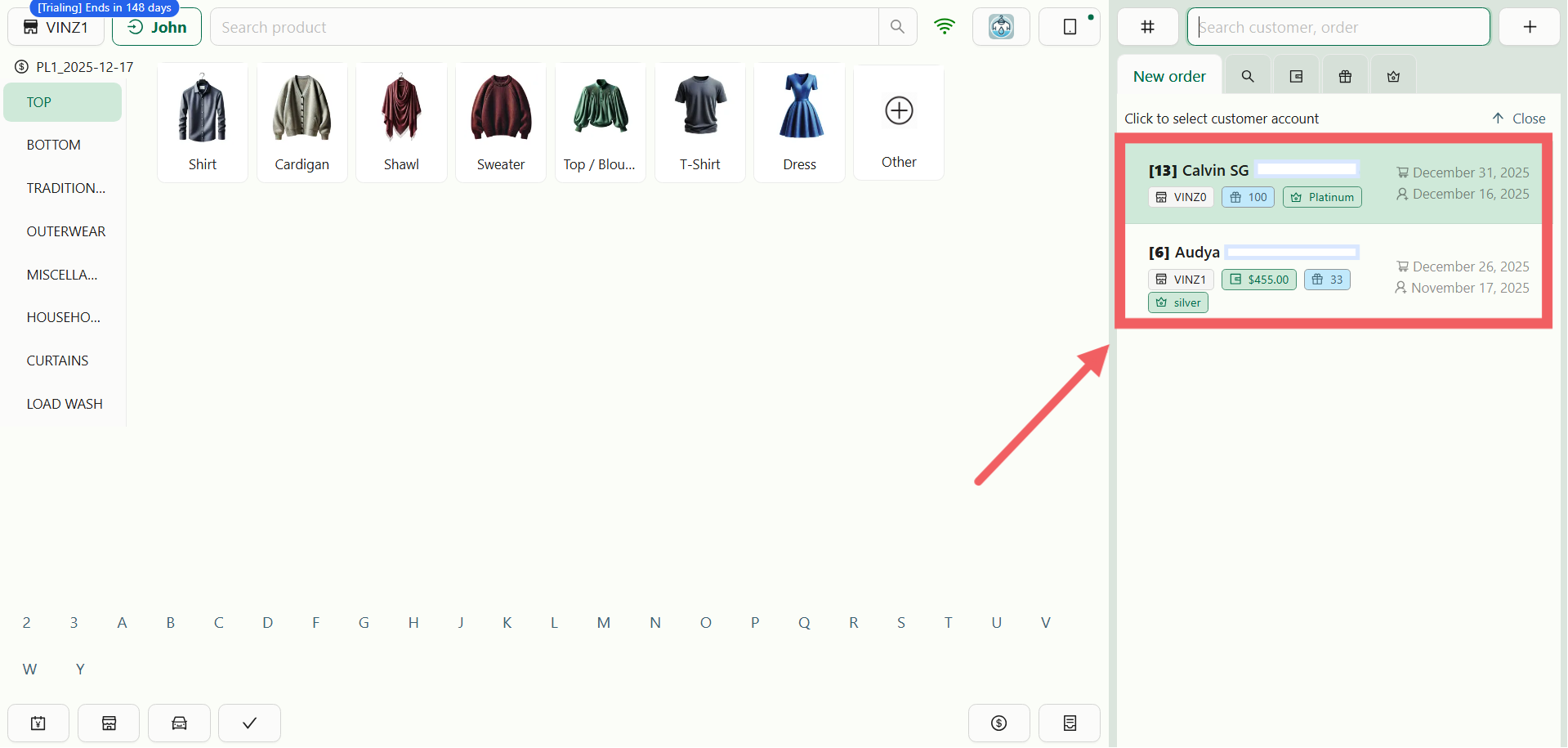
- Add a customer to the order.
-
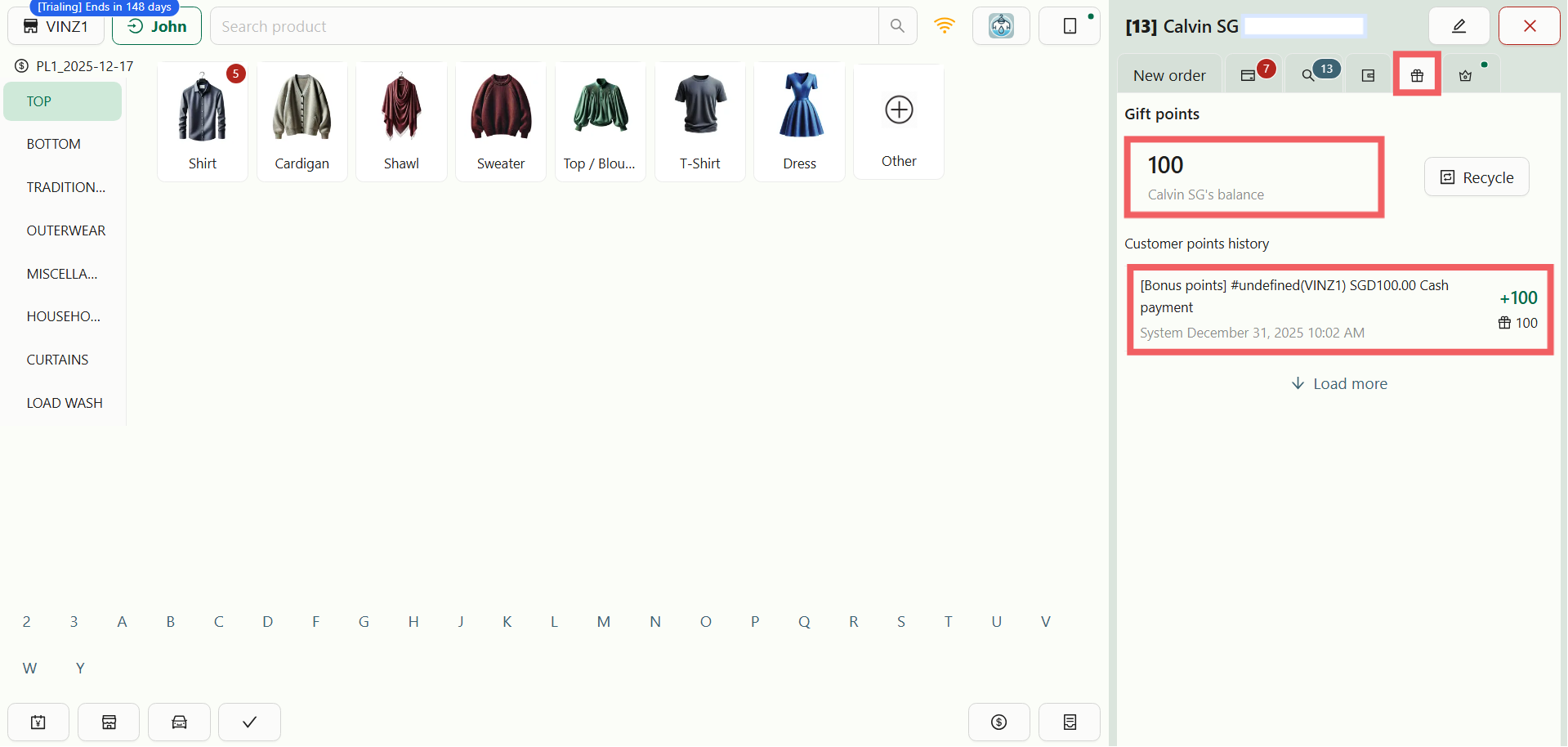
Click the Gift Icon (Rewards) located next to the Wallet icon.
-
From here, you can view the customer’s total points past transactions.
B. Processing Recycle Items (Eco-Rewards)
If a customer brings back reusable items (like hangers or bags) to exchange for points:
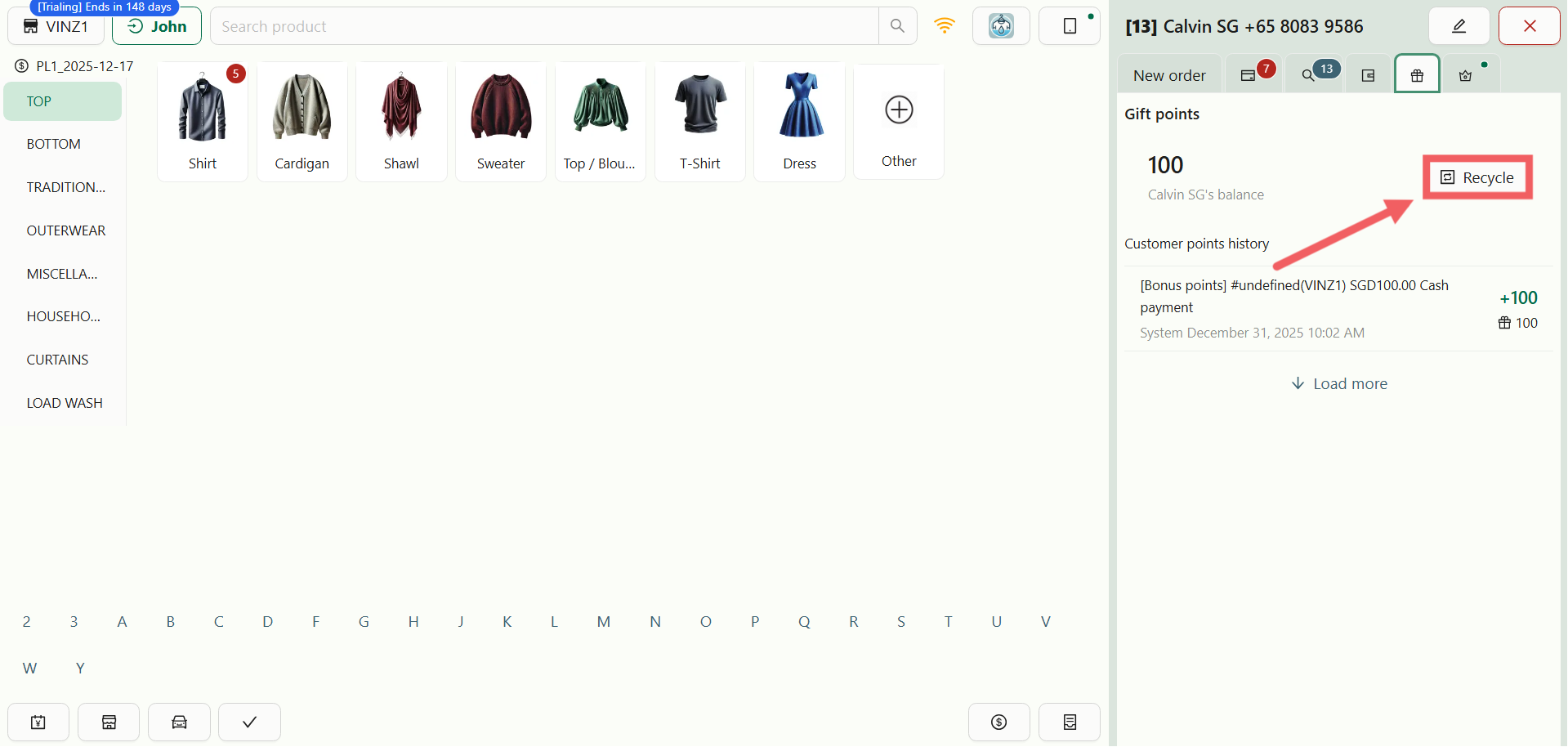
- Inside the Gift menu, click the Recycle button.
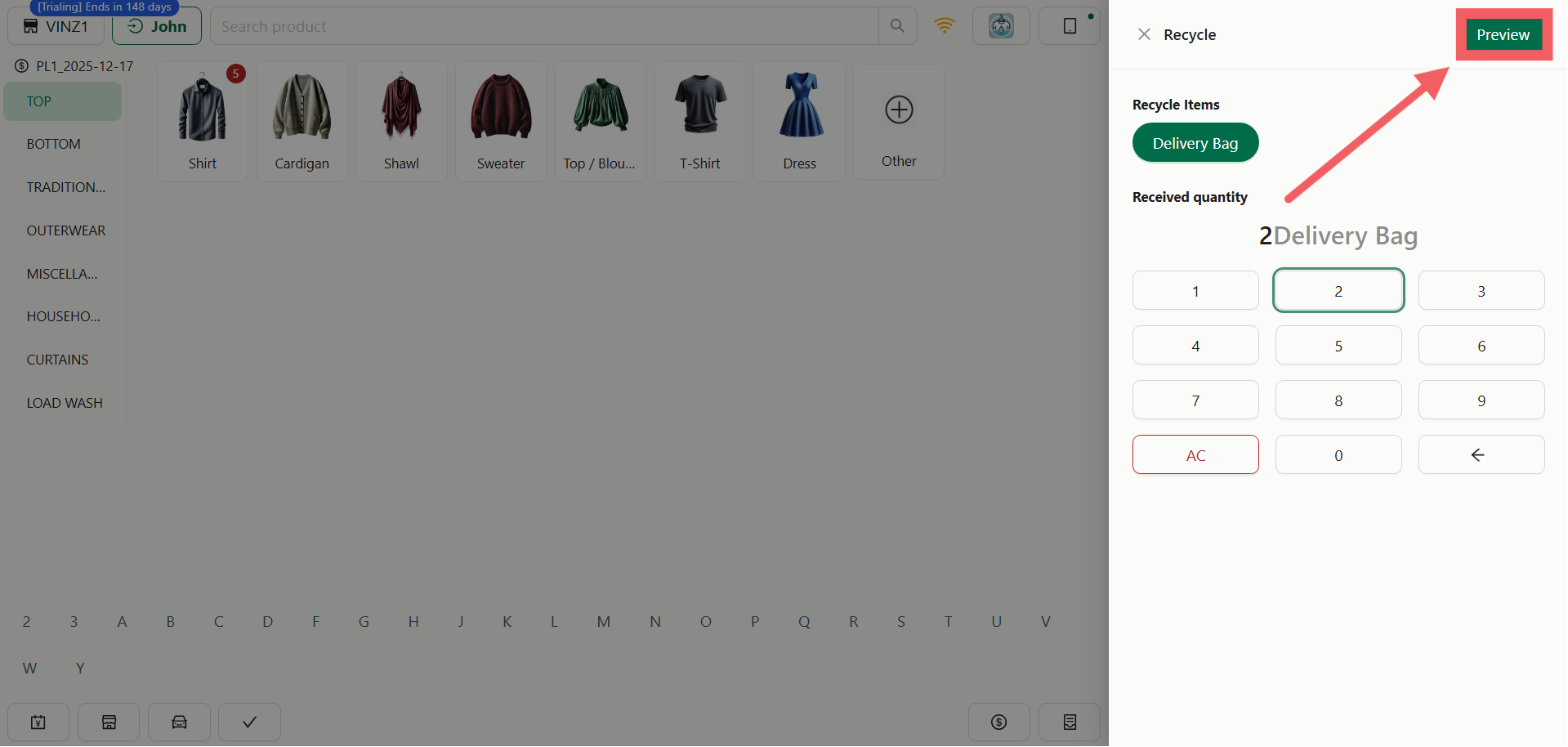
2. Select Item: Choose the item type (e.g., Delivery Bag) and enter the Quantity.
- Click Preview to see the total points to be awarded.
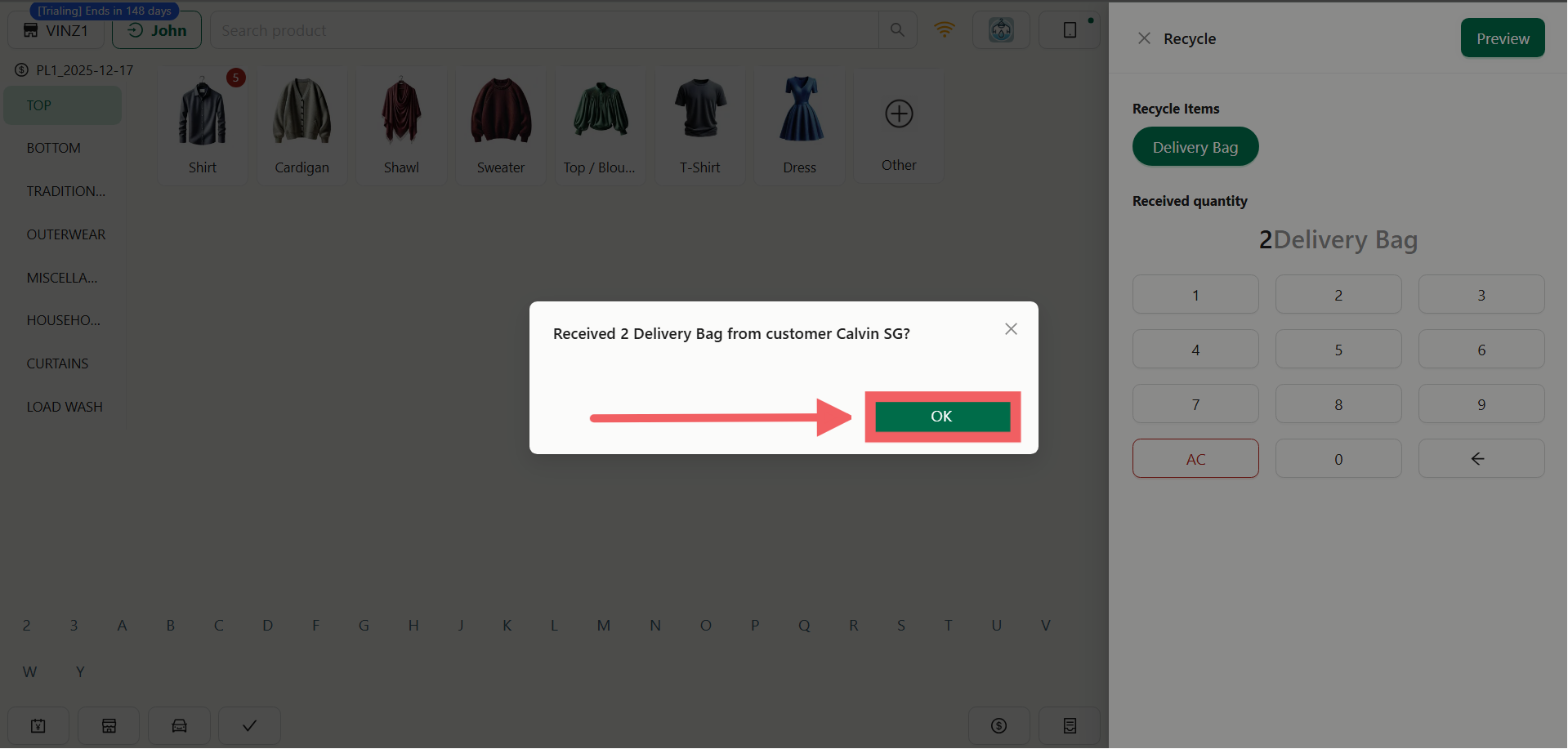
- A confirmation pop-up will appear showing the summary. Click OK to proceed.
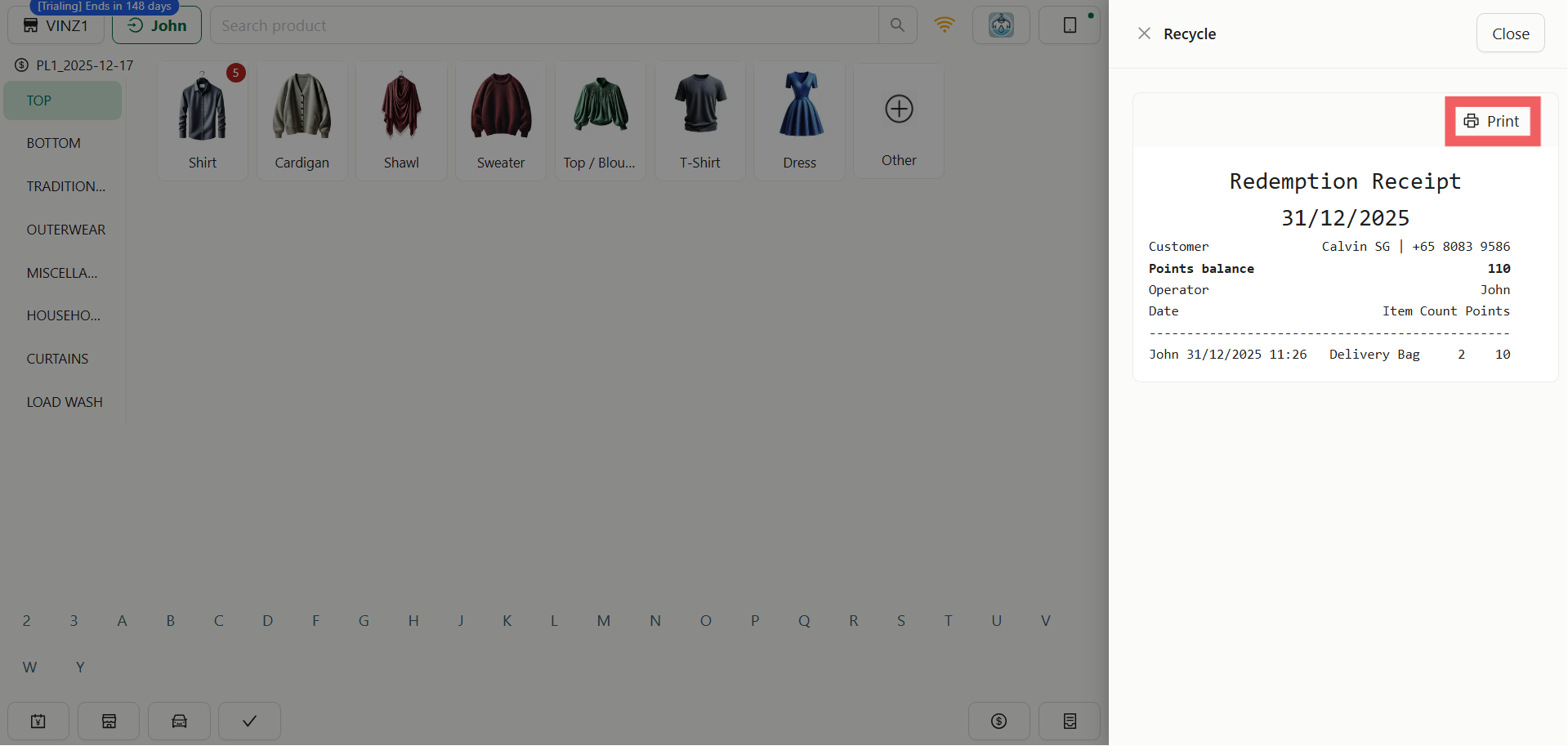
5. Redemption Report: The system will generate a Redemption Report (Receipt) which can be printed for the customer as proof of the transaction.