
Your shop is live and taking real sales, or safely back in training, and you know exactly what each change does to your bill.
Before You Start
- Add the shop first. Every new shop starts in training. See Adding a Shop and Practising in Training Mode.
- You need a current trial or subscription.
- To take a shop live, you need billing access, for example as the account owner. To move a shop back to training, you need access to POS settings.
If you set this up before: on older billing, Add Shop added a new shop to your subscription and it went live at once. On current billing, every new shop starts in training, and Take location live is the step that adds it to your subscription.
Overview
Every shop is either Live or in Training. A live shop takes real sales: orders collect payment, use your real order numbers and appear in your sales. A shop in training takes practice orders only, so your staff can learn without touching your books. Taking a shop live is also the moment it joins your subscription and is billed. You can move a live shop back to training at any time, for example during a renovation, and return it to live later at no extra charge.
Where it works
- Console: you change the shop's status on the Shops tab or from Billing.
- POS: the shop's POS devices switch over on their own. Staff see the Training mode active banner appear or disappear, and nobody needs to sign in again.
- Customers: get payment requests, notifications and valid receipts only from a live shop's orders.
Why it matters
Taking a shop live on the right day keeps your records clean. Every order your staff practised before opening stays out of your sales, and the first real order starts your proper running number.
If you never take a new shop live, every order stays a practice order. No payment is collected, customers get no messages and the shop's sales stay empty.
Moving a live shop back to training is useful when it should stop taking real sales for a while. It does not stop the bill for that shop.
Taking a shop live
You can start from the shop's card on the Shops tab or from Billing. Both lead to the same result.
From the Shops tab
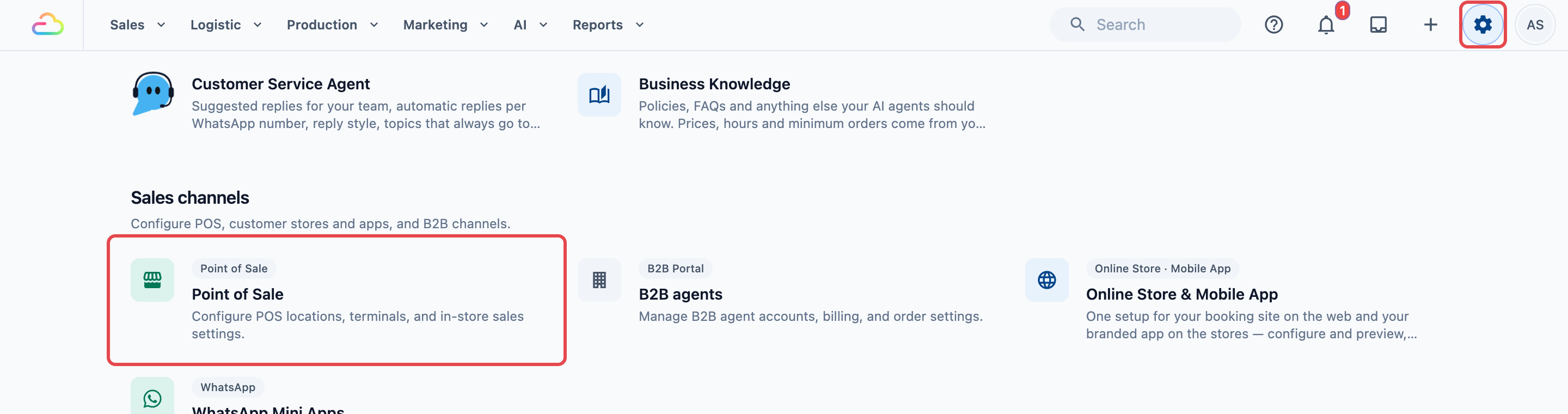
- Click the ⚙️ Settings icon in the top-right corner.
- Under the Sales channels section, click Point of Sale.
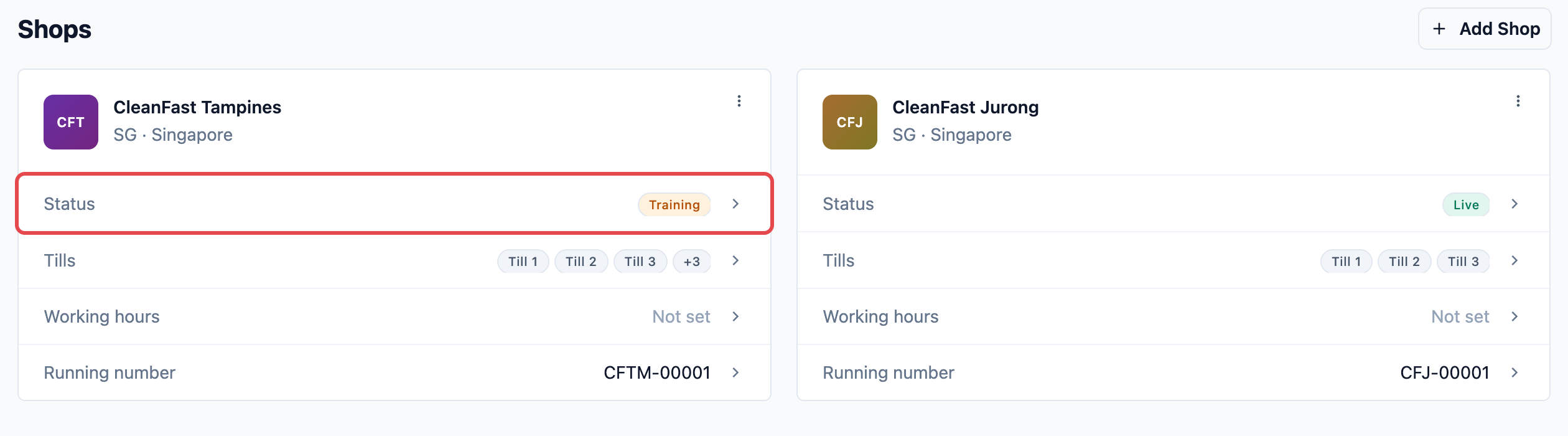
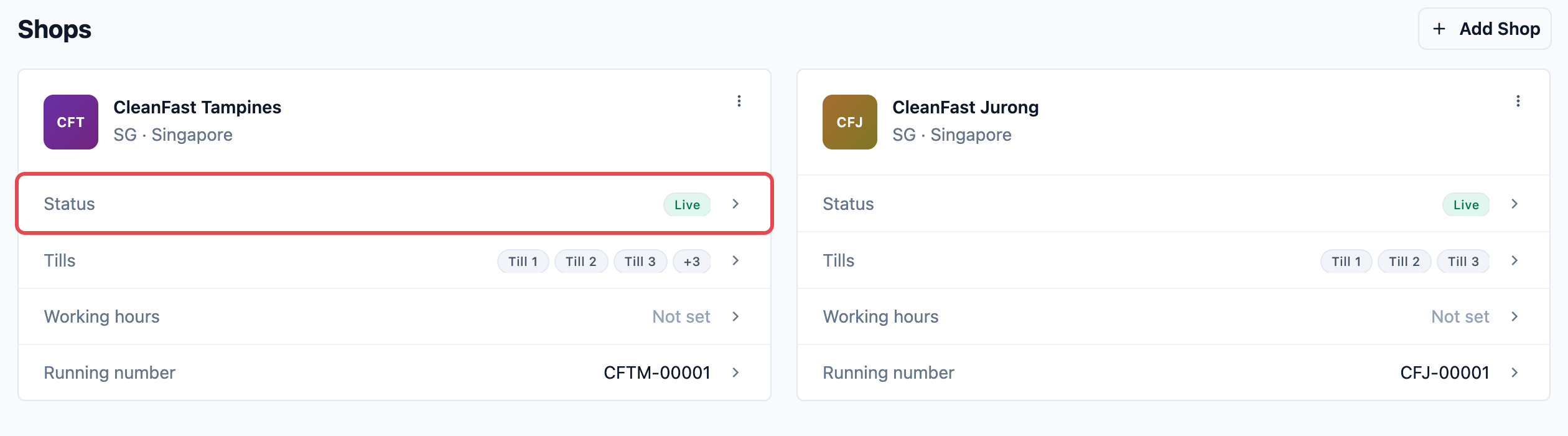
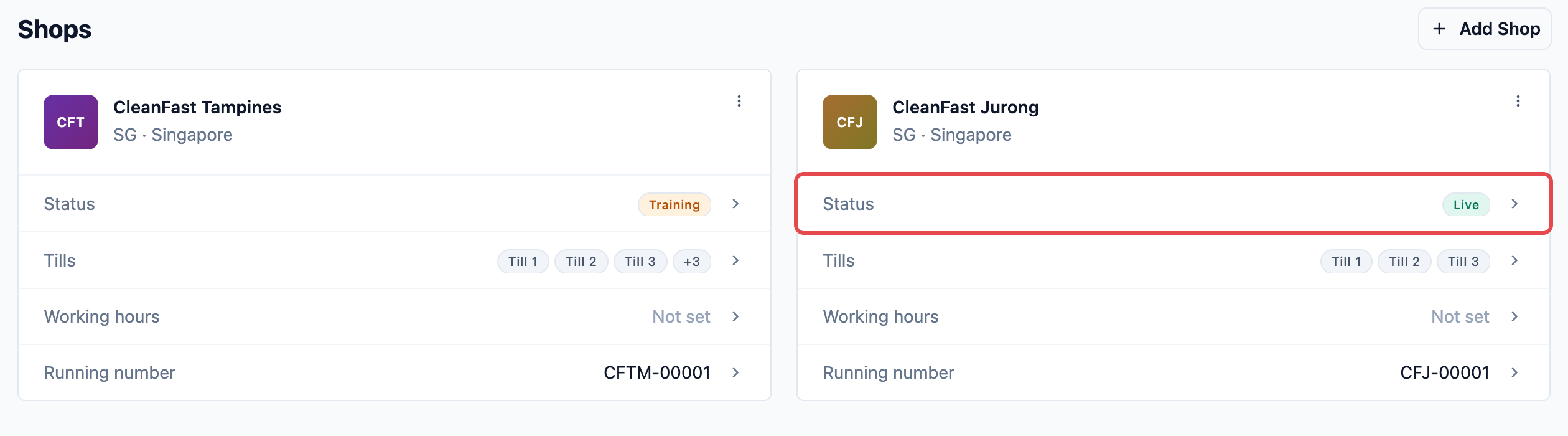
- On the Shops tab, find the shop and click its Status row. It shows Training.
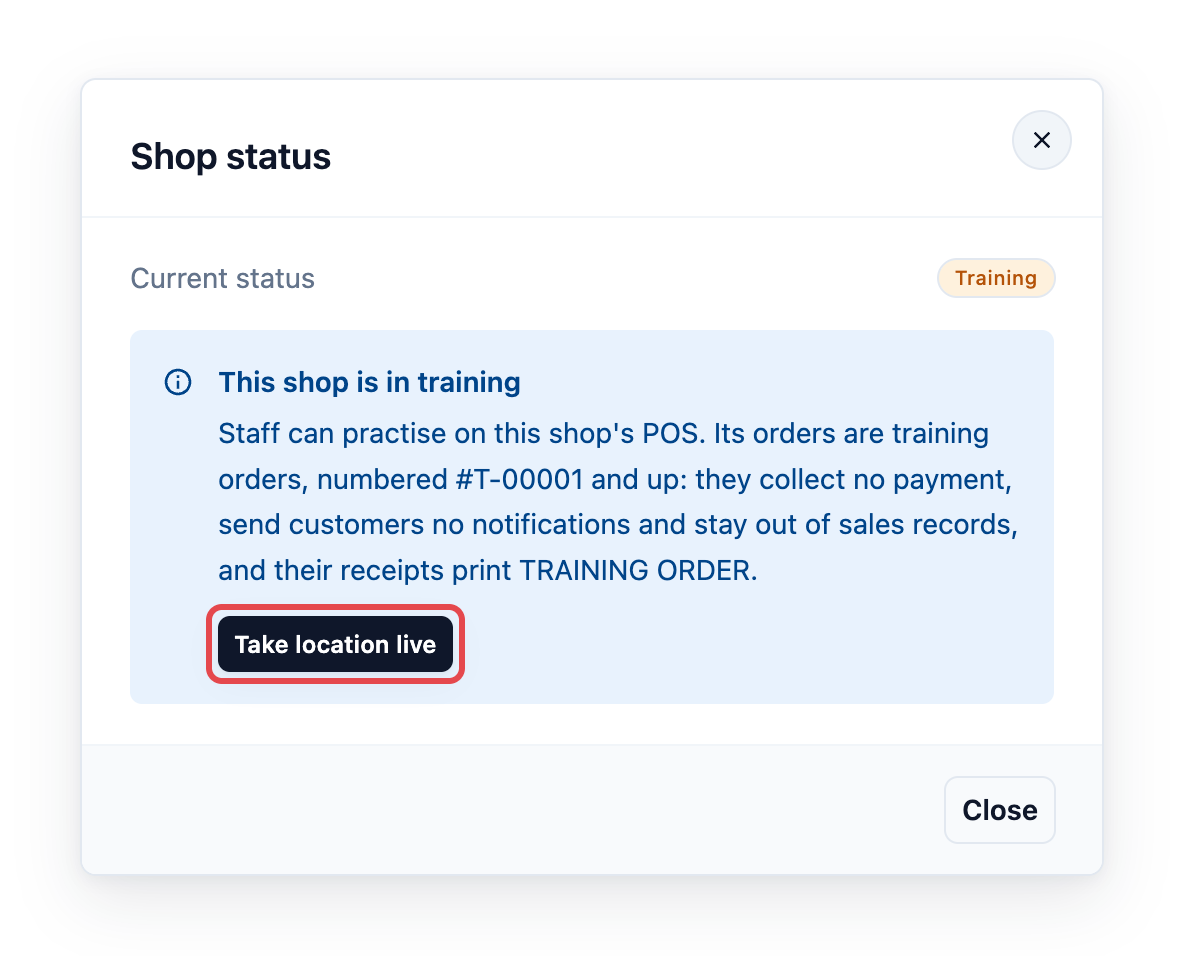
The Shop status dialog opens. It shows Current status Training and the note This shop is in training.
- Click Take location live.
What happens next depends on the shop:
- A new shop that has never been live: the Take POS location live page opens with the shop already chosen. Finish on that page, as below.
- A shop you moved to training before: it goes live straight away, without the billing page. You see Location is live and ready for sales, and its Status row shows Live.
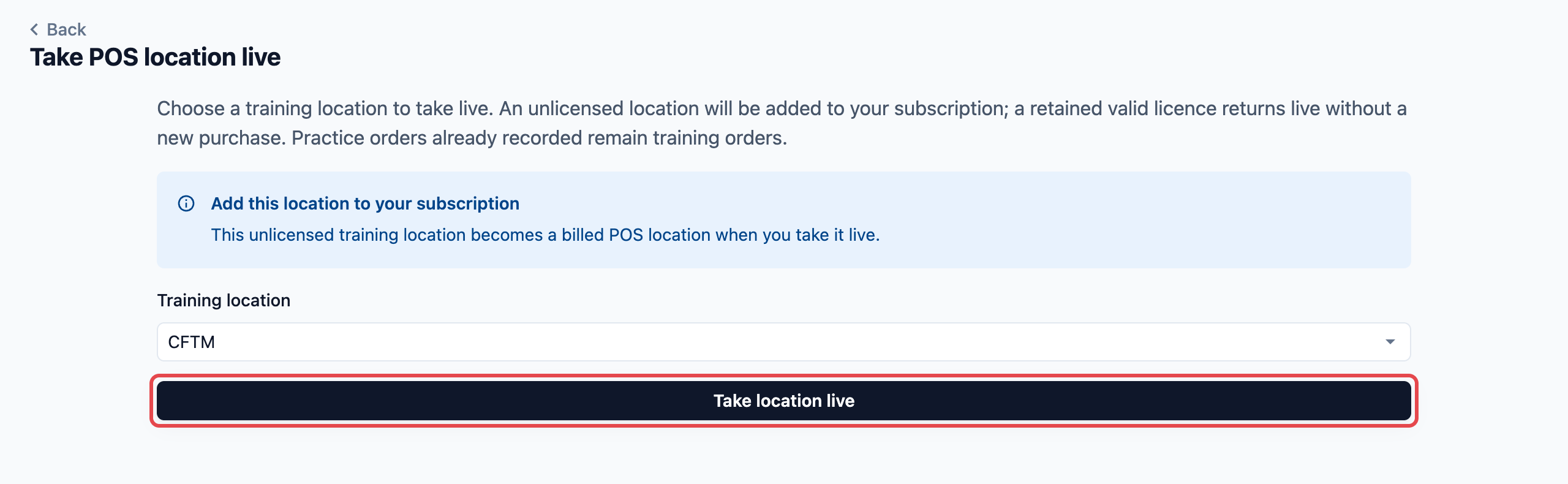
For a new shop, on the Take POS location live page:
- Check that Training location shows the right shop.
- Read the notice Add this location to your subscription: "This unlicensed training location becomes a billed POS location when you take it live."
- Click Take location live.
You see Location is live and ready for sales and return to the Shops tab. The shop's Status row now shows Live.
From Billing
Use this when you are already on the Billing page, or to see all your training shops in one list.
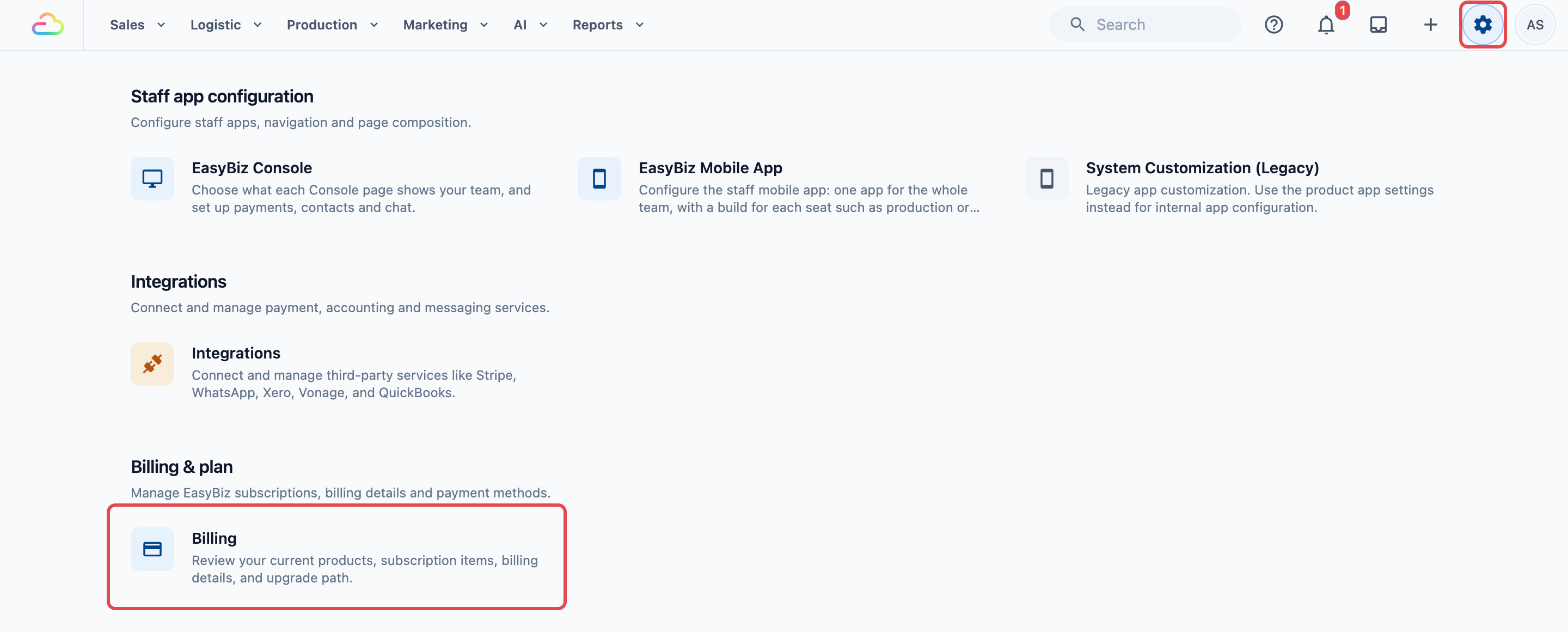
- Click the ⚙️ Settings icon in the top-right corner.
- Under the Billing & plan section, click Billing.
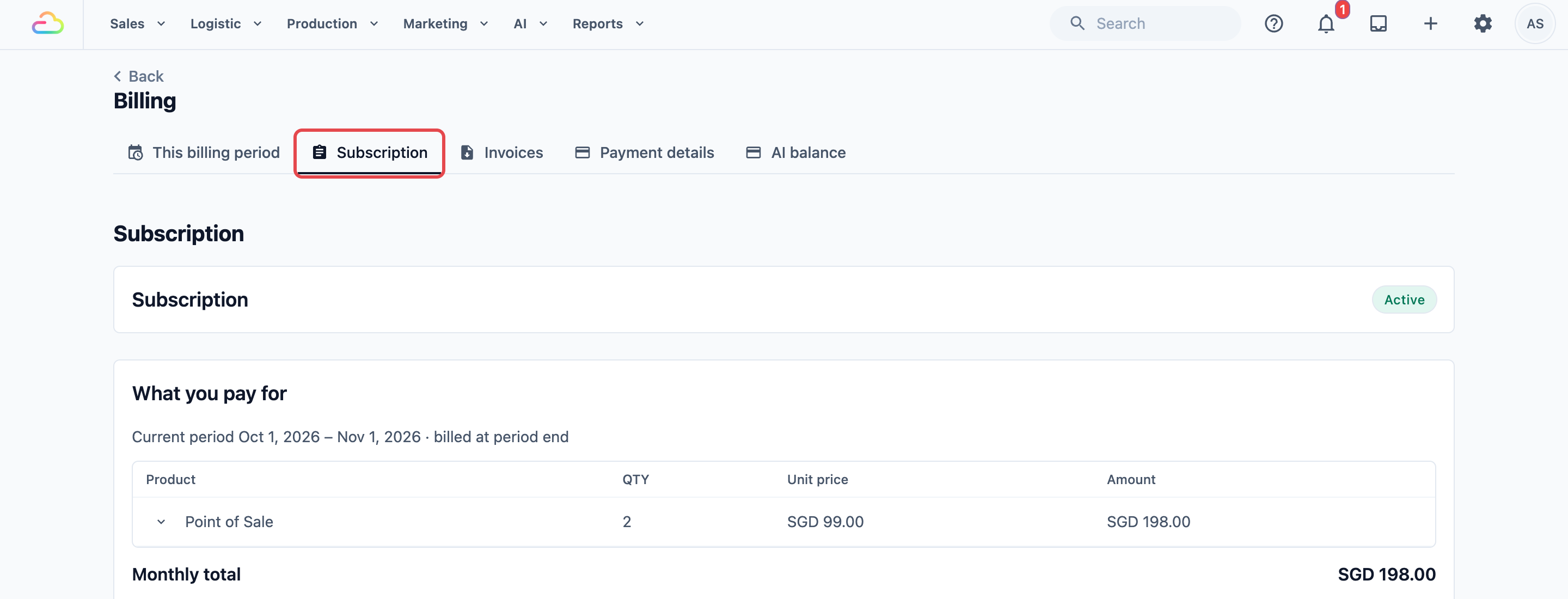
- Click the Subscription tab.
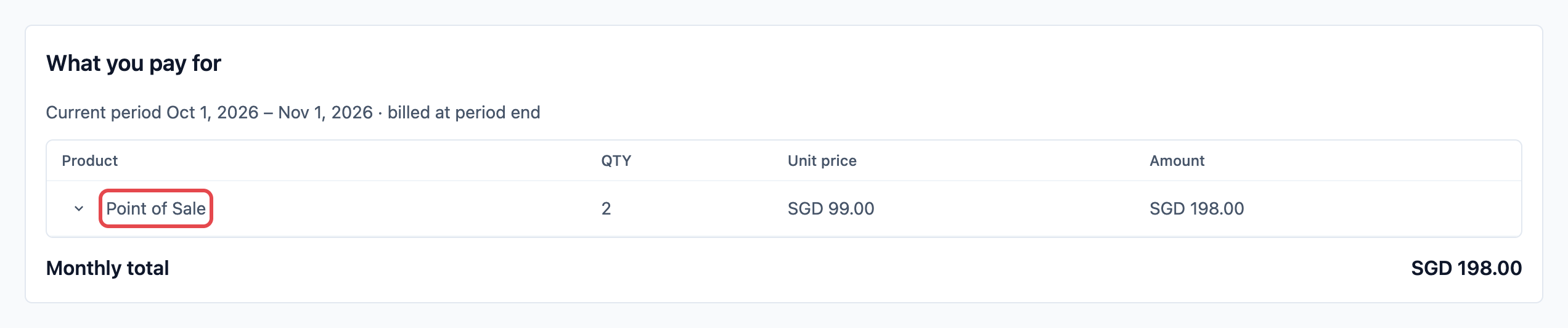
- Under What you pay for, click Point of Sale.
- Click Add location.
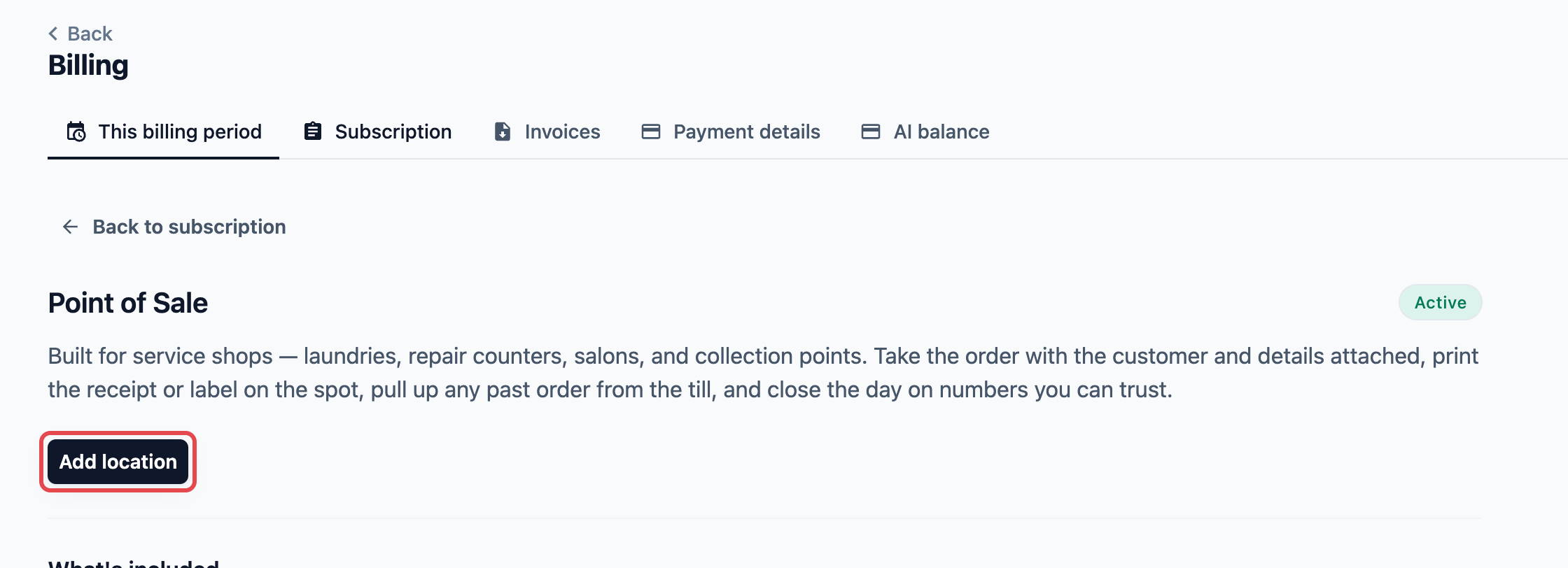
The Take POS location live page opens.
- In Training location, choose the shop. If you have only one shop in training, it is already chosen.
- Check the notice under it, then click Take location live.
The notice you see
| Notice | What it means |
|---|---|
| Add this location to your subscription | The shop has never been live. It is added to your subscription and billed from now on. |
| Return to live sales at no extra charge | The shop was live before and you moved it to training. It still has its place in your subscription, so nothing new is added. |
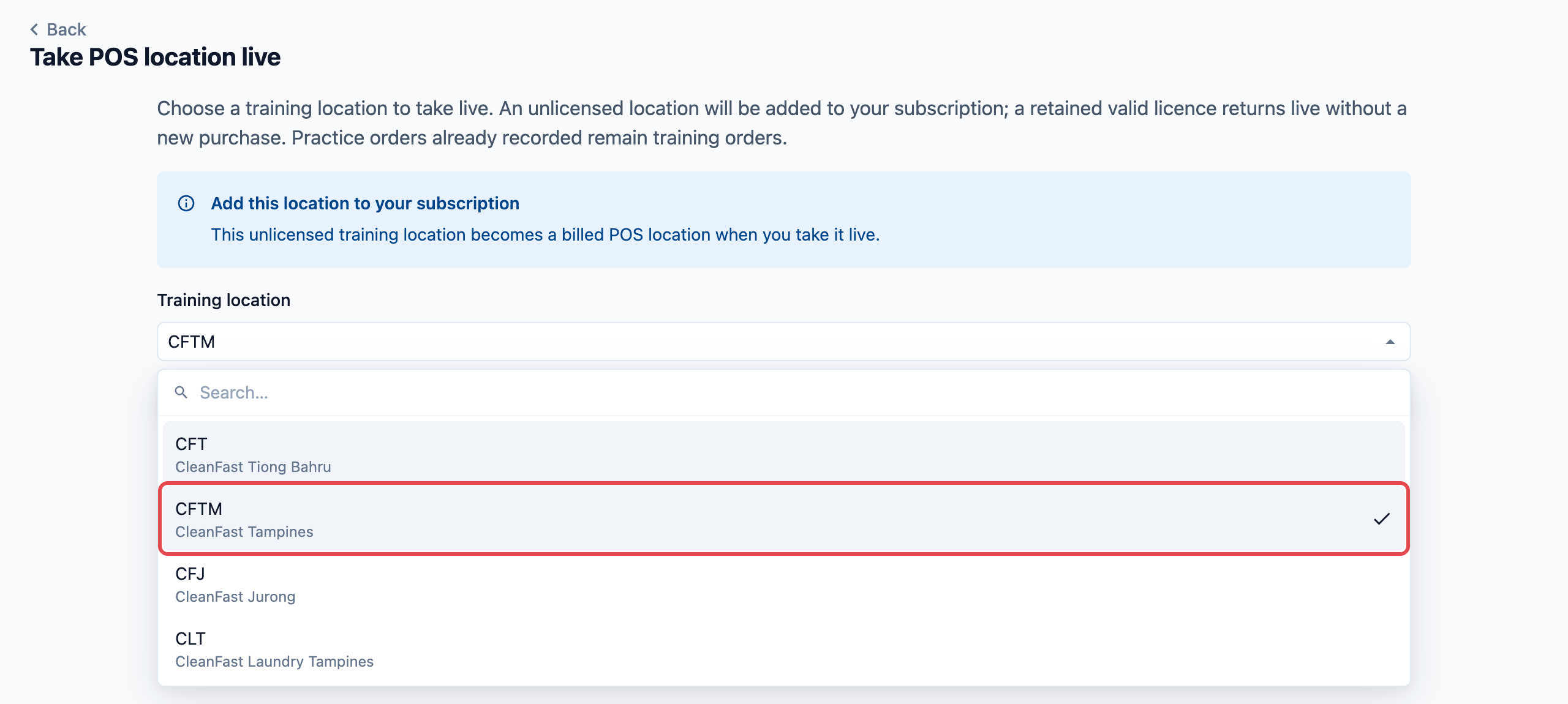
Other messages on this page
| Message | What to do |
|---|---|
| Billing access required | "A billing admin can take a training location live." Ask your account owner or a teammate with billing access. |
| An active trial or subscription is required | Start or restore your subscription, then come back to this page. |
| No training locations to take live | All your open shops are already live. Add a shop first if you need a new one. |
What changes when a shop goes live
- New orders are real orders. They collect payment, use the shop's running number (for example CFT-00001) and appear in your sales and reports.
- Customers get their usual receipts and notifications.
- Practice orders taken before stay training orders. They stay out of your sales and cannot be turned into real orders.
- The shop's POS devices switch to live on their own and the Training mode active banner disappears. Staff don't need to sign in again.
Moving a live shop back to training
Use this only when the whole shop should stop taking real sales for a while, such as during a renovation or a full team refresher. To let one staff member practise on one device, use that device's Training mode switch instead, as explained in Adding a Shop and Practising in Training Mode.
- Click the ⚙️ Settings icon in the top-right corner.
- Under the Sales channels section, click Point of Sale.
- On the Shops tab, click the shop's Status row. It shows Live.
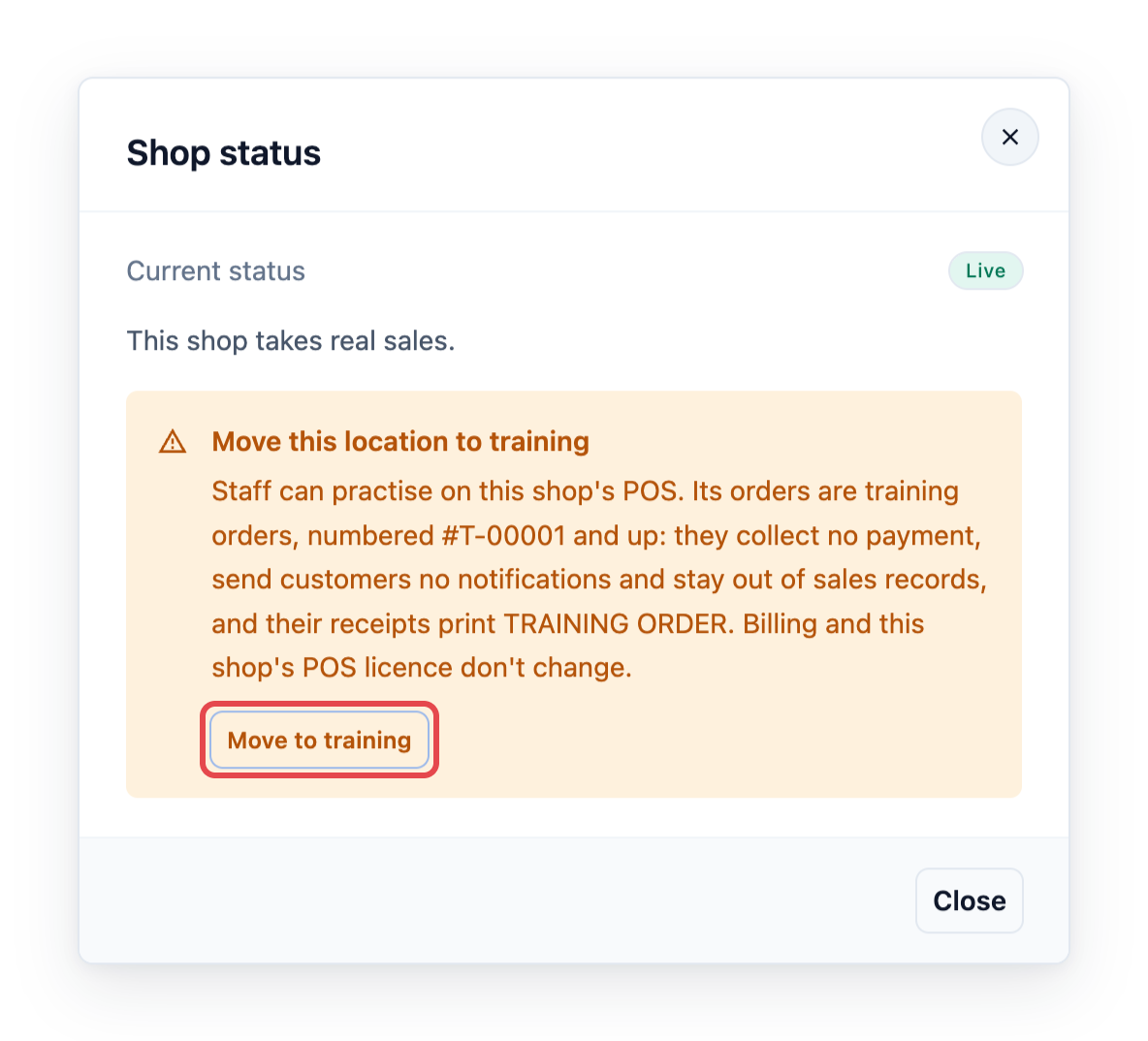
The Shop status dialog shows "This shop takes real sales." and a section called Move this location to training, which explains what training means and that "Billing and this shop's POS licence don't change."
- Click Move to training.
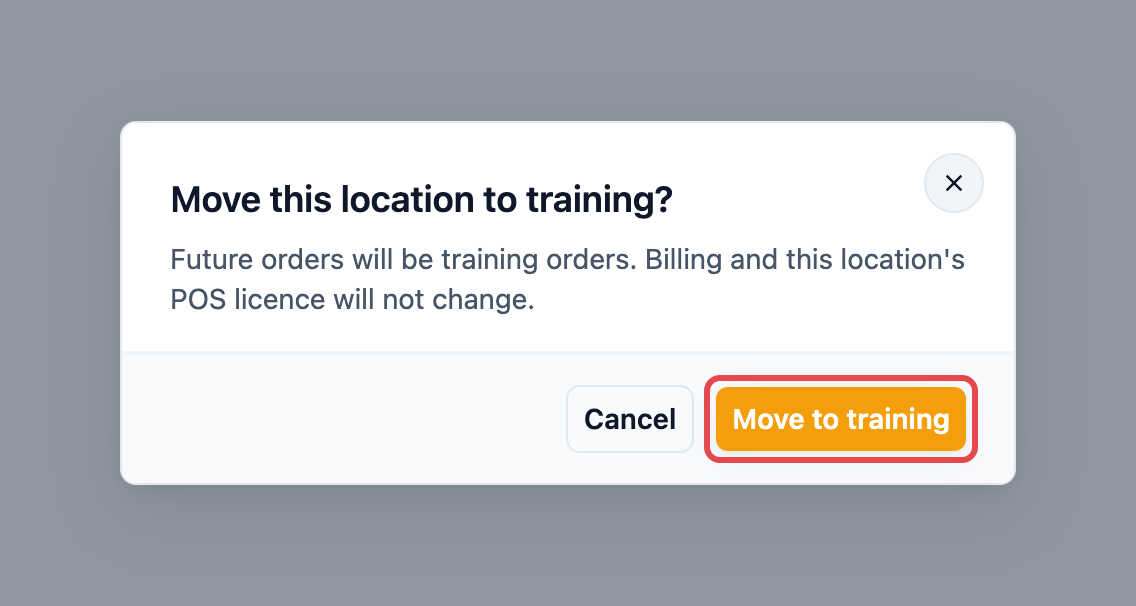
A confirmation opens: Move this location to training? "Future orders will be training orders. Billing and this location's POS licence will not change."
- Click Move to training to confirm, or Cancel to keep the shop live.
You see Location moved to training mode, and the shop's Status row shows Training.
What changes:
- From now on, the shop's orders are training orders, numbered #T-00001 and up. They collect no payment, send customers nothing and stay out of your sales.
- Real orders taken before stay exactly as they are.
- The shop's POS devices switch to training on their own. The Training mode switch on each device is on and locked, with the note "This location is set to training mode in EasyBiz Console and cannot take live sales."
- Your bill does not change. The shop keeps its POS licence, which is its paid place in your subscription.
If you don't see Move to training, you need access to POS settings. Ask your account owner.
Returning the shop to live
When the shop is ready again, click its Status row, then Take location live. The shop goes live straight away, at no extra charge, because it kept its licence. This needs billing access.
How billing works
- A shop is billed while its POS licence is active, whether or not it takes orders. A shop that has never been live has no licence and is not billed.
- Standard POS is S$99 per shop a month. Professional POS is S$149 per shop a month.
- All your shops run on the same plan. Your first shop starts on Standard, and each new shop joins the plan your other shops are on. Upgrading to Professional moves every shop to the new price.
- During your free trial, nothing is charged. Billing shows what your subscription will cost when the trial ends.
Example setup
CleanFast Laundry runs a live shop in Jurong on Standard POS and opens a second branch in Tampines.
- The owner adds CleanFast Tampines. It starts in training, and for a week staff practise laundry and bag repair orders, numbered #T-00001, #T-00002 and so on.
- On opening day, the owner clicks the Tampines Status row, then Take location live. The page shows Add this location to your subscription. After a second click, the first real order is CFT-00001.
- Two months later, Jurong closes for a two-week renovation. The shop manager, who has access to POS settings, moves Jurong to training so staff can practise new services without creating real orders.
- When Jurong reopens, the owner clicks its Status row, then Take location live. It goes live at once, with nothing new added to the subscription.
CleanFast's monthly POS bill throughout:
- CleanFast Jurong, Standard: S$99
- CleanFast Tampines, Standard: S$99
- Total: 2 × S$99 = S$198 a month
The bill stays S$198 while Jurong is in training, and stays S$198 after it returns to live. If CleanFast later upgrades to Professional, both shops are repriced: 2 × S$149 = S$298 a month.
FAQs
Does Move to training stop my bill?
No. A shop in training keeps its POS licence and is still billed. To stop paying for a shop, close it instead.
Do practice orders become real sales when I take the shop live?
No. Orders taken in training stay training orders and never appear in your sales. Real sales start with the first order after the shop goes live.
Why don't I see Take location live?
Taking a shop live adds it to your bill, so only someone with billing access sees the button, such as the account owner. Ask them to take the shop live, or to give you billing access.
Do I pay again when I return a shop to live?
No. A shop you moved to training kept its licence, so it goes back to live at no extra charge.
Will customers get messages from training orders?
No. Training orders send no WhatsApp or email notifications and collect no payment. Their receipts print TRAINING ORDER and are not valid tax invoices.
Do the POS devices need to sign in again?
No. Devices already signed in to the shop switch between training and live on their own. Staff keep working on the same device.
Can I take a shop live during my free trial?
Yes. The shop is added to your subscription, but nothing is charged during the trial. Billing shows what you will pay once the trial ends.
What's Next
Your shop is live and taking real sales, and you know how to move it back to training when you need to. Next, make sure each counter device is signed in to the right shop in Signing In, Switching and Signing Out a POS Device.
Devices you signed in while practising stay signed in after the shop goes live. If yours are already signed in, go straight to Creating Your POS App and Using the Editor.