
Before you start
You need:
- Articles 1 and 2 of this series. Getting Started with the Design Agent shows where the Design Agent is and how to send a request. Creating and Editing Your Website shows how to check a draft and change words yourself.
- The promotion or service you want to promote. What it is, the price or discount, who it is for and when it ends.
- What customers should do next. For example, WhatsApp you, call you or book in your Online Store. If they will book, have your Online Store's web address ready.
- A few photos, if you have them. They are optional, and you can add up to 4 with each message.
What a landing page is
A landing page is a single web page with one job. It talks about one thing, such as one promotion, one new service or one ad, and it has one main button. Customers "land" on it when they tap your ad, scan a QR code or open a link in a WhatsApp message.
How it differs from a website:
- A website has several pages about your whole business: all your services, your outlets, your opening hours and your contact details. Customers browse it.
- A landing page has only one page, about one offer. There's nothing else to click around, so customers read the offer and press the button.
- A website can move to your own domain. A domain is a web address you own, such as cleanfast.com.sg. A landing page always uses a free EasyBiz address that starts with pages.easybizcloud.app.
Why use one
- One clear message. Customers who tap your ad see the offer they tapped on, not your whole price list. More of them message you or book.
- Your website stays as it is. You don't have to rewrite your home page for every promotion and change it back afterwards.
- Quick to make. One page takes less time to build than a whole website.
If you skip it, your ad sends people to your home page or your Facebook page, where they have to hunt for the offer. Many give up before they find it, and you still pay for their ad click.
When to use one
- A promotion with an end date. A festive discount, a school holiday deal or a first-order offer.
- A new service. For example, curtain cleaning, shoe cleaning or bag colour touch-up.
- An ad campaign. A Facebook, Instagram or Google ad that needs a page to send people to.
- A new outlet or an event. An opening day offer at your new branch.
Make one landing page for each offer. If you run two promotions, make two landing pages, so each ad leads straight to its own offer.
Create a landing page
Your request to the Design Agent is also called a prompt. A prompt is simply the instruction you type, written the way you'd brief a designer on WhatsApp.
- In the Console menu, click AI.
- Click Design Agent.
- Click the message box under What should we make? and describe your page. Start with "Make one page for…" so the Design Agent knows you want a landing page.
- To add photos, click the picture button under the box and choose up to 4 photos.
- Click Send.
- If the Design Agent asks What would you like to create?, click One page.
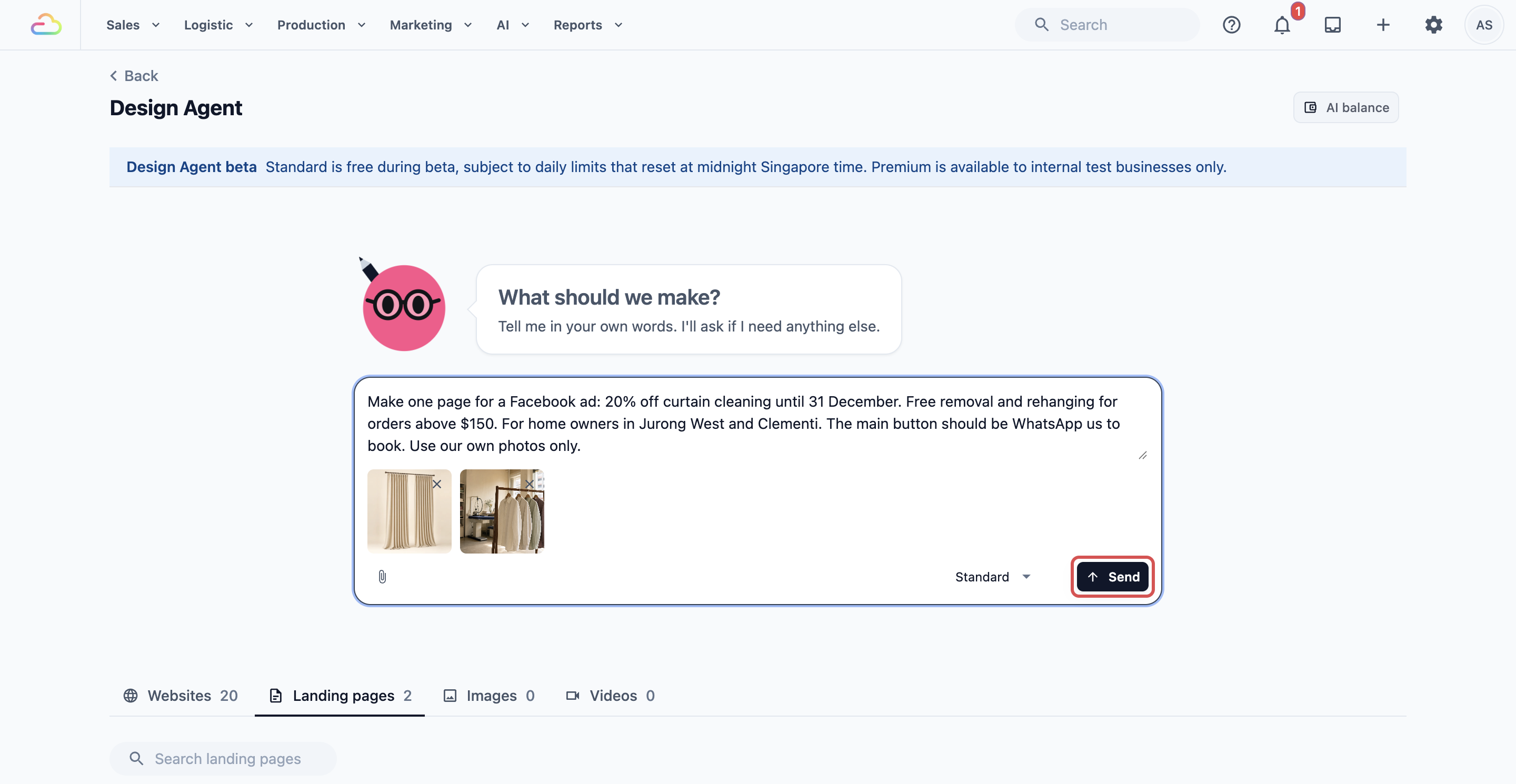
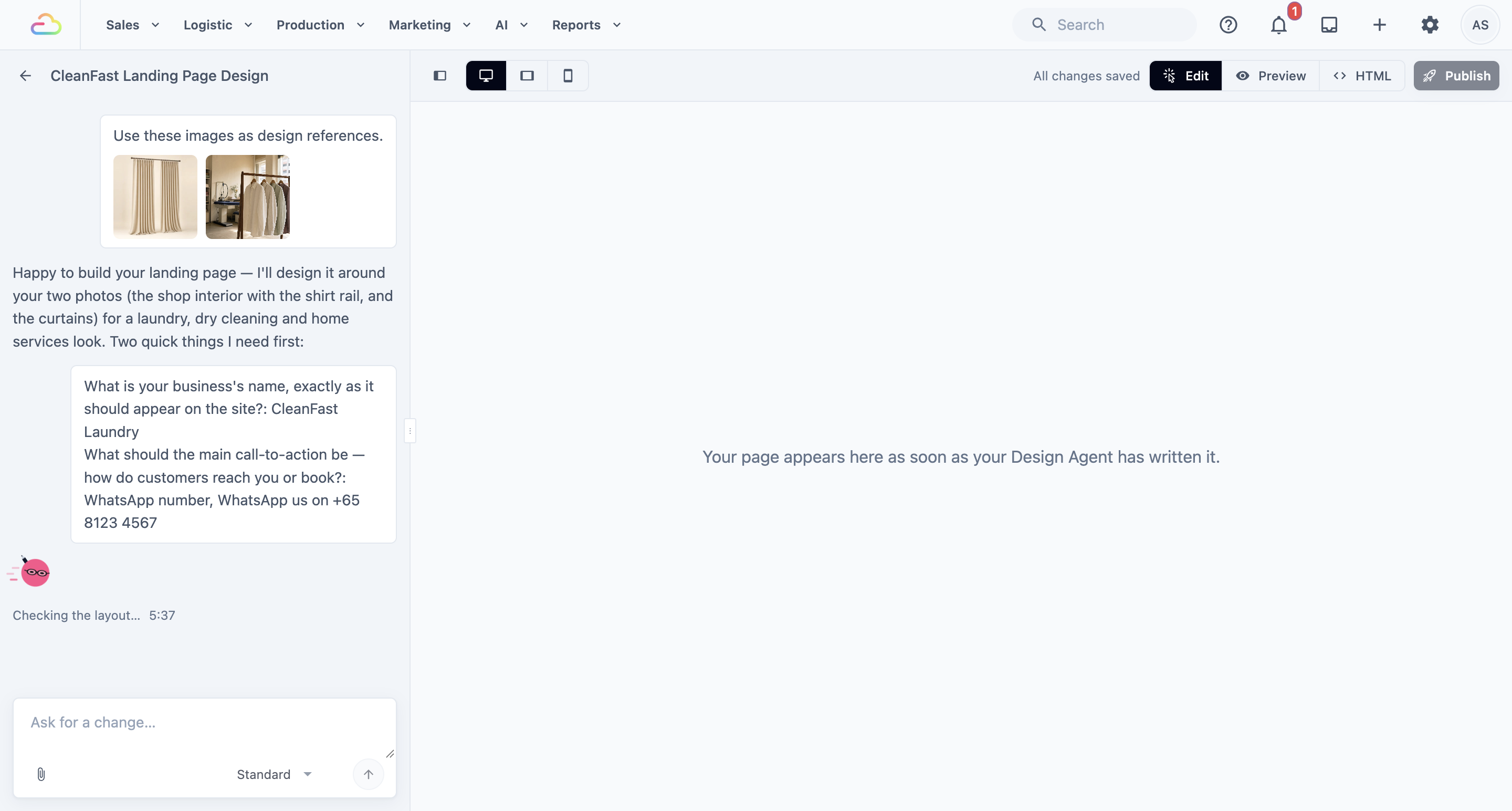
While it works, the button shows Creating your landing page…. The page then opens, and the preview fills in as the Design Agent writes it. If it needs more details, it asks you in the chat. Answer in your own words.
What a good request includes
- The offer in one or two sentences, the way you'd say it to a customer.
- Who it's for and where they come from, such as "home owners from our Facebook ad".
- The end date, if there is one.
- What the main button says and what it opens. Offer only what you can honour for everyone who presses it.
Example requests you can copy
Change the details to match your shop.
- A promotion: "Make one page for our Hari Raya promotion: 20% off curtain cleaning until 30 April. It's for home owners coming from our Facebook ad. Add a WhatsApp us button."
- A new service: "Make one page for our new bag repair service: handles, zips, edges and colour touch-up, from $45. Add a Book now button."
- A Google ad: "Make one page for people searching for dry cleaning in Bedok: free pickup and delivery for orders above $30. The main button should be Call us."
- A new outlet: "Make one page for the opening of our Punggol outlet on 1 June: 30% off all dry cleaning in the first week. Show the address and opening hours."
Edit your landing page
Most people who tap an ad are on a phone, so check the phone view first.
- Above the preview, click the phone icon. The monitor and tablet icons show the page on a computer and a tablet.
- To change something, type your request in the chat box, where it says Ask for a change…, and send it.
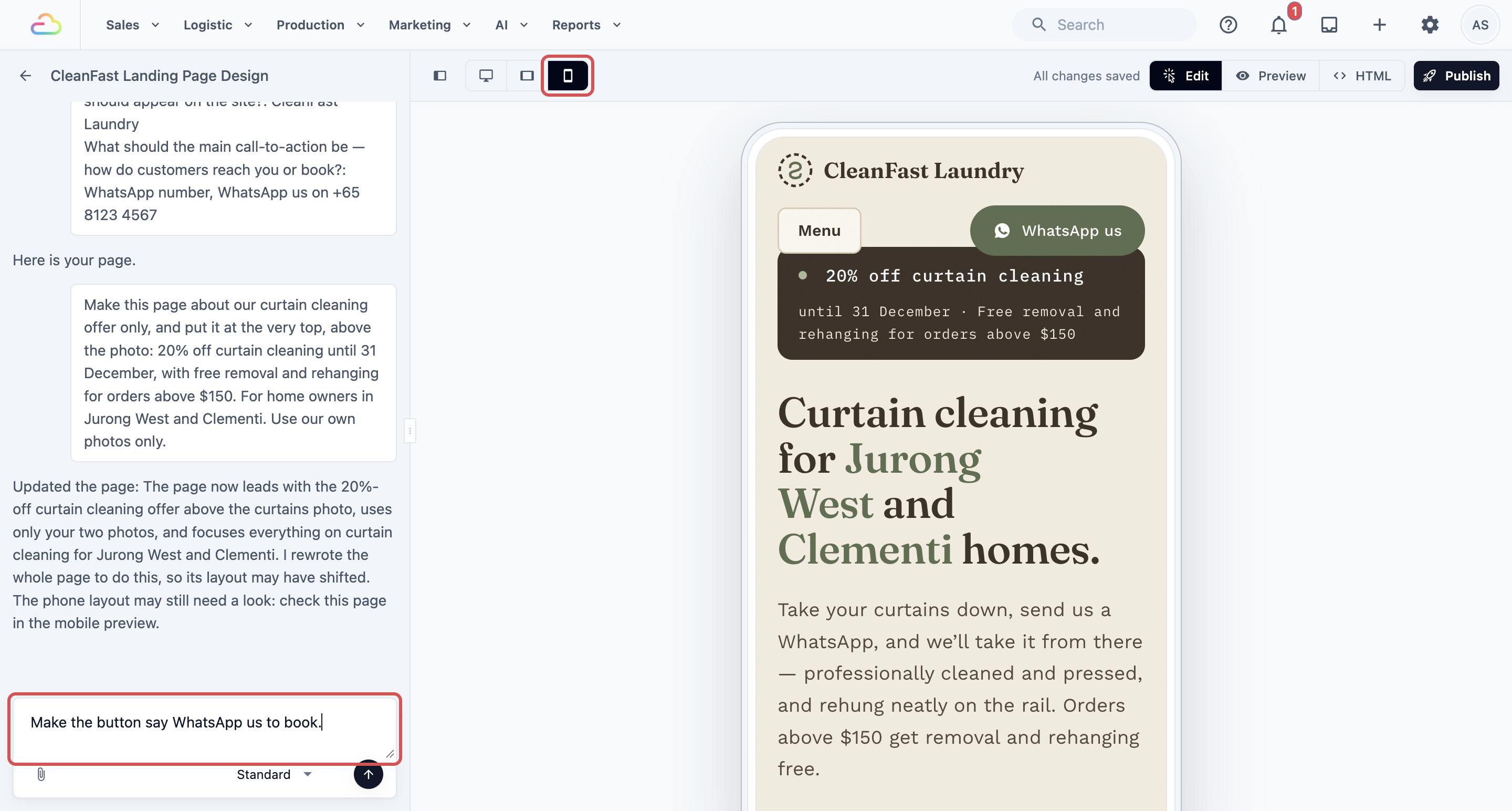
Example changes you can copy:
- "Make the 20% off bigger and put it at the very top."
- "Change the end date to 15 May."
- "Use my second photo at the top instead."
- "Make the button say WhatsApp us to book."
- "Add a short section on how our pickup and delivery works."
Your changes are saved automatically, and the top of the page shows All changes saved. The Design Agent only uses facts you give it, so it won't add reviews, ratings or awards you haven't told it about.
A landing page always stays one page. If you need more pages, make a website instead.
You can also change words and buttons yourself without asking. To make a Book now button open your Online Store, set it to A web address and paste your Online Store's address. Creating and Editing Your Website shows how.
Publish your landing page
- Click Publish at the top of the page.
- In Publish landing page, check the address your page will use.
- Click Publish.
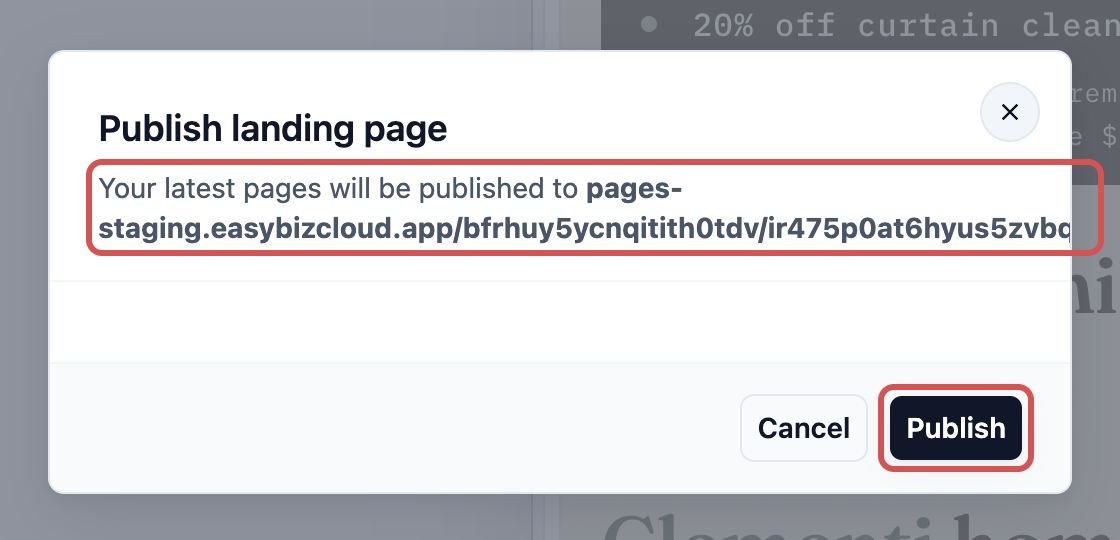
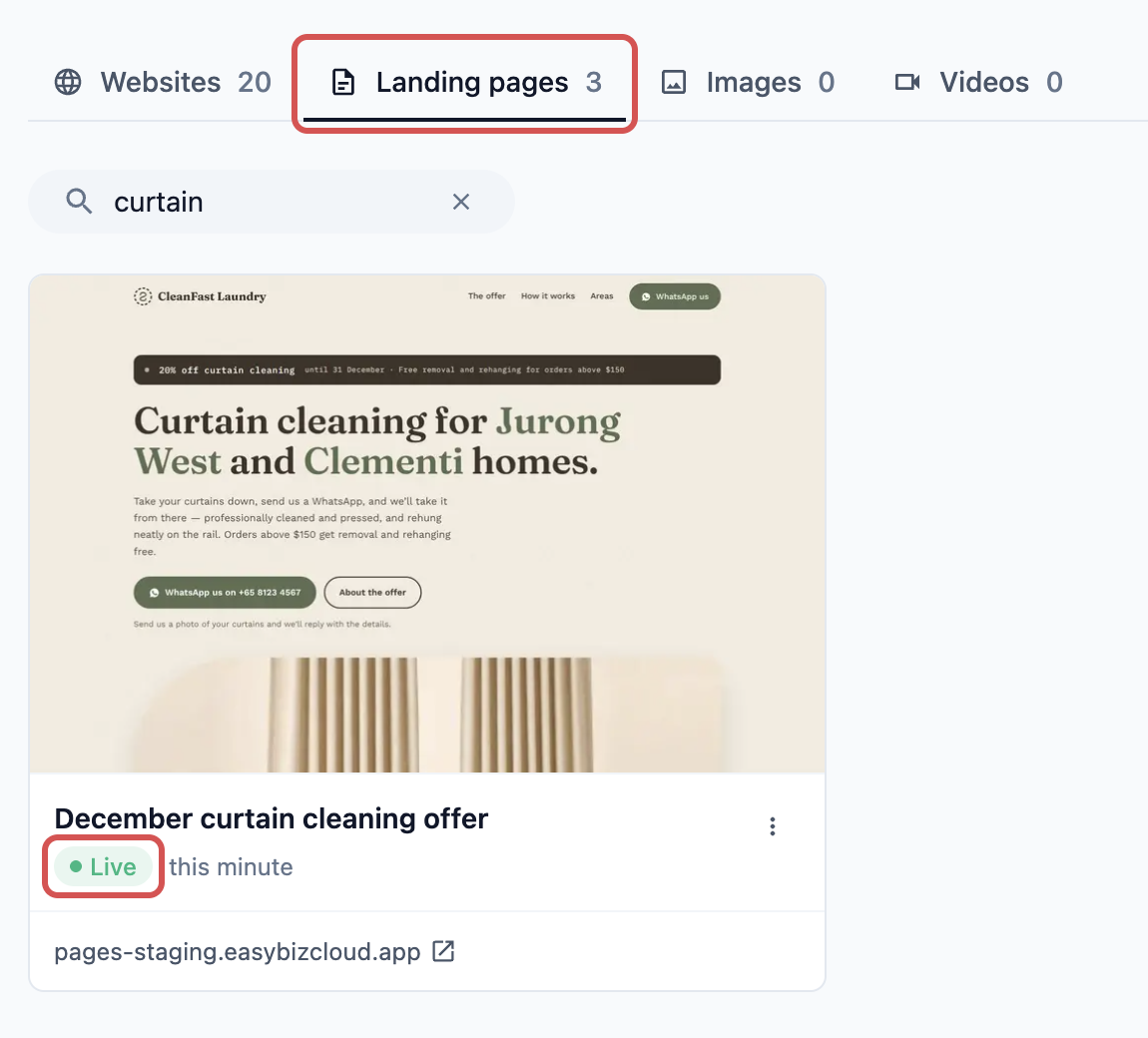
When it's done, Your site is live appears with the page's address. Click Visit to open it. In the Design Agent, the page's card under the Landing pages tab now shows Live.
Share it in ads, QR codes or WhatsApp broadcasts
First, copy the page's address:
- In the Design Agent, click the Landing pages tab.
- On your page's card, click the address. Your live page opens in a new tab.
- Copy the full address from your browser's address bar.
Then paste it where your customers will see it:
- Facebook or Instagram ads. Paste it as the website link of your ad.
- WhatsApp broadcasts. Add it to your broadcast message. See Sending WhatsApp Broadcasts and Campaigns.
- QR codes. The Design Agent doesn't make QR codes. Paste the address into a free QR code maker, download the image and put it on a counter poster, flyer or receipt. Scan it with your phone once before you print.
- Your other pages. Your Facebook page, Instagram bio or Google Business Profile.
Example: CleanFast Laundry
Mrs Tan owns CleanFast Laundry in Jurong West and Clementi. She wants a Facebook ad for 20% off curtain cleaning in December.
- She opens the Design Agent and sends: "Make one page for a Facebook ad: 20% off curtain cleaning until 31 December. Free removal and rehanging for orders above $150. For home owners in Jurong West and Clementi. The main button should be WhatsApp us to book." She adds 2 photos of freshly cleaned curtains.
- She checks the phone view and asks: "Put the 20% off and the end date at the top, above the photo."
- She clicks Publish and copies the page's address.
- She pastes the address into her Facebook ad and her December WhatsApp broadcast, and puts a QR code to it at both counters.
- On 1 January she asks: "The promotion has ended. Change the page to say: This promotion has ended. WhatsApp us for our current curtain cleaning prices." Then she publishes again.
What customers see online
- Customers who tap her ad see one page on their phone: the 20% off, the end date, her curtain photos and one WhatsApp button.
- There's no menu of other pages to distract them. Everything on the page is about the curtain offer.
- When they tap the button, WhatsApp opens a chat with CleanFast, so Mrs Tan's staff can reply and book the pickup.
- People who open an old link in January see the "promotion has ended" message, not an error page.
FAQs
Does a landing page need its own domain?
No. Every landing page gets a free address that starts with pages.easybizcloud.app as soon as you publish it. You can't link your own domain to a landing page. Your own domain is for your website, as explained in Publishing Your Website and Linking Your Own Domain.
Can I take a landing page down when the promotion ends?
Yes. The safer way is to change the page to say the promotion has ended and publish again, so old ads and QR codes still lead somewhere useful. To remove it completely:
- In the Design Agent, click the Landing pages tab.
- On the page's card, click the ⋮ button and click Delete.
- Click Take offline and delete.
This can't be undone. Anyone who opens its address afterwards, from an ad, a QR code or an old WhatsApp message, sees a not-found page.
Can I see how many people visited it?
Not inside EasyBiz. Landing pages don't have a visitor count of their own, but you have two free options. Ask the Design Agent "Add Google Analytics to this page", enter your Google Analytics ID (it starts with G-) in the box it shows and click Save. It works straight away, without publishing again. Or point your WhatsApp button to a tracked WhatsApp Link, which counts the leads, orders and revenue the page brings in. See WhatsApp Links and QR Tracking.
Can I track my Facebook ad results with a Meta Pixel?
Not directly. Publishing removes any tracking code pasted into the page. Add your Meta Pixel inside your own Google Tag Manager account, then give the Design Agent your Tag Manager ID (it starts with GTM-) the same way as a Google Analytics ID.
Does a landing page cost extra?
Not during the beta. Making it is free within your business's daily Design Agent limit, and one page uses less of it than a whole website. Hosting, which means keeping the page online for customers, is included in your EasyBiz subscription. After the beta, the Design Agent's work will be paid from your prepaid AI balance. Editing words yourself and publishing never use your balance.
Will a landing page change my current website?
No. It's separate, so your website stays exactly as it is. If you want website visitors to find the offer too, open your website in the Design Agent and ask: "Add a banner at the top of the home page linking to" followed by your landing page's address. Then publish your website again.
What's next
You've made a landing page for one offer, published it and shared it in your ads, QR codes and WhatsApp broadcasts. Next, put your website online and give it your own domain in Publishing Your Website and Linking Your Own Domain.