
Before you start
You need:
- The Design Agent open in your Console. If you haven't used it yet, read Getting Started with the Design Agent first. It shows where to find it, how to write a good request and what it costs.
- The words for your poster. For example the promotion name, the price and the end date, exactly as customers should read them.
- Photos, if you want to use them. Your shop front, your finished work or your current logo. They are optional, and you can add up to 4 with each message.
What the Design Agent's images are
Besides websites and landing pages, the Design Agent draws pictures for your business. You describe the picture in a prompt, and it makes it. A prompt is simply the message you type, written the way you would brief a designer on WhatsApp.
It makes four kinds of picture:
- Logos. A simple mark with your shop name, for your signboard, receipts, uniforms and social media.
- Photos. Realistic pictures, such as a freshly pressed shirt on a hanger or a restored handbag on a counter.
- Illustrations. Drawn pictures, such as a cartoon delivery van for a pickup and delivery promotion.
- Posters. A promotion or announcement with your own words on it, for your shop window, Facebook or WhatsApp.
Every finished image is saved in your Media Center. The Media Center is where EasyBiz keeps all your business pictures, sorted into folders. You and your staff can pick any of them from every page in EasyBiz that uses a picture, including your website.
Why use it
- No designer to pay or wait for. A new poster for this weekend's promotion takes a few minutes, not a few days.
- It already knows your business. The Design Agent reads your services, prices and brand from your EasyBiz account, so you type less.
- Everything in one place. Your images are saved in your Media Center, ready for your website, your posters and your next campaign.
If you skip it, you keep reusing the same old photos or pay for every poster. Your Facebook page, shop window and website also end up looking different from each other, so customers find it harder to recognise your shop.
Create a logo, photo or poster
- In the Console menu, click AI.
- Click Design Agent.
- Click the message box under What should we make? and describe the picture you want.
- To add your own photos, click the picture button under the box and choose up to 4.
- Click Send.
- If the Design Agent asks What would you like to create?, click An image.
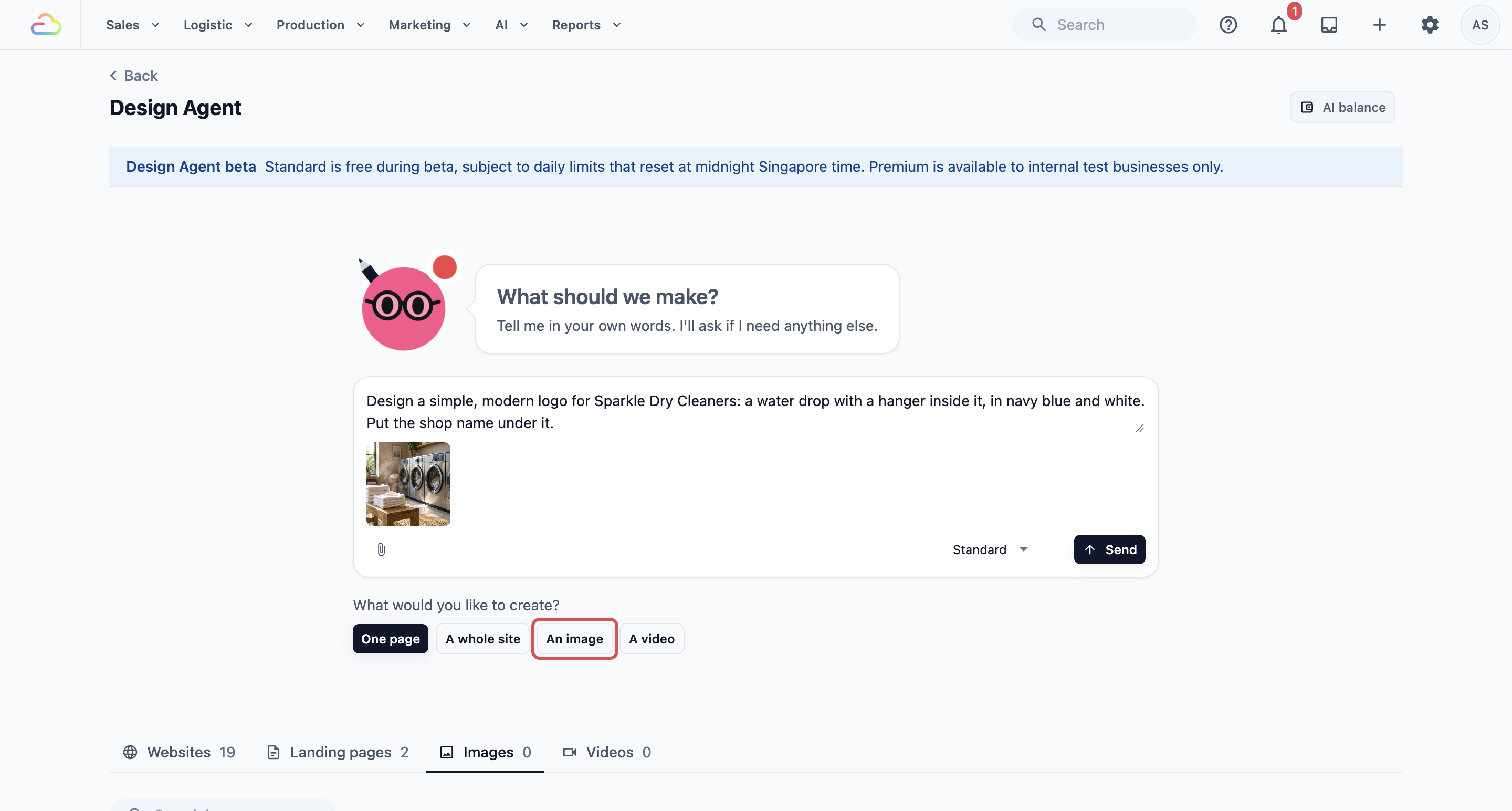
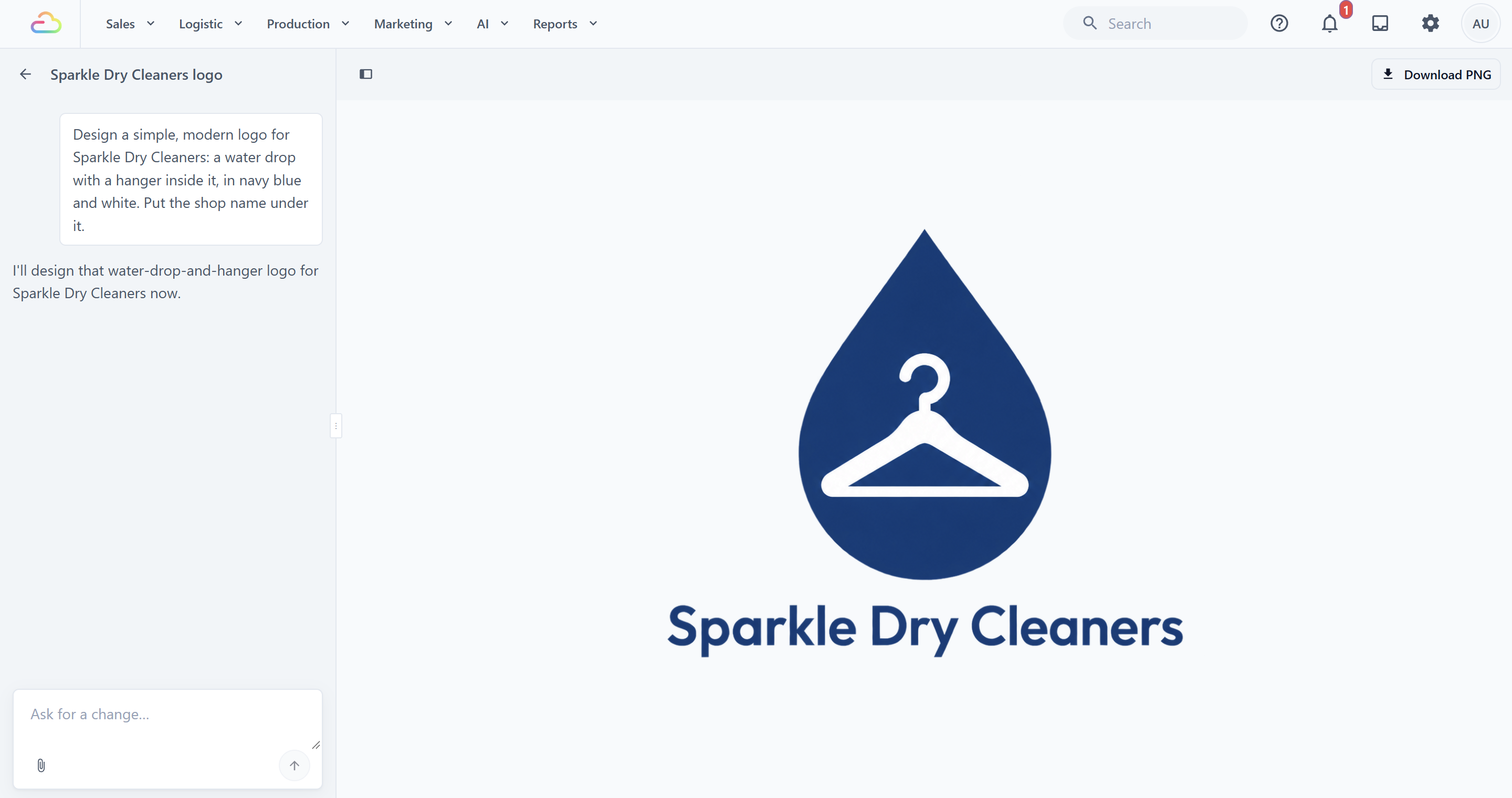
The image page opens. Your chat with the Design Agent is on the left and the picture appears on the right. While it works, you see Creating your image….
If the Design Agent needs more details, it asks in the chat. For example, if you have more than one brand, it asks which brand the image is for. Click an answer or type your reply.
When the picture is ready, it appears on the right and the Design Agent tells you in the chat. A card for it also appears under the Images tab on the Design Agent page.
Example requests you can copy
Change the details to match your shop.
- A logo: "Design a simple, modern logo for Sparkle Dry Cleaners: a water drop with a hanger inside it, in navy blue and white. Put the shop name under it."
- A photo: "Make a bright, realistic photo of neatly folded white shirts in a laundry basket on a clean wooden counter. No text."
- An illustration: "Draw a friendly cartoon van with a laundry bag on the roof, in our brand colours, for a free pickup and delivery promotion."
- A poster: "Make a portrait poster for our shop window. Headline: 'Curtain Cleaning 20% Off'. Small text: 'Until 31 December. WhatsApp 9123 4567 to book.' Use a clean living room with fresh curtains in the background."
- From your own photo: Attach a photo of your shop front and write: "Use this photo of my shop to make a welcome poster that says 'Now Open in Tampines'."
Edit an image
You change a picture the same way you made it: by asking. Each message changes the current picture instead of starting again from nothing.
- Click the Ask for a change… box under the chat.
- Type what to change.
- Click Send.
Creating your image… shows again, and the new version replaces the picture on the right.
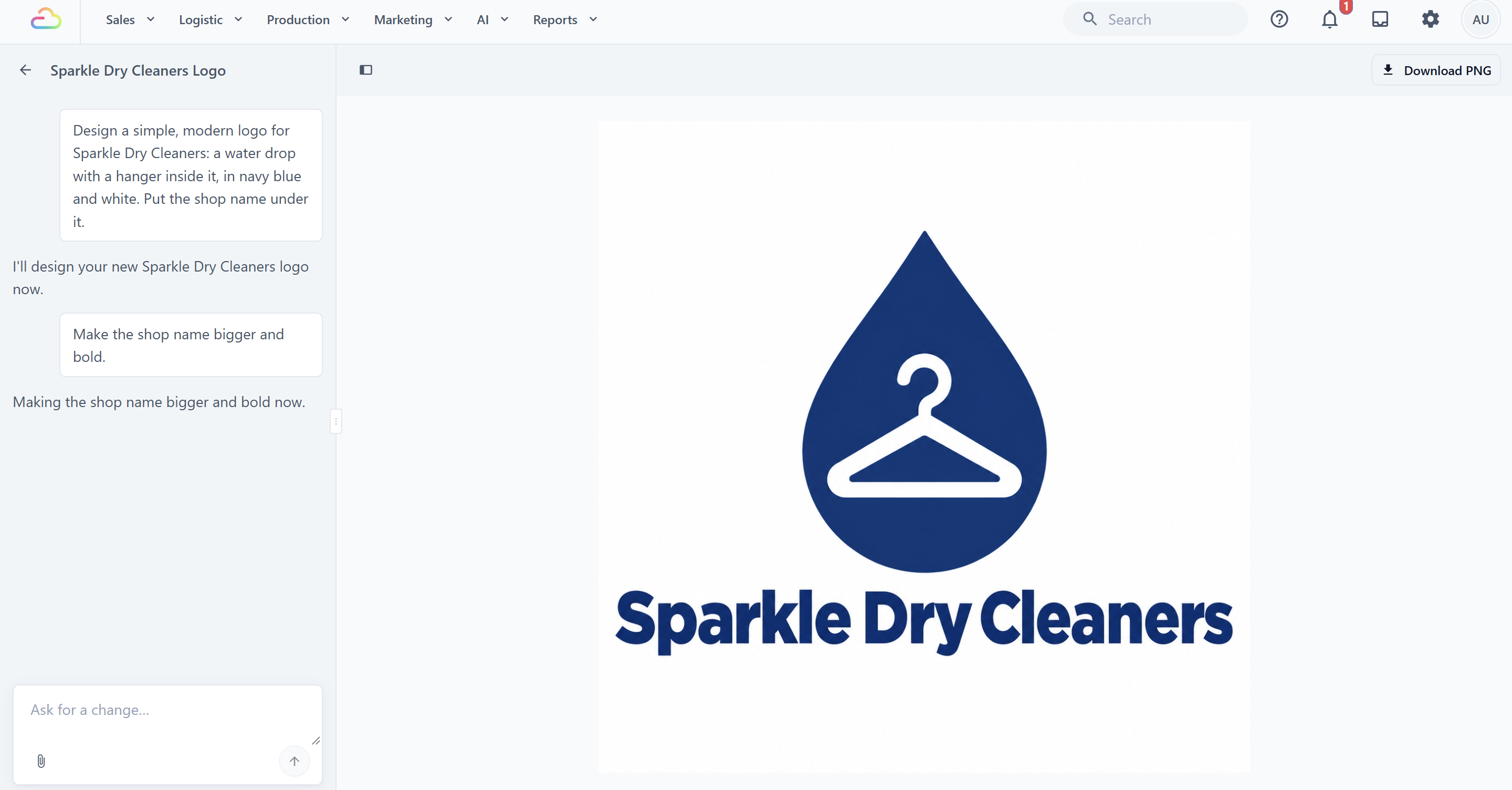
Ask for one change at a time, so you can see what each one does. For example:
- "Make the background white."
- "Change the date to 30 November."
- "Make the shop name bigger and bold."
- "Use a darker blue."
- "Make a square version for Instagram."
To use your own photo, click the picture button beside the box, choose the photo and say what to do with it. You can add JPG, PNG, WebP or HEIC photos of up to 10 MB each, and up to 4 with each message.
Download your image
Above the picture, click Download PNG. Save the file to your computer, then send it to your printer or post it on Facebook, Instagram or WhatsApp.
Come back to an image later
- On the image page, click the back arrow next to the image's name to return to the Design Agent page.
- Click the Images tab.
- Click the image's card to open it and keep chatting.
To give an image a clearer name, such as "Logo 2026", open the menu on its card and click Rename. To remove one you don't need, click Delete in the same menu.
Find and reuse your images in the Media Center
Every image the Design Agent makes is saved in the Marketing folder of your Media Center. Each version you ask for is saved there too, so an earlier version is still there if you prefer it.
You don't open the Media Center from the menu. It opens whenever you click a picture field in EasyBiz, such as a photo on your website or the logo in a Brand Profile. To find your images there:
- Click the picture field you want to fill.
- In the Media Center, under Folders, click Marketing.
- Click the image you want.
- Click Choose image.
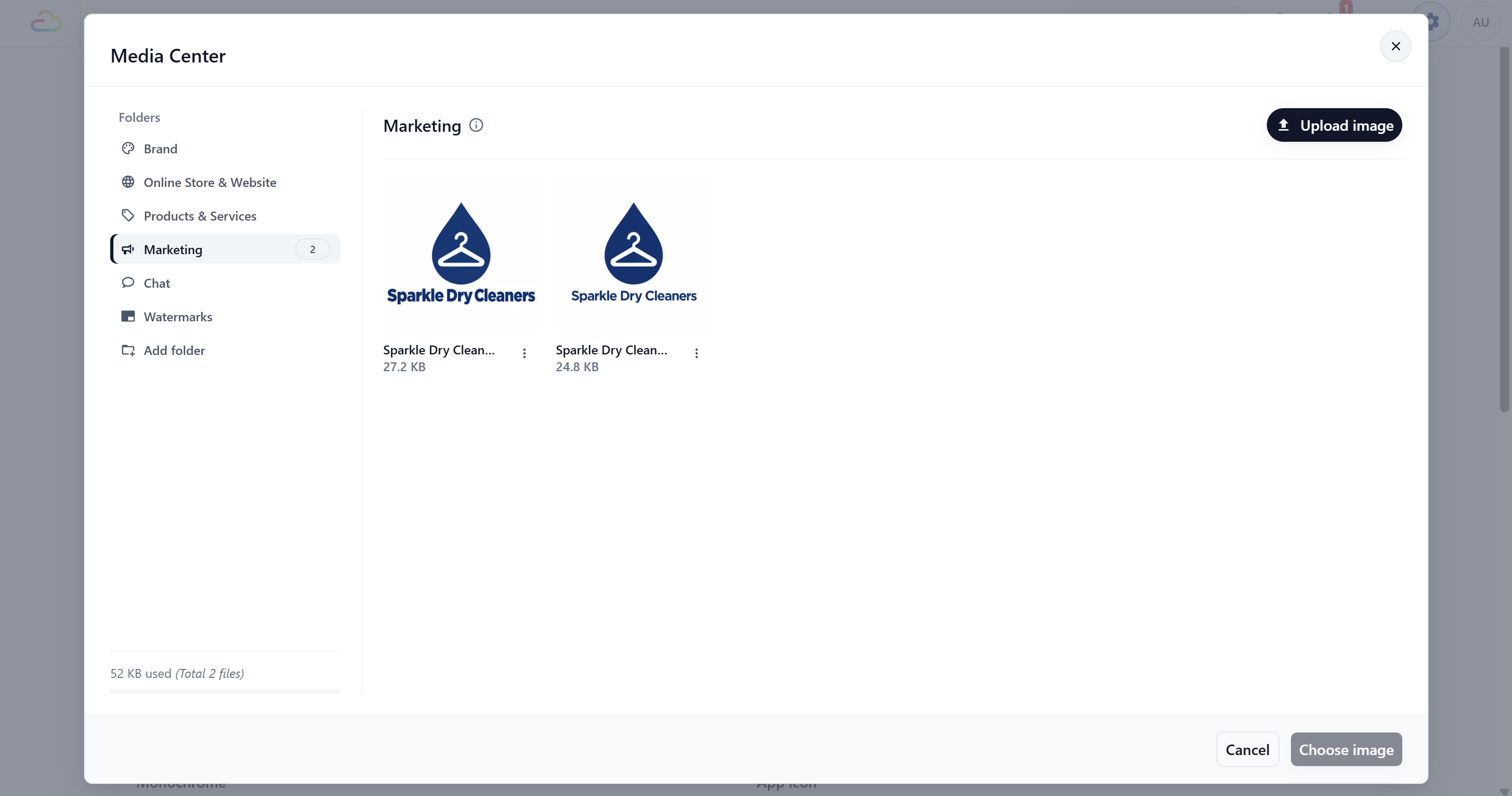
Because the images live in the Media Center, your staff can use the same logo and posters without asking you to send them the files.
Use an image on your website
You can ask the Design Agent to change a photo for you, or swap it yourself. Building and changing your website is covered in Creating and Editing Your Website. Here is the quick way to put one of your images on it yourself:
- On the Design Agent page, click the Websites tab and open your website.
- In the preview, click the photo you want to replace.
- In the panel that opens, click the Photo box.
- In the Media Center, under Folders, click Marketing.
- Click your image, then click Choose image. If you're asked to confirm, click Use this picture.
- Under Describe the photo, type a few words about the picture, such as "Bag Spa Week poster, 25% off handbag cleaning".
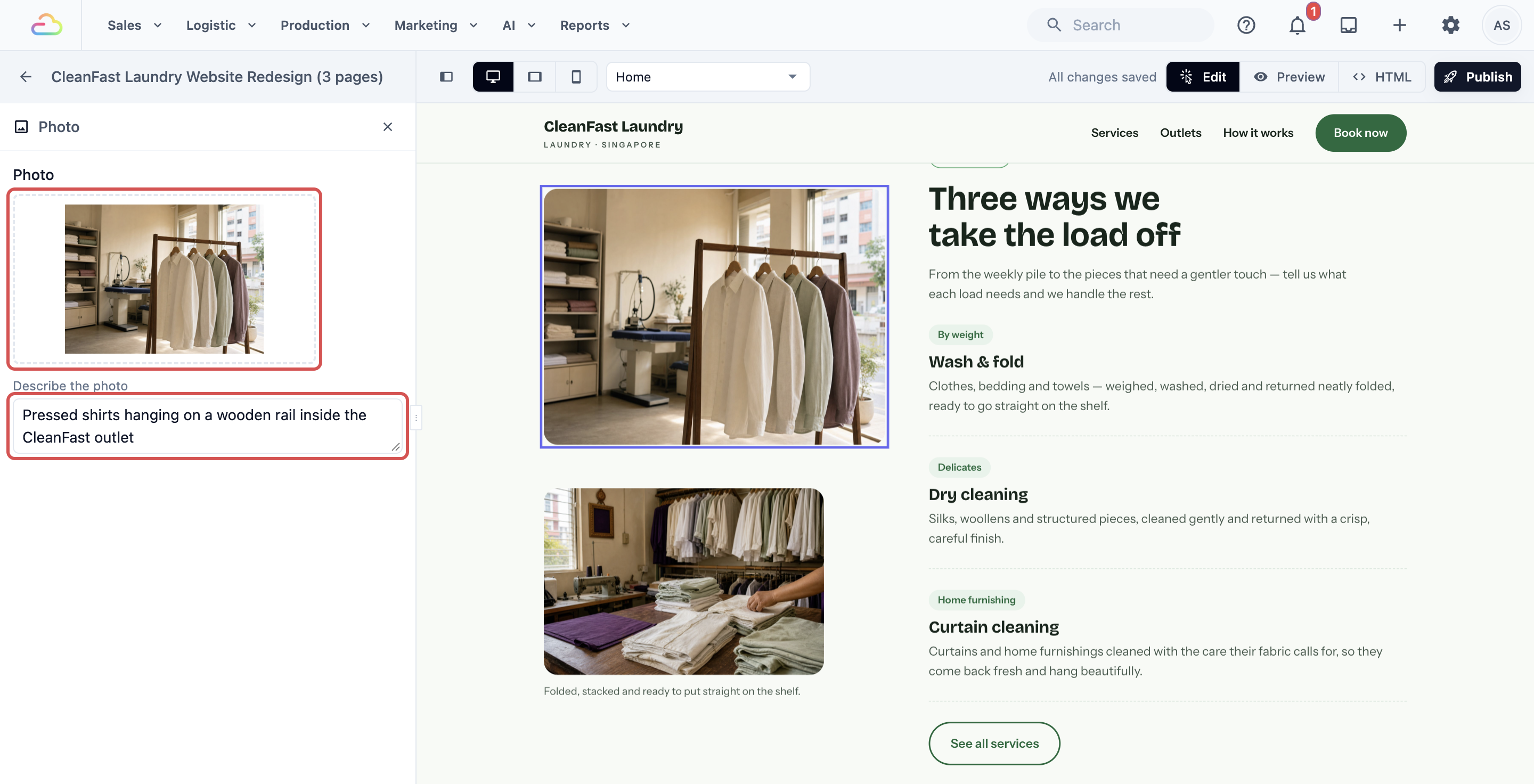
The new picture appears in the preview straight away. Customers only see it after you publish your website again. See Publishing Your Website and Linking Your Own Domain.
Example: BagCare Pro
BagCare Pro is a bag repair and cleaning shop with one outlet. Mr Lim, the owner, needs a proper logo and a poster for his "Bag Spa Week" promotion.
- He opens the Design Agent and sends: "Design a clean, premium logo for BagCare Pro: a simple handbag outline with a small sparkle, in dark brown and gold. Put the name BagCare Pro under it."
- He likes it, but asks: "Make the sparkle smaller and the text a bit thicker." He clicks Download PNG and sends the file to his signboard maker.
- He goes back to the Design Agent page and sends a new request: "Make a portrait poster for our Bag Spa Week. Headline: 'Bag Spa Week'. Text: '25% off handbag cleaning and conditioning, 1 to 7 December. WhatsApp 9876 5432 to book.' Show a leather handbag being cleaned on a workbench. Use our logo."
- He checks the dates and the phone number on the poster, then asks: "Make the headline bigger."
- He downloads the poster, prints it for his shop window and posts it on Facebook.
- In his website, he replaces the top photo of the home page with the poster from the Marketing folder and publishes the website again.
What customers see online
- Customers who open BagCare Pro's website see the Bag Spa Week poster at the top of the home page, on a phone or a computer.
- Customers who follow his Facebook page see the same poster in their feed, so the promotion looks the same everywhere.
- Walk-in customers see the printed poster in the shop window and the new logo on the signboard.
- The poster's details stay exactly as Mr Lim typed them, because the Design Agent only uses the words he gave it.
FAQs
Can I use these images on Facebook and in print?
Yes. Click Download PNG and use the file anywhere: Facebook, Instagram, WhatsApp, flyers and posters for your shop window. For something large, such as a signboard or a banner, send the file to your printer first and ask them to check it prints sharply at that size.
Do images count toward my daily limit?
Yes. During the beta, images are free but use your business's free daily allowance, the same one your websites and landing pages use. Every message that makes or changes a picture uses part of it, and so does every request from your staff. When the allowance runs out, the Design Agent shows "Your business has reached today's free Design Agent limit. Please try again after midnight Singapore time. Your AI credits have not been charged." Your images stay saved, and you can download and use them as usual.
Can I upload my own photo and edit it?
Yes. On the image page, click the picture button beside the message box, choose your photo and describe the change, such as "Brighten this photo and remove the boxes in the background". The Design Agent makes a new picture from it. Your original photo isn't changed.
Can I make my new logo the logo on my Online Store?
Yes. Your brand's logo comes from its Brand Profile, not from the Design Agent. Open your Brand Profile, click the logo field and choose the new logo from the Marketing folder. See Creating and Assigning a Brand Profile.
What's next
You can now create logos, photos and posters with the Design Agent, change them by asking, find them in your Media Center and put them on your website. This is the last guide in the Websites & Design series. For the full overview of everything the Design Agent can do, go back to Getting Started with the Design Agent.