
Before You Start
Read Introduction to WhatsApp Campaigns if this is your first campaign.
Create the campaign and finish the Setup step first. See Sending WhatsApp Broadcasts and Campaigns.
Only customers already saved in EasyBiz, with a valid WhatsApp number, can be reached.
Max Recipients Is Always On
The Audience Filters panel always shows a Max recipients card with an Audience cap field, set to 500. It is a safeguard, so one forgotten filter cannot message your entire customer list. You can lower it, or raise it as high as 10,000.
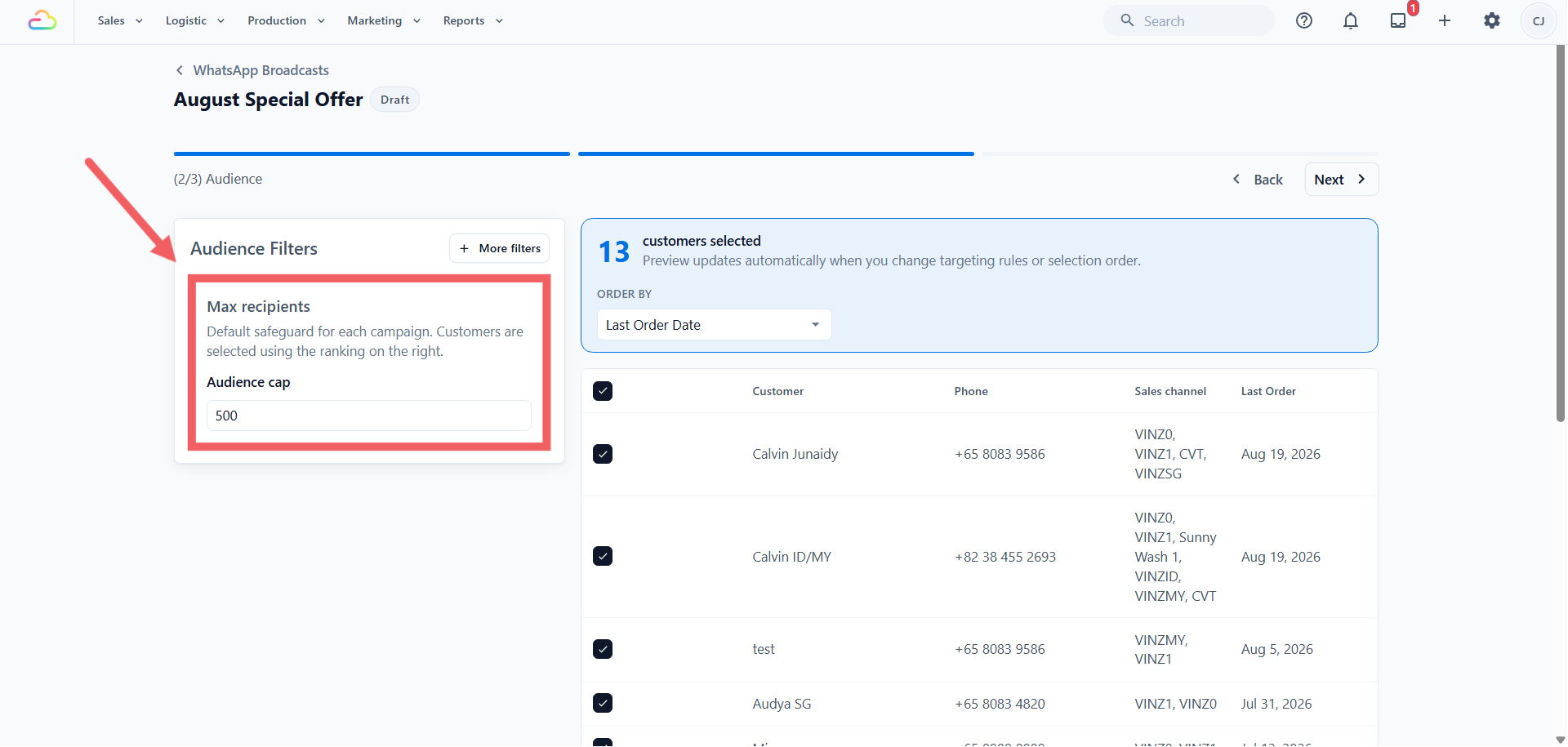
Order By on the right decides who fills that cap.
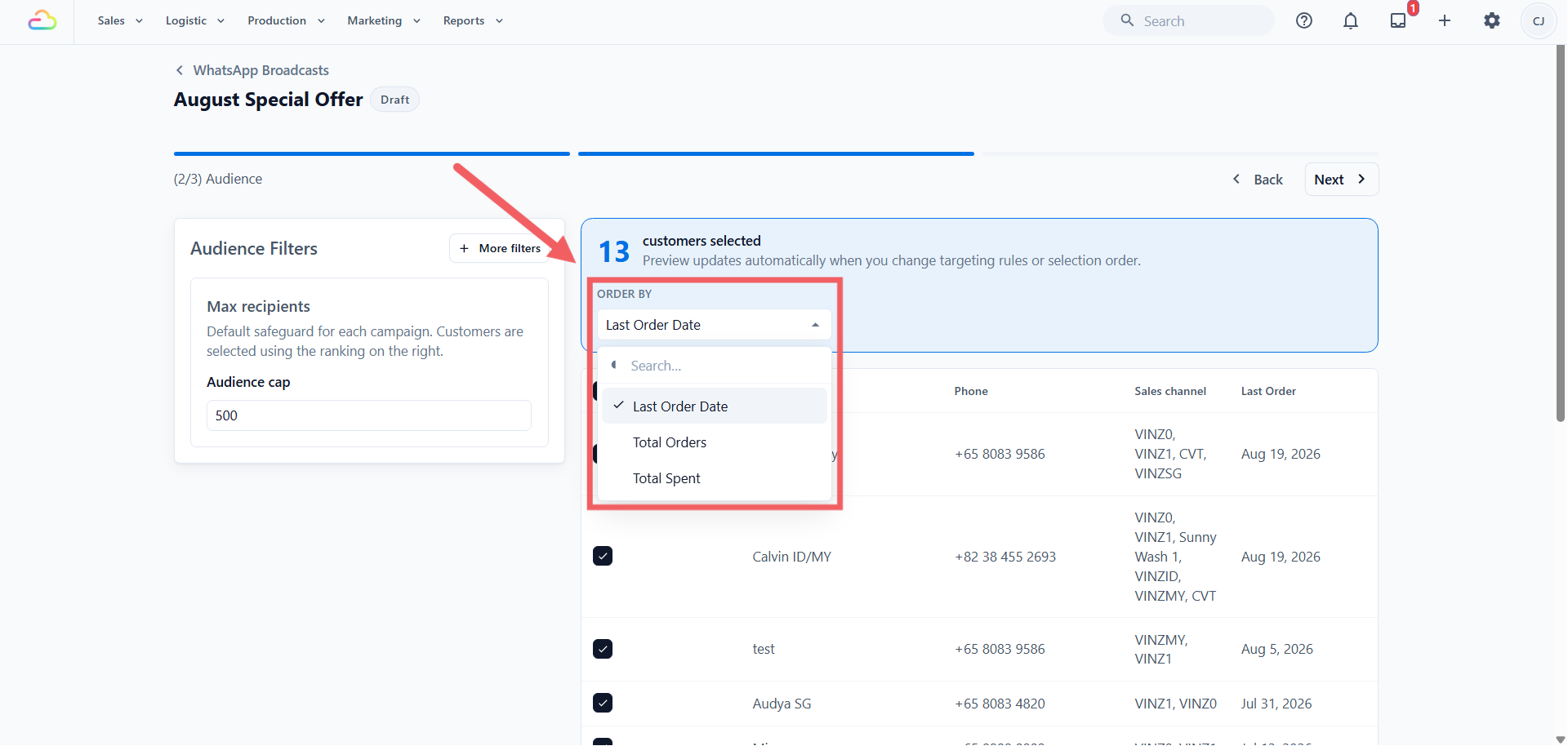
| Order By | What it means | Direction | Who fills the cap first |
|---|---|---|---|
| Last Order Date (default) | Date of the customer’s most recent order | Newest → oldest | Customers who ordered most recently |
| Total Orders | Customer’s lifetime number of orders | Highest → lowest | Customers with the most orders |
| Total Spent | Customer’s lifetime spend | Highest → lowest | Customers who have spent the most |
The Filters
Click More filters to add one. A filter you have not added is not applied at all, so an empty panel means everyone is included.
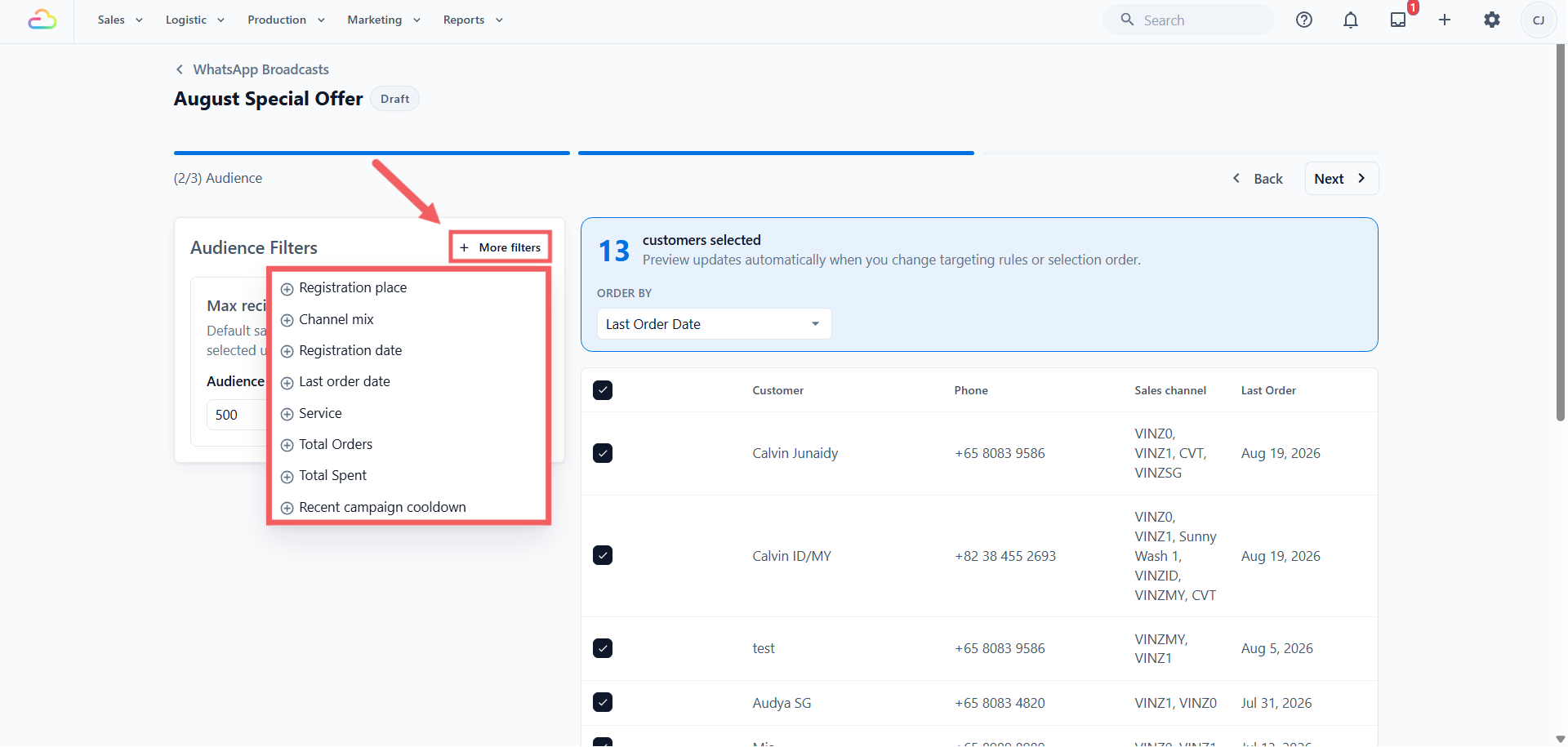
| Filter | What it picks | Example |
|---|---|---|
| Registration place | Customers who first registered at one outlet or online store | Only your Tampines shop is running the offer |
| Channel mix | Both POS and online, POS only, or Online only | POS only, for a counter offer walk-in customers can claim |
| Registration date | When the customer joined your shop, not when they last ordered | Everyone who signed up during your opening month |
| Last order date | When the customer last placed an order | A range ending 60 days ago, to find customers gone quiet |
| Service | Customers who have ever ordered a service you select | Tell laundry customers you now clean bags |
| Total Orders | Completed orders over the customer's lifetime | Minimum 10, to find your regulars |
| Total Spent | Money spent over the customer's lifetime | Minimum 200 dollars, for a VIP offer |
| Recent campaign cooldown | Skips anyone messaged by a campaign in the last few days | 30 days, so regulars are not messaged every week |
How the Filters Work Together
Think of each filter as a gate. A customer must pass every gate you add. This helps you reach a smaller and more suitable group of customers.
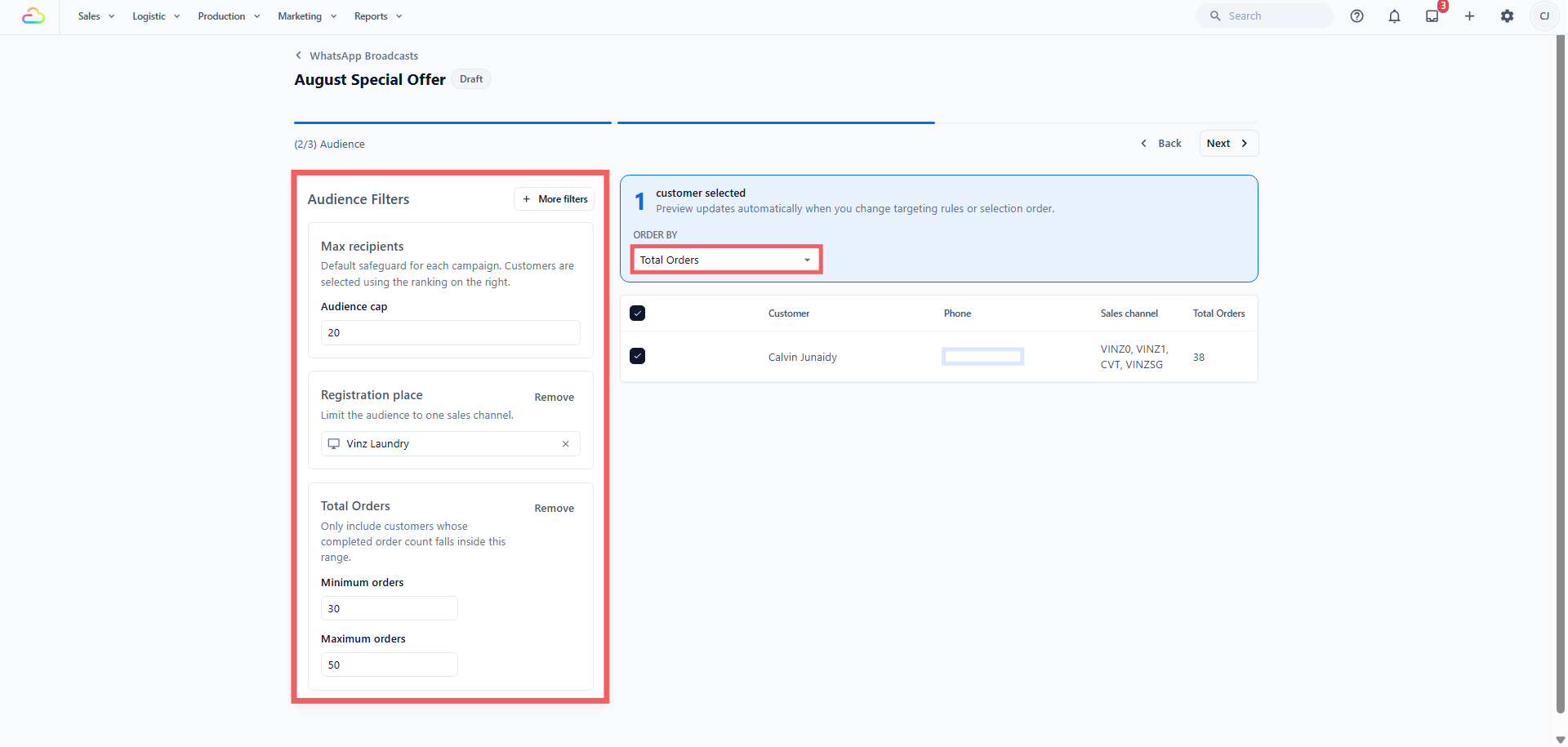
You can add more filters to make the group smaller. Check the customer count and customer list before you continue.
Choosing More Than One Service
The Service filter works differently. When you choose several services, a customer only needs to have used one of them.
For example, if you choose Dry Cleaning and Bag Repair, EasyBiz includes customers who have used Dry Cleaning or Bag Repair. They do not need to have used both.
Filters That Cannot Be Used Together
Some filters cannot be used at the same time. EasyBiz hides or fixes these choices to prevent a customer list that will not work.
| When you use | What EasyBiz hides or fixes | What you can do |
|---|---|---|
| Service | Channel mix, Total Orders and Total Spent are hidden | Clear Service to use these filters |
| Service with Last order date or Recent campaign cooldown | Order By is fixed to Last Order Date | Remove Last order date or cooldown to choose another sorting option |
| A campaign started from a POS shop | Registration place is filled in and locked | Start the campaign from the Admin Console to choose another place |
Service can still be used with Registration place and Registration date. For example, you can promote bag cleaning to customers registered at one outlet.
Who Is Removed/Excluded Automatically
Inside your filters, these people are dropped before sending:
anyone you untick in the customer list
customers who have opted out of marketing (or are marked Do Not Contact).
customers your staff marked as do not contact
customers with no phone number, or one marked invalid
a second customer record sharing a phone number already on the list
Why the Count Looks Smaller
The cap is applied first, then the removals above happen, so the final list is usually smaller than your cap. Adding a filter, unticking a name, or an opt-out can only make the number go down, never up.
Treat the big blue number as the truth. It is the count of people who will actually be messaged.
The List Locks at Launch
When you send or schedule, EasyBiz freezes the recipient list at that moment. Filters, unticks, and opt-outs after that point change nothing for that campaign.
FAQs
Why is my count much lower than my customer list?
The cap holds it to 500 by default, and opt-outs, invalid numbers and duplicate phone numbers are removed on top of that.
Why did Total Orders and Total Spent disappear?
You selected a Service. Those two, and Channel mix, cannot be combined with a Service filter. Remove the Service and they return.
Does selecting two services mean both or either?
Either. A customer who has ordered any one of the selected services is included.
Why can I not change Registration place?
The campaign was started from a POS sales channel, so it is fixed to that channel. Start from Admin console to choose freely.
Does the cap pick customers randomly?
No. It takes the top of the list after Order By sorts it. How high can I go? 10,000 is the maximum.
Two customers share the same phone number. Do both get the message?
No. Only the first record on the list is messaged, so that person is not charged for twice. If that number opts out, every customer record using it is opted out together.
If a customer opts out after I schedule, do they still receive it?
Yes. The list was already frozen. They will be excluded from your next campaign.
Does the cooldown filter count campaigns sent from other outlets?
Yes. It looks at when the customer was last reached by any campaign in your business, not just this outlet's campaigns.
What's Next
Return to the Review step in Sending WhatsApp Broadcasts and Campaigns.