
Before You Start
- Items and prices: your business unit needs a catalog with prices. A business unit is one kind of service you run, such as Laundry or Bag Repair. See Choosing What You Sell and Your Prices.
- Business unit switched on for New Order: the business unit must be listed on the Console's New Order page. See Customize the Console New Order Page.
- Access: staff need the Sales menu in the Console.
- A live Online Store: orders taken in the Console are recorded under your Online Store's sales channel (the place an order is recorded as coming from, such as a POS shop or your Online Store). If that store isn't published yet, New Order tells you it can't take orders and shows an Open Online Store button.
If you took orders in Console 2.0: your customers and past orders are already in Console 3.0. The order screen looks different, so this guide walks you through it.
Overview
The New Order page lets your staff take a full order in the Console, without a POS tablet. It suits phone, WhatsApp and email orders, and office staff who book pickups and deliveries for customers. Staff pick the customer, add the items, book the pickup and save the order, paid or unpaid. Every order taken here shows in the same Orders list as your POS and online orders, with the same order numbers. Your drivers and shop staff see it straight away.
Where it works
- Console: staff take the order on the New Order page and land on the saved order.
- Logistics: a booked pickup, delivery or on-site visit shows as a job for your team.
- Customers: they get the messages your Customer Notifications send for new orders and bookings.
Why take orders in the Console
A phone or chat order that stays in a notebook or a chat thread is easy to lose. Nobody books the pickup, the driver doesn't know about it, and the customer calls back to ask. When staff take the order on the New Order page, the order, the customer, the pickup time and the price are saved together the moment you finish.
If you skip it, staff have to wait until the items reach the shop and key the order in at the POS. The pickup then has no order behind it, and the customer gets no confirmation until then.
Where to find it
- In the top navigation bar, click the Sales dropdown, then click Orders.
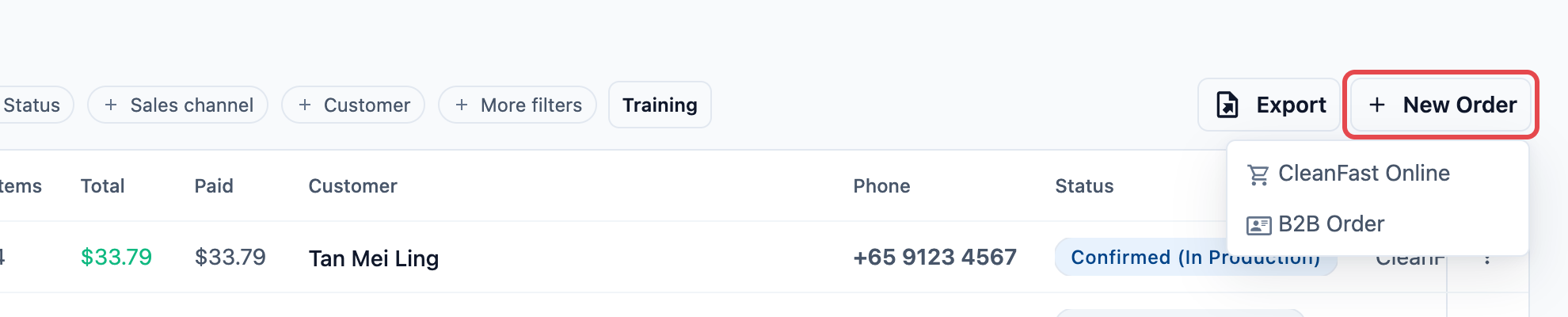
- Click New Order above the order list.
- If your shop has more than one online sales channel, or takes B2B orders, click the one you want in the list, for example CleanFast Online.
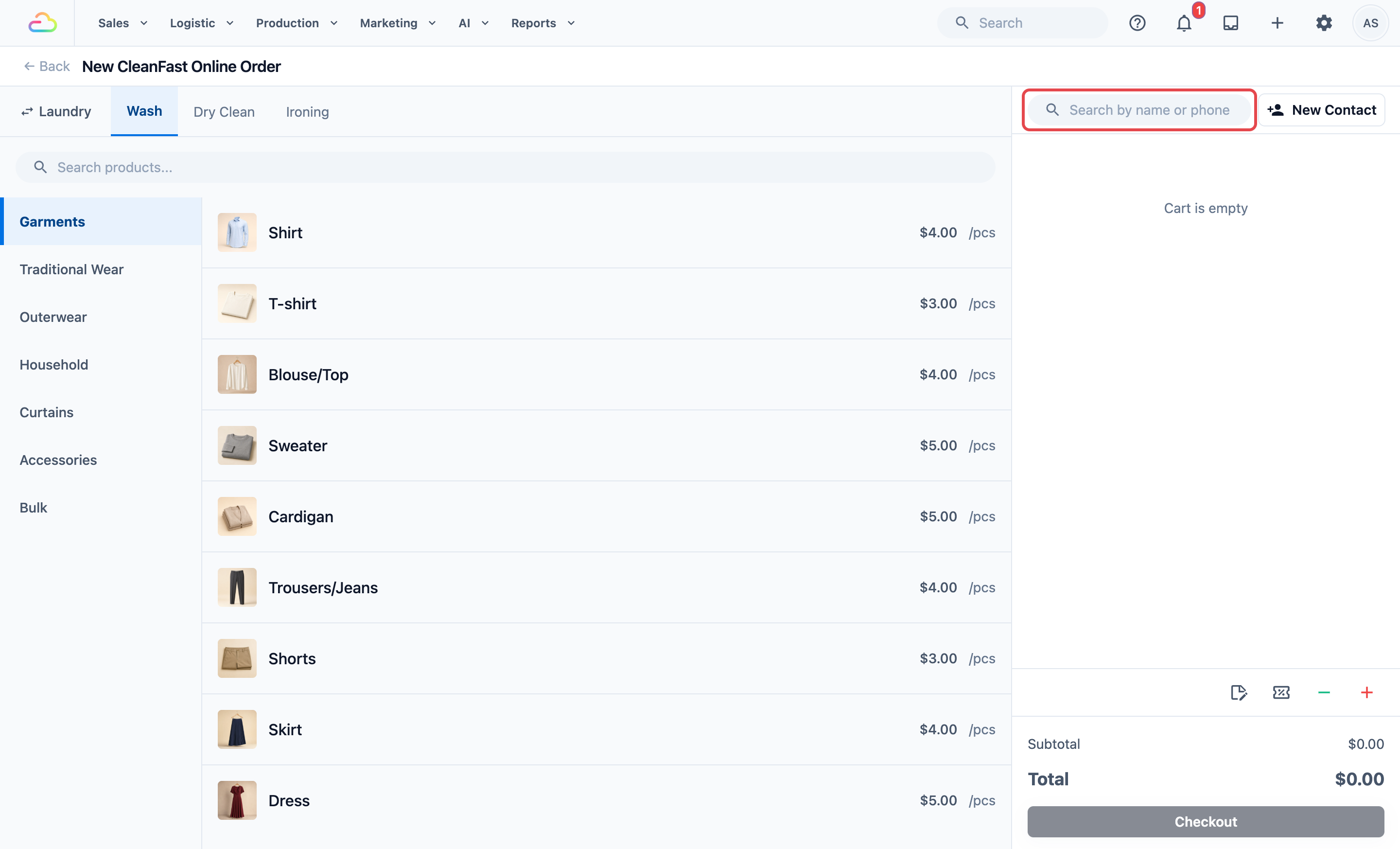
The New Order page opens, with the catalog on the left and the cart on the right.
There are 2 shortcuts to the same page:
- The + icon: click the + icon at the top of the Console, then click New CleanFast Online order.
- A customer's page: in Sales › Contacts, open the customer and click New Order. The customer is already filled in on the new order.
Taking the order
1. Choose the location (only if asked)
Use this only if your Online Store sells from 2 or more locations, such as CleanFast's Tampines and Jurong shops. A Location box then shows at the top right of the page. Click it and pick the location the order belongs to, for example Tampines. With one location, it is chosen for you and the box doesn't show. Staff limited to some locations see only theirs.
2. Choose or add the customer
- Click the search box at the top of the cart.
- Type the customer's full phone number, its last 4 digits, or a full word of their name.
- Click the customer in the results.
If the customer is new, click New Contact, fill in their details and click Save. For which details staff must fill in, see Add a New Customer and Choose What Staff Must Fill In.
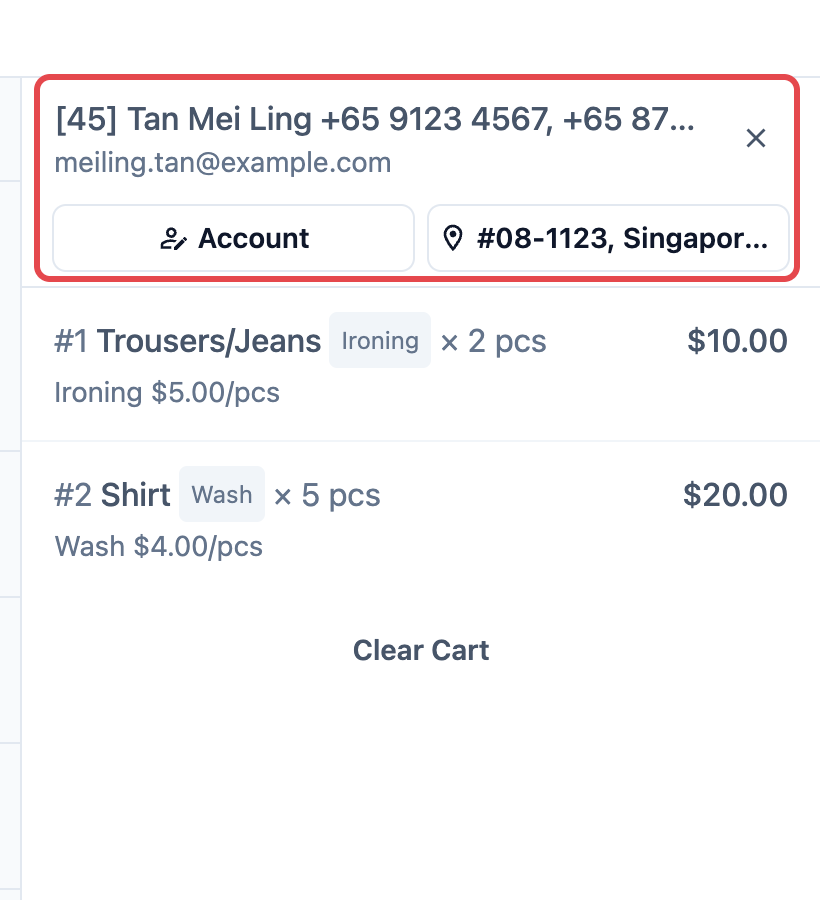
By default every Console order needs a customer. If staff try to continue without one, they see "Select a customer account before continuing." This keeps each phone order linked to the right customer, their address and their history.
3. Pick the business unit
Use this only if more than one business unit is switched on for New Order. Click the business unit name at the top of the catalog, then pick the one you want, for example Laundry. The catalog shows that business unit's items and prices.
4. Add the items
- Click an item in the catalog, for example Shirt.
- If the item has service options (the ways you treat the same item, such as Wash & Iron or Dry Clean), pick one in the pop-up.
- Pick any add-ons or accessories the pop-up offers.
- Answer any questions that appear for the item, such as its weight or a photo. These are your line item steps. See Introduction to Line Item Flows.
- Change the quantity in the cart with the plus and minus buttons.
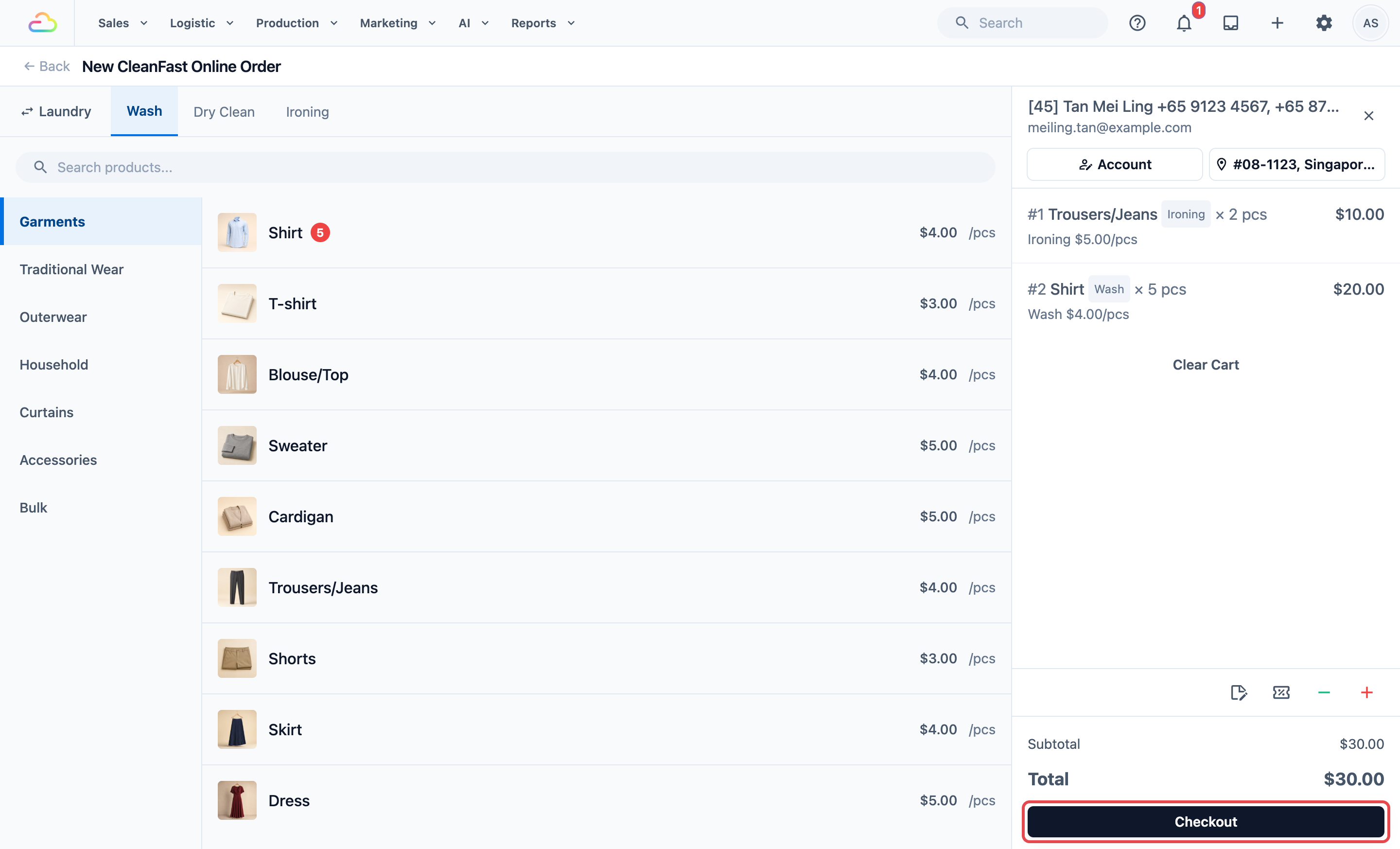
To change a line, click it in the cart, then click Edit or Copy, or the remove button.
5. Add an order note
Click the note icon at the bottom of the cart and type the note, for example "Call before pickup, lift lobby B". The note is saved with the order for your staff and drivers.
Booking a pickup, delivery or on-site visit
A business unit that offers home pickup, home delivery or on-site visits online starts with a Console checkout step called Schedule Booking, set to Required. So the cart's button reads Checkout instead of Charge, and every phone order gets a date.
- Click Checkout at the bottom of the cart.
- On the Schedule Booking step, pick the pickup date and a time window, for example Thursday, 10:00 to 12:00.
- If the business unit also delivers the order back, pick the delivery date and time window.
- Check the address. It starts as the customer's saved address. To use another one, change it on this step.
- Click Next through any other steps, then click Create Order.
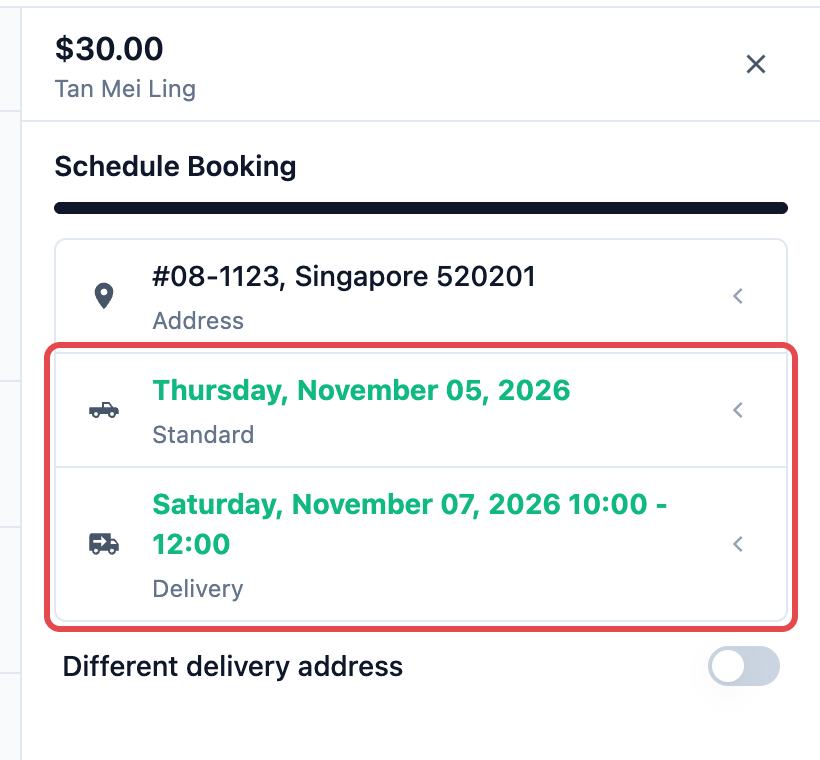
The dates and windows staff can pick follow your service areas and time slots, the same ones your customers see online. See Setting Up Online Booking Options.
Discounts, surcharges and promo codes
- Discounts and surcharges: click the discount or surcharge icon at the bottom of the cart and pick one. See Giving Discounts and Surcharges at the POS and in the Console.
- Promo codes: click the promo code icon, type the code and click Apply. Pick the customer first. See Create Your First Coupon.
Orders you price later
Some orders can't be priced on the phone, such as a pickup where your staff count the items at the shop. Add the items the customer tells you about, then book the pickup and create the order.
The order then waits in the first steps of your online orders' Pre-Production, such as Pending Pickup and then Pending Pricing. Once the items are at the shop, staff edit the line items on the order's page and confirm the price. See Quoting and Collecting Orders Before Work Starts.
Paying now or later
Orders with a Schedule Booking step
Create Order saves the order without a payment. The customer pays later, for example at pickup or delivery. See Collecting What a Customer Still Owes at Pickup or Delivery.Orders without checkout steps
- Click Charge at the bottom of the cart.
- On the Payment panel, click the payment method, for example Cash or PayNow.
- If the customer has store credit, Store Credit shows with their balance. Click it to pay from the balance.
- If your payment settings allow part payments, change the amount to what the customer pays now.
- Confirm the payment.
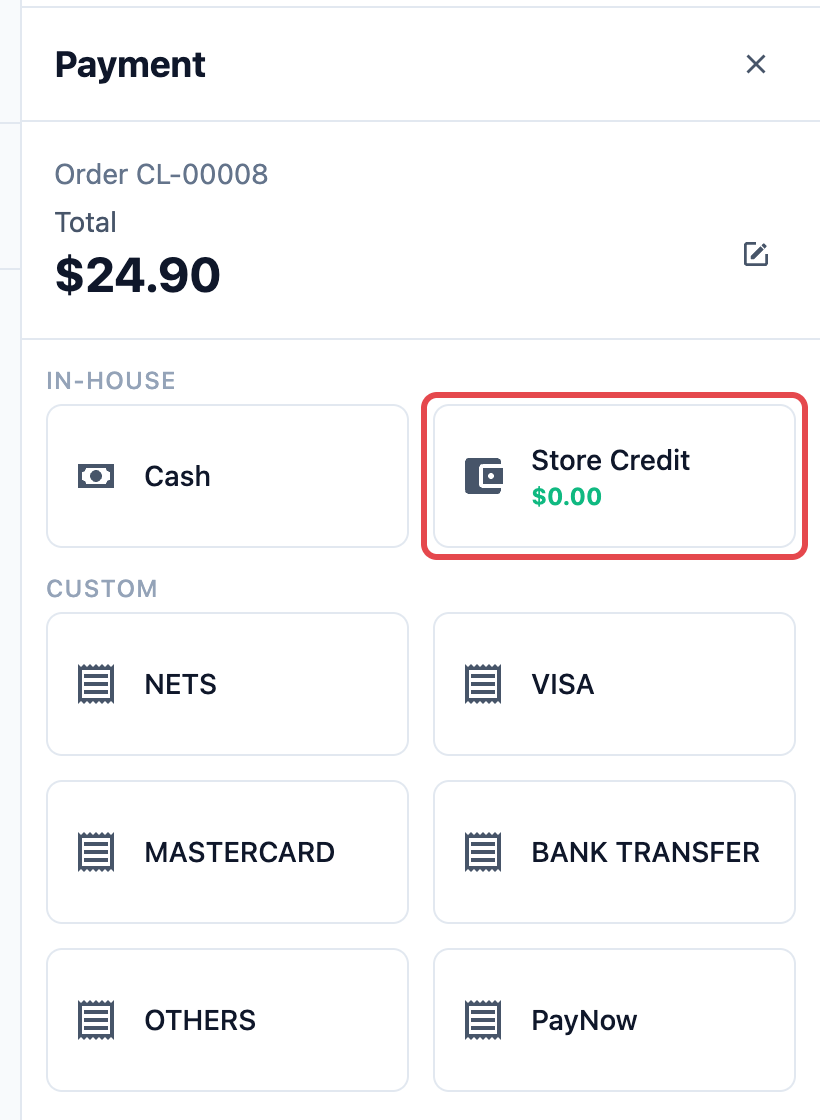
To save the order unpaid, click Pay Later instead. Pay Later shows only when Pay later is on in the cart settings of the New Order page. See Customize the Console New Order Page.
After you save
The Console opens the new order's page, with its order number at the top. From there:
- Receipt: click Receipt to print or check the receipt.
- Labels: click Label to print the item labels.
- Jobs: a booked pickup, delivery or visit shows under Logistic › Jobs, ready to assign to a driver.
- Customer messages: the customer gets whatever your Customer Notifications send for a new order and a booked pickup, by email, WhatsApp or push. A new business starts with a receipt email that goes out when a payment is received, to customers with an email address. See Automatic Order Notifications Explained.
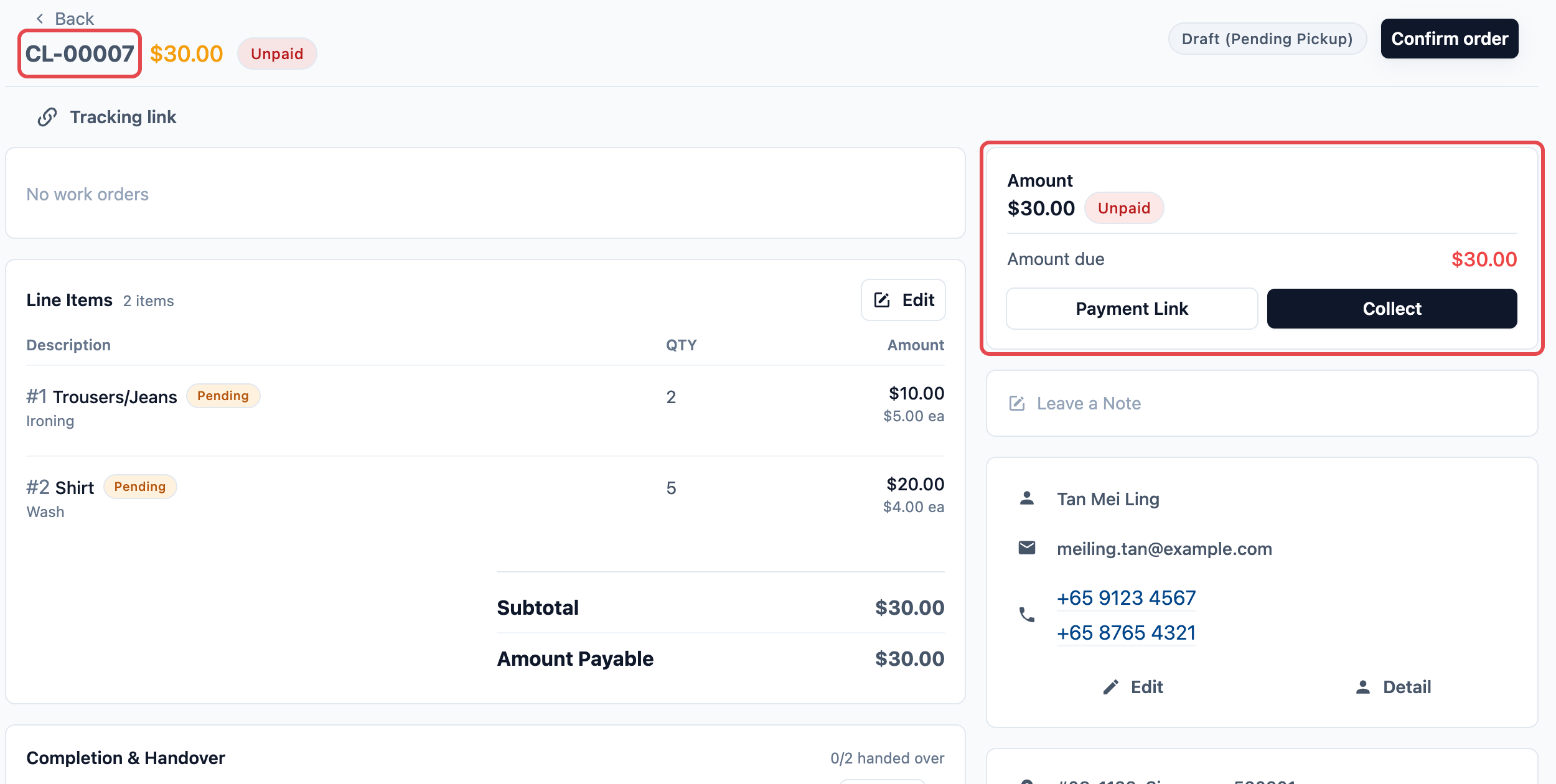
Example: a phone order at CleanFast Laundry
Mei Ling Tan calls CleanFast Laundry, Tampines. She wants 5 shirts and 2 trousers washed and ironed, collected from home on Thursday morning. She will pay when the clothes come back.
- Staff open Sales › Orders, click New Order and pick CleanFast Online.
- In Location, they pick Tampines.
- They search "9123" and click Mei Ling Tan.
- In the Laundry catalog, they add 5 Shirt and 2 Trousers, both Wash & Iron.
- They click Checkout, pick Thursday, 10:00 to 12:00 on Schedule Booking, and click Create Order.
The money lines on the order:
| Line | Amount |
|---|---|
| 5 × Shirt (Wash & Iron) at $4.00 | $20.00 |
| 2 × Trousers (Wash & Iron) at $5.00 | $10.00 |
| Subtotal | $30.00 |
| GST 9% | $2.70 |
| Total | $32.70 |
| Paid | $0.00 |
| Balance due | $32.70 |
If your price list already includes GST, no GST line is added and the total is $30.00.
The driver sees the Thursday pickup in Jobs. Mei Ling pays the $32.70 when her clothes are delivered back.
For B2B shops
Use this only if you sell to business customers (agents), such as hotels or partner shops. See Introduction to B2B.
- Click New Order on the Orders page, then click B2B Order.
- Search for the agent by name, code or phone, and click them.
- Add the items. The catalog shows the agent's business unit and price list.
- Save the order as usual.
If the agent's orders are entered by amount, you see Enter Order Amount instead of a catalog. Type the amount and click Set Amount. To switch to another agent, click Change Agent. After a B2B order is saved, you see "Order created" and stay on the page for the agent's next order.

FAQs
Why is a business unit missing from New Order?
It isn't switched on for the New Order page. A business unit you add later starts switched off there, so turn it on in Customize the Console New Order Page.
Must I pick a customer?
Yes, by default. A Console order is usually a pickup or delivery, so it needs the customer's name and address. You can change this under Contact on orders in the New Order page's cart settings.
Can I take an order for a customer with no phone number?
It depends on which details your shop makes required for new contacts. See Add a New Customer and Choose What Staff Must Fill In. A customer without a mobile number won't get WhatsApp messages about the order.
Does the customer get a message when I save the order?
Only if your Customer Notifications send one. A Sales order created notification goes out for every new order, from the Console, the POS or online. Without one, nothing goes out when you save an unpaid order.
Can I change the order after saving it?
Yes. Open it from Sales › Orders to edit the items, move it to another customer or cancel it. The next article covers this.
Do my POS checkout steps run here too?
No. The POS and the Console each have their own checkout steps on the business unit's Selling tab. A step added to the POS checkout doesn't show on the New Order page.
Why don't I see Pay Later?
Pay later is off in the New Order page's cart settings. Turn it on in Customize the Console New Order Page. Orders with a Schedule Booking step are always saved without a payment.
What's Next
You can now take a complete order in the Console, book its pickup and save it paid or unpaid. Next, learn how to find that order again and move it along as your team works on it in Finding and Working on an Order.