
Each work order on an order shows its due date, where it goes back to, and who finished each task, so your staff never open the work order to check.
Before You Start
- Read Creating Your First Card. This article uses the same Cards page and the same way of adding details.
- Your business unit must create work orders. Turn on Create a work order for each service item on the unit's Production tab and add its tasks, as shown in Setting Up Packing Flows and Work Orders. Shops that don't use work orders can skip this article.
- You need permission to change POS settings, because Cards sit with them.
- If you set this up before: the due date, return type, print and flow settings that used to sit in the order page's Work orders section now live on the work order card.
Choose your setup
| Level | Fits shops like | What you set up | Read these sections |
|---|---|---|---|
| Easy | One shop where the same staff take in and repair each bag | A work order card with a short description, the due date and the return type | Where to find it, Setting up a work order card |
| Intermediate | A shop where different repairers do different tasks on the same bag | Everything in Easy, plus a task card that shows who did each task and when | Adding a task card |
| Advanced | 2 or more shops sending bags to one workshop, with a printed slip and a quality check for each item | Everything in Intermediate, plus print buttons and flow status on each work order | Adding print buttons and flow status |
The Easy setup works on its own. Your staff see each work order's description, due date and return type, and tasks show by name. You can add a task card, print buttons or flow status later at any time.
Overview
A work order is the job card for one service item on an order, such as one handbag. A work order card decides what each work order shows in the order's Work orders section. A task card decides what shows under each task's name on that work order. You set both up once, and every page that uses them shows the same thing. Nothing about the work order itself changes: the cards only decide what staff see.
Where it works
- Console: the Work orders section on an order's page.
- POS: the Work orders section on an order's details.
- Flows: task cards also show in a flow's Task Detail and Work Order Detail steps.
Your customers don't see these cards. They are for your staff.
Why set it up
Without a work order card, each work order shows the System Default card. That is the ready-made look: the due date and return type, with each task by its name only. It works, but staff must open a work order to see who stitched a bag, print its slip or check whether it passed inspection.
With your own cards, staff see it all on the order. That saves them opening each work order, and fewer bags go back to the counter before every task is done.
Where to find it
- Click the ⚙️ Settings icon in the top-right corner.
- Under the Library section, click Cards.
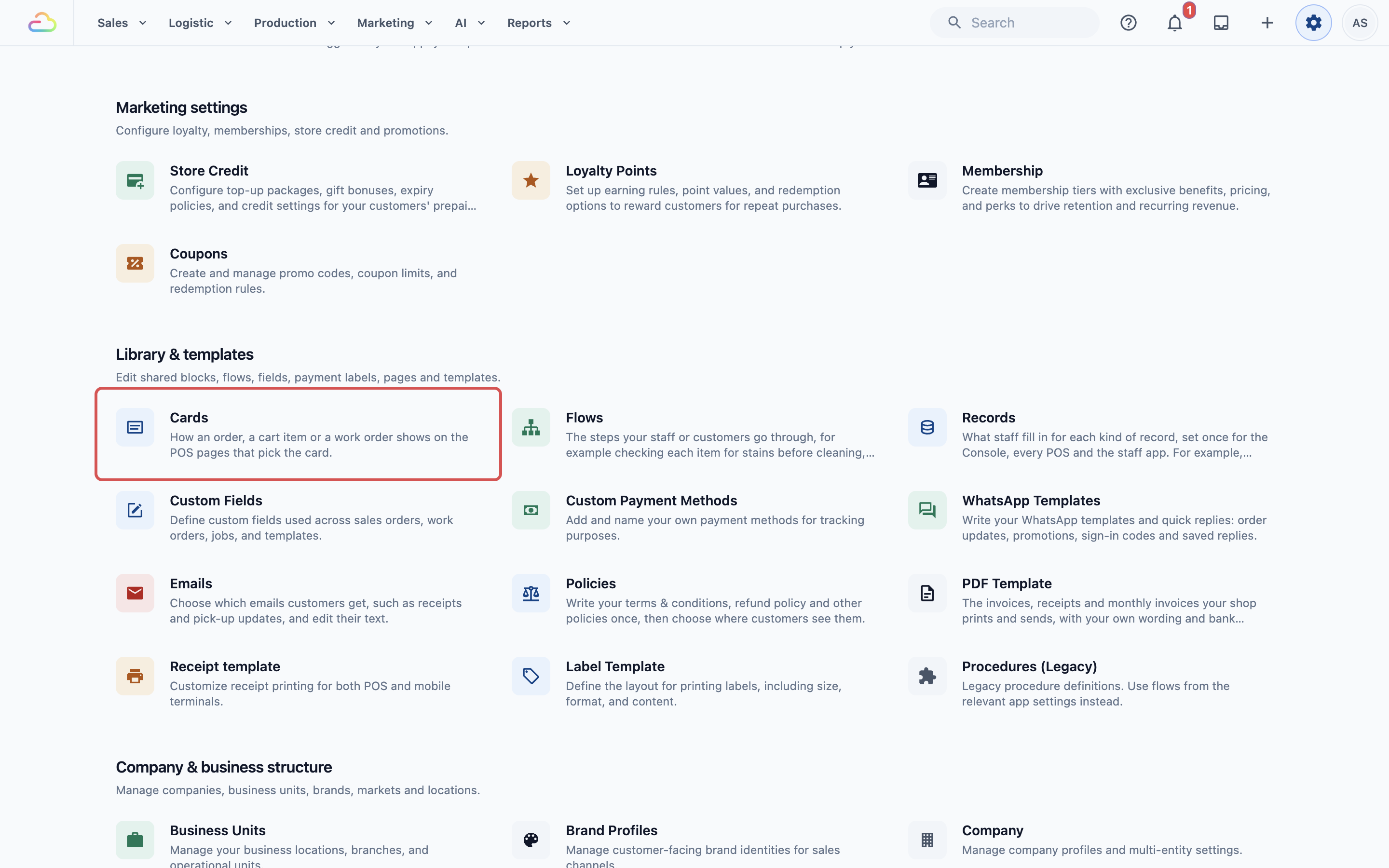
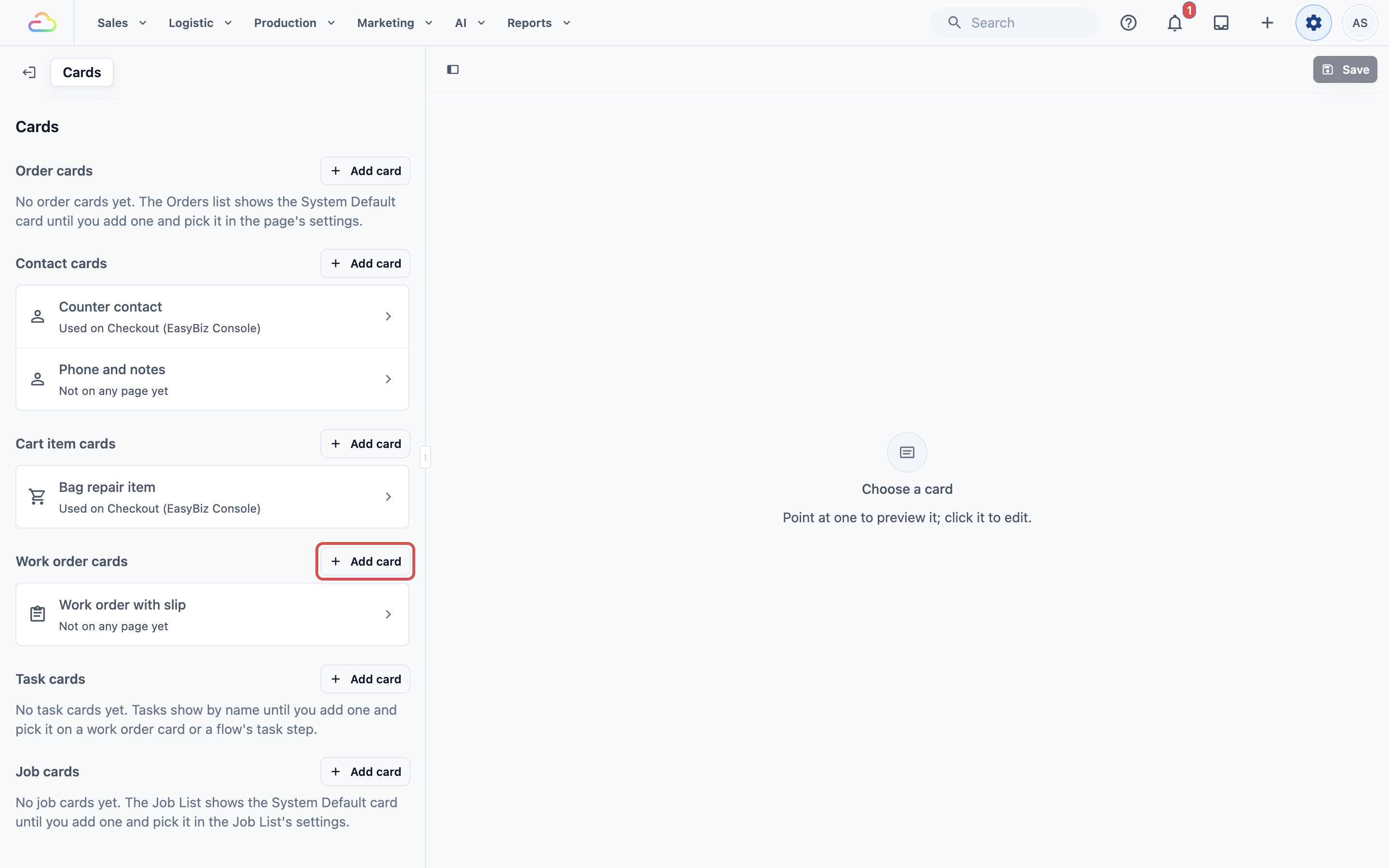
The Cards page lists your cards by type. Work order cards and Task cards each have their own section with an Add card button.
Setting up a work order card
- Under Work order cards, click Add card.
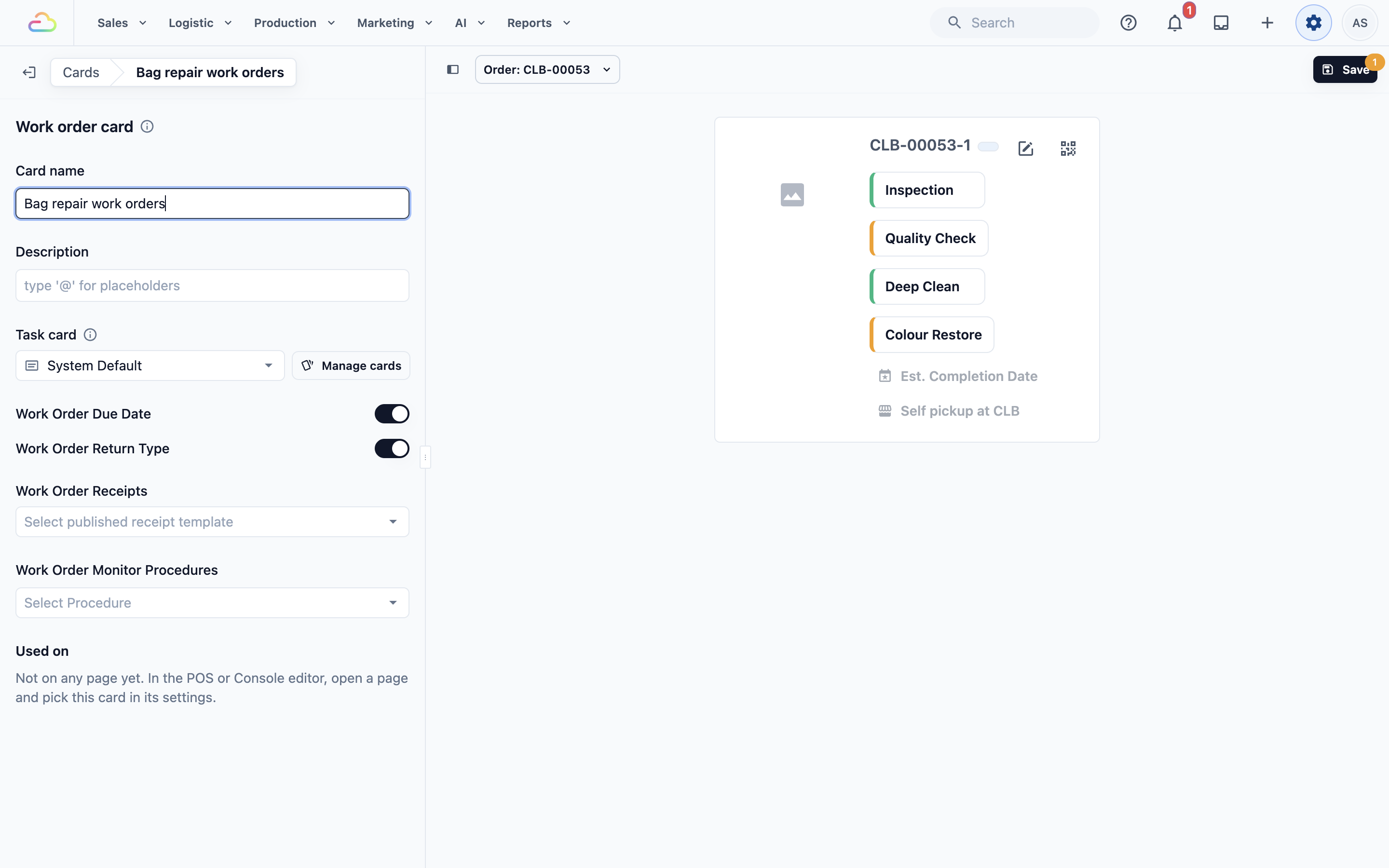
- Fill in the fields below.
- In the toolbar above the preview, pick an order that has work orders. The preview on the right shows that order's work orders with your card.
- Click Save. You'll see "Cards saved".
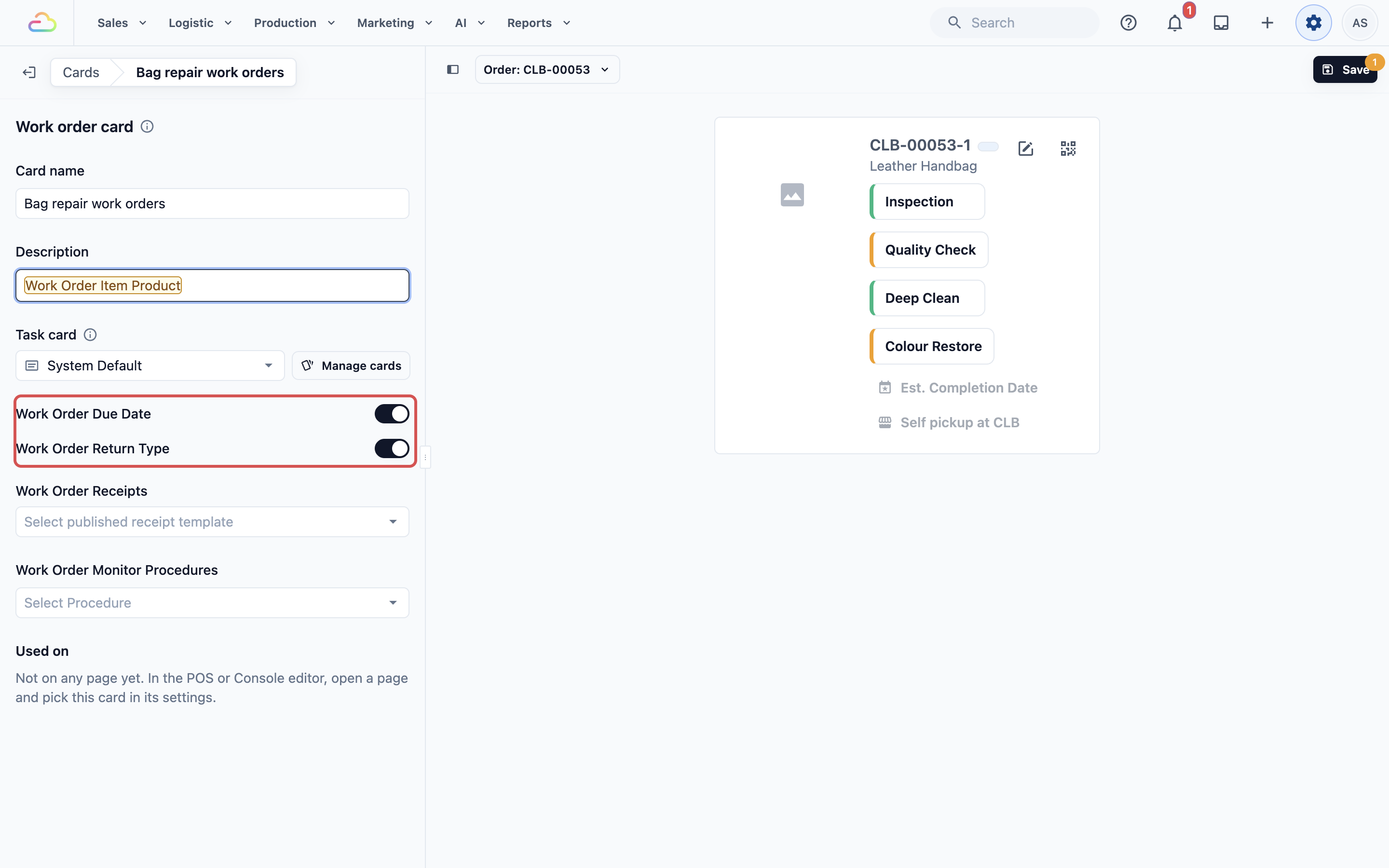
Card name
Type a name your team will recognise, such as "Bag repair work orders". A new card starts with a name like "Work order card 1".
Description
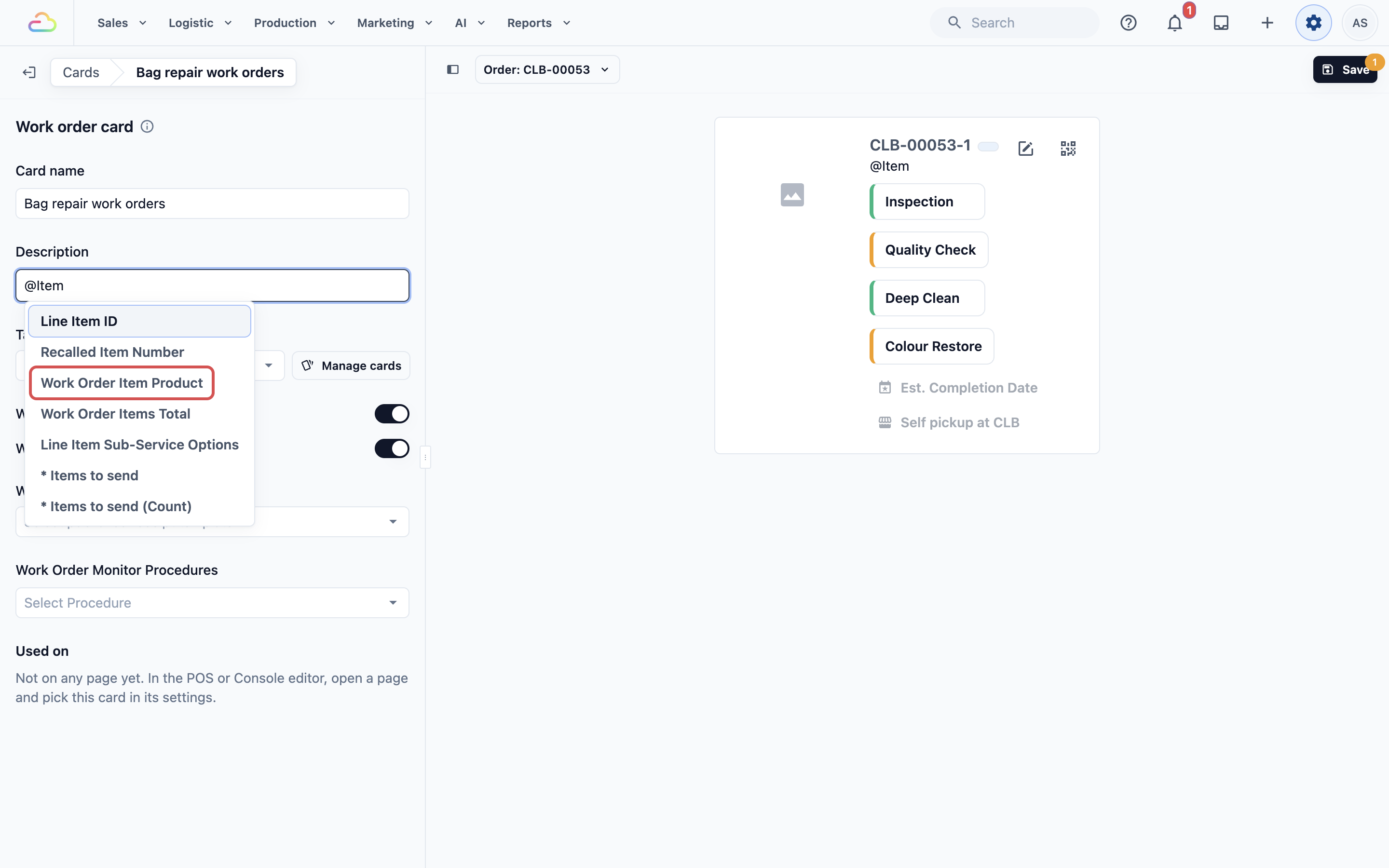
What shows under the work order number. Type @ to pick a detail of the work order, such as Work Order Item Product or Work Order Accessories. You can mix your own words with the details.
Work Order Due Date
If you turn this on, each work order shows its due date, such as "Due: 12 Nov". A work order with no date yet shows "Est. Completion Date". Staff can click it to set or change that work order's date in the Est. Completion Date window. If you turn it off, the date doesn't show on the work order, but it is still kept.
Work Order Return Type
If you turn this on, each work order shows where the item goes when it's done, such as "Self pickup at Tampines" or "Home delivery". Staff can click it to change it in the Set Fulfillment Type window, for this work order or with Update All for every work order on the order. If you turn it off, the return type doesn't show on the work order.
Both switches are on when you add a card, and they can be on together. They show side by side on the same row as any print buttons and flow status.
Used on
Shows the pages that use this card. A new card says it is not on any page yet. Choosing the page that shows it is covered in Choosing Which Card Each Page Shows.
Adding a task card
For Intermediate and Advanced setups:
A task card decides what shows under each task's name on a work order, for example who did it and when. Until you pick one, tasks show by name only, with any note and photos staff added.
- On the Cards page, under Task cards, click Add card.
- In Card name, type a name, such as "Who did it".
- In Description, type @ and pick Task Completed By. Type a comma, then type @ again and pick Task Completed Time.
- Click Save.
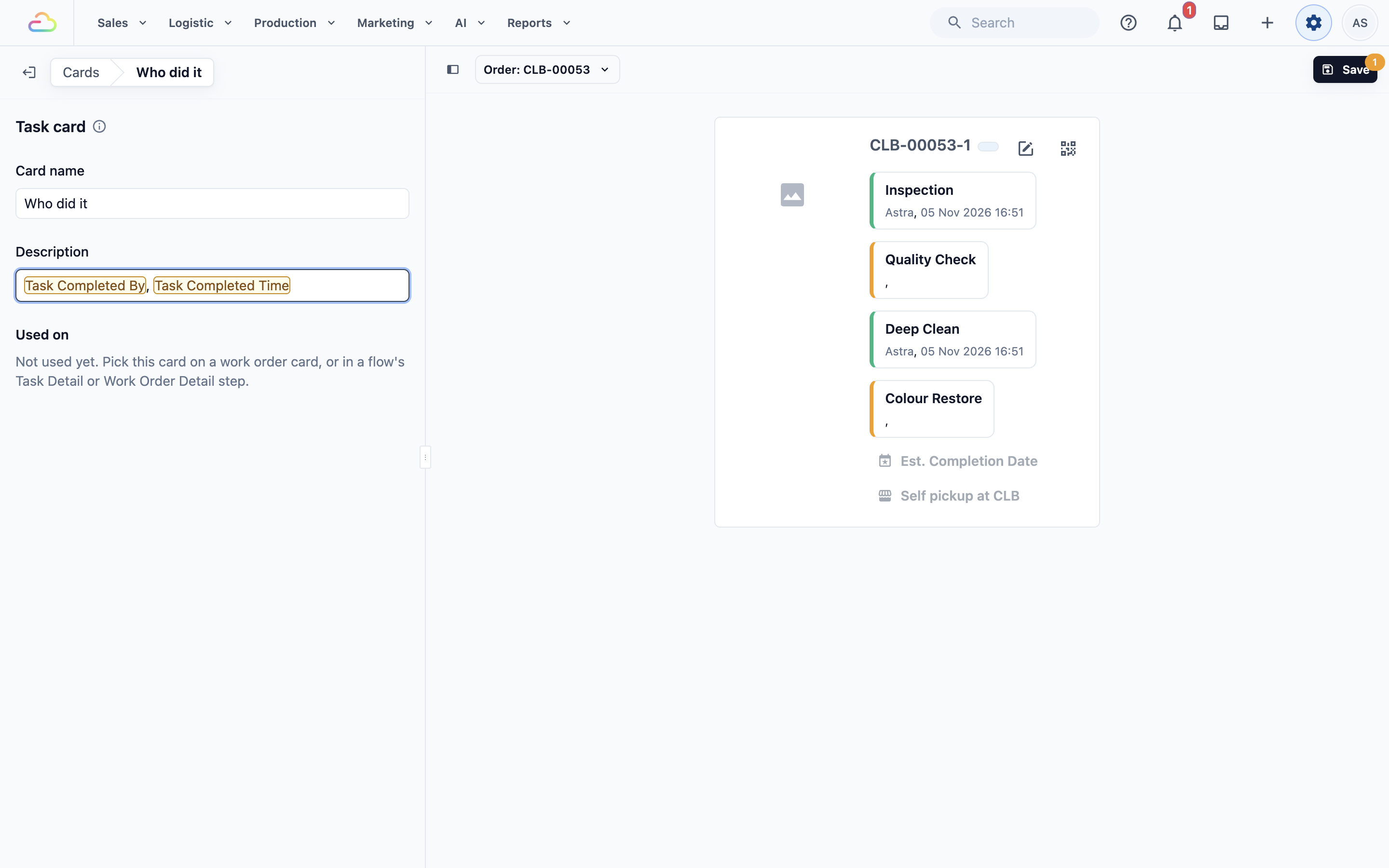
Under Used on, a new task card says "Not used yet. Pick this card on a work order card, or in a flow's Task Detail or Work Order Detail step." A task card shows only where you pick it.
- Open your work order card again.
- In Task card, pick "Who did it". The list also has System Default, which shows tasks by name only.
- Click Save.
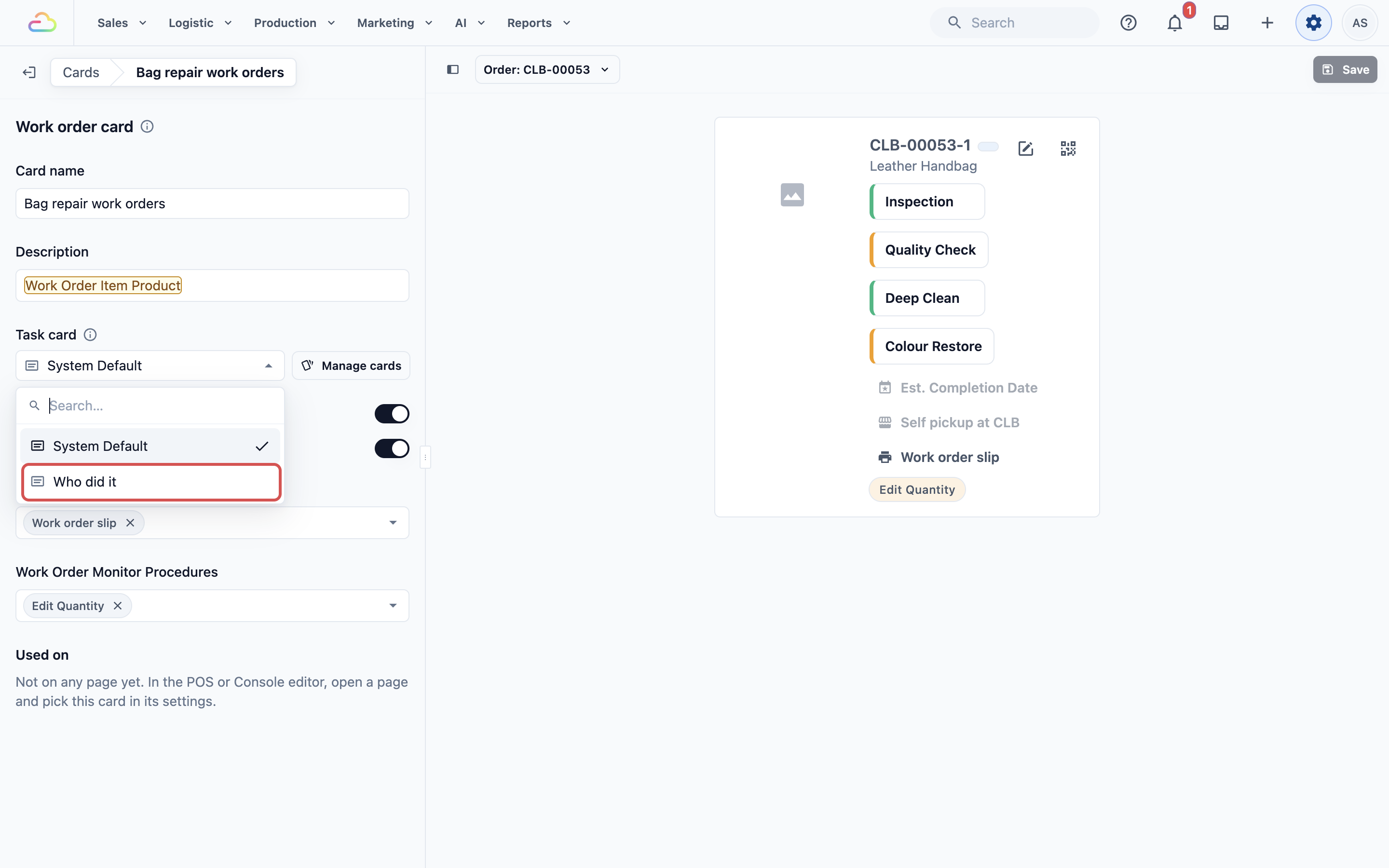
The Edit card button next to Task card opens the task card you picked. If you haven't picked one, Manage cards takes you back to the Cards page. Only saved task cards appear in the list.
Adding print buttons and flow status
For Advanced setups:
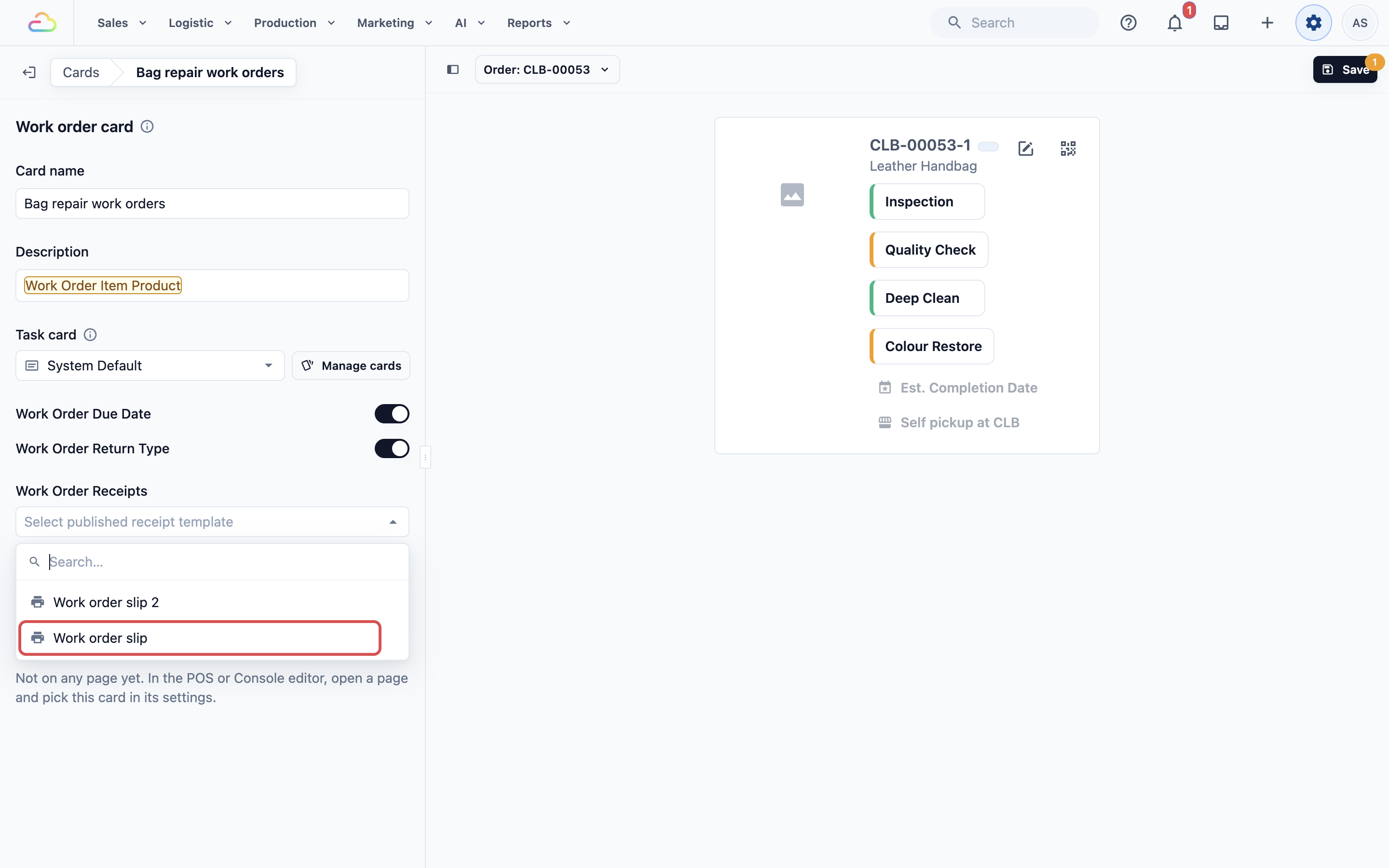
Work Order Receipts
Pick one or more work order slips. Each one adds a printer button with the slip's name to every work order. Staff click it, check the slip and click Print receipt. Leave it empty if staff print slips from Production › Work Orders instead. Slips are made in Setting Up Your Work Order Slips.
Work Order Monitor Procedures
Pick one or more flows to keep track of on each work order, such as a "Quality Check" flow. A flow is a set of steps your staff go through, made in Settings › Flows. Each one you pick shows as a status on the work order:
| Status | What it means |
|---|---|
| Amber, with the flow's name | Staff haven't completed this flow for the item yet. |
| Green, with the flow's name, date and staff name | Staff completed the flow for this item. |
Staff click the status to start the flow for that work order. Leave the field empty if you don't track a flow for each item.
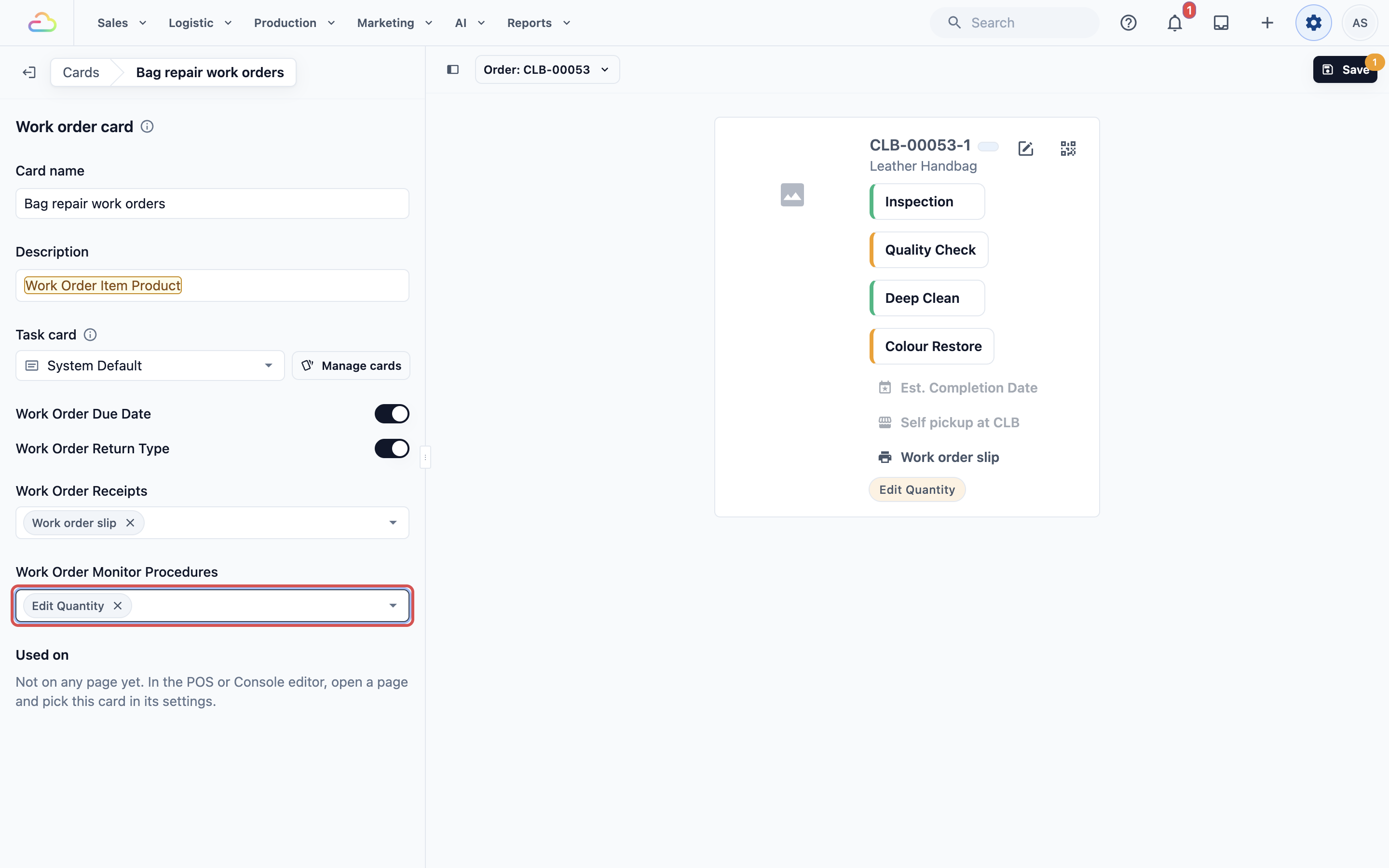
Example setup
CleanFast Laundry's Bag Repair unit makes a work order for each bag. It has 3 tasks: Inspect, Stitching and Final check.
Task card "Who did it"
- Description: Task Completed By, Task Completed Time
Work order card "Bag repair work orders"
- Description: Work Order Item Product
- Task card: Who did it
- Work Order Due Date: on
- Work Order Return Type: on
- Work Order Receipts: Work order slip
- Work Order Monitor Procedures: Quality Check
What staff see
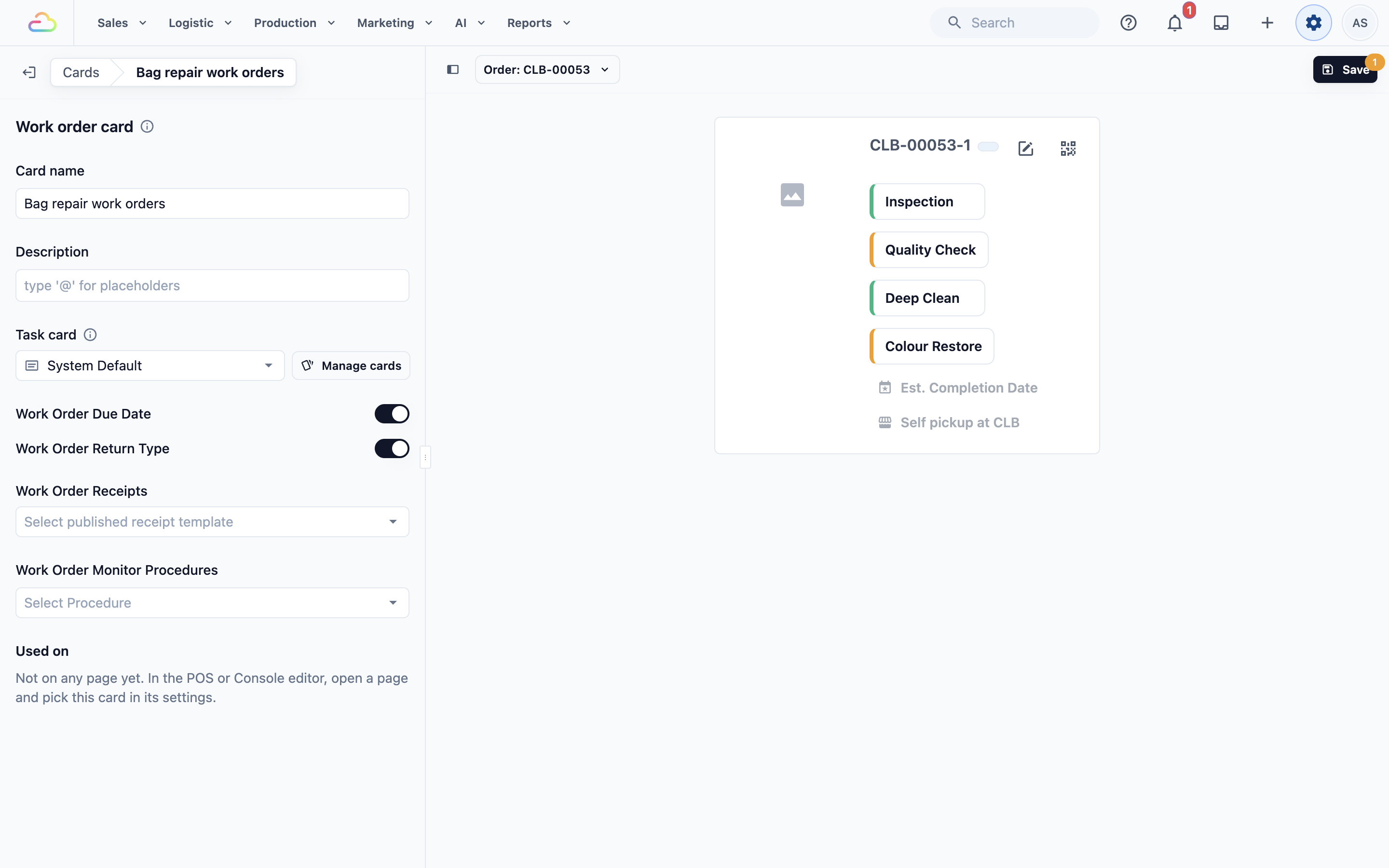
Before the card, a customer's Coach handbag shows its work order number, "Due: 12 Nov", "Self pickup at Tampines", and its 3 tasks by name only.
Once the page uses "Bag repair work orders", the same work order shows "Leather Handbag Repair" under its number. Under Stitching, staff see "Mei, 03 Nov 2026 14:15". Next to the due date and return type are a Work order slip printer button and an amber Quality Check status, which turns green when the check is done.
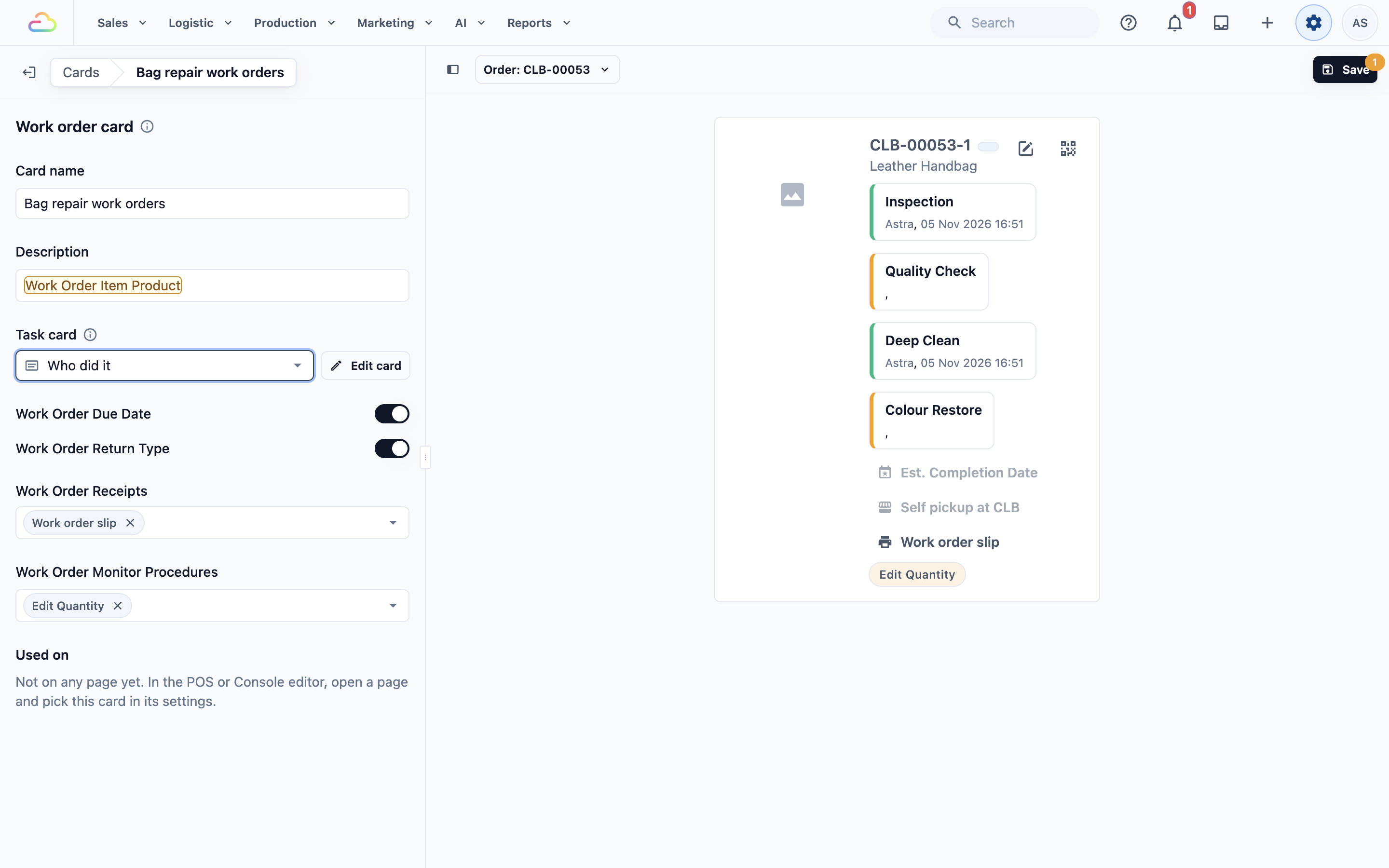
A task nobody has finished yet has no worker or time, so nothing shows under its name.
How it works with other features
- Tasks come from the business unit's task list on its Production tab. The task card changes only how they look, not which tasks a work order gets.
- Printed work order slips are a separate template. The work order card adds a button to print one, but it never changes what the slip shows.
- Flows: a task card can also show in a flow's Task Detail and Work Order Detail steps. See Steps You Can Add to a Flow.
FAQs
Does the work order card change the printed work order slip?
No. The slip has its own template. The card only adds a button that prints it.
Can I use the same task card in a flow and on a work order card?
Yes. Pick it in both places. Its Used on list shows every work order card and flow step that uses it, and a change you save shows in all of them.
What do staff see on orders made before I set up the card?
The card shows on older orders too, with their own dates and tasks, as soon as the page uses it. Orders taken before you turned on work orders have no work orders, so there is nothing to show.
Do I need a task card?
No. Without one, staff still see each task's name, its note and its photos. Add a task card when you want to see who did each task without opening it.
I saved my card but the order looks the same. Why?
A card shows only on pages that use it. Pick it in the page's Work orders section, as shown in Choosing Which Card Each Page Shows.
If I turn off Work Order Due Date, do my due dates go away?
No. Each work order keeps its date. Staff can still see and change it from Production › Work Orders.
What's Next
Your work order and task cards are ready. Next, choose which pages show them, so your staff see the new cards on the Console and POS. See Choosing Which Card Each Page Shows.