
How to Find Production Centers
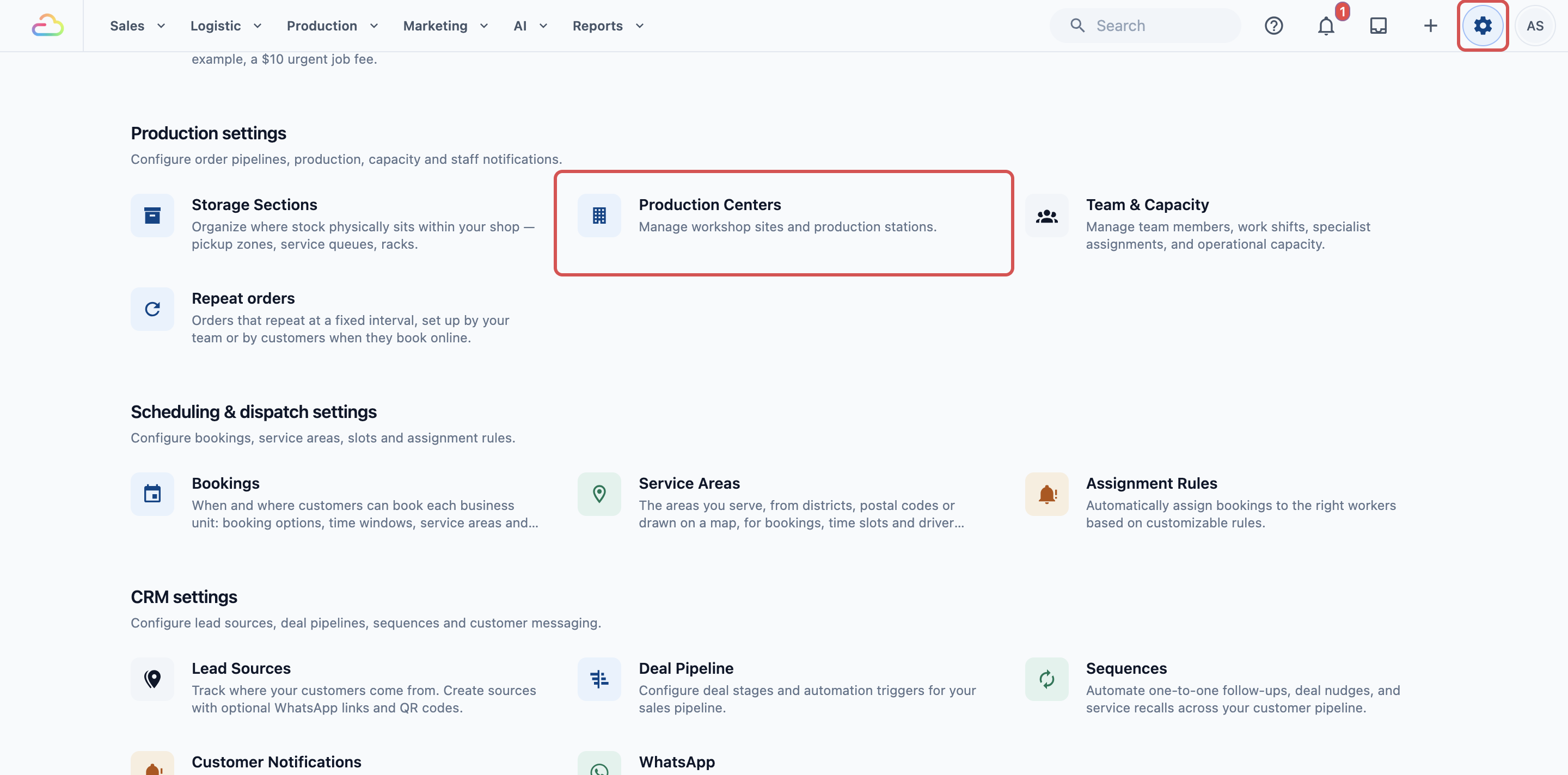
Click the ⚙️ Settings icon in the top-right corner.
Under the Production settings section, click Production Centers.
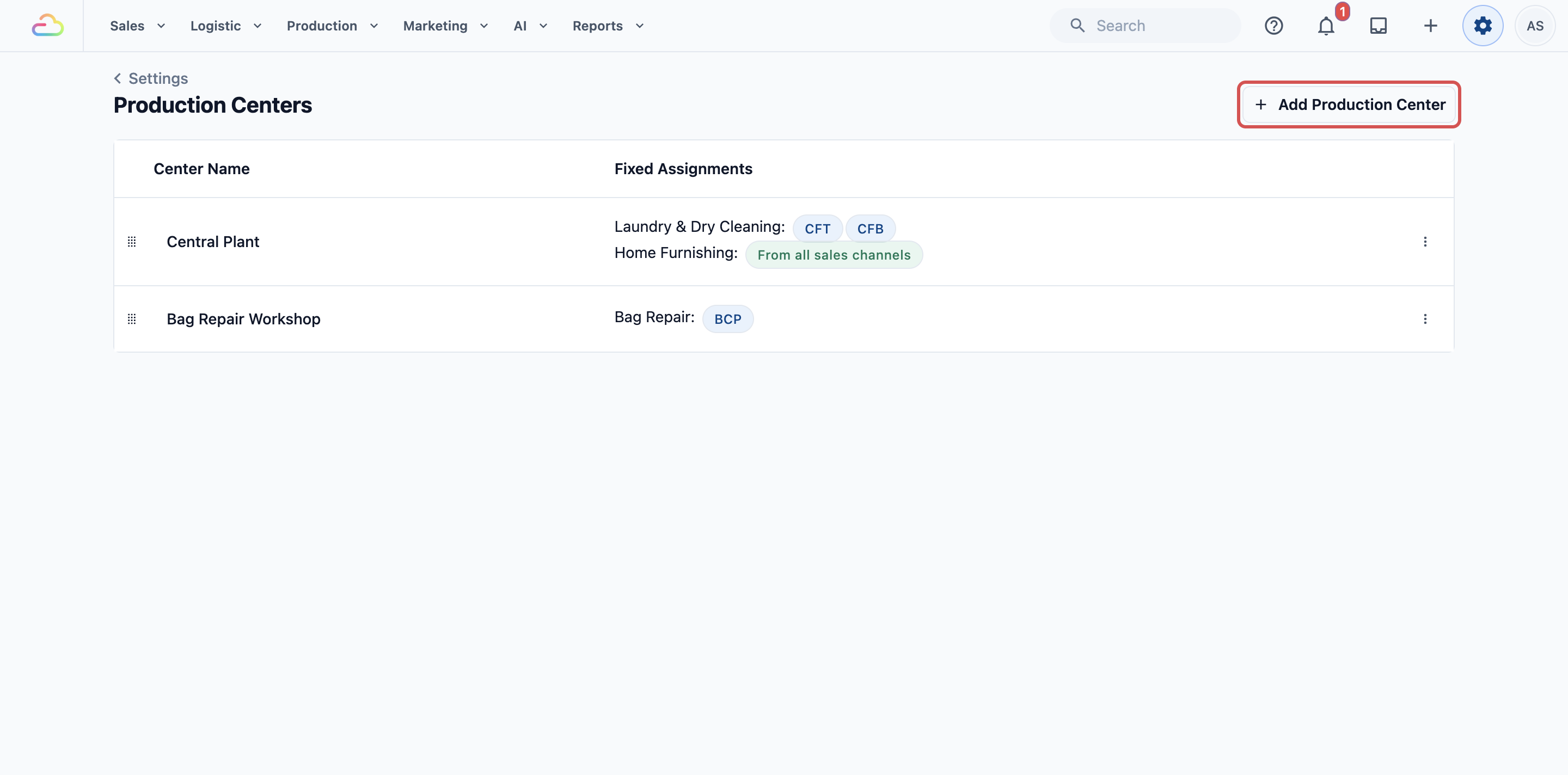
The list shows each center's Center Name and its Fixed Assignments.
How to Add a Production Center
- Click Add Production Center at the top right.
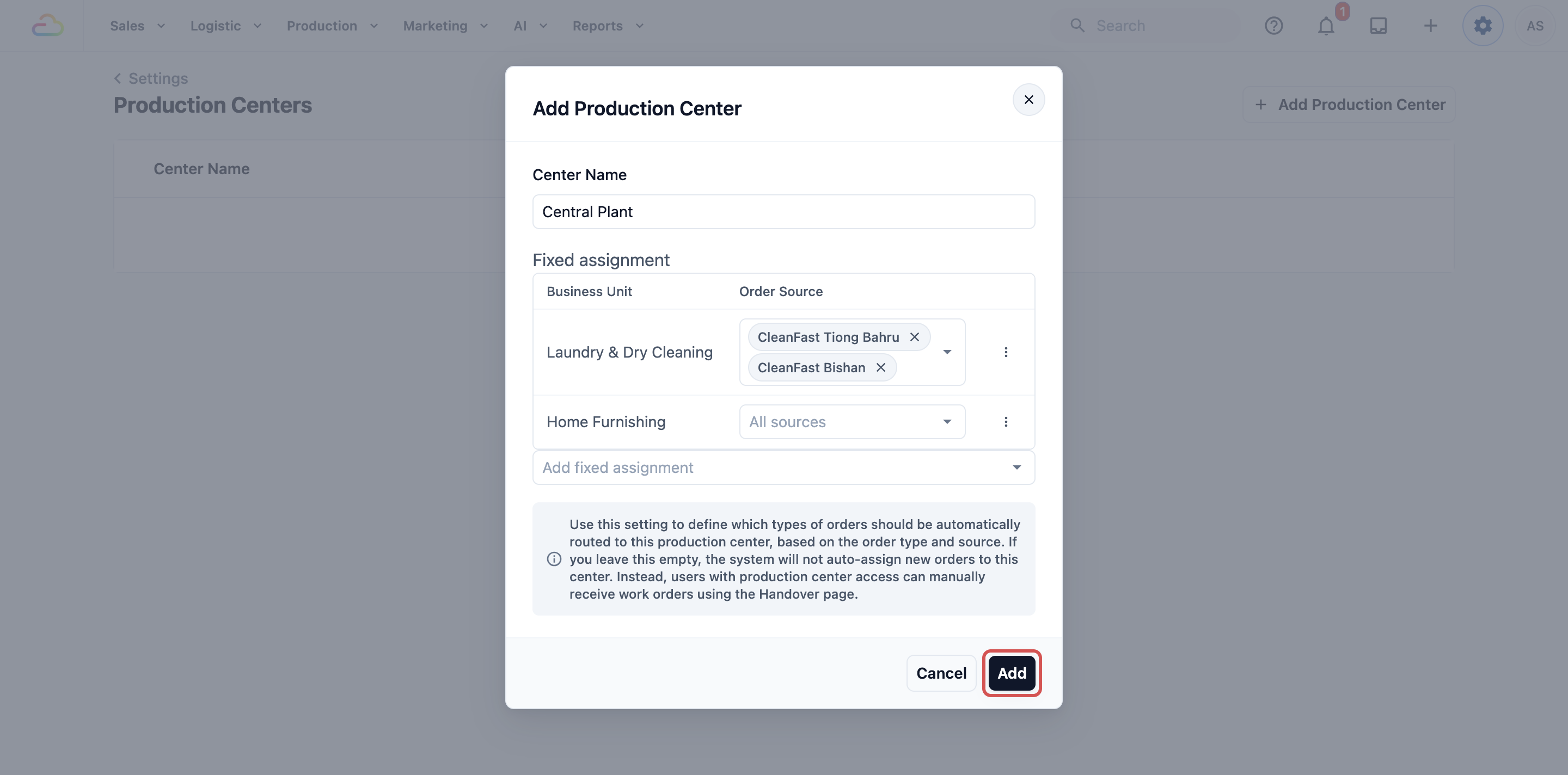
Enter the Center Name, use something your team already recognises, such as Main Plant, Workshop, or Repair Center.
Set up Fixed Assignments if you want orders to be routed here automatically.
Click Add.
Fixed Assignments
Fixed Assignments are routing rules that tell EasyBiz which orders should automatically go to this production center, based on the business unit and where the order came from. For example, you can route all bag repair orders from your online store to your workshop without staff having to do it manually.
If you leave Fixed Assignments empty, no orders are auto-routed to this center. Staff with production center access can still manually receive work orders using the Handover page.
To add a Fixed Assignment:
Click the Add fixed assignment box and choose a Business Unit, for example Laundry & Dry Cleaning or Bag Repair. It is added as a new row.
In that row's Order Source box, pick one or more sales channels, or leave it as All sources to include every channel under that business unit.
Repeat for each additional business unit this center should handle.
To remove a row, click the ⋮ menu on that row and choose Delete.
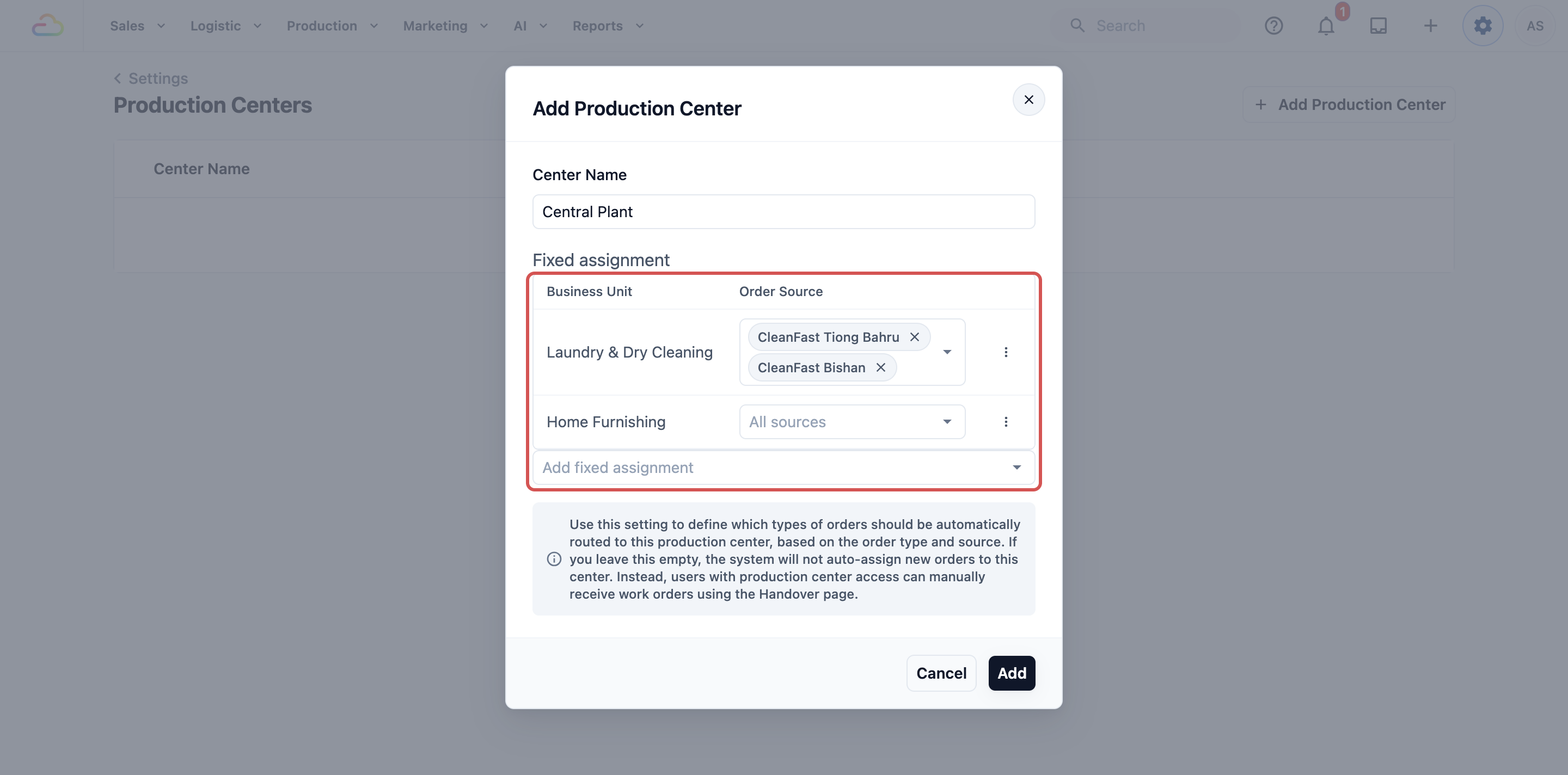
In the list, a business unit set to All sources shows as From all sales channels.
You can leave Fixed Assignments completely empty if you are not ready to auto-route work yet. Staff with production center access can still receive work orders manually using the Handover page.
How to Edit or Delete a Production Center
Go to ⚙️ Settings › Production Centers.
Find the production center in the list.
Click the ⋮ menu on the row.
Click Edit to update the center name or Fixed Assignments, then click Save.
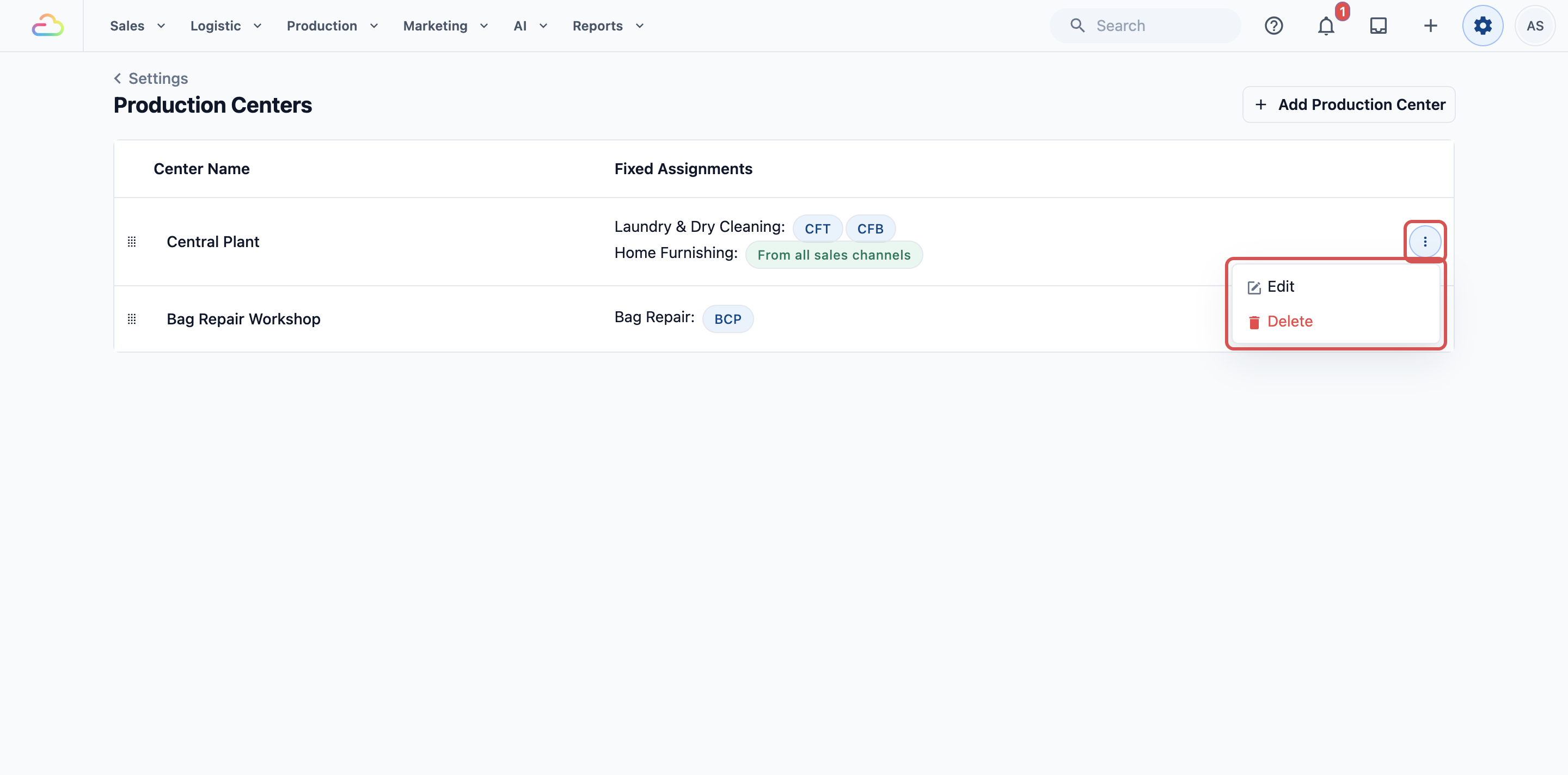
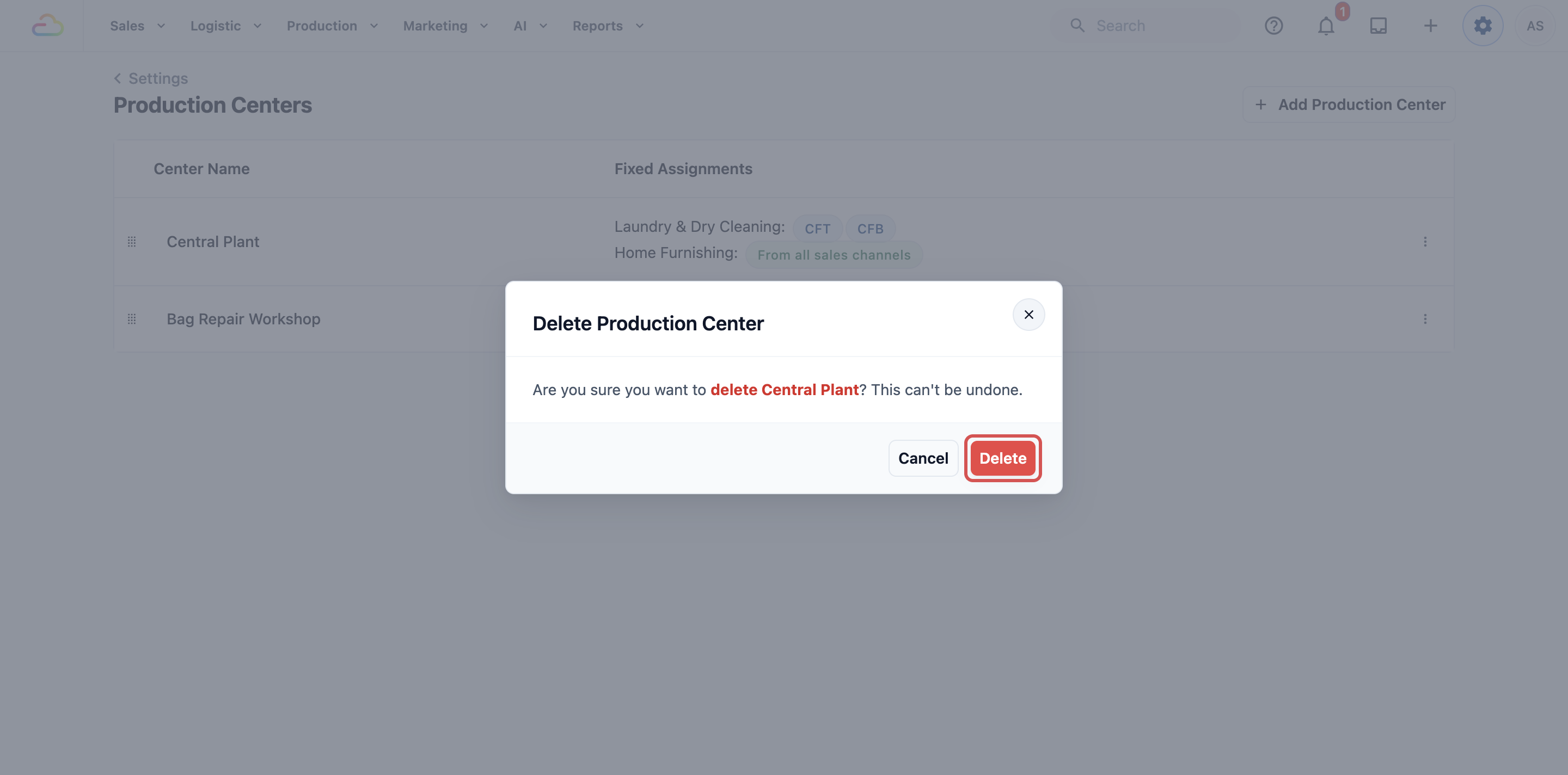
- To remove the production center, click Delete, then click Delete again in the confirmation window. This can't be undone.
How to Set Which Production Center a Person Works For
If someone works for one production center, set that center on their staff page. It does two things:
- They find and open only the orders that center processes, whichever shop took them. This covers the Orders list, Search, a customer's order history, order exports, and the Order List and order page in the staff app.
- Every order they pick up goes to that center, even when the counter staff mark the pickup done for them.
Go to ⚙️ Settings › Users & Access.
Click the person's name.
Find Production center, just below Sales Channel Access.
Choose the center this person works for, then click Save.
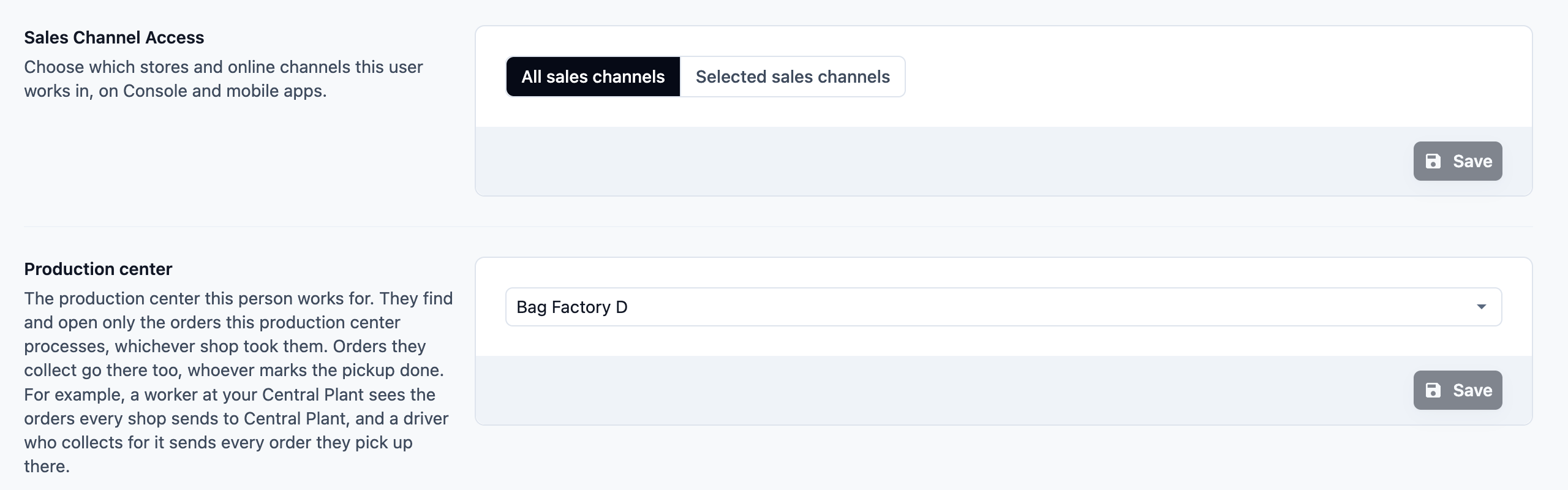
For orders, the production center takes the place of the person's Sales Channel Access. An order no center or shop processes yet, such as one still waiting for pickup, opens for them when their Sales Channel Access includes the shop that took it, so a driver can still open the order of a pickup. Jobs, payments, Receivables and reports keep following Sales Channel Access. The account owner is never limited.
To remove the limit, choose None and click Save. The person goes back to their Sales Channel Access, and orders they already picked up stay where they are.
FAQs
Do I need a production center before going live?
You need one if your team uses production workflows or wants work routed to a workshop, plant, or service center.
What happens if I leave Fixed Assignments empty?
No orders are auto-routed to this center. Staff with production center access can still manually receive work orders using the Handover page.
Can one production center handle more than one business unit?
Yes. Use Add fixed assignment to add a row for each business unit this center should handle.
Can I choose more than one order source?
Yes. The Order Source selector supports multiple sales channels for each business unit row.
Will deleting a production center delete past orders?
No. It removes the center from current configuration. Past order records remain separate.
What's Next
Now that your production centers are ready, continue to Introduction to Inventory Stock to understand how your retail product stock is viewed and moved across your locations.