
Before You Start
- Read Steps You Can Add to a Flow so you know what each step asks your staff to do.
- You need access to Flows and Business Units in Settings. Shop owners have this by default.
- No customer details are needed. A packing flow runs on orders that are already in your system.
Create the Packing Flow
- Click the ⚙️ Settings icon in the top-right corner.
- Under the Library section, click Flows.
- Click Add Flow .
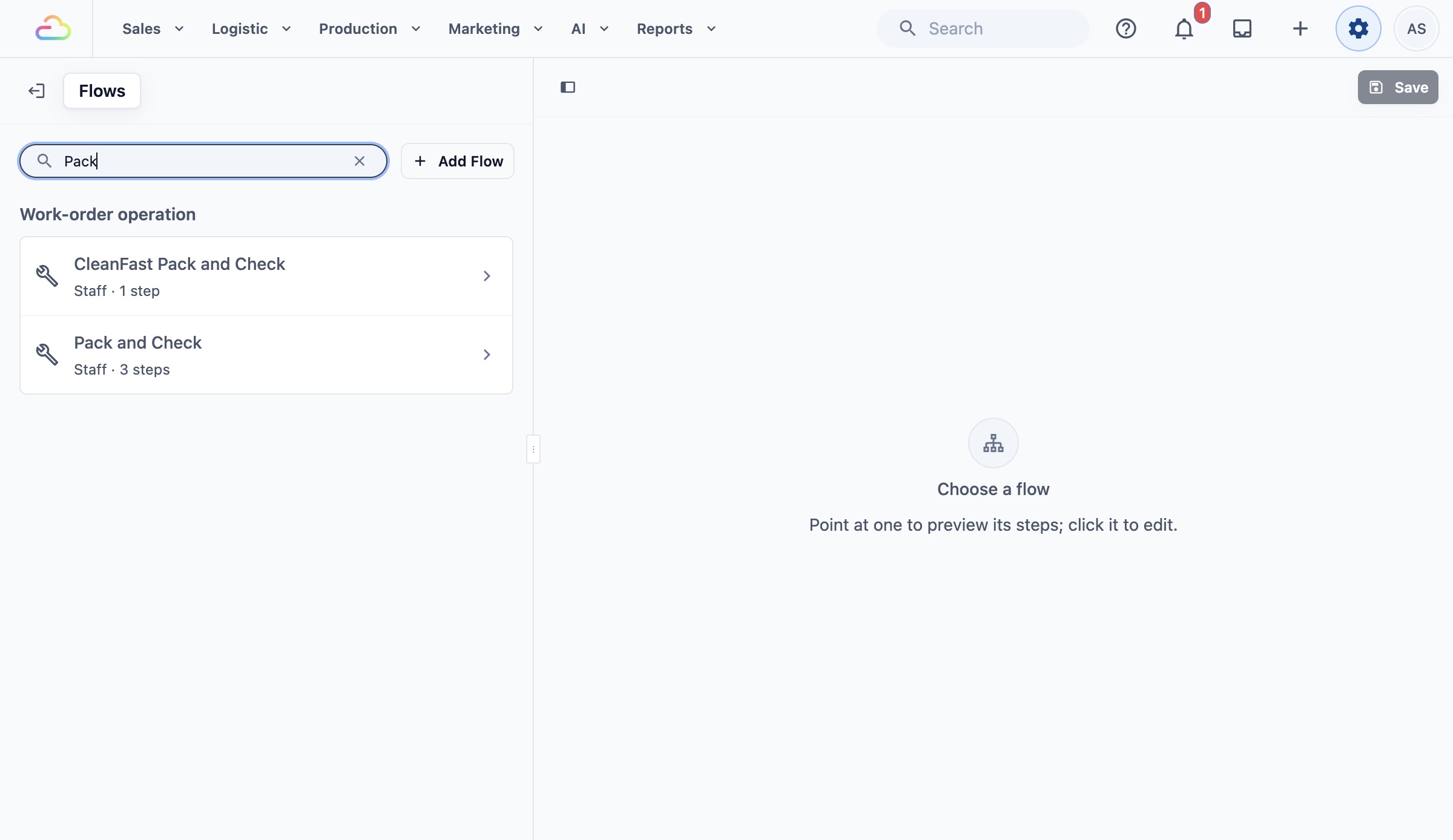
The Add Flow panel opens. Fill in the two fields at the top.
Flow type
Choose Work-order operation. This is the type used for packing and other work done on an order after it is received. Only flows of this type can be picked as a packing flow later.
Used by
This is set to Staff for this flow type. Packing is always done by your team, not by customers.
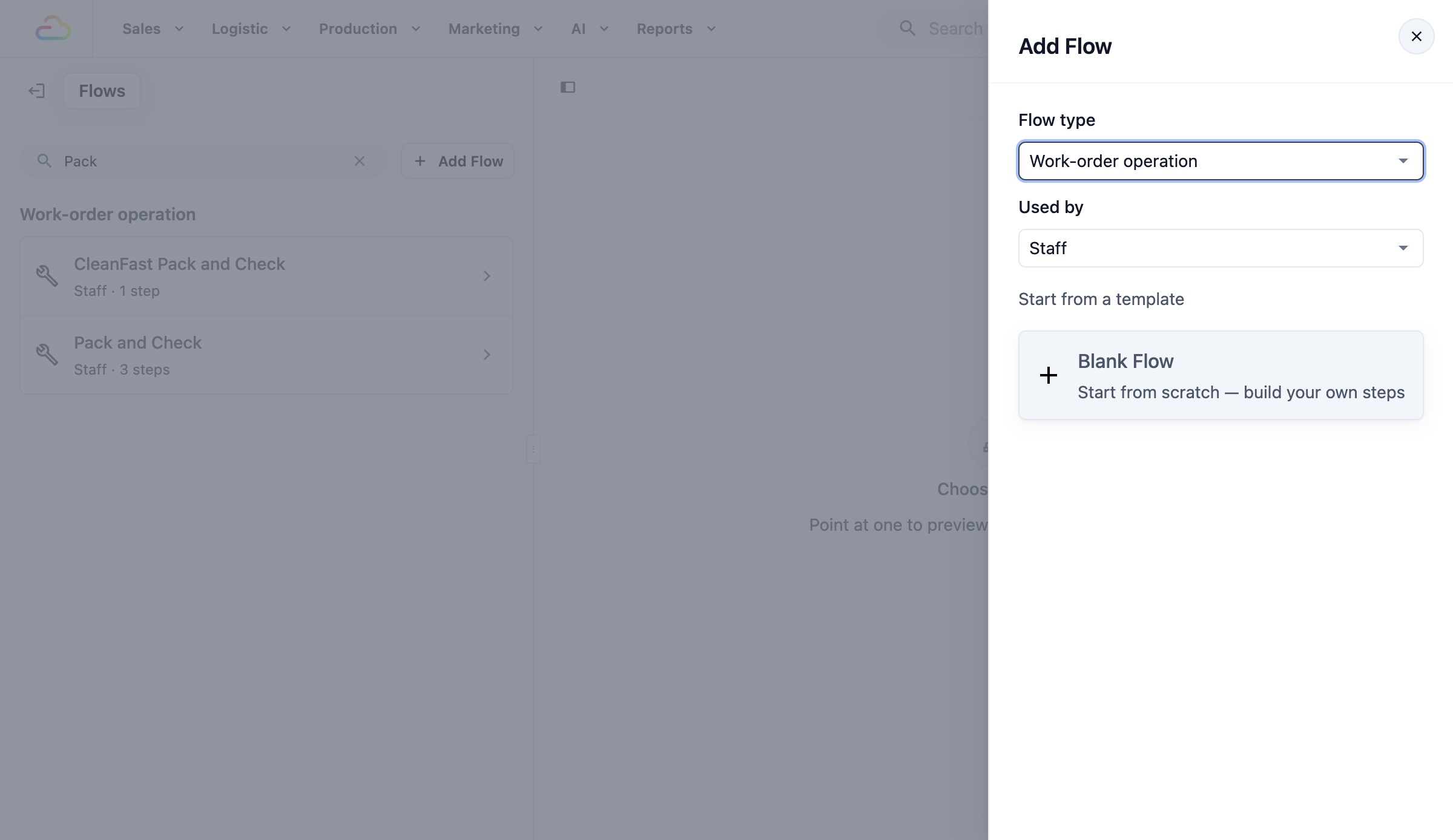
- Under Start from a template, click Blank Flow .
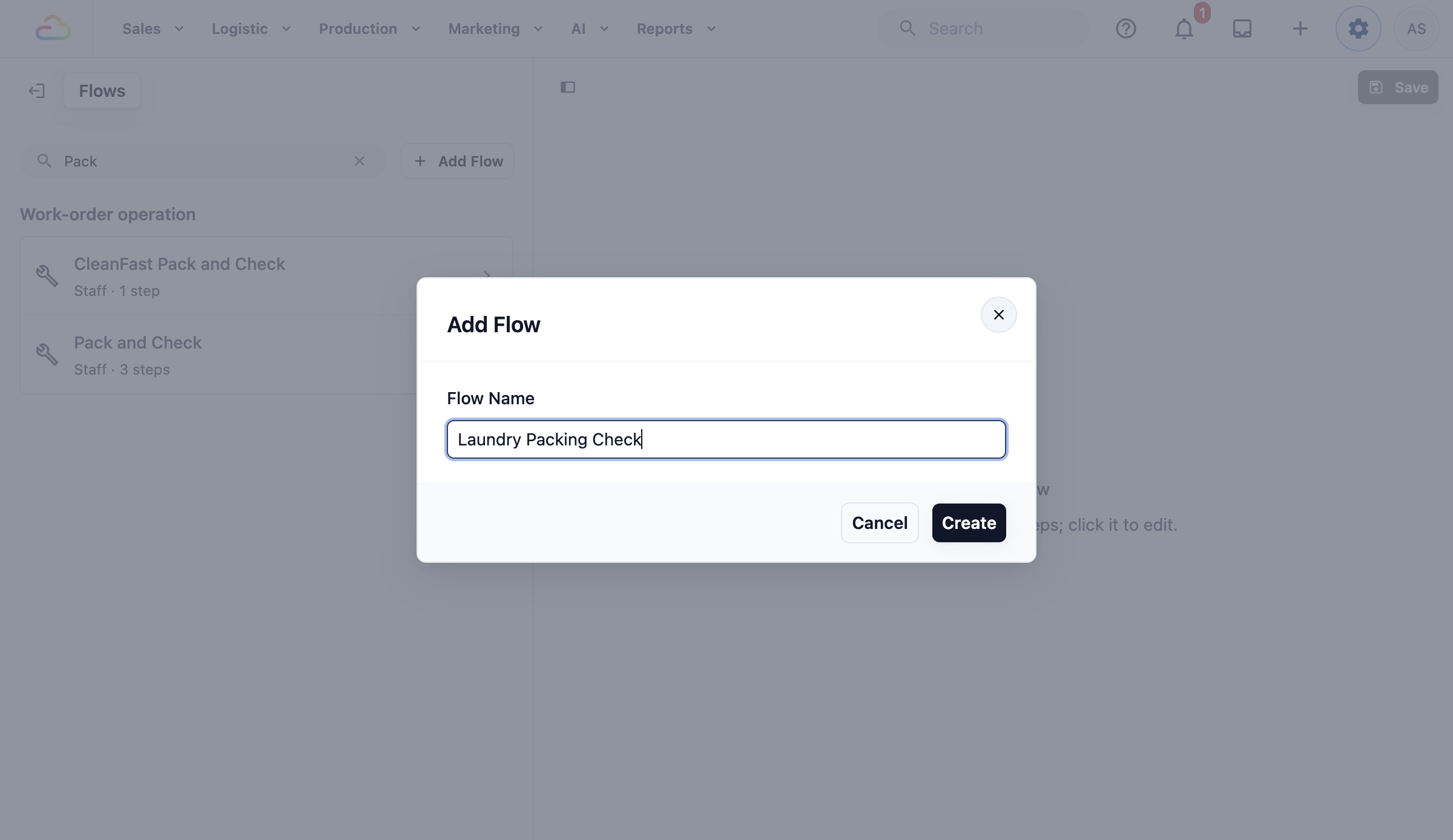
- In Flow Name, enter a name your staff will recognise, for example "Laundry Packing Check".
- Click Create .
The new flow opens, ready for its steps.
Add the Packing Steps
- Click Add Step .
- Pick a step from the list. You can search, for example type "photos".
- Repeat for each check you want your staff to do.
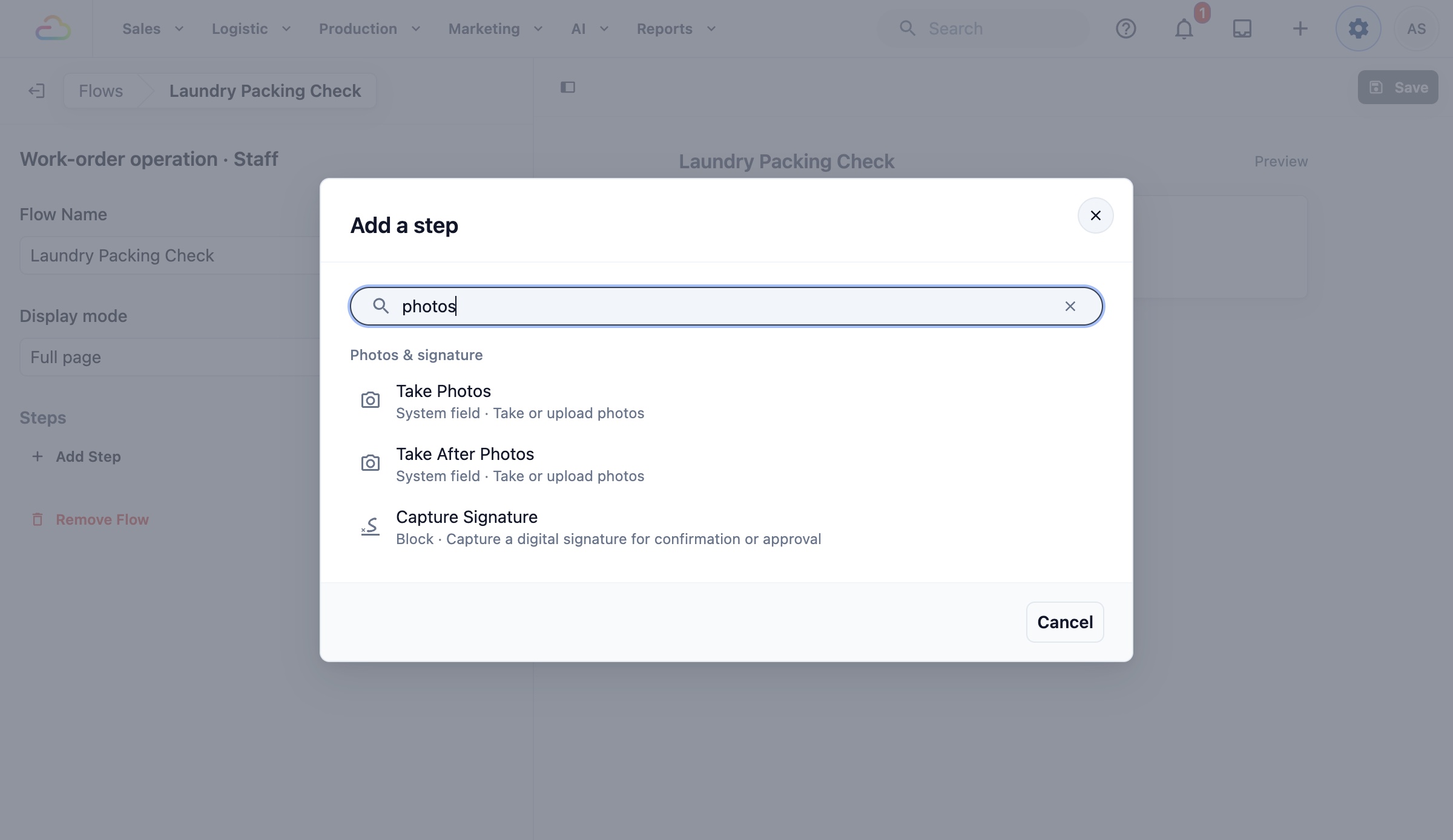
Packing steps that shops use most:
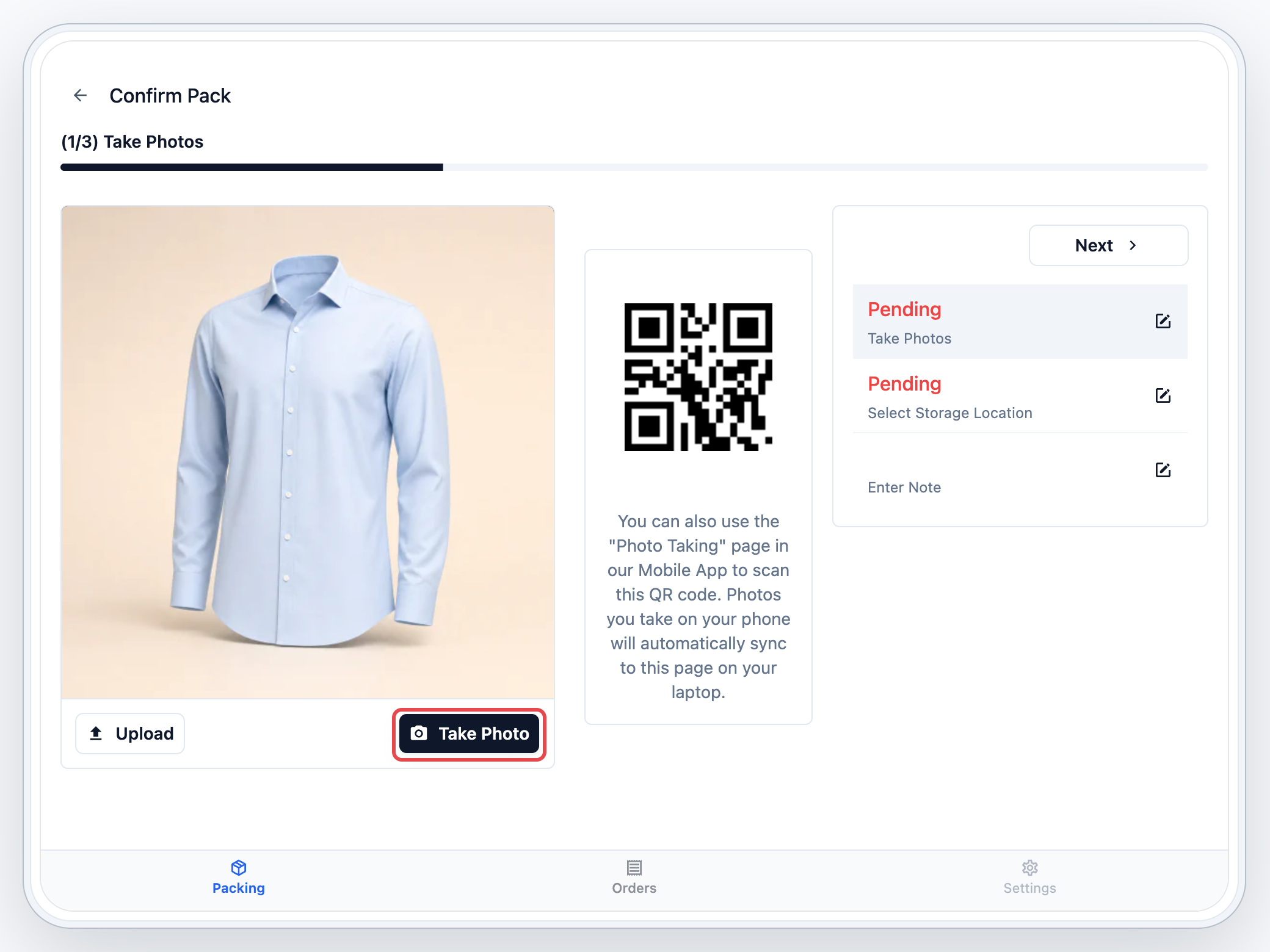
- Take Photos: a photo of the packed item, so you have proof of its condition if a customer asks.
- Select Storage Location: the shelf or rack where the packed order is kept, so the counter finds it fast at pickup.
- Enter Package Quantity: how many bags or boxes the order is packed in, so nothing is left behind.
- Edit Accessories: check the straps, chains or buckles removed at drop-off are going back in.
- Enter Note: anything the next person should know.
For each step, choose its Process Method.
Process Method
| Option | What it does |
|---|---|
| Required | Staff must complete this step before the item is packed. |
| Optional | Staff see the step and can skip it. |
| On demand | The step is hidden until staff choose to open it. |
Example setup
Fresh Fold Laundry builds "Laundry Packing Check" with three steps: Take Photos (Required), Select Storage Location (Required) and Enter Note (Optional).
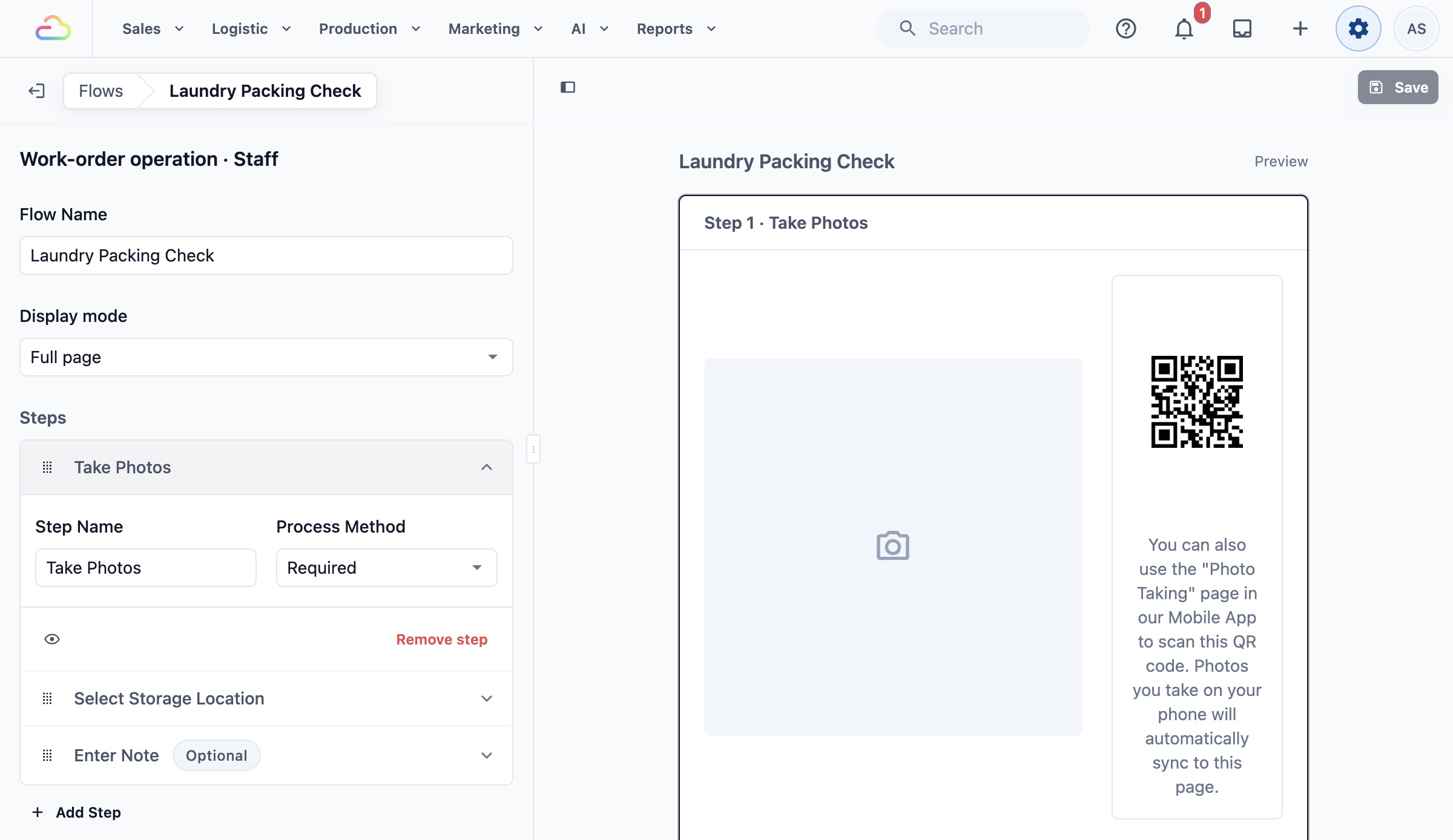
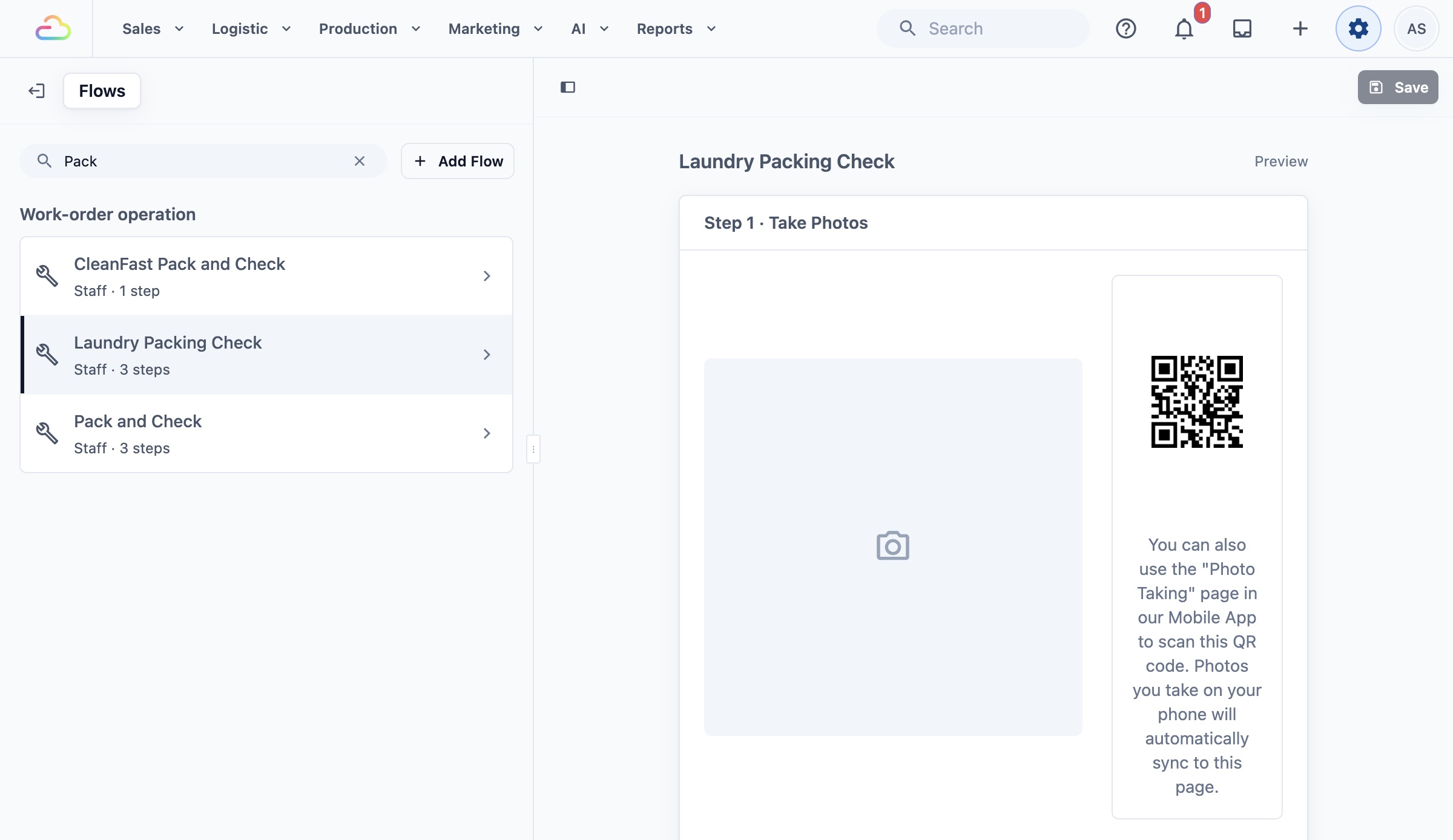
When the steps are in place, click Save at the top of the page. The flow now shows in your Flows list with its number of steps.
Choose the Flow for a Business Unit
- Click the ⚙️ Settings icon in the top-right corner.
- Under the Administration section, click Business Units.
- Click the business unit that should use this flow, for example Laundry.
- Click the Production tab.
- In the Packing Flows section, click Add Line Item Flow and pick your flow.
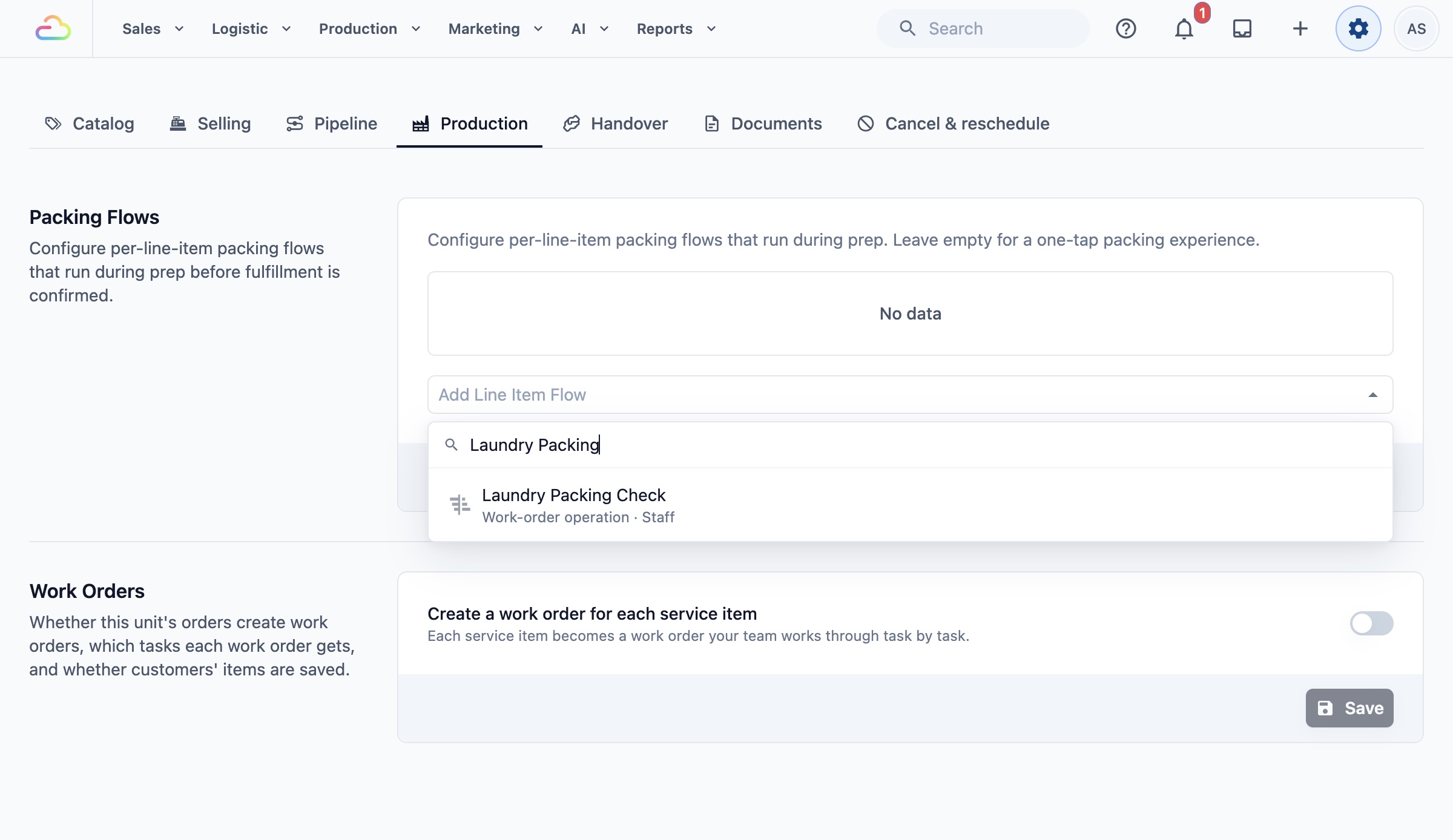
- In the Apply To column, choose which items the flow is for.
- Click Save .
Apply To
| Option | What it does |
|---|---|
| Left empty (All items) | The flow runs for every item in this business unit. It shows as "(default)". |
| All service items | Only items you clean, repair or process for the customer. |
| All retail products | Only products you sell, such as detergent or shoe care kits. |
| Specific units | Only items sold in the units you pick, for example "pcs" or "kg". |
| Specific products | Only the products you pick, for example "Duvet". |
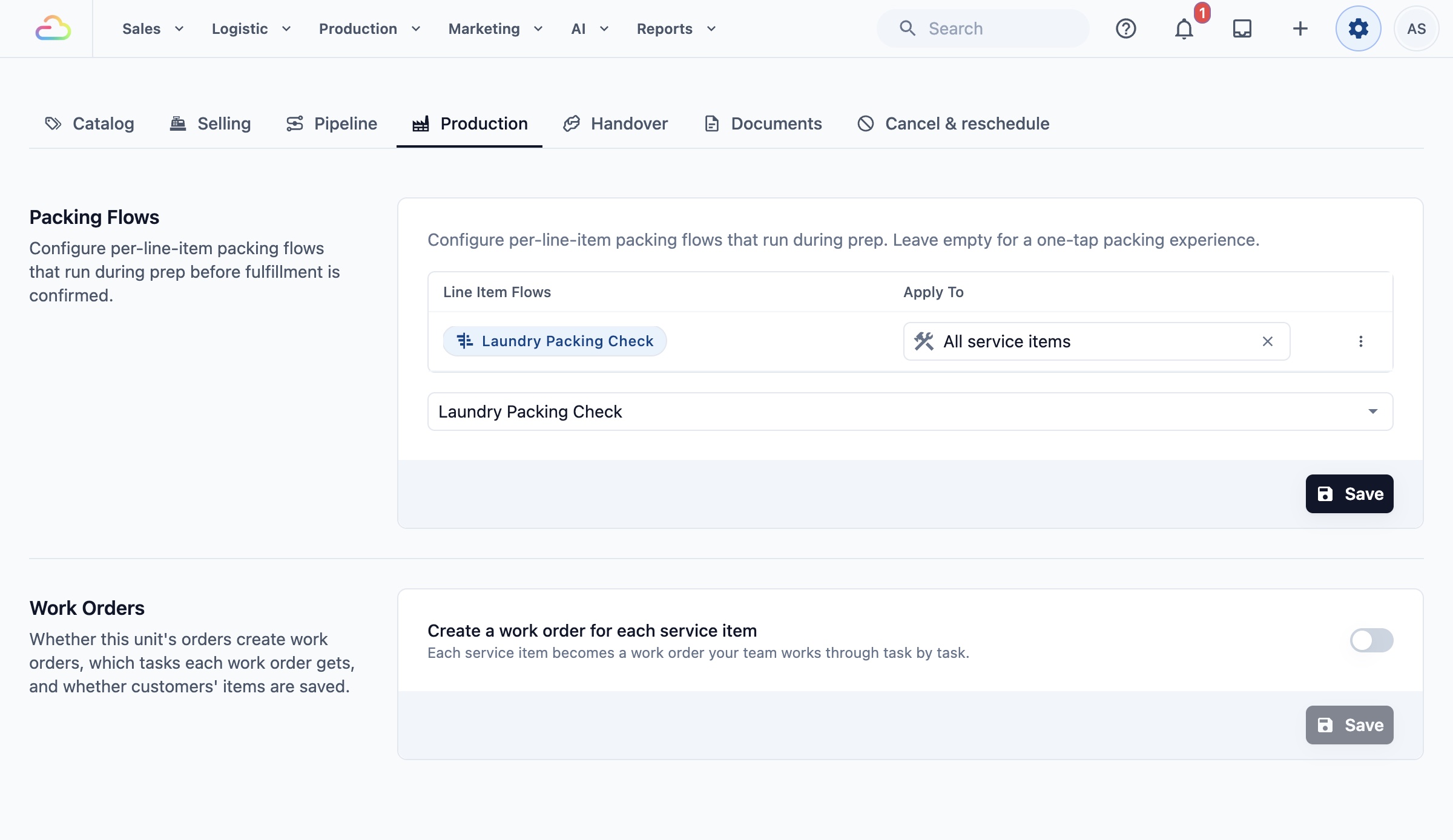
You see the message "Packing flows updated". One flow can be chosen for several business units, so you only build it once. To set up the rest of the Production tab, such as work orders, see Setting Up Packing Flows and Work Orders.
What Your Staff See When Packing
On the Packing screen, your staff open an order and see its items.
- Items with a packing flow show an arrow. Staff tap the item and go through the steps one by one. When the last step is done, the item is packed.
- Items without a packing flow have a tick box. Staff tick them and tap Pack , as before.
- Items still being worked on show "Still in production" and cannot be packed yet.
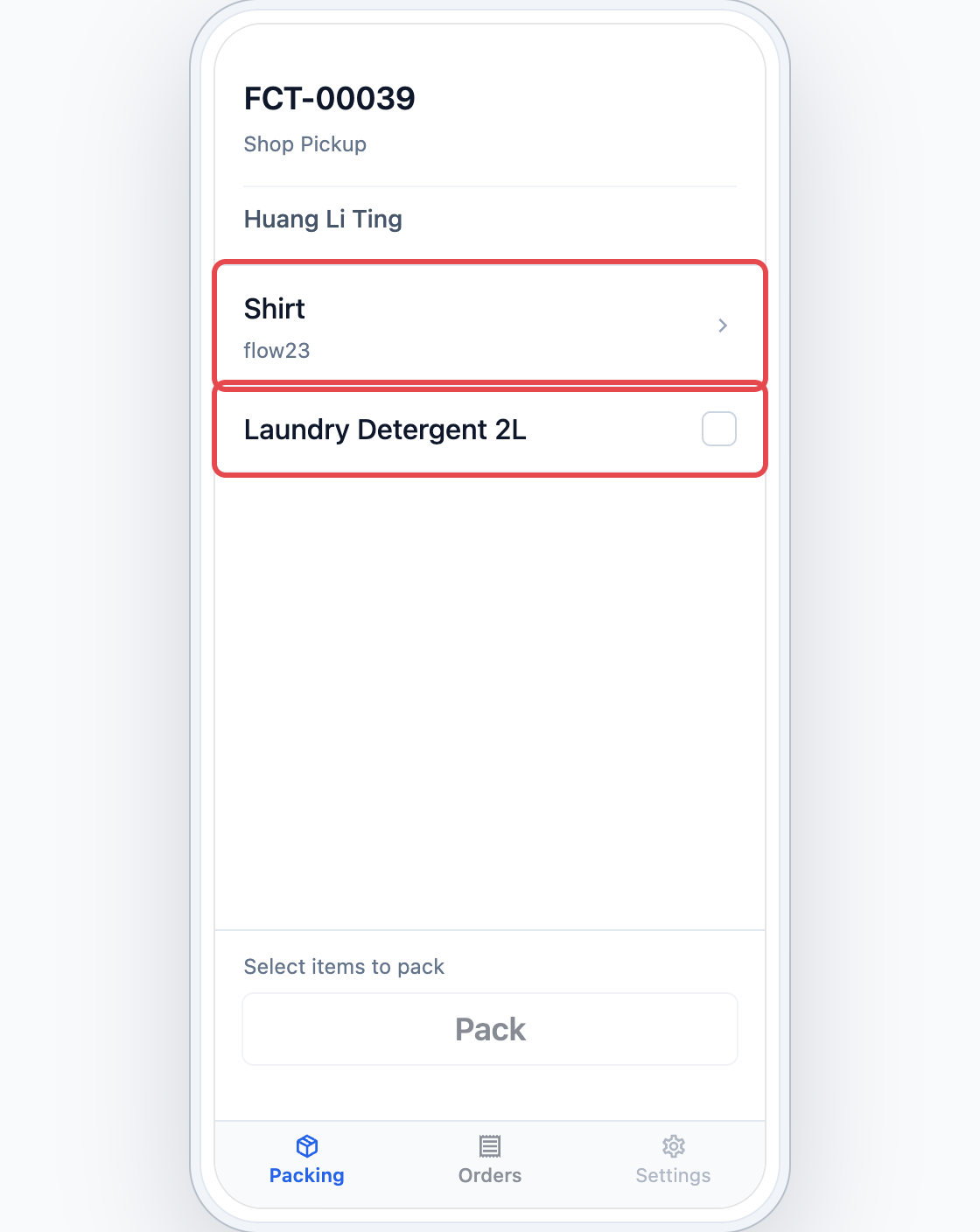
Tap an item with an arrow to open its packing steps.
FAQs
Do I need a packing flow?
No. Without one, staff tick items and tap Pack. A packing flow is worth it if you often get complaints about missing items, or you want photo proof of every packed order.
Will it apply to orders already in the shop?
Yes, for items not yet packed. The flow is used the next time staff pack an item, so orders taken before you saved it get the checklist too. Items already packed are not changed.
I'm moving from the older version. Do my old packing steps carry over?
Check the Packing Flows section of each business unit after you move. If it is empty, staff get one-tap packing until you build and choose a flow here.
If I edit the flow's steps later, do I need to choose it again?
No. The business unit keeps using the same flow, and staff see your new steps the next time they pack.
Does a packing flow change pickup or delivery?
No. It only covers packing. The steps staff or drivers do when the customer collects or receives the order are set separately for each business unit.
What's Next
You have built a packing checklist and chosen it for your business units, so every order is packed the same way. Next, set up the checklist your staff complete when the shop closes for the day in Setting Up the Close of Day Flow.