
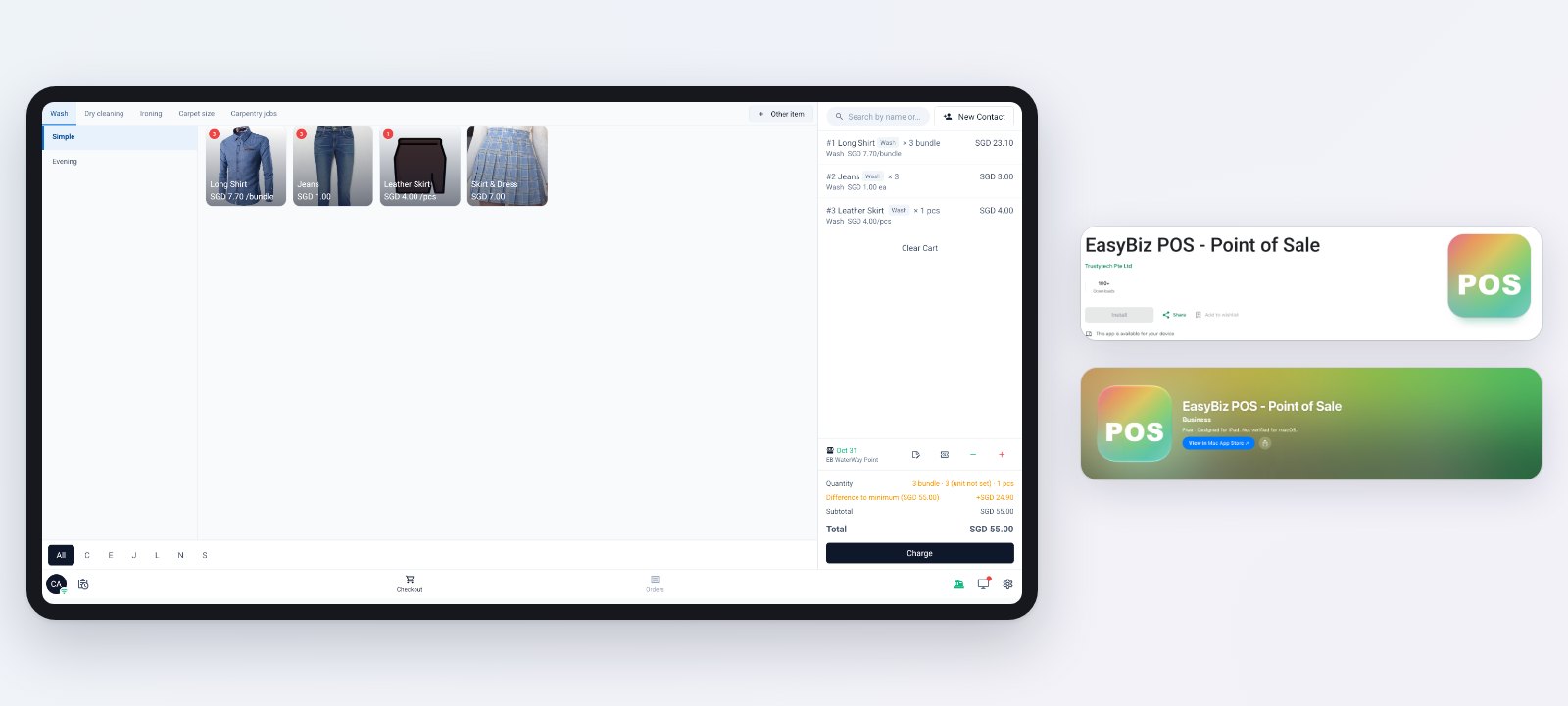
This week the EasyBiz POS app arrives on Google Play and the App Store, and the settings for your receipts, labels, PDF invoices, emails and cards get simpler, with a live preview beside them.
The EasyBiz POS app, on Google Play and the App Store
Until now, most counters ran the POS as a web page in a browser (POS Web). EasyBiz POS is now also a real app that you install from Google Play or the App Store, like any other app. Search for EasyBiz POS, install it on your counter tablet and open it from the home screen. It's faster than the POS in a browser.
When the app opens, it asks how the device is used. Main POS is the counter, where staff take orders and payments and print receipts and labels; it needs an iPad or an Android tablet of 10 inches or more. Paired device works next to the main POS, as a screen facing customers for their signature, or as a staff phone for photos, Send out and Receive.
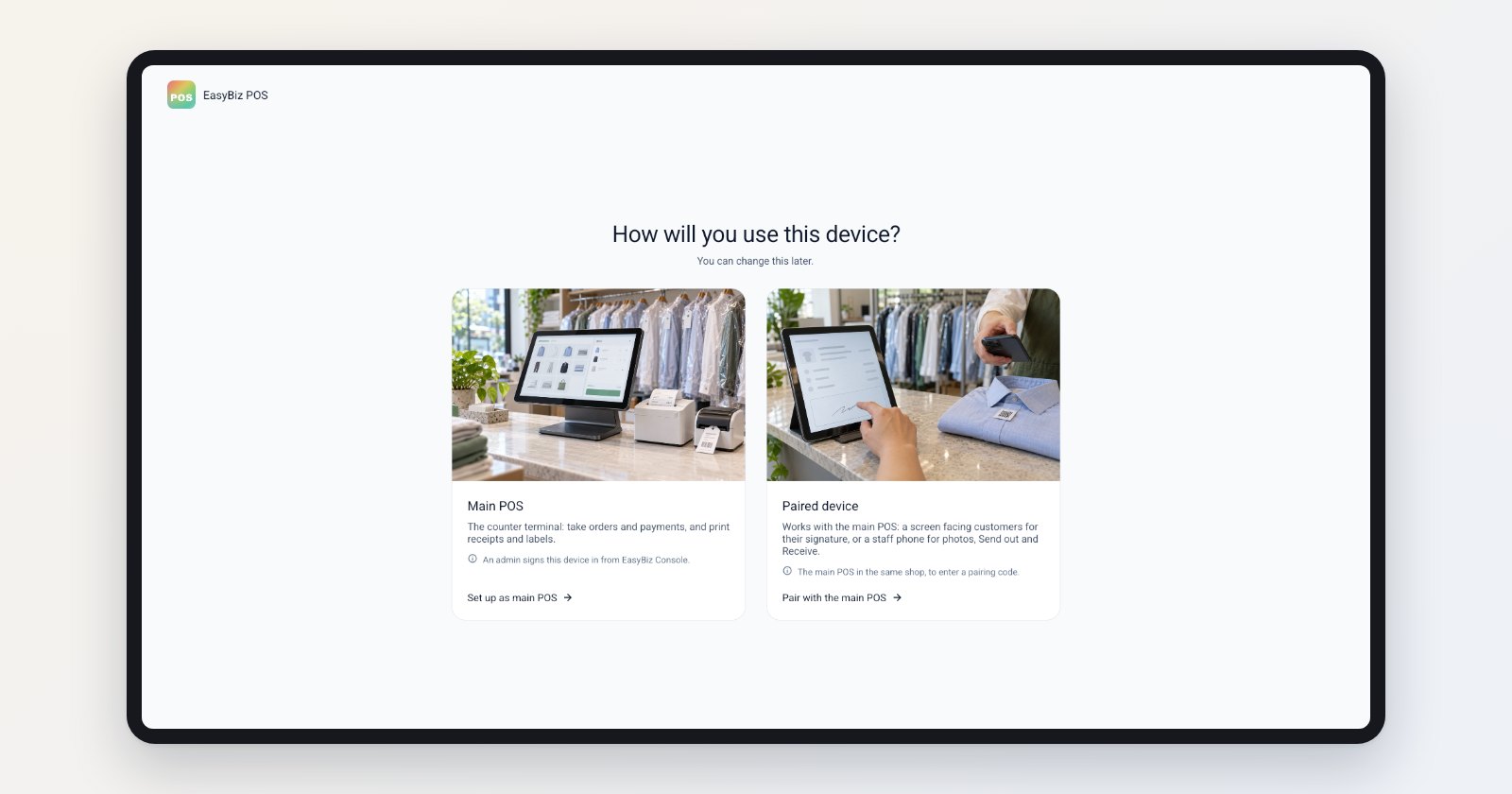
Choose Main POS for the counter, or Paired device for a customer screen or a staff phone.
Tap Set up as main POS, and the app shows an 8-character code. In the Console, go to Settings › Point of Sale › Sign in to a shop POS, choose the shop and the POS app, type the code and click Sign in. There's no email or password on the POS. Sign in to your POS has the full steps.
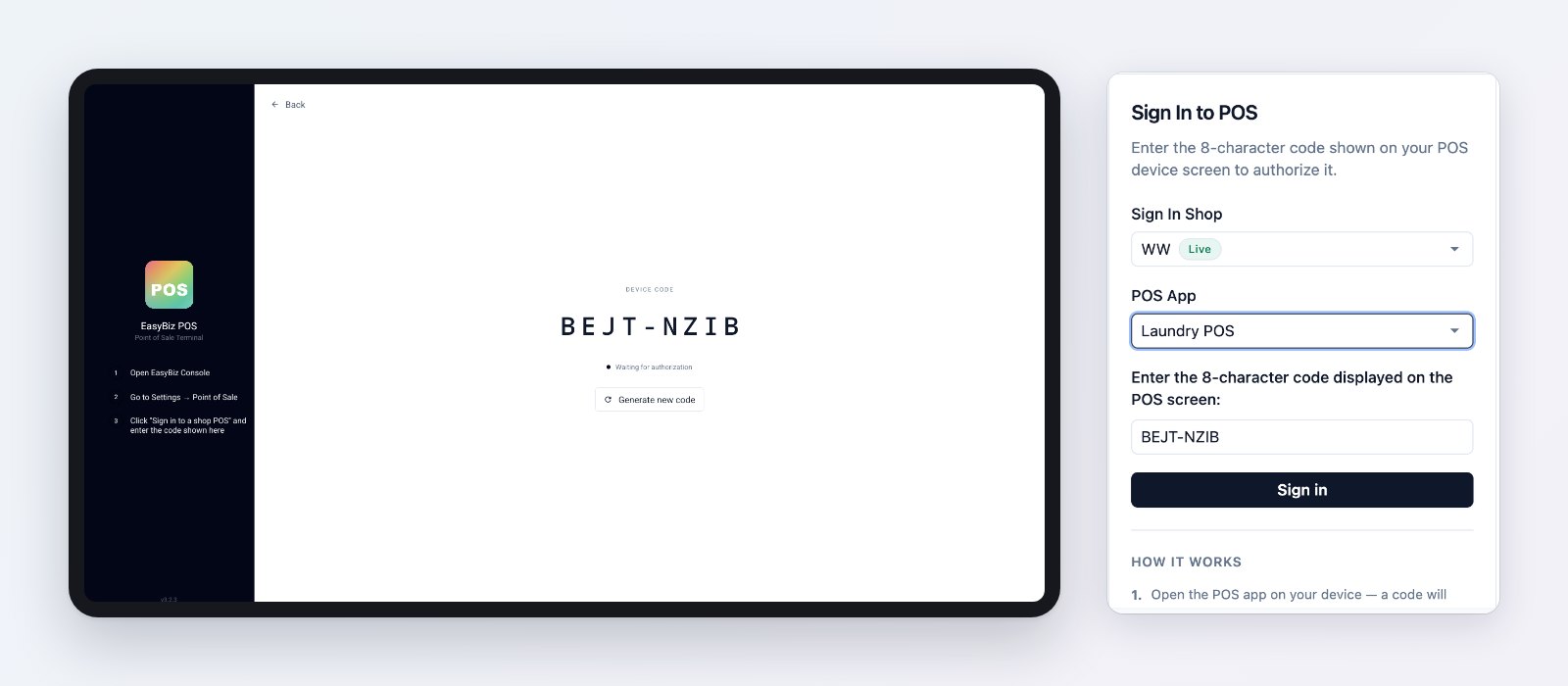
The app shows a code; type it in the Console to sign the counter in.
The app runs the same POS you already set up in the Console: the same checkout, business units, prices, payment methods and receipts as POS Web. Change something once in Settings › Point of Sale, and every counter follows, on the app or on POS Web. The app's Settings shows which POS app the counter runs, and connects your receipt and label printers.
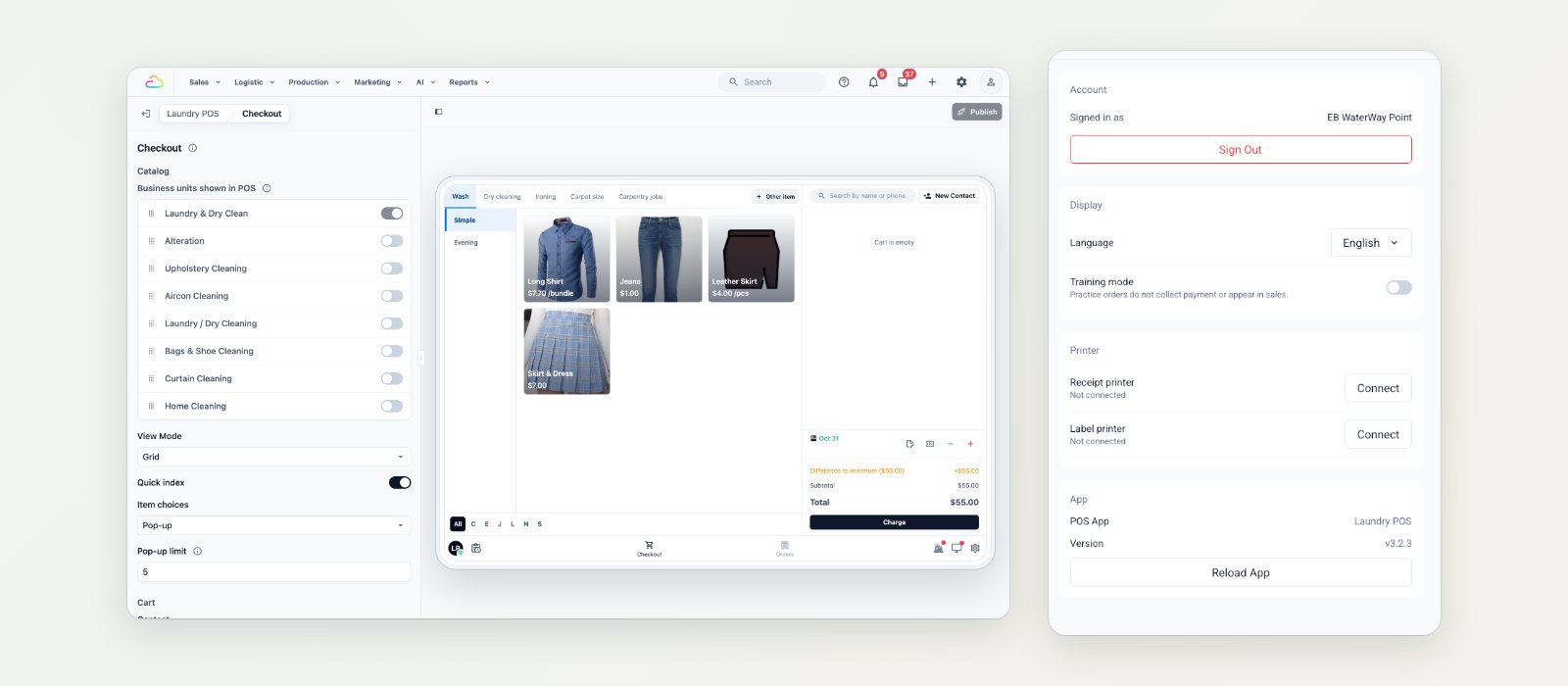
Set it up once in the Console. The app's Settings shows the POS app it runs and connects your printers.
Simpler settings, with a live preview
Receipts, labels, PDF invoices, emails and cards in Settings › Library now open as a short list of plain settings, with a live preview beside them. Change a setting and the preview shows the result straight away.
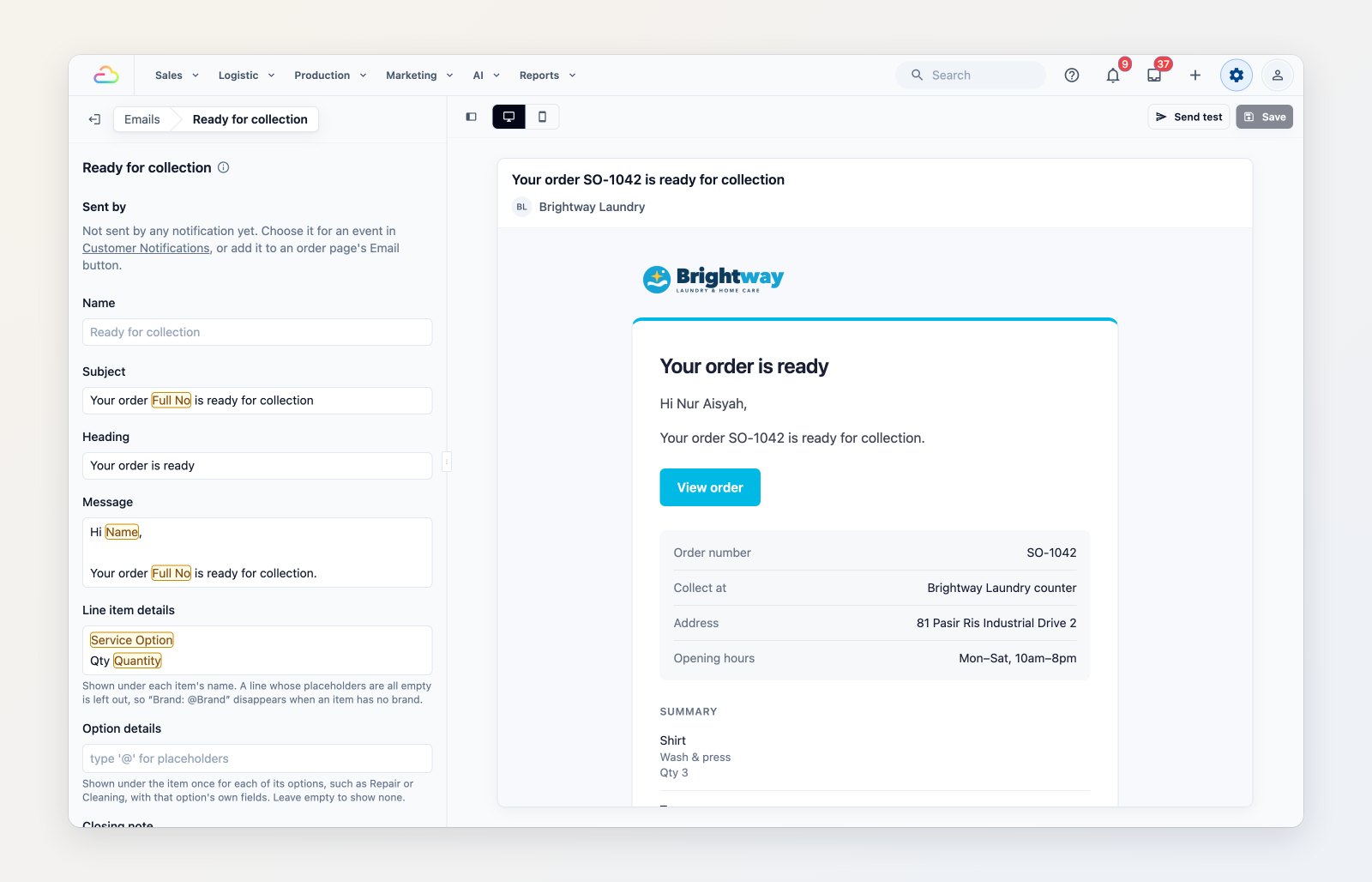
Write an email's subject, heading and message, and see the email as your customer will.
- Receipts: print your logo or not, choose the paper width, and choose what prints at the top, in the details, items, totals and bottom. Preview it with a sample order or one of your own, and print a test.
- Labels: set the label size in millimetres, the title and detail lines, whether to print a QR code, and how dates print.
- PDF invoices and receipts: your logo, the title, the invoice number, the due date and the Bill to.
- Emails: the subject, heading and message, seen on a computer or a phone. Send yourself a test before customers get it.
- Cards: the cards on your order lists, cart, work orders and tasks, with where each one is used.
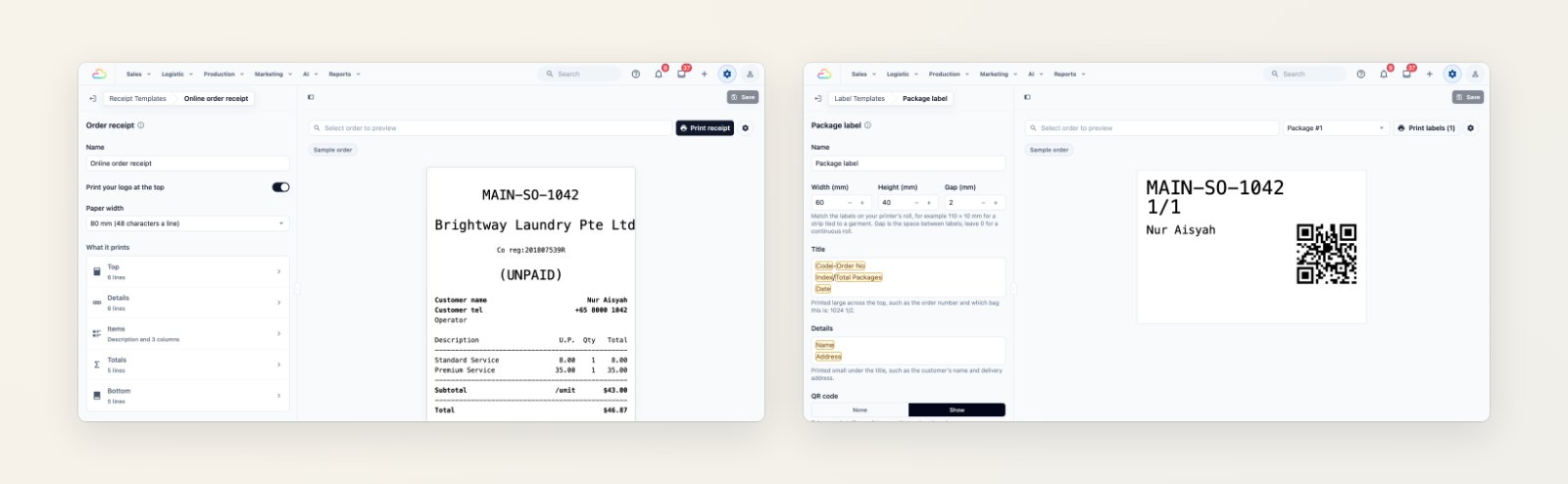
Receipts and labels: plain settings on the left, the printout on the right.
To learn more, see Setting up your order receipt, Setting up your package labels, Setting up your invoice and order PDFs and Setting up your customer emails.
Coming next week
New settings for the EasyBiz Mobile App, your team's staff app, arrive next week.